As the form owner, you have full control over all your form submissions. Whether you’re collecting feedback, registrations, or orders, you can easily keep track of everything in one place. If your app includes multiple forms, you don’t have to jump between them—you can view all their submissions together from a single table for a more streamlined experience.
There are a few different ways to view your app submissions, depending on what works best for you. Here’s how you can do it:
Product Navigation
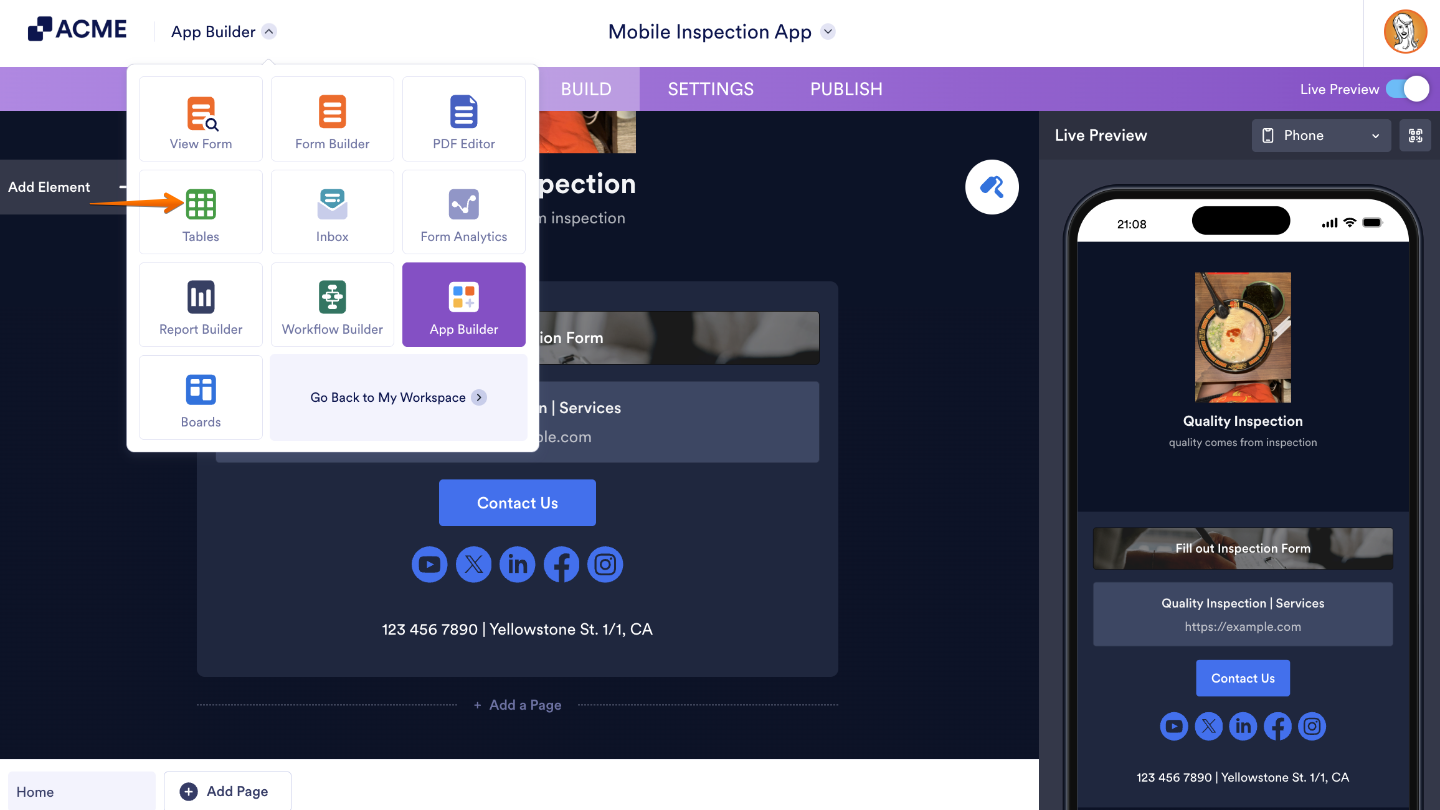
While you’re in the App Builder, head up to the top of the page and click the dropdown menu next to the logo. From there, select Tables, this will take you straight to where your app submissions are stored.
Workspace Page
Navigating your Workspace page is simple and intuitive. This is where you can access all your app submissions in just a few clicks. Here’s a quick how-to:
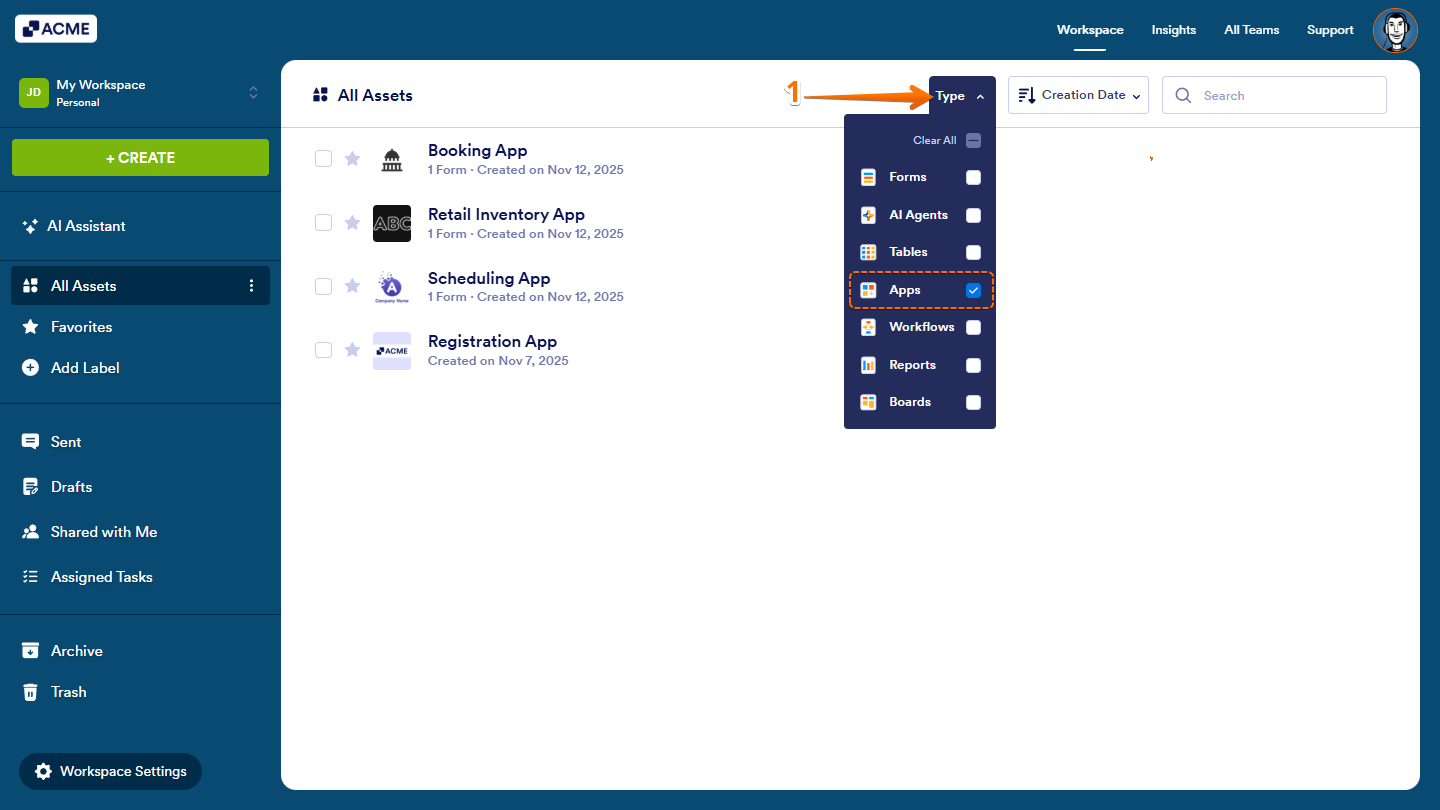
- On your Workspace page, click on Type at the top and in the Dropdown menu that opens, uncheck the boxes next to all the assets except Apps, so only they’ll be shown on the page.
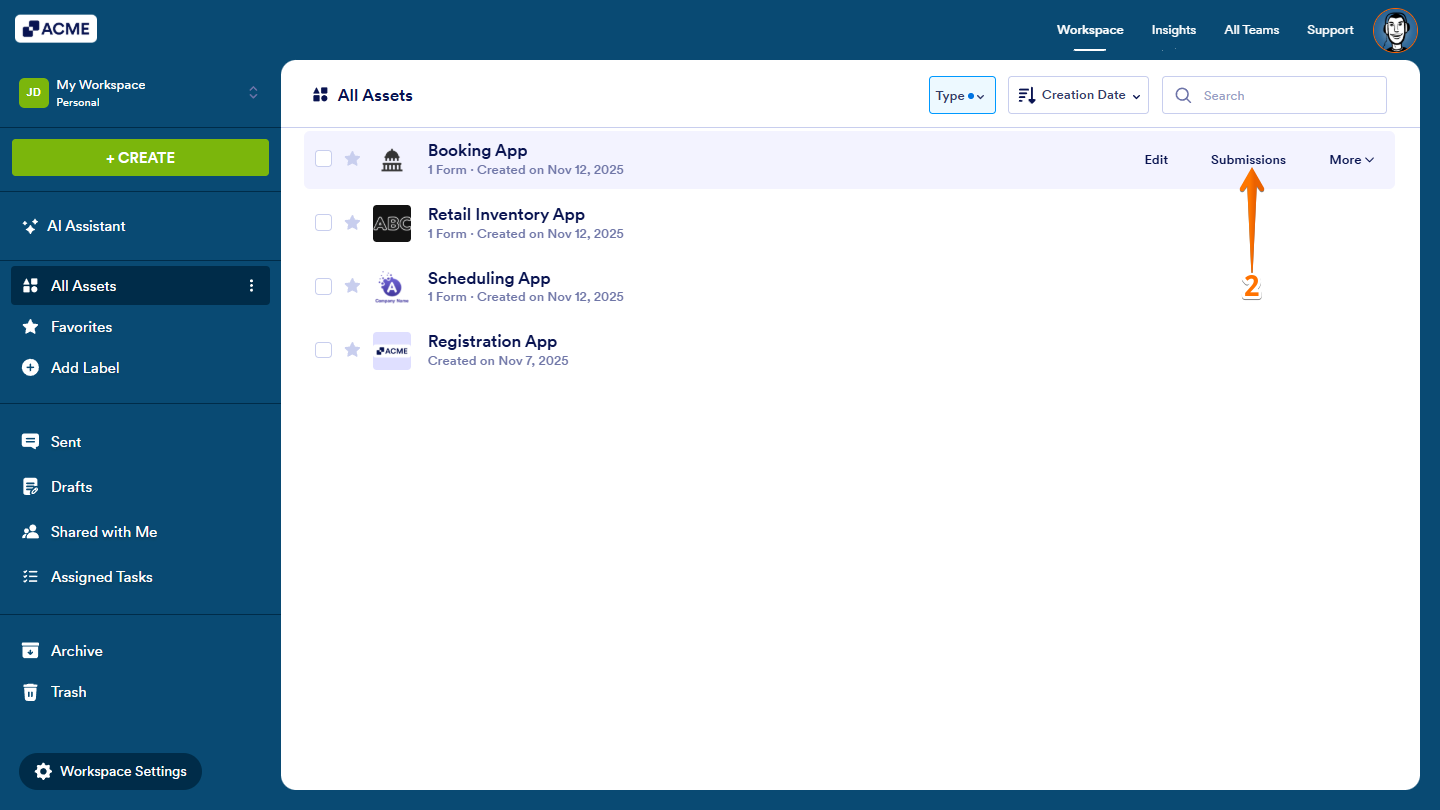
- Now, hover your mouse over the App you want to manage, and click on Submissions on the right side of the page.
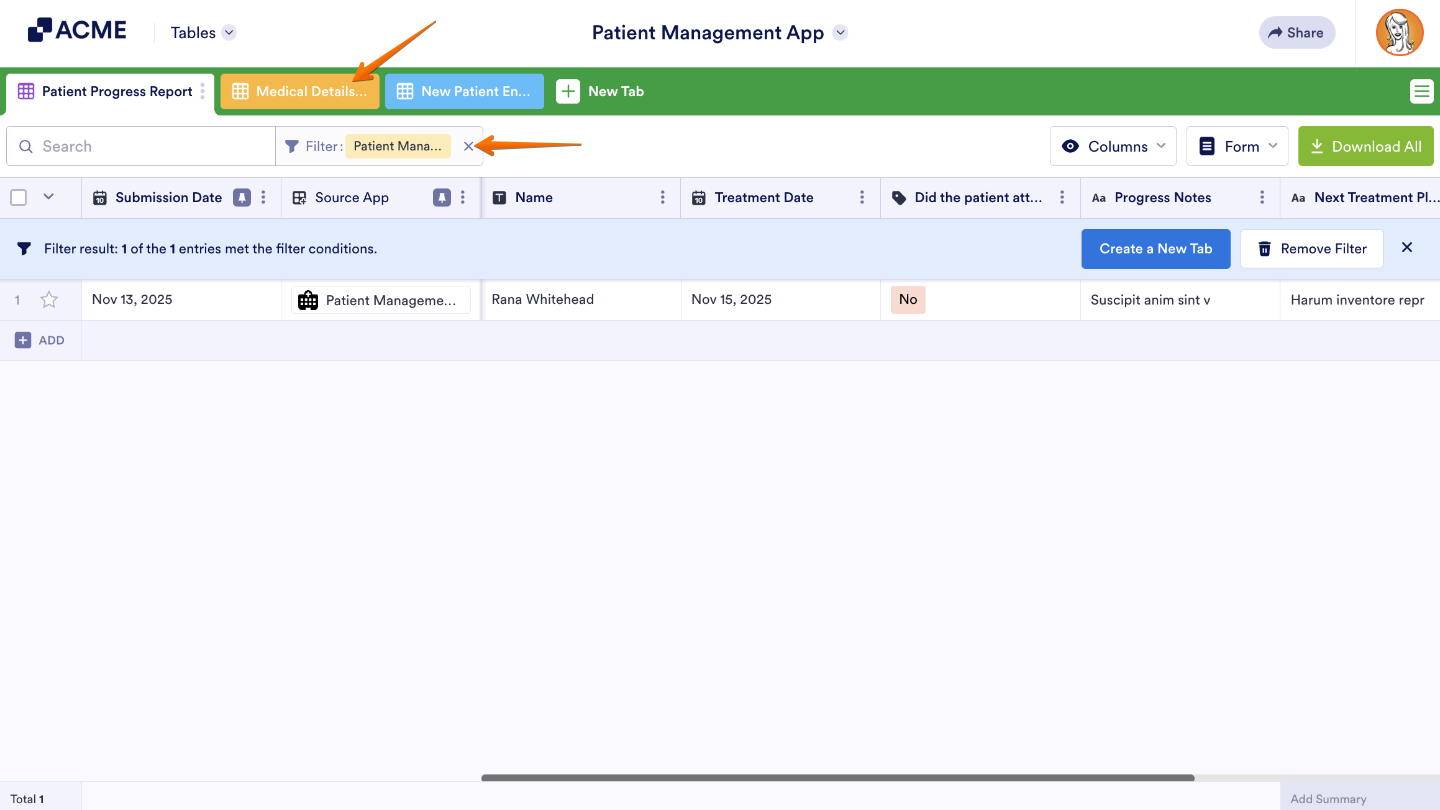
Tables has a special mode that lets you view all the submissions collected through your app in one convenient place. It’s a simple and organized way to keep track of everything your users have shared with you:
- Displays a separate tab for each form included in your app, making it easy to switch between them.
- Automatically applies a filter to show only the submissions that came from your app, as indicated in the Source App column.
- Creates a new tab whenever you add a new form to your app, so your data stays organized without any extra effort.

Send Comment: