Smart Labels are AI-generated suggestions designed to help you organize your assets quickly and efficiently. Instead of manually creating and assigning tags one by one, you can prompt the AI to analyze your existing assets, detect underlying patterns, and propose an organized label structure.
Generating Smart Labels
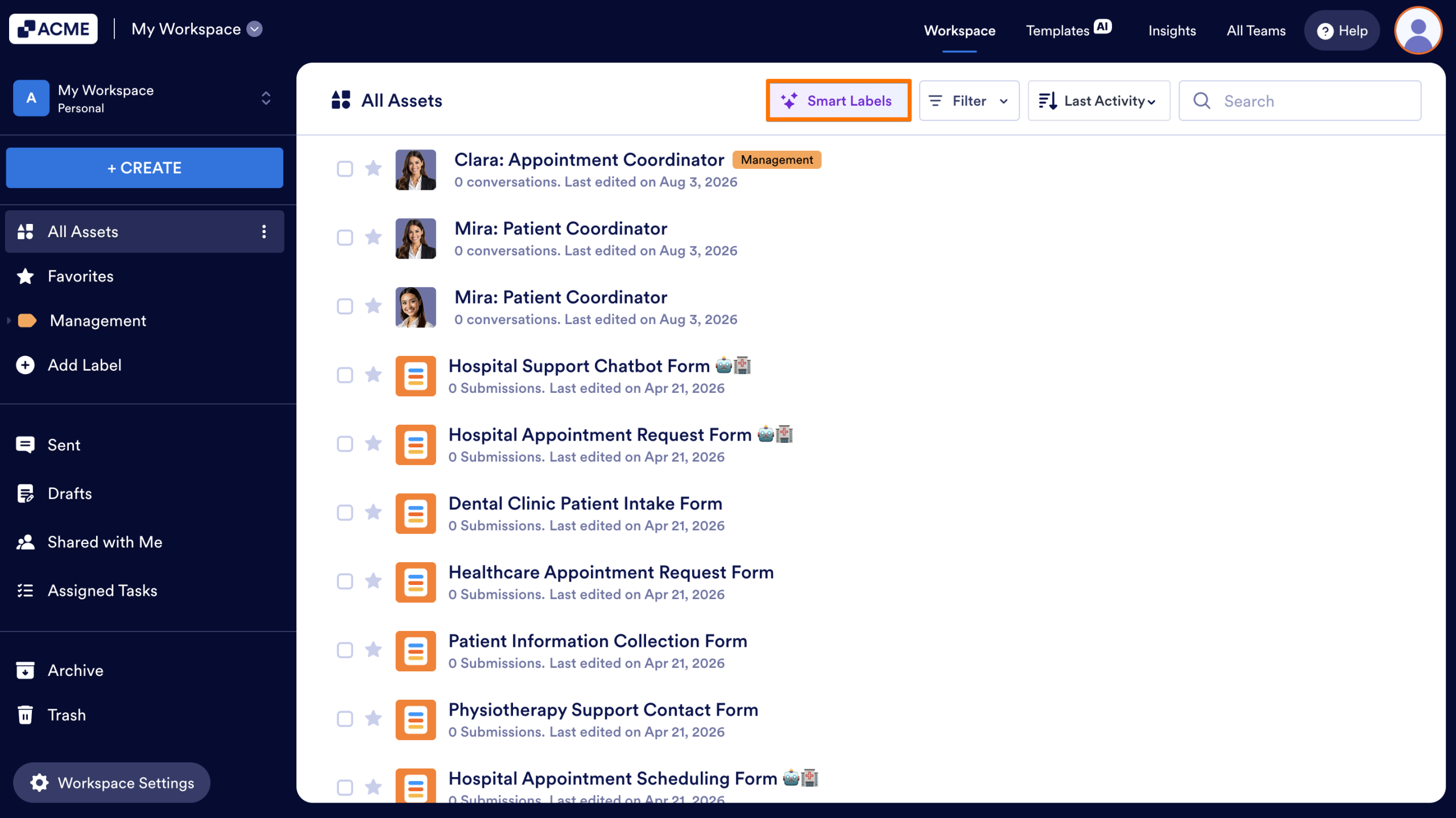
- In your Workspace, click on the Smart Labels button to the left of Filter.
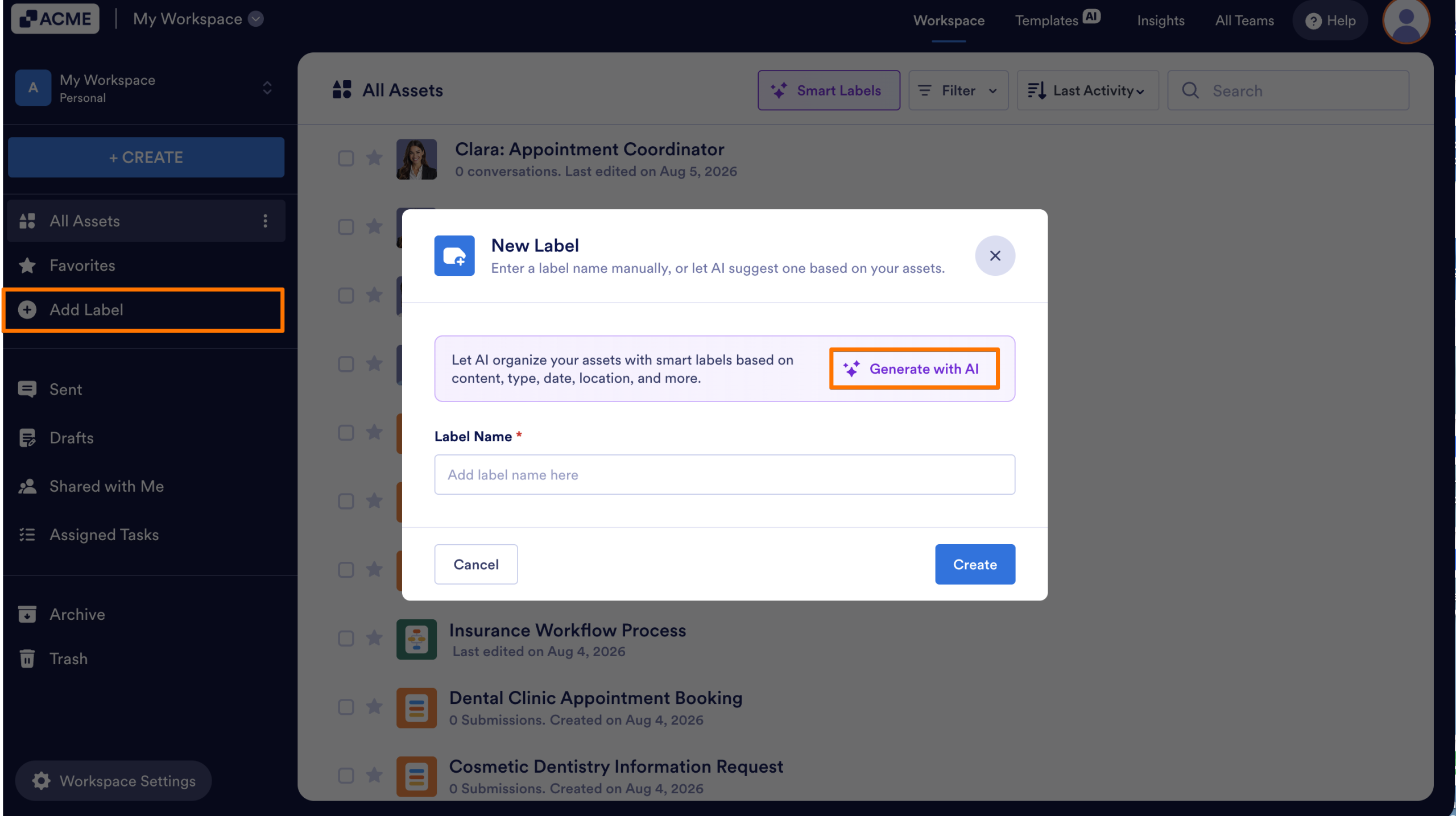
- You can also click on the Add Label button on the left menu.
- Then, select Generate with AI and the AI will begin analyzing your assets.
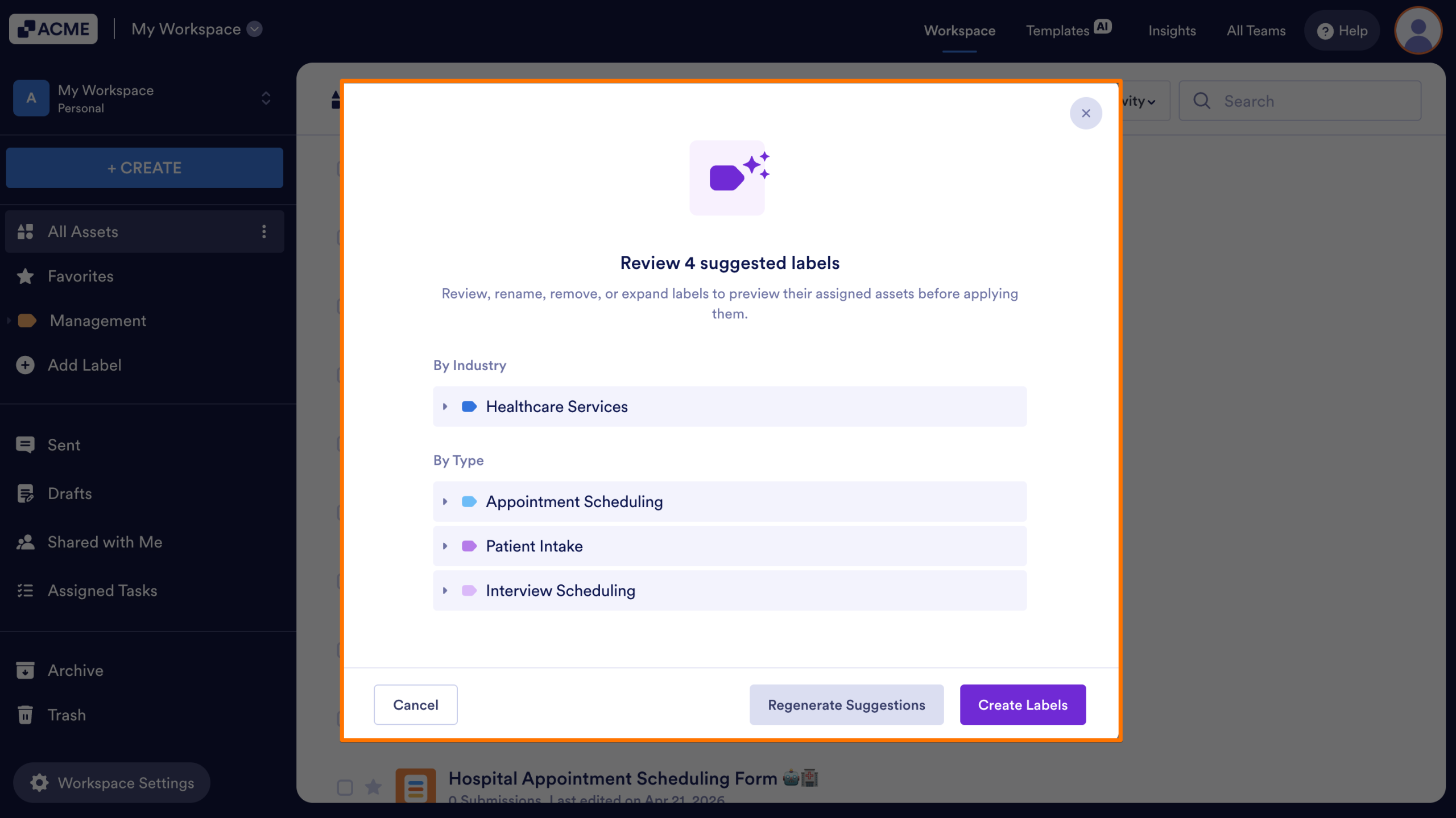
- Once the analysis finishes, a pop up window will open with categorized recommendations.
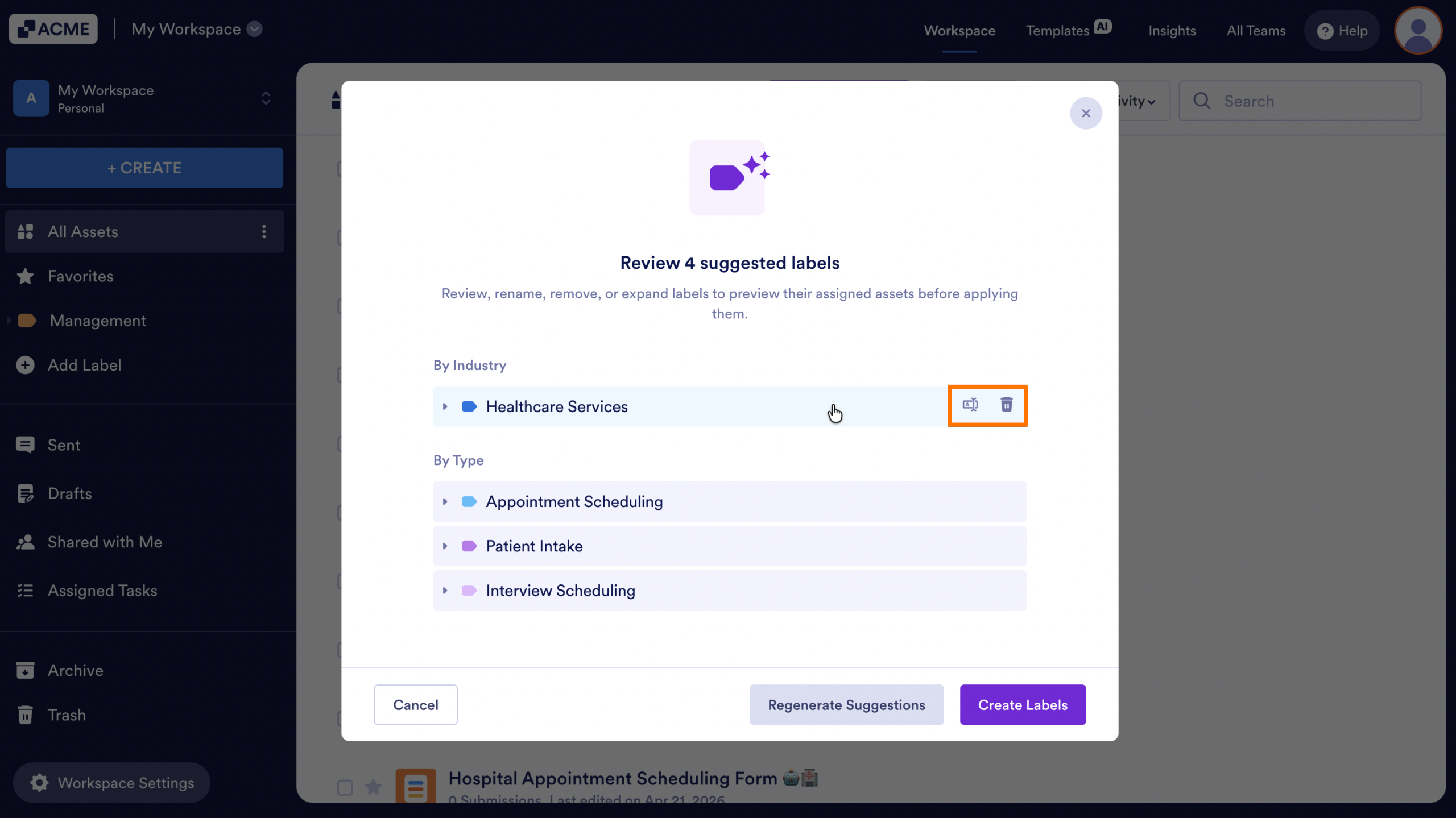
- You can rename or delete a label by hovering over the name and selecting the icon for either action.
- If you are not happy with the results, click on the Regenerate Suggestions button to get new recommendations.
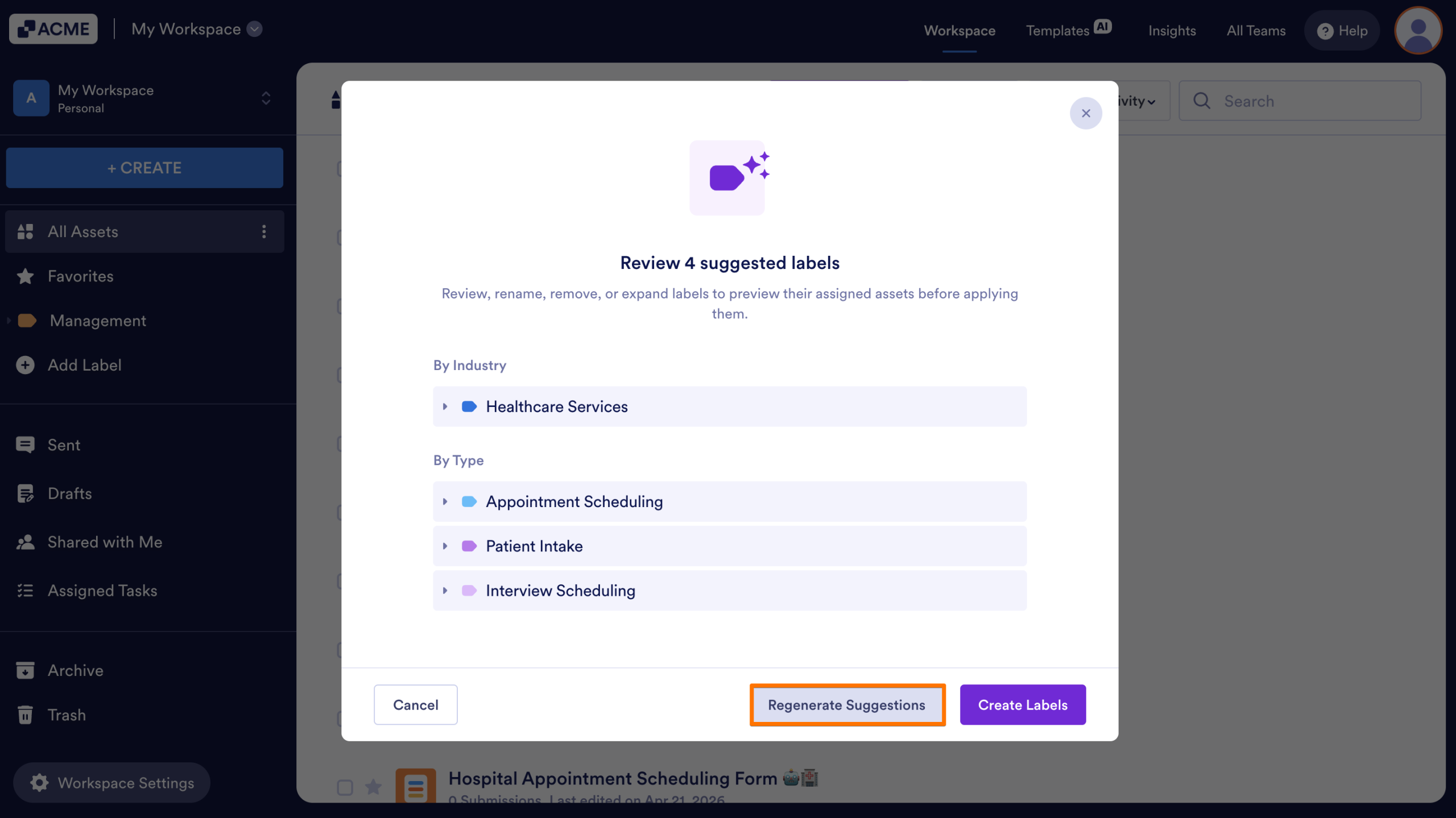
- Finally, when you are happy with the recommendations, click on the Create Labels button at the bottom right to save your labels.
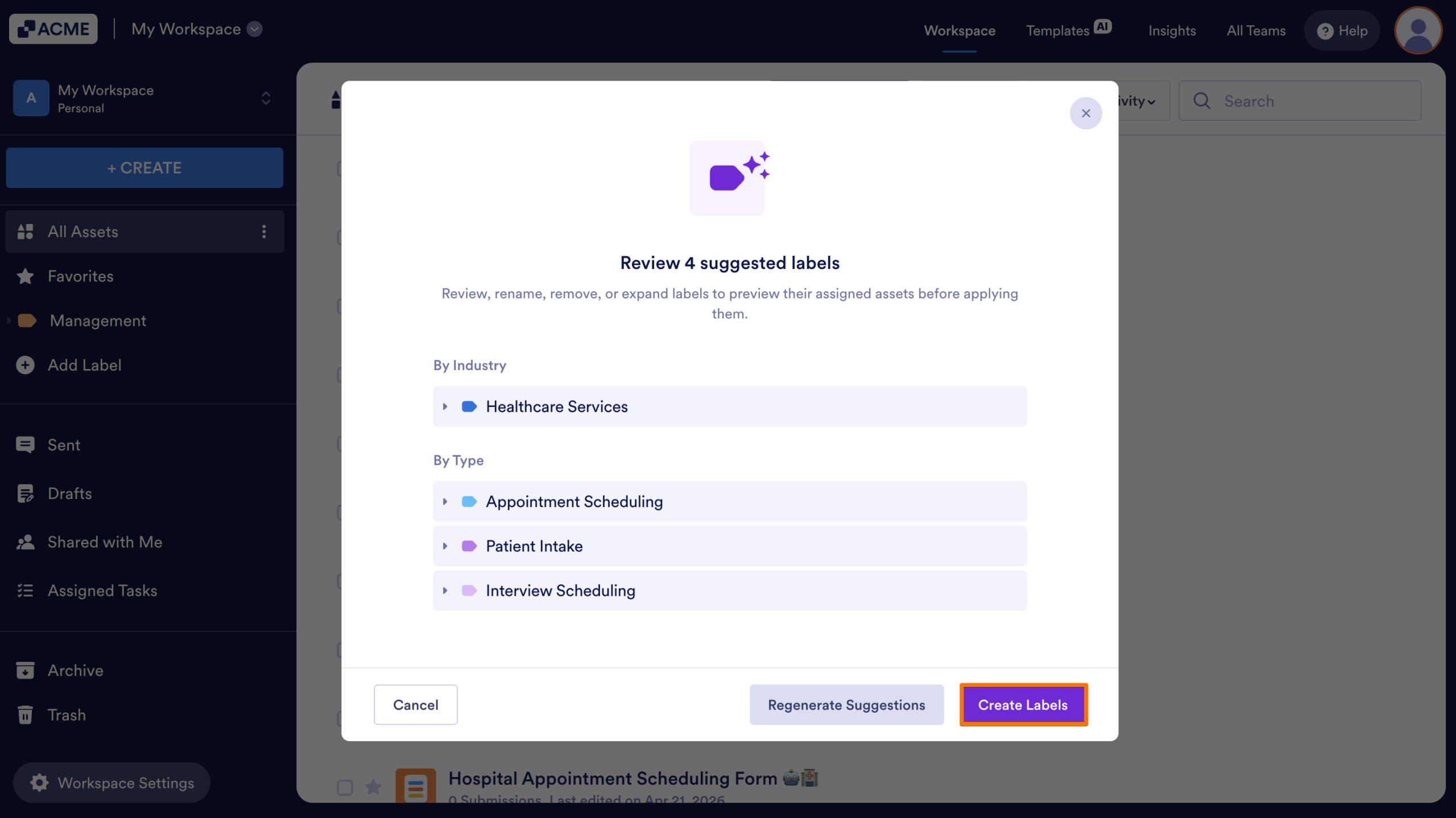
Once created, AI-generated labels will appear in the left-hand menu. You can distinguish them from regular labels by their sparkle icon.
Managing Labels
You can easily remove existing labels from your workspace whenever your organizational needs change. Removing a label will unassign it, but your assets won’t be deleted or changed.
How to Delete Labels
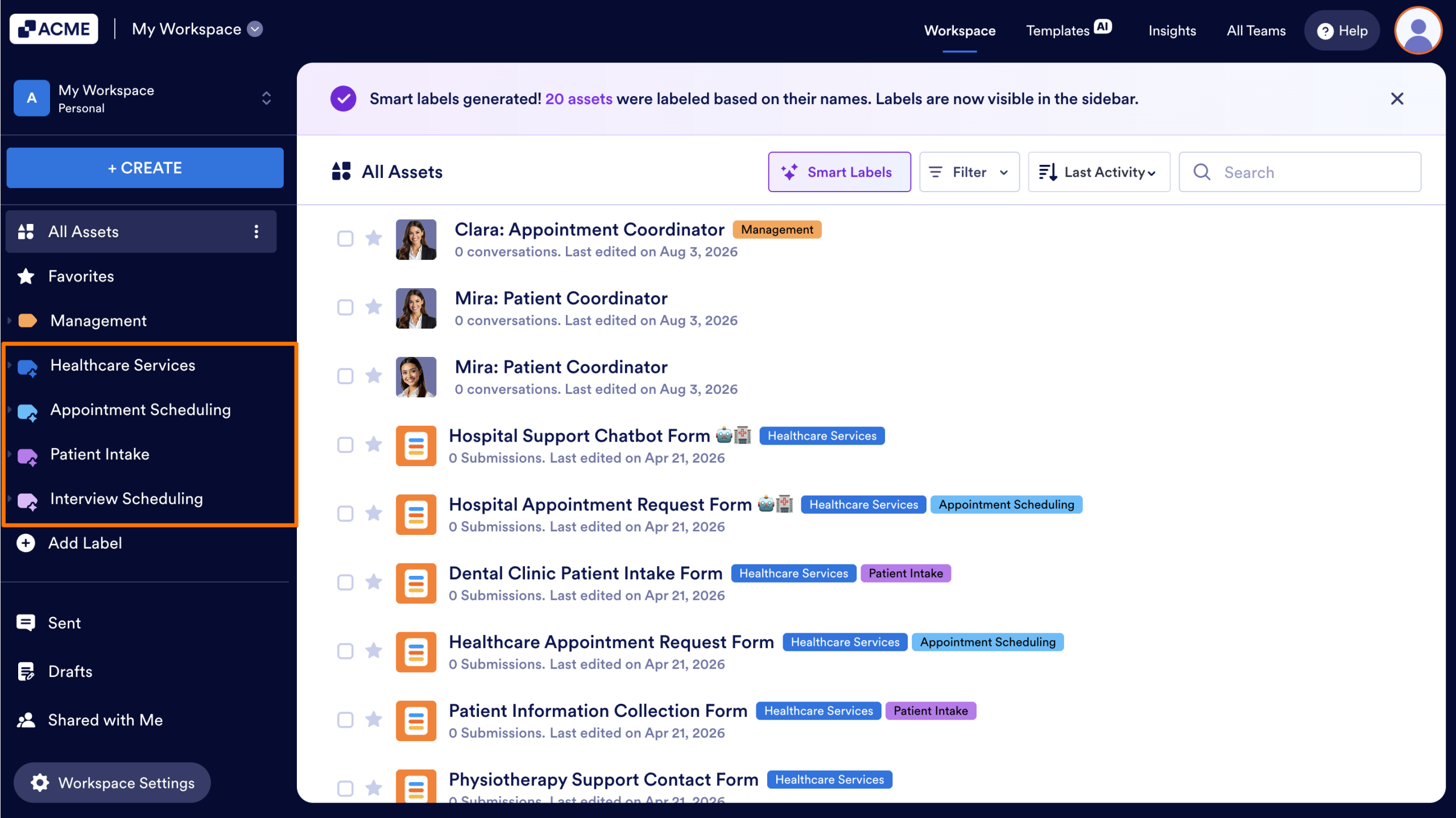
- In the left-hand sidebar, click the Three Dots icon located to the right of All Assets.
- Select Manage Labels from the menu.
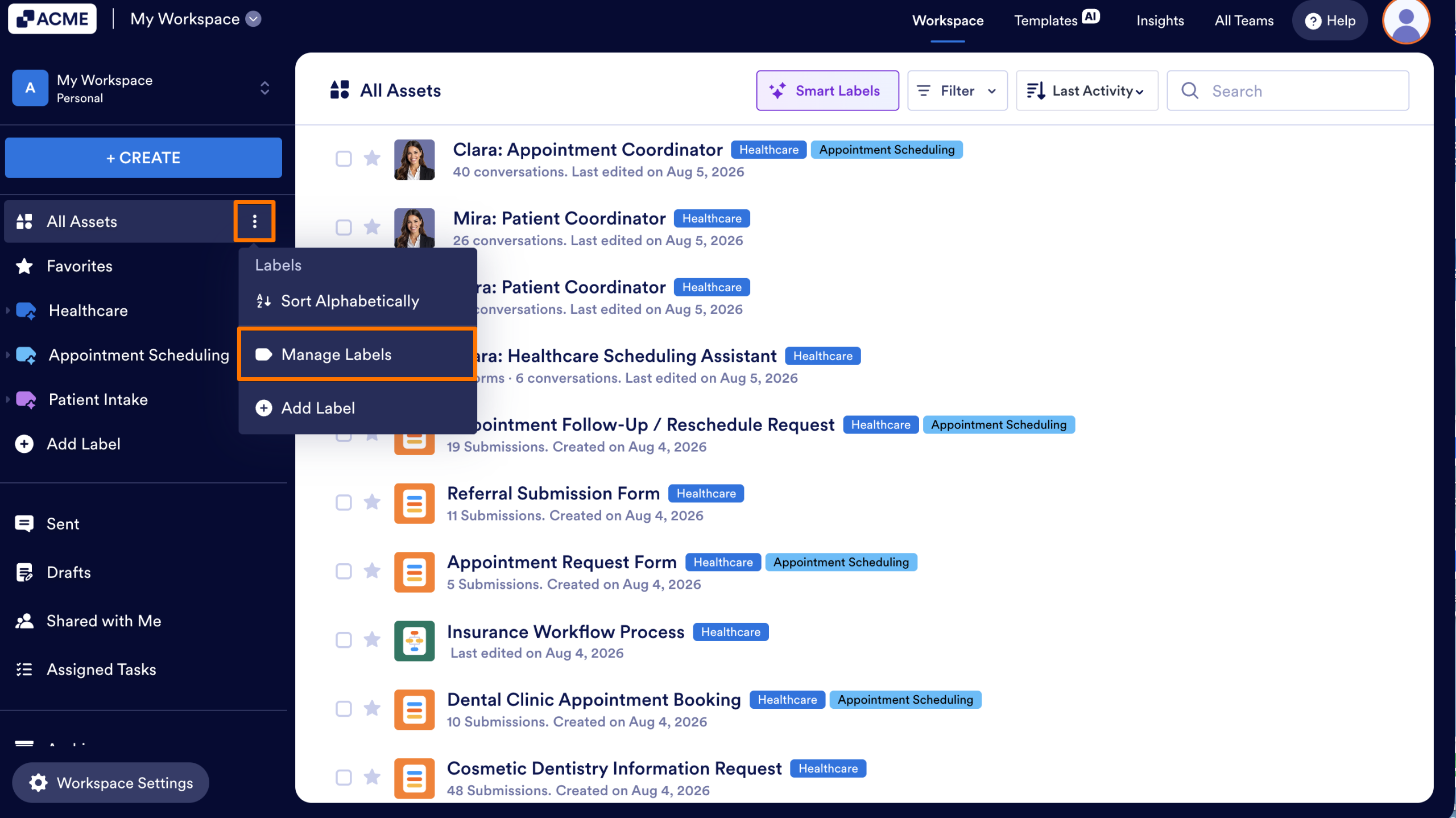
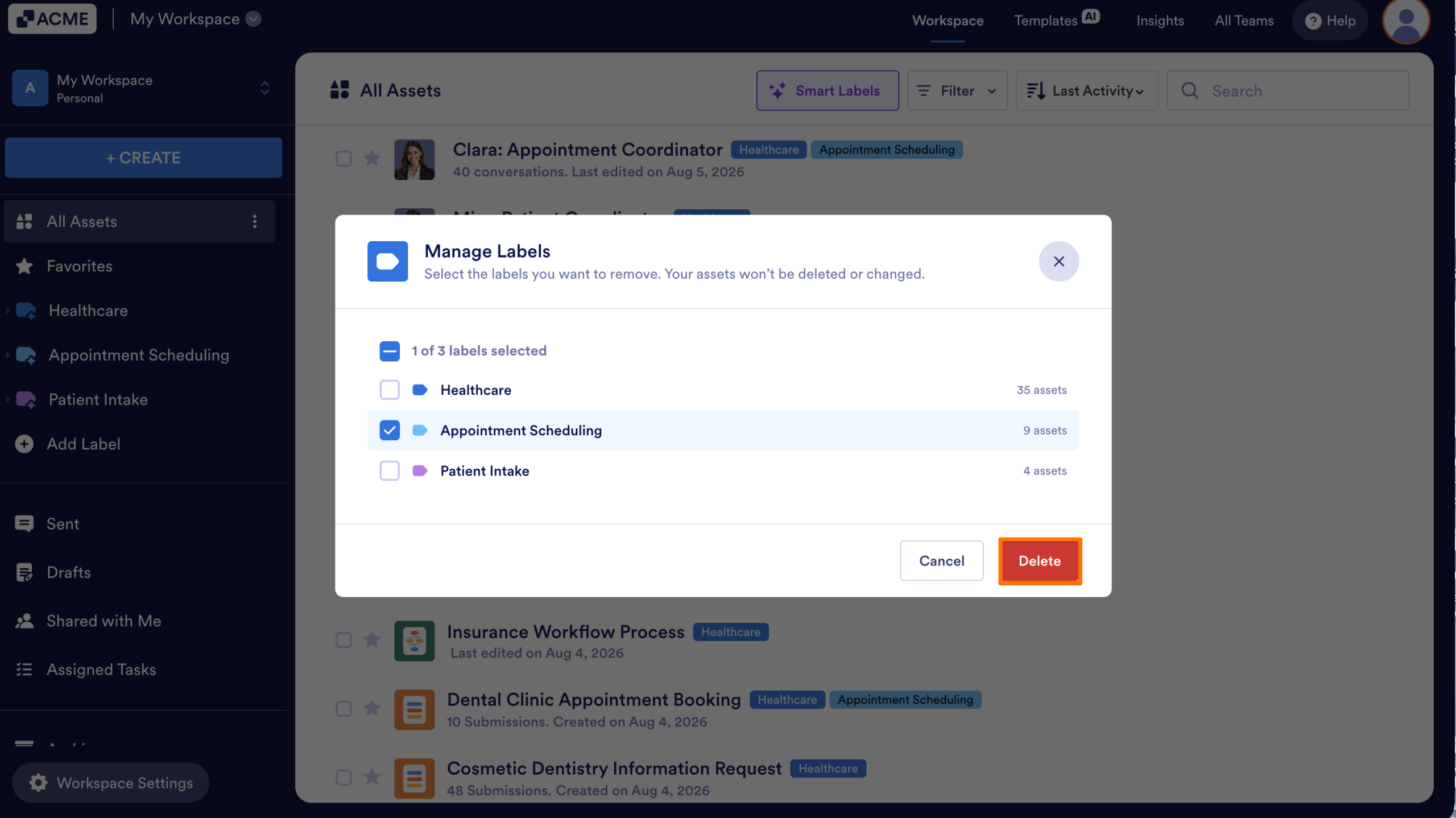
- In the pop-up window, select the checkboxes next to the labels you want to remove.
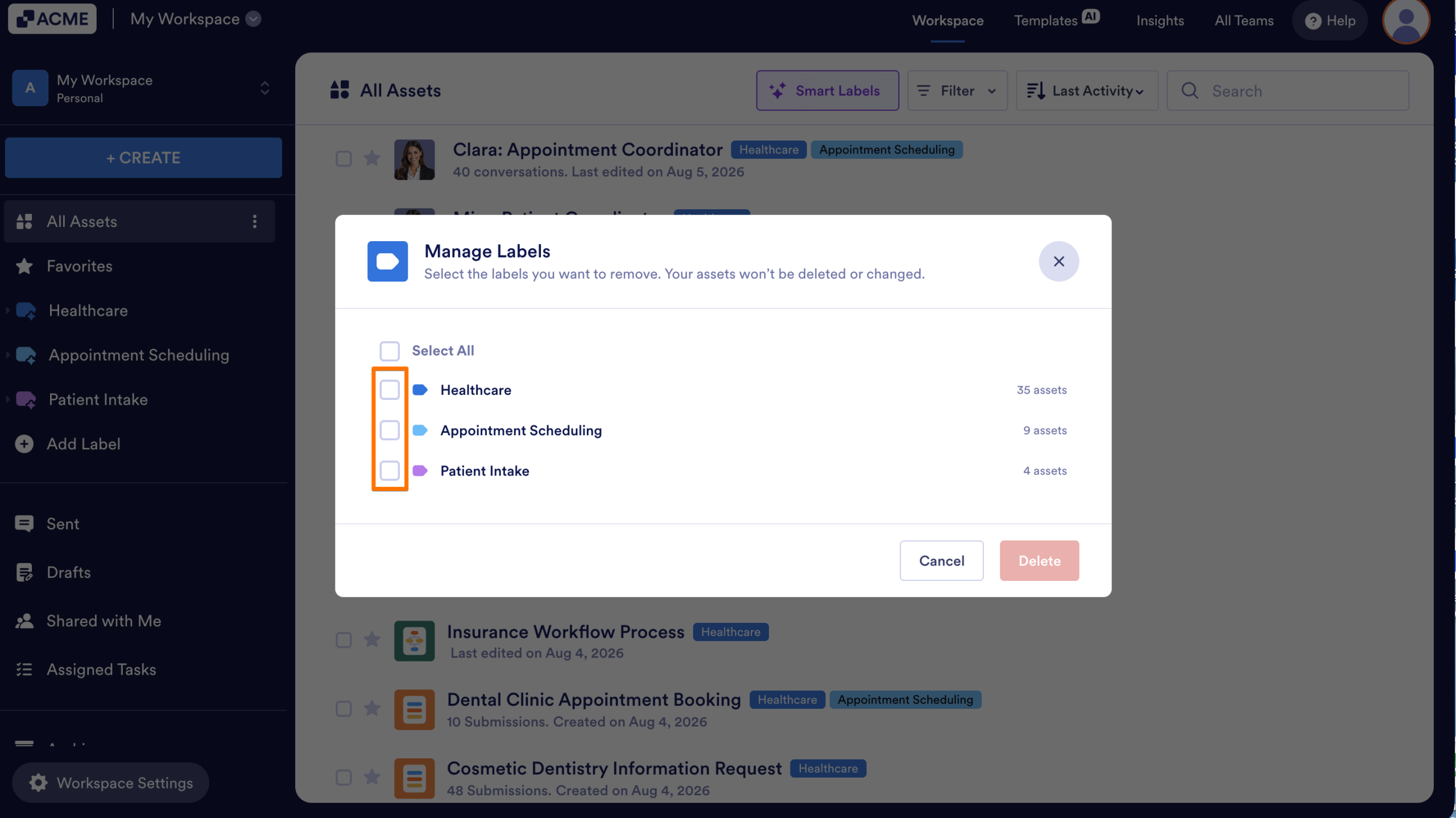
Tip
Check Select All at the top to clear all labels at once.
- Click the Delete button in the bottom-right corner to finalize your selection.
See also:

Send Comment: