


Google Maps Widget for your website
Add an interactive Google Map to your site so visitors can find your stores, offices, venues, or service areas faster. Show each location with contact details, hours, photos, categories, and directions links from one responsive widget.
How to add a Google Maps widget
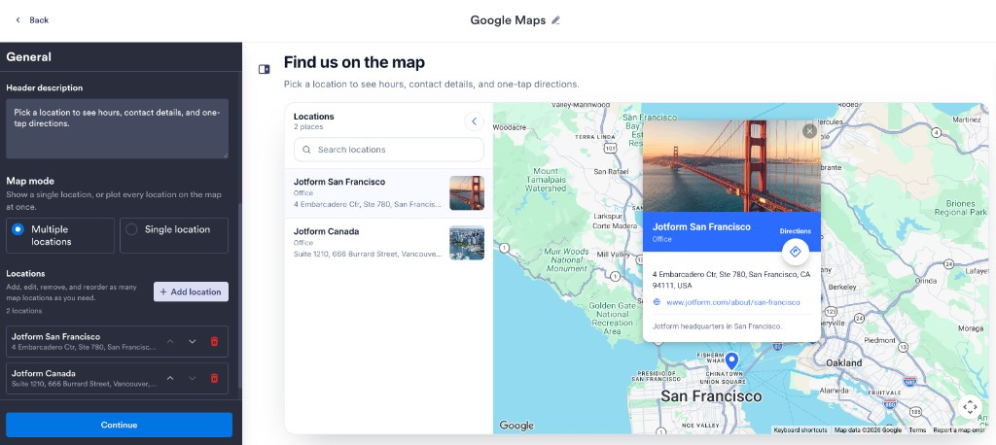
Add your locations
Enter addresses, names, phone numbers, hours, categories, descriptions, ratings, and optional location images.
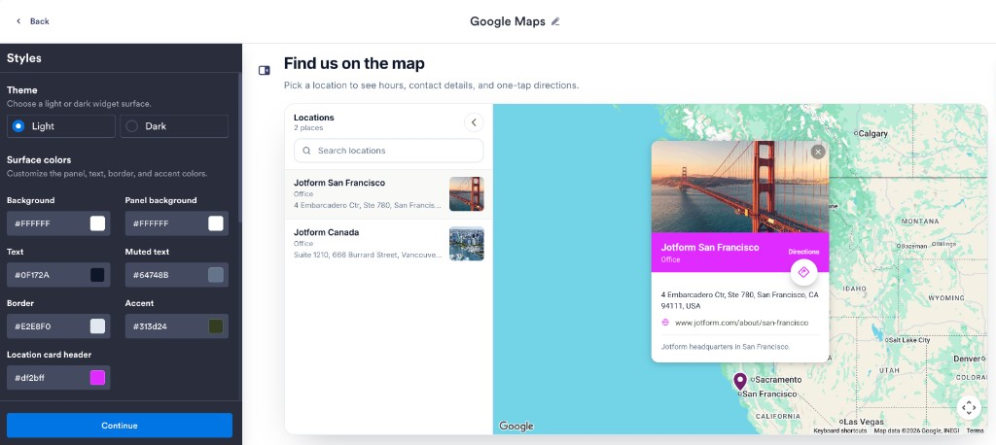
Customize the map
Choose single or multiple location mode, pick a map type, set the layout, and style the panel colors.
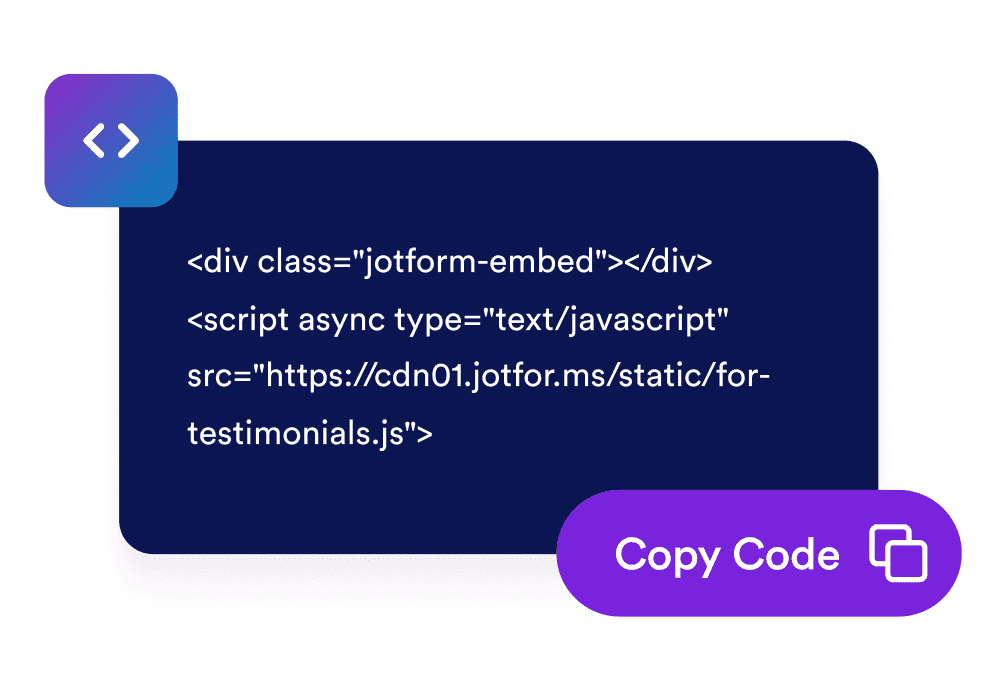
Embed it on your site
Preview the responsive map, copy the embed code, and add it to your website.
Help visitors find the right location faster
Put your locations on one map
Save stores, offices, venues, or service areas with their own addresses, phone numbers, hours, categories, descriptions, and photos.
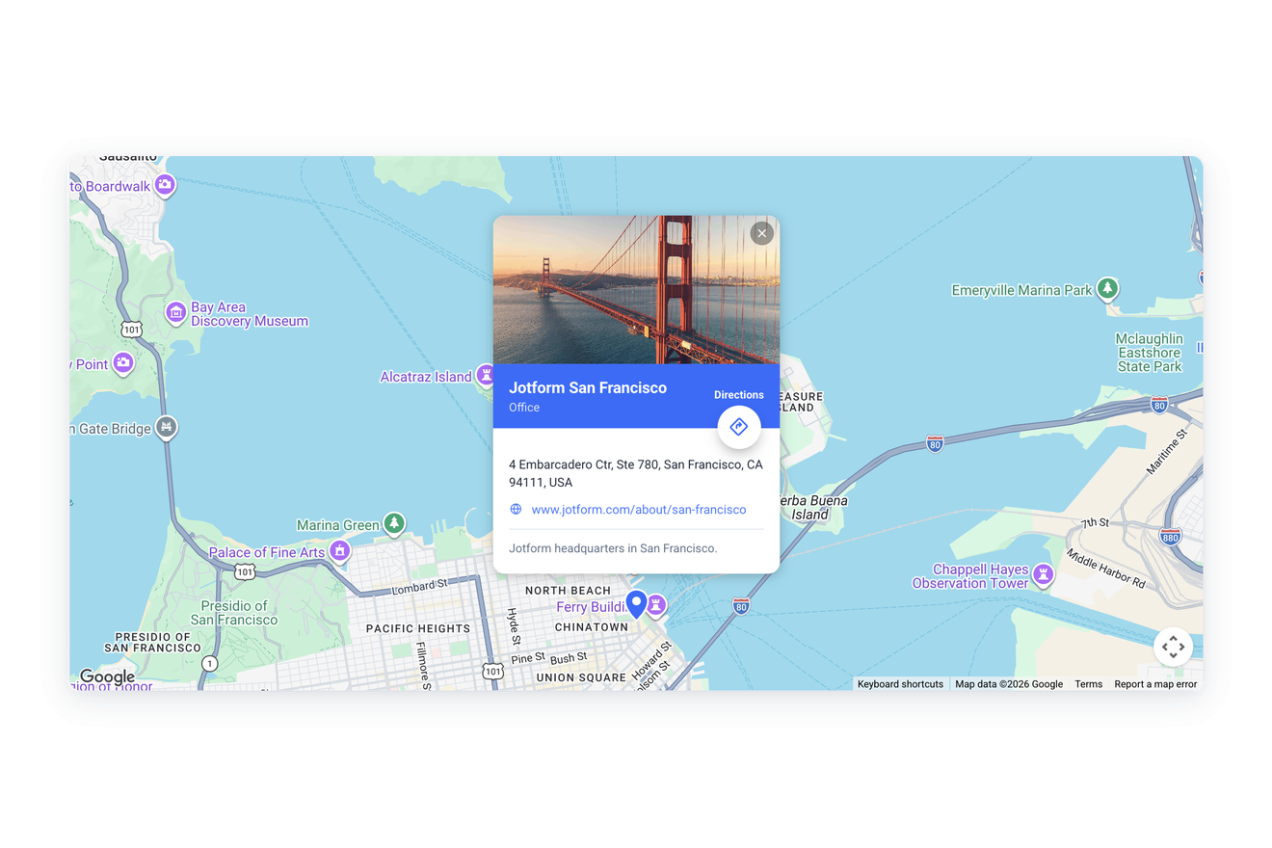
Help visitors narrow the list
Turn on search and category filters so visitors can find a matching location, select it, and recenter the embedded Google map.
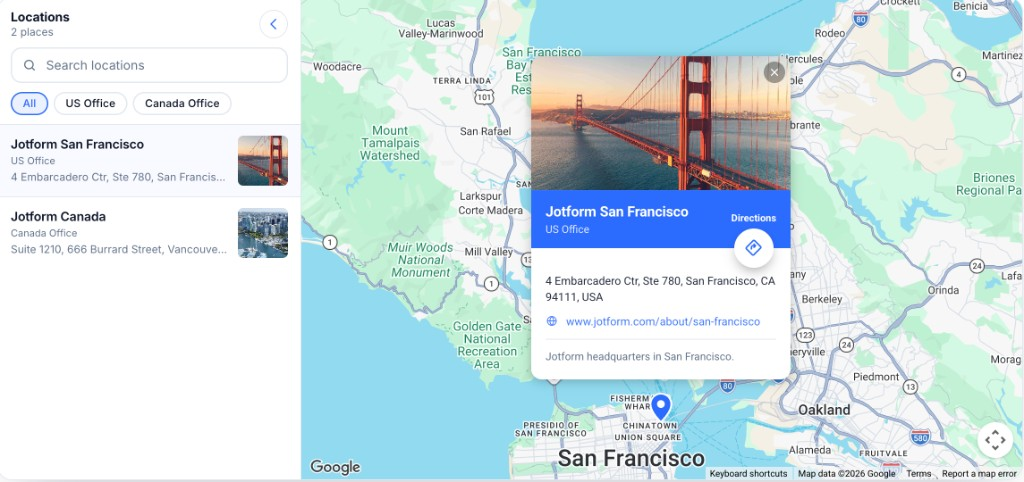
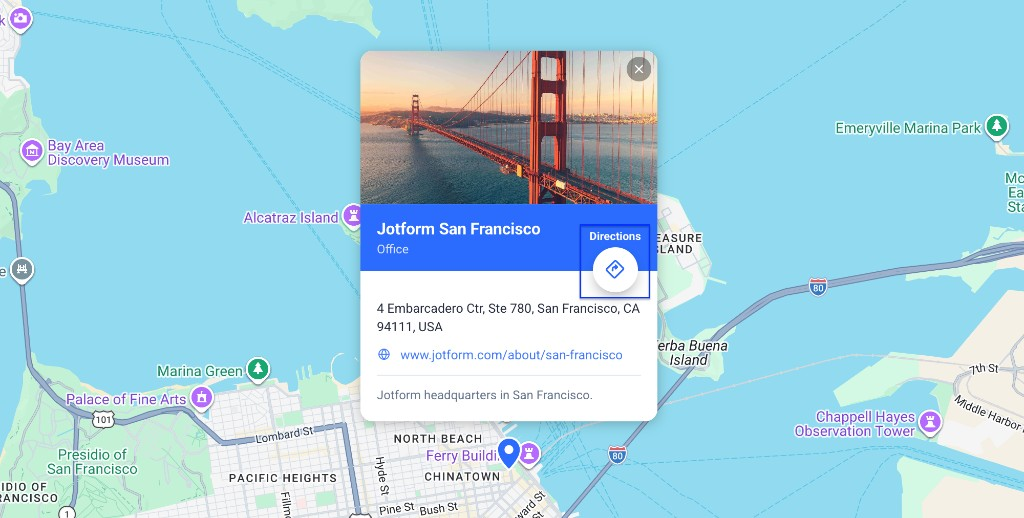
Send visitors straight to directions
Show Get directions and Open in Google Maps links for each location so visitors can continue their route in Google Maps.
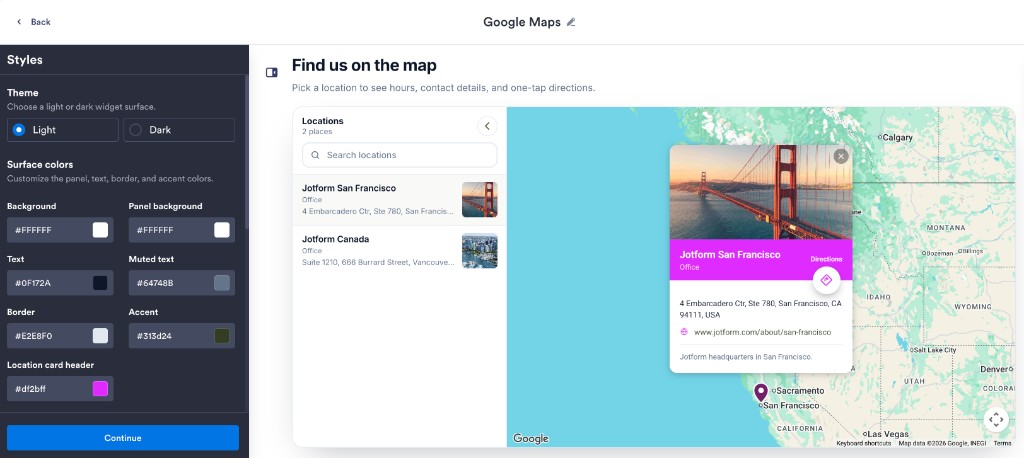
Make the map fit your page
Choose light or dark styling, split or stacked layouts, panel position, map height, zoom, colors, and scoped custom CSS.
Why Jotform Widgets stand out
Jotform’s widgets make your website more interactive and conversion-ready. From star ratings and testimonial sliders to social proof pop-ups and media embeds, you can combine tools inside your forms or landing pages to collect data, display proof, and capture leads without writing code.
Add Jotform widgets to your website with a simple embed code. Customize the widget, preview how it looks, and paste it into any page that supports custom HTML or embed blocks to all platforms, no developer required.
Use Jotform Website Widgets to collect leads, show customer feedback, display social proof, embed media, or add helpful on-page tools. Each widget helps visitors interact with your business directly from the page.
If you need help setting up, customizing, embedding, or troubleshooting your widget, Jotform’s customer support team is available 24/7. You can move forward with confidence, knowing help is there when you need it.
Where to use Google Maps
Place the widget anywhere visitors need location details before visiting, calling, booking, or choosing a branch.
Contact pages pair your address, phone, hours, and directions link with an embedded Google map.
Store locator pages let shoppers compare stores, showrooms, pickup points, and categories before choosing where to go.
Event pages point attendees to the venue, parking, and registration desk before doors open.
Hotel and travel pages highlight the property plus nearby attractions, transit, and service spots.
Restaurant menus show dining rooms, takeout counters, and hours so guests know which location to visit.
Real estate and campus pages map listings, buildings, and entrances so visitors arrive at the right door.
Convert leads into paying customers with Jotform Form Builder
Turn engagement into action with Jotform. Create powerful forms that capture leads, collect payments, and automate responses, all in one place. Every submission lands in your Jotform Inbox, ready to follow up or connect with your favorite apps.
Get Started - It’s Free!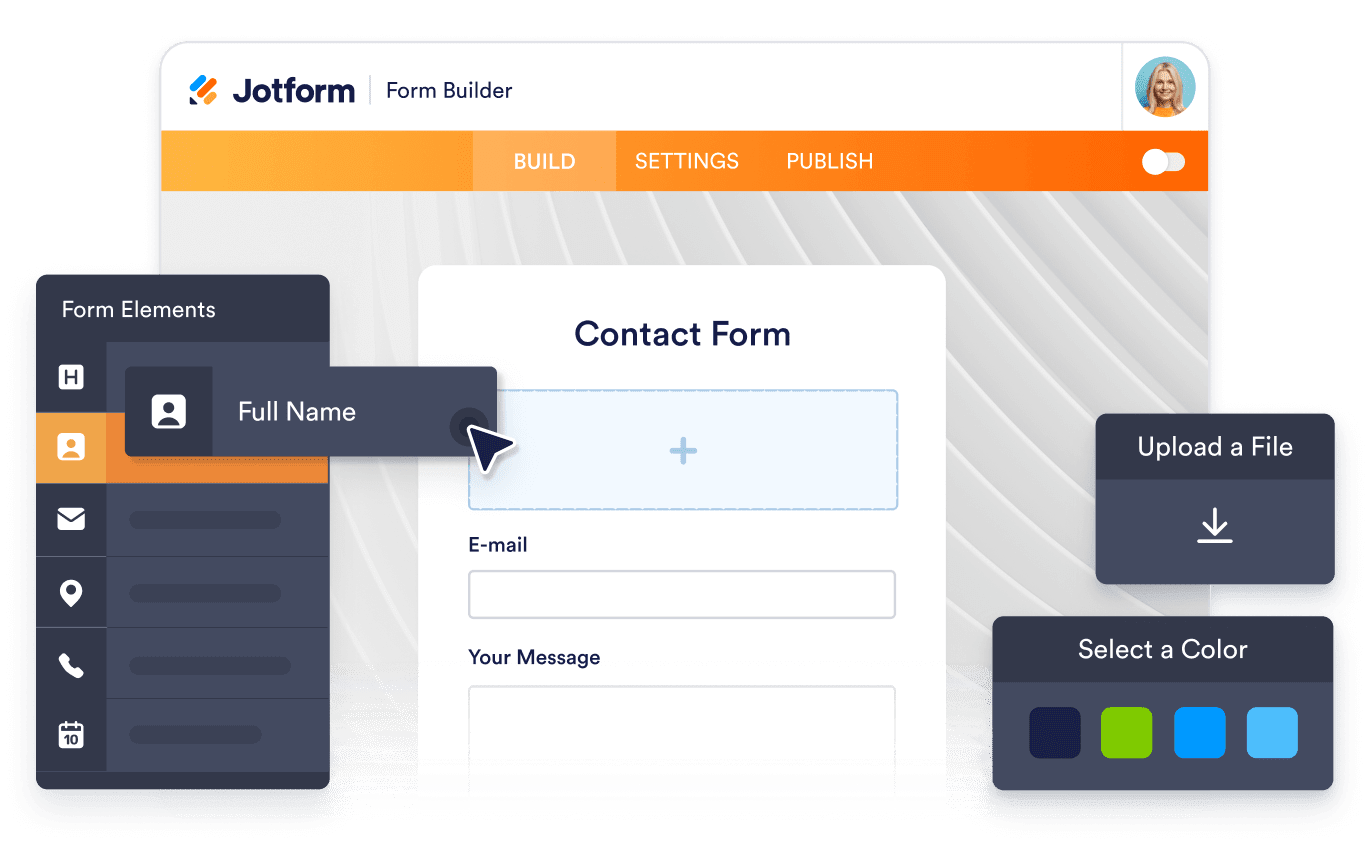
FAQ
What is a Google Maps widget?
A Google Maps widget is an embeddable location map that shows saved places, contact details, categories, search, filters, and directions links on your website.
How many locations can I add?
Do I need a Google Maps API key?
Can visitors get directions to a location?
Can visitors search or filter locations?
Can I switch the map type?
Can I match the map to my brand?
Does it work on mobile?
Do I need to write any code?