
Artificial intelligence tools are evolving quickly, and Anthropic’s Claude AI has become one of the most powerful large language models available today. Businesses, developers, and teams increasingly use Claude for tasks such as research, document analysis, AI agents, automation workflows, and coding assistance.
However, Claude becomes far more powerful when it connects to other tools and data sources.
That’s where Claude connectors come in.
In this blog post, we’ll explore the best Claude connectors in 2026, how they work, and how to choose the right integration for your workflow.
What are Claude connectors?
Claude connectors are tools, plugins, or integrations allowing Claude AI to access external systems, applications, or data sources. As Claude’s adoption continues to grow in 2026, connectors are becoming an essential part of how teams integrate AI into everyday workflows.
Instead of operating as a standalone chatbot, Claude can interact with other software platforms through these connectors. This lets Claude perform tasks such as retrieving data, automating processes, or interacting with SaaS tools.
Anthropic provides official integrations through its Claude connectors system, allowing developers and organizations to securely connect Claude with enterprise tools, databases, and APIs.
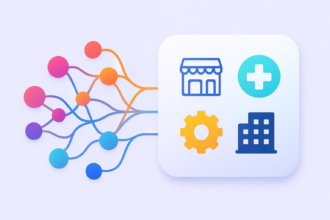
In practice, Claude connectors take several forms:
API connectors
These integrations connect Claude directly to software APIs so it can fetch or send data.
Example: Claude retrieves customer data from a CRM via API.
Automation platforms
Automation tools act as bridges between Claude and hundreds of SaaS applications.
Example: Claude triggers workflows that send notifications or update project tools.
Workflow orchestration tools
These connectors create complex automation pipelines and AI agent systems.
Example: Claude processes documents, extracts data, and sends results to multiple tools.
Knowledge base integrations
Claude connects to internal documentation systems to retrieve information.
Example: Employees ask Claude questions about company policies stored in a knowledge base.
With the right connector, Claude goes beyond conversation and becomes a true AI workflow automation engine.
10 best Claude connectors in 2026
Below are some of the most powerful Claude integrations and automation tools available today. With these connectors, teams can build AI workflows, automation pipelines, and AI-powered productivity systems.
1. Jotform
Jotform connector for Claude makes it easy to create, edit, and analyze online forms directly within Claude. Instead of switching between tools, users can design forms using natural language, review incoming submissions, and generate insights or reports without leaving the conversation interface.
- Best for: Businesses, educators, and teams that want to collect structured data and analyze submissions using AI, without switching between form tools and analytics platforms
- Key features
- Natural language form creation to generate new forms by simply describing the fields you need
- Form editing through chat to modify existing forms without opening a separate builder
- Submission analysis to review and summarize responses directly in Claude
- Automated insights and reporting to turn raw submissions into useful summaries
- Use cases
- Create forms with natural language: Ask Claude to generate a feedback form that includes fields like contact details, a satisfaction score, and an open-ended comment section.
- Edit existing forms: Request Claude to update a current job application form by adding a field where applicants include their portfolio or professional profile link.
- Review and analyze submissions: Ask Claude to display recent registrations for an event form and provide a quick breakdown of how many attendees selected each participation option.
2. Zapier
Zapier is a widely used automation platform that works as a powerful connector for Claude. By linking Claude with Zapier, you connect the AI to over 8,000 apps, so it can trigger workflows, retrieve information from different systems, and perform real-world actions without leaving the chat.
- Best for: Teams and professionals who want to connect Claude with thousands of SaaS tools and automate everyday workflows without coding
- Key features
- Access to 8,000-plus app integrations including email, CRM, productivity, and marketing tools
- Workflow automation (Zaps) that trigger actions across multiple apps
- AI-driven task execution directly from Claude conversations
- Cross-platform automation connecting calendars, databases, messaging tools, and more
- Use cases
- Preparing for meetings with context: Claude checks your calendar and CRM records to summarize whom you’re meeting with, including key details about the contact.
- Turning discussions into tasks: Insights from a conversation with Claude are automatically stored in a database and converted into project or support tickets.
- Managing email communication: Claude reviews recent emails, drafts responses, and helps you reply quickly without switching between apps.
3. Slack
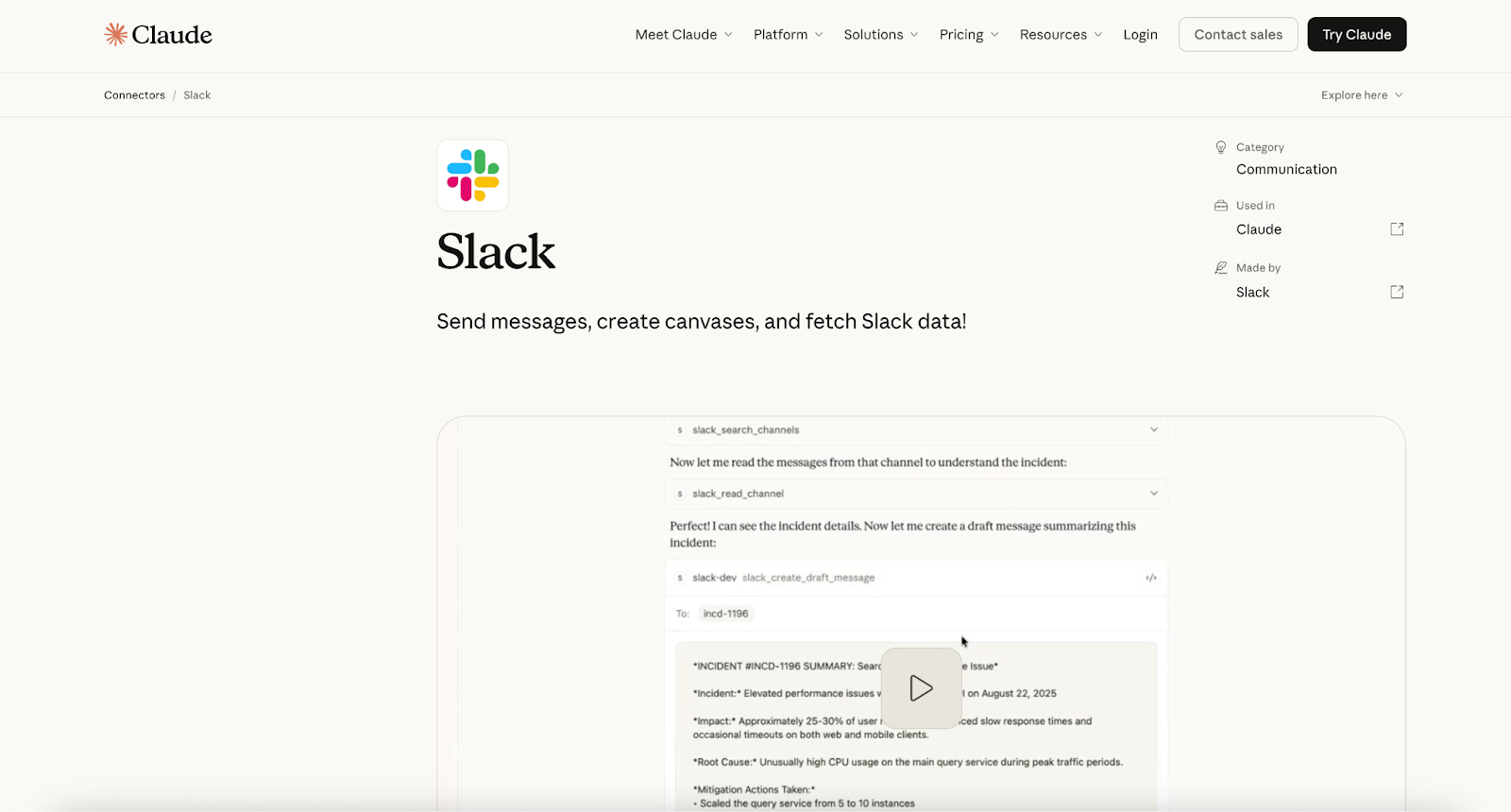
The Slack connector lets Claude interact directly with your workspace, making team communication and collaboration easier. By connecting Claude with Slack, you can search messages, access files and threads, draft posts, and even create shared canvases without leaving the conversation.
- Best for: Teams that rely on Slack for communication and collaboration and want to streamline messaging, documentation, and coordination with AI assistance
- Key features
- Access to Slack workspace data including channels, threads, users, and files
- AI-assisted message drafting with the ability to edit before sending
- Canvas creation and sharing directly within Slack channels
- Message scheduling for future announcements or reminders
- Context-aware collaboration by retrieving past conversations and shared documents
- Use cases
- Creating shared project canvases: Ask Claude to generate a collaborative canvas and share it in a specific Slack channel so team members can contribute ideas or updates.
- Drafting and refining messages: Use Claude to prepare a message for a colleague or team channel, edit the tone or details in chat, and send it once it’s ready.
- Scheduling announcements: Have Claude prepare and schedule a message in a channel about an upcoming event, campaign, or product update to be posted at a specific time.
4. WordPress.com
The WordPress.com MCP server lets Claude securely interact with your WordPress.com website, making it easier to manage content and site operations directly through AI. With this connector, Claude accesses posts, pages, comments, and site statistics while managing users and settings.
Using secure authentication through OAuth 2.1, the integration ensures Claude accesses only the resources you authorize, allowing teams to incorporate AI into their publishing workflows safely.
- Best for: Bloggers, content teams, and organizations that want to manage WordPress content and site operations using AI-powered assistance
- Key features
- Content management tools for listing, searching, and reviewing posts or pages
- Access to site analytics to view traffic and performance statistics
- User management capabilities for reviewing or managing site members
- Site administration support including settings and plugin checks
- Use cases
- Reviewing published content: Ask Claude to display your most recent blog posts or locate articles related to a specific topic.
- Monitoring site performance: Request a summary of your website’s statistics for the current month to quickly review traffic trends.
- Managing site users: Have Claude list the current users on your WordPress site or check roles and permissions.
- Checking site configuration: Ask Claude to review site settings or confirm which plugins are active on your website.
5. Airtable
With the Airtable connector, Claude interacts with structured data stored in Airtable bases directly within a conversation. By bringing operational data into Claude’s workflow, users can search records, create new entries, update information, and analyze datasets without switching between tools.
- Best for: Teams and organizations that rely on structured internal data — such as CRM records, project trackers, or content databases — and want to analyze or update it with AI assistance
- Key features
- Access to structured Airtable data including tables, records, and fields
- Search and filtering capabilities to locate specific records quickly
- Record creation and editing directly through conversational prompts
- Data analysis and insights generation using Claude’s AI capabilities
- Use cases
- Exploring customer or project data: Ask Claude to identify records in your CRM base that haven’t been updated recently or require follow-up.
- Adding new information to a database: Request Claude to create new entries in a project or task tracking base based on recent updates or meeting notes.
- Updating records quickly: Ask Claude to modify the status, owner, or priority of an existing task stored in Airtable.
- Generating insights from stored data: Have Claude analyze feedback or request logs and highlight the most frequently mentioned issues or suggestions.
6. Box
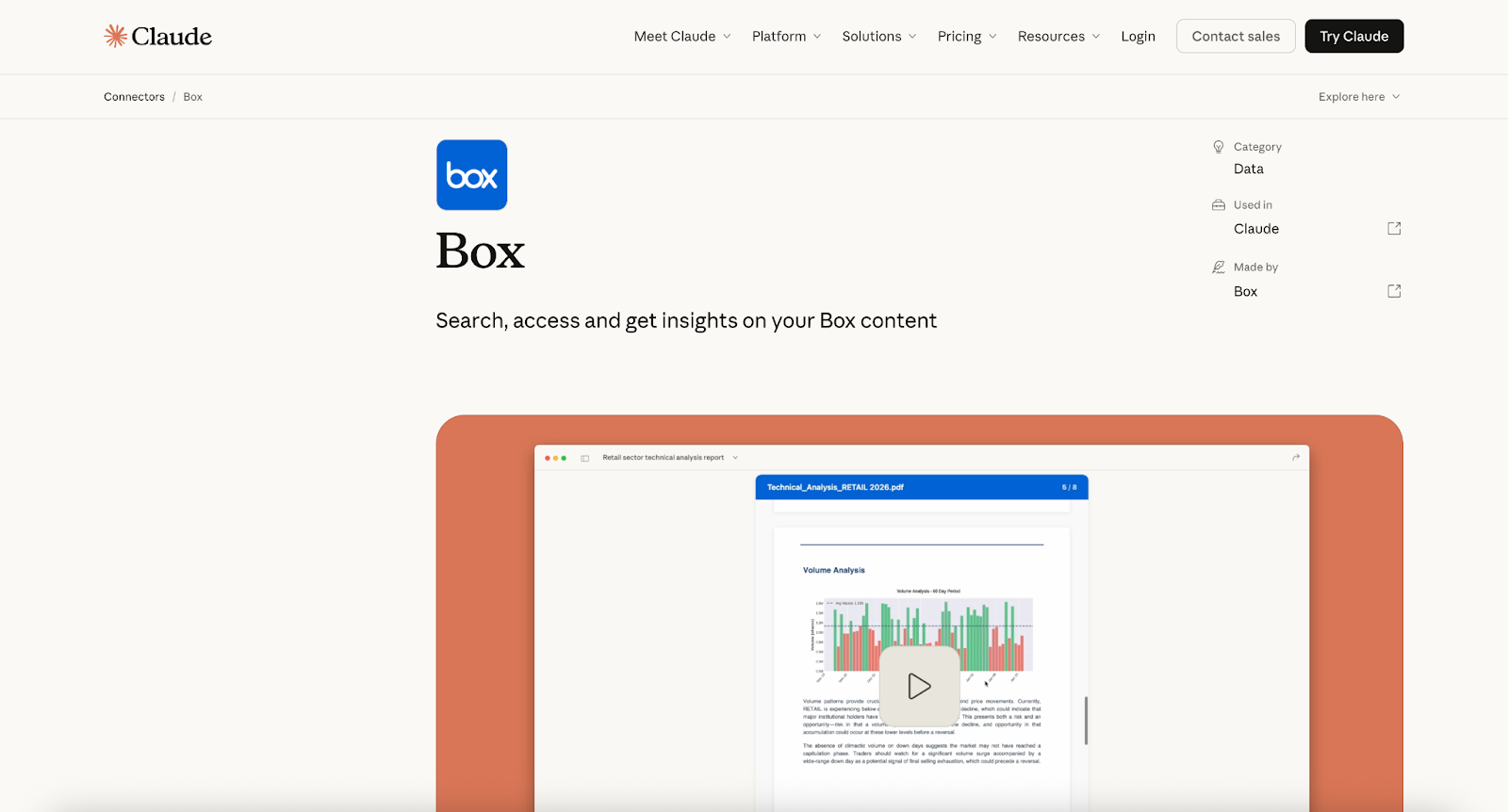
The Box connector lets Claude access enterprise content stored on Box, making it easier to work with documents, files, and unstructured data during conversations. By connecting Box with Claude, users can search files, preview documents, extract insights, and automate content workflows without switching between tools.
- Best for: Organizations that store large amounts of enterprise documents, reports, or contracts in Box and want to analyze or extract insights from them using AI
- Key features
- File search and retrieval across folders and stored documents
- Inline document previews within Claude conversations
- AI-powered content insights using Box AI tools
- Metadata extraction from documents such as contracts or reports
- Use cases
- Exploring stored files and folders: Ask Claude to list documents inside a specific project or department folder and identify recently updated files.
- Summarizing reports or presentations: Use Claude with Box AI to generate summaries and key takeaways from business reports or strategy documents.
- Extracting structured data from documents: Ask Claude to analyze multiple contracts stored in a folder and compile key details such as client names, dates, or agreement values into a structured table.
7. ClickUp
With the ClickUp connector, Claude interacts directly with your ClickUp workspace, so you get AI-powered task management, collaboration, and workflow automation. By connecting Claude with ClickUp, teams can create tasks, update project details, manage documents, and communicate with teammates without leaving the conversation.
- Best for: Teams using ClickUp for project management who want to automate task updates, documentation, and collaboration with AI assistance
- Key features
- Task creation and management directly from Claude
- Workspace member lookup for quick team visibility
- Task updates and prioritization through conversational commands
- Time tracking integration for monitoring work progress
- Document creation and editing inside ClickUp Docs
- Use cases
- Finding team members in a workspace: Ask Claude to display the list of people in your ClickUp workspace when assigning responsibilities or coordinating tasks.
- Creating and organizing project tasks: Ask Claude to generate a new task in a specific list or sprint backlog and automatically place it within the correct project structure.
- Tracking work time automatically: Start or stop time tracking for a task you’re currently working on without navigating the ClickUp interface.
8. Gmail
The Gmail connector lets Claude access your email conversations, so it’s easier to search messages, summarize discussions, and draft replies without switching between applications. By connecting Gmail to Claude, you can quickly retrieve important information from email threads and compose responses directly in chat.
- Best for: Professionals and teams who want to manage email communication more efficiently by searching, summarizing, and responding to messages with AI assistance
- Key features
- Email search and retrieval across messages, threads, and conversations using natural language queries
- Thread summarization to condense long or complex email chains into concise overviews
- Draft composition for replies or new emails directly through Claude, ready for review before sending
- Sender and contact context for pulling up recent correspondence with a specific person or team
- Use cases
- Locating important details in email threads: Ask Claude to find specific information mentioned in recent messages, such as feedback from a client or updates to a project timeline.
- Summarizing ongoing conversations: Request a quick summary of recent emails from a particular team or department to stay updated without reading every message.
- Drafting responses to emails: Have Claude prepare a reply to a vendor, client, or colleague that you can review and adjust before sending.
9. Notion
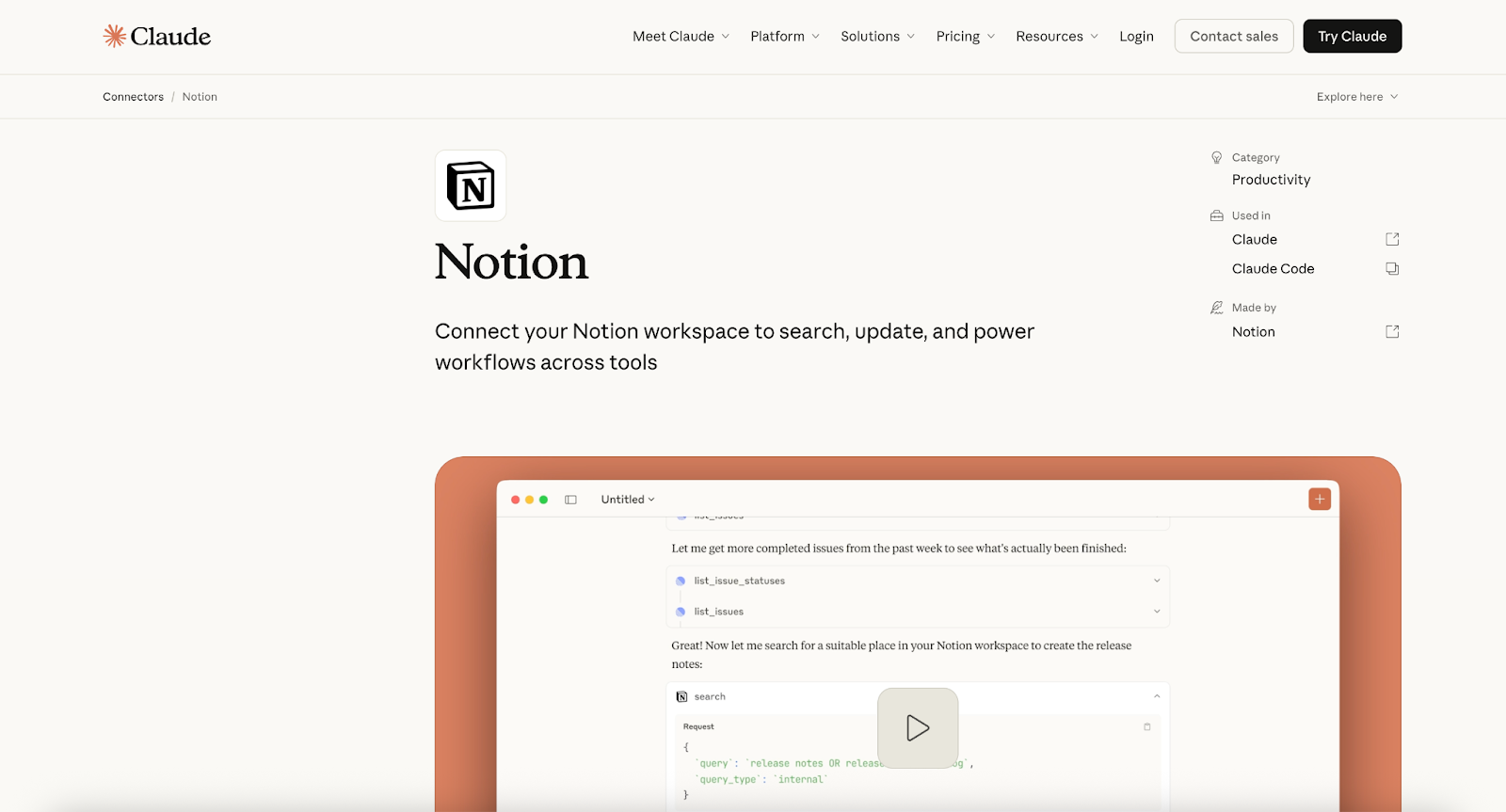
The Notion connector enables Claude’s direct interaction with your Notion workspace, making it easier to create, edit, and organize knowledge without leaving the conversation. By connecting Notion with Claude, users can generate new pages, search existing content, update task properties, and keep documentation organized.
- Best for: Teams and organizations that use Notion as a central knowledge base, documentation hub, or project management workspace and want to manage it more efficiently with AI assistance
- Key features
- Create and edit Notion pages directly through conversational prompts
- Search across workspace content including pages, databases, and documentation
- Update page properties and task statuses without opening Notion
- Context-aware assistance using information stored in your workspace
- Use cases
- Creating structured documentation: Ask Claude to generate a meeting notes page with sections for discussion points, decisions, and action items.
- Finding information across the workspace: Ask Claude to search Notion pages or databases for specific keywords, project updates, or task statuses.
- Supporting research and documentation workflows: Use Claude to gather information from multiple Notion pages, summarize findings, and generate a new research or planning document.
10. Figma
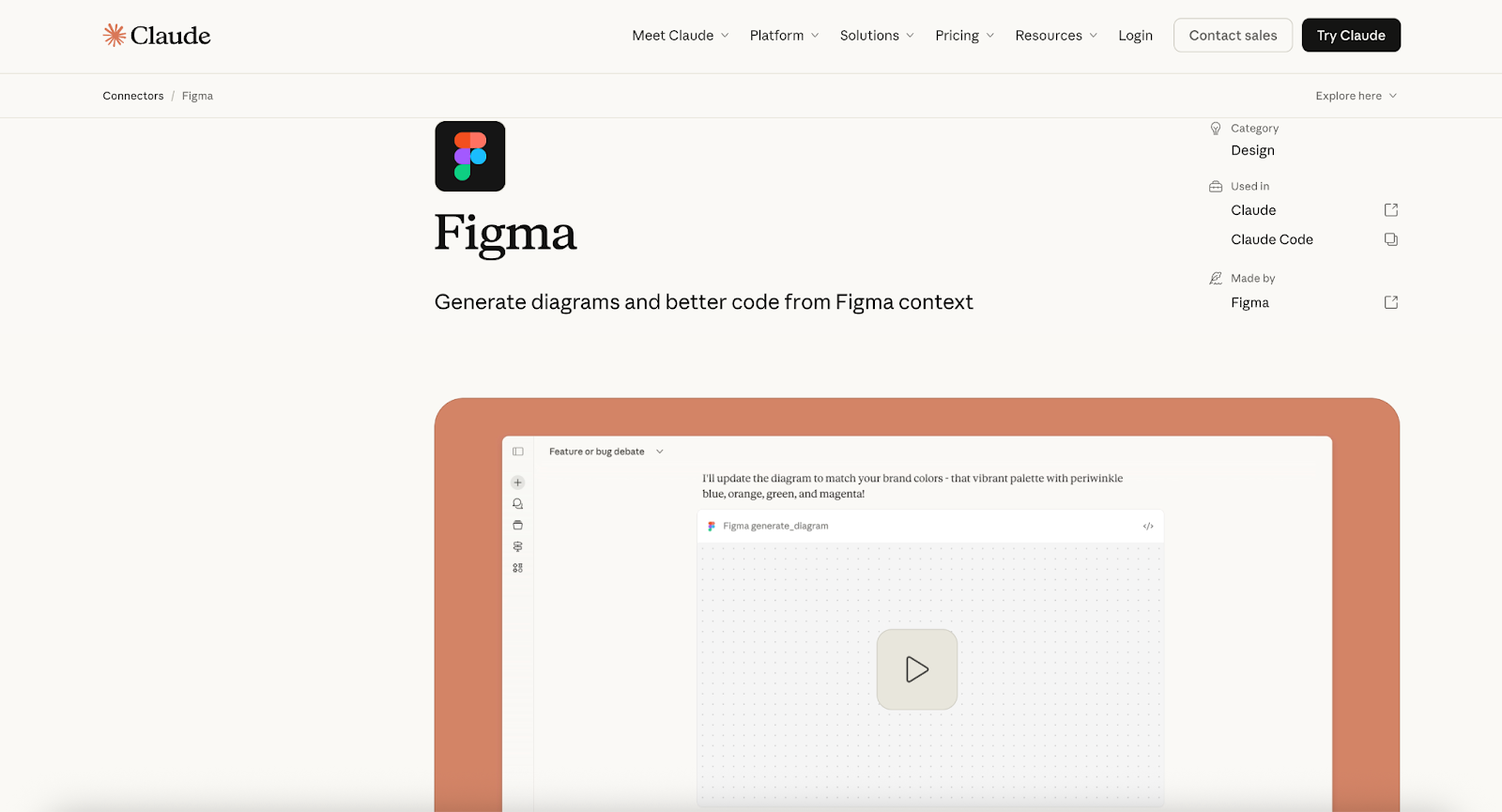
The Figma connector allows Claude to access design context directly from your Figma workspace, helping teams turn design ideas into production-ready code and documentation. By connecting Claude with Figma, developers and designers can retrieve design resources, analyze components, generate code, and even create visual diagrams in FigJam.
- Best for: Design and development teams who want to translate Figma designs into working code and maintain alignment between design systems and implementation
- Key features
- Access to Figma design resources including components, layouts, and selections
- Code generation from design elements with support for annotations and design specifications
- Diagram creation in FigJam for visualizing workflows or product flows
- Design variable analysis to identify inconsistencies or issues
- Use cases
- Visualizing product flows with diagrams: Ask Claude to convert a workflow description into a diagram or flowchart in FigJam to visualize user journeys or development timelines.
- Turning designs into working front-end code: Ask Claude to generate HTML and CSS based on a selected Figma design to speed up the development process.
- Extracting code from specific design elements: Use Claude to retrieve implementation-ready code from a selected Figma component while considering annotations or design notes.
How to choose the right Claude connector
With dozens of Claude integrations available, choosing the right connector depends on how you’ll use Claude in your workflows. Some connectors focus on automation, while others are designed for accessing internal knowledge, managing projects, or integrating development tools.
Here are a few practical factors to consider before selecting a Claude connector.
1. Identify your main workflow
Start by thinking about the type of tasks you want Claude to perform. Different connectors are optimized for different workflows.
For example:
- If you want Claude to automate repetitive tasks across apps, automation platforms like Zapier can be helpful.
- If your goal is to manage tasks and collaborate with teams, connectors like ClickUp or Slack may be more suitable.
- If your workflow involves collecting and analyzing structured data, a form automation tool like Jotform can be especially useful.
- If you want Claude to work with documents, files, or knowledge bases, tools like Notion, Box, or Google Workspace integrations may be a better fit.
Understand your primary use case to narrow down the best connector options.
2. Consider where your data lives
Claude connectors are most useful when they can access the systems where your information is stored.
Common data sources include
- Email platforms
- Project management tools
- Knowledge bases
- Cloud storage systems
- Design platforms
- Databases or spreadsheets
For example, if your organization keeps documentation in Notion or Box, connect those tools to Claude so it can retrieve information and provide more accurate insights.
3. Think about automation potential
Some connectors are designed primarily for retrieving information, while others let Claude take actions and trigger workflows.
Examples of automation tasks include
- Creating tasks in project management tools
- Updating database records
- Drafting and sending messages
- Generating reports from stored data
If you want Claude to act as an automation assistant, choose connectors that support workflow automation and task execution.
4. Look for scalability
Finally, consider how the connector will support your needs as your workflows grow. A good Claude connector should be flexible enough to support new use cases, integrations, or automation scenarios over time.
Maybe you start by using Claude to summarize documents but later expand to building AI-powered workflows or internal knowledge assistants.
Choosing connectors that integrate with multiple tools or support advanced automation will help future-proof your AI setup.
Extend Claude’s capabilities with the right connector
Claude AI is already a powerful assistant, but connectors unlock its full potential.
By connecting Claude to external tools, teams can
- Automate workflows
- Retrieve internal knowledge
- Analyze data sources
- Build AI agents
- Streamline everyday operations
Whether you’re a business team looking for simple automation or a developer building advanced AI systems, the right connector transforms Claude into a fully integrated AI workflow engine.
Start by identifying your workflow needs, choosing the right integration level, and experimenting with different connectors. As Claude’s ecosystem grows, these integrations will become an essential part of modern AI automation and productivity systems.
Frequently asked questions
Claude works well with several popular development environments. Common choices include Visual Studio Code (VS Code), JetBrains IDEs (like IntelliJ or WebStorm), and AI-focused editors such as Cursor. These tools allow developers to use Claude for coding assistance, debugging, and documentation.
To add connectors, open the Connectors section in Claude, select the app you want to connect, and authorize access. Once connected, ask Claude to retrieve data or perform actions using that tool directly in your conversation.
This article is for business teams, developers, operations managers, and digital professionals who want to integrate Claude AI with external tools to automate workflows, streamline data access, and enhance productivity.





































































































Send Comment: