
In the nearly two decades since Drew Houston forgot his flash drive and created Dropbox to ensure he’d always have access to his files, cloud storage has become the default way most of us store our files.
Cloud storage ensures your files are backed up with a copy online as well as on your computer. It simplifies collaboration and remote work, automatically syncing any file in a shared folder with your colleagues. And it ensures files are stored securely with audit logs for compliance purposes.
Google Drive is the cloud storage service that’s integrated with Gmail, Google Docs, and other software from the search giant. Its generous free plan and deep integration with Google Workspace tools make it the first choice for collaborating on files.
Dropbox is the cloud storage service that helped define the modern cloud storage industry, starting with a single folder that’s automatically synced from every device. Today, it’s the fastest way to sync files with features like file requests that make it a crucial tool in file-centric workflows.


I’ve used both Google Drive and Dropbox for well over a decade, and each has its strengths and weaknesses. Here’s everything to expect in Google Drive and Dropbox, from features and pricing to collaboration, security, and integrations, to help you choose the best cloud storage service for your work.
 Google Drive |  Dropbox | |
|---|---|---|
| Best for | Teams using Google Workspace to collaborate | Teams working with large files and external clients |
| Collaboration style | Document centric, deeply integrated with Google Docs, Sheets, and Slides | File centric, built for syncing and sharing large files from your computer |
| Sync & file handling | Cloud focused, with everything stored online by default | Speed focused, with fast uploading and selective sync to keep files locally |
| Sharing & permissions | Based on Google accounts, with options to share individual files or across team with Google Workspace settings | Externally focused, with pages to request files, password-protected sharing, and SSO that works with Google and Apple accounts |
| Integrations & ecosystem | Deep Google ecosystem integration with Gmail file attachment saving, Google Workspace centralized admin, and Gemini AI search | Deep cross-platform integration with Microsoft Office and Linux support, along with search across 65-plus apps |
| Pricing approach | Generous free plan and paid subscriptions bundled with Google Workspace | Storage-focused subscriptions with up to 5-plus TB on top tier plans |
Google Drive
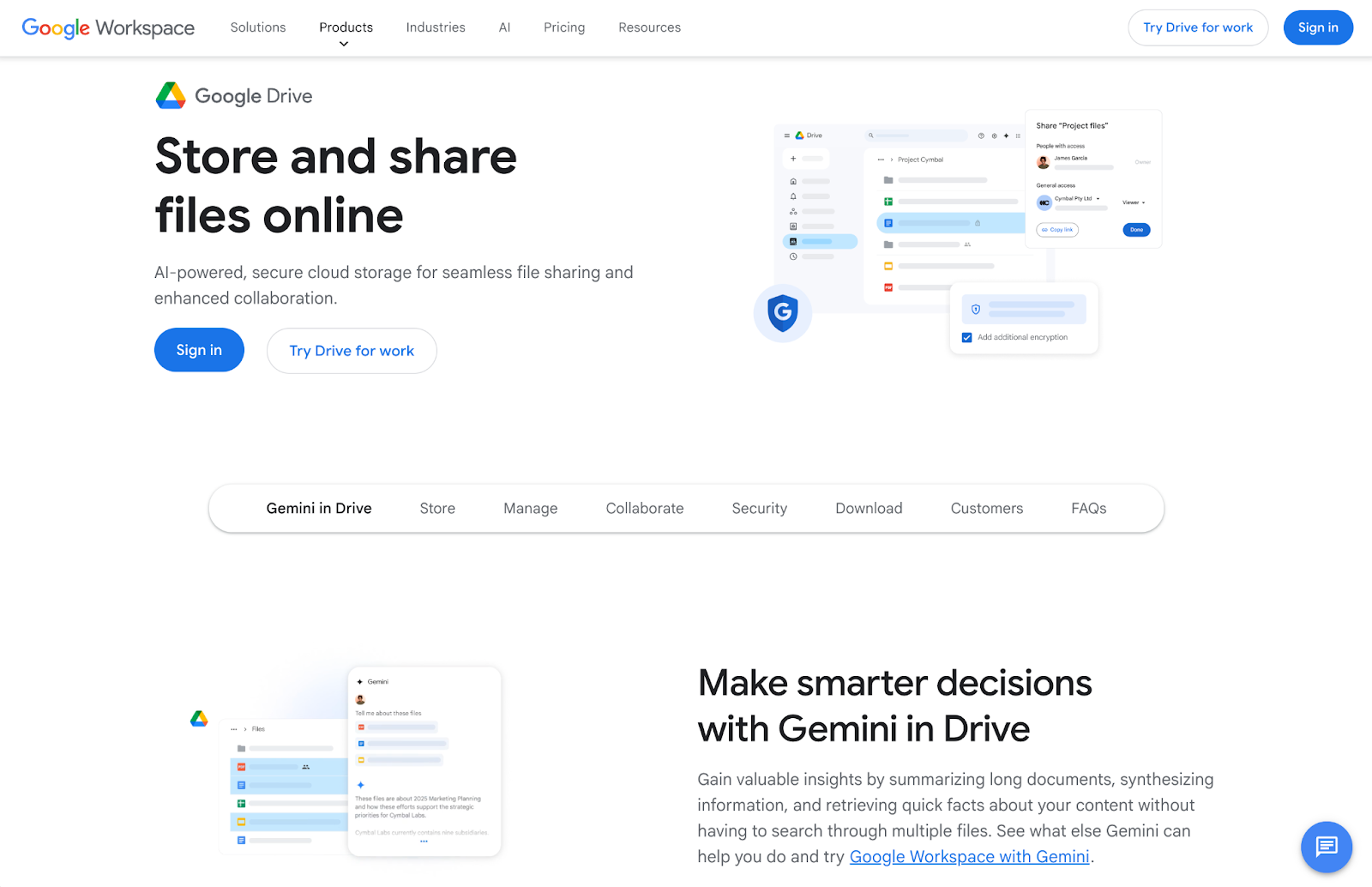
- Recommended for: Collaborating on documents with a team and searching through files
- What I like about Google Drive the most: Google Drive’s generous free plan and integration with Gmail and Google Docs make it the easiest cloud storage app to start using.
- Key features
- Sync and back up files from Mac, Windows, iOS, and Android
- Integrate with Gmail, Google Docs, and other Google apps
- Centralize admin and SSO with Google Workspace
- Find files quickly with AI-powered search with filters
- Store all files stored in the cloud and only sync to your device when needed
- Pros
- Google Workspace integration
- Live collaboration in Google Docs and other Google apps
- Individual and organizational-level sharing options
- Audit logs in all Google Workspace plans
- Cons
- Slower file sync
- Limited to syncing 750 GB per day
- Less granular local sync without selective sync
- No individual password-protected file sharing
- Free for: 15 GB of storage
- Plans/Pricing
- Individual: $1.99 per month or $19.99 per year for the Basic account with 100 GB of storage; $9.99 per month or $99.99 per year for the Premium account with 2 TB of storage to share with up to five people, plus access to Gemini with 200 monthly AI credits
- Business: $8.40 per month or $84 per year per user for the Starter with 30 GB storage with Google Workspace apps and single sign-on; $16.80 per month or $168 per year per user for the Standard plan with 2 TB storage, Gemini AI in Google Docs, appointment booking pages, and eSignatures; $26.40 per month or $264 per year per user for the Plus plan with 5 TB storage, eDiscovery, and enhanced security and management features
Google Drive is the cloud storage tool that ties all of Google’s software together. It grew out of Google Docs, Slides, and Sheets and is where the new documents you create in those apps are saved by default. Today it’s far more than that: a full-featured file storage, sync, and sharing tool that keeps your team’s most important files together in one place.
Google Drive keeps everything in the cloud. If you install its app on your Mac or PC, it’ll stream files, showing icons for each file on your computer but only downloading them when you need to edit them to save space on your computer. Or, you can choose to mirror files instead if you want to keep everything locally. With everything in the cloud, you can use Google and Gemini AI-powered search tools to find the exact file you need, including text in scanned PDFs with Google Drive’s automatic OCR.
For companies that rely on Google for their email and office software, there is no need for cloud storage beyond the Google Drive space and features included in all Workspace accounts. It includes SSO and file audit logs in all business plans and can archive all files to Google Vault for legal retention purposes, covering virtually every compliance and administration use case. File sharing permissions can be locked by admins to only allow sharing inside the organization for additional security. If you want to centralize all your team’s data in one place and collaborate, Google Drive is the simplest option for cloud storage.
And with Jotform’s Google Drive integration, you can build out automation features that otherwise don’t come built into the platform. For example, Google Drive doesn’t include a file request tool, but you can build a Jotform form and then integrate Jotform with Google Drive and automatically save every file that collaborators add to their form responses to your team’s Google Drive. You can build out Jotform automations to move files and notify team members to fill any automation gaps in your Google Drive workflow.
Dropbox
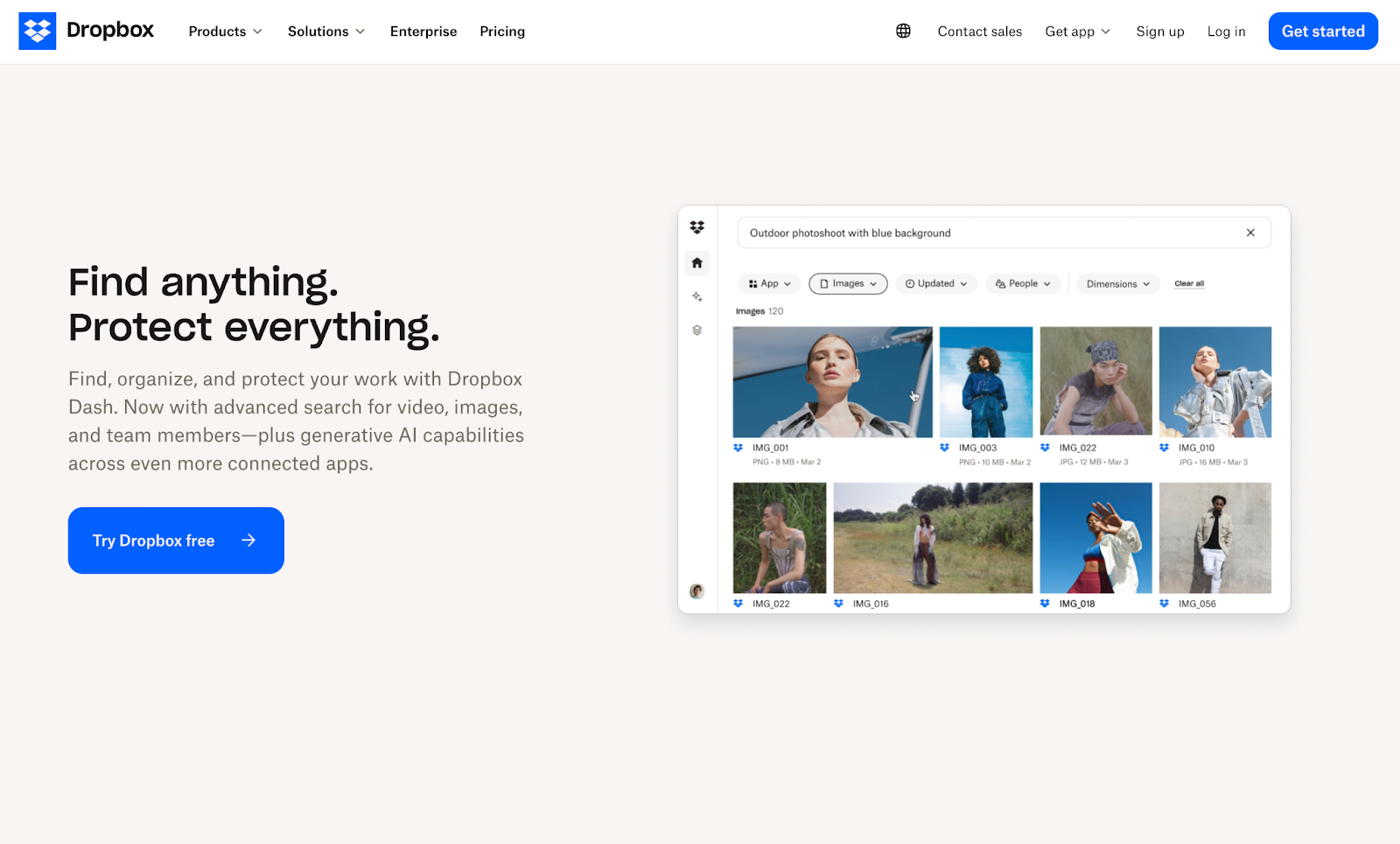
- Recommended for: File-centric workflows that require syncing and sharing large files
- What I like about Dropbox the most: Dropbox is the fastest at syncing large files and makes it easy to request files from others.
- Key features
- Quickly sync and back up files from Mac, Windows, Linux, iOS, and Android
- Create file request pages for collaborators to upload files
- Share files with password protection
- Selectively sync to download files from specific folders
- Use the rewind feature to restore deleted files and folders
- Pros
- Support for Linux, including a CLI app for terminal access
- Includes automation tools to sort and convert files automatically
- SSO support for Apple, Google, and Dropbox accounts
- Top plans include 5-plus TB of storage per user
- Cons
- Plans include only Dropbox cloud storage and the Dropbox paper notes app
- AI-powered search requires a paid add-on
- Team plans start at a higher price point than Google Drive
- File version history beyond one year requires paid add-on
- Free for: 2 GB of storage
- Plans/Pricing
- Personal: $11.99 per month or $119.88 for the Plus plan with 2 TB of storage for one user; $19.99 per month or $198.96 per year for the Professional plan with 3 TB of storage, 180-day deleted file retention, branded file sharing, and password-protected files
- Team: $18 per month or $180 per year per user for the Standard plan with 5 TB of total team storage with three-plus users; $30 per month or $288 per year for the Advanced plan with 5 TB of storage per user, one year deleted file retention, tiered admin management, end-to-end encryption, and single sign-on
Dropbox is the original cloud storage app and remains one of the most popular ways to sync files between computers. The original idea was that you had a single Dropbox folder on your computer. Everything you put in that folder would be automatically synced to the Dropbox web app, the Dropbox app on your phone, and any other computers signed into your Dropbox account. You could then share any folder inside that Dropbox folder with friends and colleagues, and any files added to it would automatically be synced with them too.
Dropbox today still works in the same general way, but it now also supports backups and can sync any folder from your computer or external drives to Dropbox. Or, you can now right-click on any file or folder on your computer, and with Dropbox installed you can choose to move to Dropbox or Transfer with Dropbox, which uploads a copy of the file and gives you a link to share with others for a limited time.
Dropbox is best for those all-or-none extremes. It’s great at syncing everything in the Dropbox folder, with tools like Selective Sync to choose which subfolders to save on your computer and which to keep solely in the cloud.
It’s also the easiest platform for sharing. Share a folder once, and then every new file you add to that folder is automatically shared. It’s the fastest cloud sync app I’ve tested, uploading files over twice as fast as Google Drive. Or, if you want to share only certain files, file request forms allow you to ask people to add files to your Dropbox, plus individual file sharing features are complete with password protection. If you’re a photographer, designer, video editor, or anyone else regularly working with large files and outside collaborators, Dropbox is the best cloud storage tool for sharing large files.
Dropbox works with a wide ecosystem of software, including form apps like Jotform. Jotform’s Dropbox integration lets you build forms that request files from clients, then automatically saves them to Dropbox. You can also have Jotform automations create a new folder first, then drop the files in there. Paired with the built-in automation tools in Dropbox that can convert, move, and rename files on the fly, Jotform and Dropbox together let you build workflows around files to make your business run more smoothly.
Google Drive vs Dropbox
Both Google Drive and Dropbox have their strong and weak points — and those add up to cloud storage services that are each best for different use cases.
Dropbox is best for syncing files quickly, while Google Drive is optimized for web-first collaboration
Google Drive uploads files reasonably fast. On a 1 Gbps internet connection, I uploaded a 360 MB file to Google Drive in 26 seconds, and uploading a second copy of the file took a similar 25 seconds. It offers similar upload speeds to most web apps and is fine if you’re primarily using Google Drive to store documents and other smaller files. And since Google Drive added differential sync in 2025, it now only syncs the changes to large files when you edit them, instead of re-uploading entire files.
Dropbox, though, uploads files extremely fast. On a 1 Gbps internet connection, it took only nine seconds to upload the same 360 MB file — and a mere two seconds to upload a second copy of that file. Third-party tests show similar results, and that’s thanks to Dropbox streaming sync and block-level sync that upload only new parts of files and deduplicate files automatically (which helped the second copy of the file seem to upload so fast). Dropbox also supports LAN sync to share files over your local network with colleagues so each person in your company doesn’t have to re-download the same files over the internet.
Google Drive is best for syncing multiple accounts, while Dropbox is better for linked personal and work accounts
Google Drive lets you sync up to four accounts to one computer. Click your account icon, click Add account, then sign in with your additional Google accounts. That way, you can sync files from both your personal Google Drive account and multiple work Google Workspace accounts to the same computer, while keeping everything separate.
Dropbox instead can sync only a single personal and business account to one computer. You’ll first need to link your business account to your personal Dropbox account. Then, you’ll sign into your personal Dropbox account on your computer, and both your personal and work files will sync with Dropbox.
Dropbox is best for selectively syncing files, while Google Drive is best for saving everything to the cloud
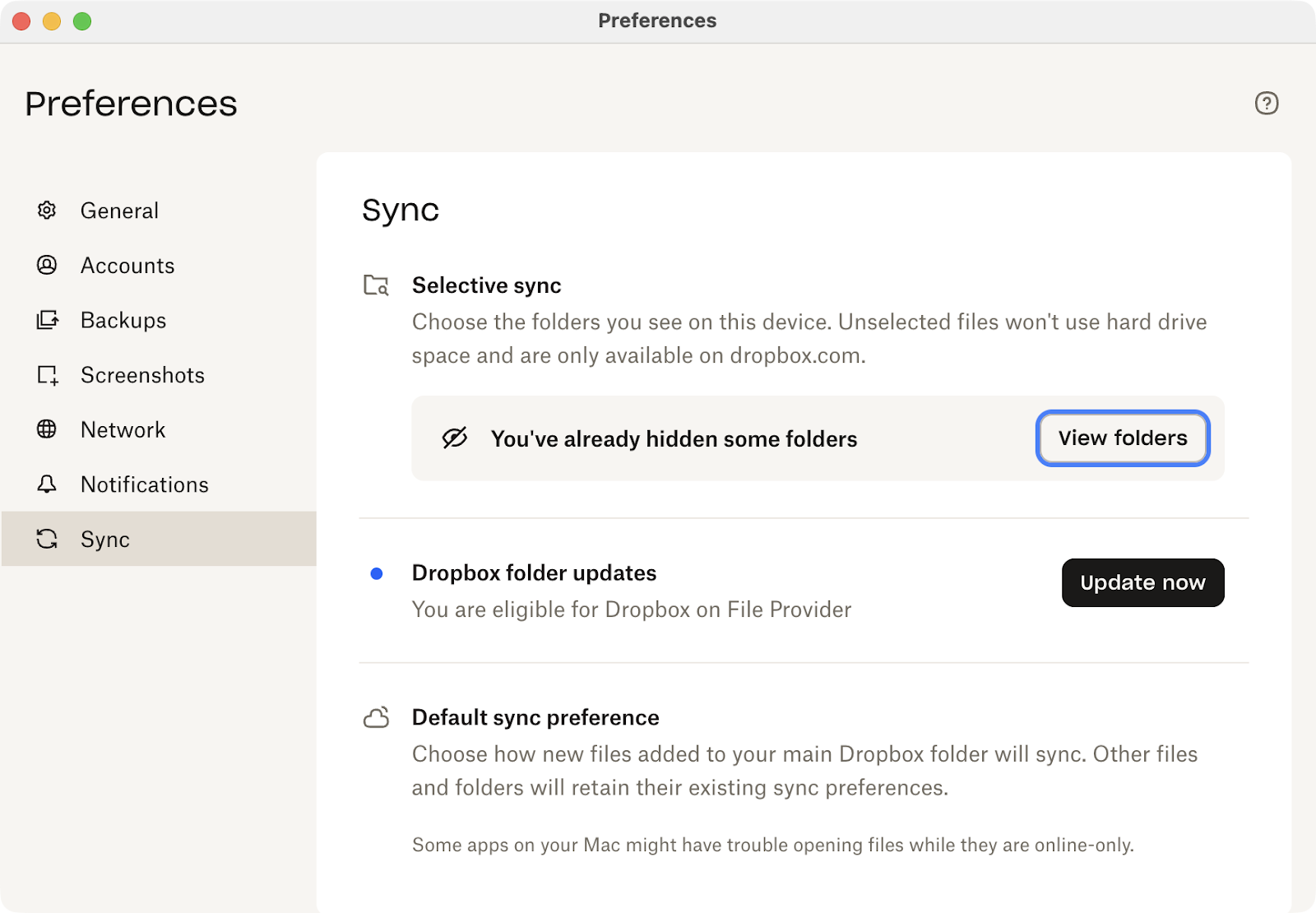
Google Drive doesn’t download all your files to your computer. Instead, if you install the Google Drive app, it’ll show every file but only download them when you try to open the files. You can instead set Google Drive to mirror files, downloading everything in your account to your computer, but if you do so, it’s all or nothing — you can’t select to only sync specific files and folders. It also limits you to uploading 750 GB of files per day.
Dropbox, on the other hand, syncs all your files to your computer. You can set it to save files online-only, storing them on Dropbox and only downloading files when you need to open them. Dropbox also includes a handy Selective Sync option to choose which folders to sync from the Dropbox cloud to your computer and which to keep solely in the cloud to free up your local storage space. And Dropbox lets you upload files up to 2 TB in size without an upload cap, better for collaborating on large files like video footage.
Google Drive is best for creating and editing files, while Dropbox is better with Microsoft Office files
Google Drive is the file storage sidekick to the more well-known Google Docs, Sheets, and Slides apps. With full-featured document, spreadsheet, and presentation tools that are built for collaboration, Google’s apps are a popular alternative to Microsoft Office, and every file you create in those apps is saved to Google Drive automatically. You can also open Office files you’ve saved to Google Drive in Docs and other apps, with varying results depending on the complexity of the documents.
Dropbox includes Dropbox Paper, a collaborative writing app to create documents and take notes online. Paper has far fewer features than Google Docs, though, and doesn’t offer any of the functionality of Sheets, Slides, and other Google Workspace apps. Dropbox also includes integration with Microsoft Office’s web apps, so you can edit Word, Excel, and PowerPoint files from Dropbox in official Microsoft Office apps online, just like you would in Microsoft’s own OneDrive.
Google Drive has more detailed, granular search options, but Dropbox Dash can search across all your work apps
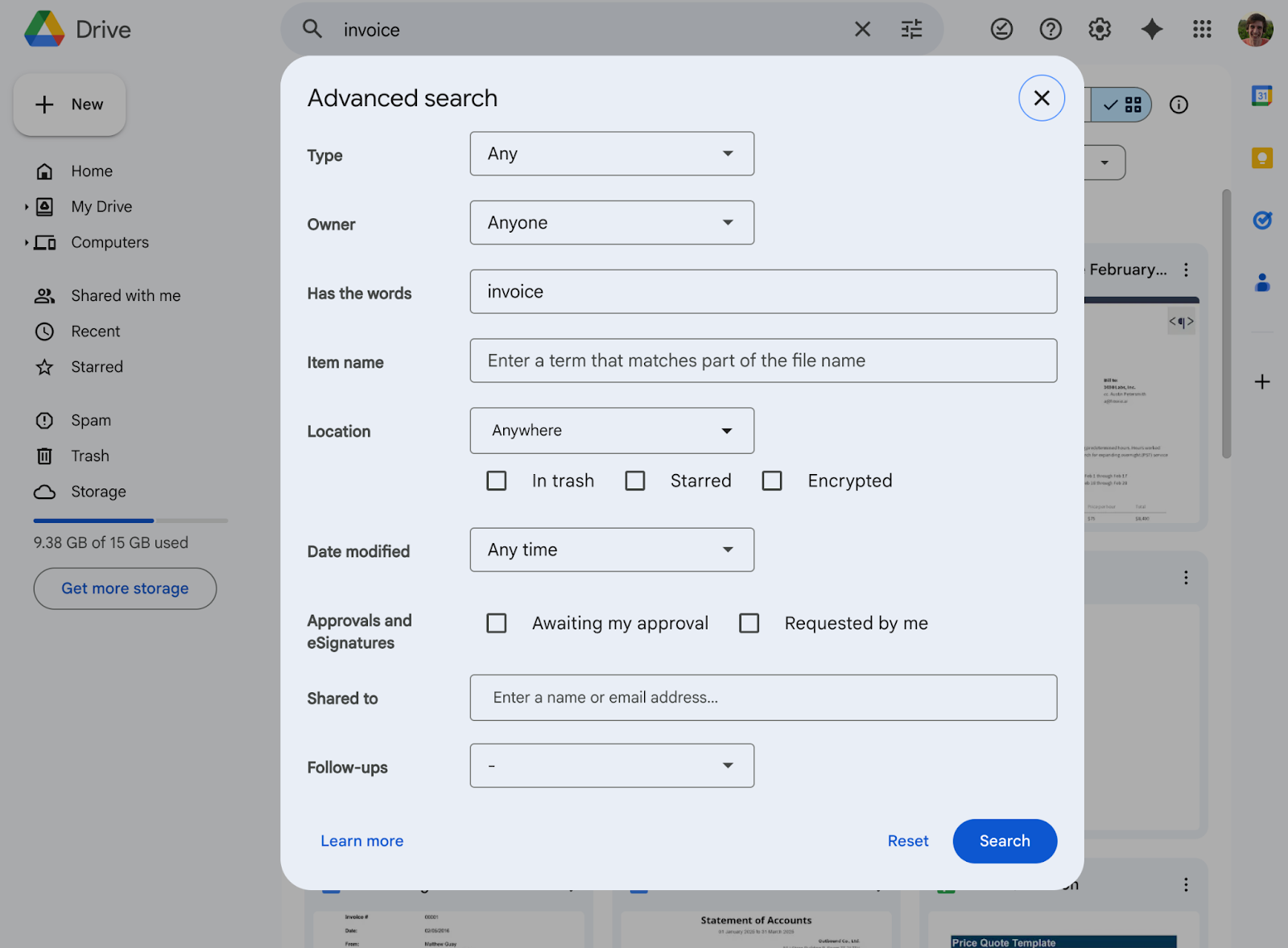
Google Drive has very detailed search tools, perhaps unsurprisingly since it’s built by the company synonymous with search. You can filter files by specific words in the document or specifically in the file name and find files modified during specific timeframes, shared with or owned by certain people, and more. With Google Workspace Standard and higher tiers, Google Drive also includes Gemini AI-powered search to find, say, files related to a project but perhaps worded in slightly different ways than you’d searched.
Dropbox search is more cursory, letting you filter only by type, modified date, and file creator. But, with the new Dropbox Dash search add-on (from $7 per month for existing paid Dropbox users), Dropbox uses AI to find files, tasks, emails, and other data across popular work apps. It integrates with over 65 apps, including HubSpot, Monday.com, Canva, Asana, Airtable, GitHub, Zendesk, Slack, and even Google apps like Gmail and Google Docs. And it can use AI to organize files or summarize meetings and notes in your Dropbox account automatically.
Google Drive is better for internal collaboration. Dropbox is better for working with clients.
Google Drive fits best when your team does most of its work in Google apps and everyone in your company has a Google account. You can invite colleagues to collaborate on files and share folders in Google Drive, knowing that everyone will be able to easily log in and access the files. And you can collaborate with people outside your company — but if they don’t use Google Workspace in their company, they’ll need to join in from their personal Gmail account or create a new Google account to access the files you’ve shared. The only way to share Google Drive files without requiring a login is to make them visible to anyone with the link.
Dropbox includes a number of features that make it a better fit for external collaboration. Anyone can sign into Dropbox with a Dropbox, Google, or Apple account for flexible access. Individual files and folders can be shared with password protection, so collaborators will both need a link and password to gain access. Dropbox also includes a file requests tool to ask people to upload files directly to your Dropbox, without requiring them to have a Dropbox account of their own. That makes Dropbox a better fit to collaborate with anyone, even if they’re using another cloud sync platform.
Google Drive vs Dropbox: Which one wins?
Choose Google Drive if
- You already use Google Workspace and regularly collaborate in Google Docs, Sheets, and Slides
- You want Gmail for your domain along with Google Apps and Google Drive storage in one plan
- You want simplified admin with logs and SSO shared with Google Workspace on all plans
- You want Gemini-powered AI search across the contents of files and documents, including scanned PDF documents
- You want files stored in the cloud automatically to save sync time and space on computers
Choose Dropbox if
- You regularly sync large files and share them with colleagues and want the fastest upload speed
- You need to request files from clients and other third-party contributors who might use other cloud storage providers
- You need the most storage, with Dropbox top plan’s 5-plus TB of storage per user
- You want to selectively sync specific folders to your computer to have your most important files saved offline
- You want to edit files in Microsoft Office online for more file-centric workflows
No matter which you choose, make it work harder with Jotform
Both Dropbox and Google Drive are full-featured, professional cloud storage services. Both can sync your files, keeping them up to date across both your and your collaborators’ devices and backed up to the cloud. And both cost around the same per month for similar levels of storage. The differences come down to the workflows and ecosystems for which they were designed.
Whether you choose Google Drive or Dropbox, one of the core benefits of both tools is that they work well with integrations and automated workflows. You can build Jotform forms to request files from clients and collaborators and use Jotform’s integrations with either service to automatically sync those files to your computer.
Jotform can support your team’s workflows, turning form entries into PDFs and saving them to both Google Drive and Dropbox and kicking off automated workflows with 8,000-plus Jotform integrations, including over 845 built-in integrations and thousands more with automated workflow and AI Agent platforms like Zapier.
You’ll never have to worry about forgetting files on an external drive again — or about emailing oversized attachments, manually sharing files individually, or scrambling to find a file you accidentally deleted — when everything is automatically synced in either Google Drive or Dropbox. And if you prefer one service but need a few of the features in another, you can always rely on one for your core work needs, with a free personal account in the other app for Google Docs with Drive or for file requests with Dropbox.
This article is for anyone comparing Google Drive and Dropbox for everyday work, collaboration, and file sharing. It’s especially useful if you’re choosing a cloud storage tool for a team and want clarity on syncing, permissions, and integrations.









Send Comment:
10 Comments:
November 30, 2023
A notable absence here is the collaborative storage-sharing capabilities and the integration with the Google ecosystem. Google allows you to share storage with up to four others in your family, whereas Dropbox necessitates an additional payment. Google Photos, when backing up to the drive, offers more straightforward browsing and access. In terms of browsing photos, identifying people, and organizing photos by trip or location, Dropbox falls short in comparison to the comprehensive functionalities provided by Google Photos.
July 28, 2022
You didn’t mention Dropbox’s most important feature; peer-to-peer synchronization.
January 1, 2022
i think one thing that's missing here is the storage SHARING features and google ecosystem.
Google lets you family share storage with 4(?) others. Dropbox require you to pay X$ extra
Photos backed up via Google Photos to the drive are far easier to browse and access. Dropbox simply cannot match all the functionalities of Google Photos when it comes to browsing photos/identifying people/organizing photos by trip/location
March 27, 2021
Yes, Dropbox syncs files much faster than Google Drive. You can also prioritize which file you want to sync first, and choose which file or which folder you only want to be available in the cloud to save disk space, with only right click. So, yes, it is more expensive than Google Drive, but it performs better, and it has more useful features.
February 25, 2021
Google uses 256AES Encryption for stored data at rest.
Look for yourself:
Google uses the Advanced Encryption Standard (AES) algorithm to encrypt data at rest. All data at the storage level is encrypted with AES256 by default, with the exception of a small number of Persistent Disks created prior to 2015 that use AES128
December 19, 2020
I use both Google drive and Dropbox. Avery important feature of Dropbox wa not mentioned in the article. All data files that change over time should be stored in Dropbox. You get 30 days of every version of your file. So if you you can chang e a file 10 times every day and I you can go to Dropbox.com and search for your file and retrieve bases on date and time. Nothing is more valuable than this feature!,
August 8, 2020
Dropbox pricing is way over rated compared to other cloud providers. 9usd a month, with no possible lower space. Used it for 10 years, till I found out how google drive works. Way cheaper. Now I pay 2usd a month, for what I need. 100GB. 2TB is overkill and no need to pay 9usd for so much more than I need. Dropbox is not developing as others are. Dropbox is a simple overpriced product left to nothing.
June 29, 2020
Google just disabled being able to add shared folders to your drive, effectively destroying its utility for most users. In the light of this I strongly recommend editing the 'Syncing' and 'File Sharing' bits of this article. And also your tagline, because where Dropbox might earlier have been ahead by a nose or a hair, it is now ahead of google drive by miles
June 13, 2020
And what about searching by text from pdf doc. In Dropbox without problems but in Drive...
May 24, 2020
i have several cloud accounts. is there a program/app/service that will allow me to sync them all together and dedup them?
thanks.
jim