Learn how to start migrating forms, submissions, and other assets from Standard accounts to your organization. This guide explains how organization admins can initiate and monitor the migration process, select the accounts to be migrated, and ensure that the transferred assets are moved securely into the appropriate organization workspace.
How to Start the Migration Process
The Migration button is available on the Admin Console landing page and in the Users and Assets tabs. Here’s how to do it:
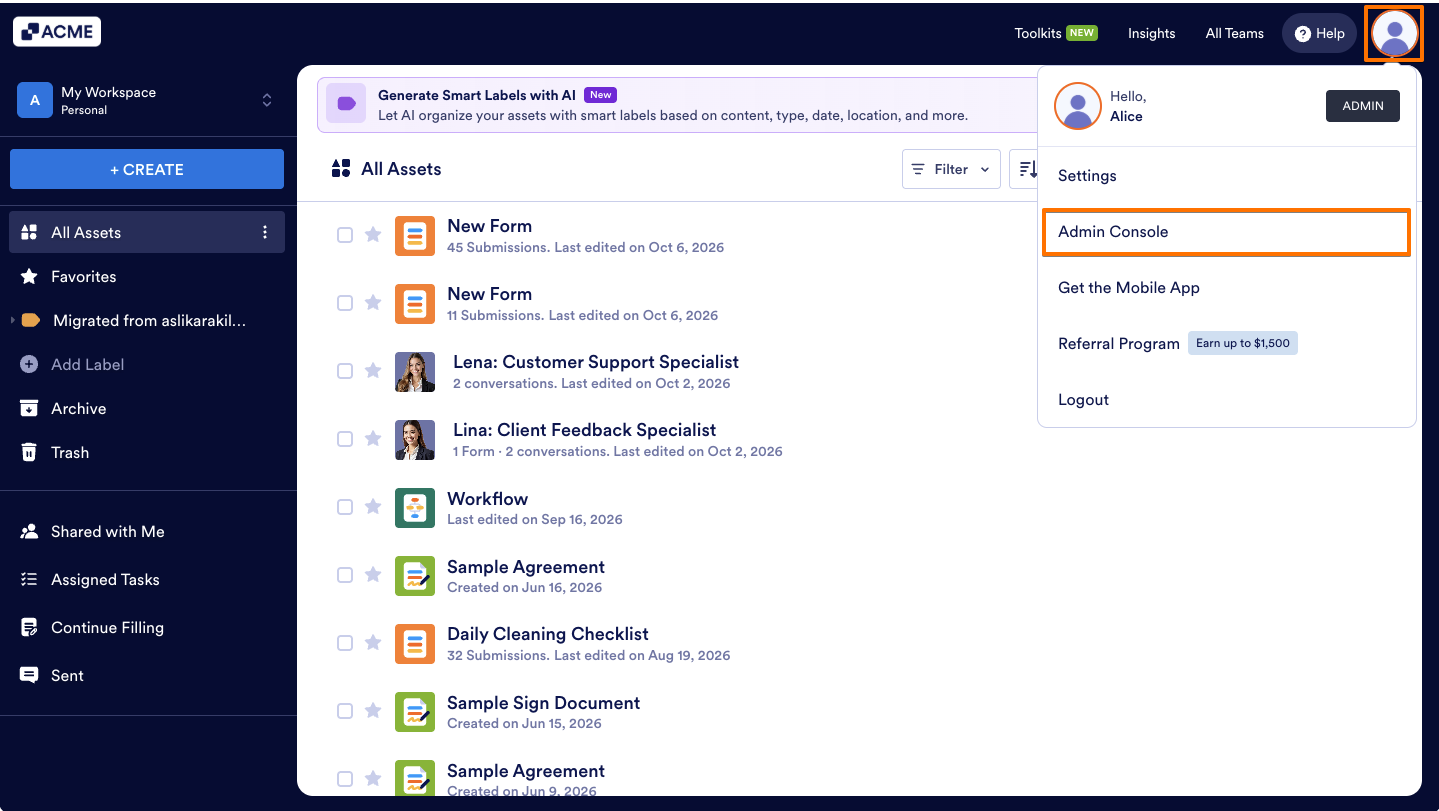
- On the My Workspace page, in the upper-right corner, click the Profile icon.
- Select Admin Console from the menu.
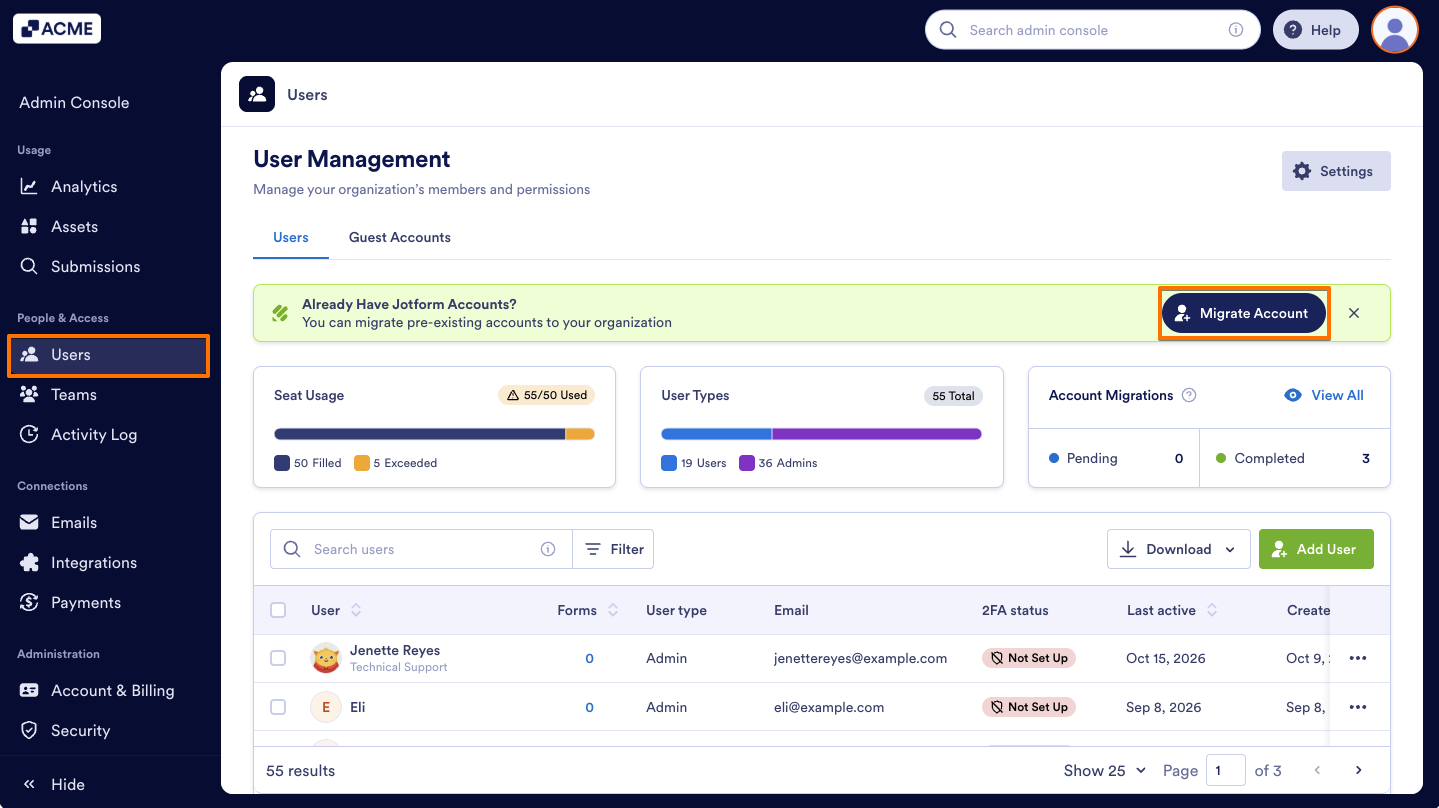
- On the left side of the Admin console page, select Users.
- Next, click on the Migrate Account button.
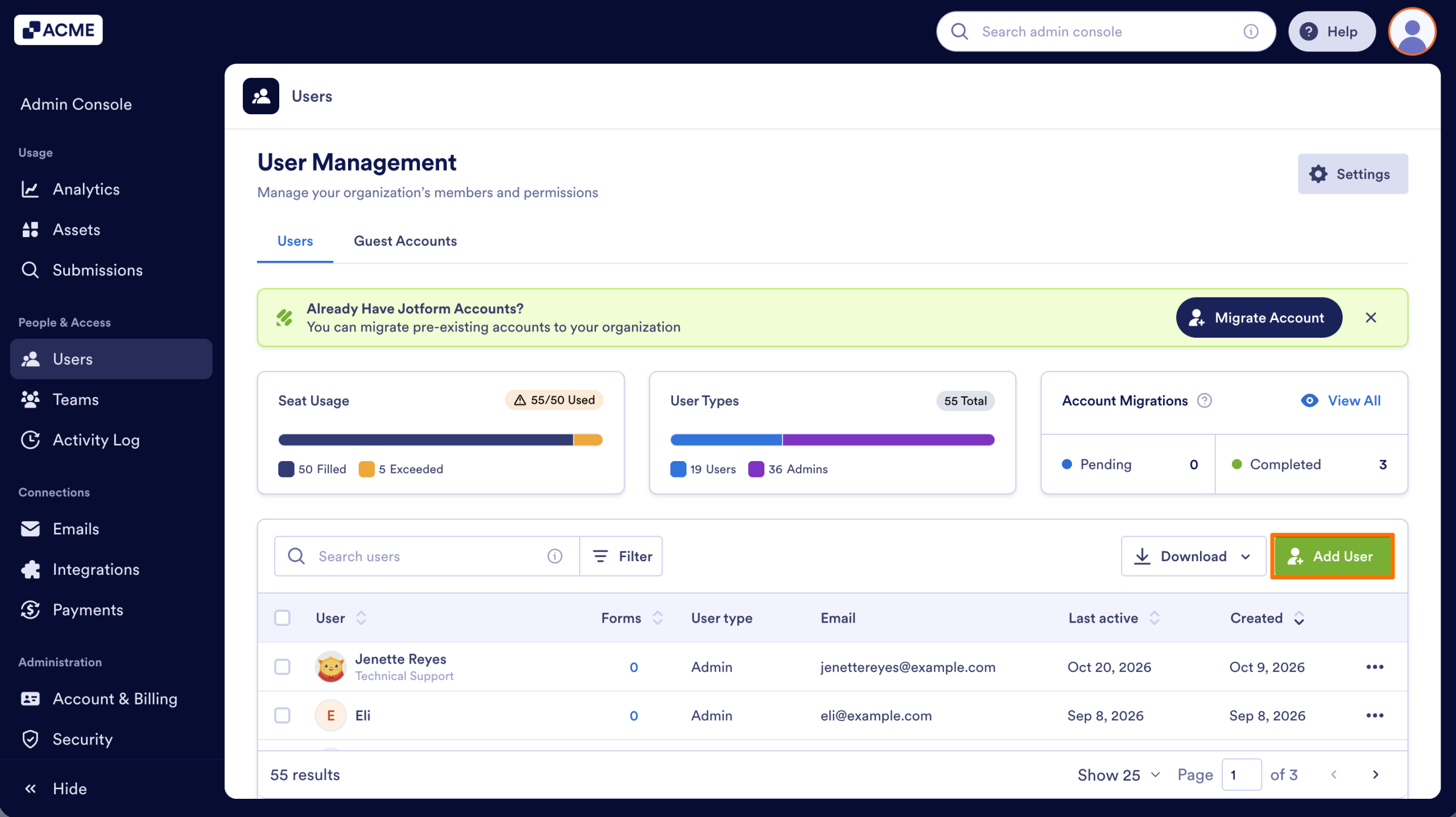
If you’ve previously dismissed the banner, you can also click the Add User button in the lower-right corner.
The Migrate tab is also available in the pop-up that opens.
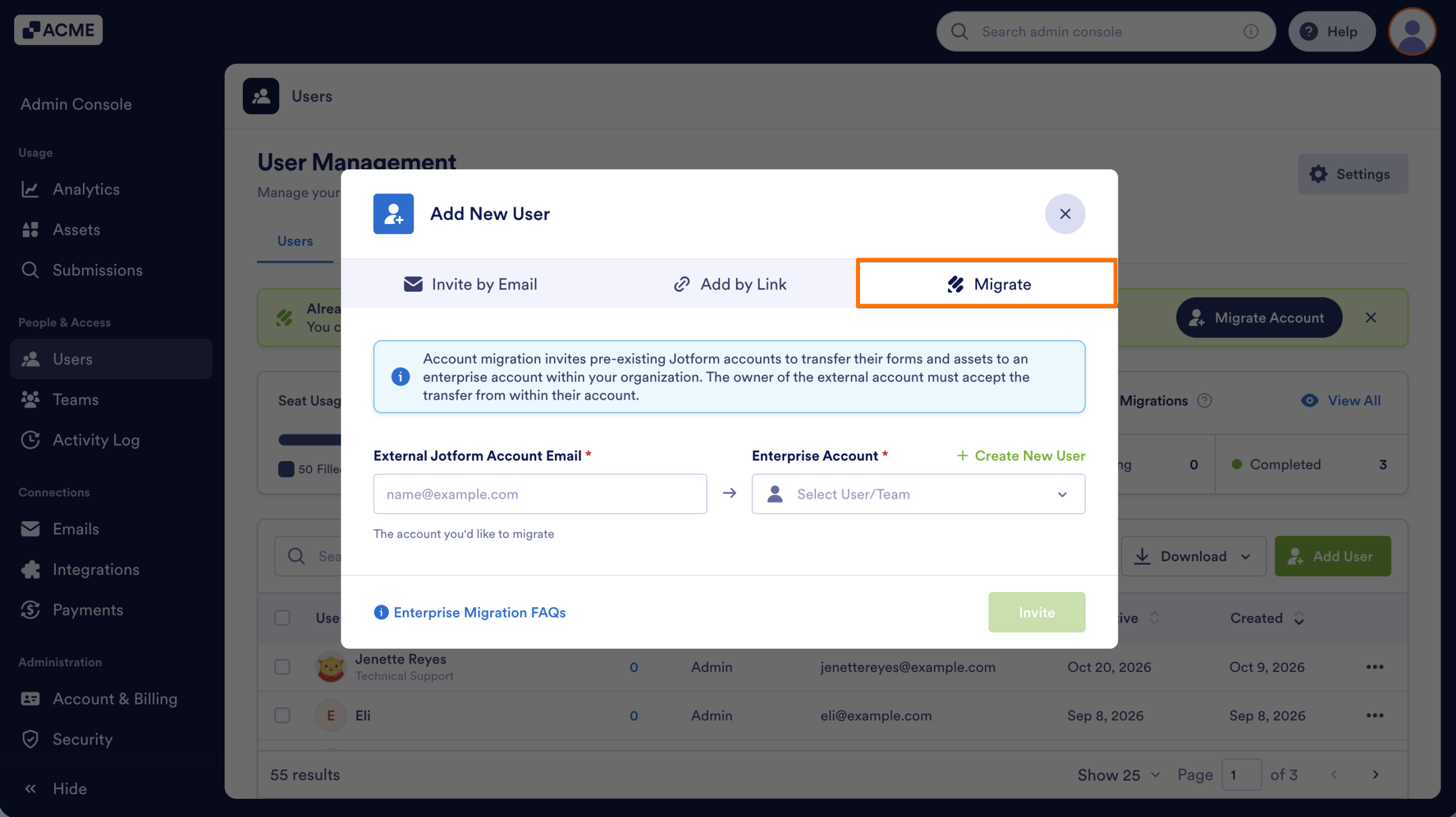
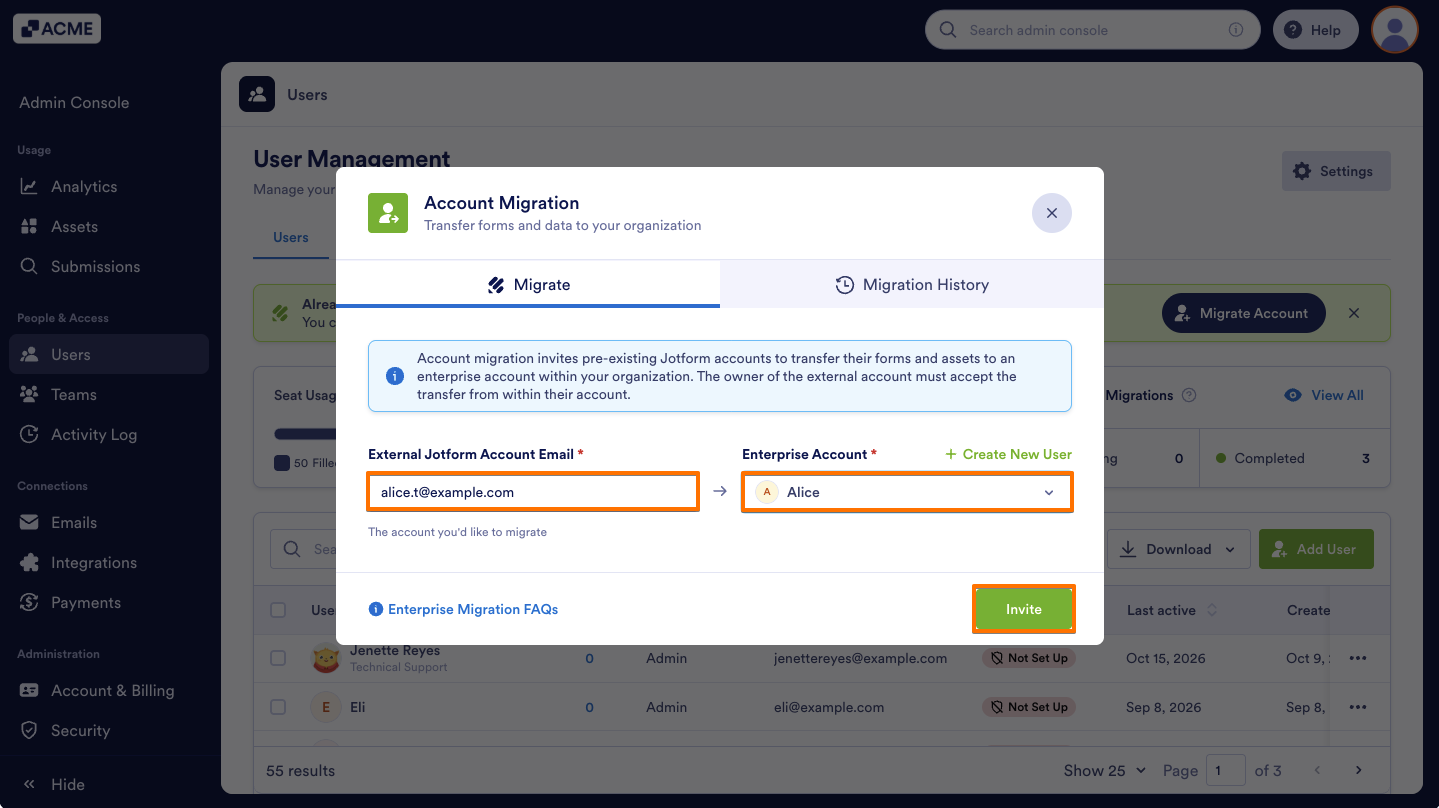
- In the pop-up window, enter the External Jotform Account from which you want to migrate assets, then select the target team or user from the Enterprise Account dropdown.
- Click Invite to send a migration invitation to the external account.
Note
You create a new user by clicking on the +Create New User in the Account Migration Window.
- Then, the Standard Jotform account owner receives the invitation and provides consent for the data transfer.
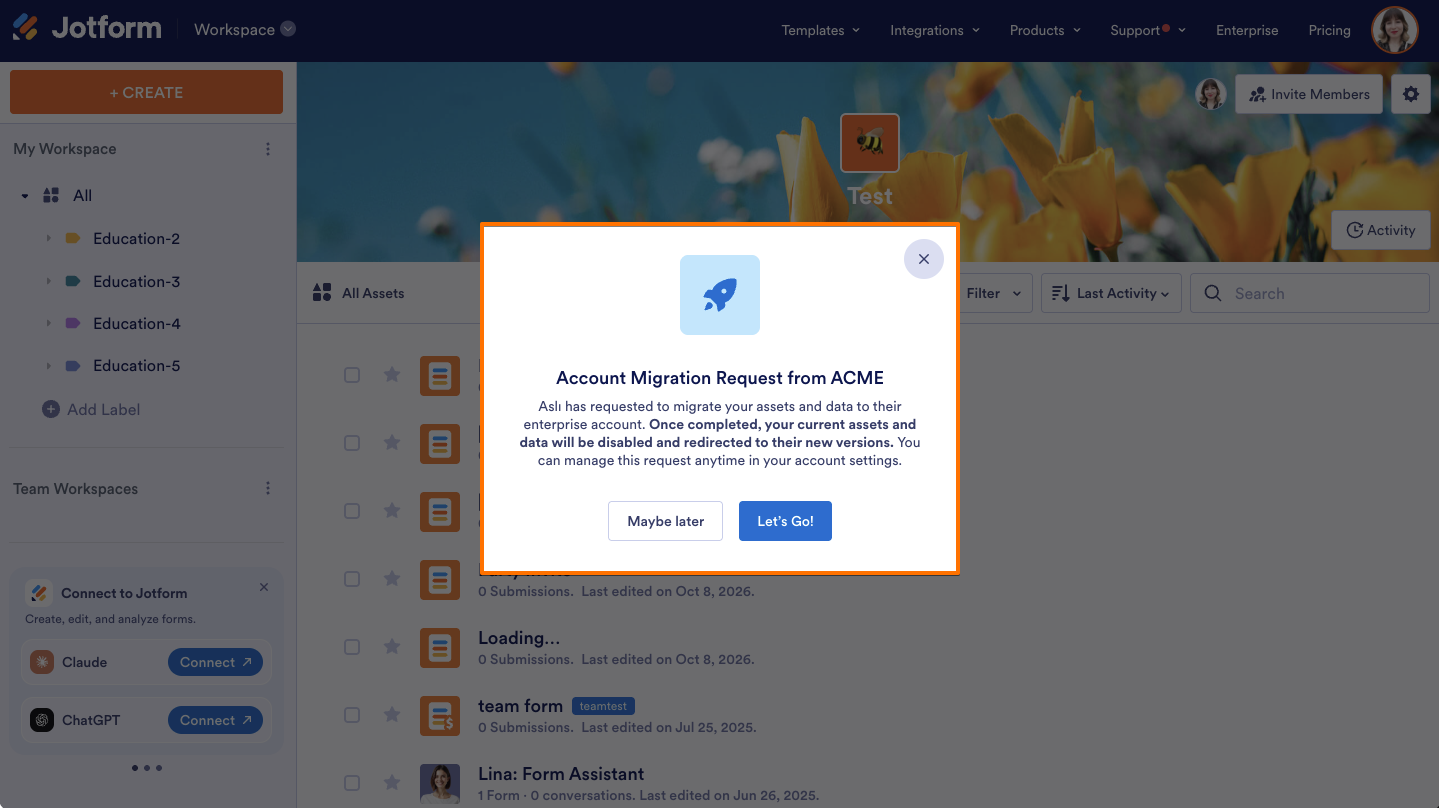
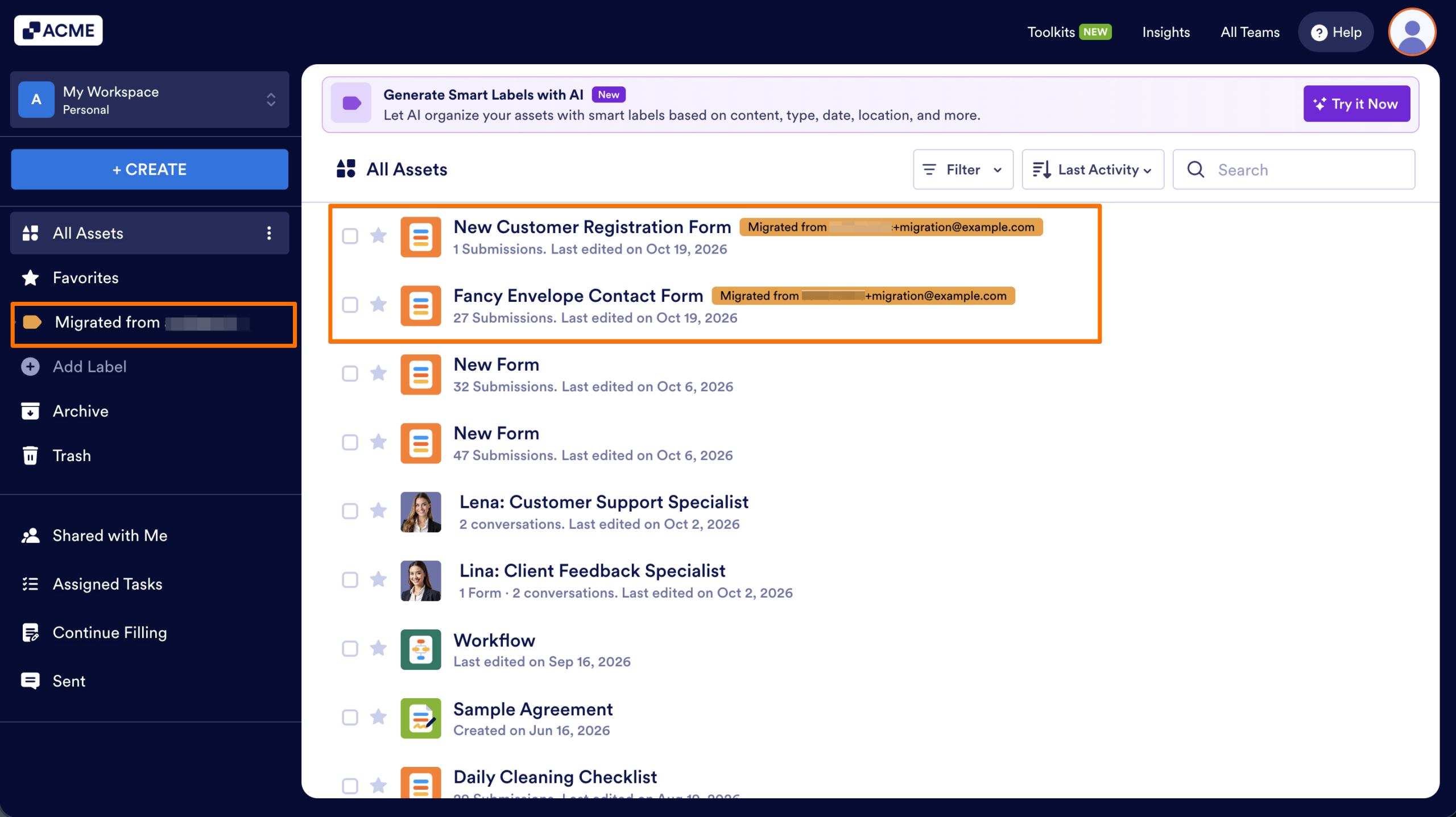
- The migrated forms will appear in the selected user’s personal workspace or the selected team’s workspace with a “Migrated from [external account]” label.
How to view the Account Migration History
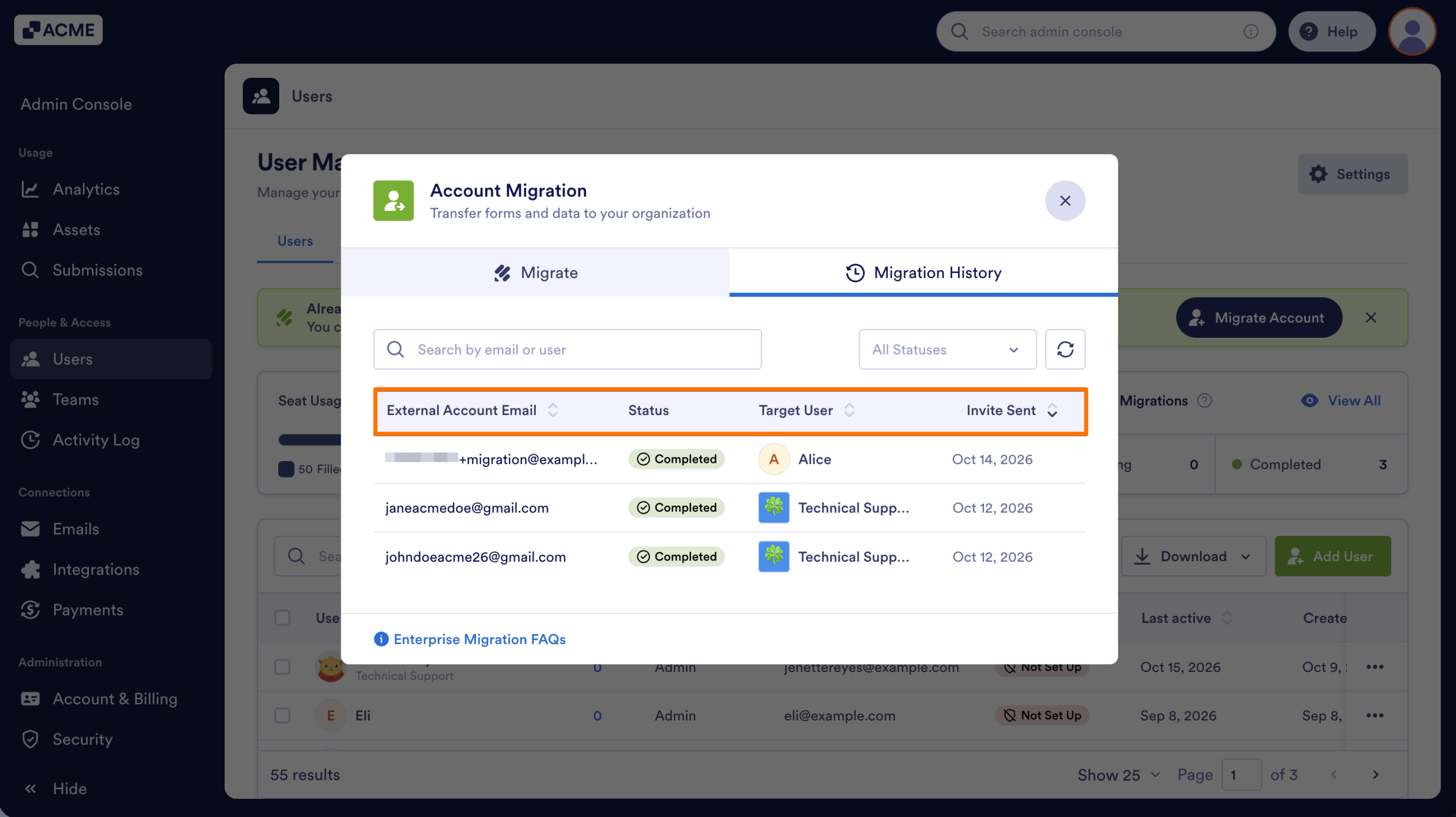
- In the Admin Console, go to the Users tab and click View All in the Account Migrations card.
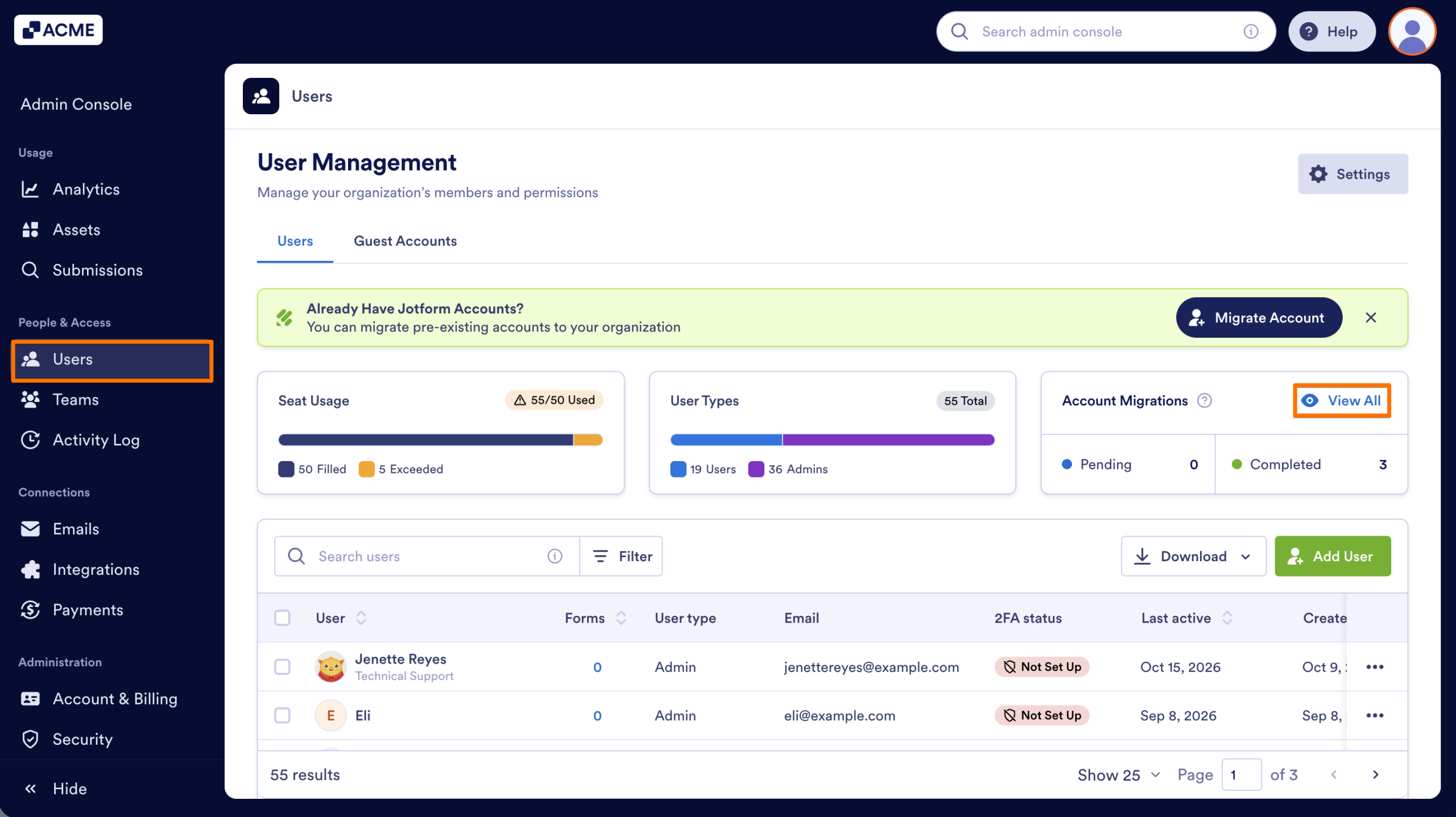
- In the pop-up window, you can view the external account email, migration status, target user on the organization, and invitation date.
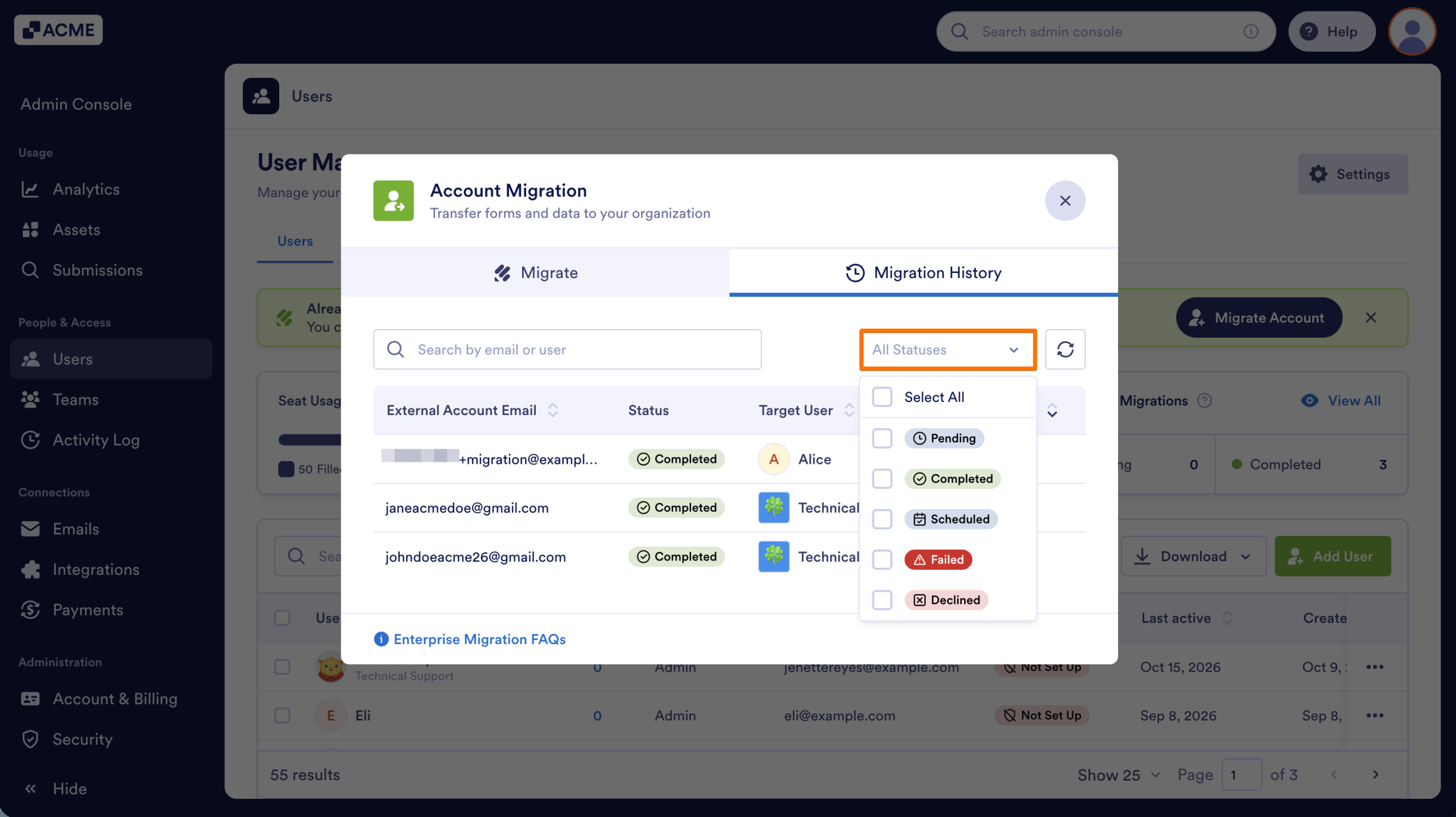
- If you want to filter the status of the invites, on the upper right side of the window, click on the Dropdown menu and select the status you want to view.
- Pending: The migration invitation is in progress or awaiting a response from the external Jotform account.
- Completed: The account migration was completed successfully.
- Scheduled: The external Jotform account has scheduled the migration.
- Failed: The account migration could not be completed.
- Declined: The external Jotform account declined the migration invitation.
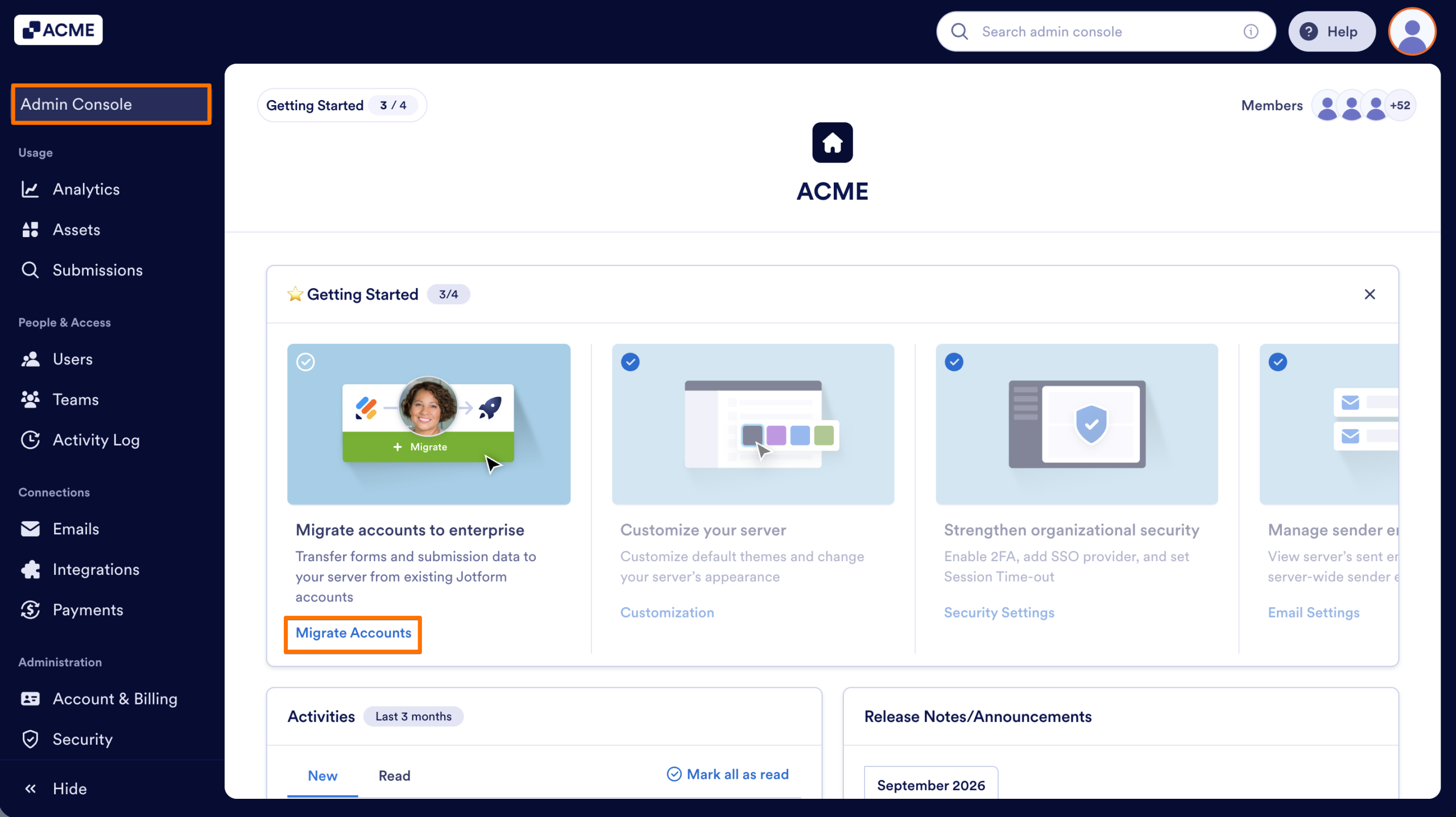
You can start a migration request from the Admin Console landing page. This option gives you quick access to the migration process as soon as you open the Admin Console.
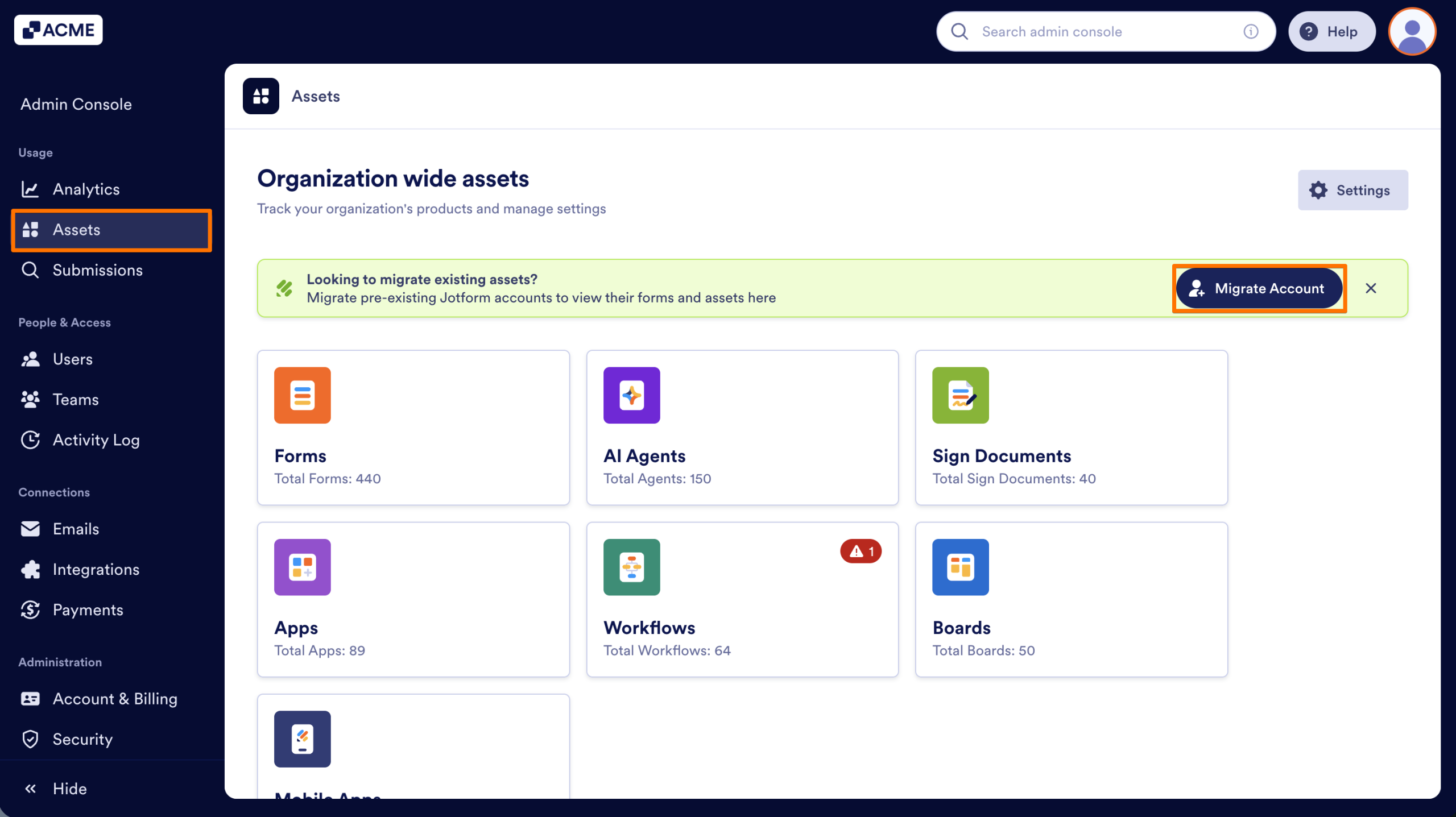
You can also start a migration request from the Assets tab in the Admin Console, allowing you to begin the process while viewing and managing account assets.
Note
If a team is selected as the target, all team members receive the email. The admin who sent the invitation does not receive a success email; only failure notifications are sent to the requester.

Send Comment: