Constant Contact is a comprehensive marketing platform that helps businesses build and maintain customer relationships through powerful email campaigns and automation tools. It simplifies the process of creating, managing, and optimizing email marketing, enabling businesses to connect with their audience and achieve their marketing objectives efficiently.


To get started with integrating Constant Contact with your form, follow these step-by-step instructions designed to guide you through the process:
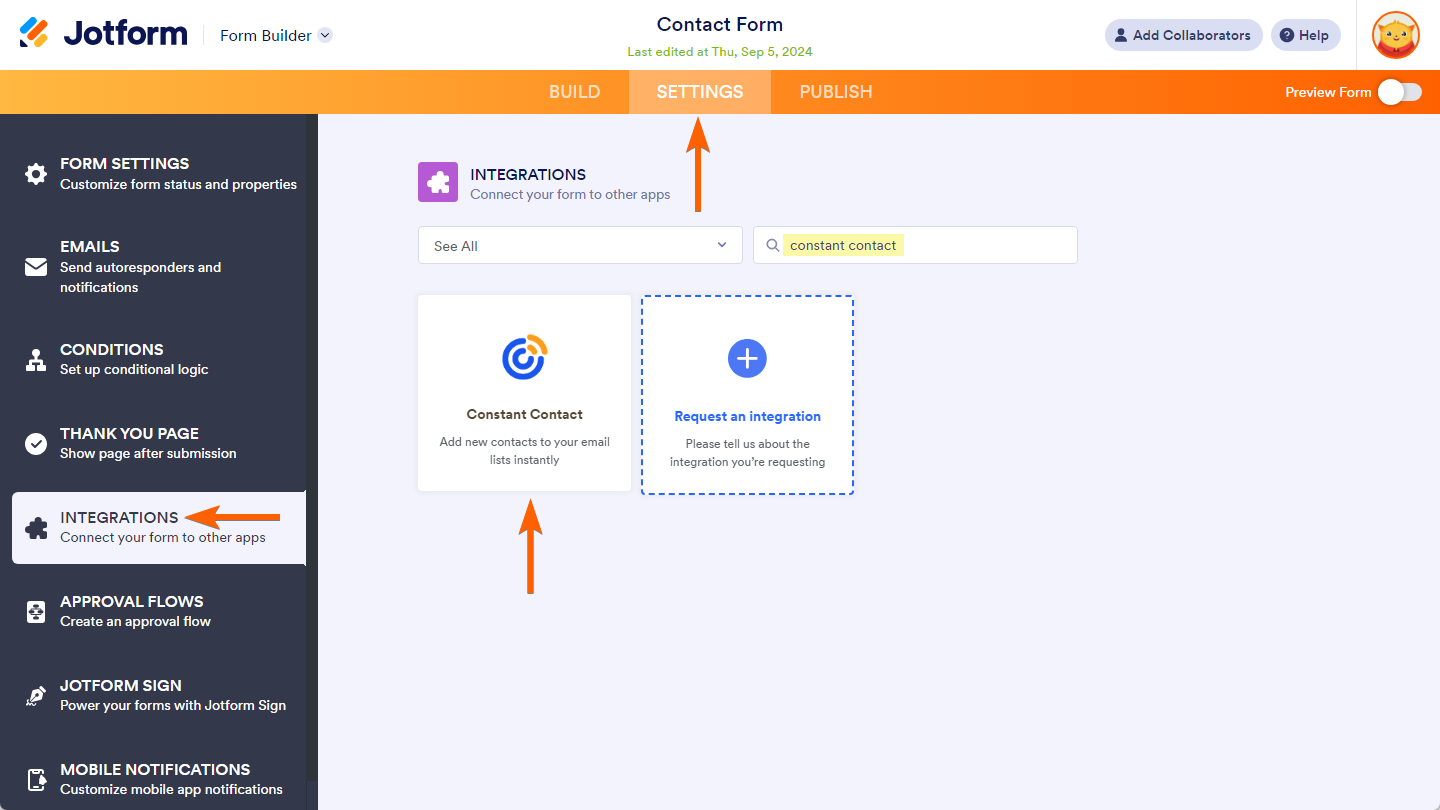
- In the Form Builder, click on Settings in the orange navigation bar.
- Next, click on the Integrations tab.
- Search for Constant Contact, and click on it in the result.
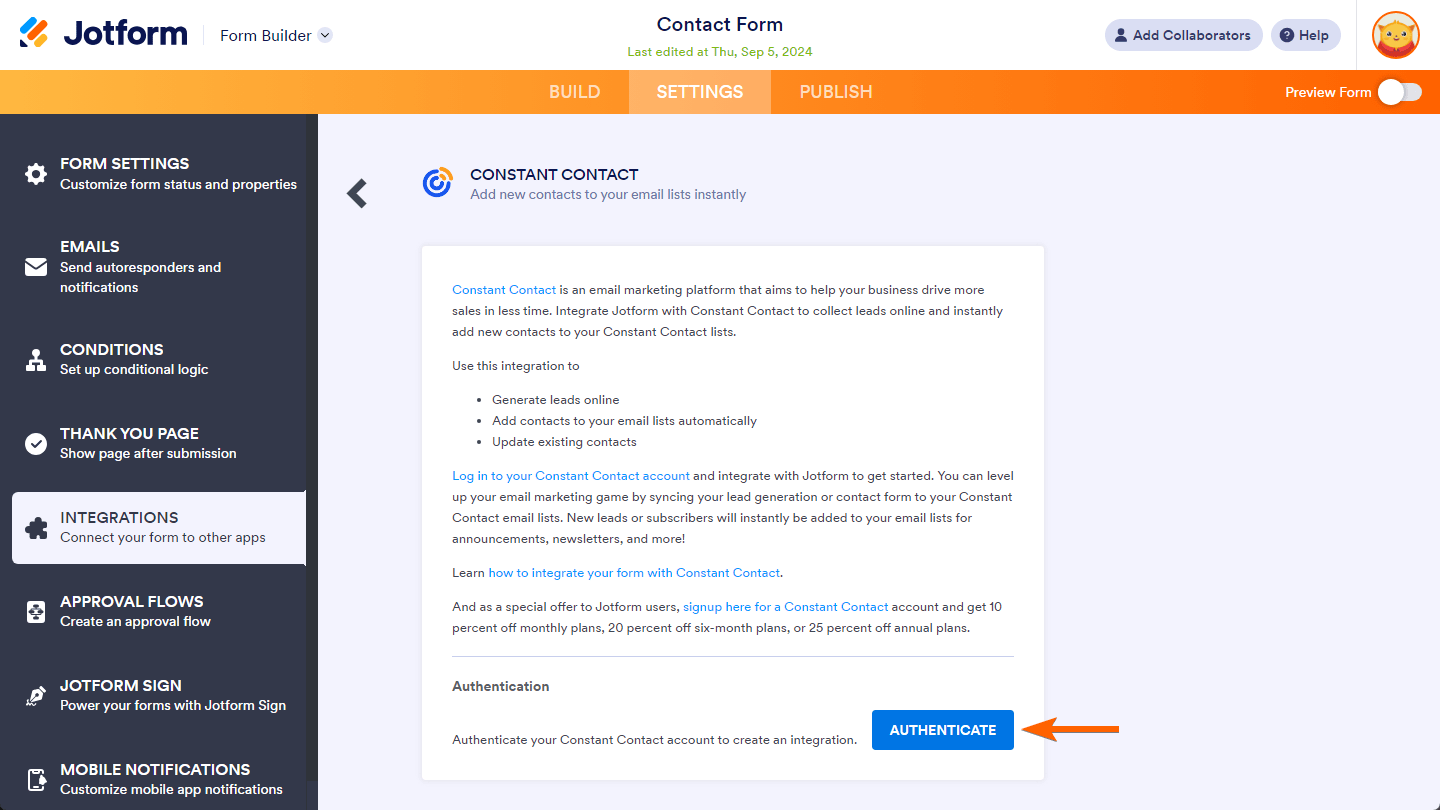
- In the next screen, click on the Authenticate button to log in to your Constant Contact account and to grant Jotform Integration access to read information and perform actions necessary for the integration to work.
- In the integration settings, select a list from your Constant Contact account and match its fields to the fields on your form.
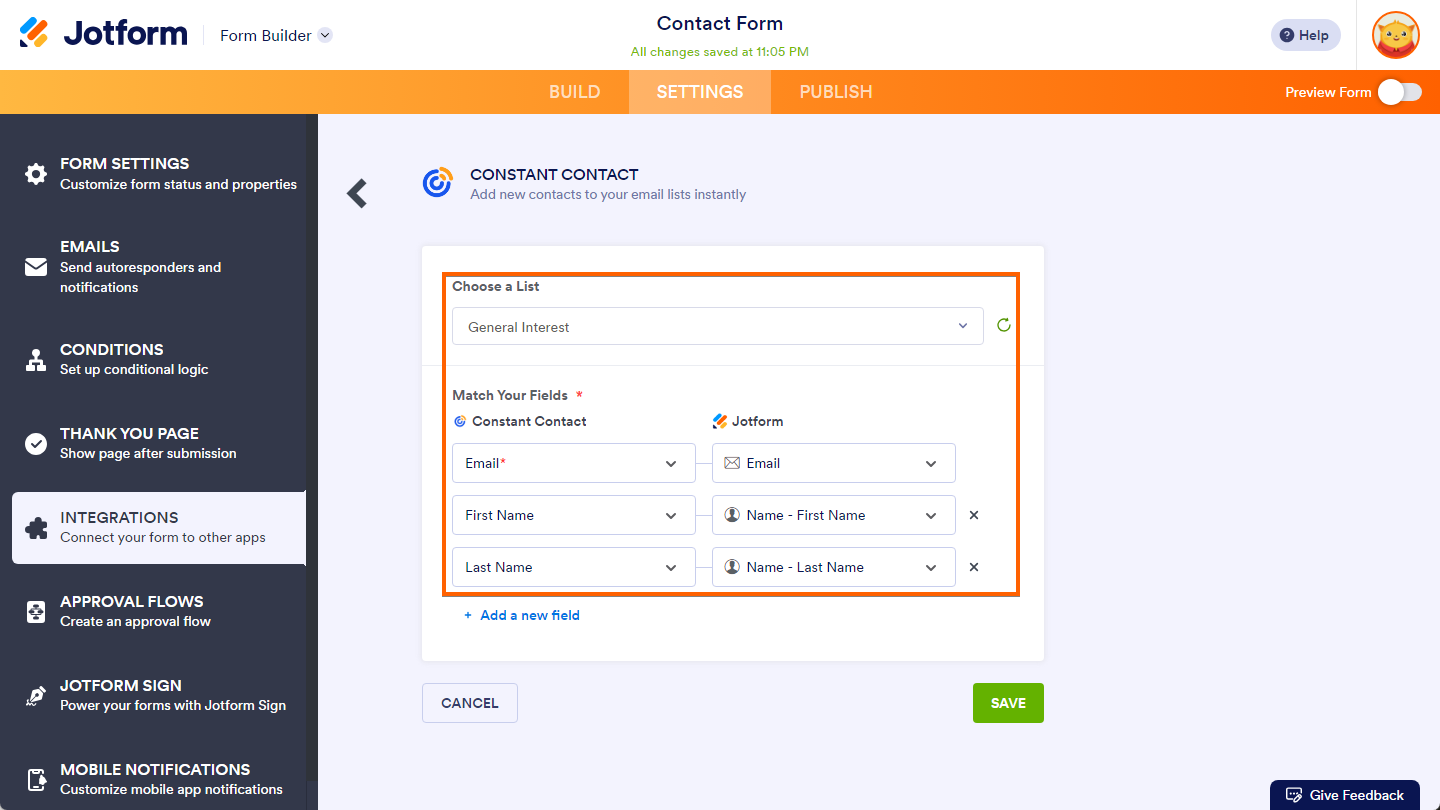
- Click on the Add a new field button to match additional fields.
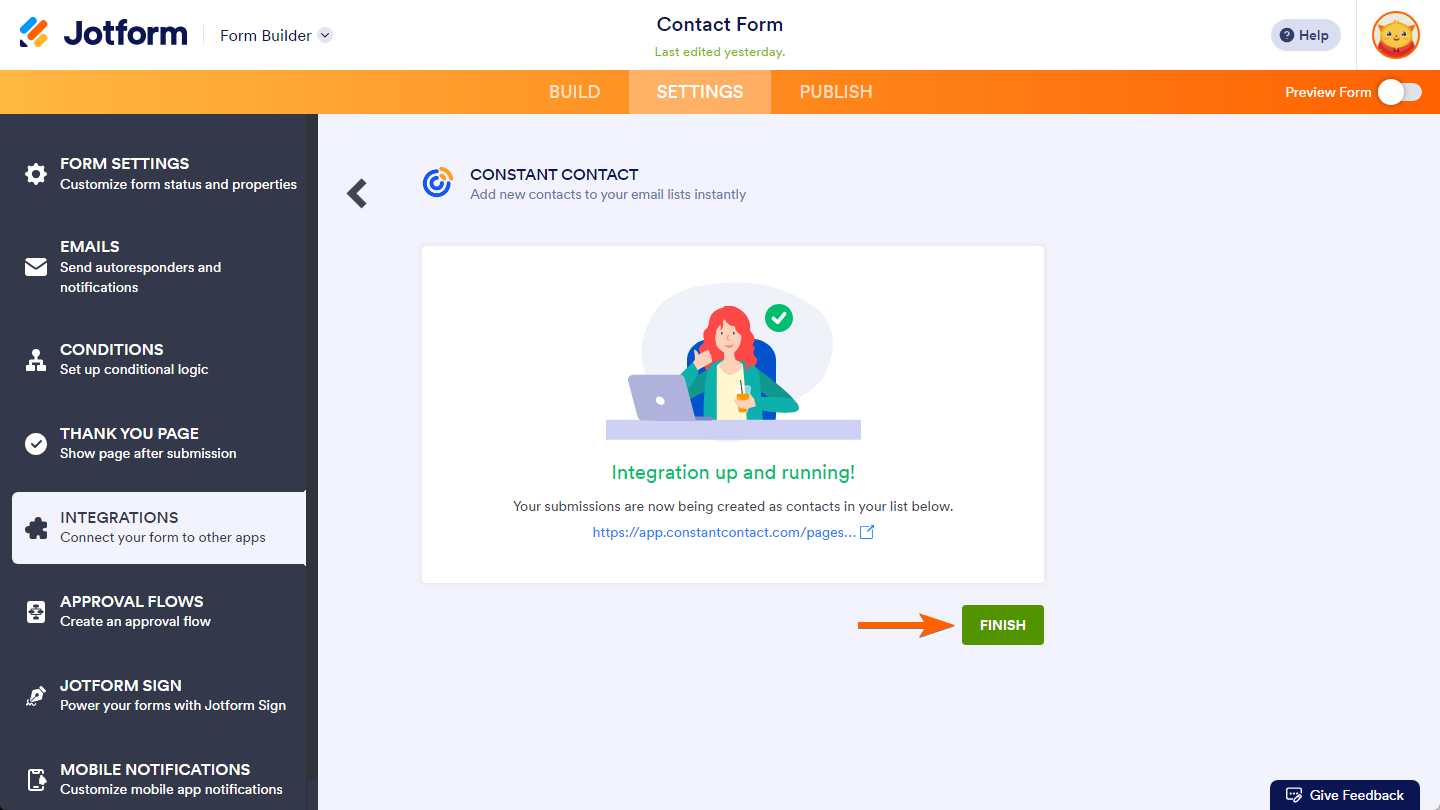
- Once you’re done, click on Save at the bottom to complete the integration then the Finish button on the next screen.




Send Comment:
12 Comments:
September 9, 2025
It's good to work with you
April 28, 2025
Buongiorno,
abbiamo necessità di un sistema per inviare mail "massive" da 550 contatti in avanti, sarebbe possibile usare mail chimp inserendo i contatti tramite un excel pre-determinato? Ci è impossibile inserire i contatti secondo il vostro sistema "uno ad uno"
L'integrazione prevede un costo aggiuntivo all'abbonamento in essere?
Grazie mille Valentina CRPIEMONTE FEDERAZIONE ITALIANA TENNIS E PADEL
April 9, 2025
I want to allow users to sign up for SMS messaging and have that port over to constant contact. I dont see the ability to do that now - is it possible to integrate an SMS agreement field to port over in the constant contact list?
November 17, 2021
Is there a way to control whether or not the contact is added to the list based on the value of another field? For example, if a checkbox named "Sign me up for the newsletter" is checked, include the name and email address in Constant Contact.
November 16, 2021
Is there an options to allow users to choose multiple lists?
July 27, 2021
Was this functionality removed? I don't see Constant Contact as an option.
June 18, 2021
I have a partnered account through my franchise how can I integrate Jotform to Constant Contact
Account Owner: world-travel-holdings-03808
June 27, 2020
How do I integrate custom fields from Jotform to Constant Contact?
March 15, 2019
is it possible to send all of the fields to constant contact?
August 14, 2018
Hello
The Match Fields section does not allow me to add new fields. I'm on a Mac and have tried FF and Crome.
Form: A Servant of Two Masters - https://www.jotform.com/build/82253848713967
Please advise kburner@parkland.edu. Thank you.
Kate
April 5, 2018
Hello,
The Match Fields section is not working for me. The dropdown arrows don't show anything.
Thank you.
August 9, 2017
I am trying to add additional fields to Constant Contact but am limited to address and a few more. Can I include other fields somehow?