Jotform helps organizations meet data security and compliance expectations when collecting personally identifiable information (PII) through online forms. Jotform’s KYC process is a one-time identity and organization verification designed to help ensure that only legitimate users can collect highly sensitive PII, such as government identification numbers or financial account data, in accordance with platform policies and privacy standards.
This process is particularly valuable for regulated industries, financial workflows, identity verification use cases, and organizations that must demonstrate responsible data handling. By requiring verification before allowing sensitive data collection, KYC helps reduce the risk of misuse, supports compliance with data protection requirements, and maintains a secure environment for both businesses and end users.
Understanding Account Warning Messages and Email Alerts
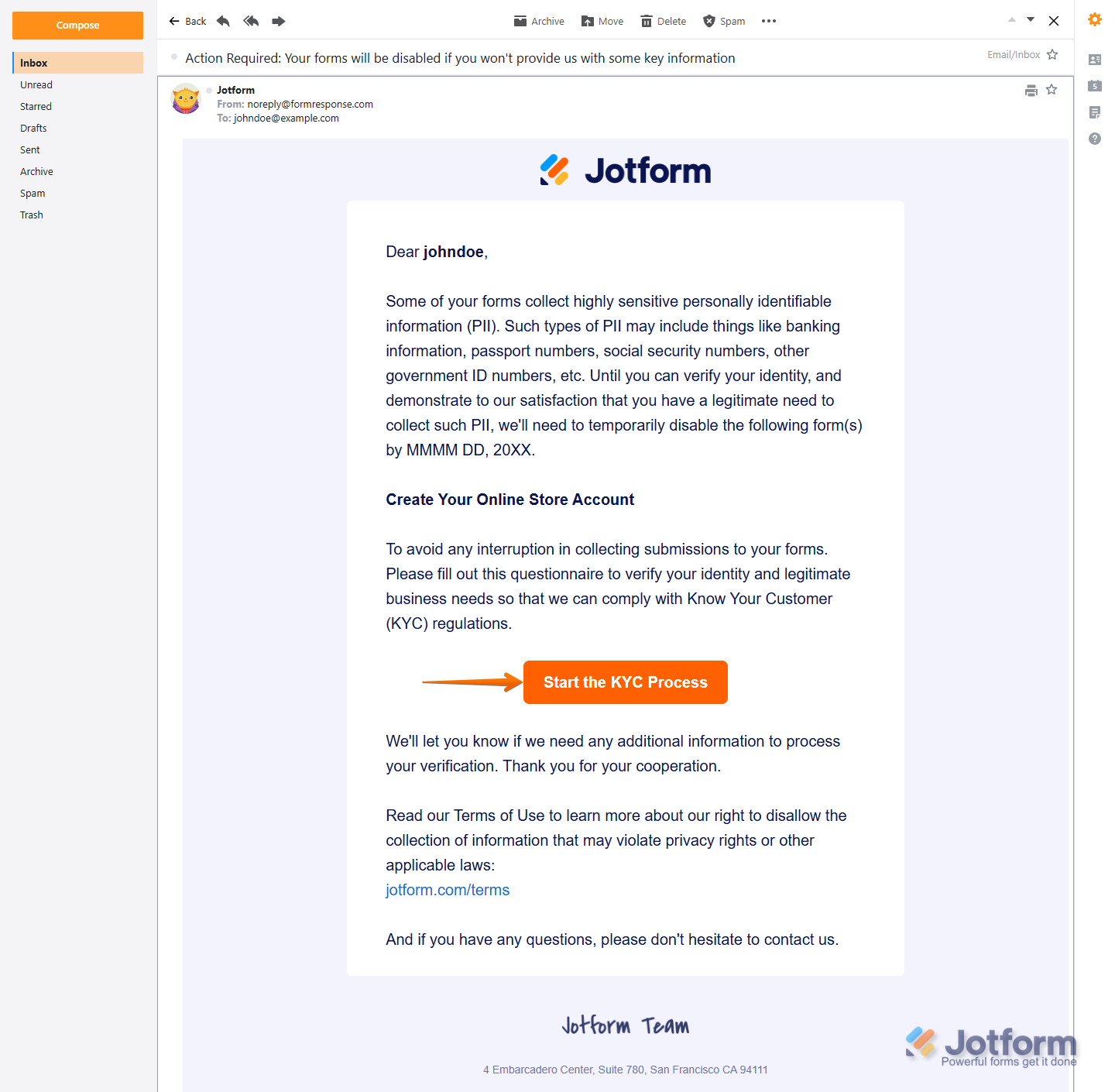
If your form is flagged for collecting sensitive information, the KYC process is initiated, and you’ll receive an email explaining that it may be temporarily disabled by a specified date until verification is completed. The email also includes a Start the KYC Process button that you can use to verify your identity and confirm your legitimate business need to collect sensitive data.
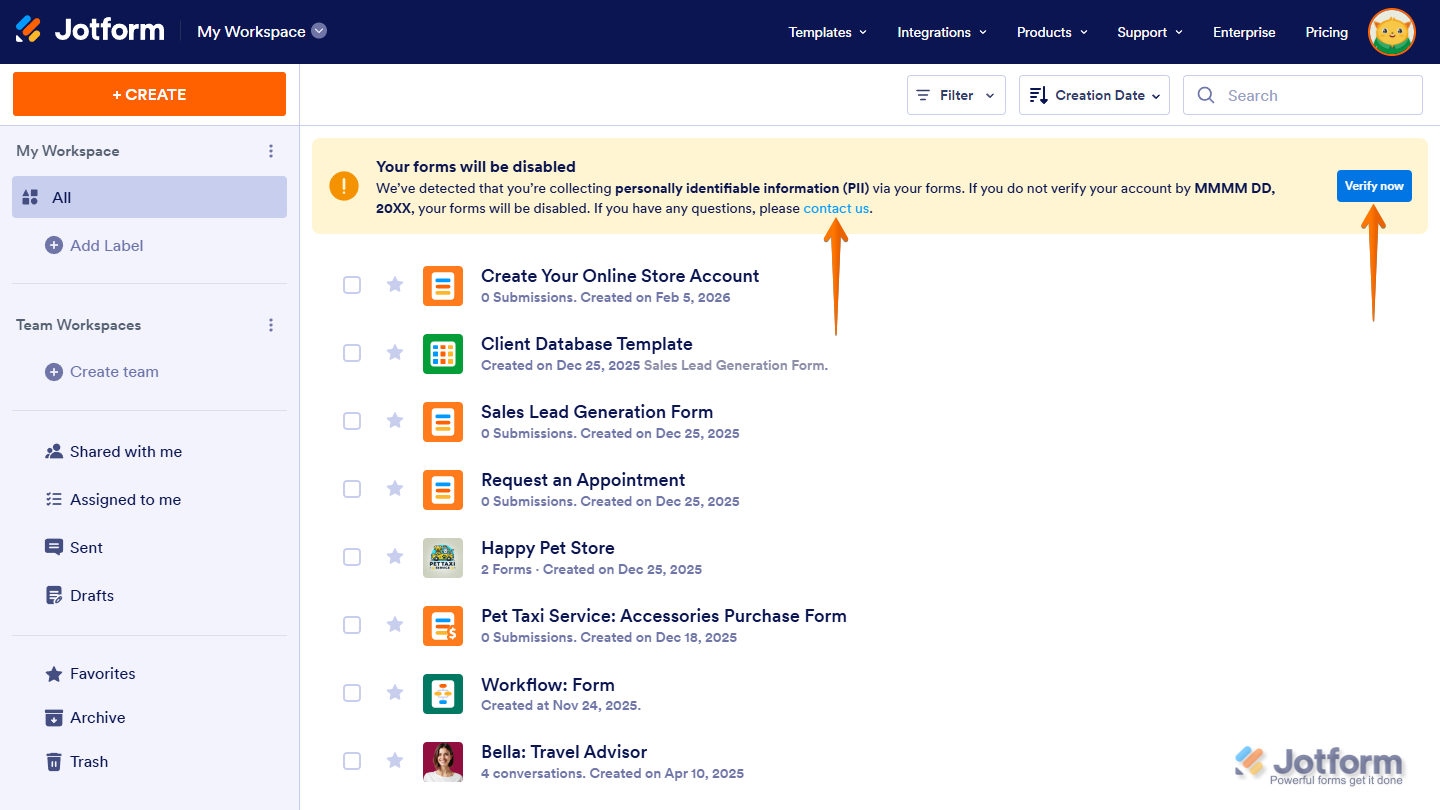
When the KYC process has started, you’ll see a message at the top of the Workspace page notifying you that your flagged forms will be disabled to help ensure you’re aware of the required actions. It also includes a Verify button to start the verification process and a Contact Us link if you have any questions.
Note
In the User Verification Form, if you’re starting the process through the email you received or the message at the top of your Workspace page, you may be asked to provide all or some of the following information, depending on the details already in your account and the type of data you plan to collect through your flagged forms:
- Personal Details — This includes your Name, Title, Address, Phone Number, and Email.
- Selfie with Government-Issued ID — This is a photo of yourself holding a driver’s license, passport, or similar government-issued ID. You’ll need a device with a working camera to complete this step.
- Organization Details — If requested, this includes the name of your organization, a brief description of what your organization does, an explanation of what sensitive data you plan to collect and why, a list of people who can access this data, where the data will be stored, and a copy of your organization’s registration document.
- Signature — You’ll also need to sign to complete the verification.
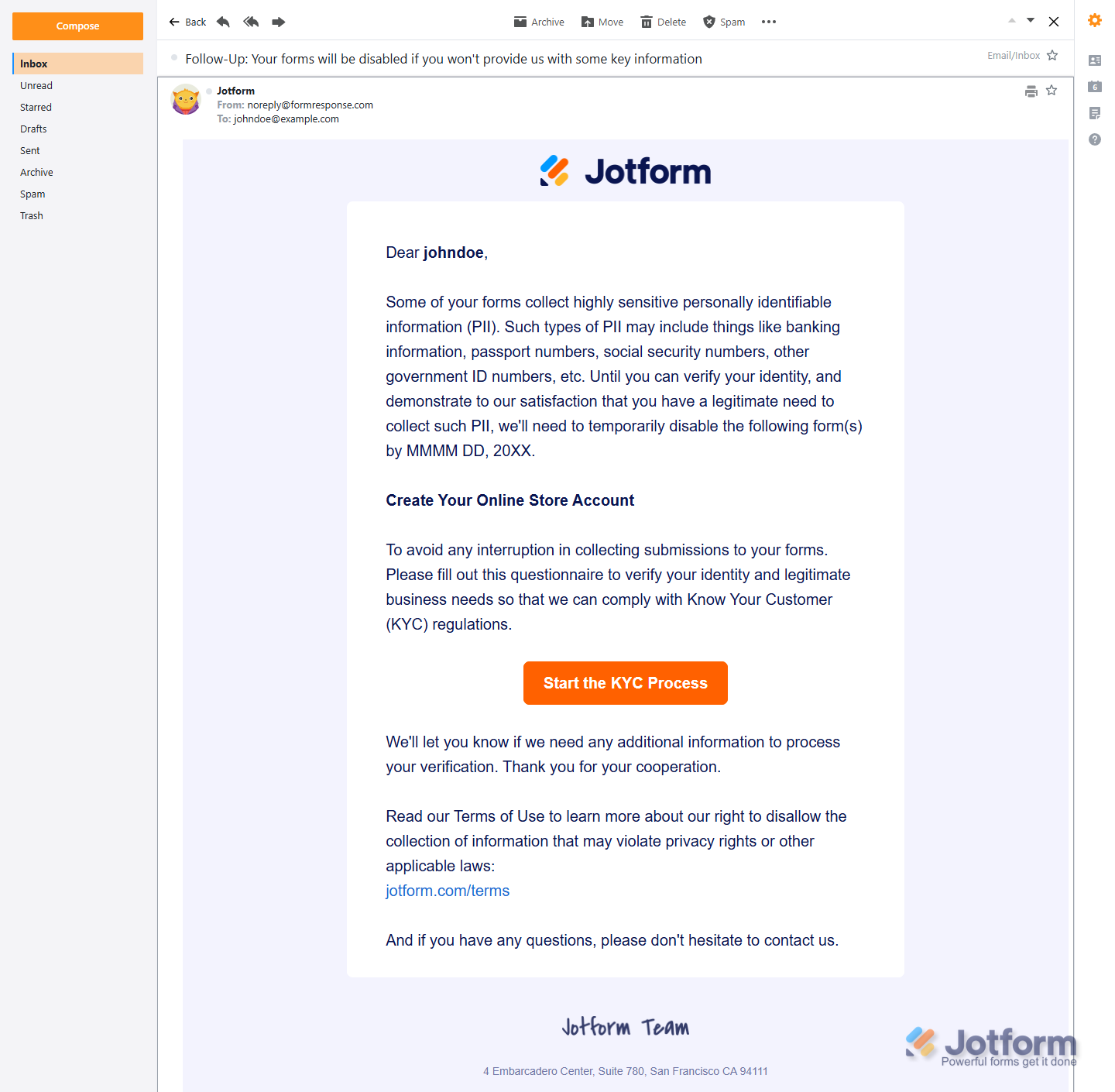
If you haven’t completed verification within one (1) day after the initial email is sent, you’ll receive a reminder email to help ensure you don’t miss the verification deadline and avoid any interruption to your flagged forms. The same reminder email will be sent again if verification is still not completed one day after the first one.
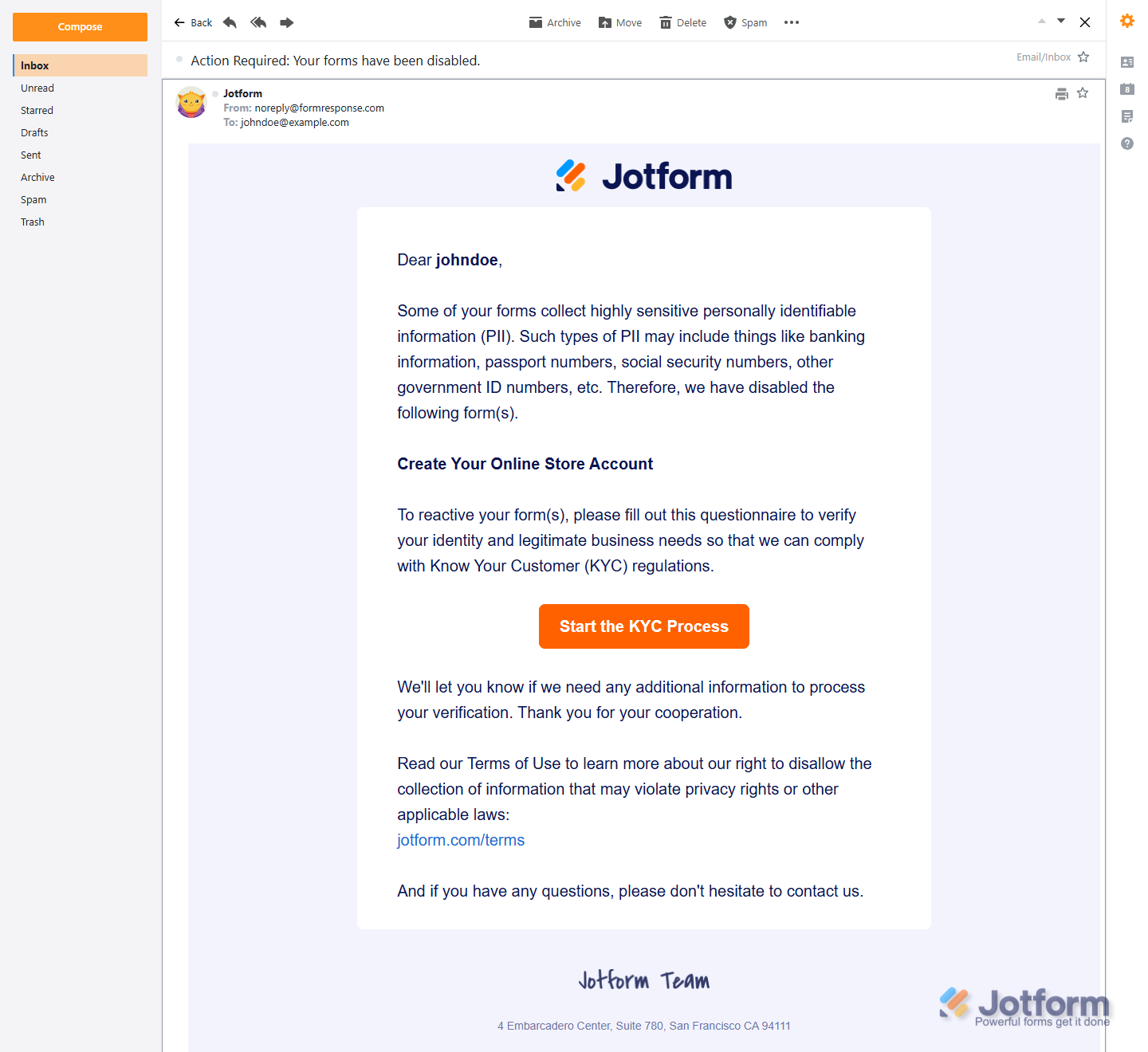
If you have not completed the User Verification Form within three (3) days of the initial email, your flagged forms will be disabled, and you’ll receive an email explaining why and how to reactivate them.
If your flagged forms are disabled this way, a Disabled by Jotform tag appears next to those forms on your Workspace page.
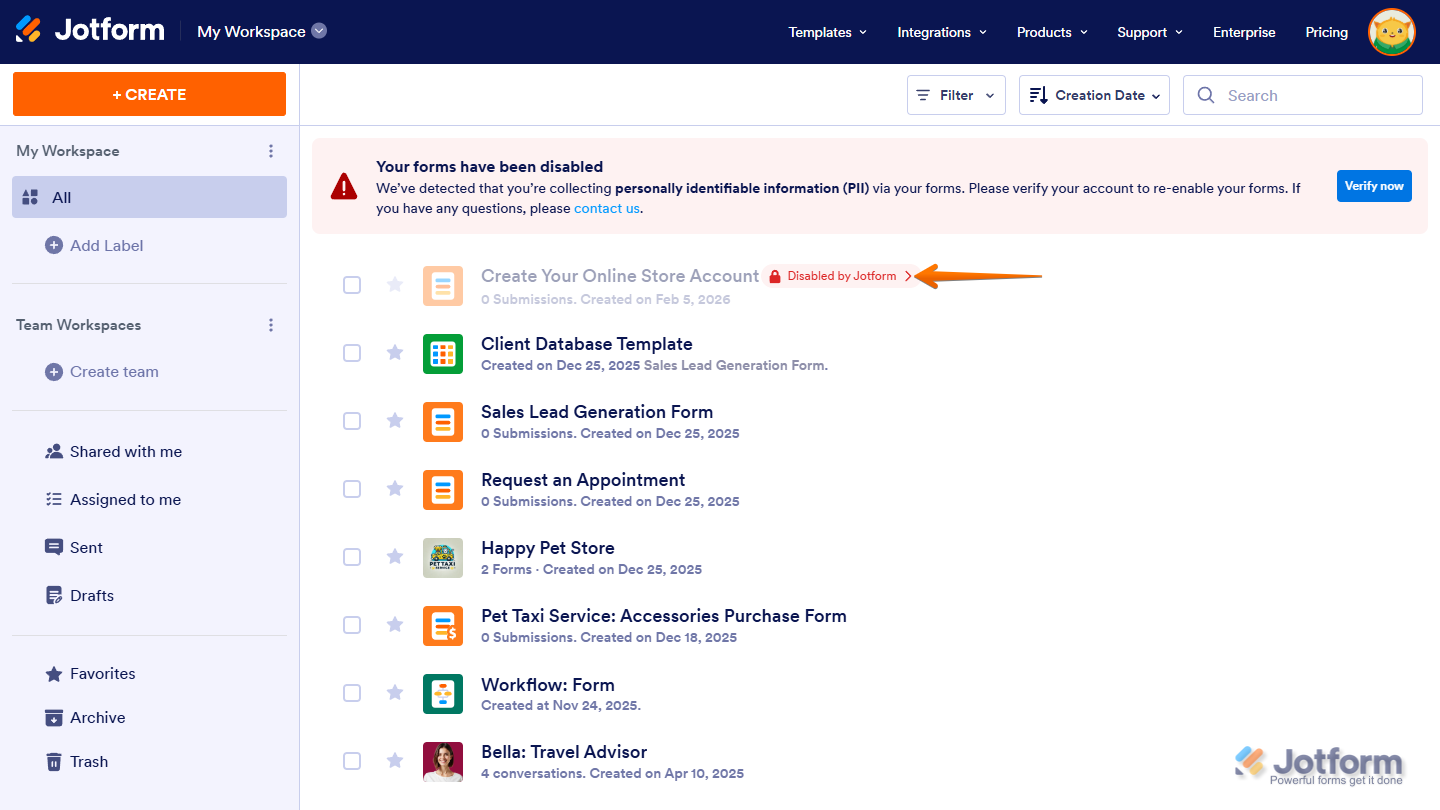
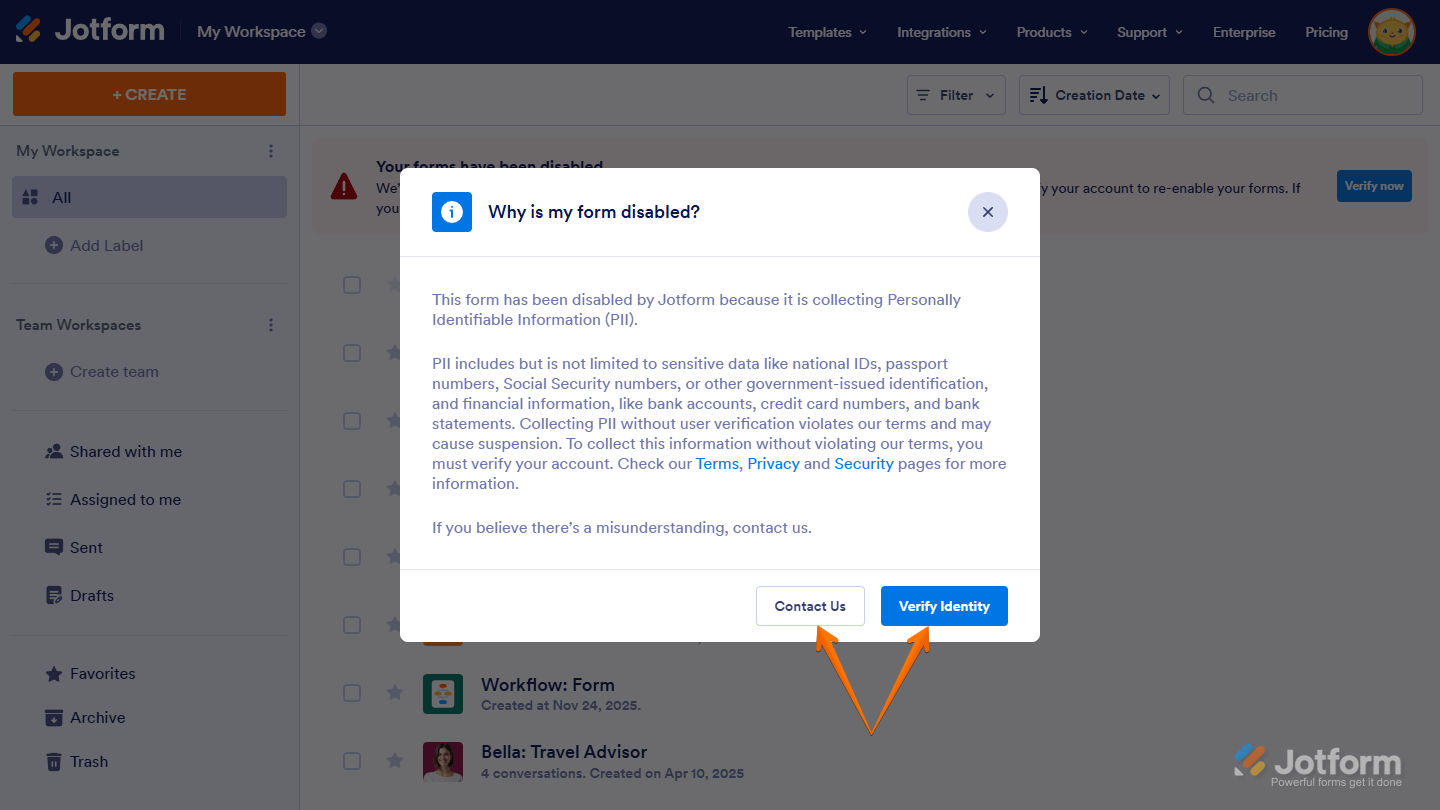
When you click on the tag, a modal opens explaining why your form is disabled. From there, you can click on the Verify Identity button to start the verification process or the Contact Us link to create a support ticket if you have any questions.
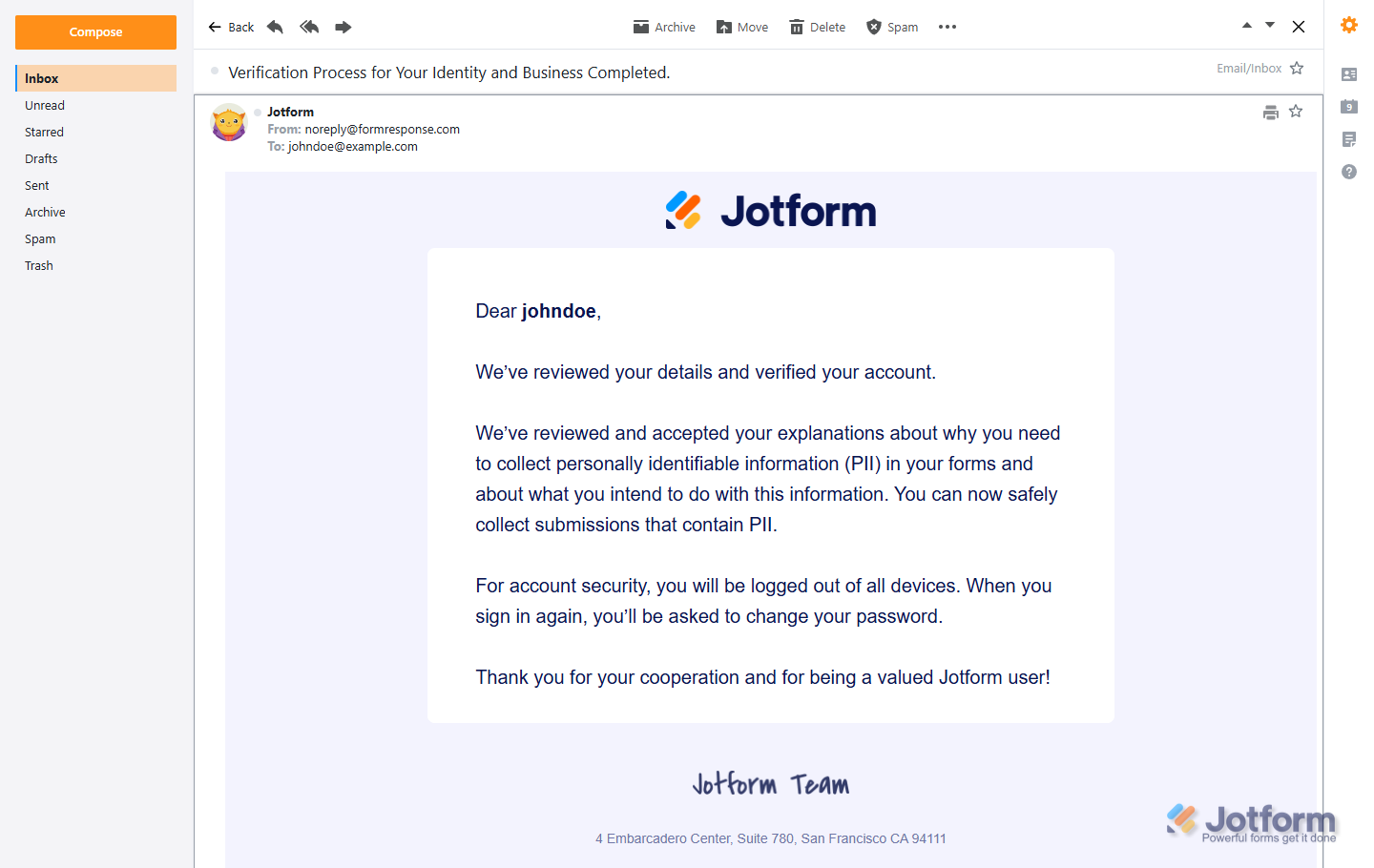
Once you complete the User Verification Form, your submitted information is reviewed as part of the KYC compliance process. After it’s approved, any flagged forms that were disabled are re-enabled, and you’ll receive an email confirming the update.
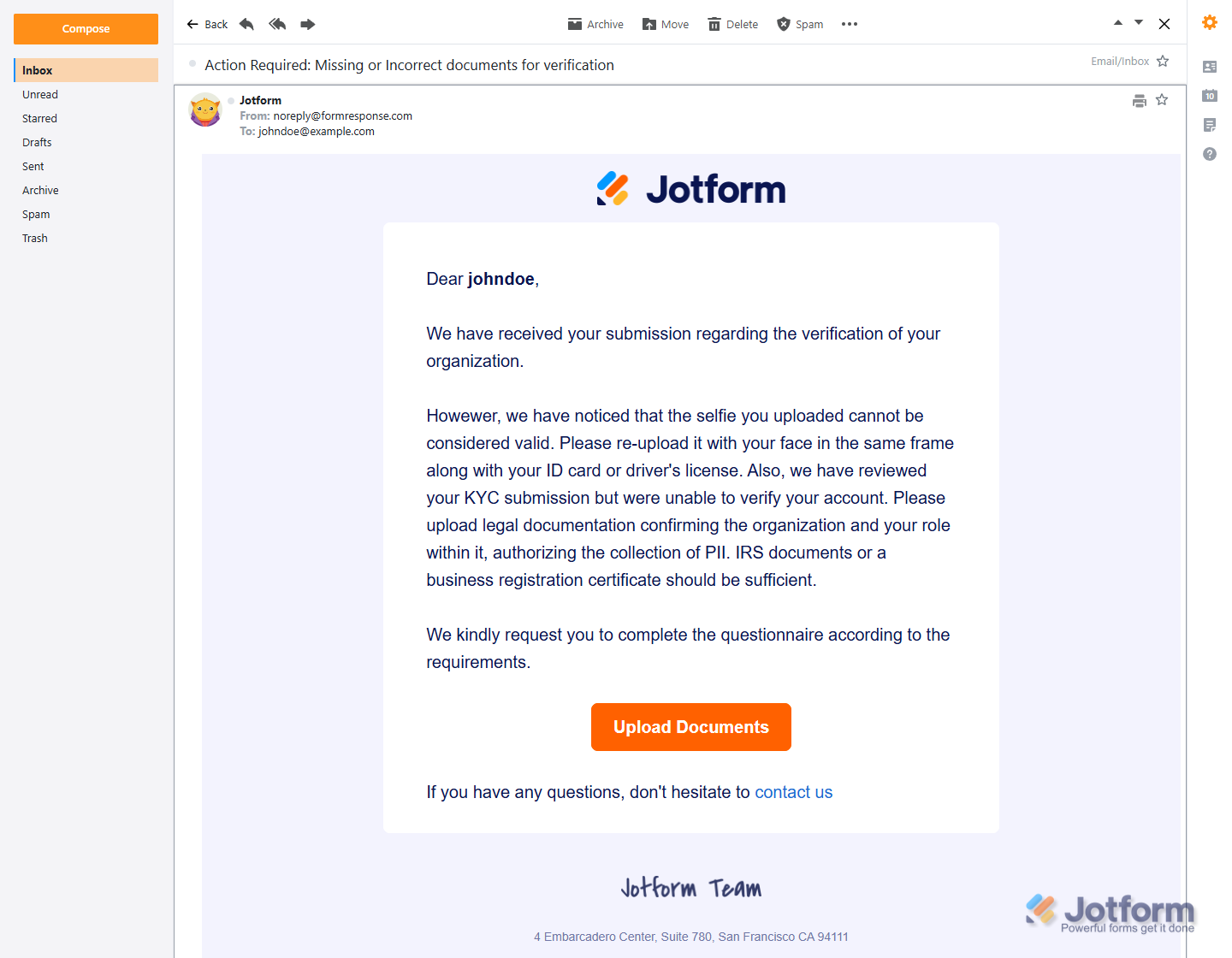
If additional details are required, you’ll receive another email that includes access to the Additional Information Form, which you can use to provide any missing or requested information needed to continue the verification process.
Note
Until you complete the Additional Information Form, you’ll receive two reminder emails to fill it out. This reminder cycle restarts each time you submit the form. Once you submit the missing or corrected documents, the verification process continues.
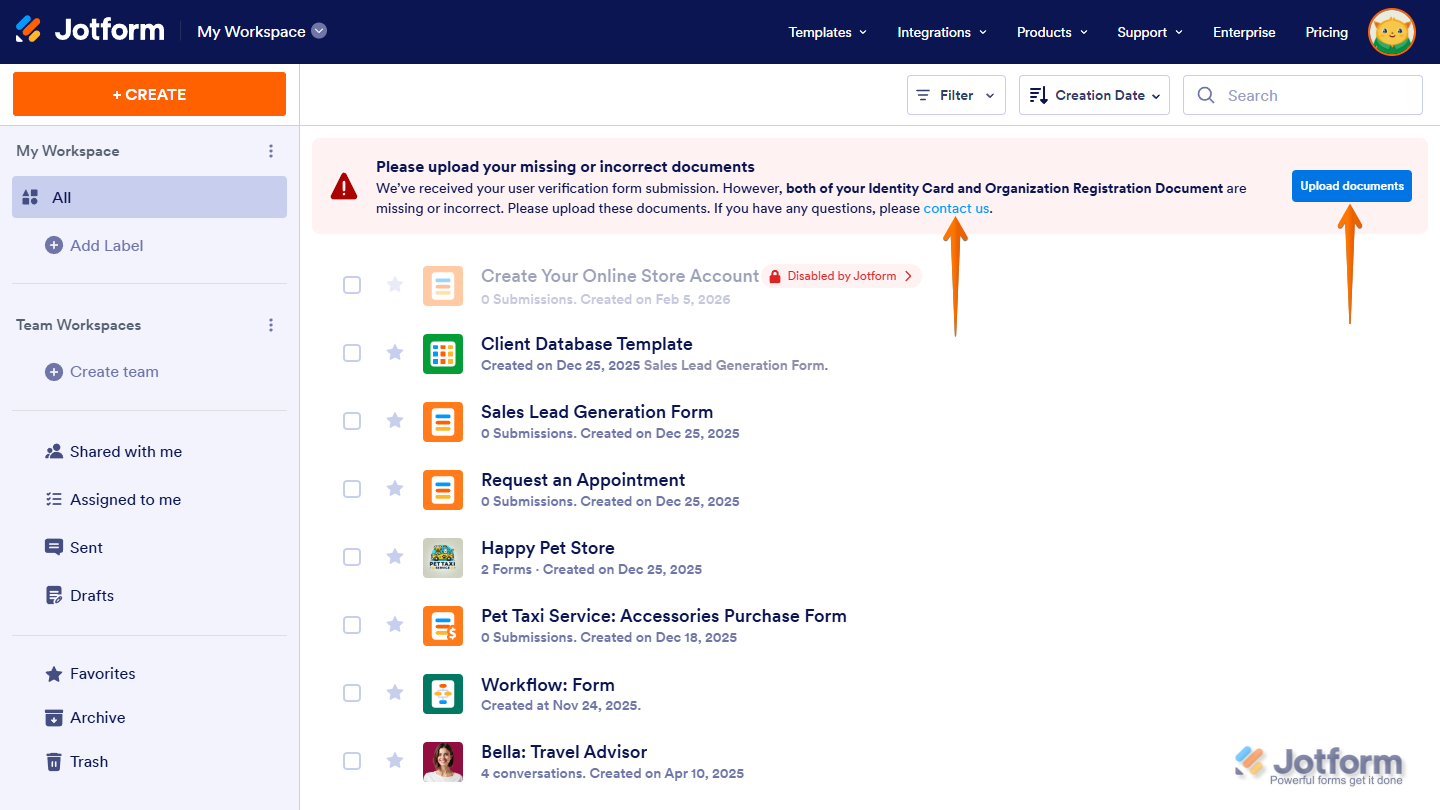
If documents are missing or incorrect, a message also appears on your Workspace page specifying which documents are needed. It includes an Upload Documents button to submit the required files and a Contact Us link for any questions.
Verifying Your Identity
You can also access and fill out the User Verification Form through your Account Settings in a few easy steps. Here’s what to do:
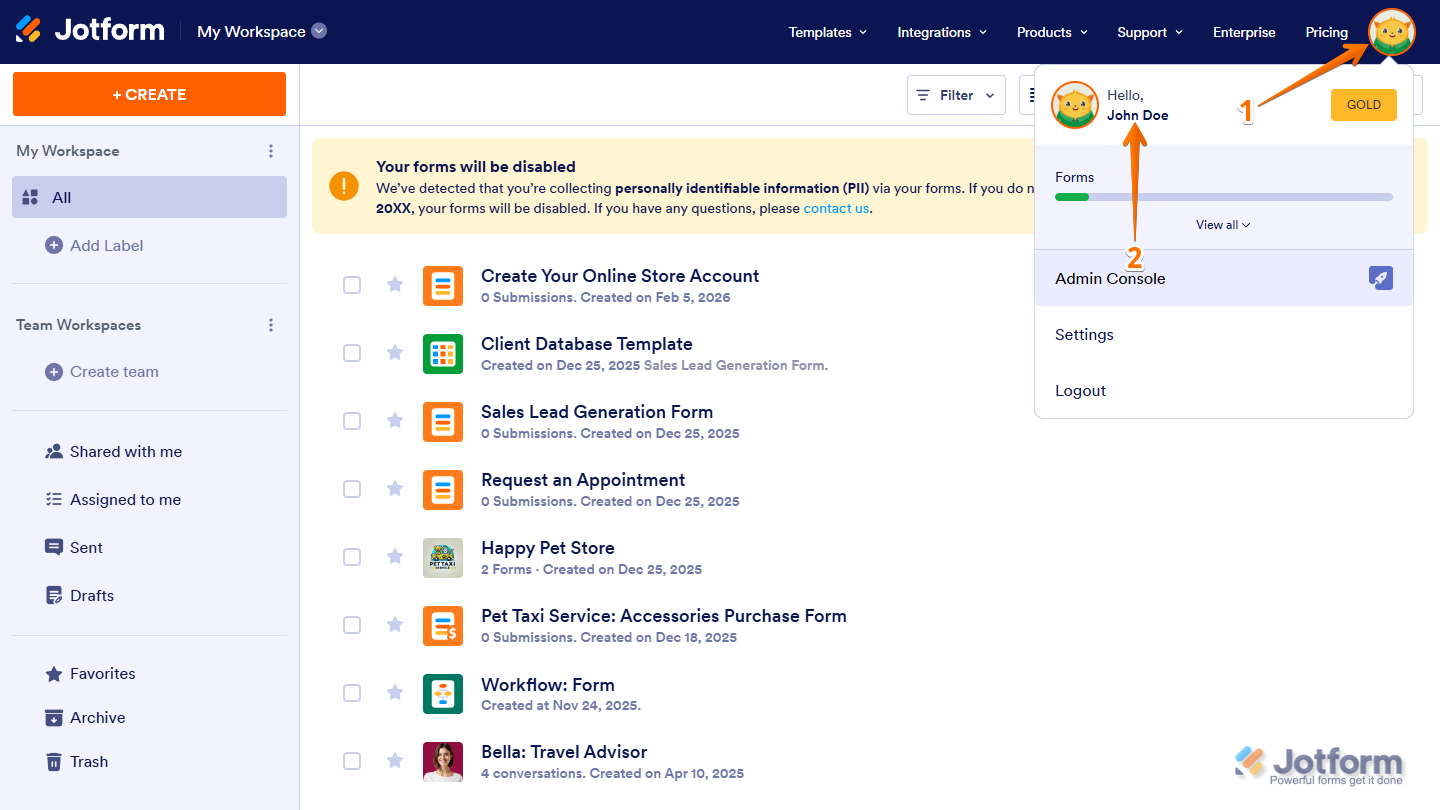
- On your Workspace page, click on your Profile Picture/Avatar in the top-right corner of the screen.
- In the menu that opens up, click on your name to open your Account Page in a new browser tab.
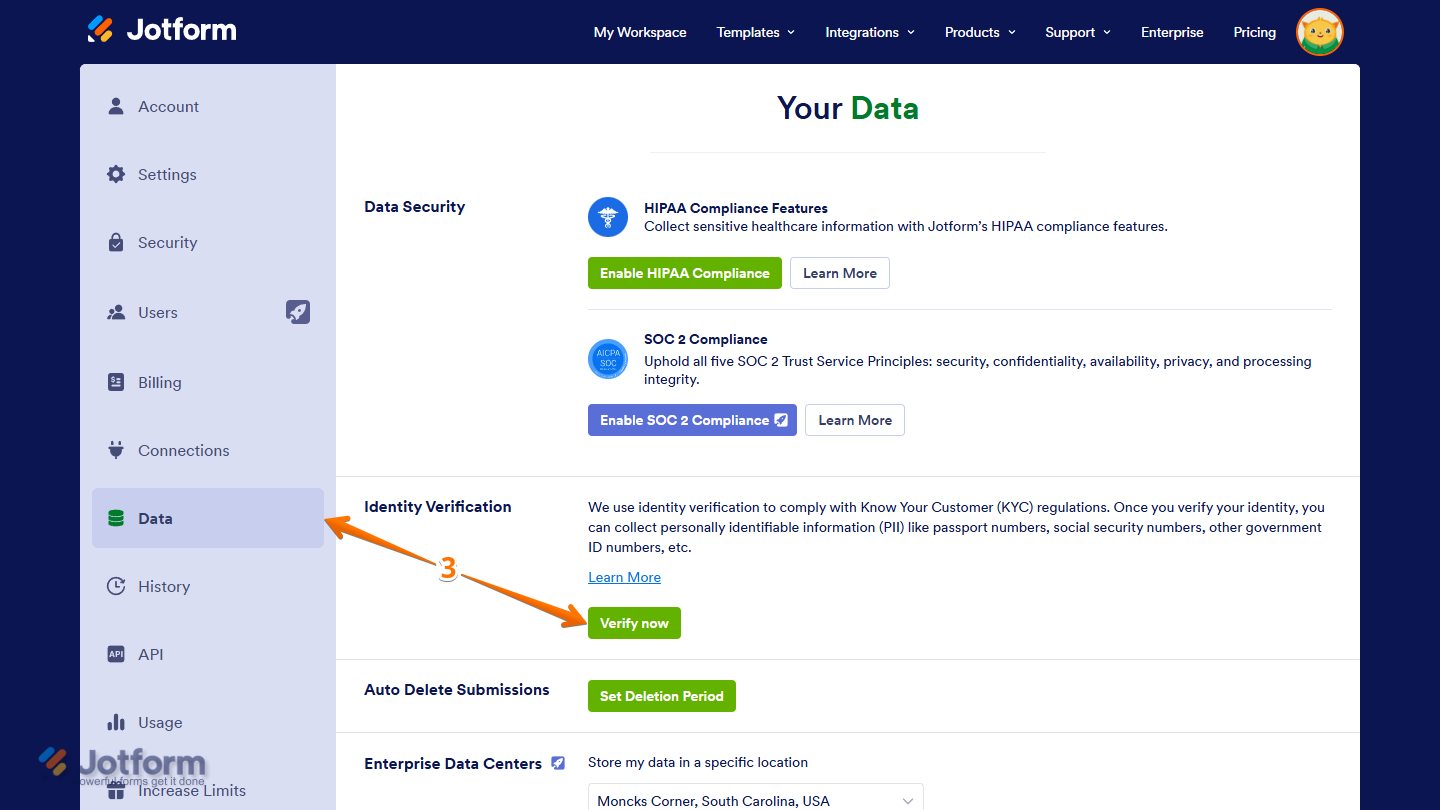
- Now, go to the Data tab on the left and, in the Identity Verification section on the right, click on Verify Now.
Note
The User Verification Form will request all required information, regardless of what’s already in your account or the type of data you plan to collect through your flagged forms.
If you’re only being asked to upload missing or corrected documents to complete the verification process, you’ll see a message showing the specific requirement or instructions for what you need to upload.
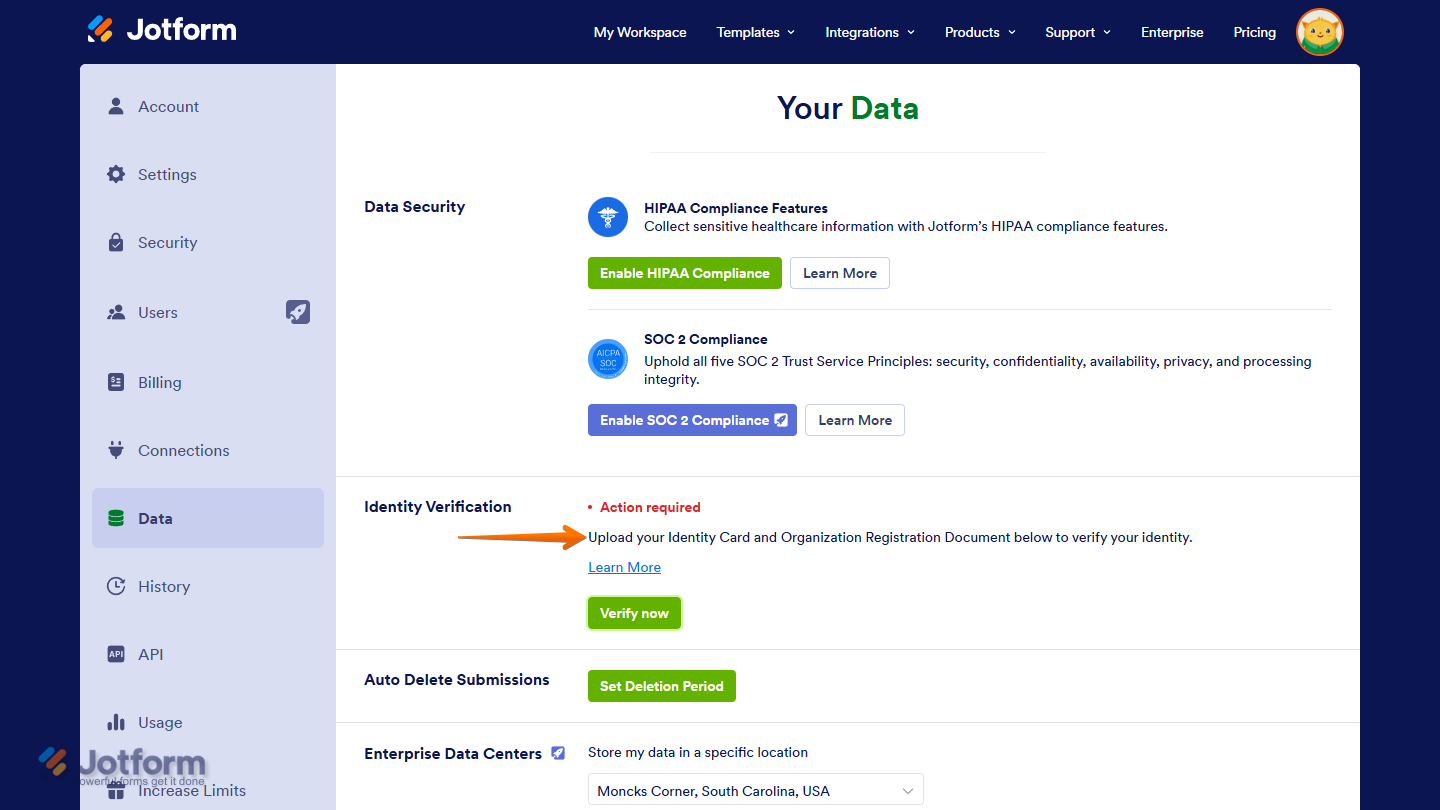
- Then, in the Identity Verification window, fill out and submit the User Verification Form.
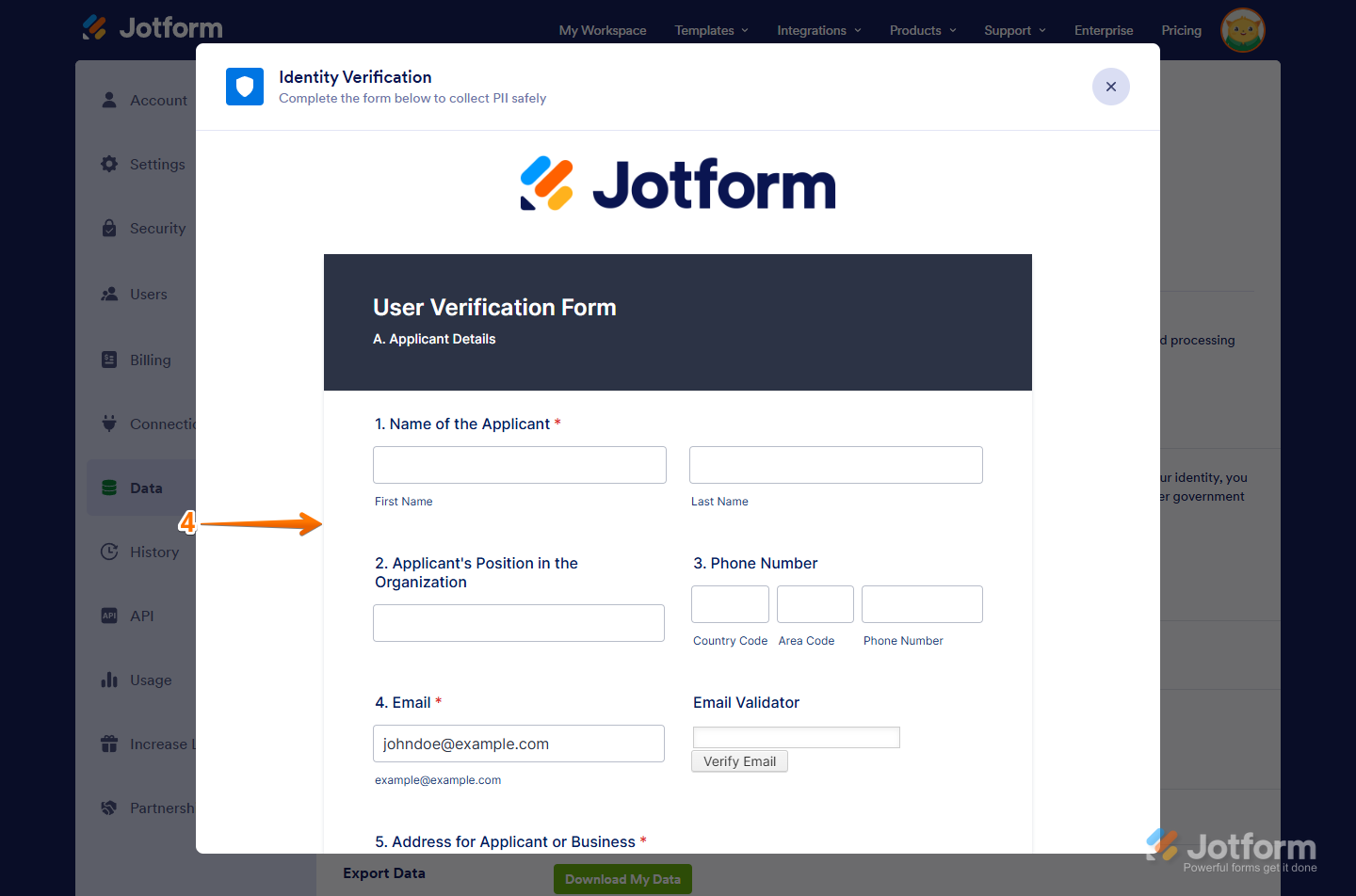
Note
You need to enter and verify the email address associated with your account in the Email Validator field to proceed.
If you only need to provide additional information or upload missing or corrected documents, the form will show a different set of questions.
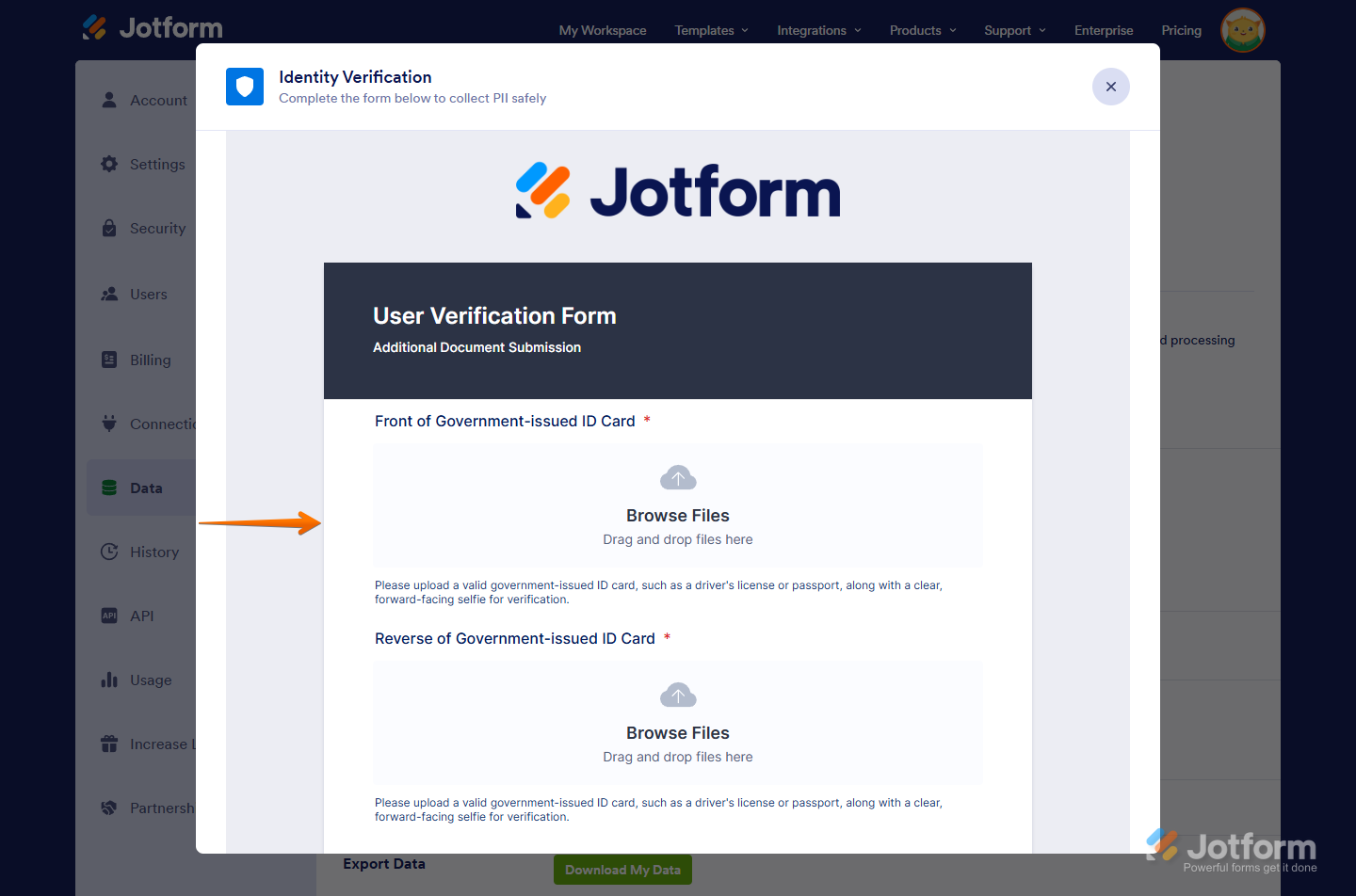
That’s it. You’ve completed and submitted the User Verification Form.
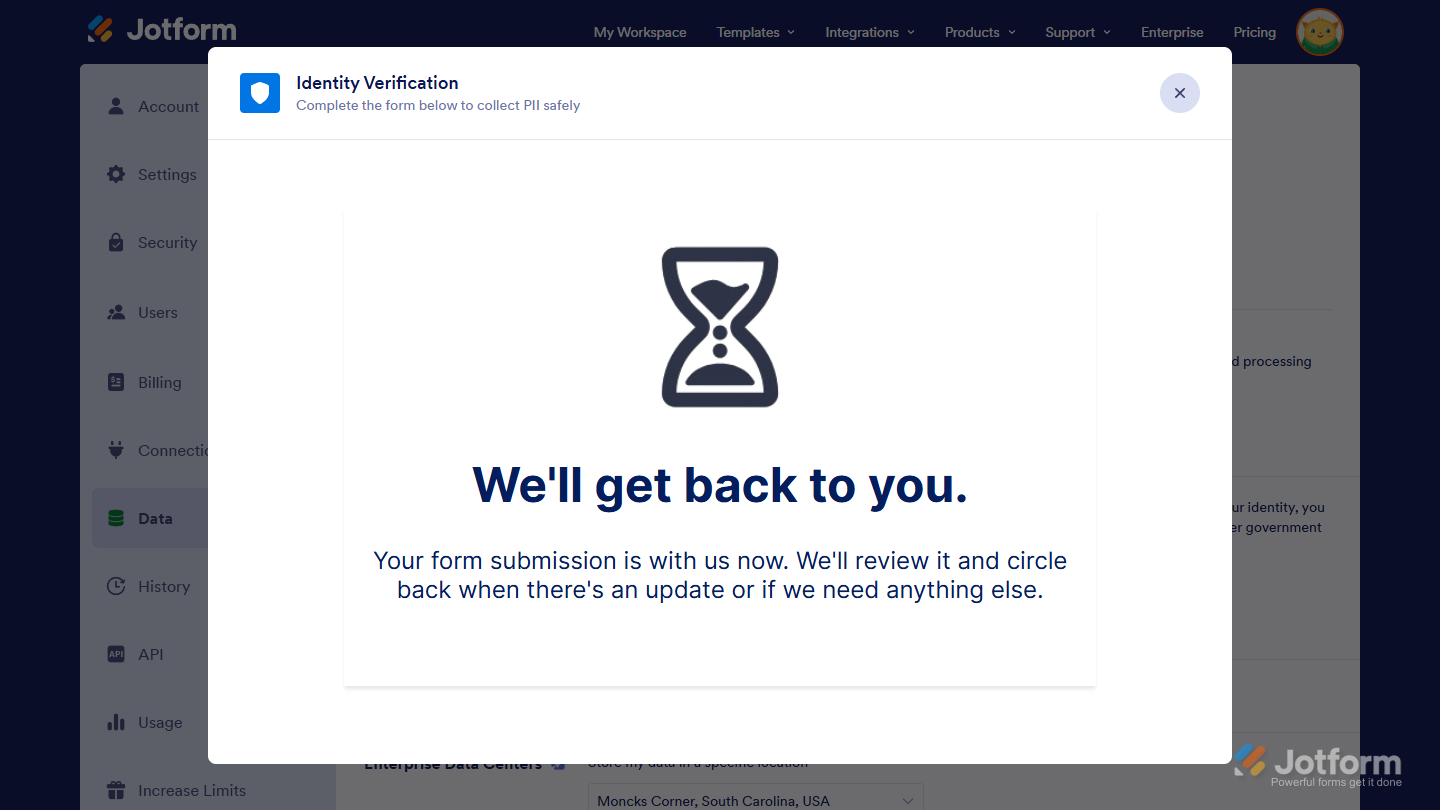
Your submission will be reviewed, and you’ll be contacted if additional information or documents are needed.
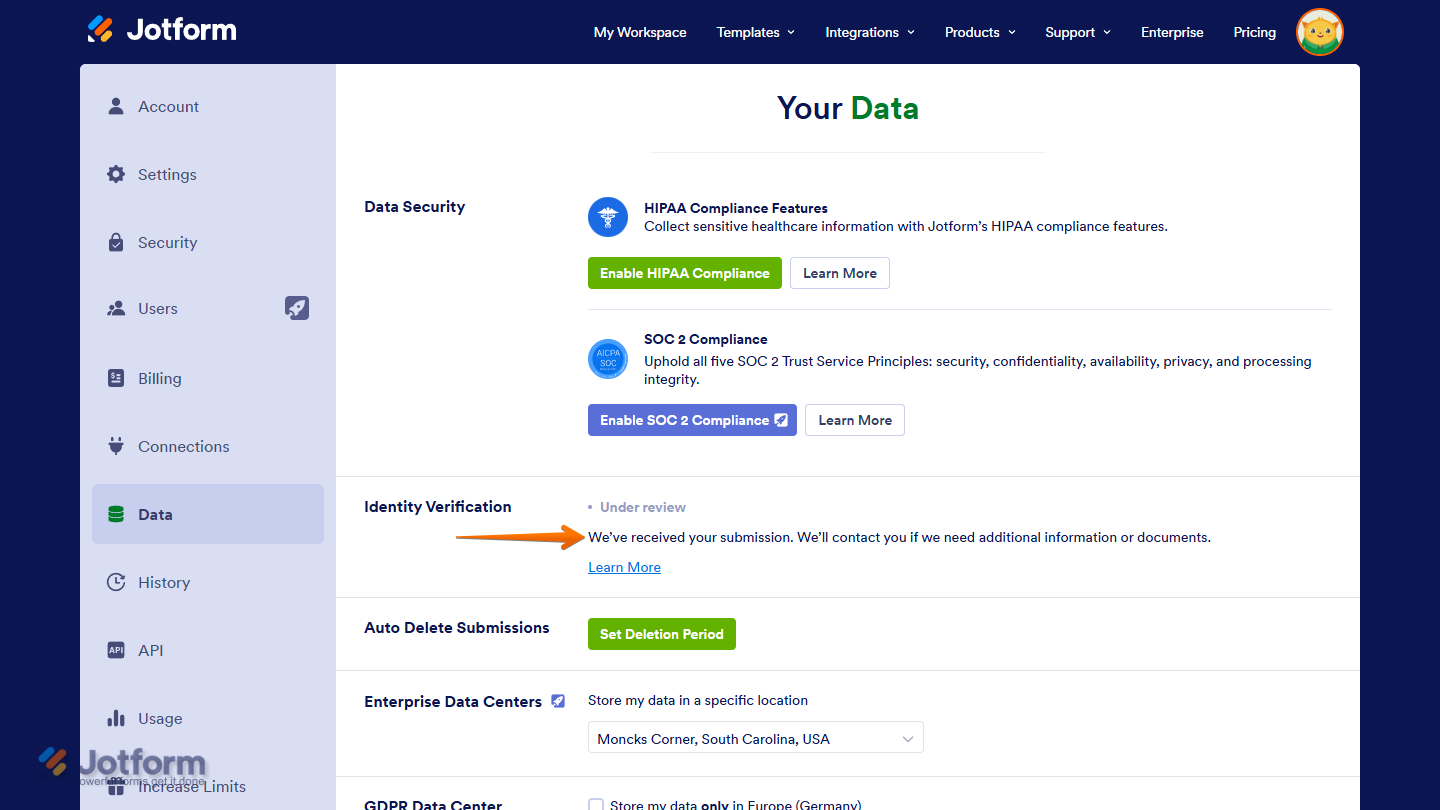
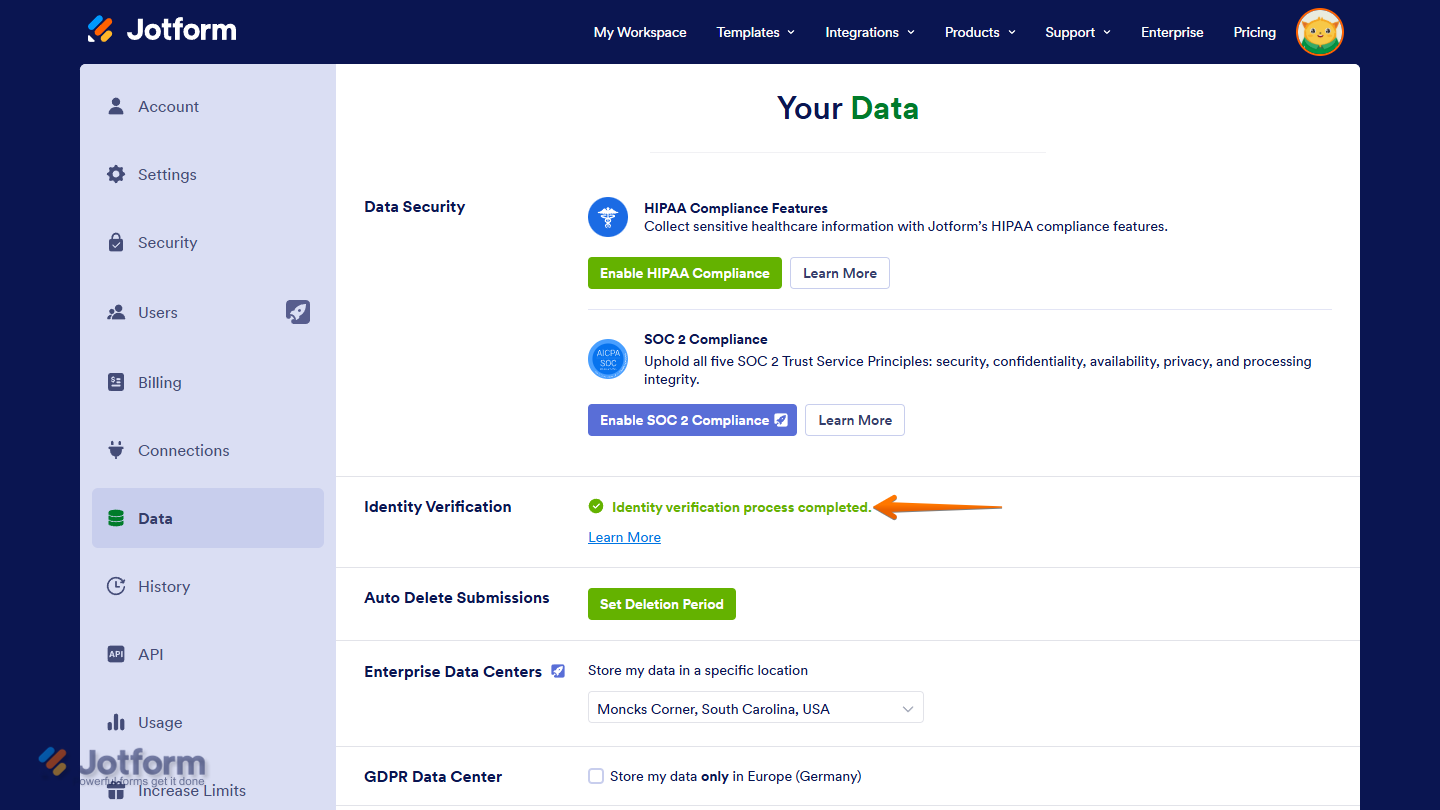
Once it has been approved, you’ll see a message indicating that your identity verification process is complete.
Note
After verification is complete, you’ll be asked automatically to update your account password the next time you log in.

Send Comment:
1 Comment:
March 15, 2026
The system will not pop up to take a selfie