Tables makes managing your forms and data easier for you and your collaborators. You can add descriptions or notes to tabs and columns to provide context and clarity to your collaborators so they can better understand the purpose of each associated data.
Adding Descriptions to Tabs
To add a description to a tab:
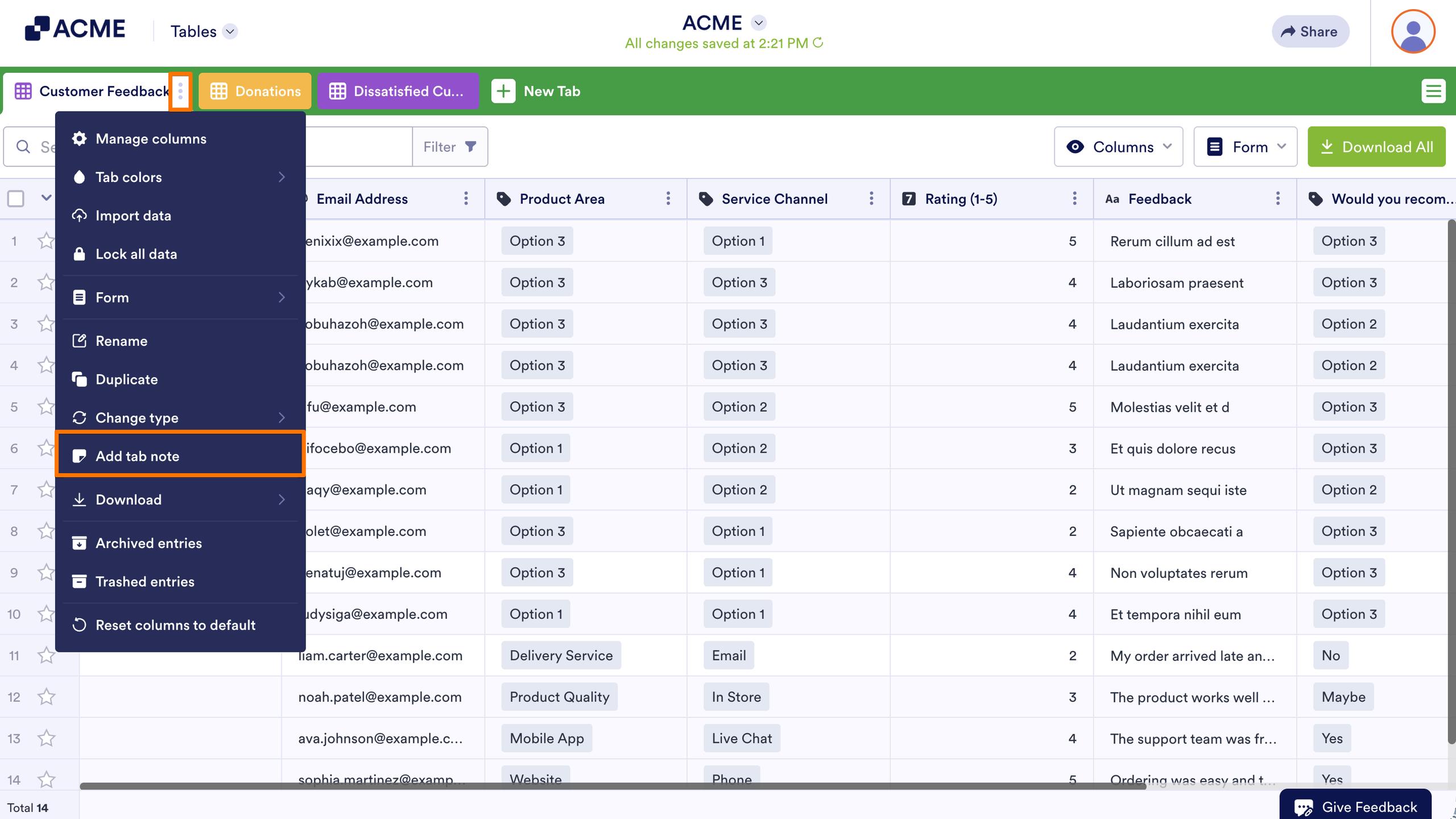
- In Tables, click on the Three Dots icon for the tab you want to add note to.
- Select Add tab note.
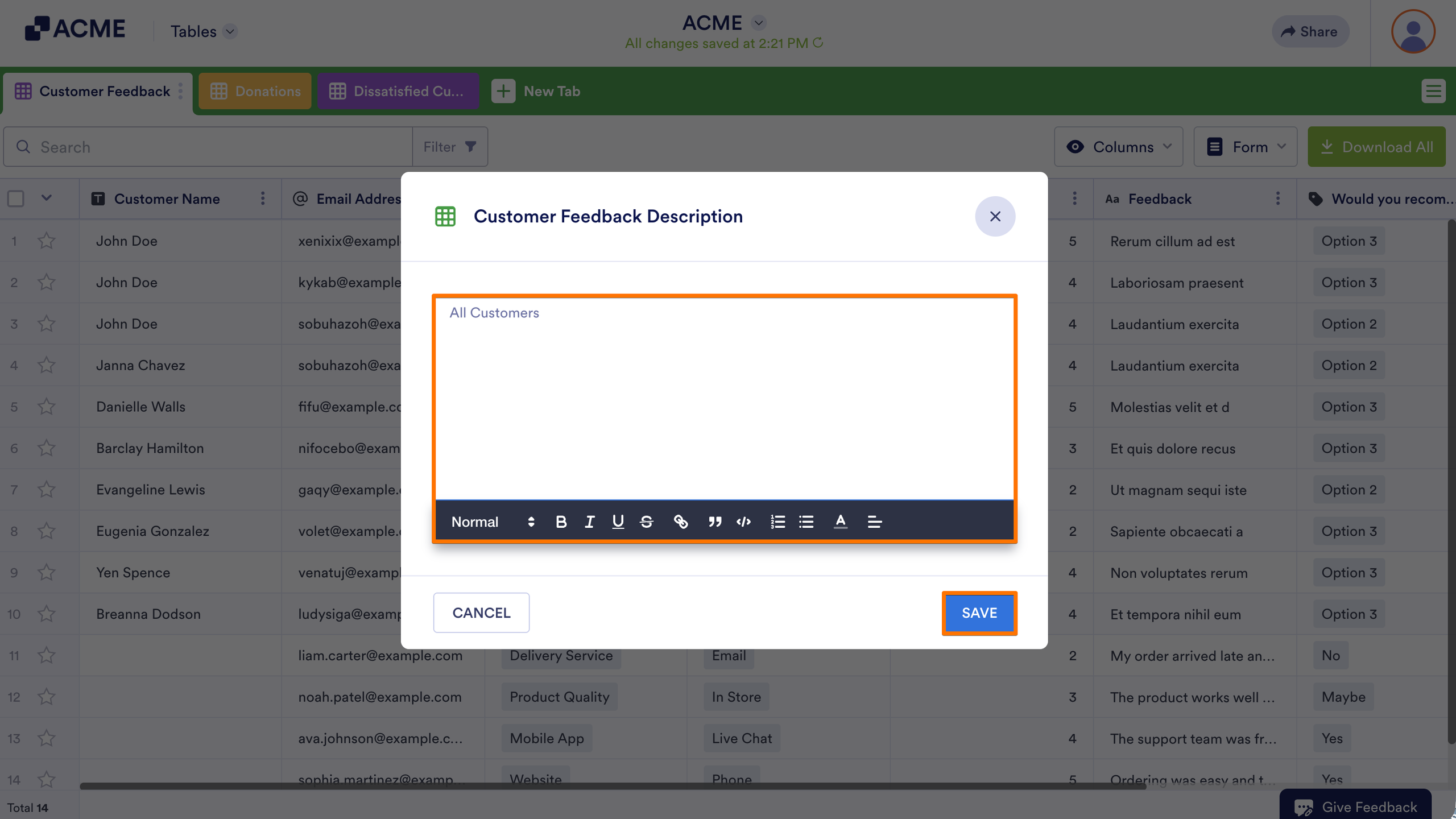
- Enter your description in the editor, then select Save.
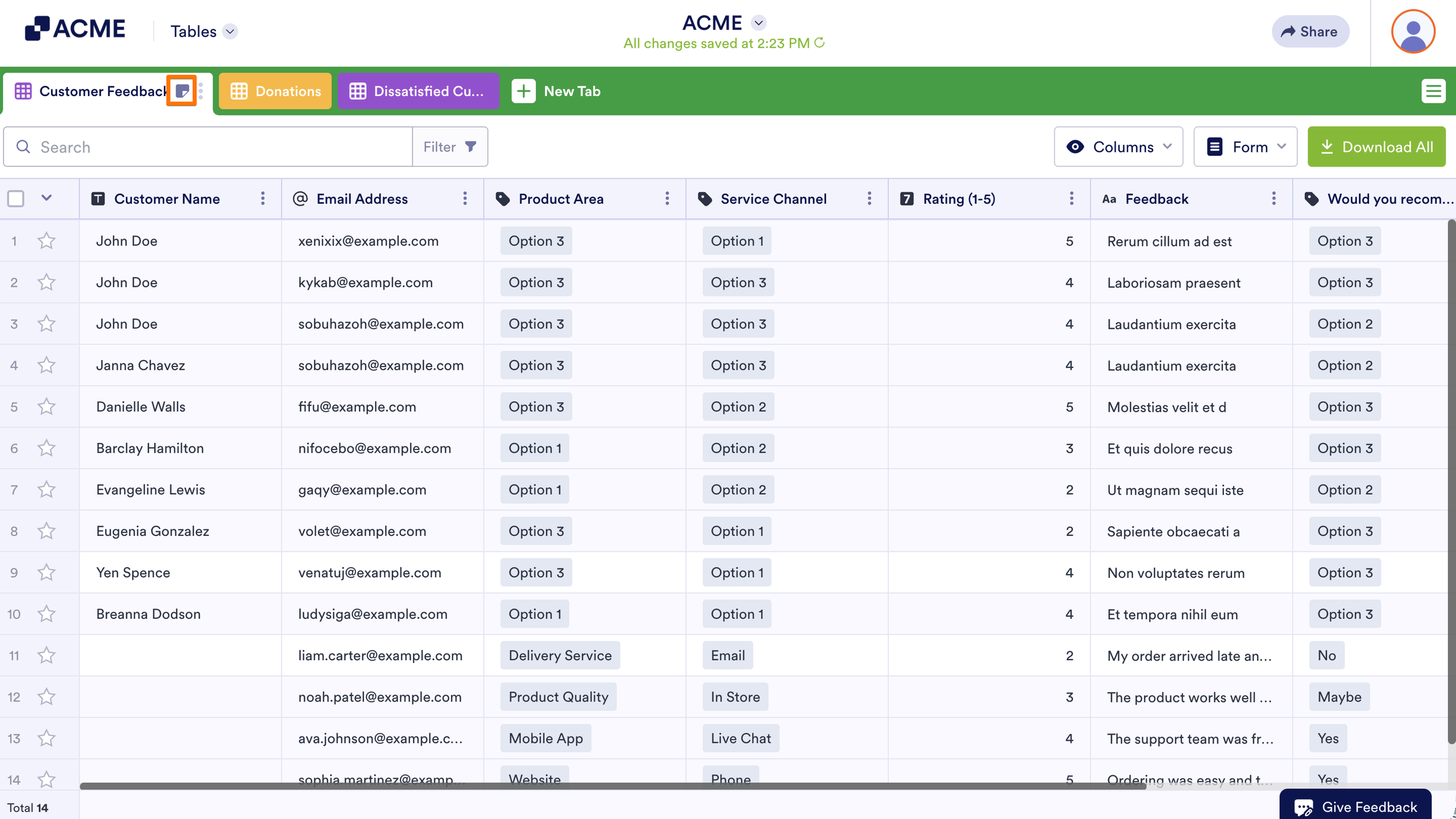
A note icon should appear in your tab.
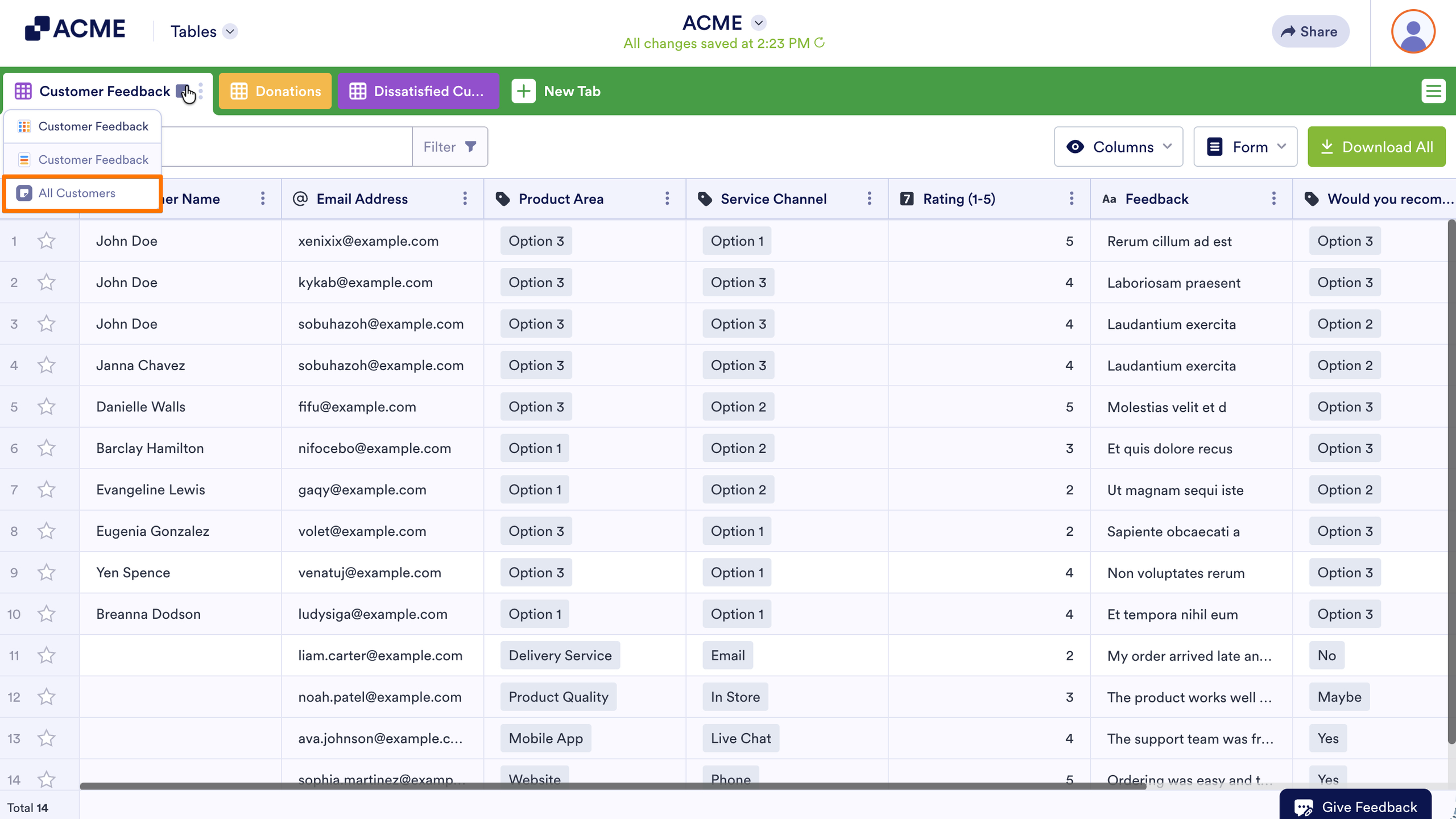
Hovering over the icon will display the tab description.
Adding Notes to Columns
To add a note to a column:
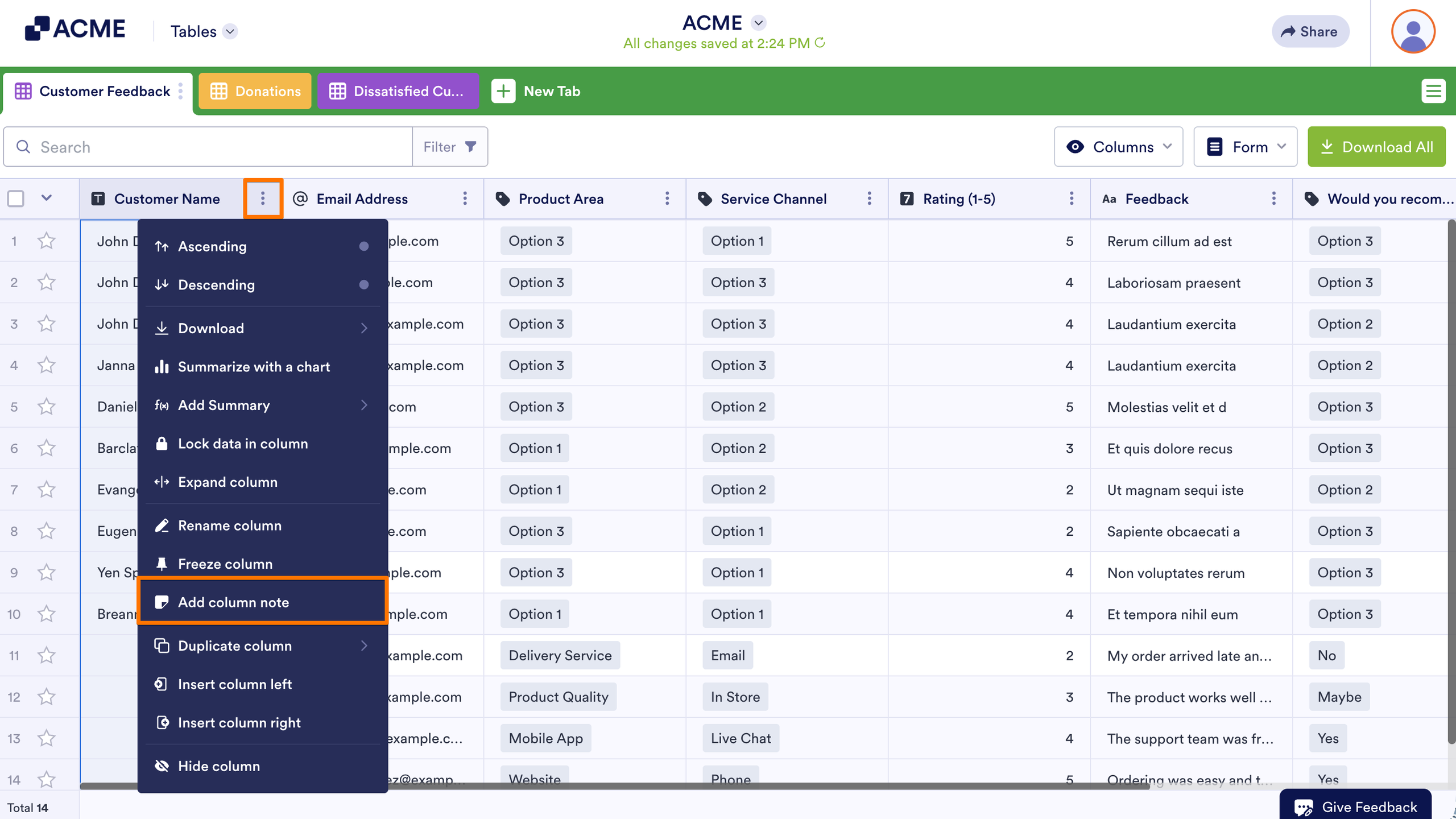
- In Tables, click on the Three Dots icon for the column you want to add note to.
- Select Add column note.
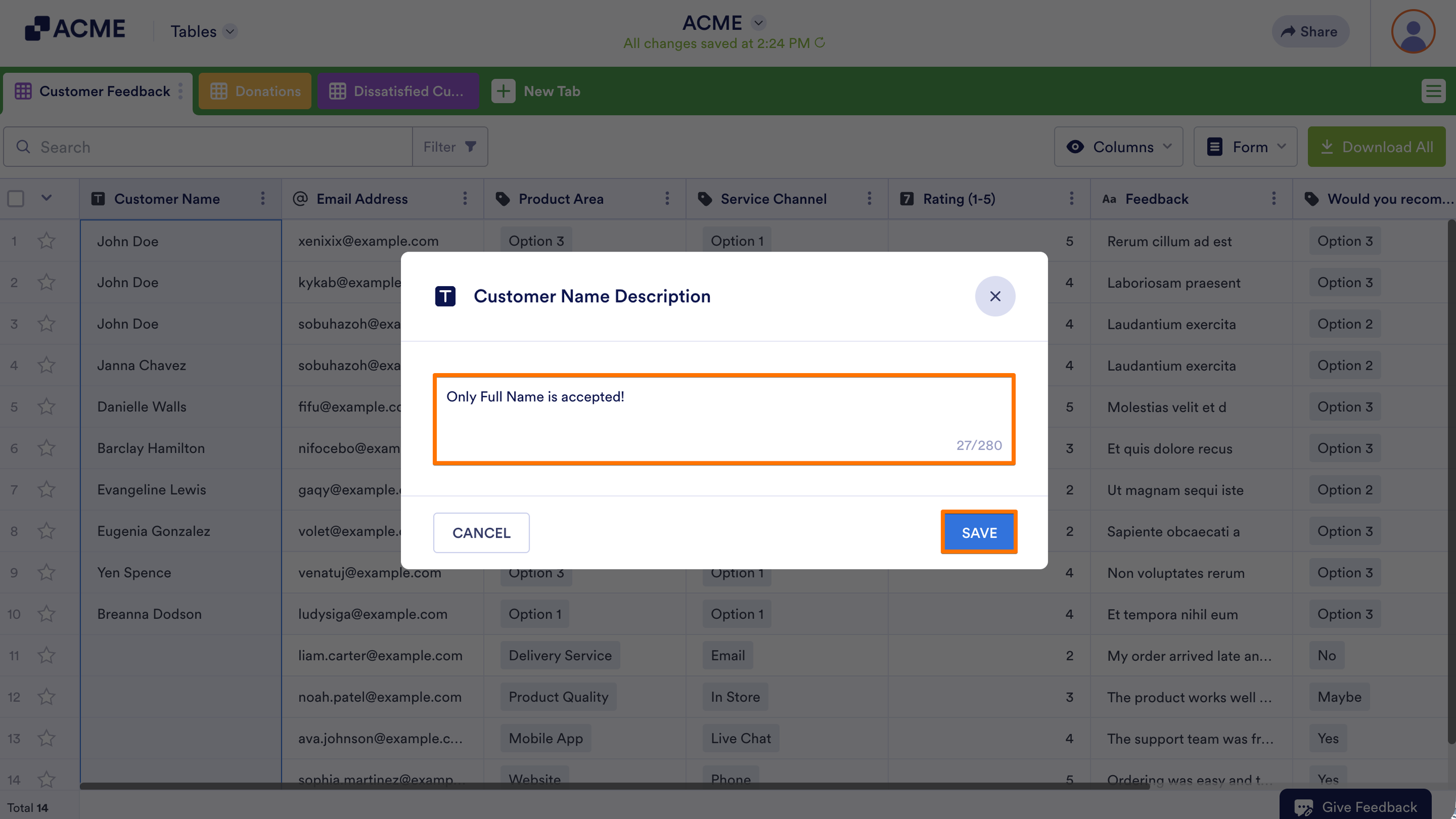
- Enter your note in the dialogue, then select Save.
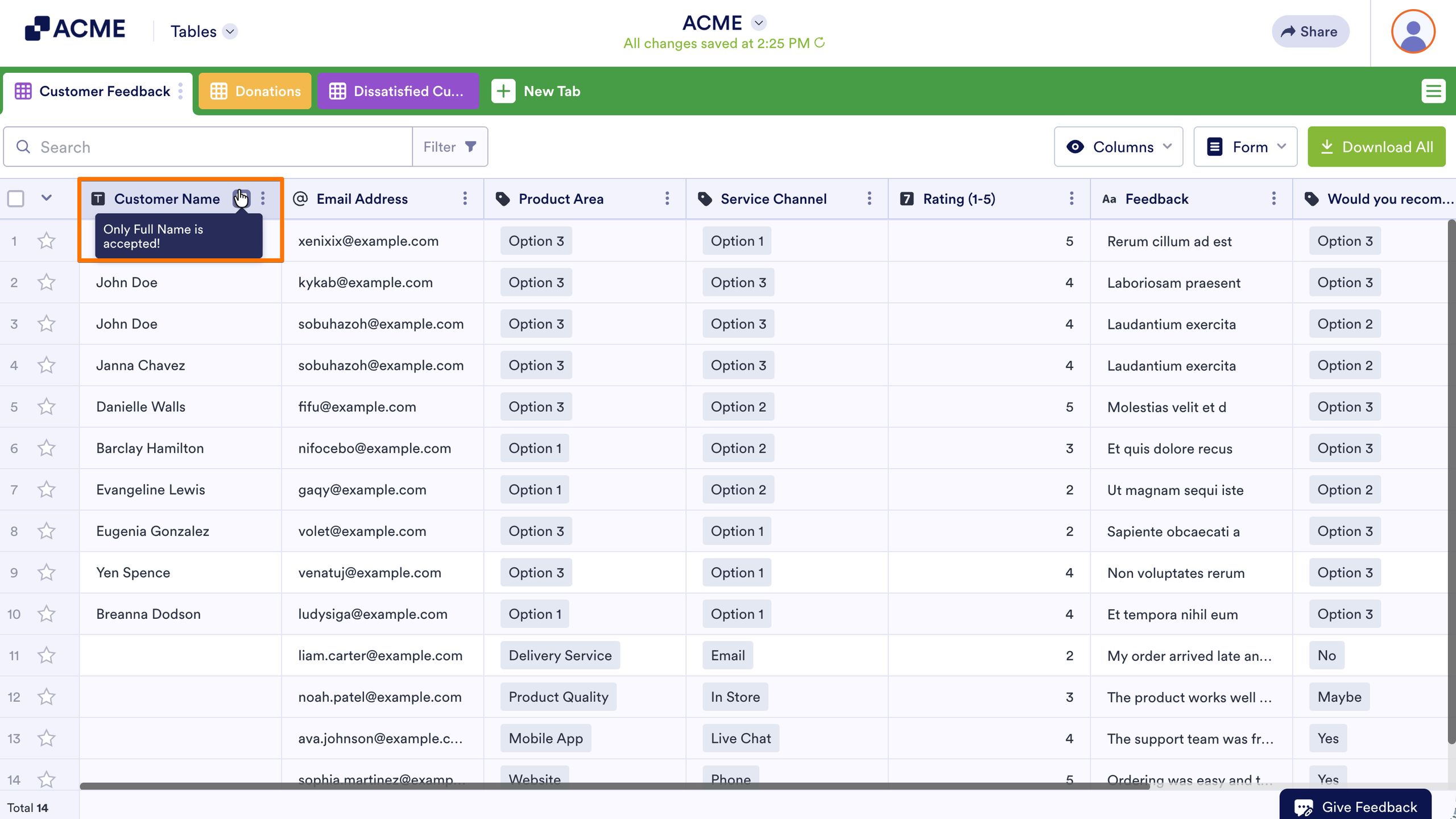
A note icon should appear in the column heading. Collaborators can hover their mouse over it to view the note.
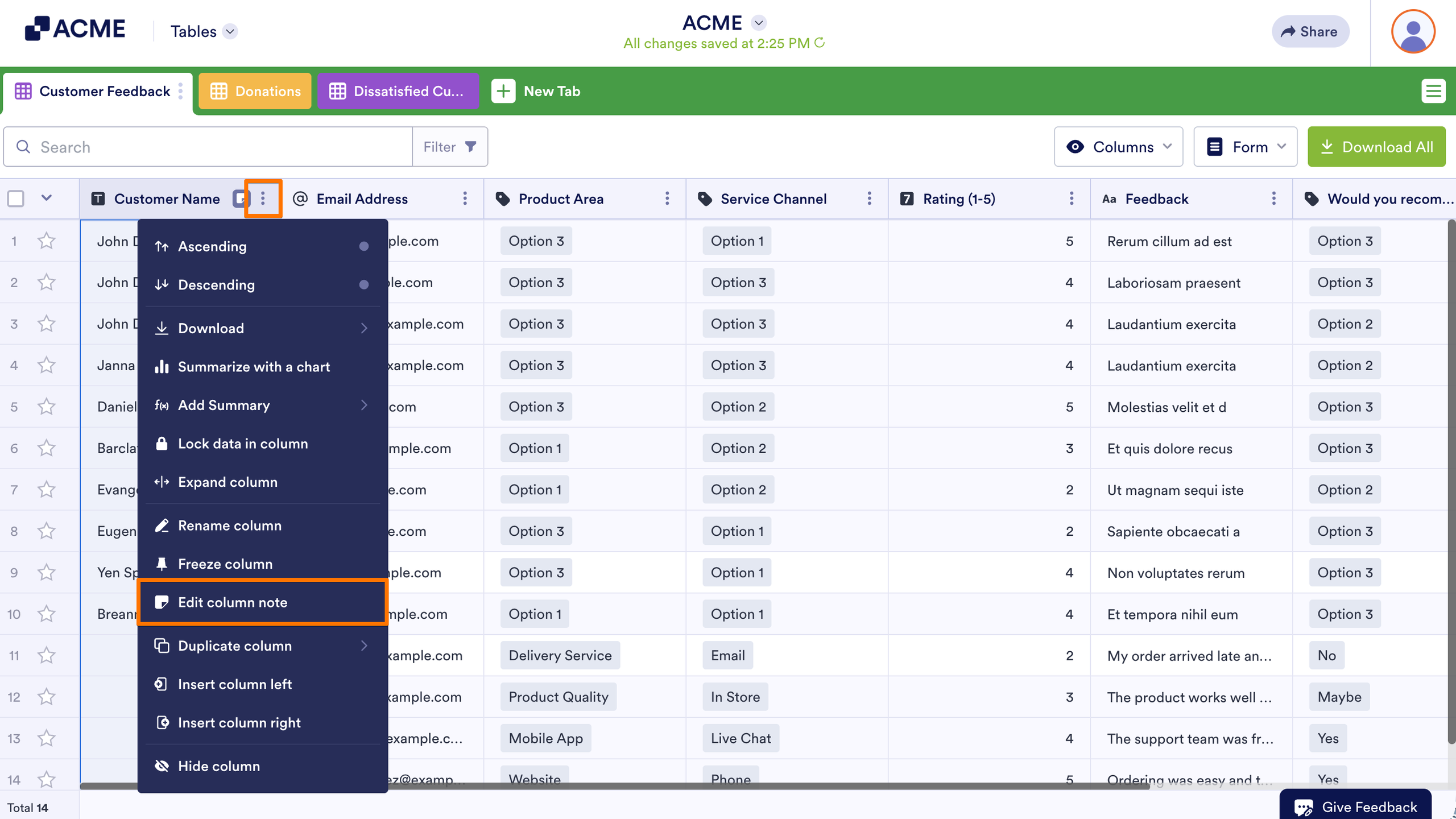
To edit a column note:
- In Tables, click on the Three Dots icon for the column you want to edit.
- Then, select Edit column note.

Send Comment: