Elementor is a website builder for WordPress that makes it easy to create web pages using a drag-and-drop editor. You can build landing pages, homepages, and contact pages, add elements like text, images, buttons, videos, and forms, and customize fonts, colors, spacing, and layouts.
You can also make your pages look good on desktop, tablet, and mobile devices and create headers, footers, and other website sections with supported features and plans. If you have a WordPress website built with Elementor, you can add your Jotform forms using the HTML widget.
Installing the Elementor Plugin
To get started, let’s install Elementor on your WordPress site. You can do it in a few simple steps:
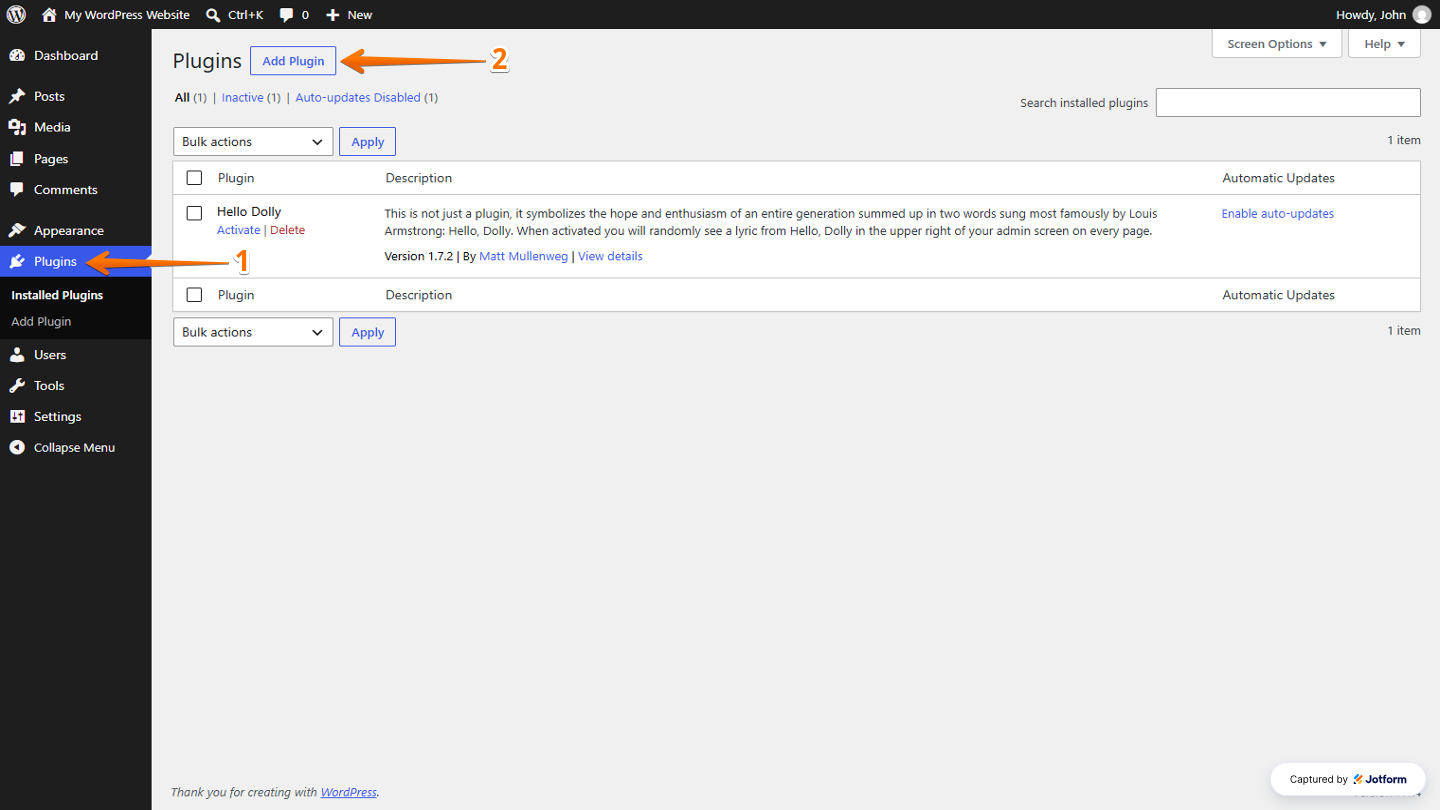
- Log in to your WordPress Admin Dashboard page, and in the menu on the left, click on Plugins.
- Then, at the top-left of the Plugins page, click on Add Plugin.
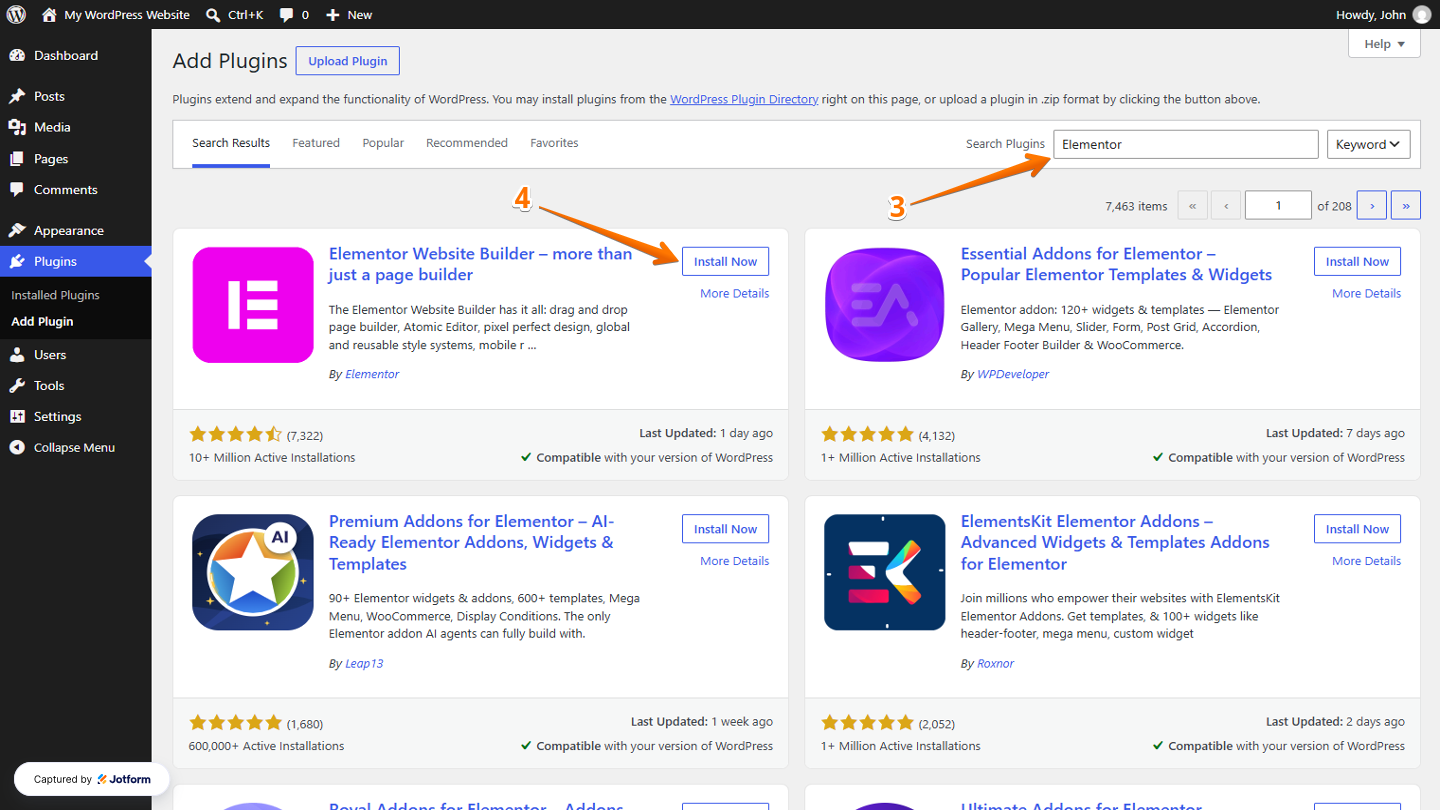
- Now, on the Add Plugins page, in the Search Plugins section, enter Elementor.
- Next, under the Search Results tab, look for Elementor Website Builder and then click on Install Now.
- Once done, click on Activate.

Getting the Elementor Embed Code
To get your form’s embed code, follow these quick steps to get started:
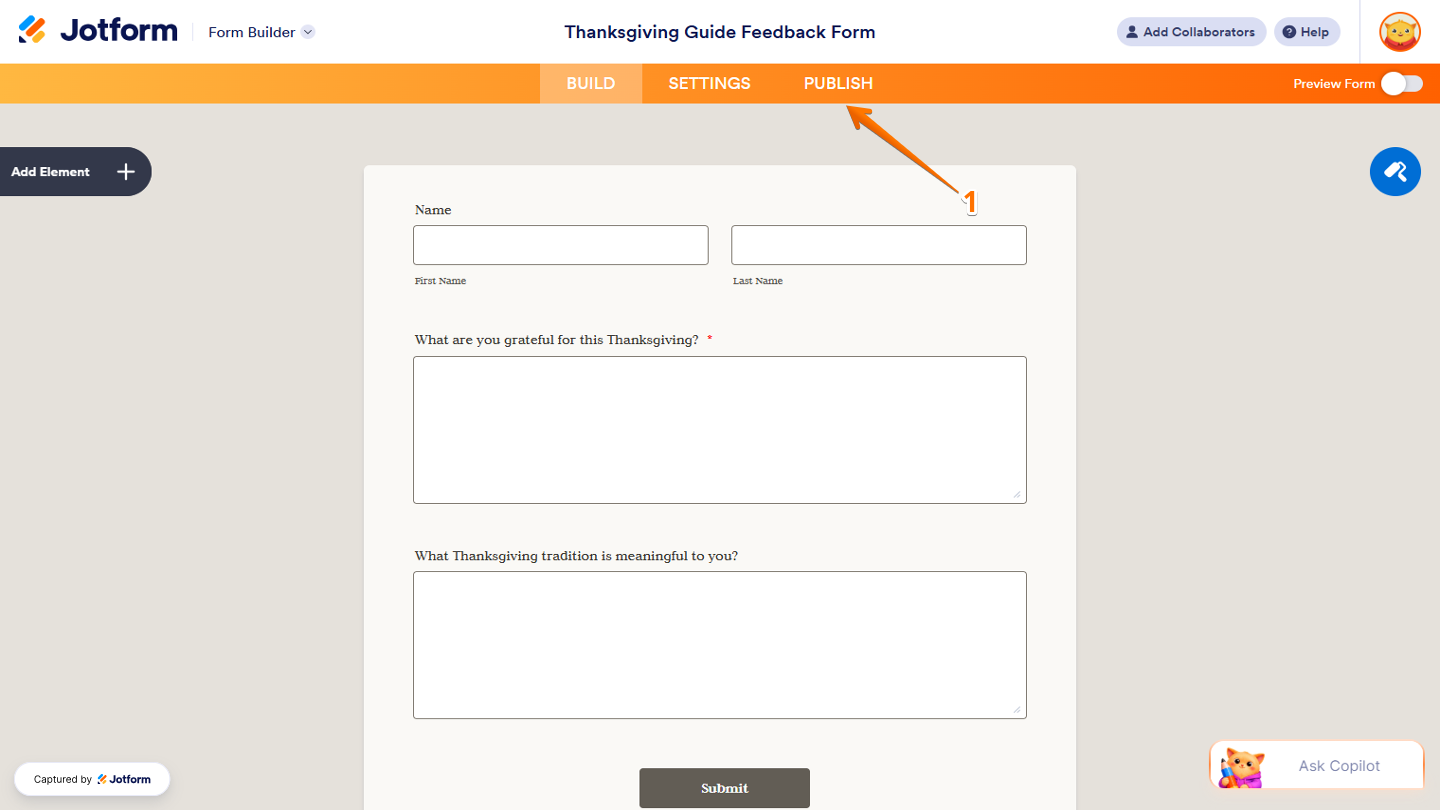
- In Form Builder, in the orange navigation bar at the top of the page, click on Publish.
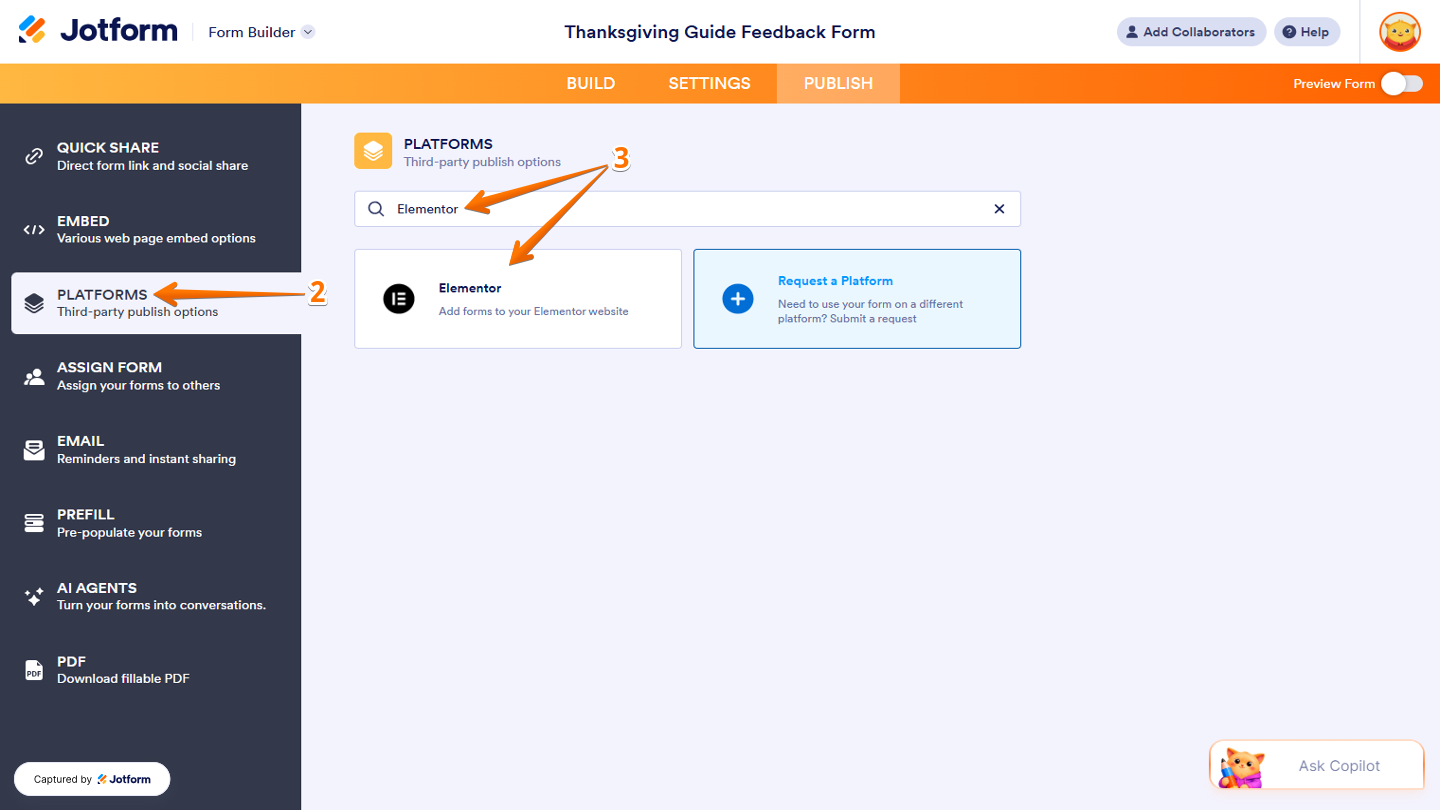
- Then, in the menu on the left, click on Platforms.
- Next, in the Search Bar, enter Elementor and then click on it.
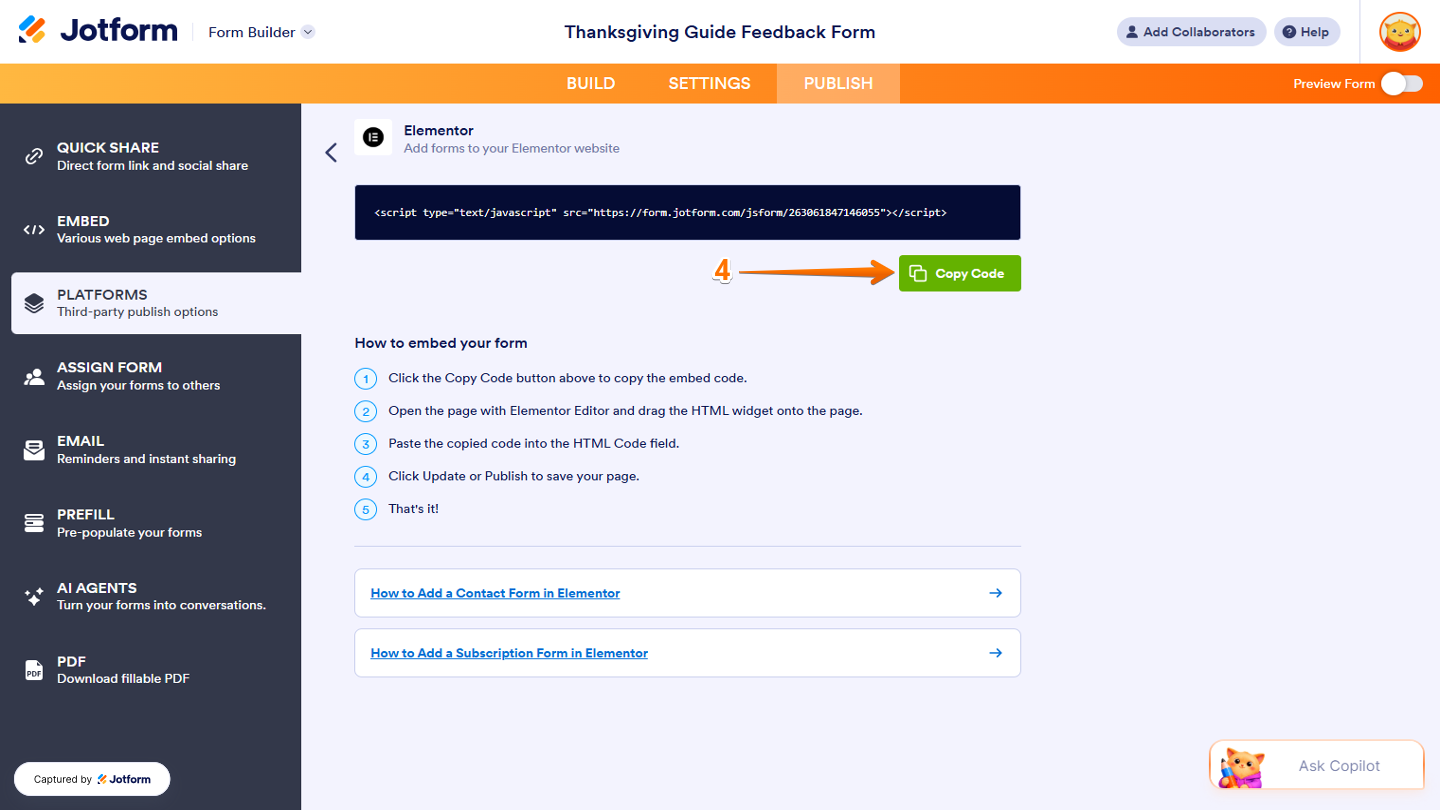
- Now, under the Elementor section, click on Copy Code.
Embedding Your Form to Elementor
Now that you have your form’s embed code, you can add it to Elementor using the HTML widget. Here’s how to get going:
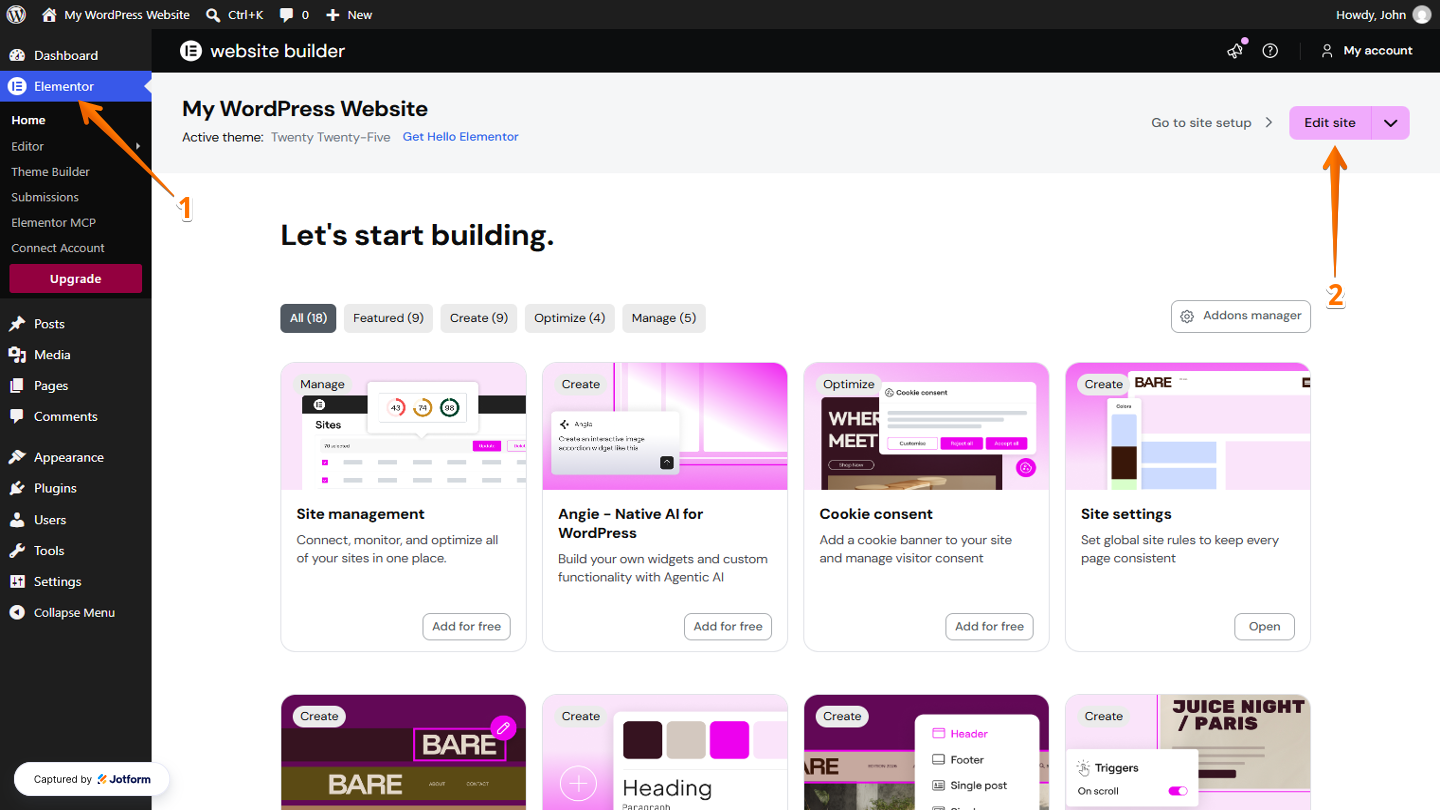
- On your WordPress Admin Dashboard, in the menu on the left, click on Elementor.
- Then, in Elementor Website Builder, click on Edit Site at the top-right of the page.
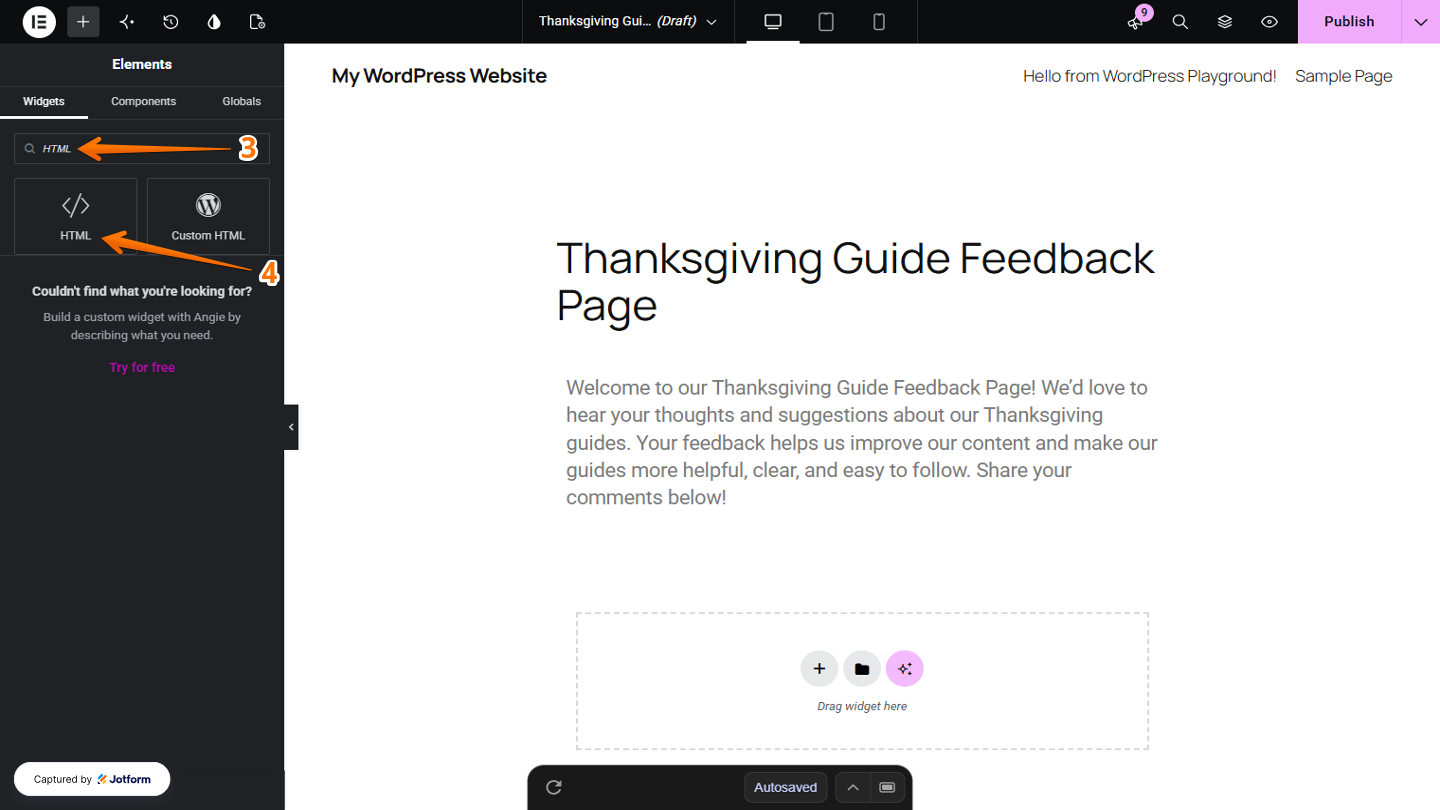
- Now, you’ll be redirected to the Elementor Editor, and then in the Elements menu on the left, enter HTML in the Search Bar.
- Next, in the search results, click on HTML. Or, drag and drop it to where you want it to be on your Elementor Editor.
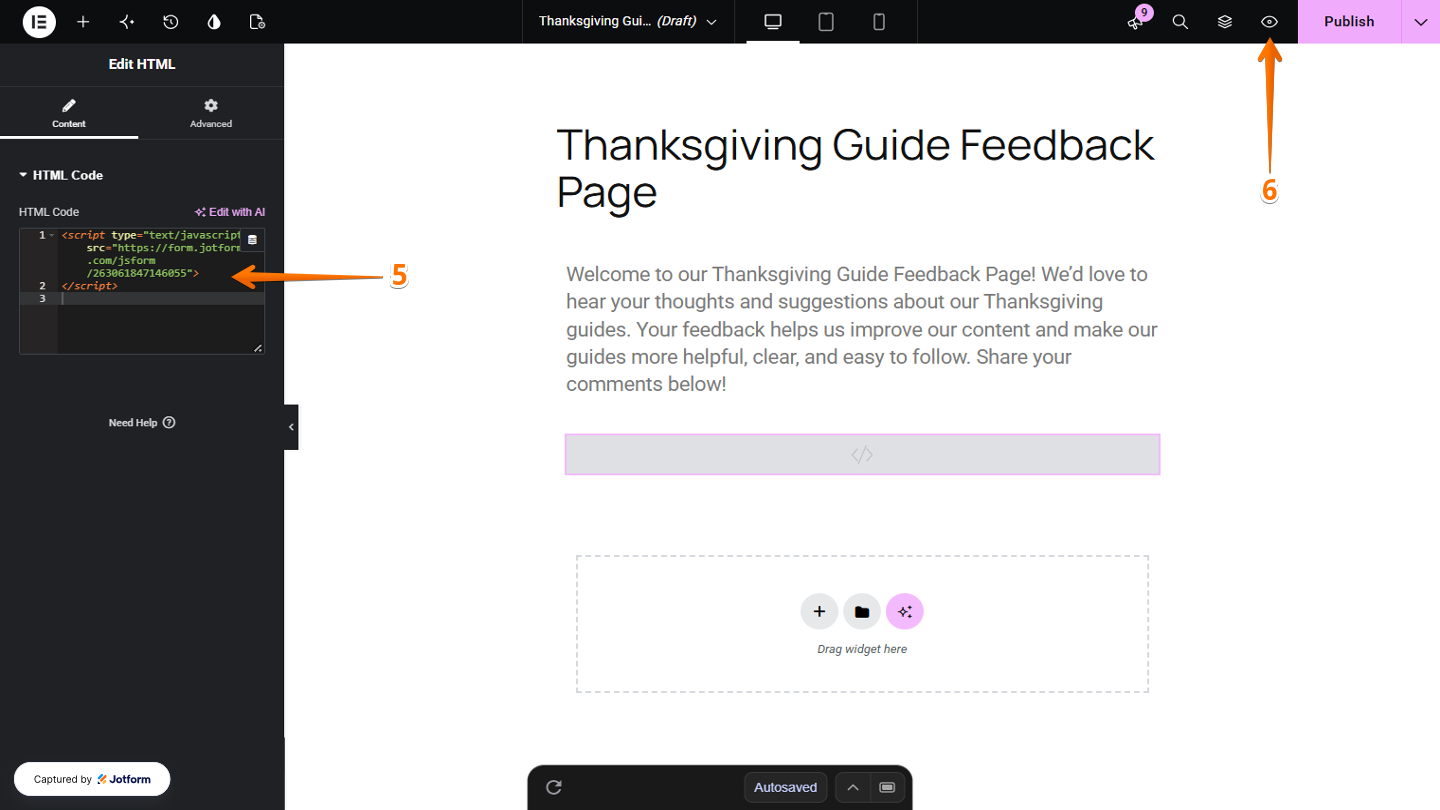
- Now, in the Edit HTML menu that opens on the left, paste your form’s embed code into the Content box under the HTML Code section.
- To preview your changes, click on the Eye icon at the top-right of your Elementor Editor.
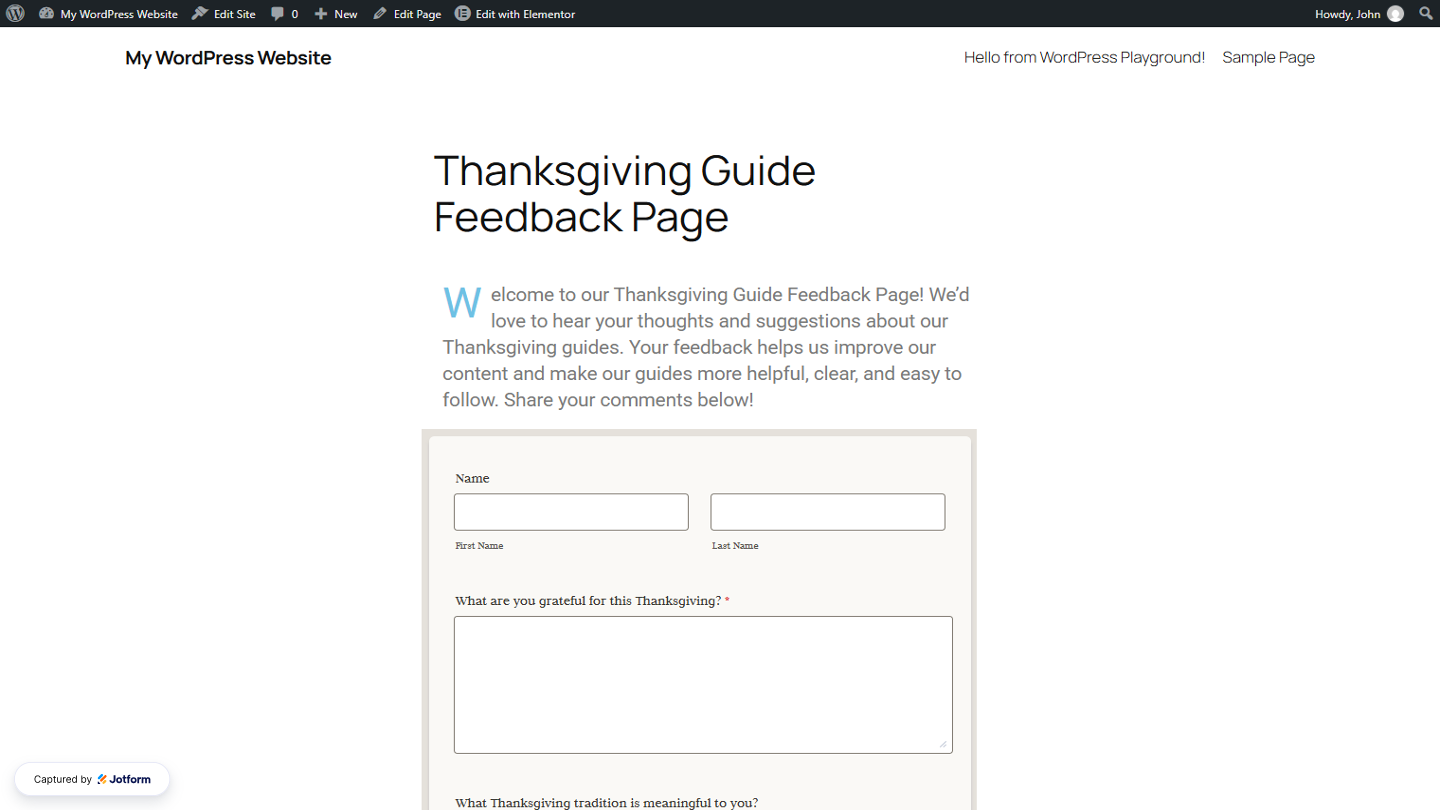
You’re all set! Your form is now added to your WordPress website using Elementor. Take a look at the screenshot below to see what it looks like:
Note
There’s a quick How to Add Contact Form in Elementor and How to Add Subscription Form in Elementor that covers everything step by step.

Send Comment: