Arabic, Hebrew, Pashto, Persian, Urdu, and Sindhi are common languages written from right to left (RTL). If your form’s script needs to be in the RTL direction, you can use CSS.
To align your form in the RTL direction
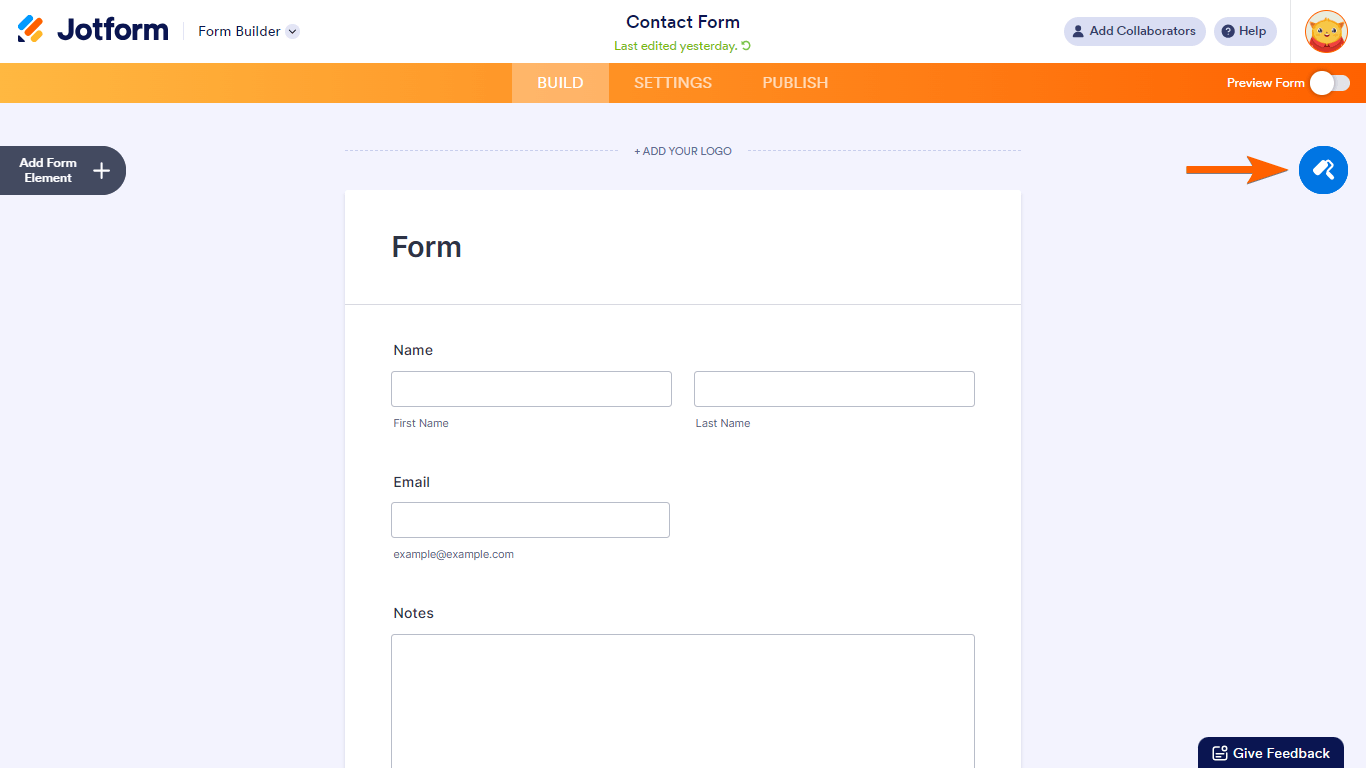
- In the Form Builder, select the roller paint icon in the upper-right corner.
- In the Form Designer, go to Styles at the top.
- Scroll down to Inject Custom CSS.
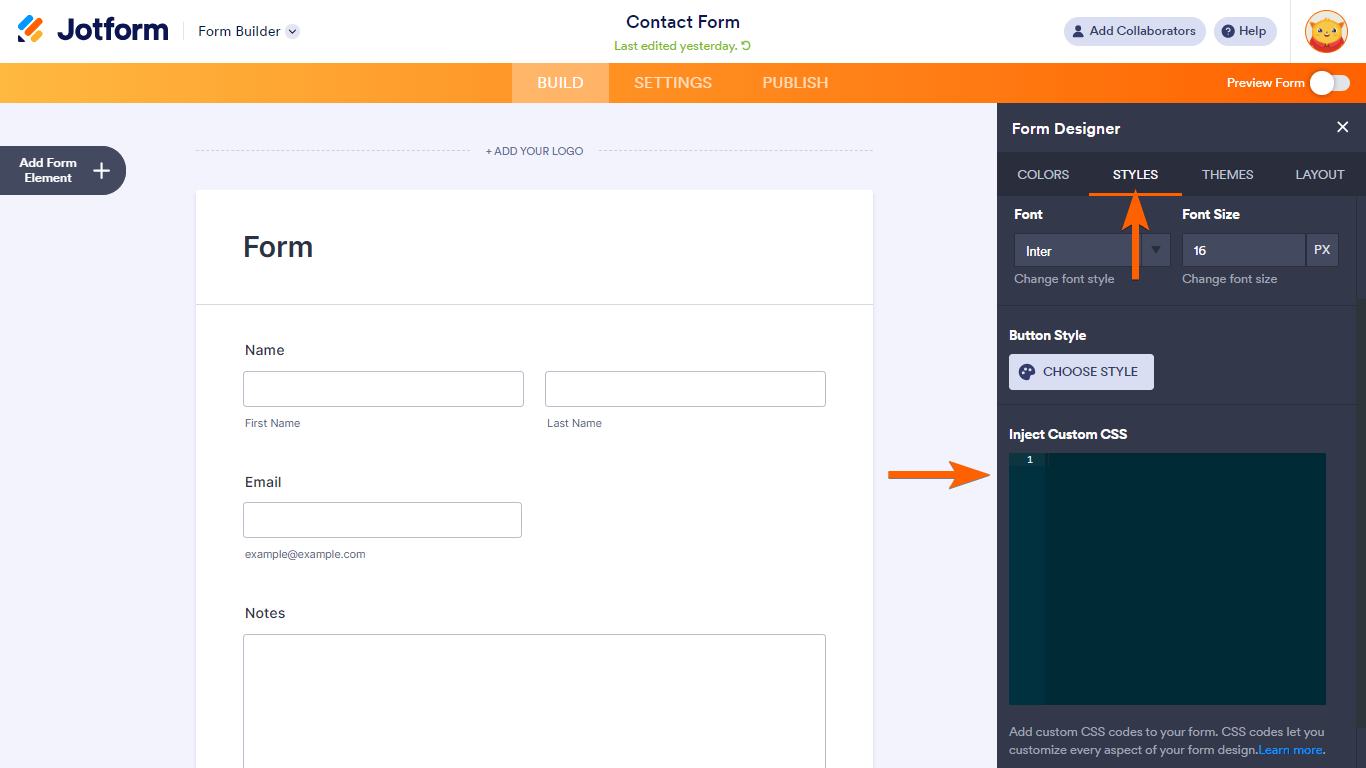
- Enter the following code in the CSS editor:
.form-all, .form-header, .form-subHeader, .form-textarea, .form-textbox {
	direction: rtl;
	text-align: right !important;
}

.form-checkbox-item:not(#foo) label:before, .form-radio-item:not(#foo) label:before {
	right: 0;
	margin-right: 0;
	float: right;
}

.form-radio-item:not(#foo) label:after {
	right: 4px;
}

.form-checkbox-item:not(#foo) label:after {
	right: 8px;
}

.form-checkbox-item:not(#foo) label {
	float: right;
}

.form-all .form-section .form-col-2 {
	width: 33.3% !important;
}

.form-label, label.form-label.form-label-auto, label.form-label:not(.form-label-top) {
	text-align: right !important;
}

span.phone-separate {
	display: none;
}

.form-line-error .form-error-message {
	right: unset !important;
	left: 0 !important;
	text-align: left;
}

.form-checkbox-item:not(#foo) label:after {
	right: 0;
}

.form-multiple-column, .form-single-column {
	width: 100%;
	display: inline-flex;
	flex-wrap: wrap;
}

.form-multiple-column .form-checkbox-item, .form-multiple-column .form-radio-item, .form-single-column .form-checkbox-item, .form-single-column .form-radio-item {
	width: 100%;
}

.form-checkbox+label, .form-checkbox+span, .form-radio+label, .form-radio+span {
	padding-right: 30px;
	padding-left: 0;
}

.form-matrix-values label.matrix-choice-label {
	padding-right: 20px;
	padding-left: 0;
}

.form-label:not(.form-label-top) + .form-input .form-address-line + .form-address-line, .form-sub-label-container + .form-sub-label-container {
	margin-right: 8px;
}

.form-address-line + .form-address-line {
	margin-left: 0;
}

.form-product-item .p_image .image_area {
	margin-left: 10px;
	margin-right: 10px;
}
Note
The code is only applicable to basic form elements and some widgets. If you need help aligning your form elements that are not covered by the code, reach out to Jotform Support.
- View your form in preview or live mode to see the changes.
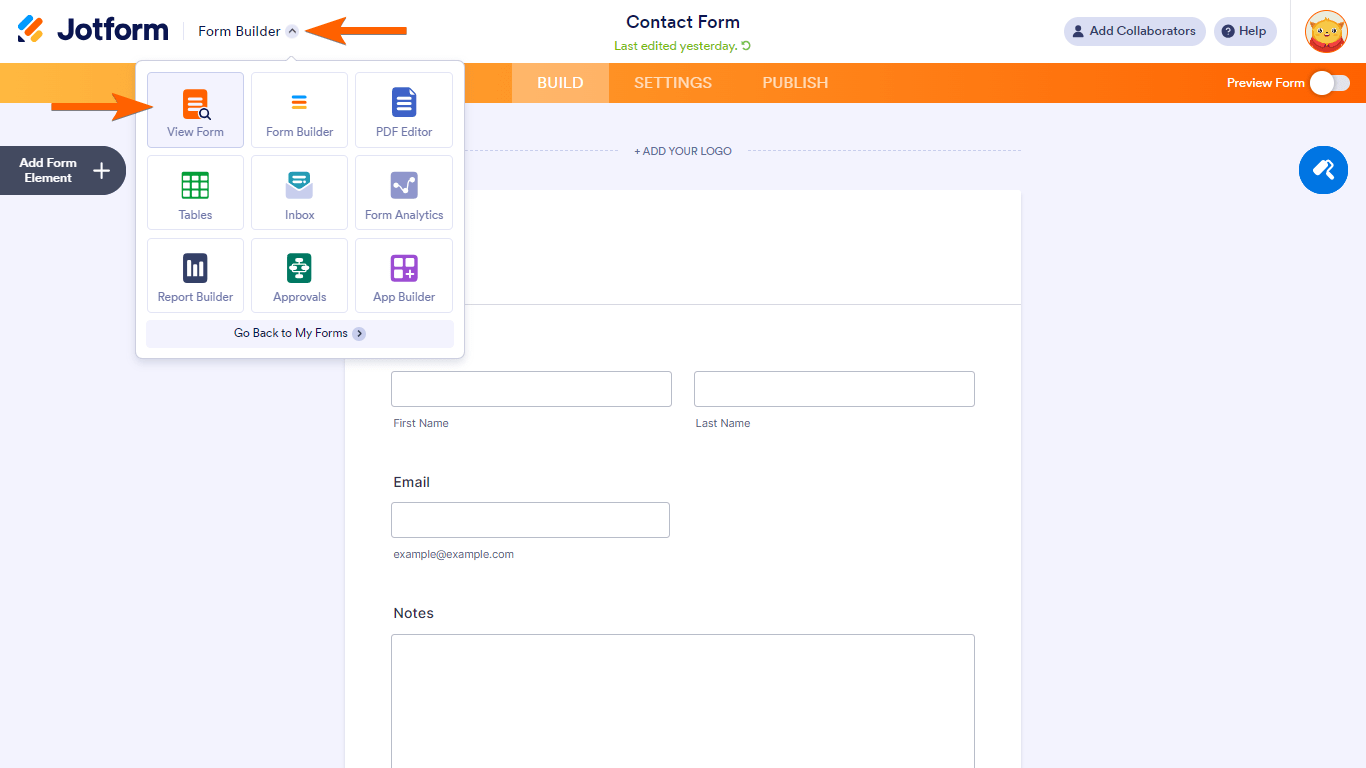
Here’s a demo form to see what it looks like.

Send Comment:
2 Comments:
August 23, 2023
hi,
This is Excellent.
When I shrink a field the label is still aligned to the left, how can I fix that?
November 17, 2021
Hi,
In mobile the input headline still ltr