By assigning entries to specific collaborators, you can distribute tasks effectively. Each collaborator knows their responsibilities, leading to better organization and productivity. Collaborators receive notifications when assigned to an entry. This ensures everyone stays informed about changes, updates, or new tasks.
To add assignees:
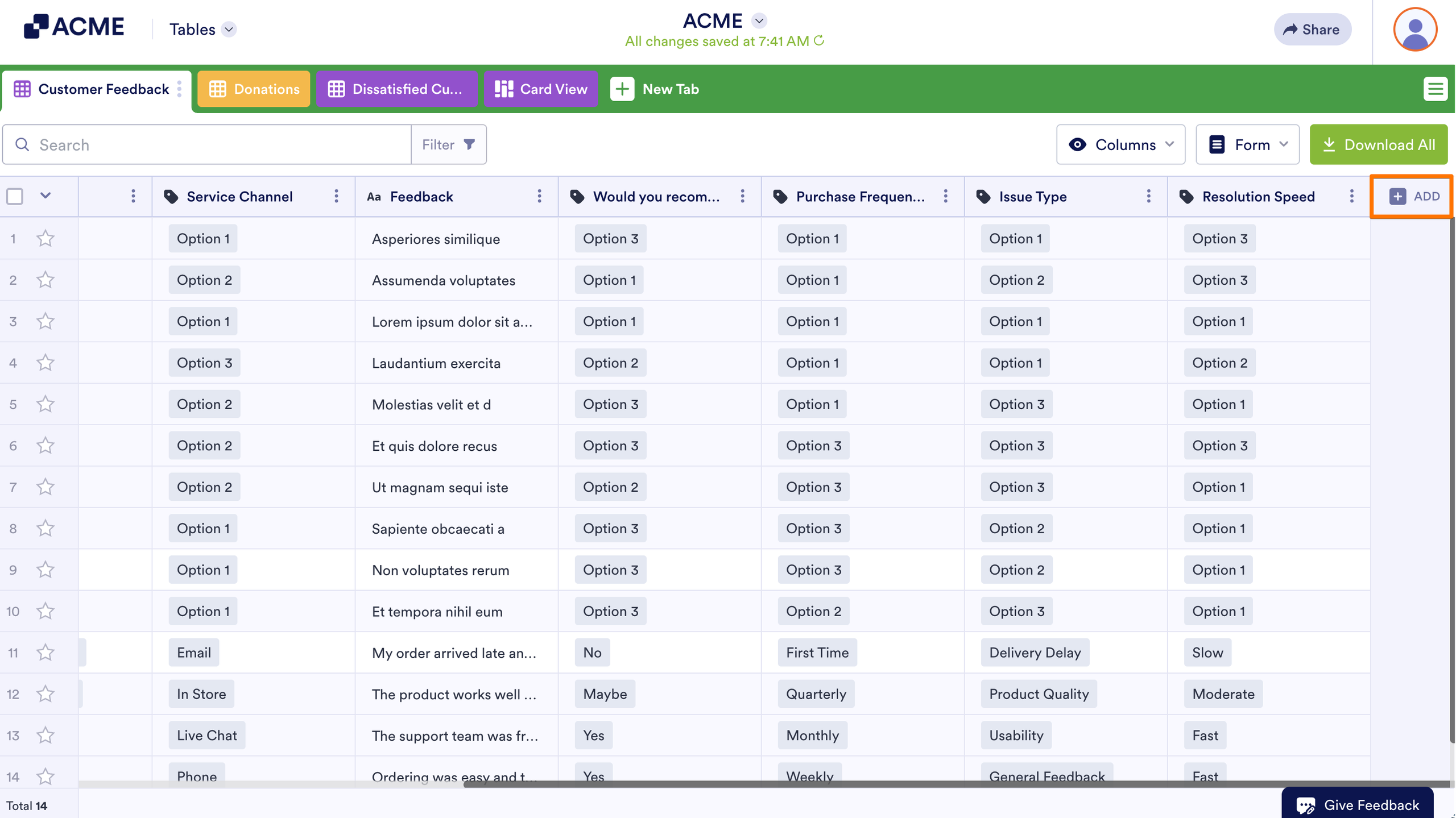
- In Tables, add or insert a new column. See How to Add and Organize Columns for more information.
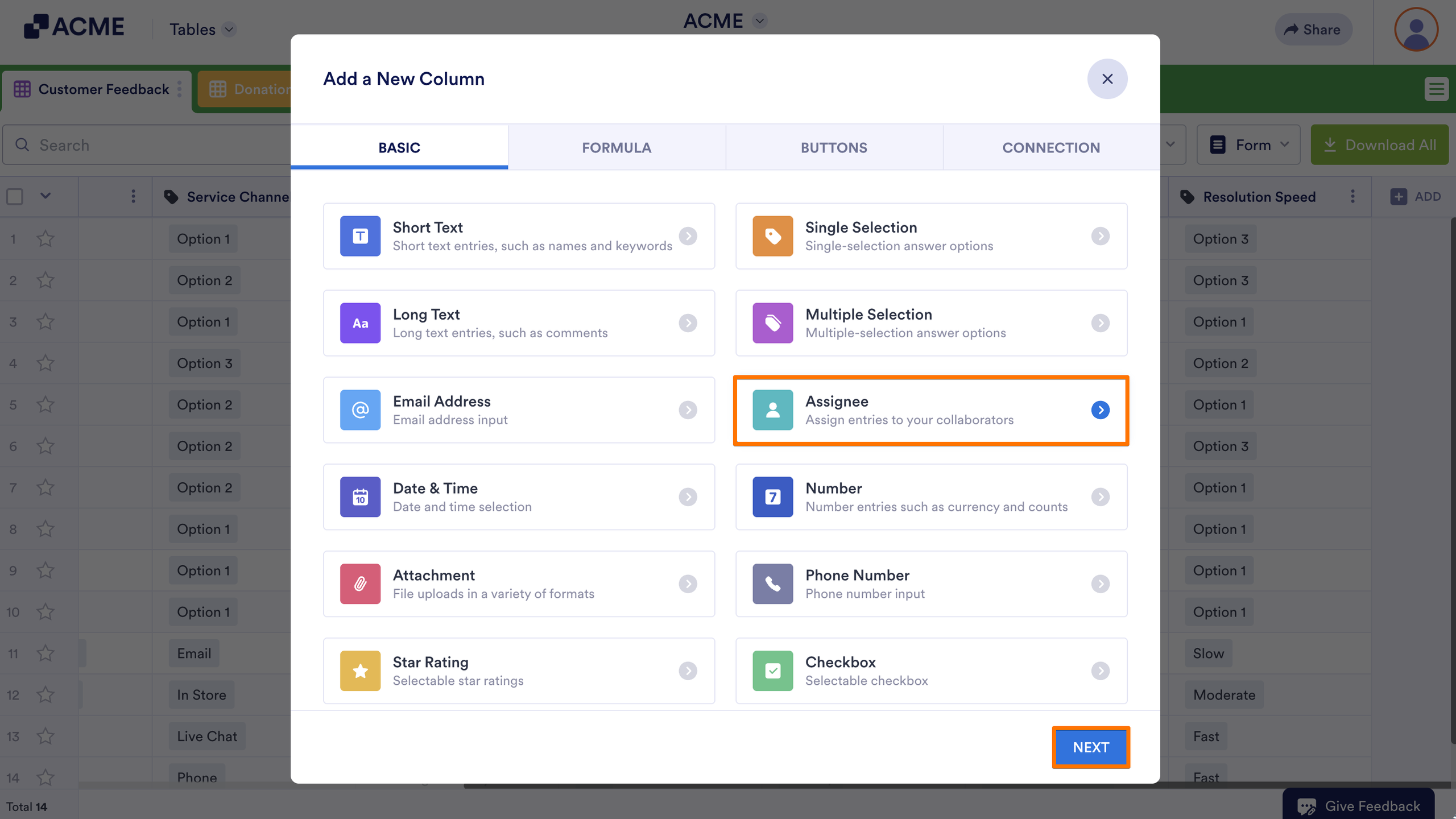
- In the dialog, select Assignee and click on Next.
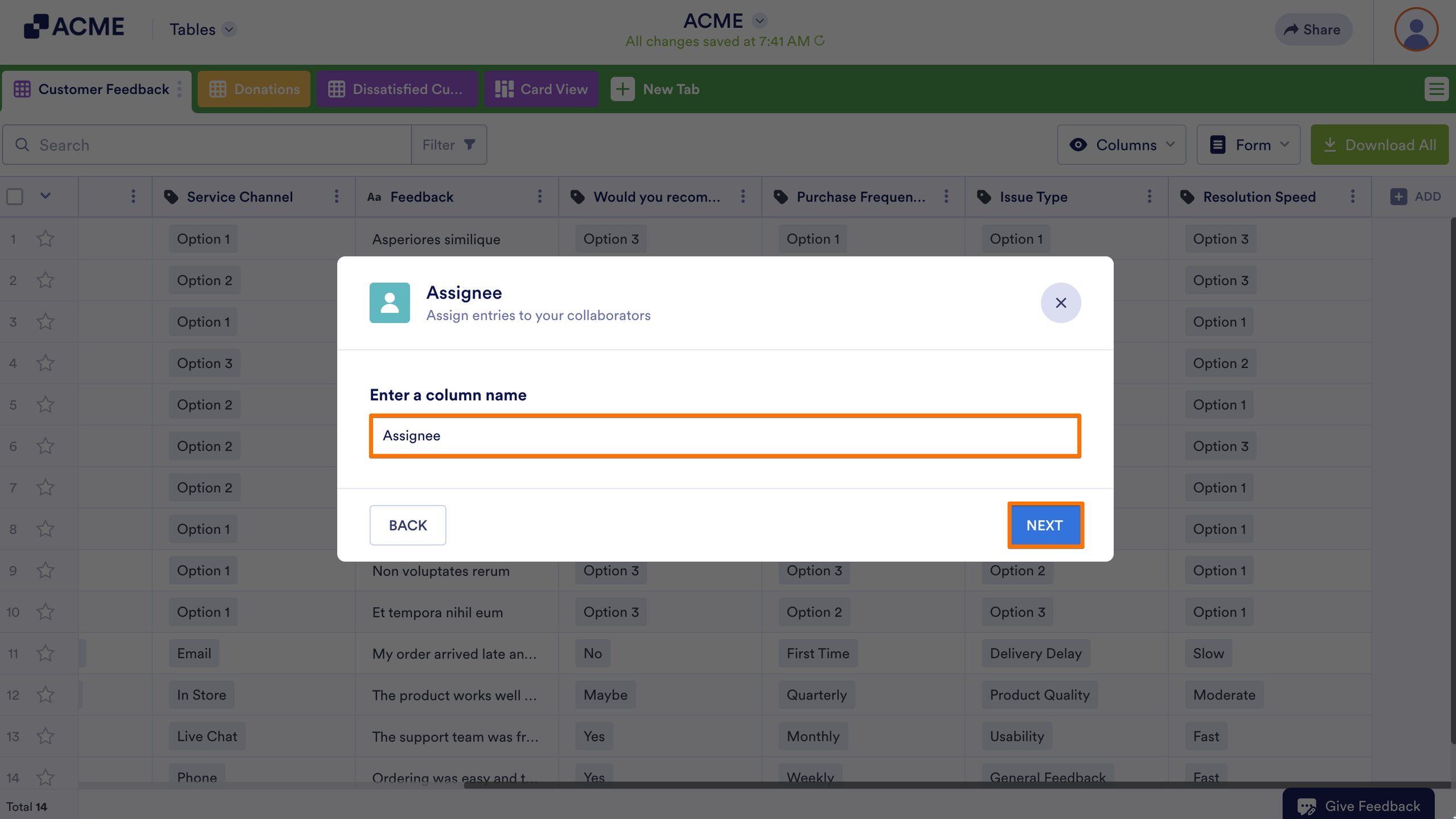
- Next, enter your desired column name.
- Next, toggle the options if needed, then select Create Column.
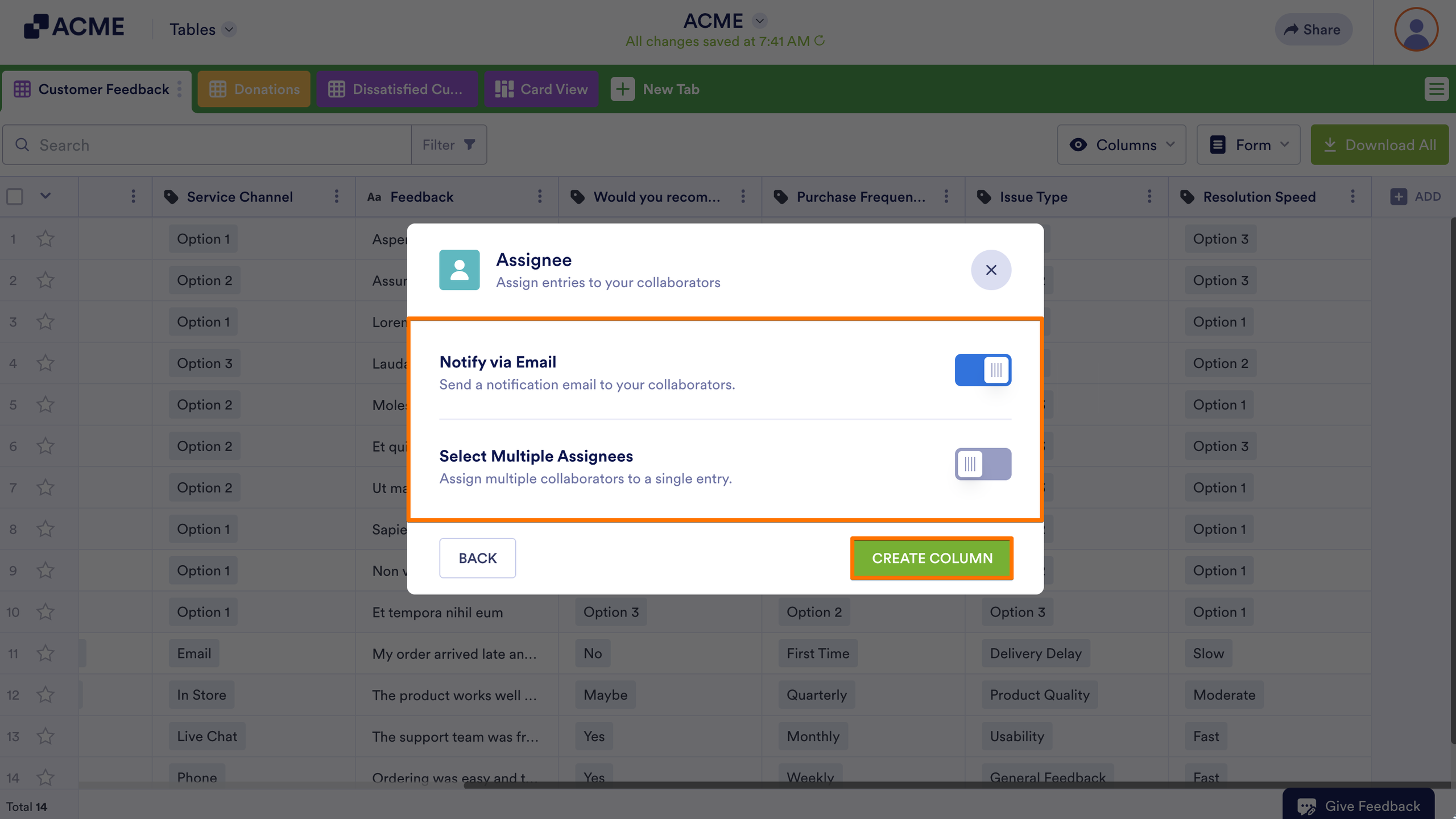
Here are the available options:
- Notify via Email — Send a notification email to your collaborators (recommended).
- Select Multiple Assignees — Assign multiple collaborators to a single entry.
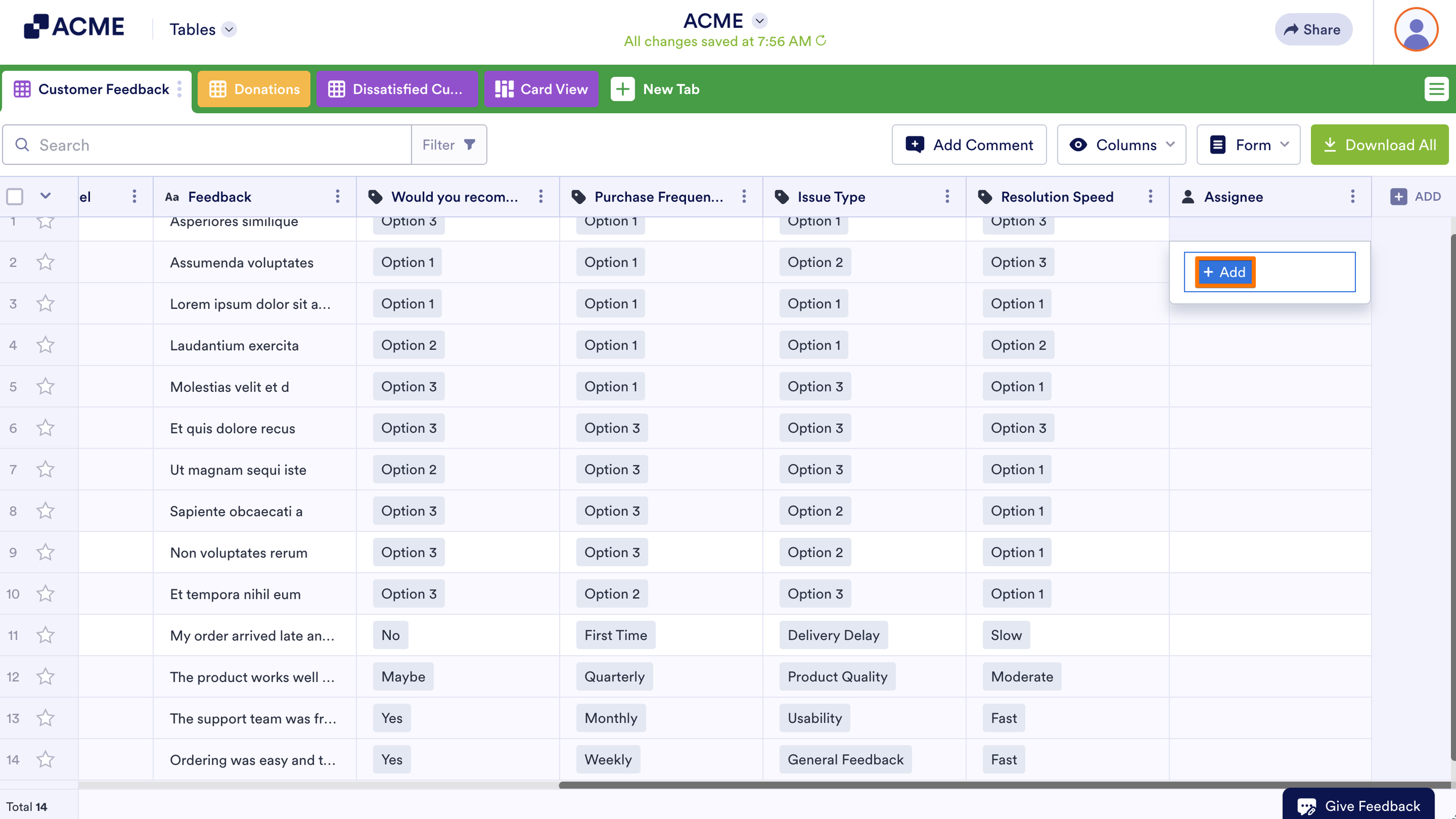
You can now add assignees to form submissions. Choose one of the column’s cells, then select Add to invite or assign collaborators to the entry.
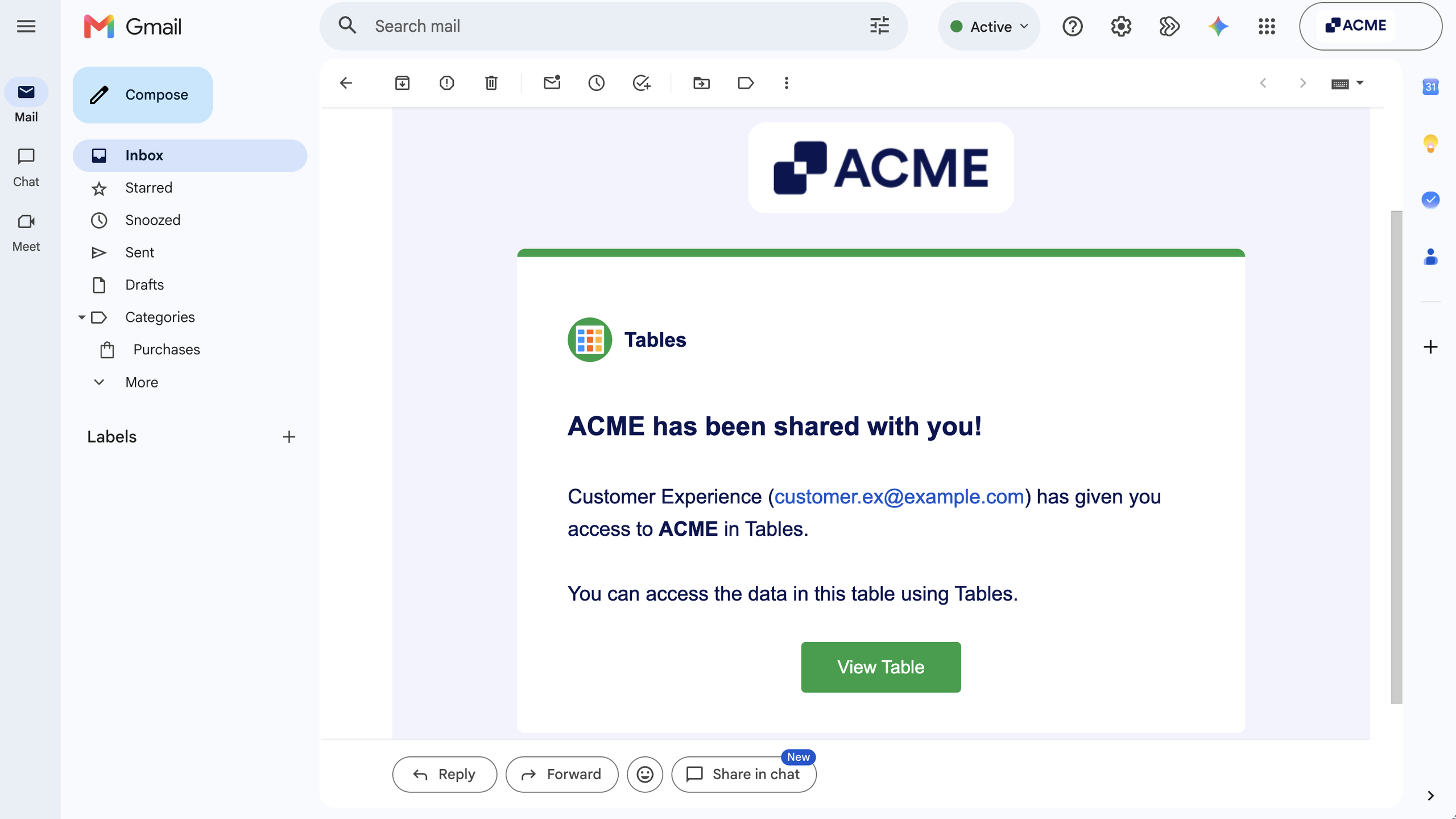
Assignees will receive an email notification if the Notify via Email option is turned on.
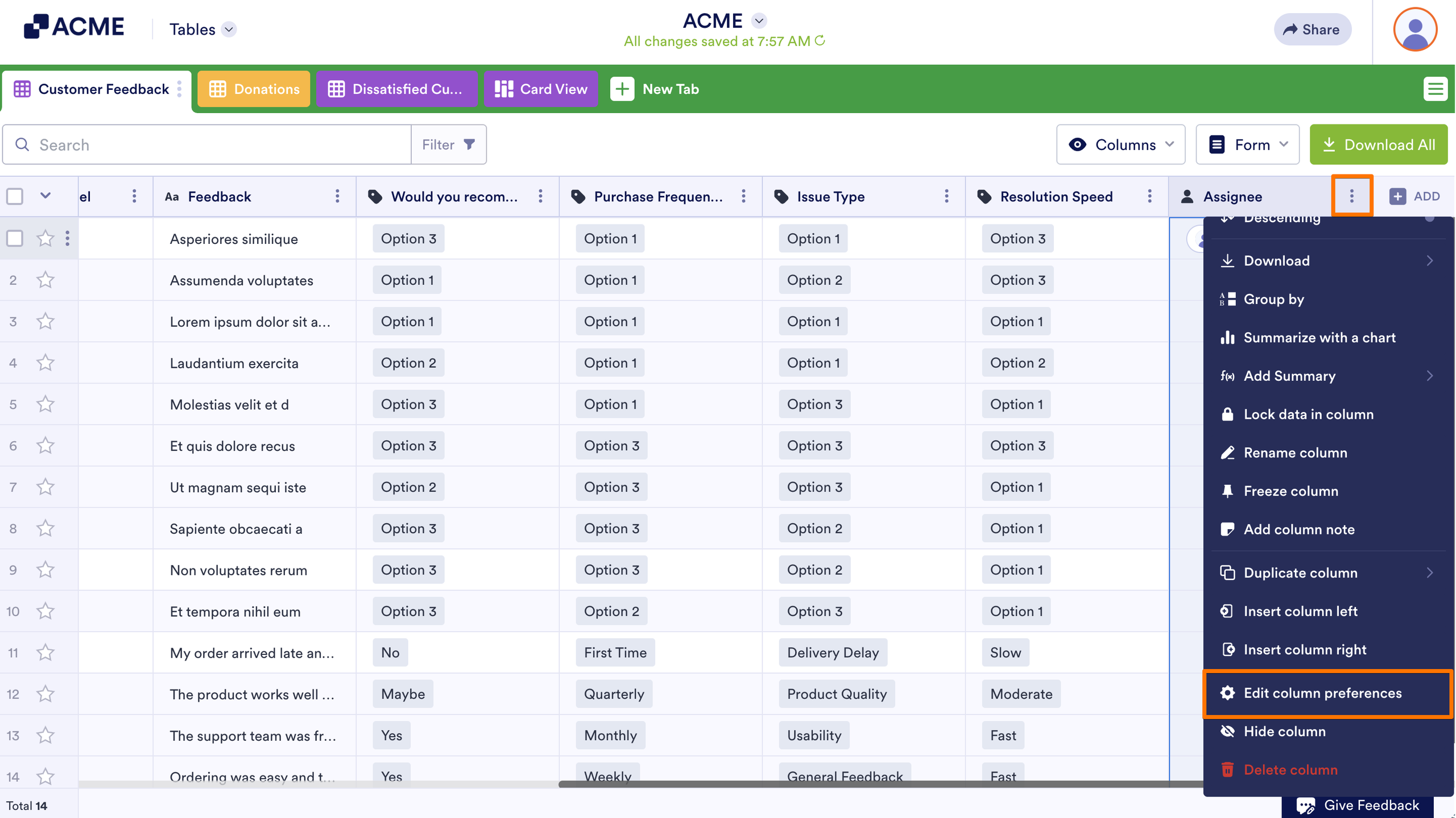
To change settings, open the column’s menu, then select Edit column preferences.
See also: How to Share Tables with Collaborators.

Send Comment: