In Tables, changing the view lets you work with your data in the way that suits you best. The Table view shows all your submissions at a glance, while the Cards view focuses on individual entries for a more detailed look. Need to check uploaded files quickly? Switch to the Uploads view. Or, use the Calendar view to easily keep track of important dates and deadlines. Each view helps you stay organized and with your data more effectively.
You can switch between the different submission views in just a few easy steps. Here’s how to do it:
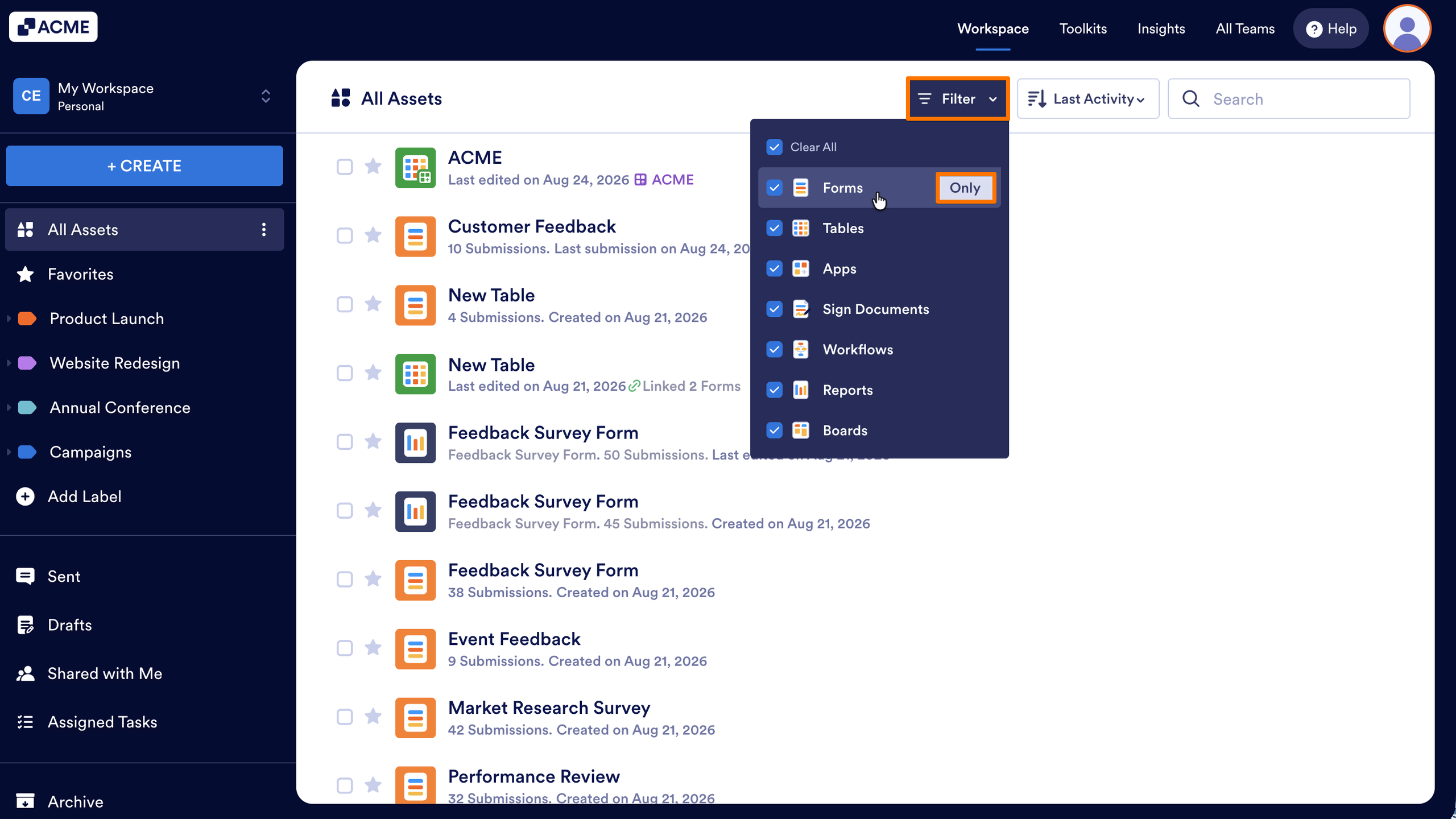
- In Workspace, click on Filter on the toolbar.
- In the Dropdown menu that opens, hover over the Forms, and click on Only.
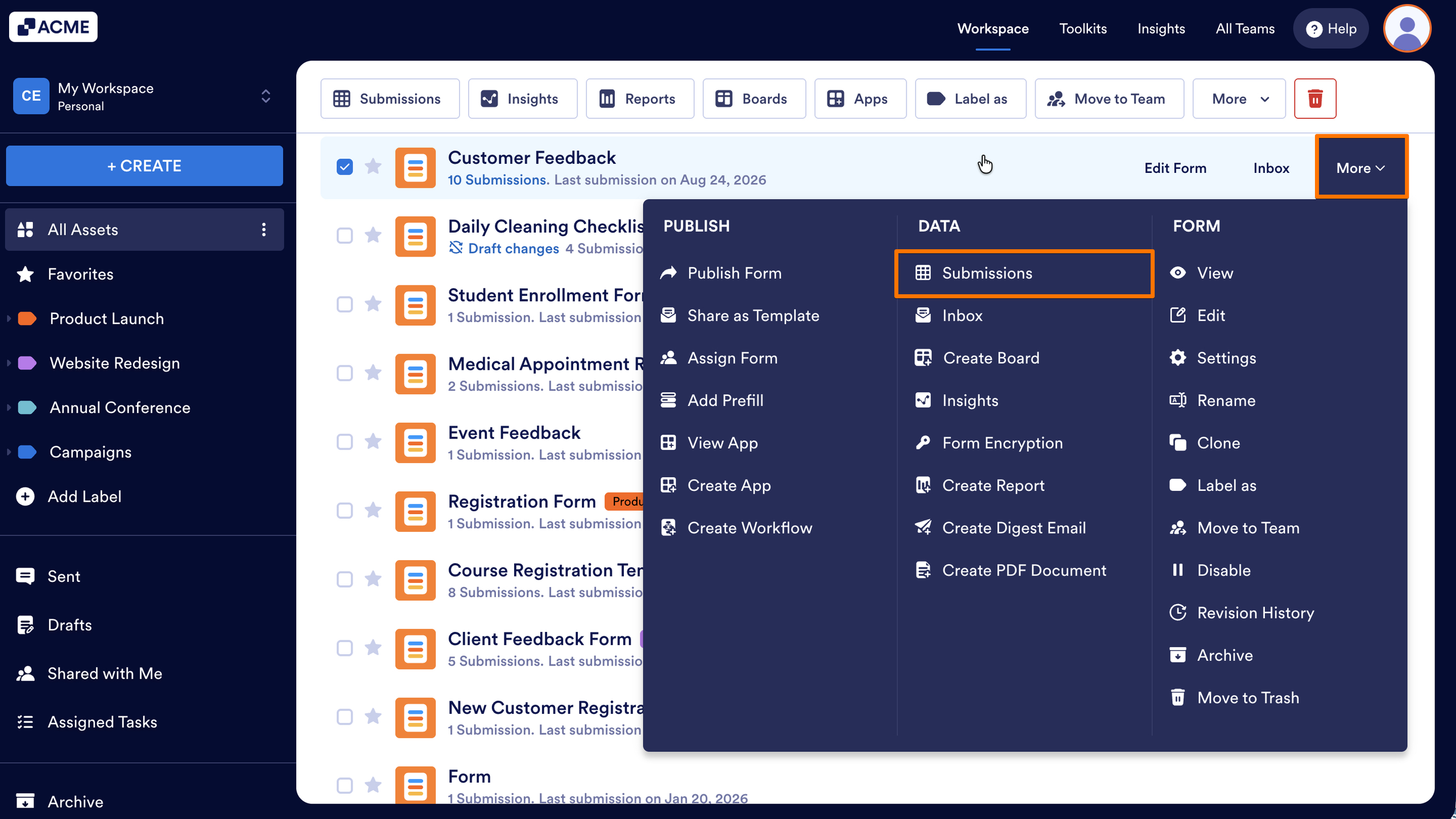
- Now, hover your mouse over the form you want to manage, and click on More on the right side of the page.
- Next, in the Dropdown menu, under the Data column, click on Submissions.
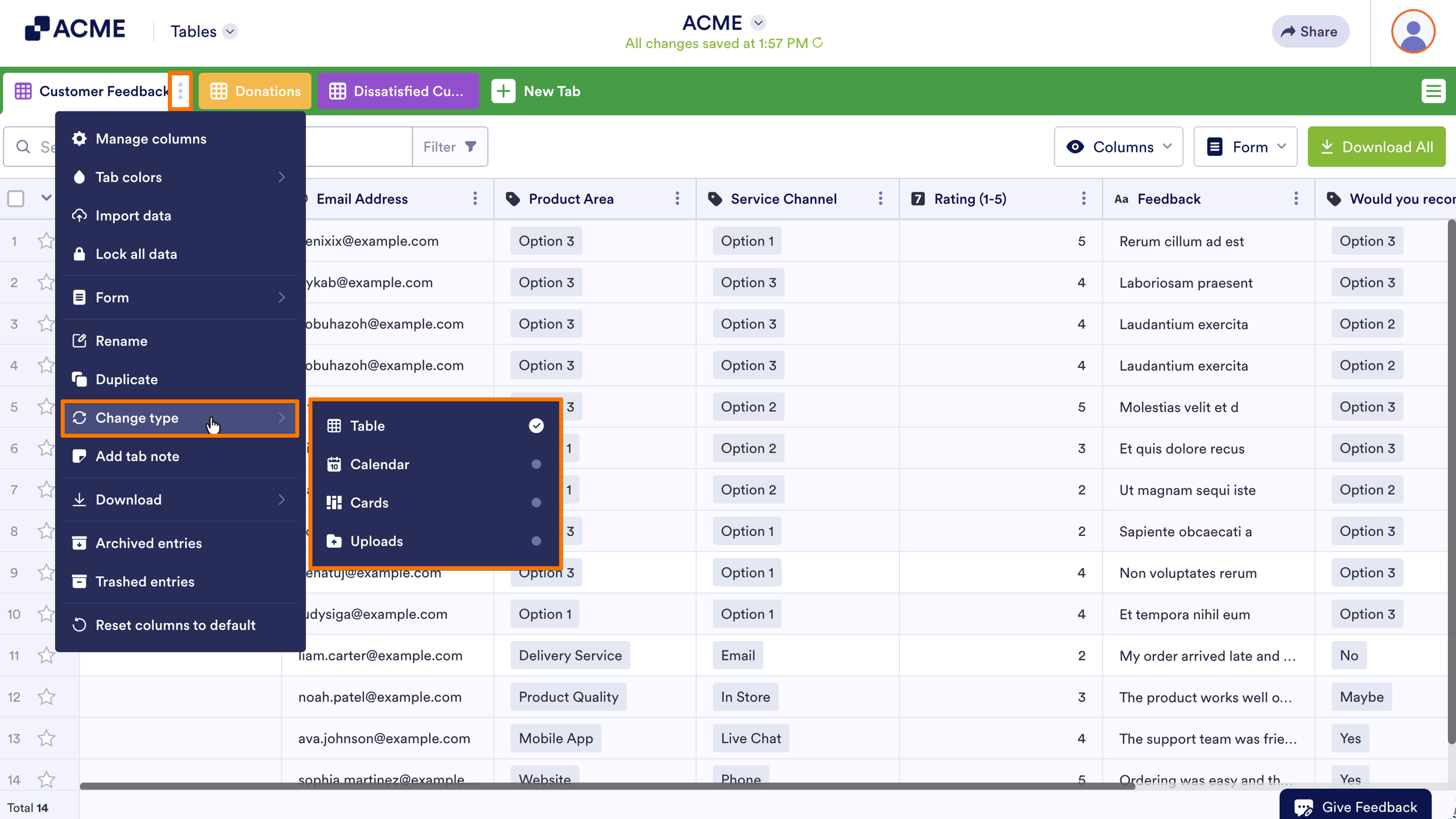
- On your Submissions Table, click on the Three Dots icon next to the name of the main tab.
- Now, in the Tab menu, hover your mouse over Change Type and then select one of the views in the submenu that comes up:
- Table — This is the default view that shows all your submissions in a spreadsheet layout. It’s great for scanning responses at a glance and comparing data across fields.
- Calendar — This turns your submissions into events on a calendar. Match a date or appointment field from your form to the event fields to display the entries by schedule. This is ideal for bookings, appointments, RSVPs, and similar use cases.
- Cards — This displays submissions as individual cards in a new tab. You can choose which fields to show and set a card title for a more visual, organized way to manage entries like tasks or contact records.
- Uploads — This focuses on file uploads from your form and shows them in a folder-style layout. You can set folder titles and group entries to quickly browse or download submitted images, documents, or other files.
That’s it. You’ve successfully changed the view type of your form submissions in Tables.
In some view types, you can further customize your view using the View Settings button at the top of the page—it opens a window where you can reconfigure settings for the view type you selected. The Fields Dropdown menu next to it lets you choose which form fields to include in the current view.

Send Comment: