Collecting donations has never been easier with Donation Apps. Now all you have to do to collect donations is drag and drop an element into the App Builder.
- In the App Builder, click on the Add Element button on the left.
- Drag and drop the Donation Box element into your App Builder.
Note
Please note that when you use the donation element you cannot use the product element at the same time.
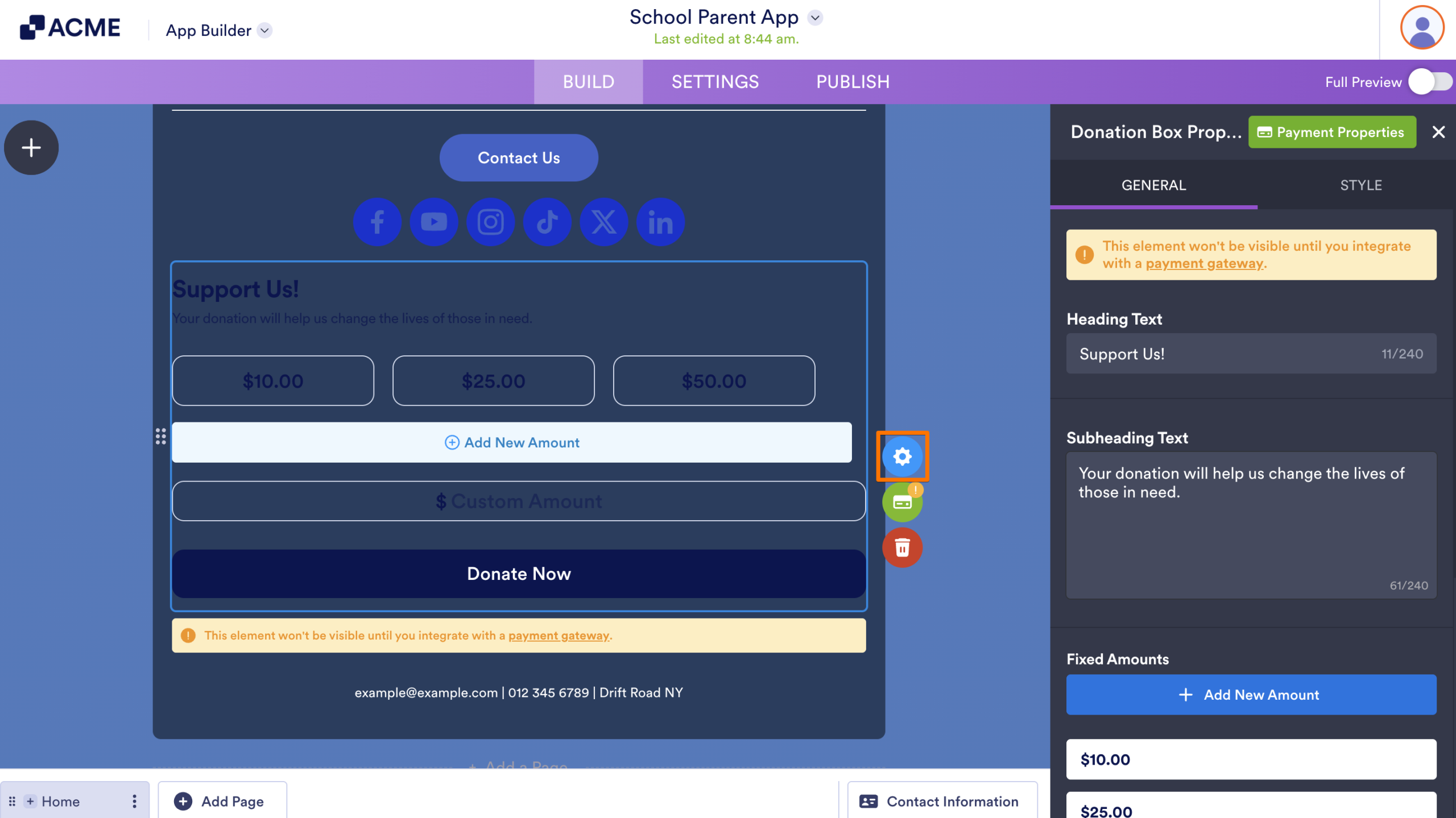
- Next, click on the Gear icon on the right side of the element to personalize your donation box properties.
How to Add Fixed Amounts
Donation Box automatically includes buttons with predefined dollar amounts for donors to select. But you can add more predefined amounts to make donating easy.
- In Donation Box Properties, scroll down to Fixed Amounts and click Add New Amount.
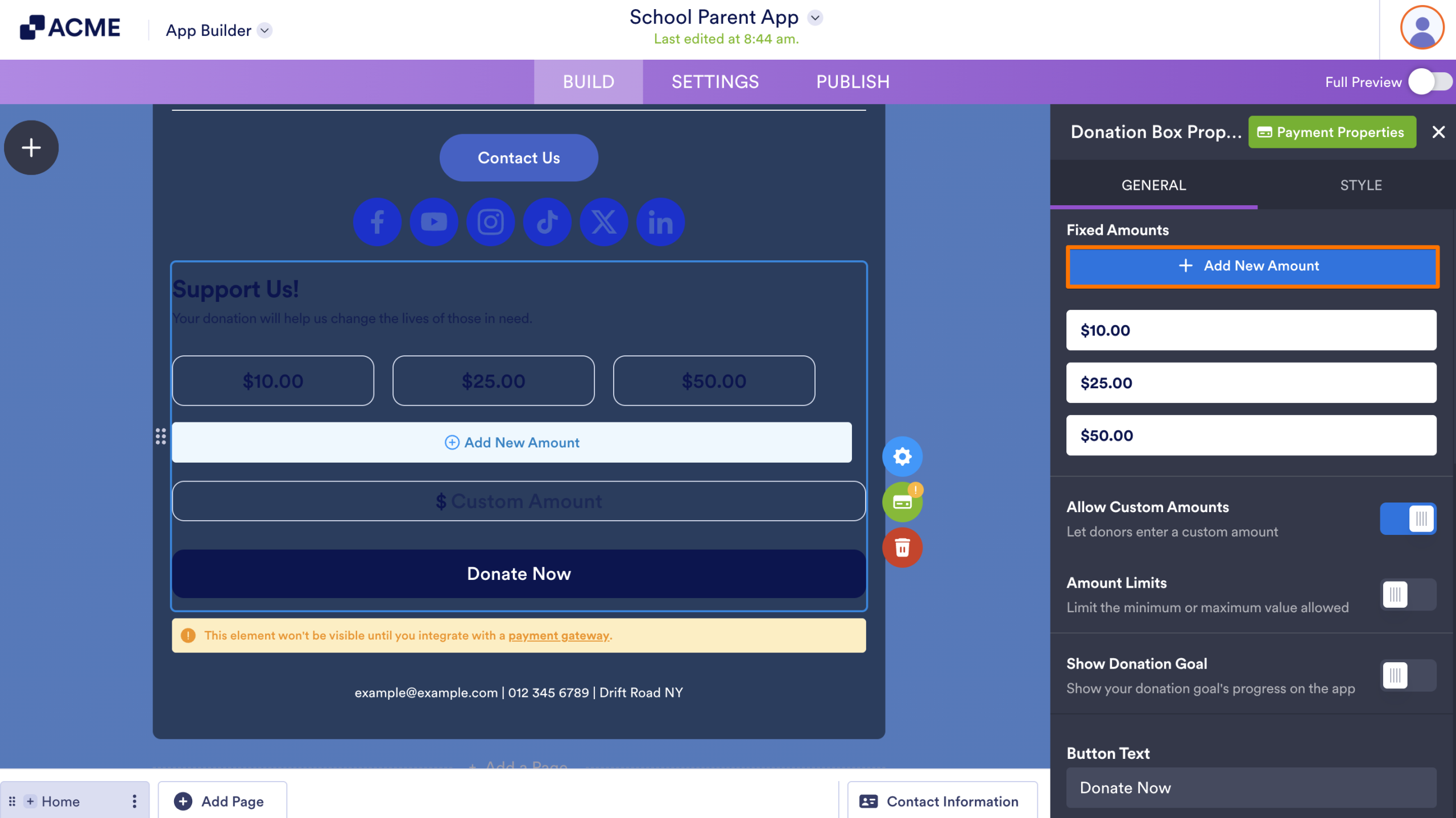
- Type any amount you want into the bar.
- If you only want your donors to donate a fixed amount just toggle the Allow Custom Amounts switch below to Off.
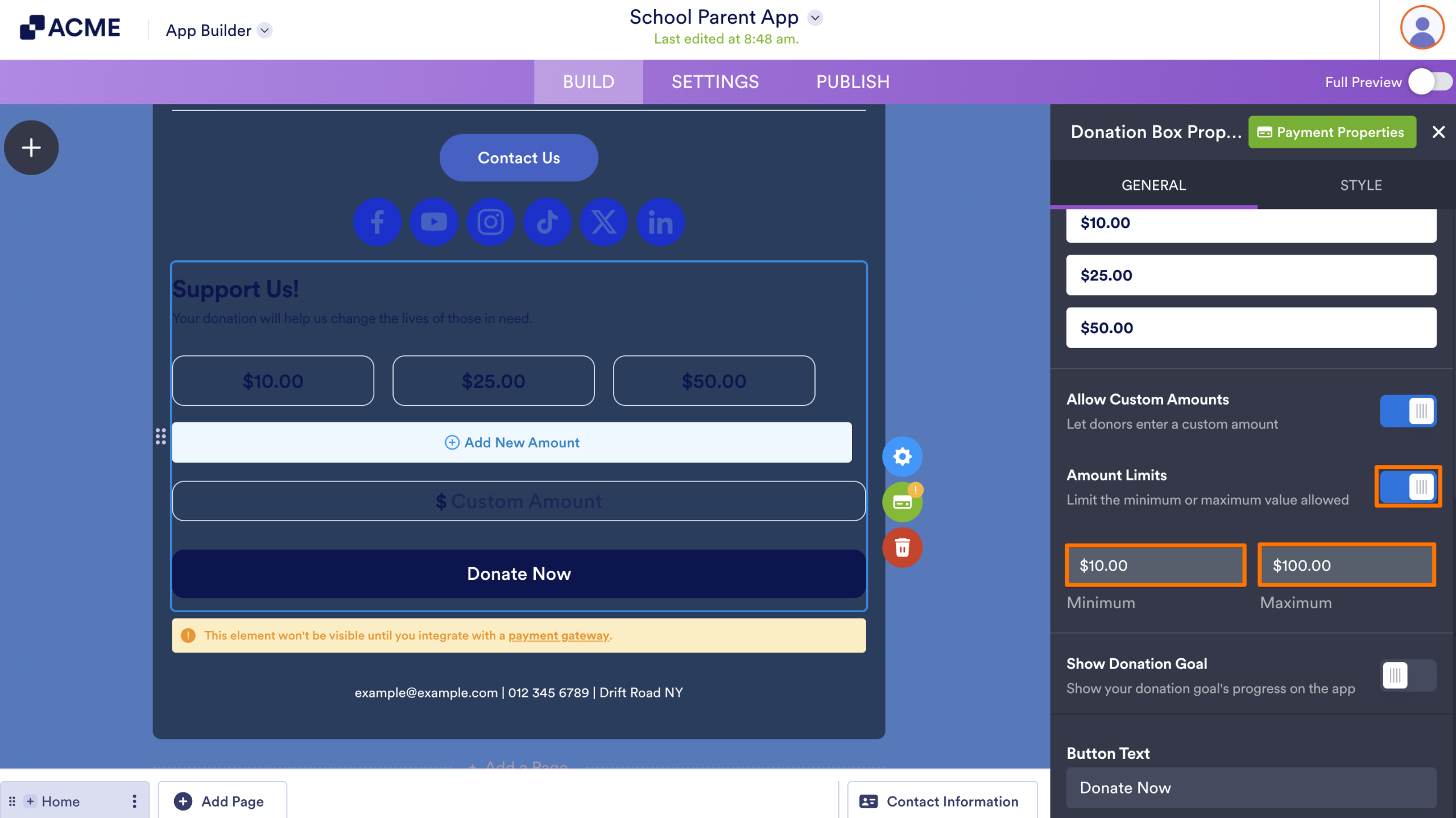
- Scroll down a little more to set donation amount limits. Once you see Amount Limits, toggle the switch to On. Then add a minimum and maximum amount.
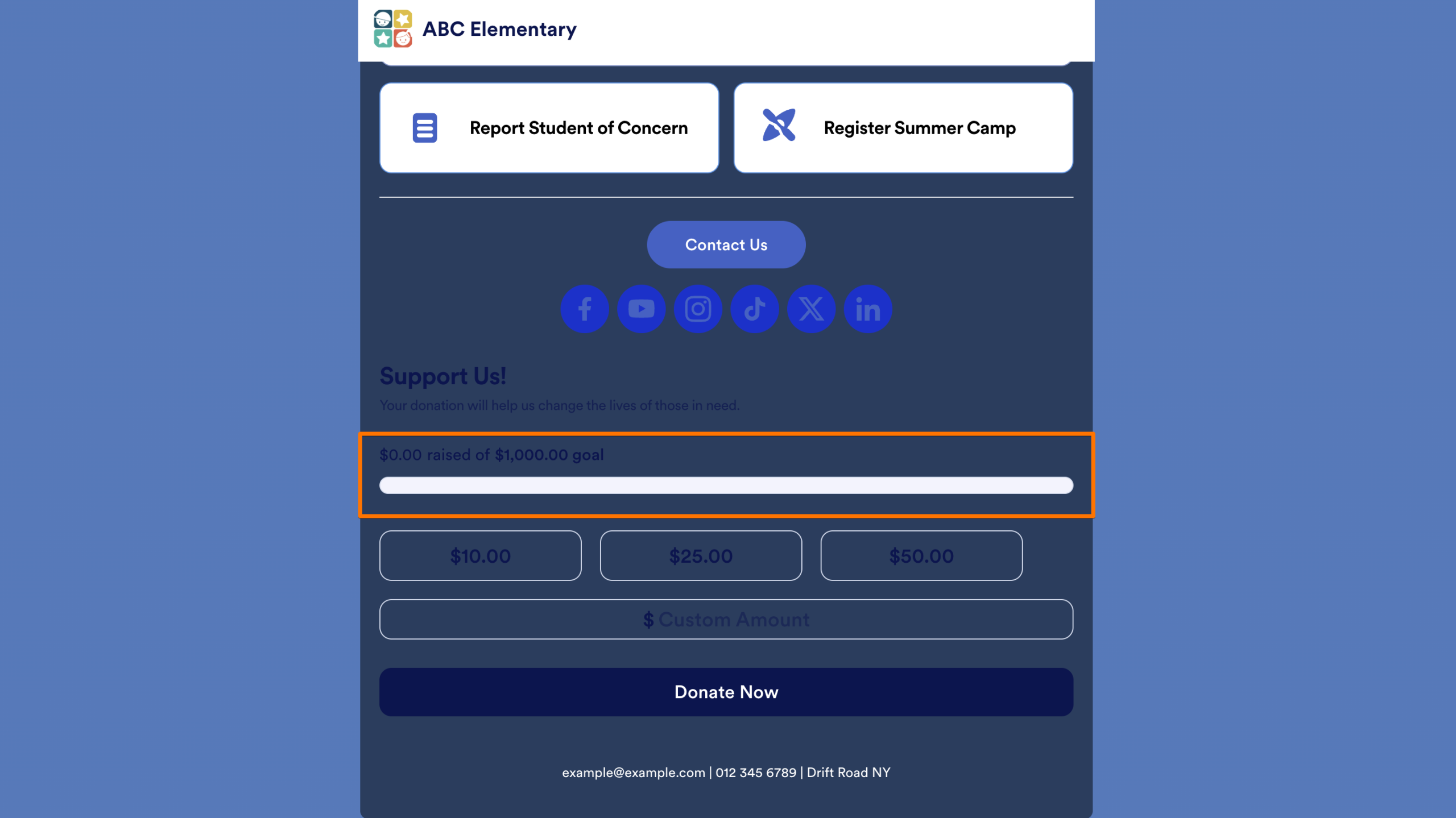
- If you want to show your donors the progress your donation campaign has made, toggle the Show Donation Goal switch to On, and then add your donation goal in the box directly below.
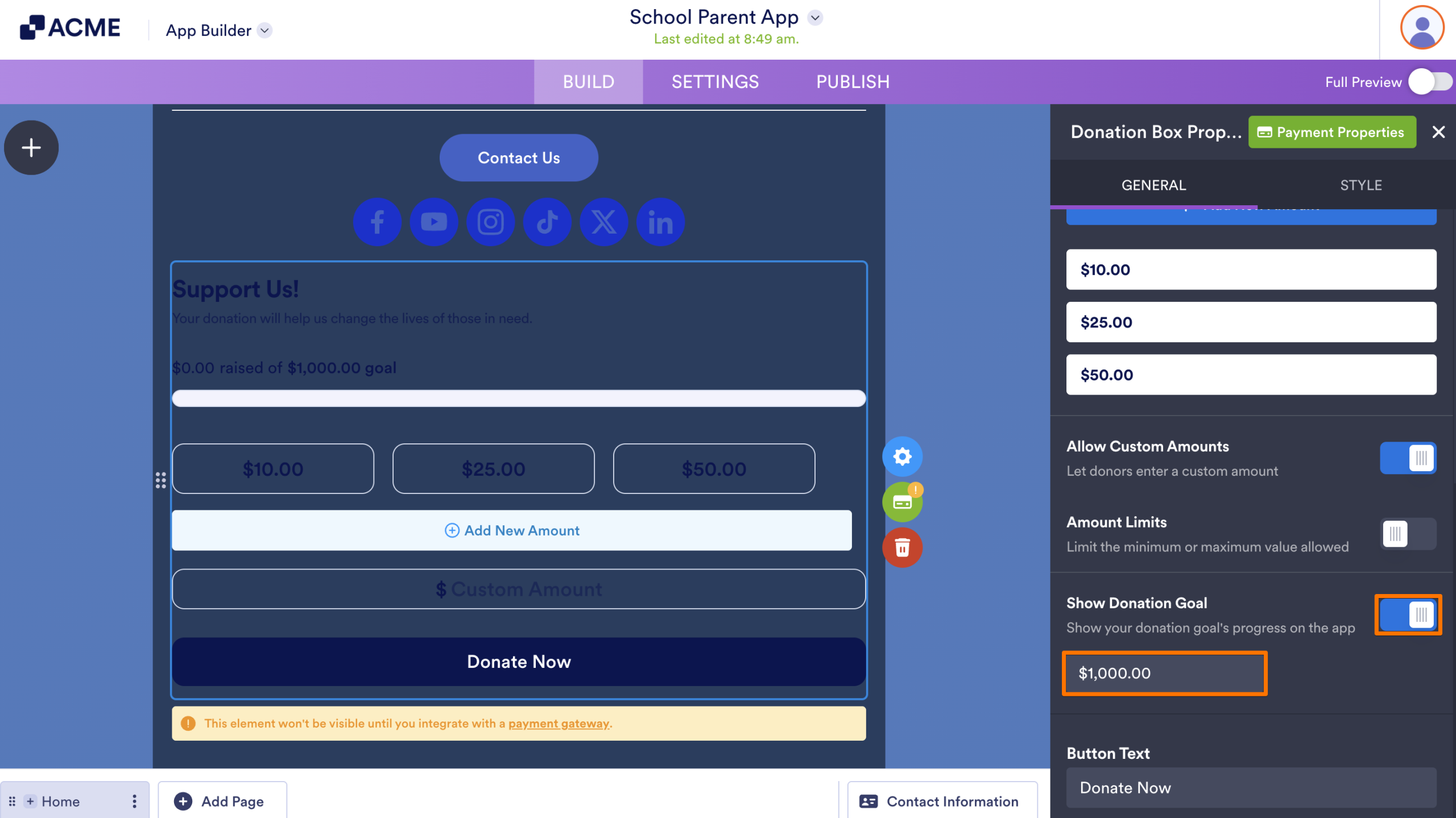
Your donors can see your campaigns progress right at the top.

Send Comment: