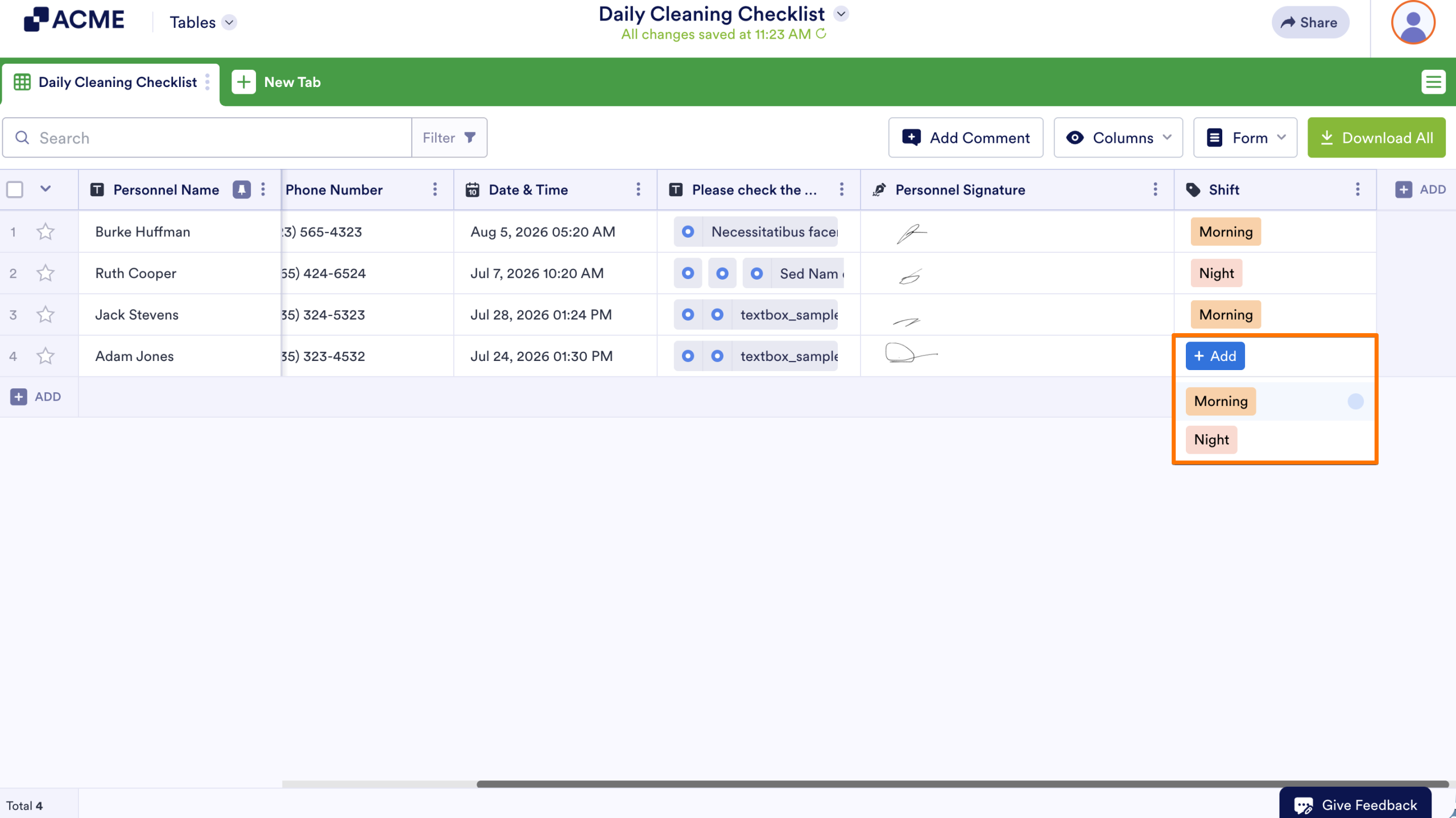
In Tables, you can add dropdown list columns which can be useful if you need to create status labels to assign to form submissions or project tasks. For example, if you have a request form, approvers can indicate the status of each request using the dropdown options directly in Tables.
To create a dropdown list:
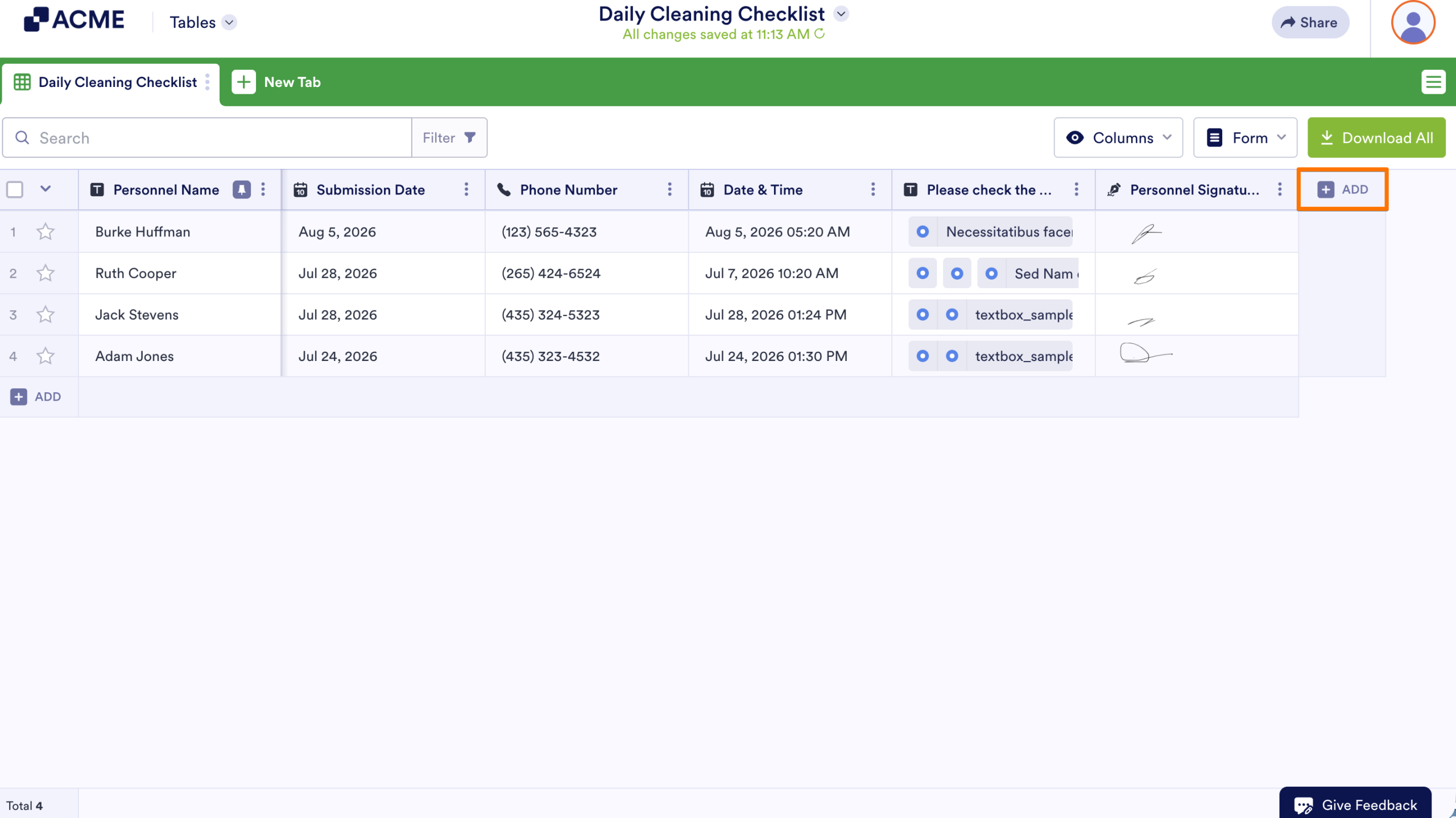
- In Tables, click on the Add button at the right end of column headings.
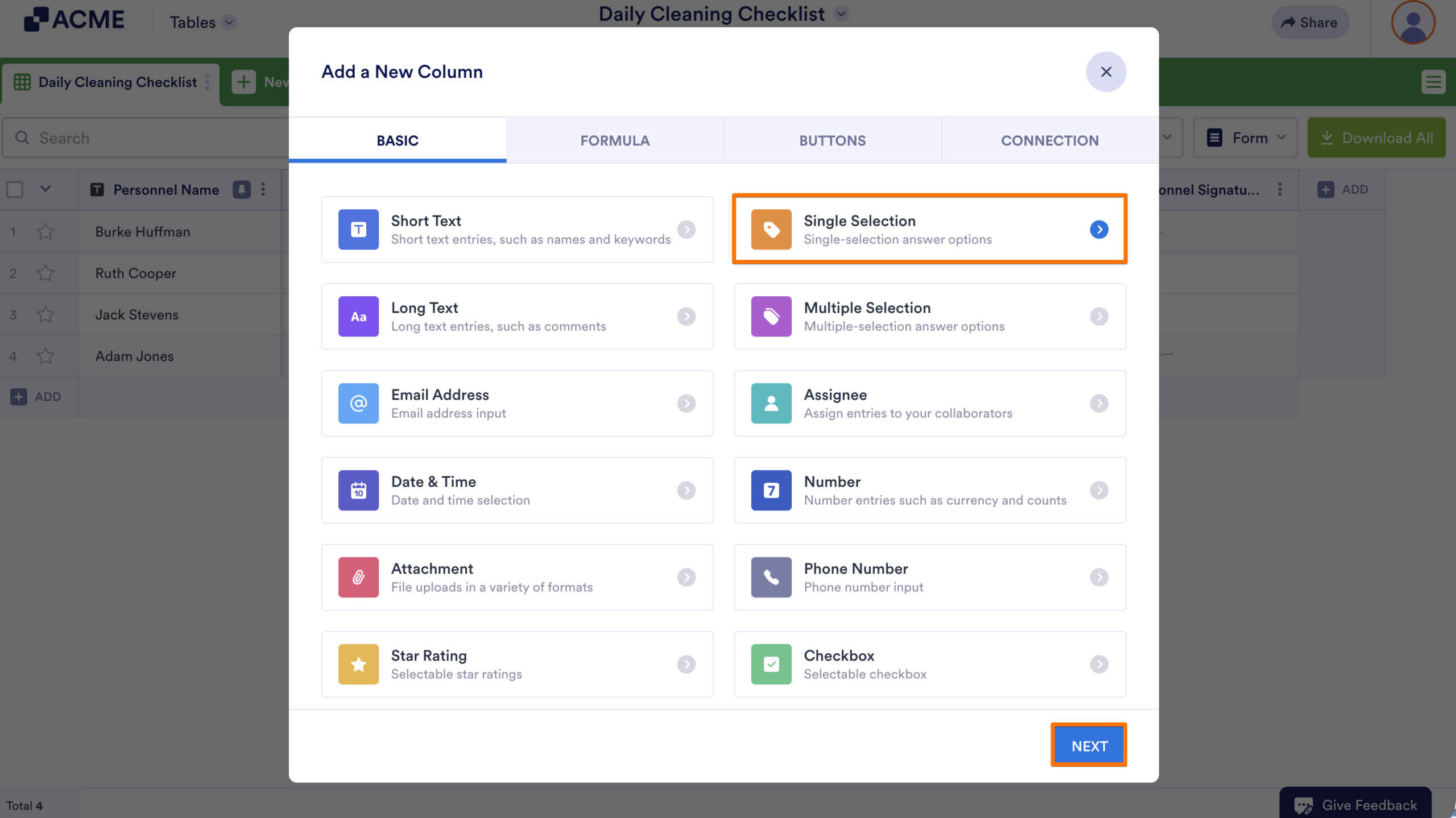
- Then, select Single Selection and click on Next at the bottom right.
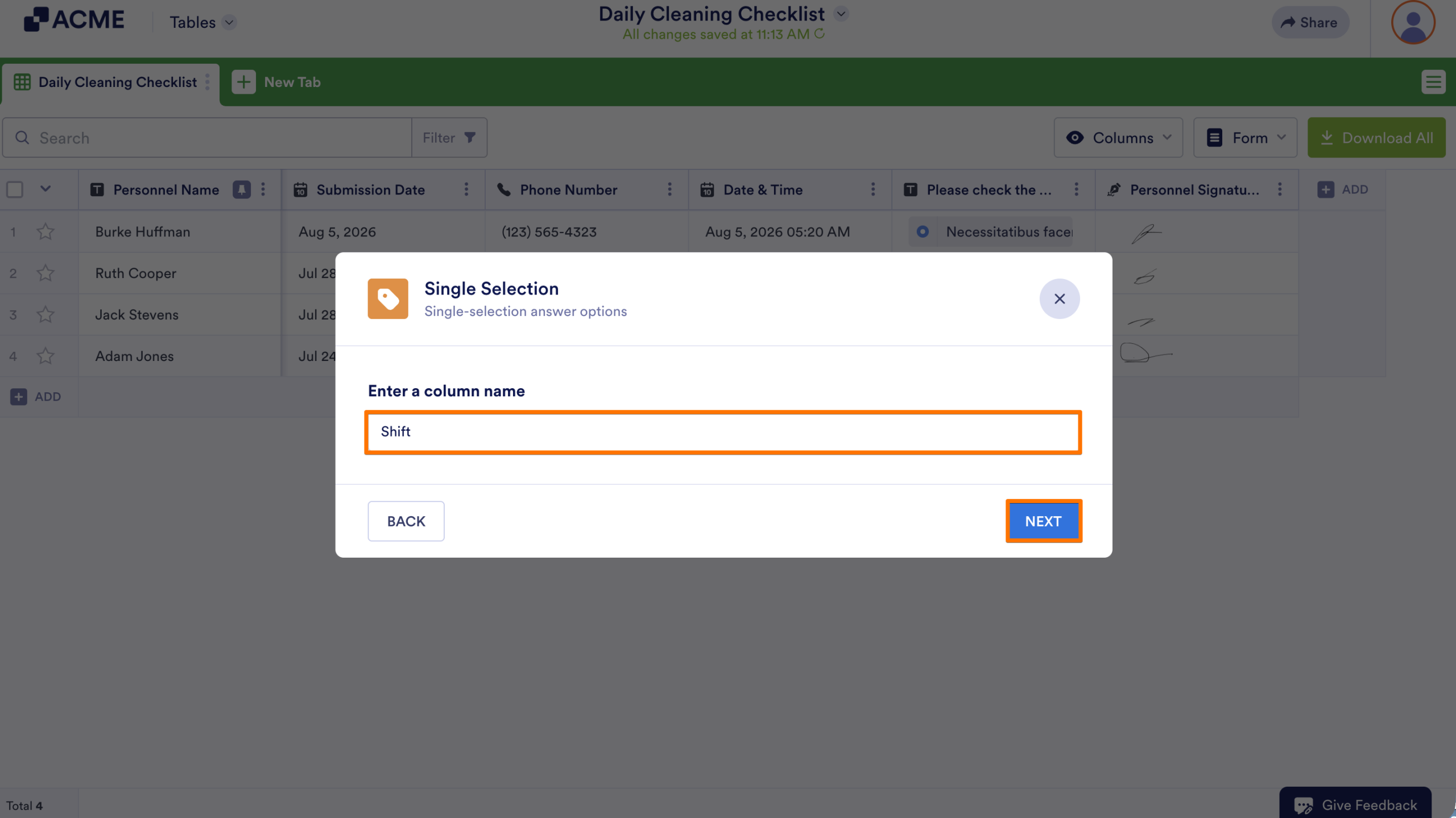
- Enter your desired column name and click on Next.
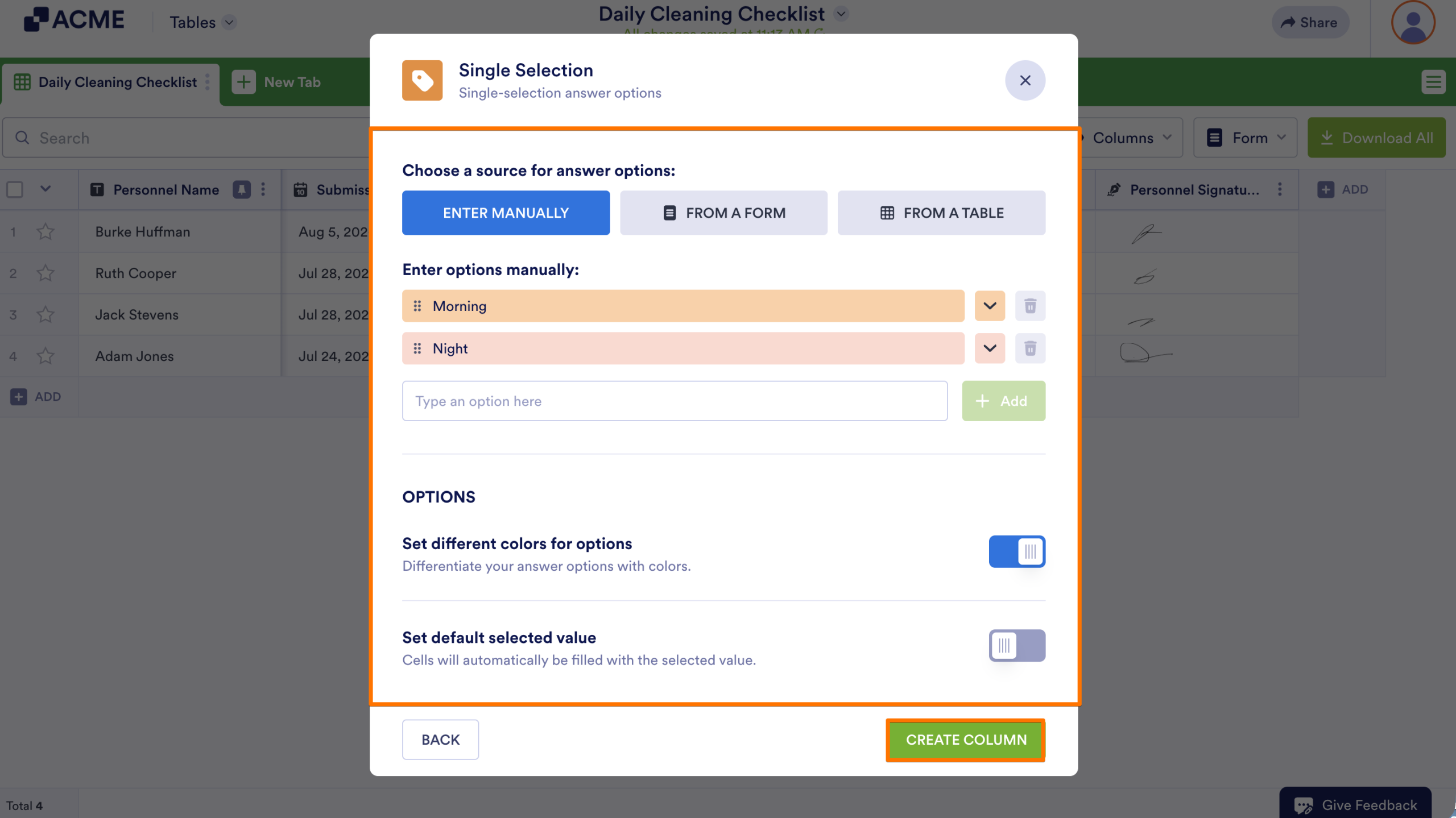
- Choose or enter your dropdown options, then select Create Column at the bottom.
You and your collaborators can now assign labels to form submissions directly within the table.
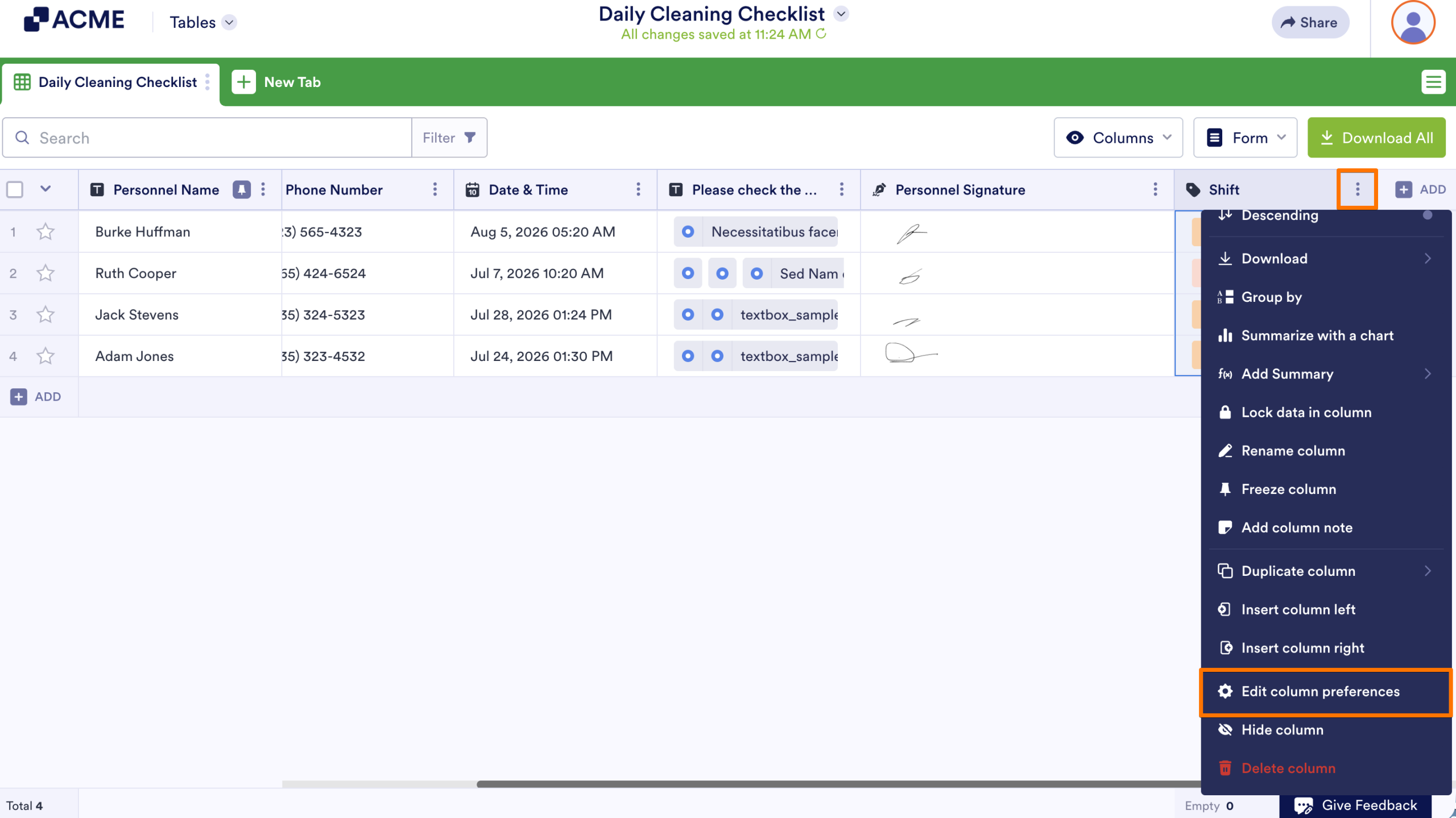
To change your dropdown options, select Edit column preferences from the column menu.

Send Comment: