A PDF Submission Report is a downloadable PDF document that contains the data collected through your form submissions. You can use it to print records, share information, or attach it to Email Notifications. The PDF Editor lets you customize the layout and content of the document so it reflects exactly what you need.
Creating Your Form PDF Submission Report in the Documents Section
Learn how to create or edit your form’s PDF submission report to easily organize and share the responses you collect. Get started like this:
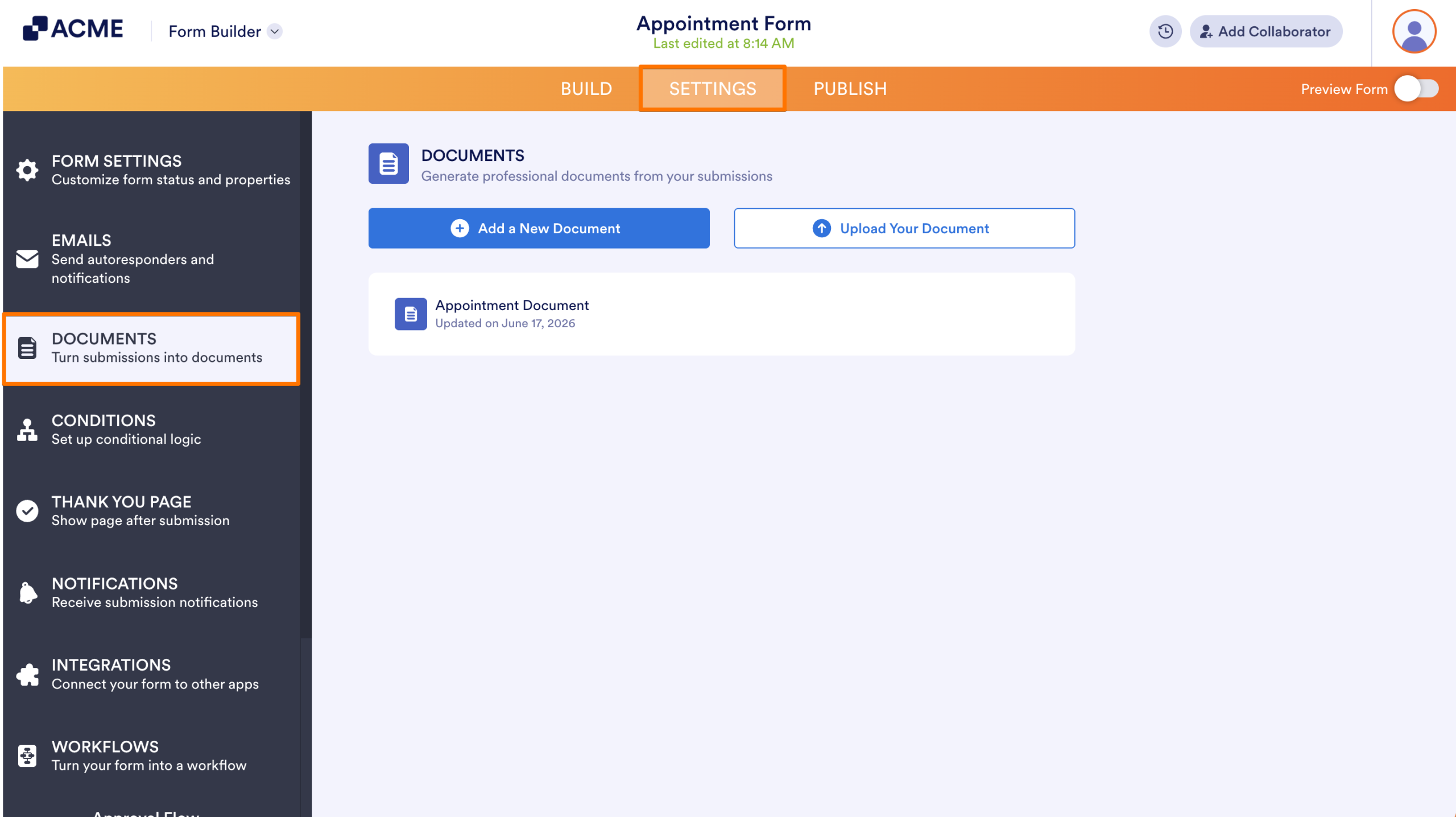
- In Form Builder, in the orange navigation bar at the top of the page, click on Settings.
- Then, in the menu on the left side of the page, click on Documents.
- To create a report, click on Add New Document.
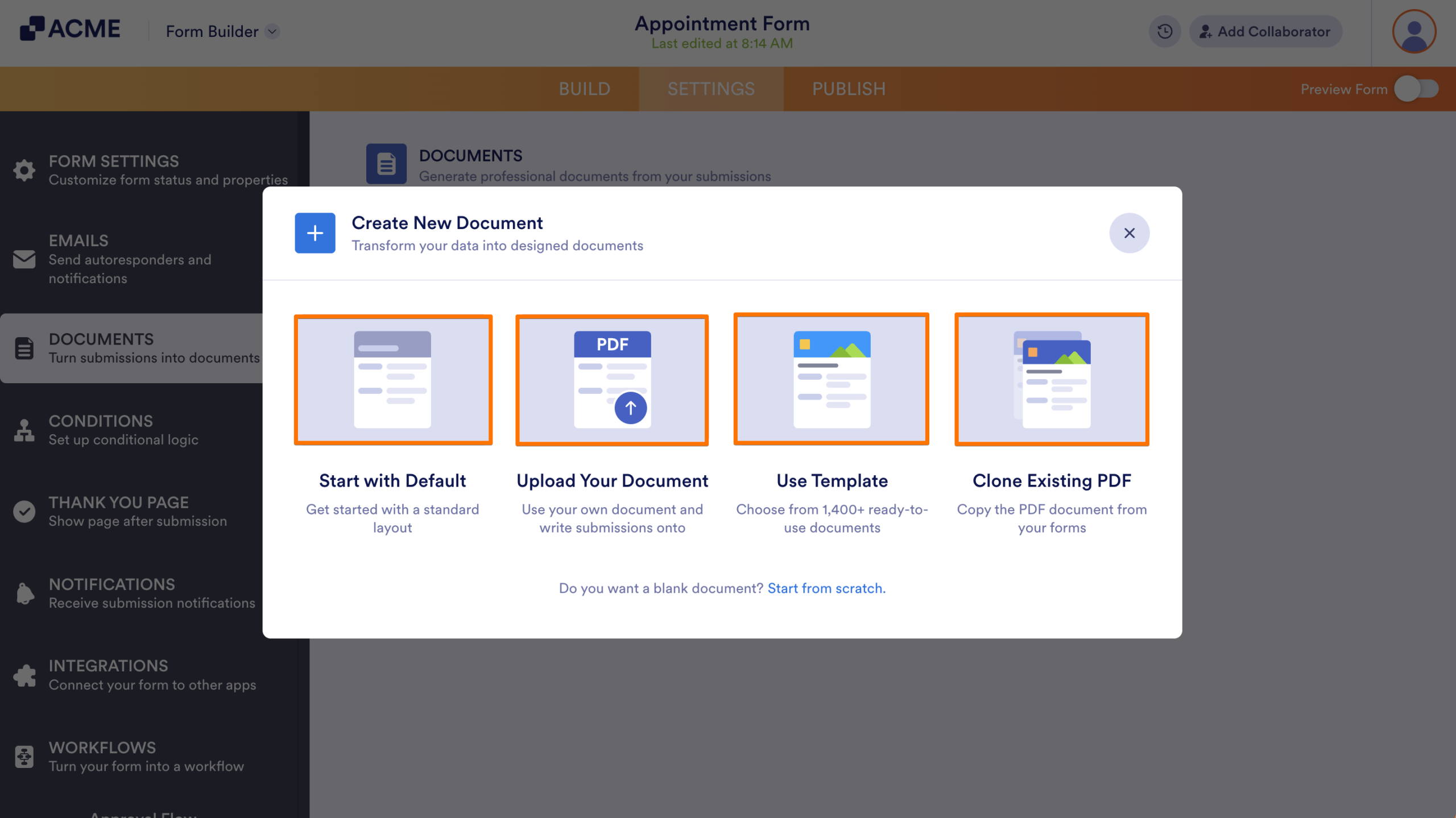
- Select how you want to create your report.
- Use Default Layout — This option automatically generates a new PDF Document using your form’s current structure. All the fields you’ve added to your form are instantly included in the document, arranged in a clean and simple layout.
- Use Template — Lets you choose from over 1,900 professionally designed templates available on PDF Templates page. Once you select a template, related form fields are automatically added based on the template’s content, helping you save setup time.
- Upload Your Document — If you already have a template and you need the submission written onto it, you can use this option to upload your document.
- Clone Existing PDF — With this option, you can duplicate a PDF Document you’ve already created for another form in your account. It copies the entire layout, styling, and structure, so you don’t have to recreate your design from scratch.
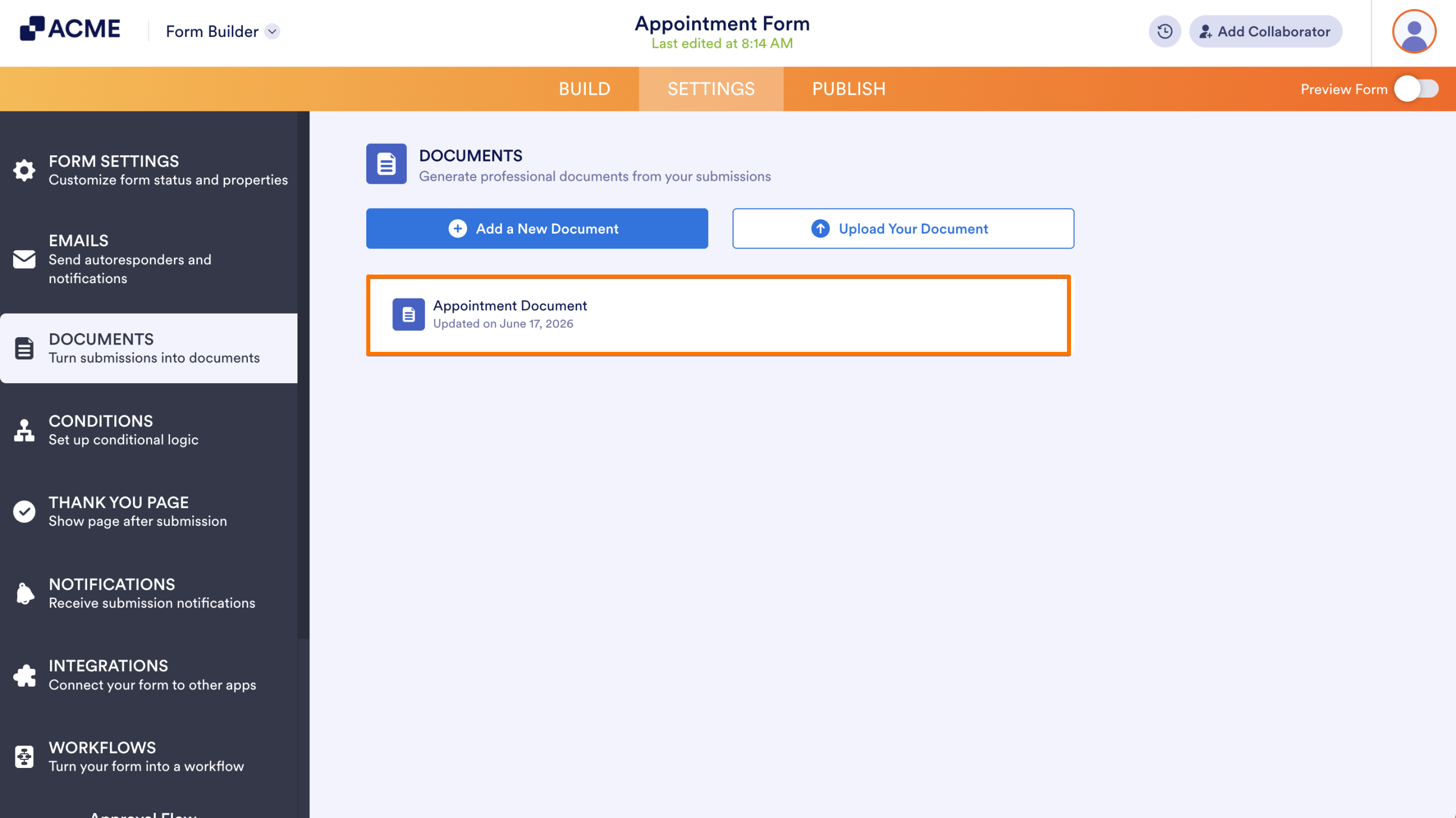
If your form already has at least one PDF document, you’ll see the available document listed below.
Managing Your Form PDF Submission Report
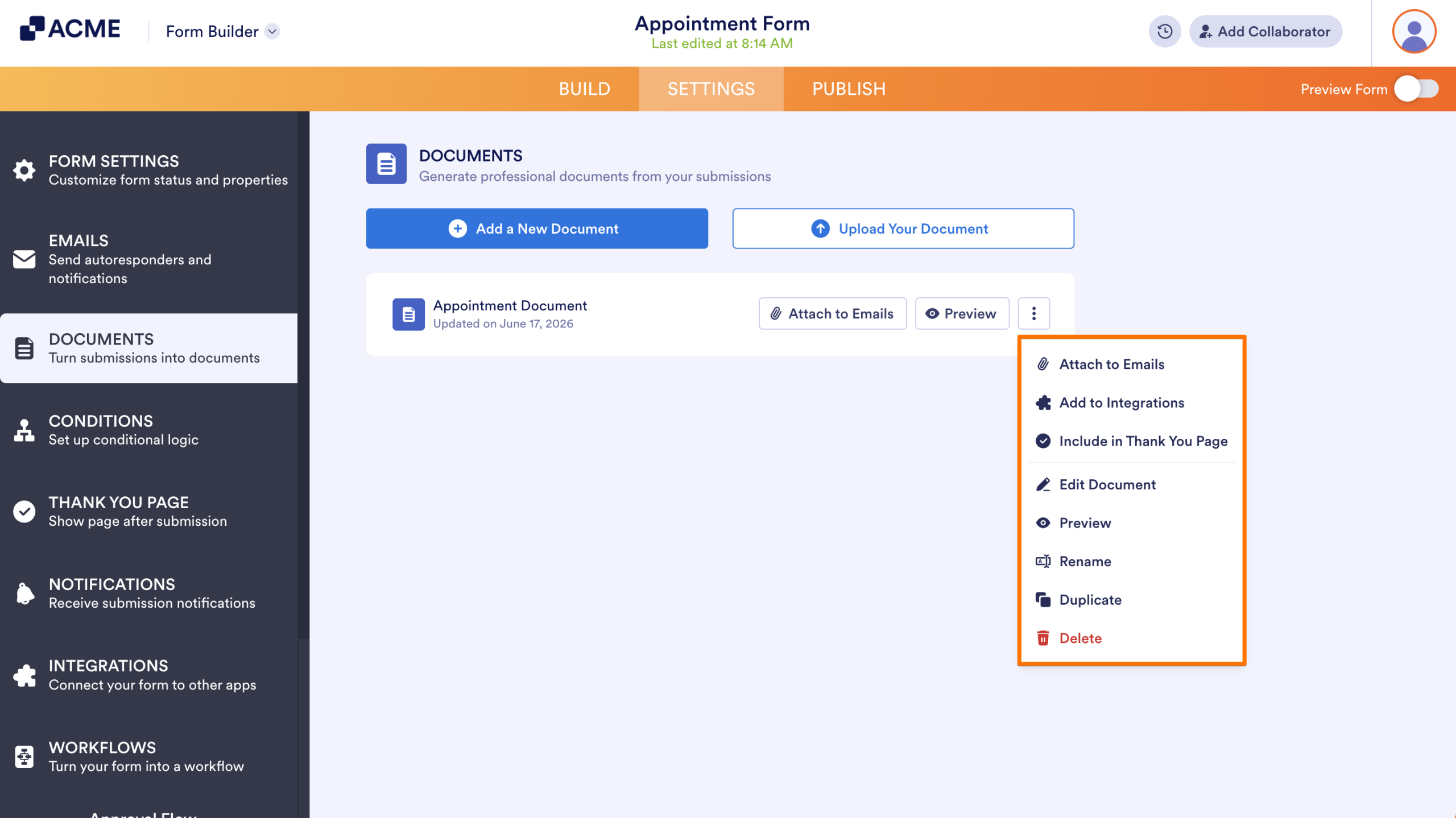
If you want to make changes later, just hover over your PDF document and click on the Three Dots icon on the right. From there, you can edit, duplicate, remove it, or use it with other features in your form—whenever you need.
- Attach to Emails — Allows you to automatically attach this PDF document to email notifications or autoresponders.
- Add to Integrations — Lets you send the PDF data to third-party apps integrated with your form (e.g., Google Drive, Dropbox, or other workflow tools).
- Include in Thank You Page — Gives the option to display the PDF directly on the form’s Thank You page after a user submits a form.
- Edit Document — Opens the PDF editor so you can change the layout, content, or styling of your PDF document. For example, adding/removing fields, adjusting spacing, or modifying headers.
- Preview — Shows a live preview of the PDF document with actual form data (or sample data).
- Rename — Allows you to change the name of your PDF document for better organization or clarity.
- Duplicate — Creates an exact copy of the PDF document. Useful if you want a similar template without starting from scratch.
- Delete — Permanently removes the PDF document from your form. Once deleted, it cannot be recovered unless you recreate it.
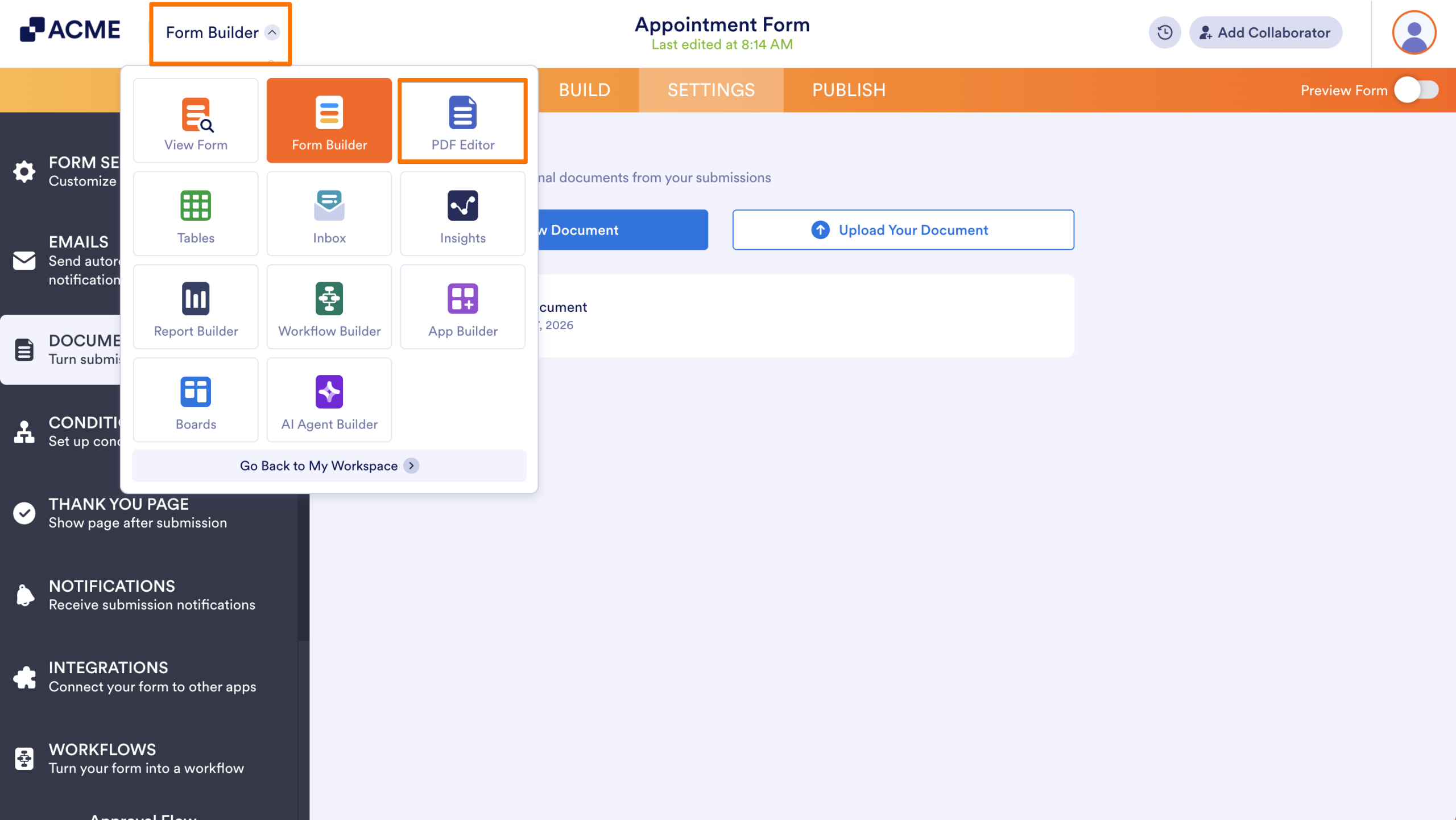
Another way to access PDF Editor to create or edit a PDF Document is from Form Builder or any page where an asset or page linked to your form is open, such as App Builder, Workflow Builder, Inbox, Tables, or Report Builder. Open the App Picker menu at the top of the page next to the company logo and click on PDF Editor in the menu that comes up. That’ll redirect you to PDF Editor.
Creating a New PDF Document in PDF Editor
You can also create a new PDF Document for your form submissions within PDF Editor. Here’s how to do it:
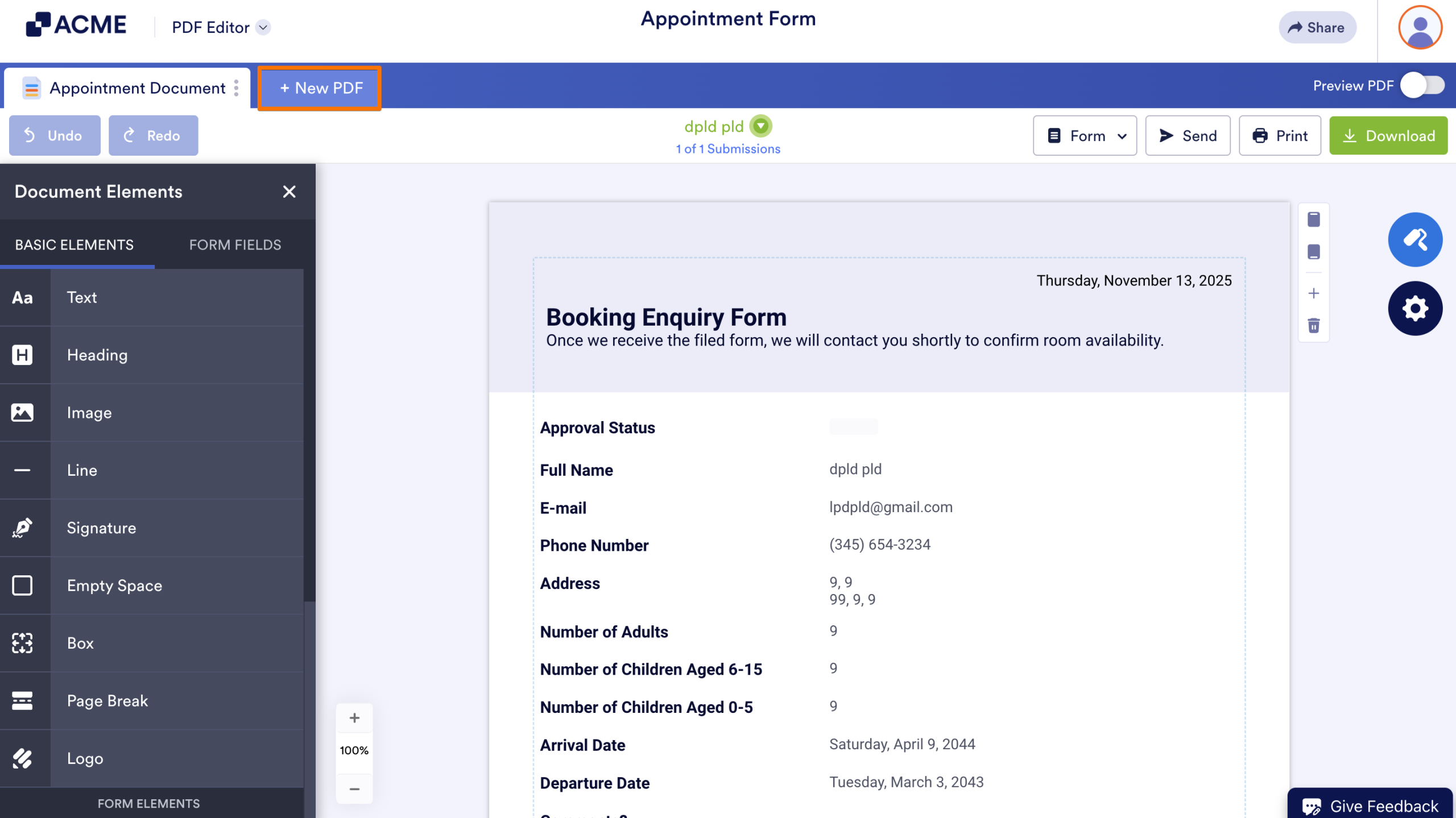
- In PDF Editor, click on New PDF in the blue navigation bar at the top of the page.
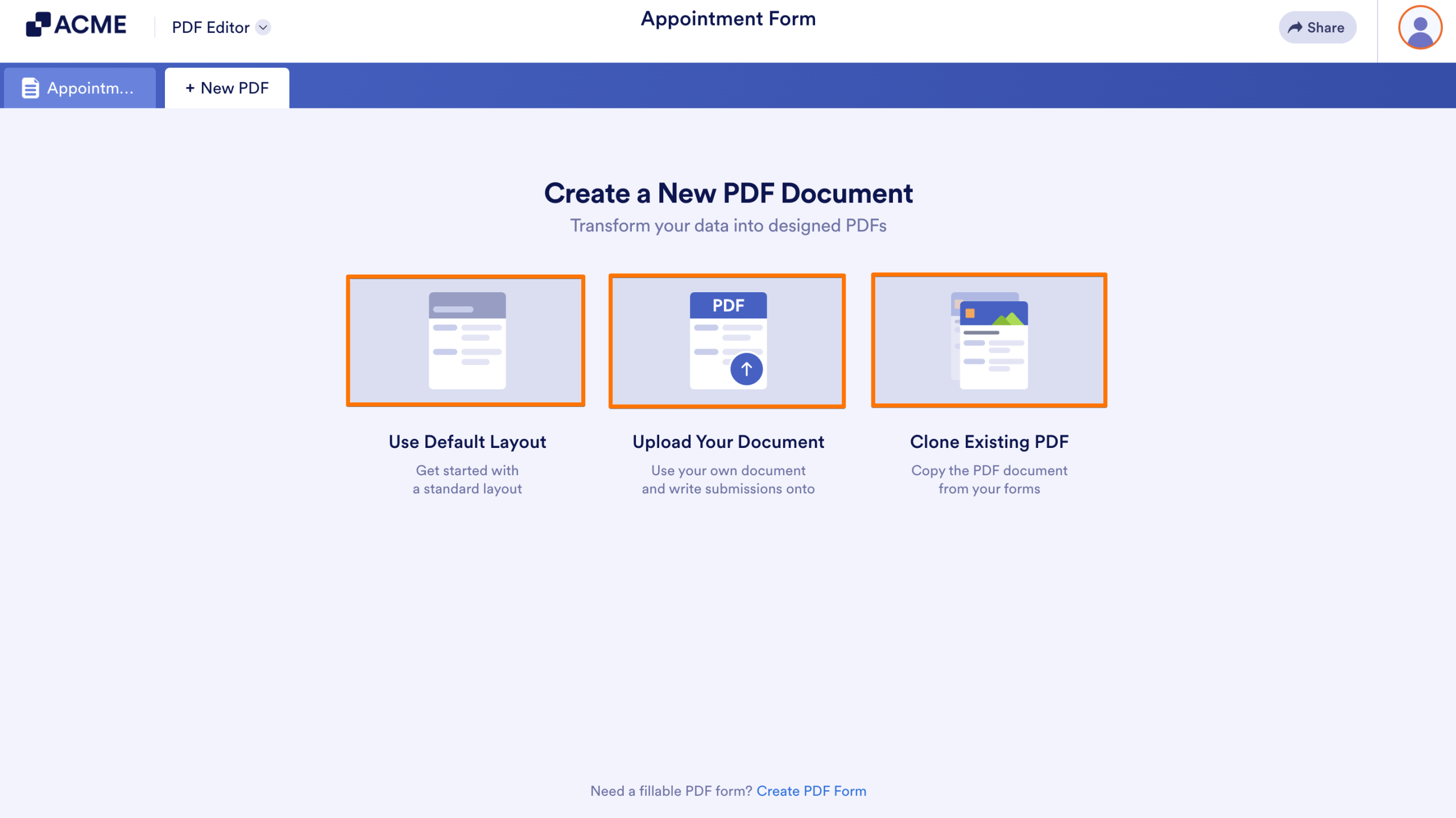
- Now, in the Create New Document window that comes up, select one of the following options:
- Use Default Layout — This option automatically generates a new PDF Document using your form’s current structure. All the fields you’ve added to your form are instantly included in the document, arranged in a clean and simple layout.
- Upload Your Document — If you already have a template and you need the submission written onto it, you can use this option to upload your document.
- Clone Existing PDF — With this option, you can duplicate a PDF Document you’ve already created for another form in your account. It copies the entire layout, styling, and structure, so you don’t have to recreate your design from scratch.
Renaming, Duplicating, and Deleting an Existing PDF Document
You can also rename, duplicate, and delete a PDF Document in a few easy steps. Here’s how:
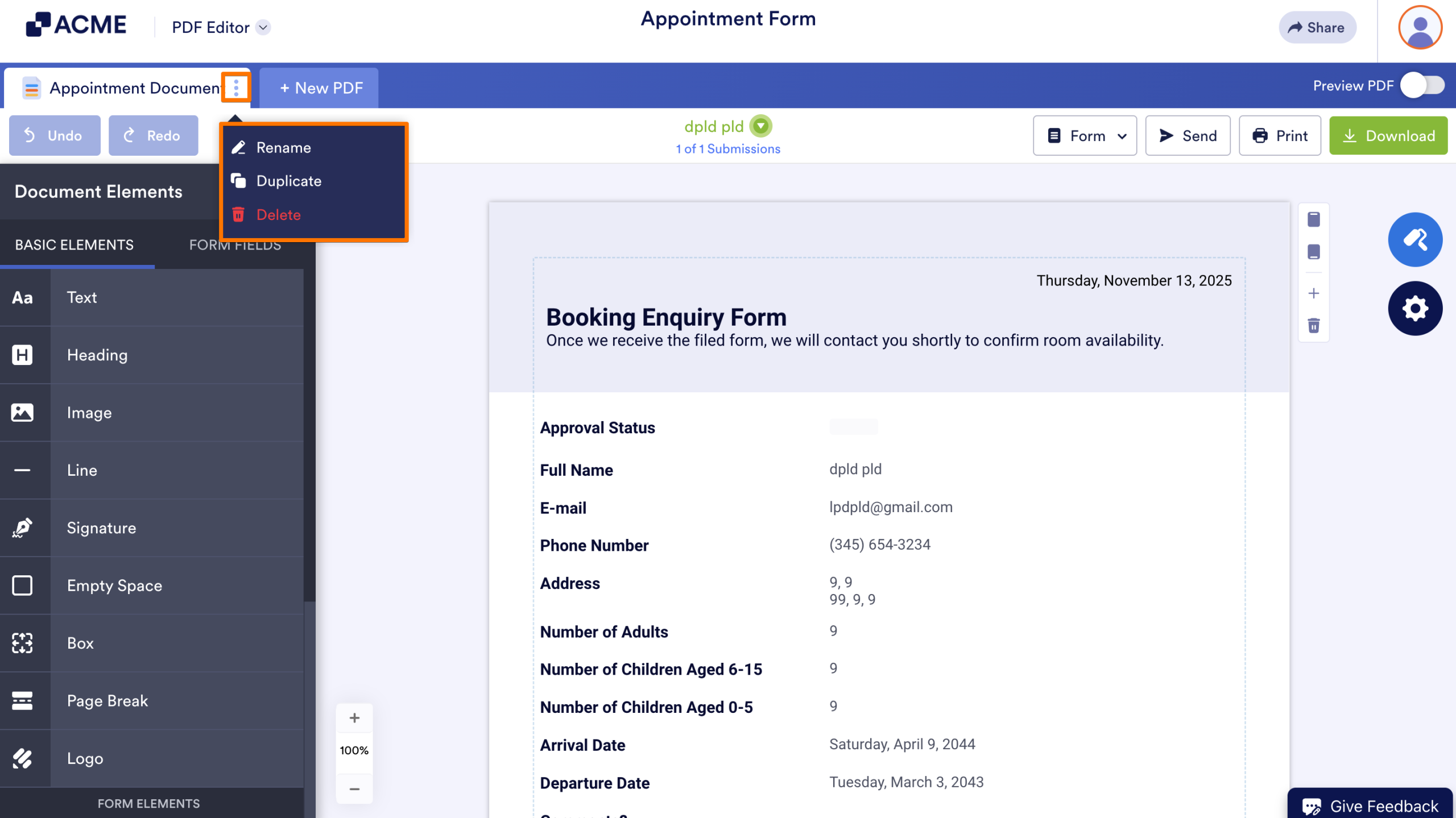
- In PDF Editor, click on the Three Dots icon on the active PDF Document tab.
- Now, in the menu that opens, select one of the following options:
- Rename — This highlights the name of the PDF Document on the tab so you can enter a new one. Renaming helps you label documents clearly, especially when you’re managing different versions for specific use cases.
- Duplicate — Creates an exact copy of the PDF document.
- Delete — This allows you to remove a PDF Document from PDF Editor if you no longer need it. Deleting helps keep things organized, especially when you’re working with multiple versions, and keeps your workspace focused on the documents that matter most.
Notes
- Deleting a PDF Document is irreversible once you click on ‘Yes, Confirm’ in the Confirmation window.
- If you delete the last PDF Document, the system will automatically create a new one in the default layout.
Creating or Opening Your Form PDF Submission Report from the Workspace Page
Creating PDF Documents or opening existing ones linked to your form from the workspace page is quick and easy. Here’s how to do it:
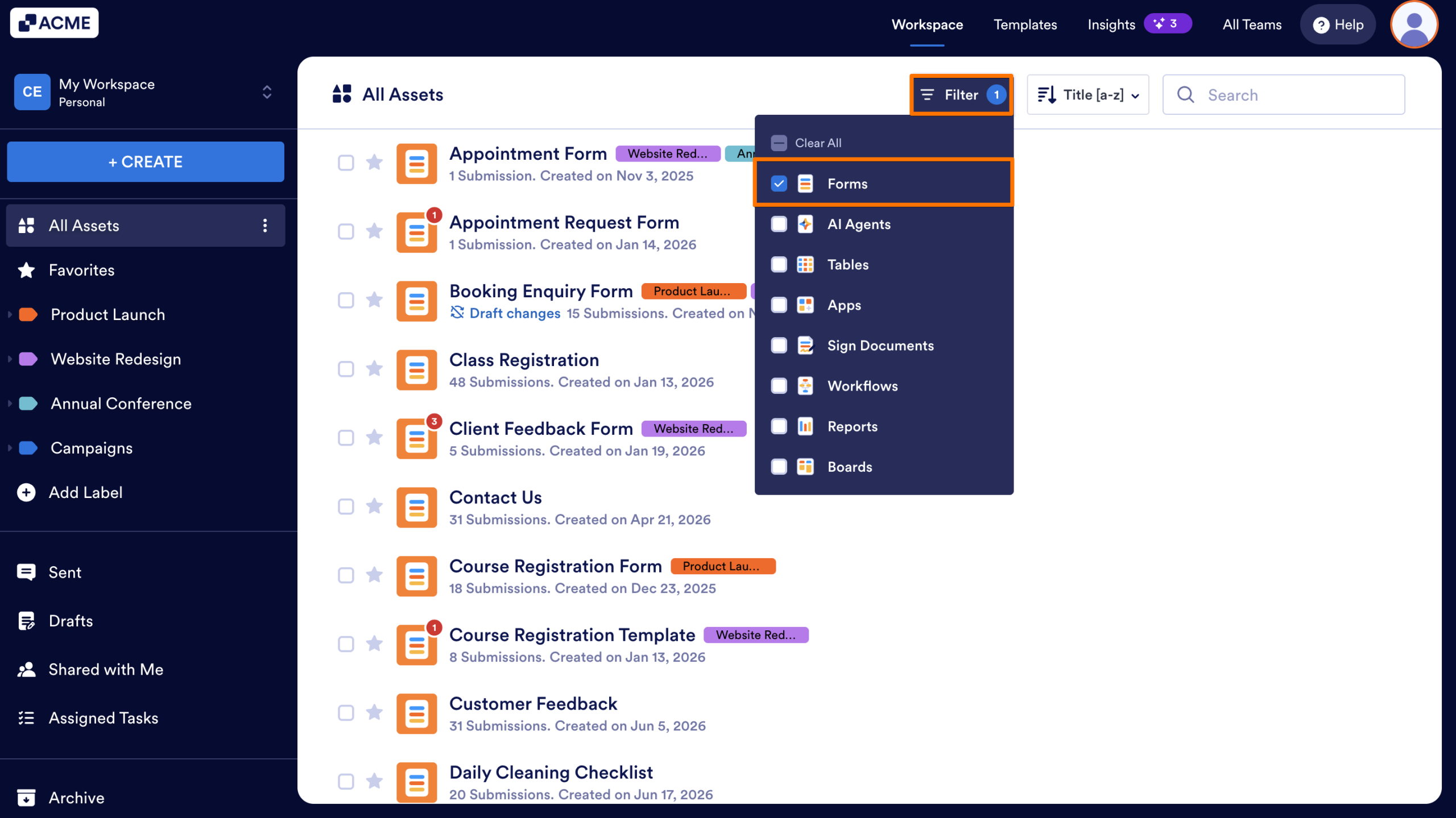
- On your Workspace page, click on Filter at the top, and in the Dropdown menu that opens, uncheck the boxes next to all the assets except Forms, so only they’ll be shown on the page.
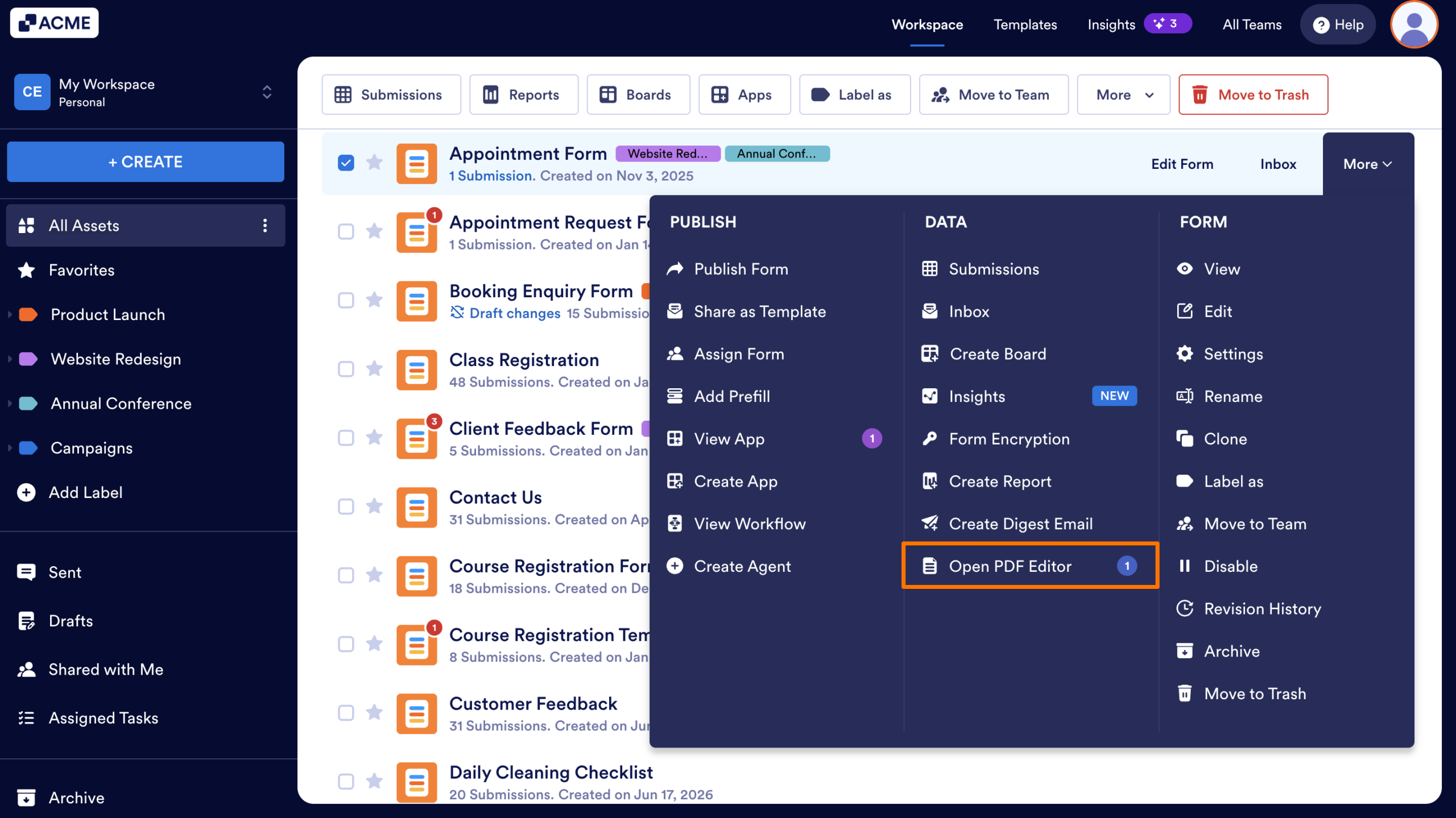
- Hover your mouse over the form you want to create a PDF Document for, and click on More on the right side of the page.
- Then, in the Dropdown menu, under the Data column, click on Create PDF Document.
- If your form already has at least one PDF document created, you’ll see the Open PDF Editor option instead.
Notes
- The Create PDF Document option creates a new PDF Document for your form submissions and opens it in PDF Editor in a new browser tab so you can continue working on it. Meanwhile, the Open PDF Editor option only opens an existing PDF Document without creating a new one.
- The number next to the Open PDF Editor option in the form’s More menu shows how many PDF documents have been created for that form.

Send Comment: