Tables help you quickly download your form submissions as Microsoft Excel, CSV, or PDF files so you can organize, review, and share your data more easily. Different file formats give you more flexibility depending on how you want to manage your submissions or who you want to share them with.
Note
If you’re not sure where to find the Tables, check out our guide on How to View Form Submissions to learn more.
Downloading All Form Submissions
You can download all your form submissions in different file formats depending on how you want to organize, review, or share your data. Getting started is simple—here’s what to do:
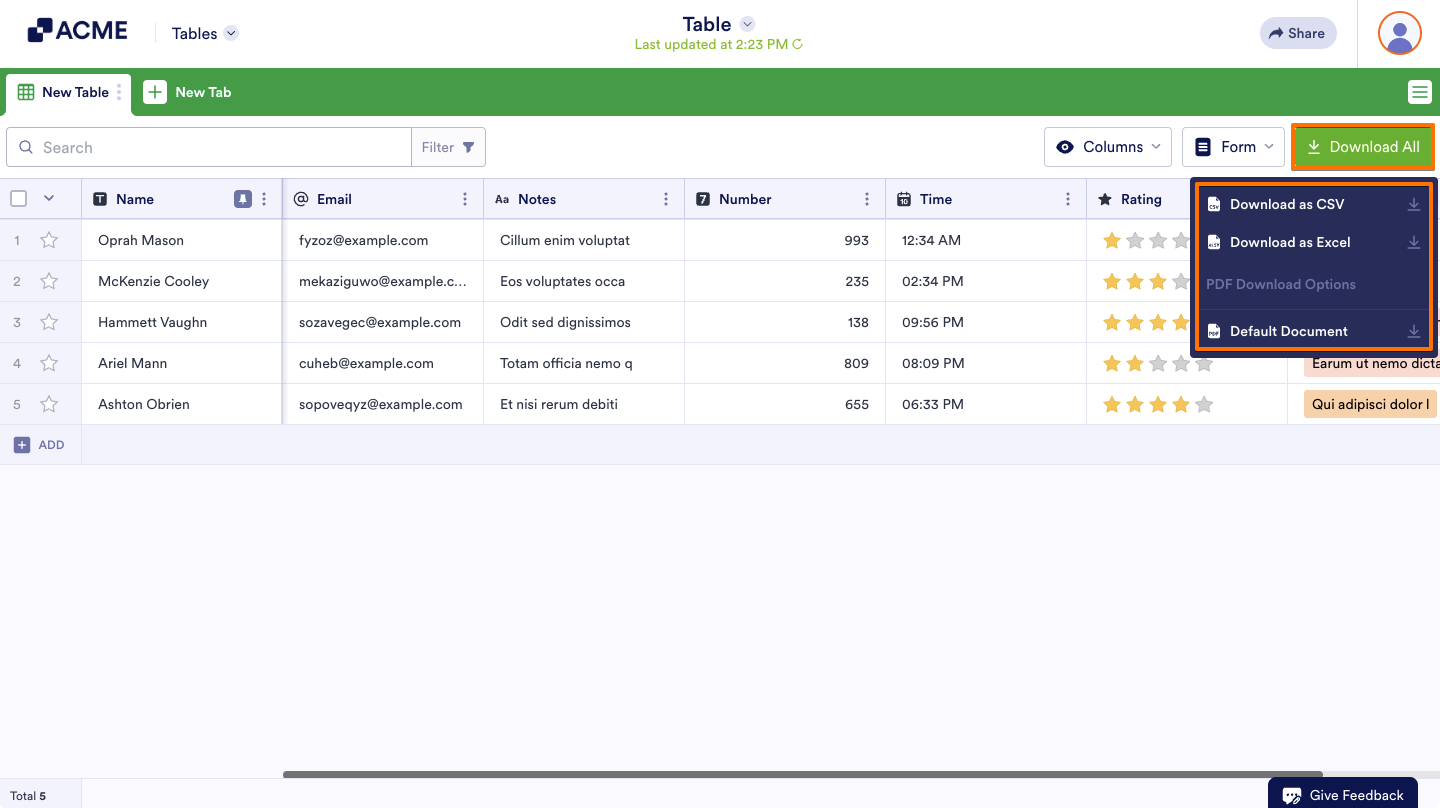
- In Tables, on the upper-right side of the page, click on Download All.
- Now, in the menu that opens, select from the following options:
- Download as CSV — Downloads your submissions as a comma-separated values file, compatible with most spreadsheet tools.
- Download as Excel — Downloads your submissions as a Microsoft Excel file, great for sorting, filtering, and creating reports.
- Default Document — Downloads your submissions as individual PDF files. A zip file will be created and sent to your registered email address.
Note
For both CSV and Excel, the download will start automatically once your file is ready. This may take a moment depending on the size of your submissions.
For PDF, a zip file will be created and sent to your registered email address instead.
Downloading Specific Form Entries
If you only need to download certain submissions instead of the entire table, you can select specific entries before exporting your file. Here’s how to do it:
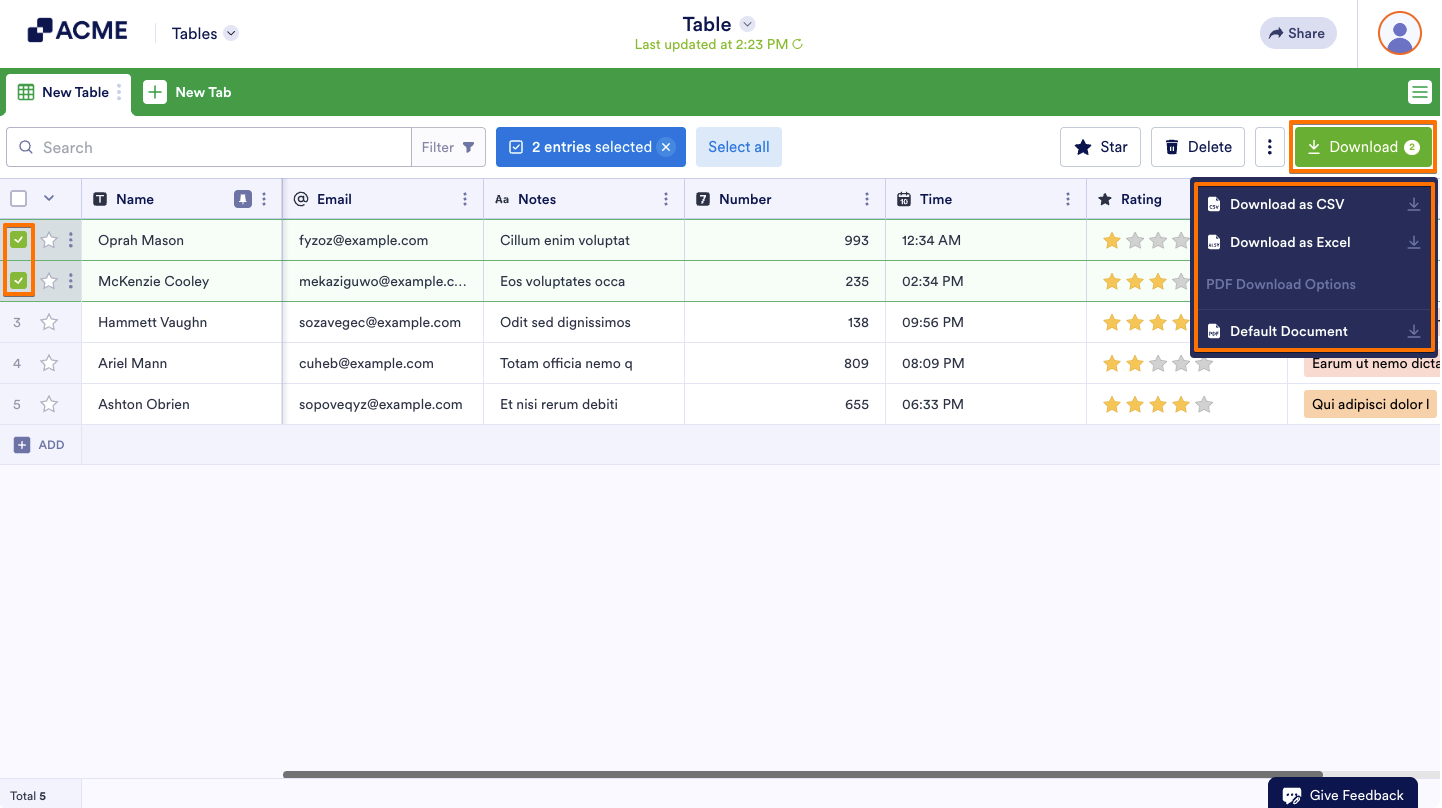
- In Tables, tick the checkboxes on the left side of the entries you want to download.
- Then, on the upper-right side of the page, click on Download All.
- Now, select Download as CSV, Download as Excel, or Default Document and only the selected entries will be included in your download.
Note
You can also filter your submissions first before downloading. This way, only the filtered results will be included in your file.
That’s it! You can now download your submissions as Excel, CSV, or PDF files and manage your data in the format that works best for you.

Send Comment: