Accepting files through your form is incredibly easy thanks to the File Upload element. Once someone submits a file, you’ll get a notification email with a direct link to download it, so you can access everything right away. If you prefer, you can even have the files as actual attachments, making it even more convenient to keep things organized in your inbox.
And if you ever need to review or download multiple files at once, you can head over to your Tables, where every upload is neatly stored for you. It’s a simple, streamlined way to collect documents, images, or any files you need—without the back-and-forth.
When downloading, you can choose to:
- Download All Uploaded Files At Once
- Download a Specific Set of Files
- Download File Uploads Based on a Time Range
- Download Individual Files
Downloading All Uploaded Files
You can download all the files people have uploaded through either Tables or Inbox. If you prefer using Tables, here’s how you can quickly get your files from there:
- On your Workspace page, click on Filter at the top and in the Dropdown menu that opens, check the box next to the Forms, so only they’ll be shown on the page.
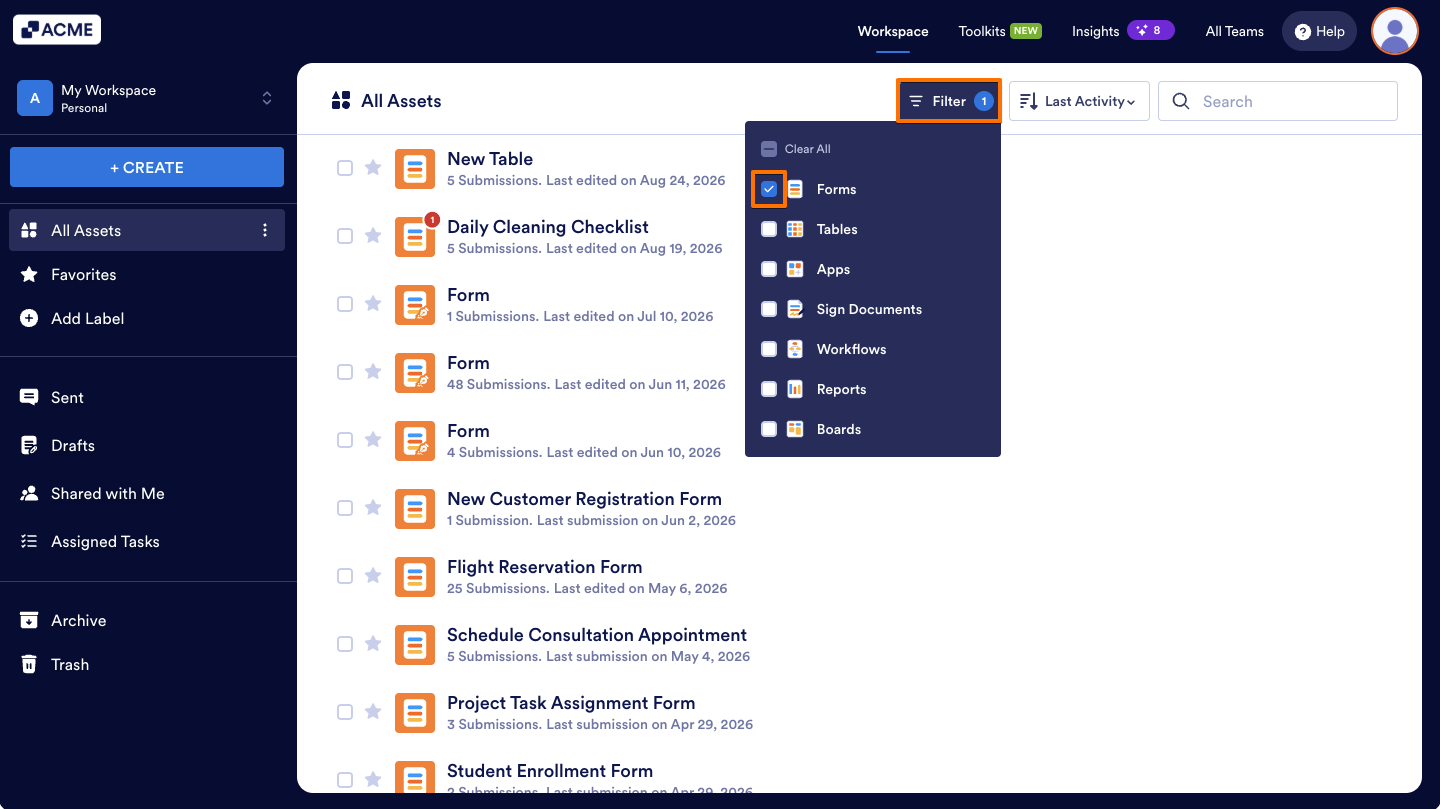
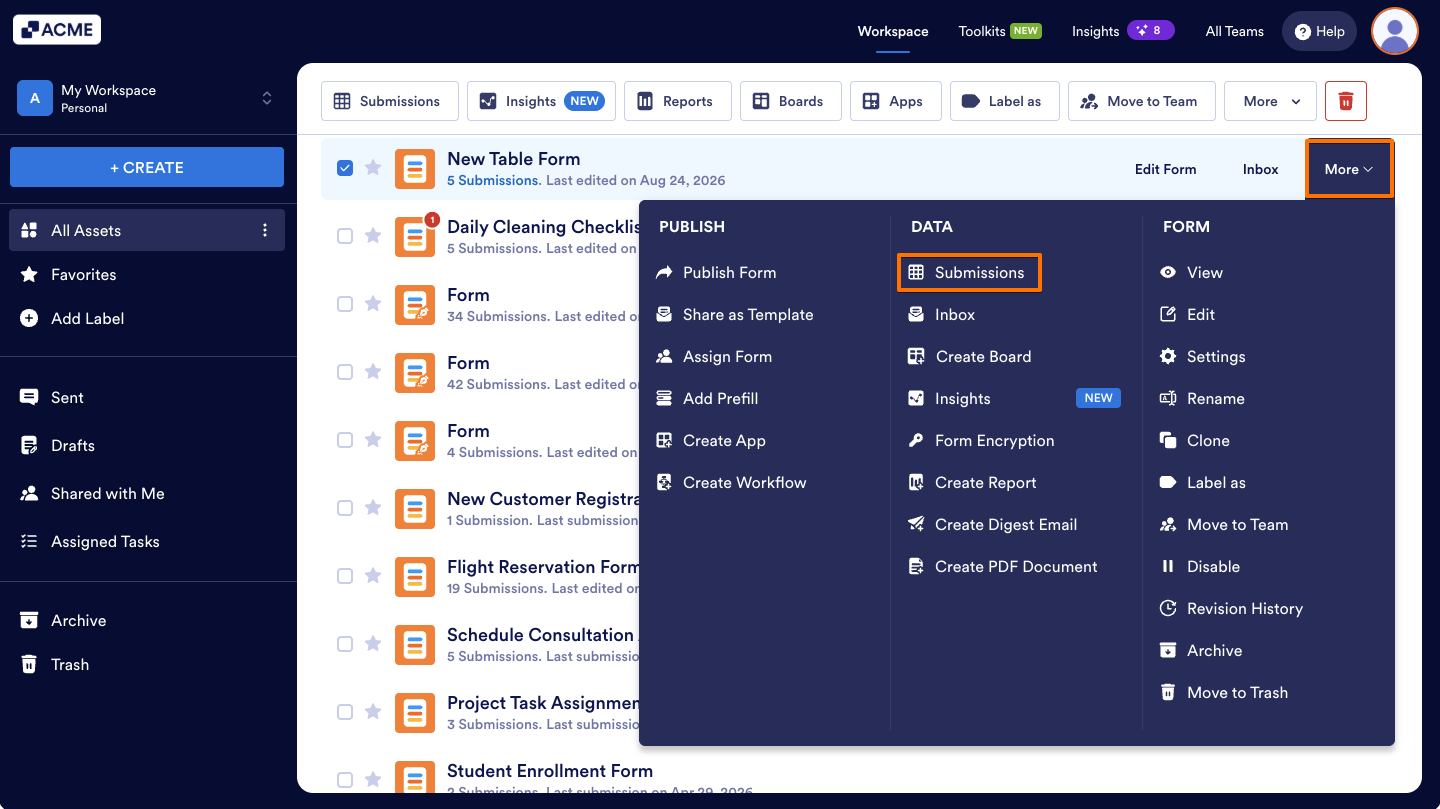
- Now, hover your mouse over the form you want to manage, and click on More on the right side of the page.
- Next, in the Dropdown menu, under the Data column, click on Submissions.
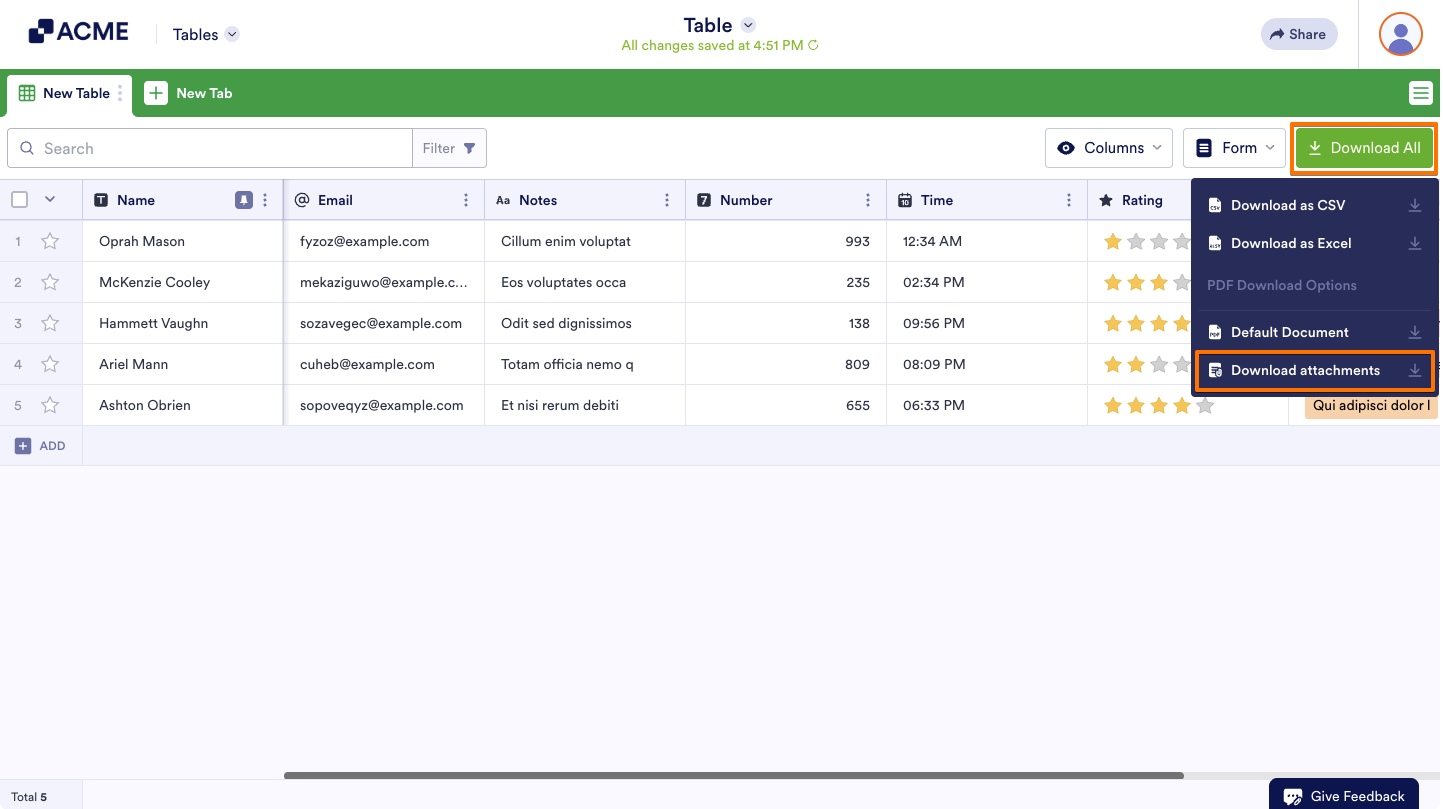
- In Tables, click on the Download All button on the right side of the page to open the download options.
- Then, in the menu that opens, choose the Download Attachments option.
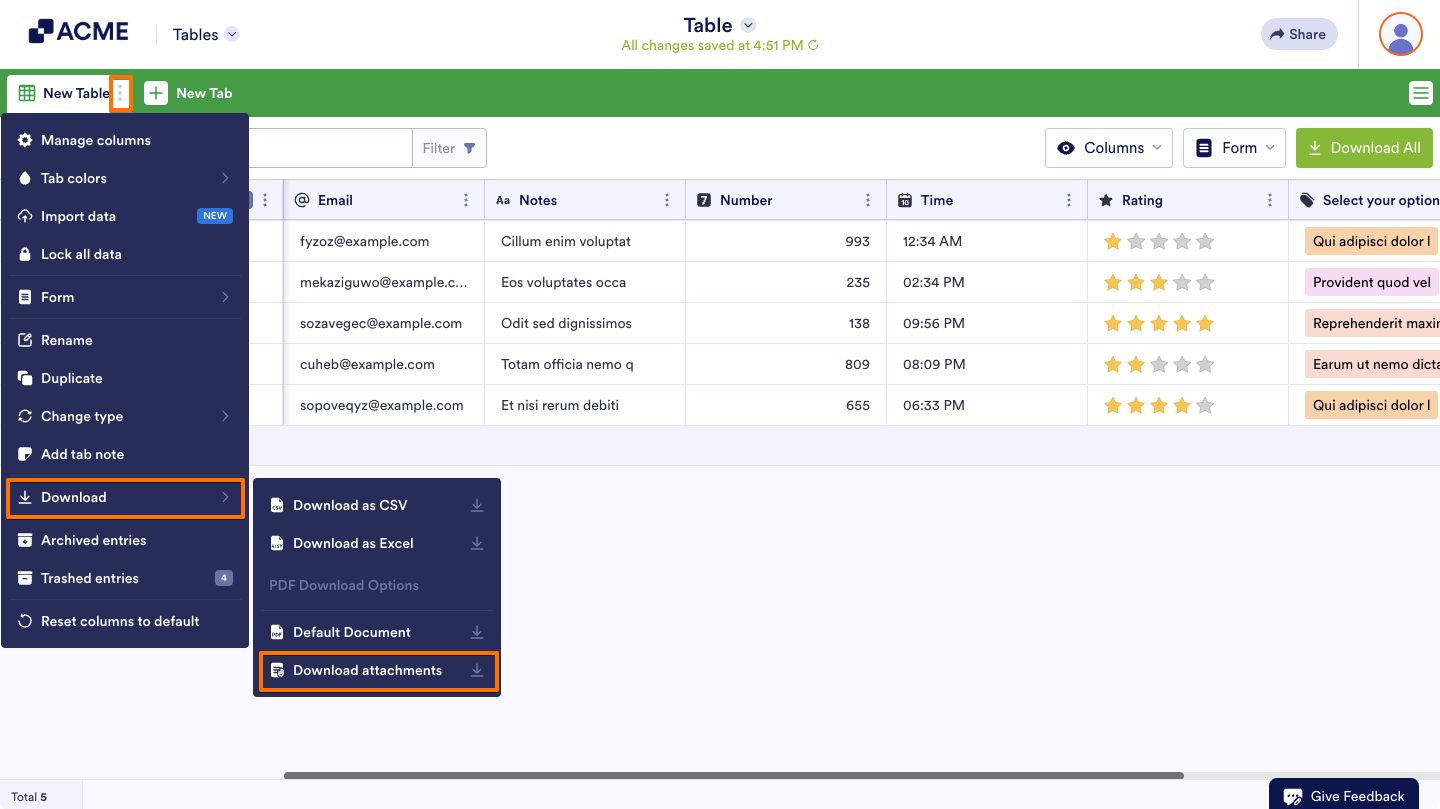
If you’d rather download everything at once, you can grab all the uploaded files from that tab in a single go. Here’s how to do it:
- In Tables, click on the Three Dots icon next to the main submissions tab.
- Next, hover your mouse over Download, and then select Download Attachments.
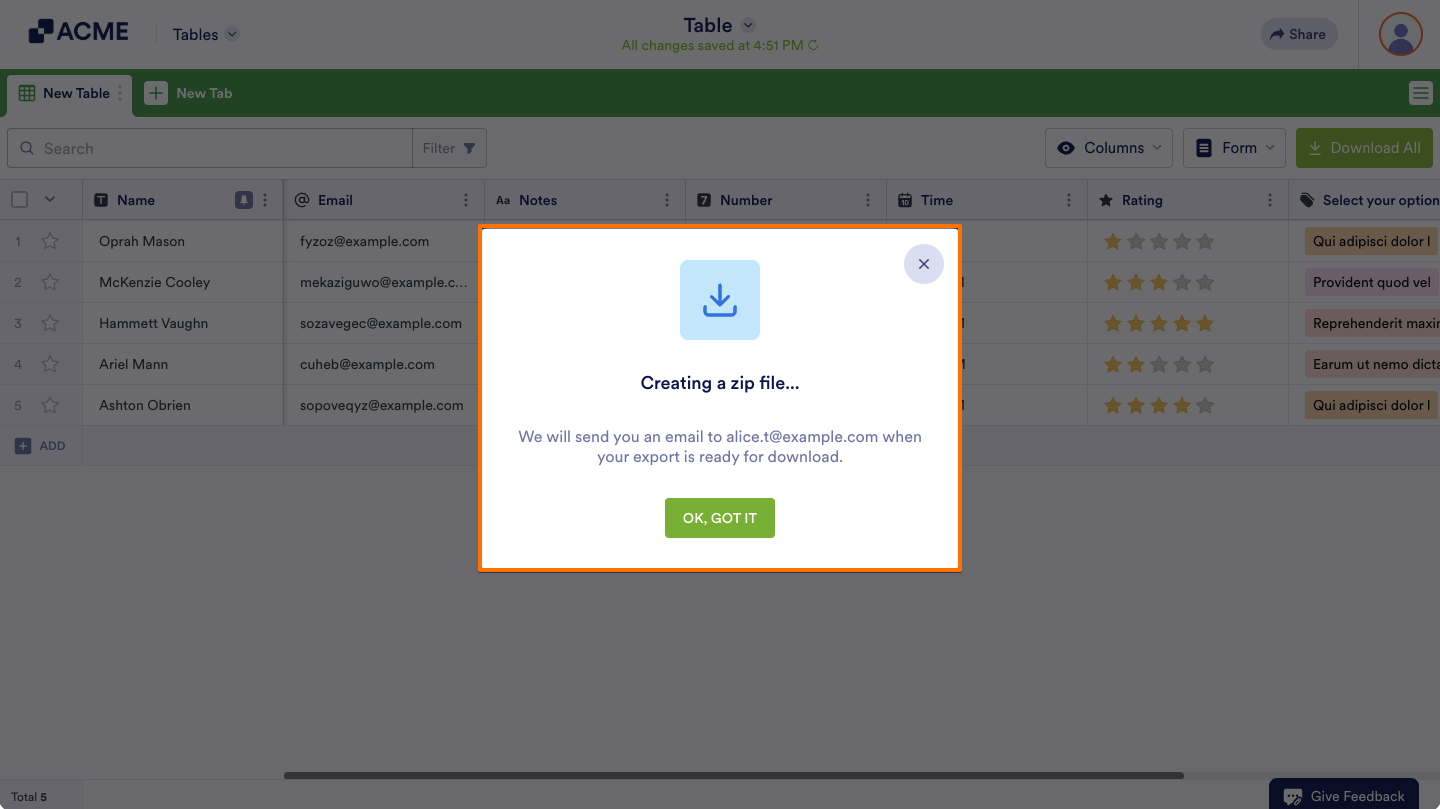
The system will start zipping your uploaded files. A pop-up will appear letting you know that once it’s ready, you’ll receive an email with a link to download the zipped file.
Note
If your form has a lot of uploaded files, the process might take a little longer—but don’t worry, the system will handle everything for you.
Downloading a Specific Set of Files
You can also download only the files you need by selecting them directly from the list. Here’s a quick how-to:
- In Tables, select the submissions from the table. You’ll see the number of selected submissions on the Download button.
- Click on the Download button on the upper-right side of the page.
- Now, click on the Download Attachments option to begin the download process.
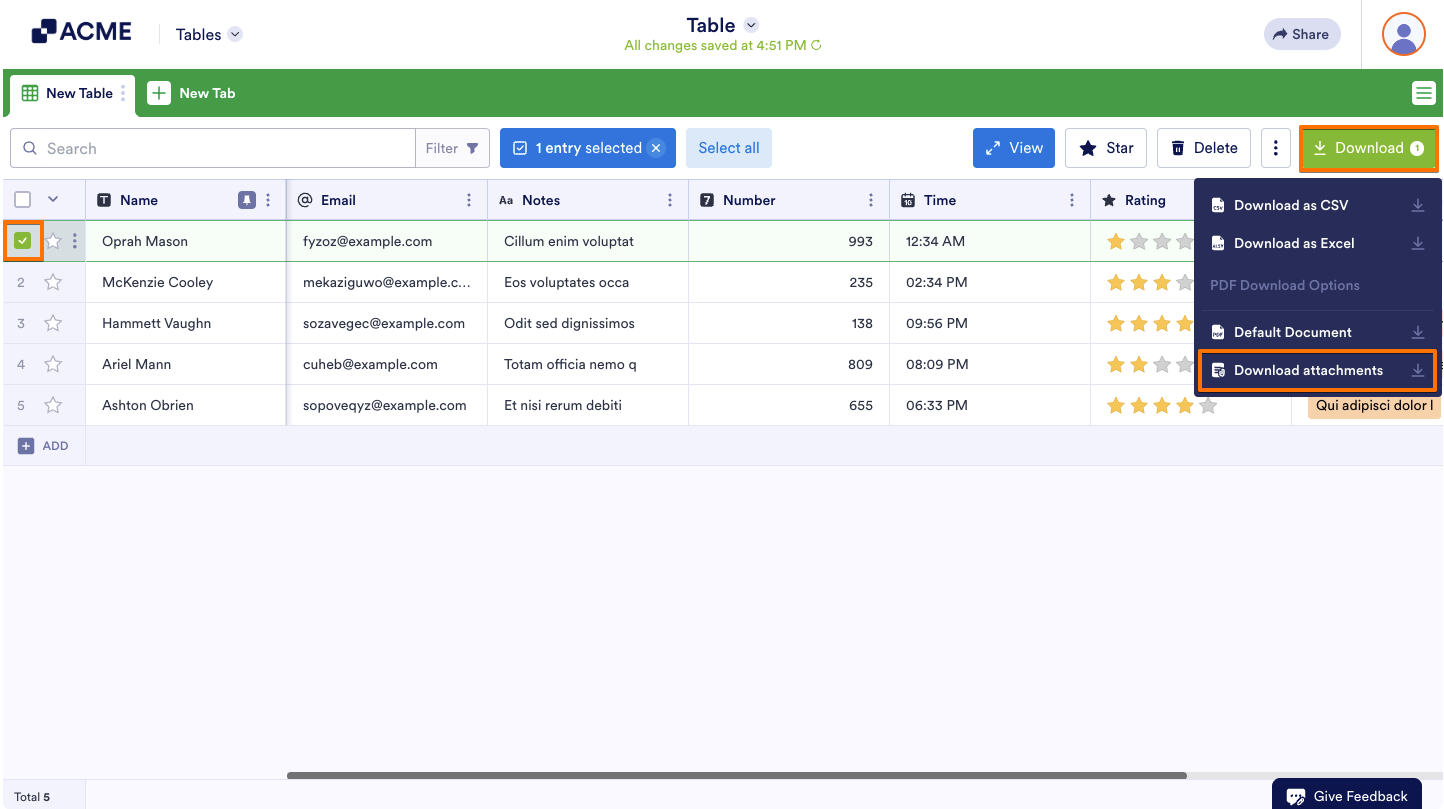
Just like when downloading all uploads, this method isn’t instant. The system will gather your selected files, zip them up, and then send you an email with a link to download the zipped folder once it’s ready.
Downloading File Uploads Based on a Time Range
You can also download files from a specific time range by applying filters in Tables. This makes it easy to focus only on the submissions you need. You’ll just need to do this:
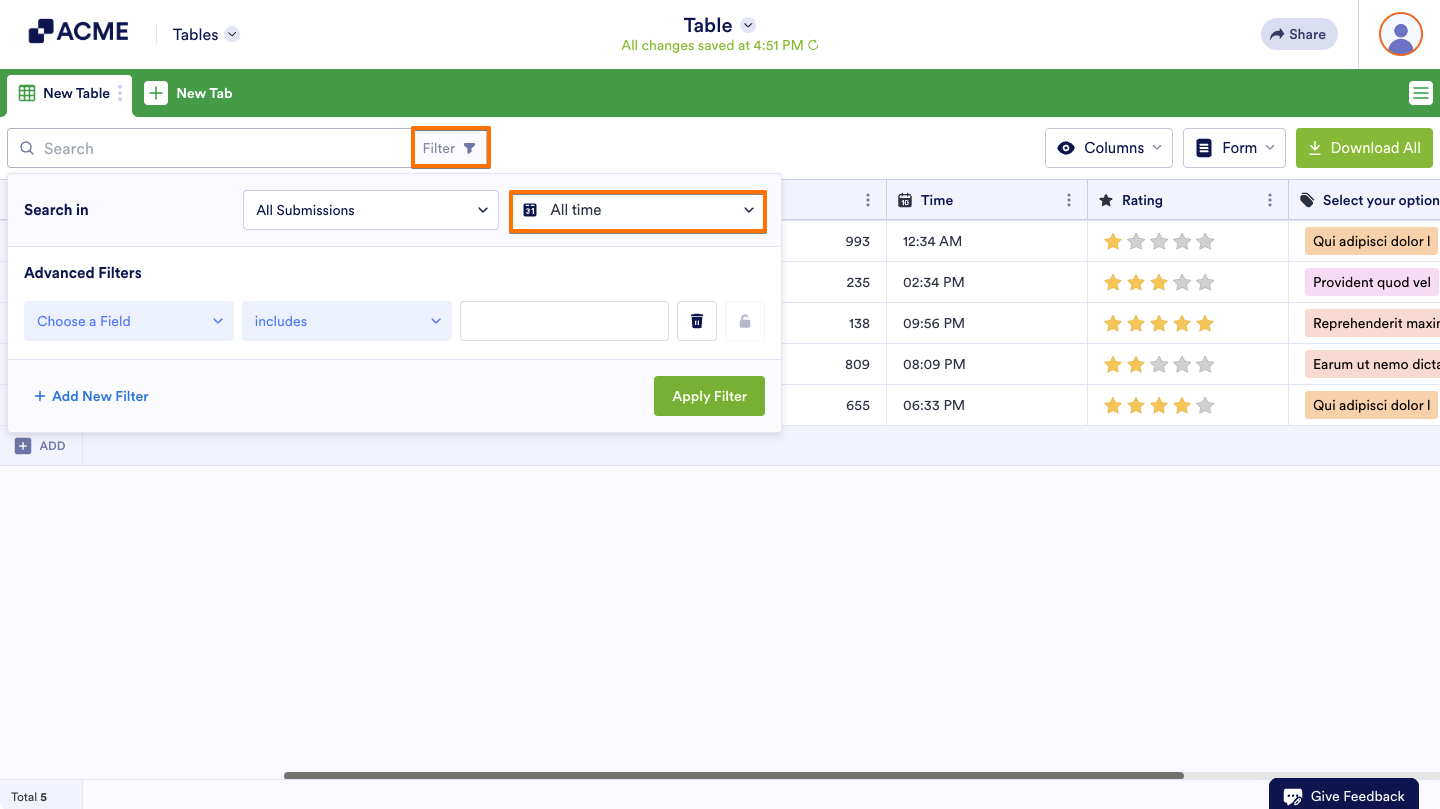
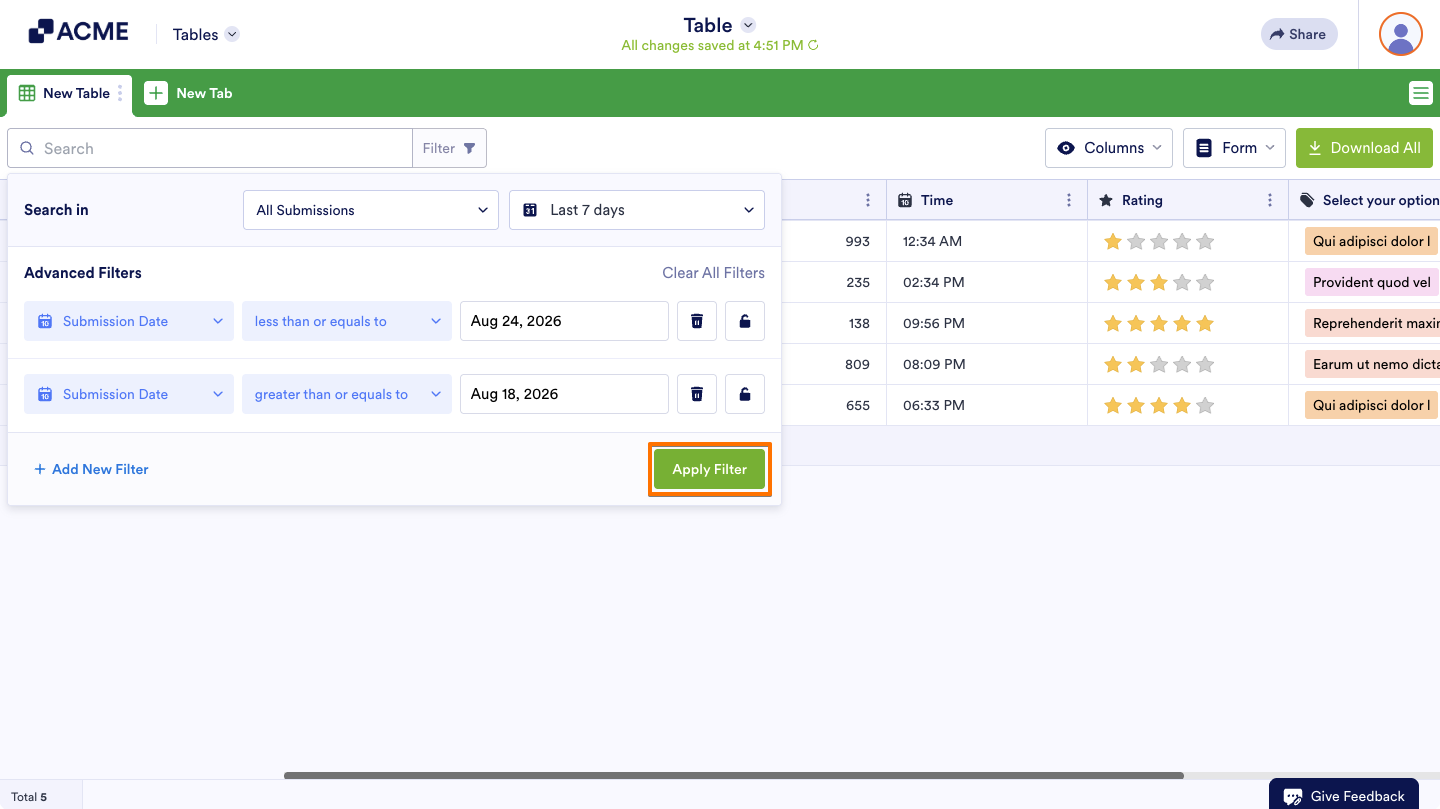
- In Tables, click on Filter on the left side of the page.
- Then, in the Search In section, click on the All Time dropdown.
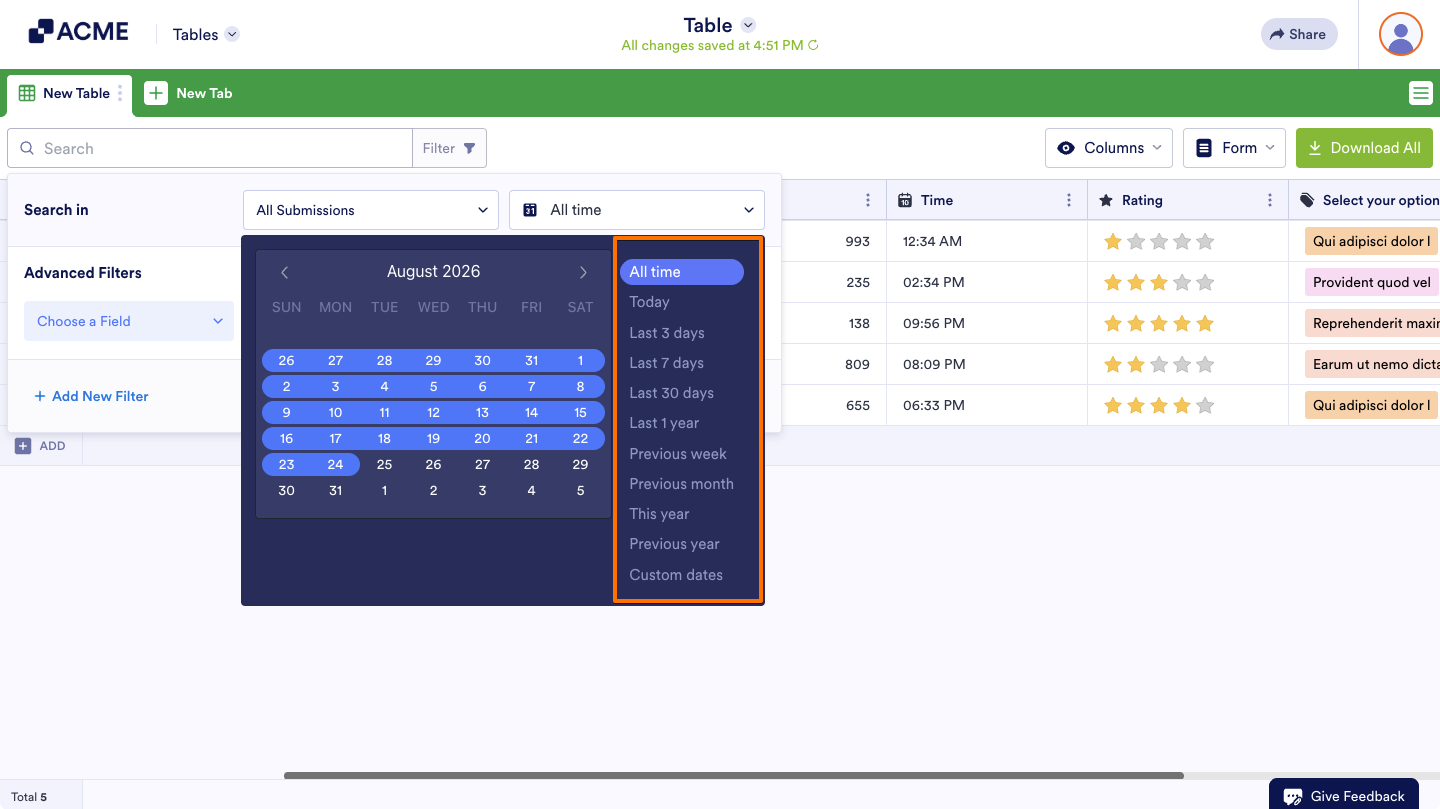
- Choose and click on a time range from the list beside the calendar and click anywhere in the Search In menu to set your time filter.
- Next, click on the Apply Filter button to activate your filter.
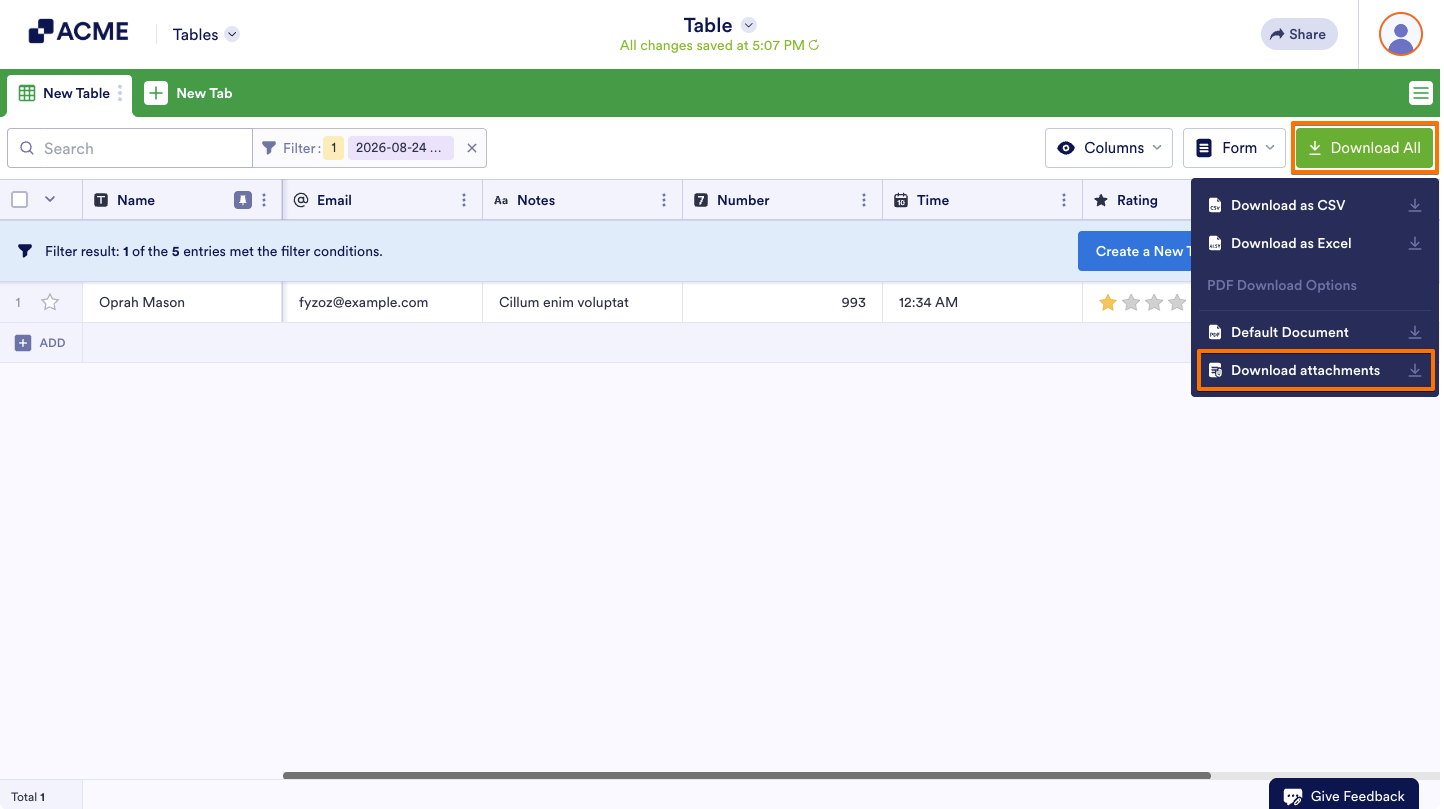
- Finally, click on the Download All button on the right side of the page to open the download options.
- Then, in the menu that opens, choose the Download Attachments option.
Downloading Individual Files
Sometimes you only need to download a single file instead of the whole batch. In that case, you can easily grab individual uploads right from your submissions. Here’s the quick way to do it:
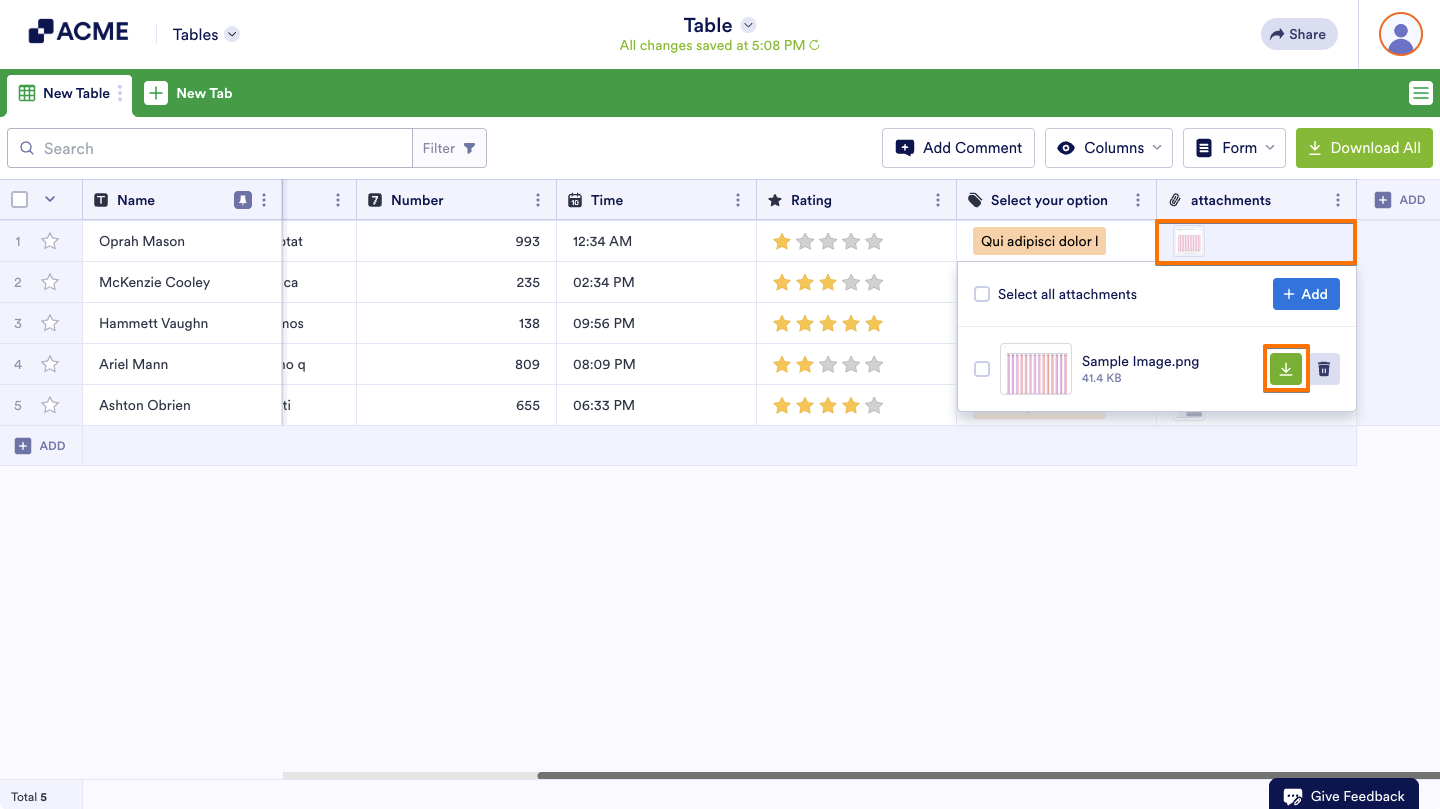
- In Tables, click on the uploaded file you wish to download.
- In the menu that comes up, click on the Download icon to save the file.

Send Comment: