Tables simplifies the process of editing form submissions, making it easy to update information, correct any errors, or refine details as needed. This flexibility helps you keep data accurate and current, ensuring reliable records that reflect the latest information.
There are two methods for editing submissions on the Tables, and you can find details about each method below.
Performing Inline Edit to Entries
Inline editing lets you change values directly on the table without needing a separate form or window. This quick method is perfect for immediate updates, as it doesn’t trigger any after-submission actions like email notifications, integrations, or workflows.
Note
You can use options like Add and Delete buttons for Single Choice and Multiple Choice fields, Upload and Trash buttons for File Upload fields, a calendar pop-up for Date fields, and First and Last Name fields for Full Name fields to perform inline updates on selections and answers in those types of fields in Tables.
Follow these steps to start editing right on the table:
- In Tables, click on a cell of an entry then type or click it again to start editing its data.
- Click anywhere outside that cell or press Enter on your keyboard to automatically save your changes.
Note
Right after making an inline update, you can press CTRL+Z on Windows and Command+Z in MacOS to undo it as long as you haven’t closed Tables.
You can also allow form respondents to update their submissions by sending them the edit link to their submissions. See How to Request Submission Updates in Tables to learn more.
Editing and Resubmitting Entries
To update submission data and trigger your form’s after-submission actions after doing so, open the entry with data submitted previously in edit mode within Tables and resubmit the form after making your changes. This resubmission will trigger workflows, email alerts, and integration processes, including any updates you made during the resubmission. Follow these steps to edit an entry:
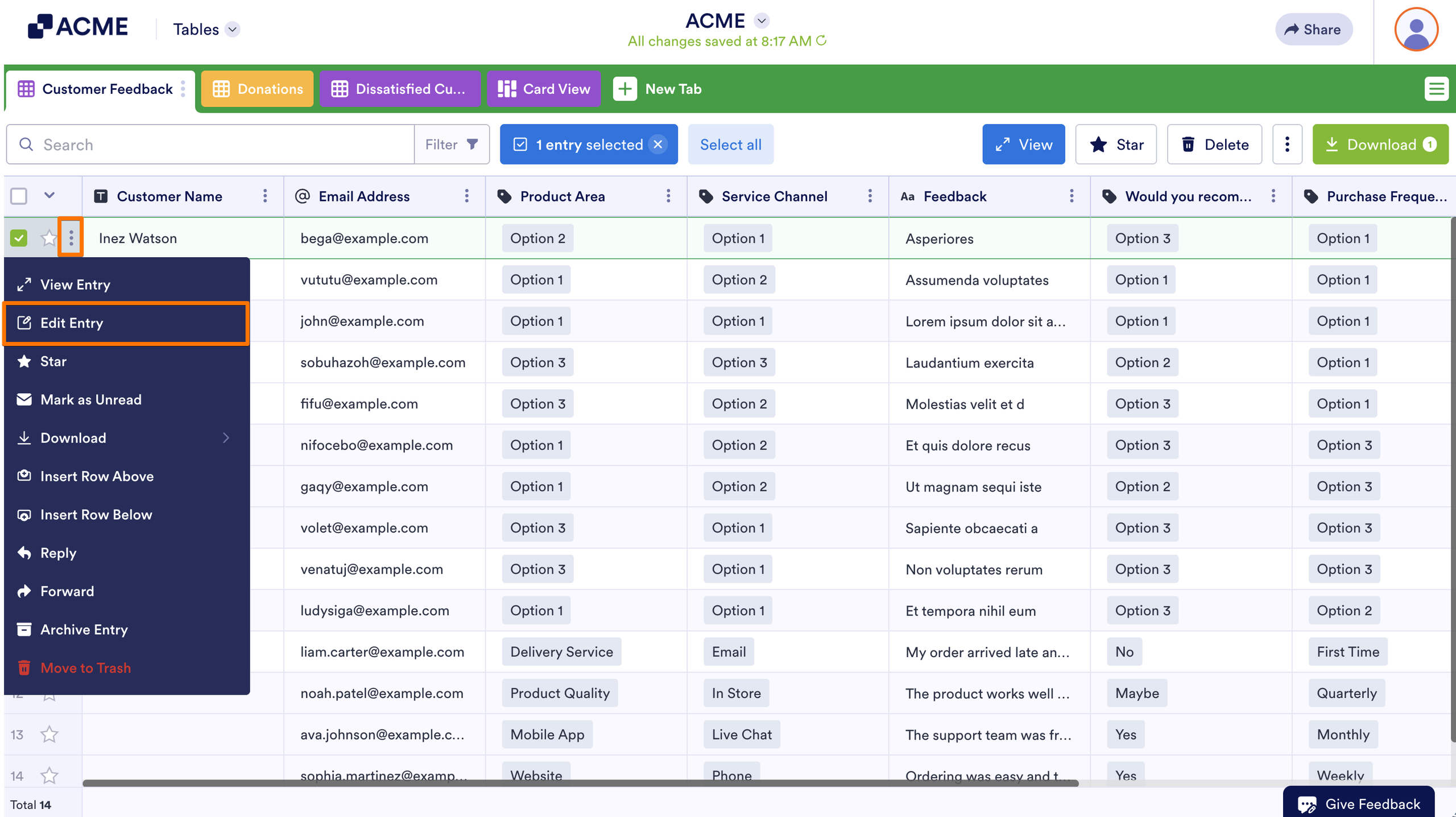
- In Tables, hover your mouse over an entry and click on the Three Dots icon on its left, next to the Star icon.
- Then, click on Edit Entry in the menu.
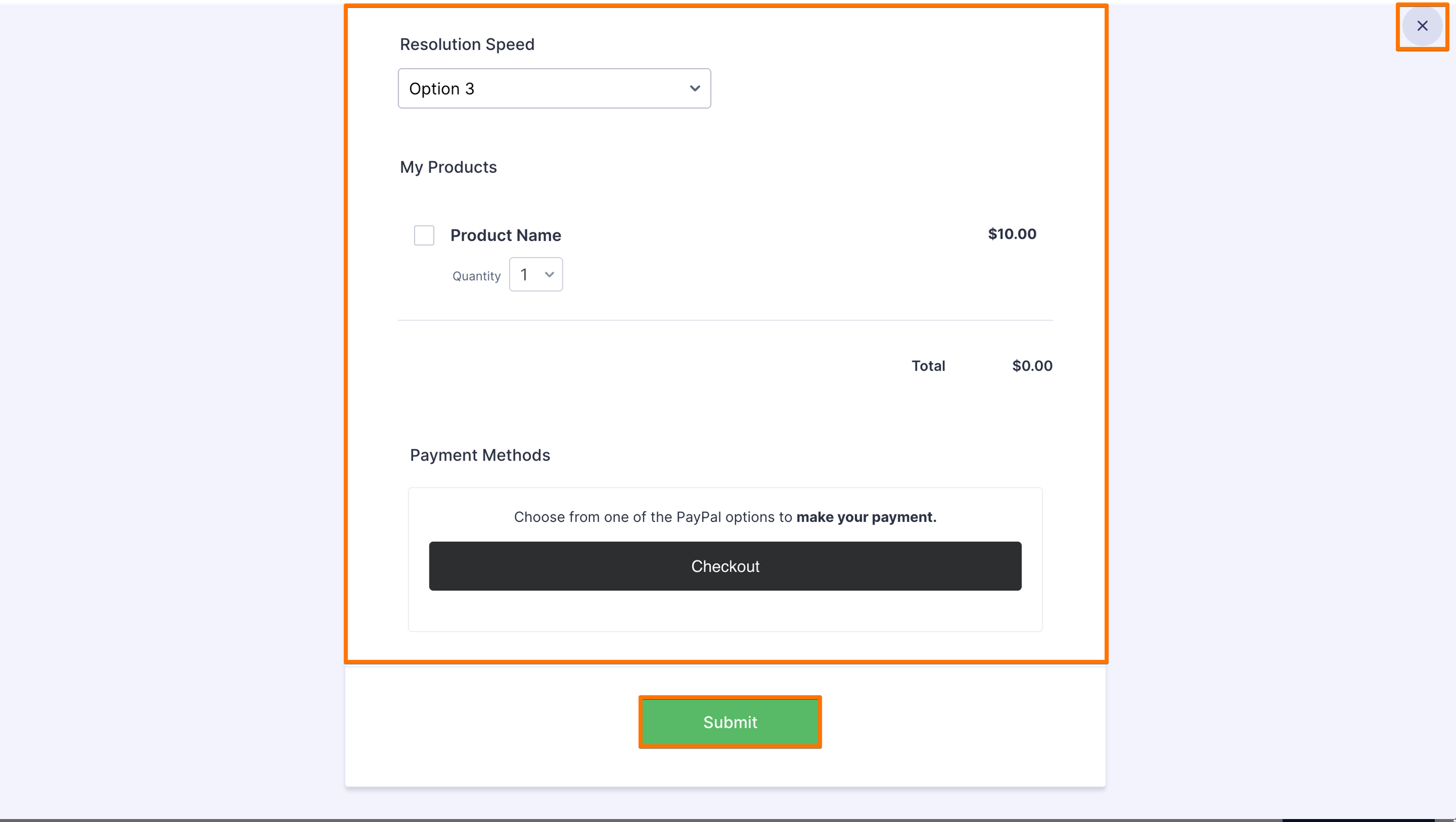
- In the Edit Entry screen, update the submission and click on the Submit button on the form to save your changes. Click on the Close button in the top-right corner to cancel updating it.
Note
You can press Esc on your keyboard to cancel an inline edit or stop updating a submission on the Edit Entry screen.
You can right-click any cell in a row to open the same menu that has the Edit Entry option.

Send Comment: