WhatsApp Notifications let you receive real-time submission alerts directly in your WhatsApp application. This is ideal when you need immediate visibility and faster communication than email, enabling you to respond and take action without delay.
Setting up the WhatsApp Notification
Whether you’re setting up a new form or updating an existing one, setting up WhatsApp Notification takes no time at all—here’s how:
- In Form Builder, in the orange navigation bar at the top of the page, click on Settings.
- Then, in the menu on the left, click on Notifications.
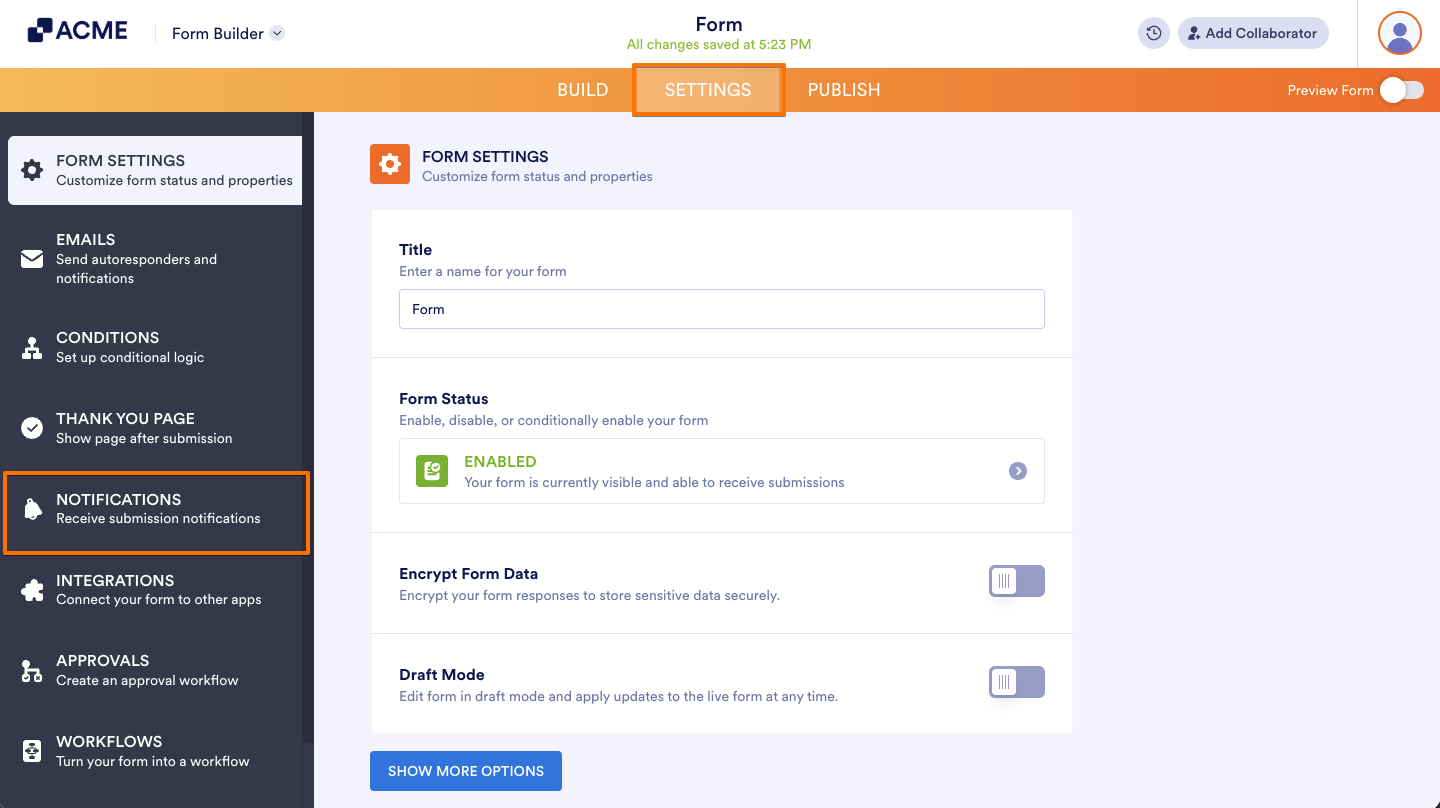
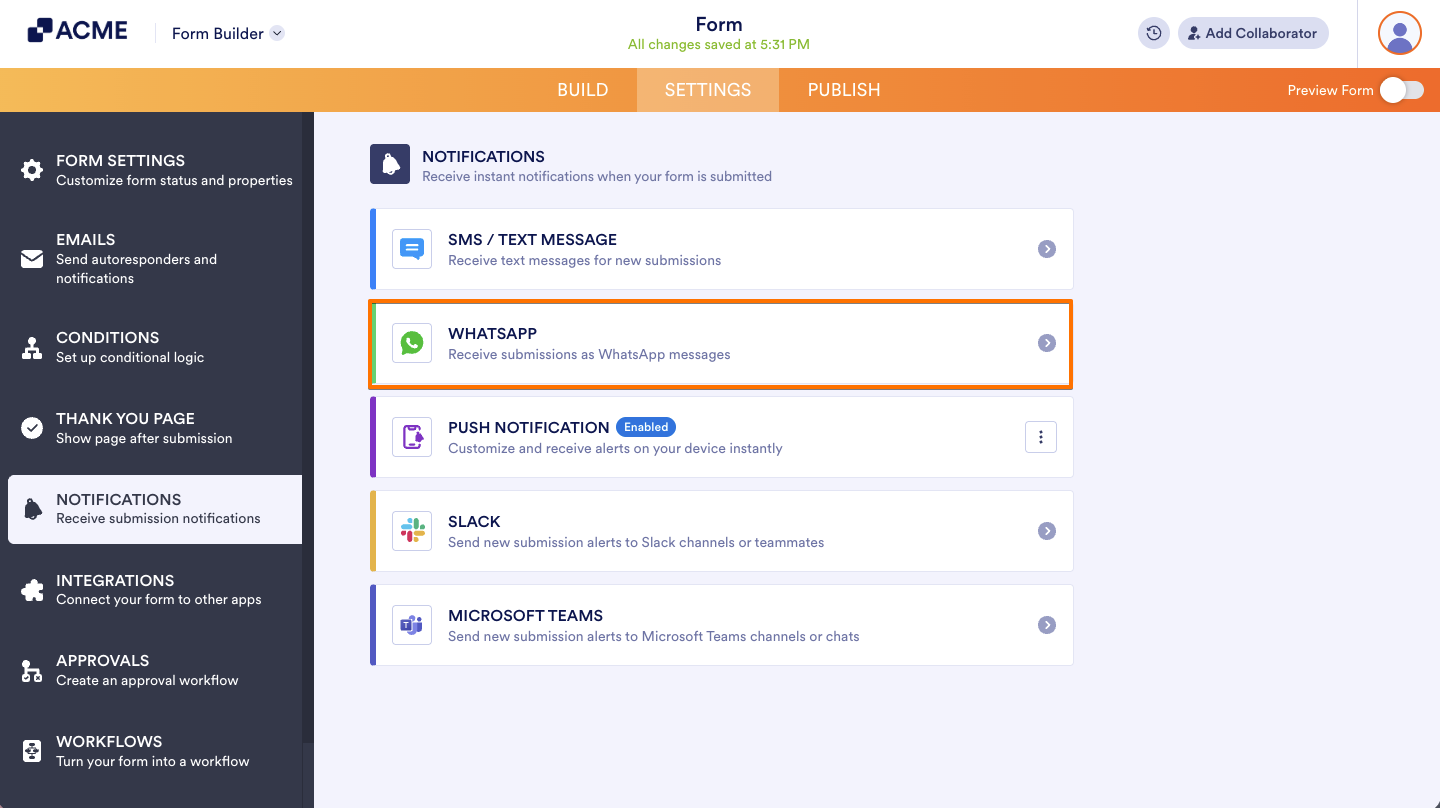
- Next, select WhatsApp from the list of available notification channels.
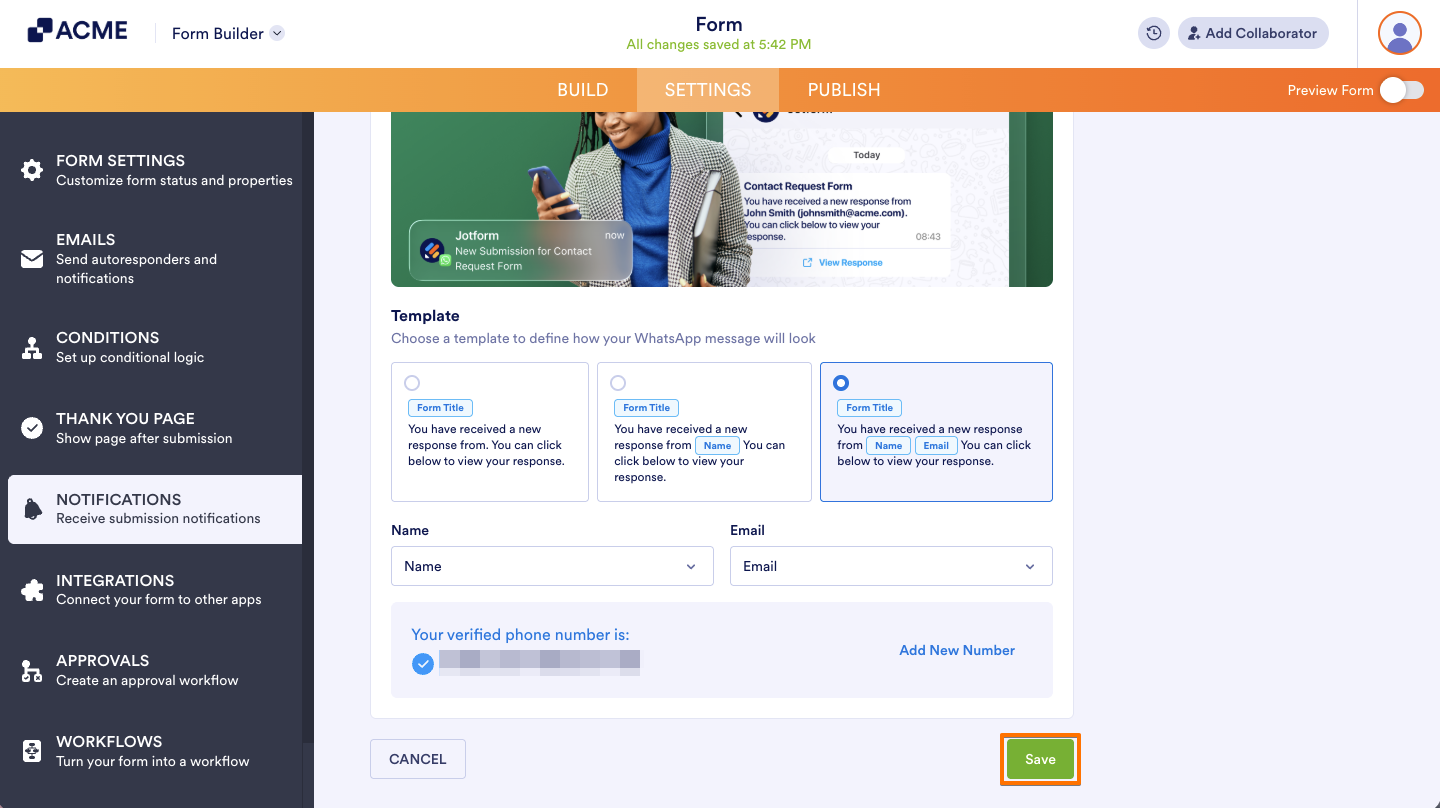
- In the WhatsApp Notification settings, under the Template section, select from the available template options:
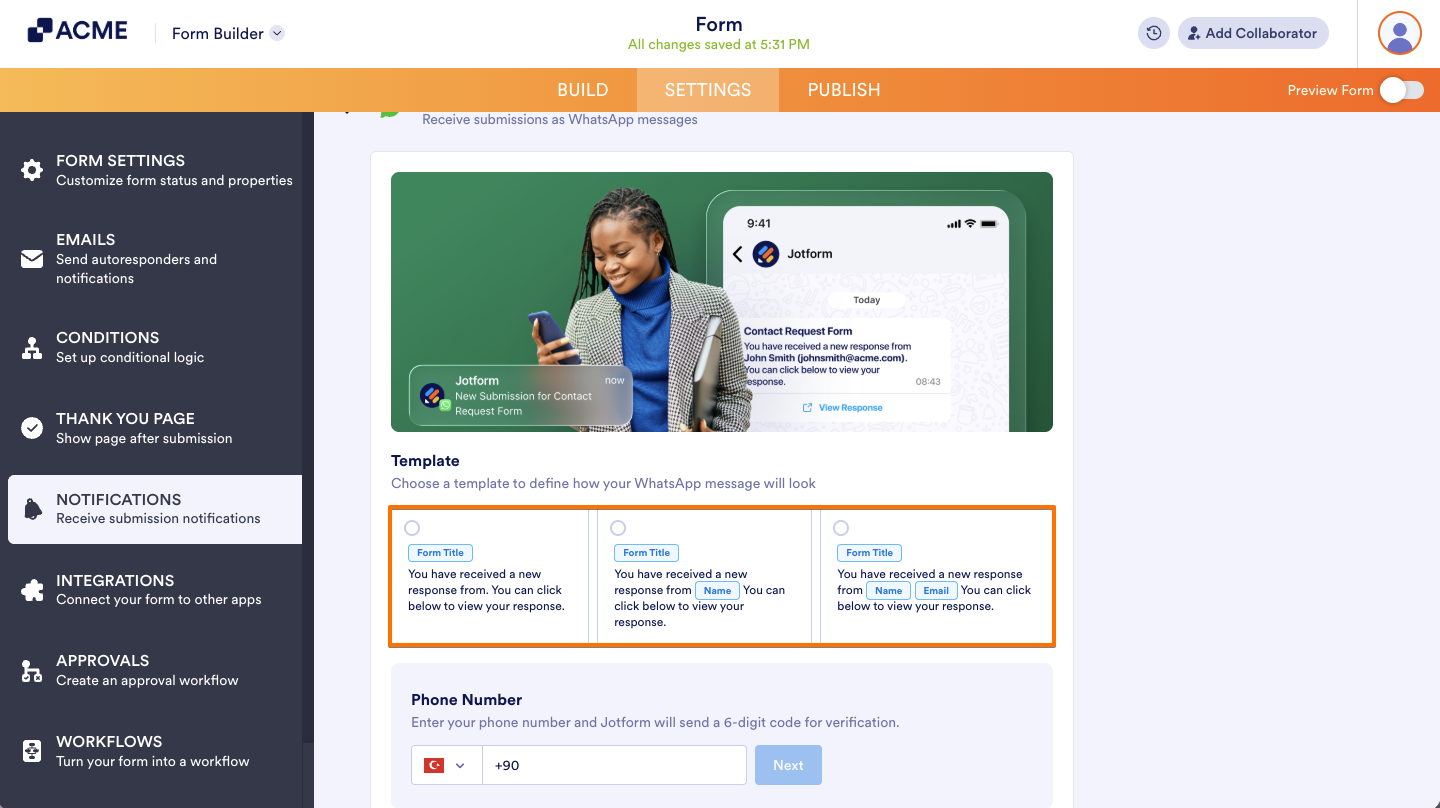
- Basic Template — This is the default basic template for the WhatsApp Notification.
- Name Template — Select this option to have the respondent’s name as part of the notification message.
- Name and Email Template — This option includes both the name and email address in the notification message.
Note
As shown above, you may need to map the Name, Email Address, or both, depending on the template you selected.
- Then, under the Phone Number section, enter your phone number and click on Next.
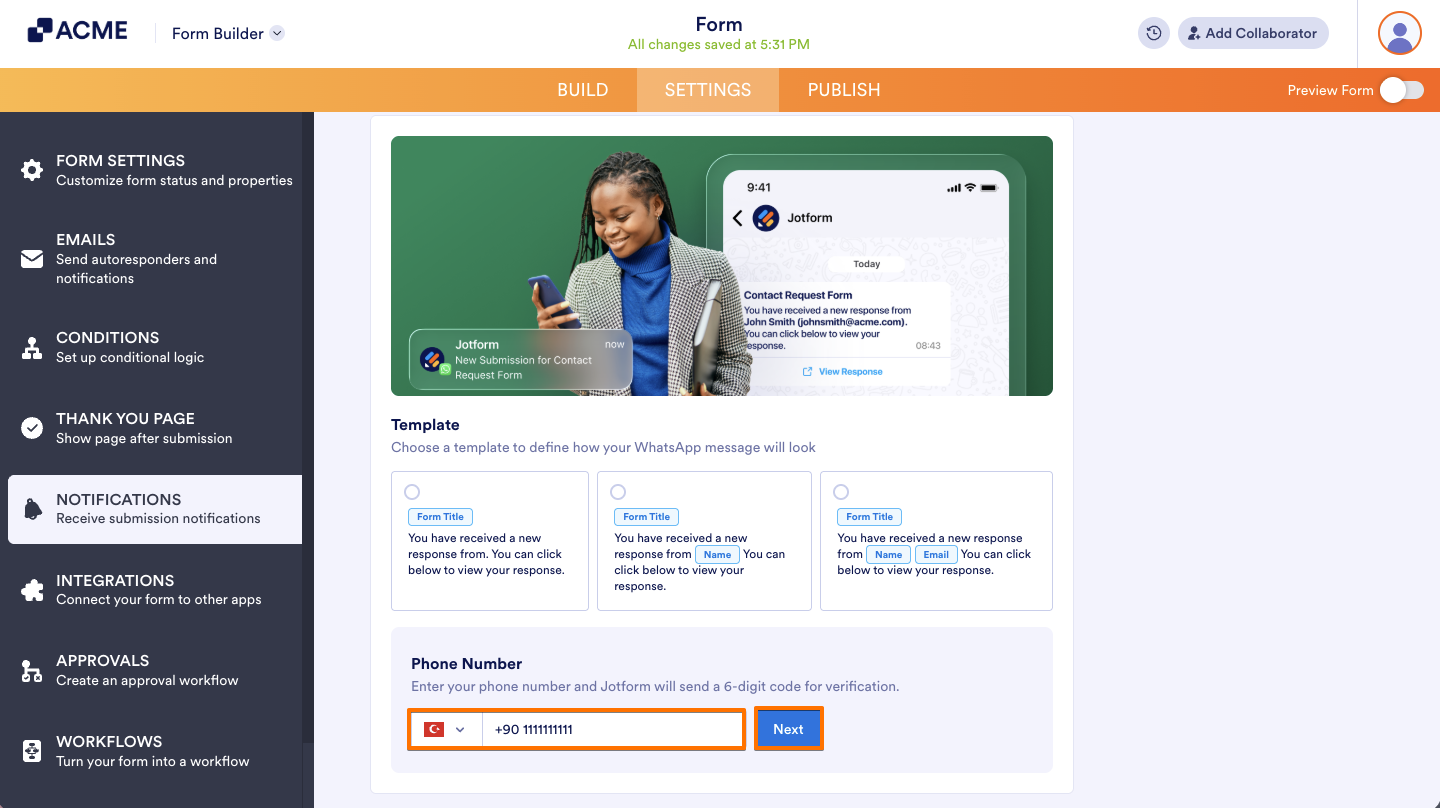
- Next, on your WhatsApp mobile/desktop/web app, you will receive your Verification Code.
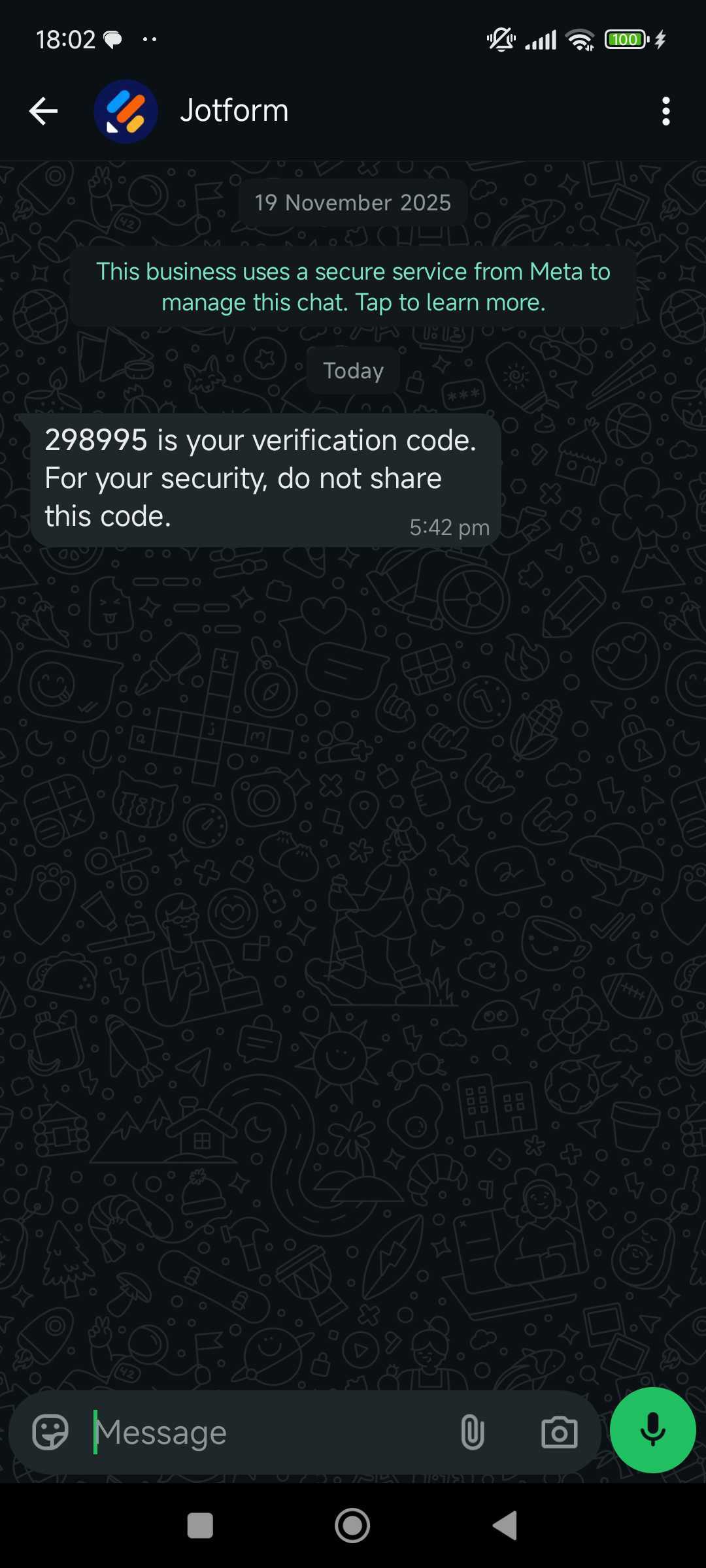
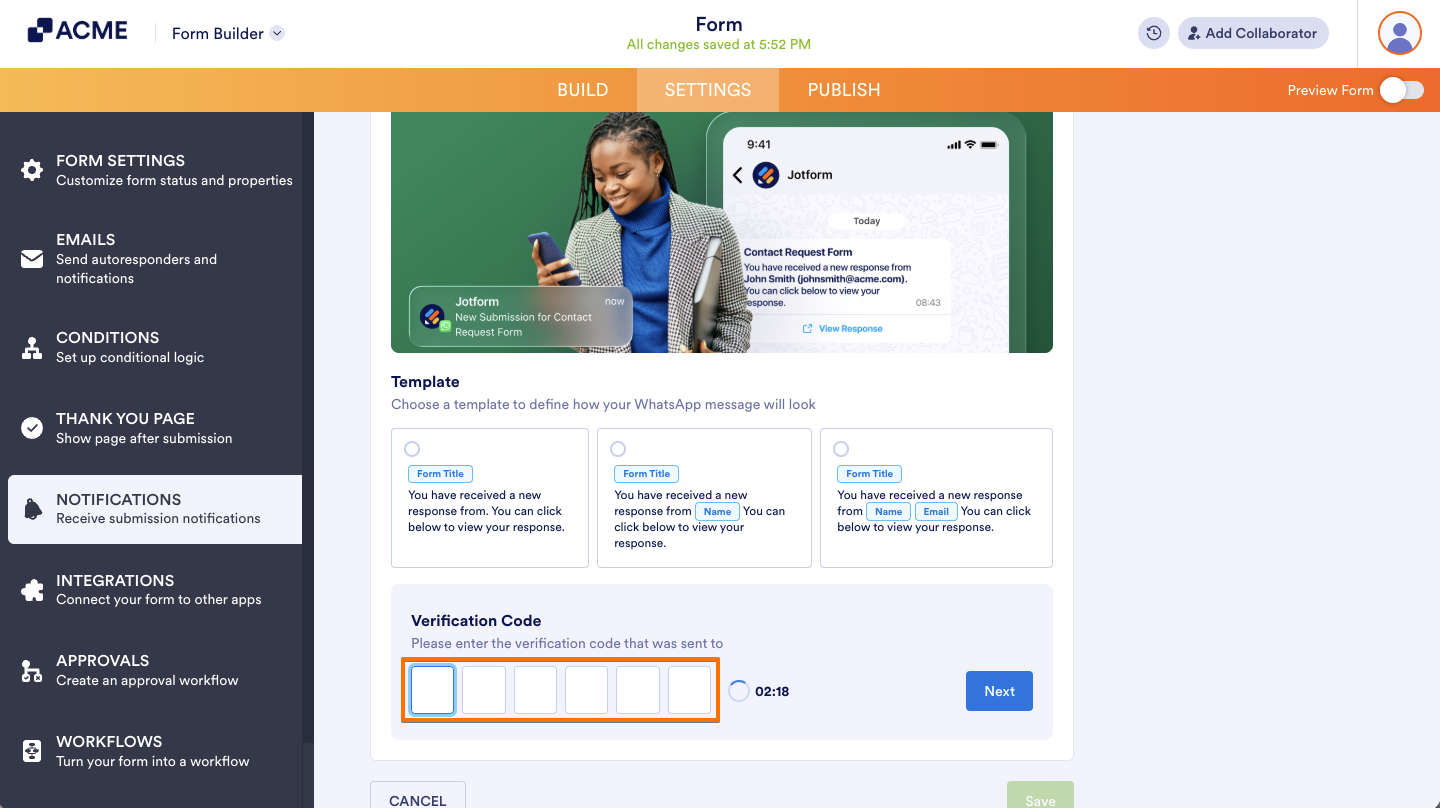
- Enter your Verification Code in the boxes.
- Finally, click on Save to complete the setup.
Pro Tip
You can click on Add New Number to add a new verified number.
Managing WhatsApp Notification
After saving your WhatsApp Notification, you can manage it in two ways: Disable and Remove — and here’s how:
- On the right side of the WhatsApp notification, click on the Three Dots icon.
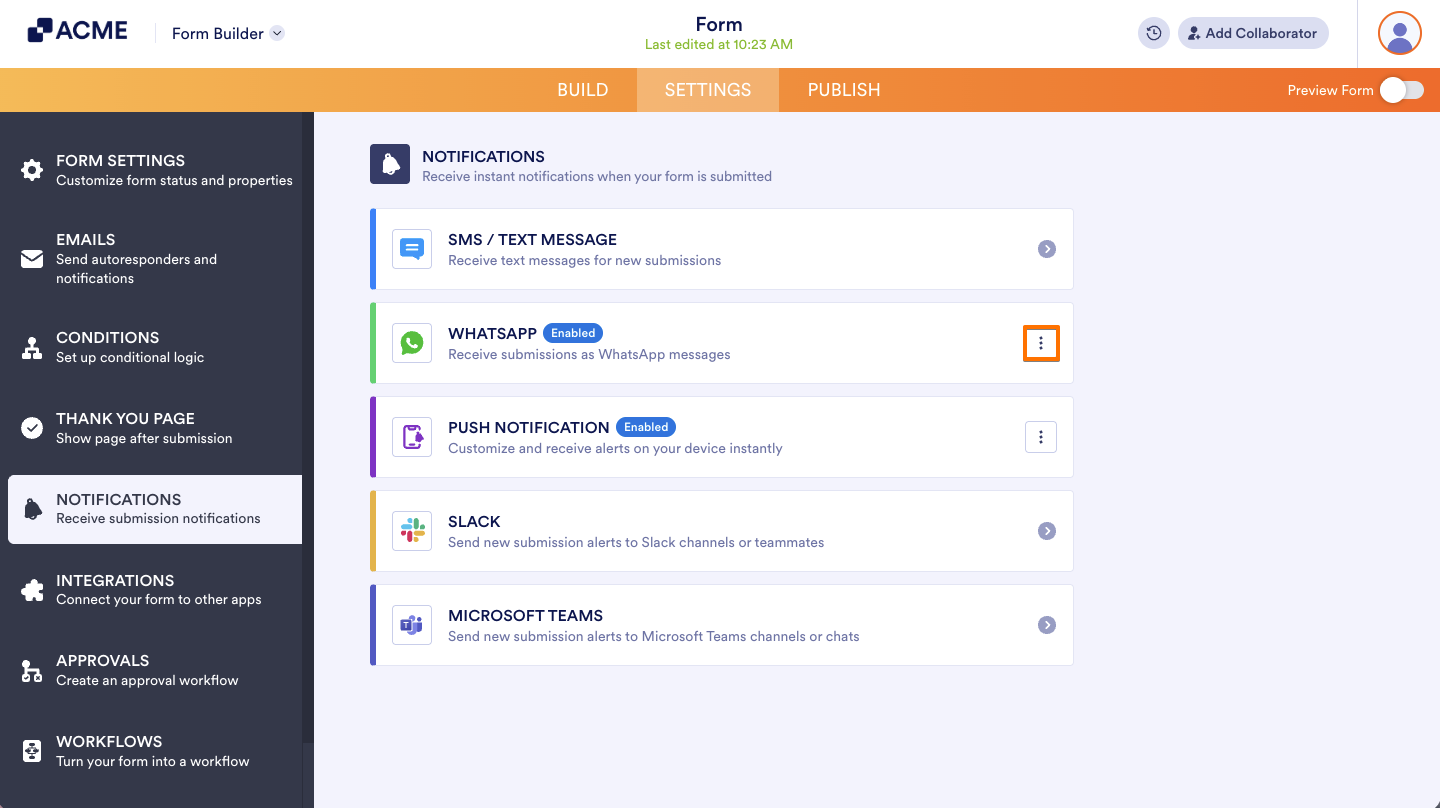
- Then, select an option.
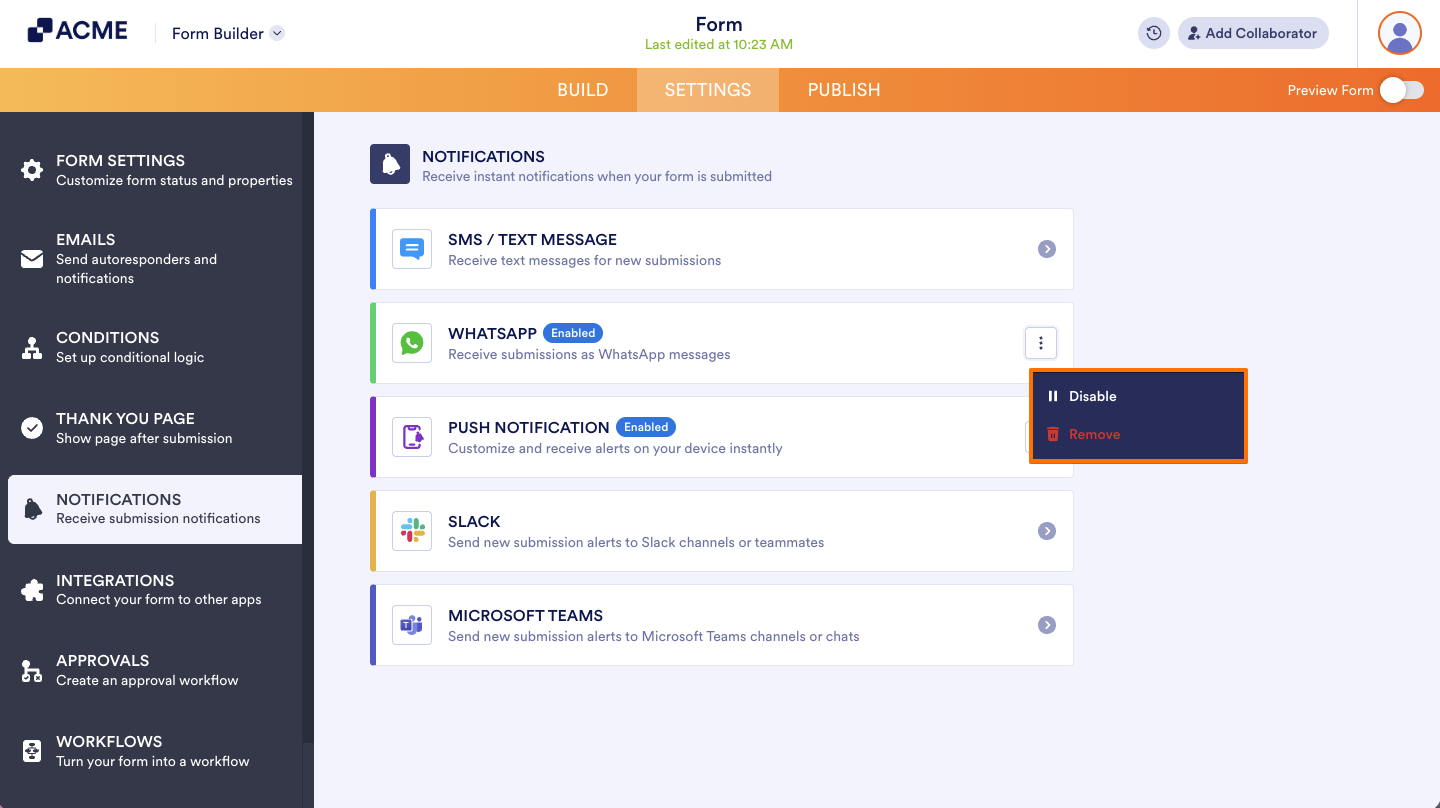
- Disable — Turns off notifications without removing your settings.
- Remove — Permanently deletes the configuration and resets the setup.
That’s it! Your form is now set up for WhatsApp Notifications. When someone submits the form, you’ll receive their information as messages in your WhatsApp account.

Send Comment: