With SMS Notifications, you can get real-time updates sent straight to your mobile phone—no app installation needed. It’s a simple and reliable way to stay informed, especially if you prefer quick notifications through standard text messages. The steps are outlined below.
Note
If your phone number is already verified, it will appear in the Phone Number dropdown. Simply select your phone number to continue. No additional verification is required.
Setting Up SMS Notifications Through the Notifications Tab
One way to enable SMS notifications is through the Notifications tab in Form Builder. You’ll just need to follow these simple steps:
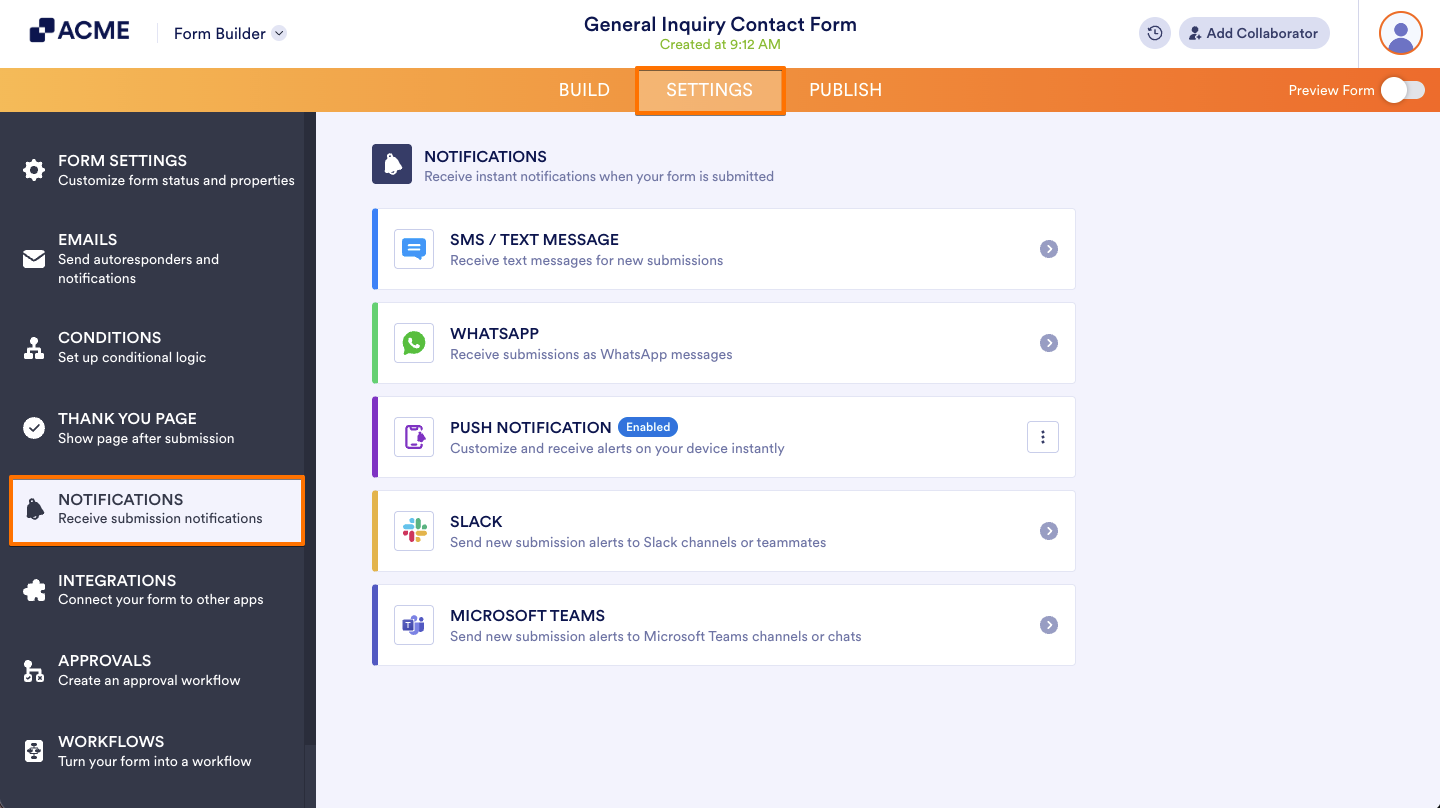
- In Form Builder, in the orange navigation bar at the top of the page, click on Settings.
- Then, in the menu on the left, click on Notifications.
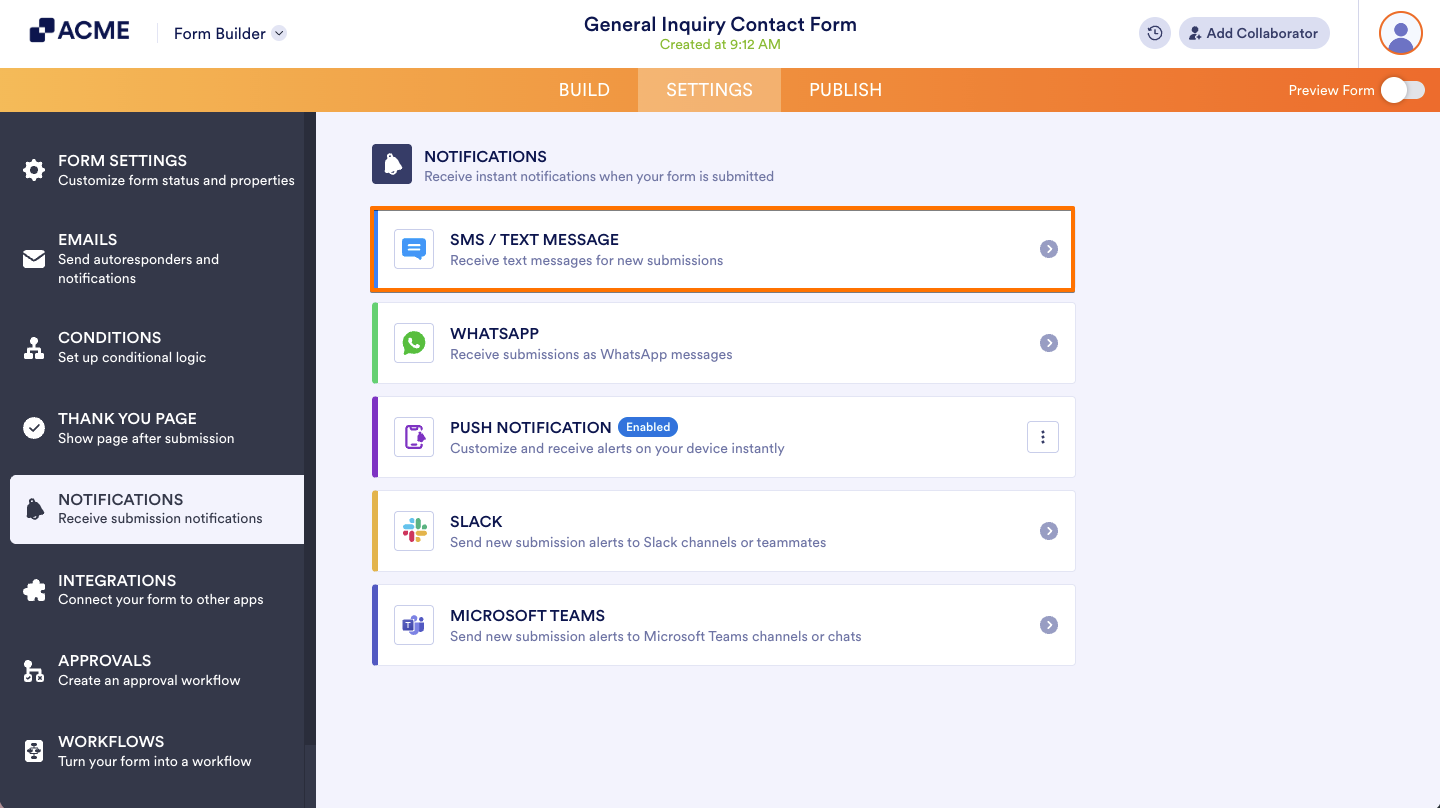
- Now, select SMS/Text Message from the list of available notification channels.
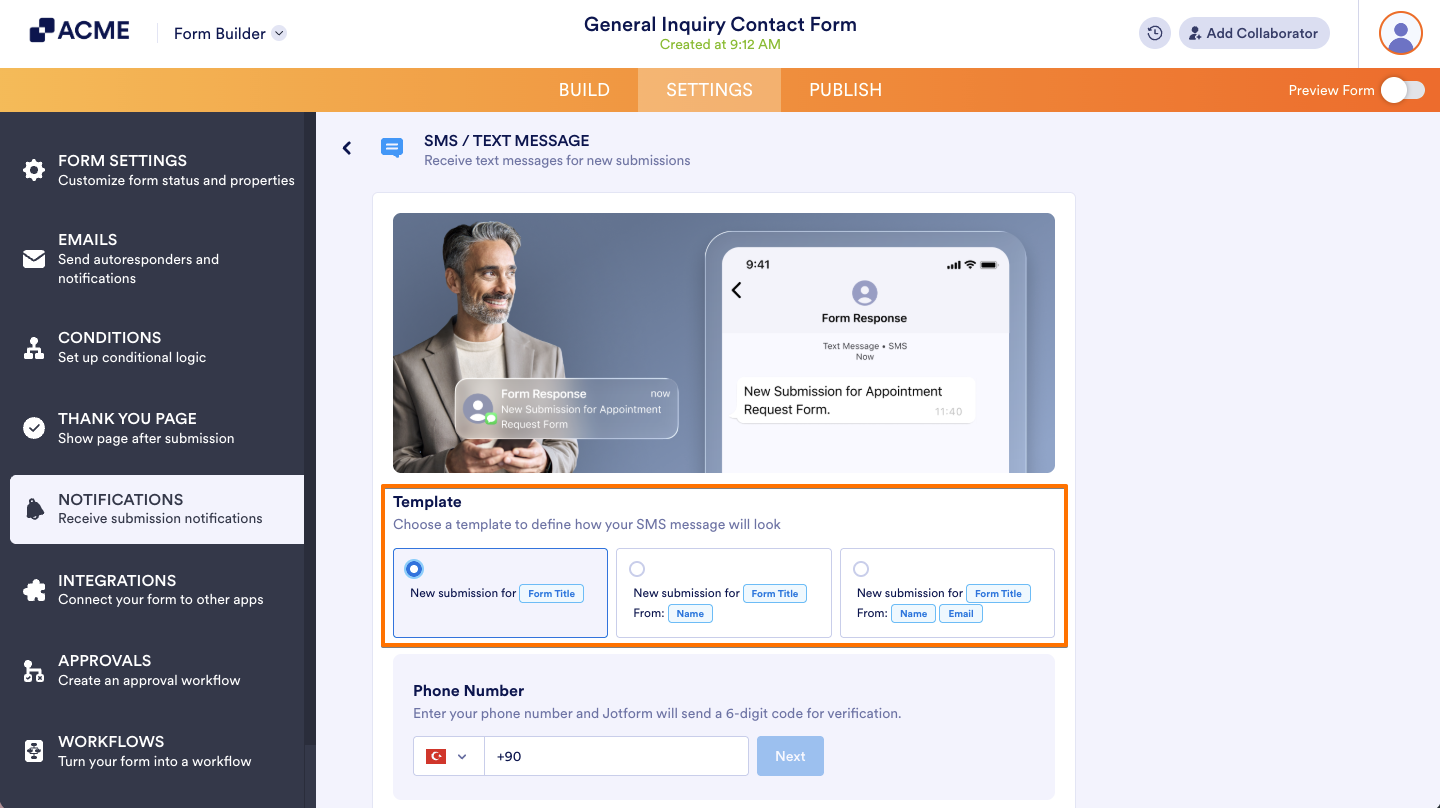
- Next, in the Template section, select a template to define how your SMS message will appear.
Note
SMS notification templates are predefined and can’t be customized. Each template includes only specific fields, such as the Form Title, Name, and Email. Other form fields can’t be added.
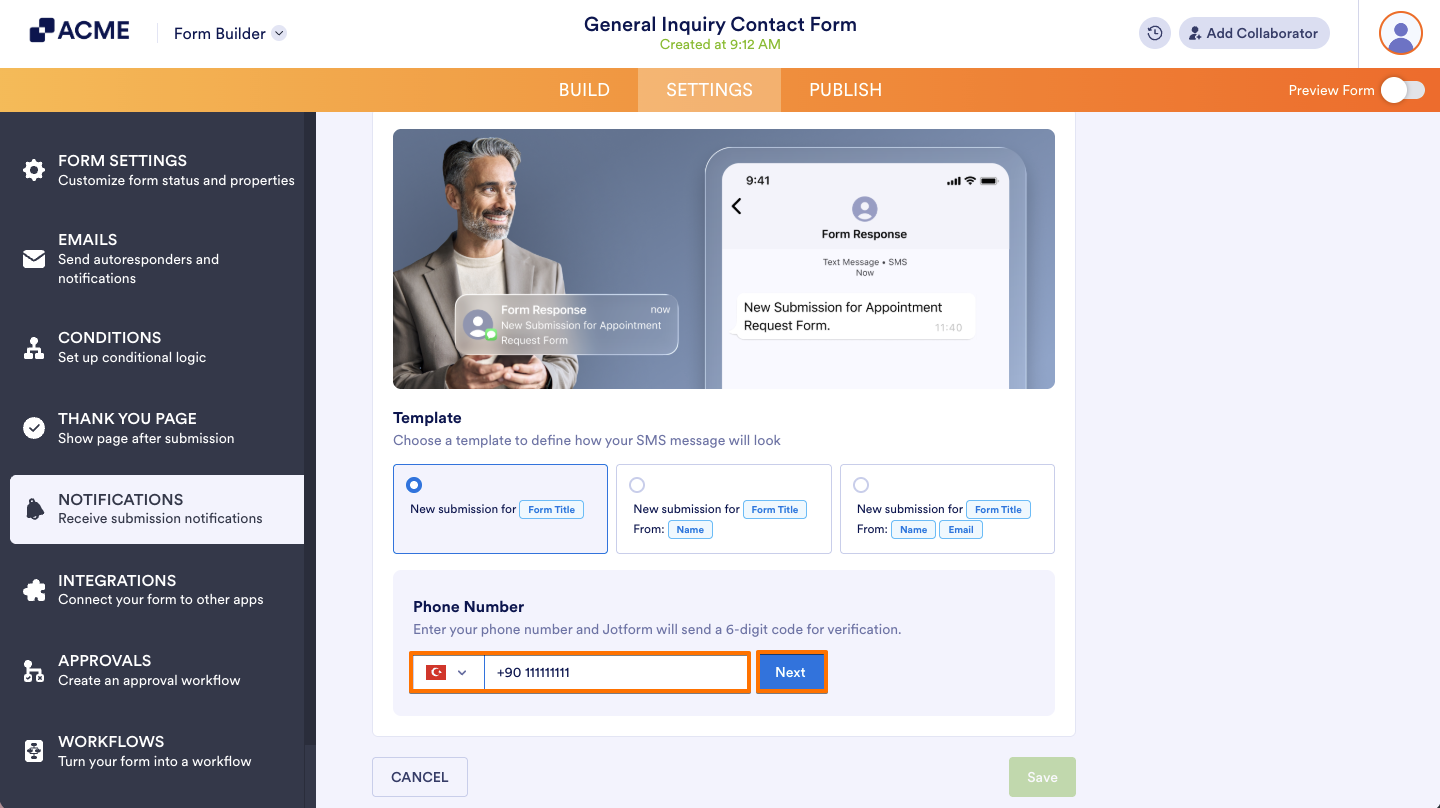
- Then, in the Phone Number section, enter your phone number and click on Next to begin the verification.
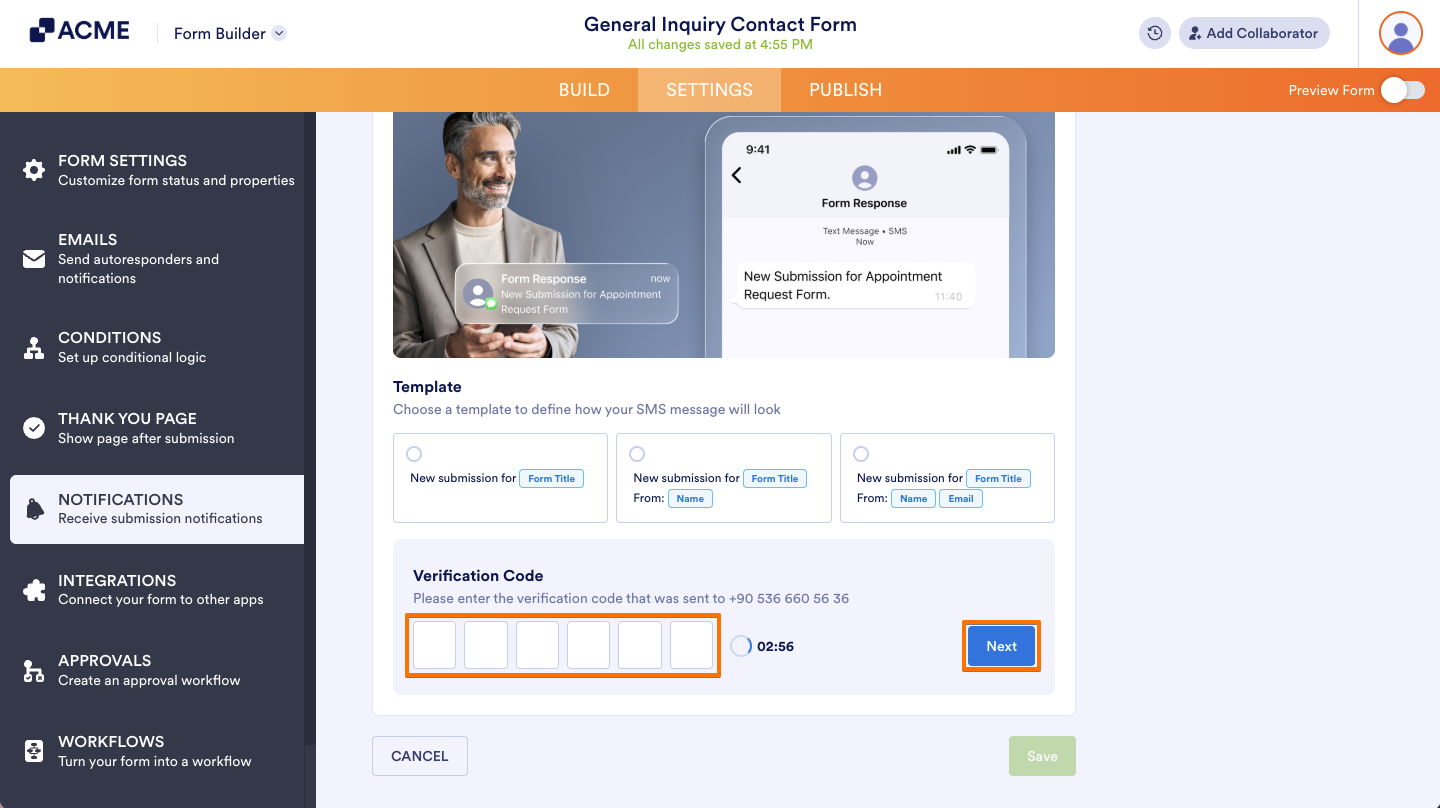
- Now, enter the Verification Code sent to your phone number and click on Next.
- Finally, once your phone number is verified, click on Save and you’re done.
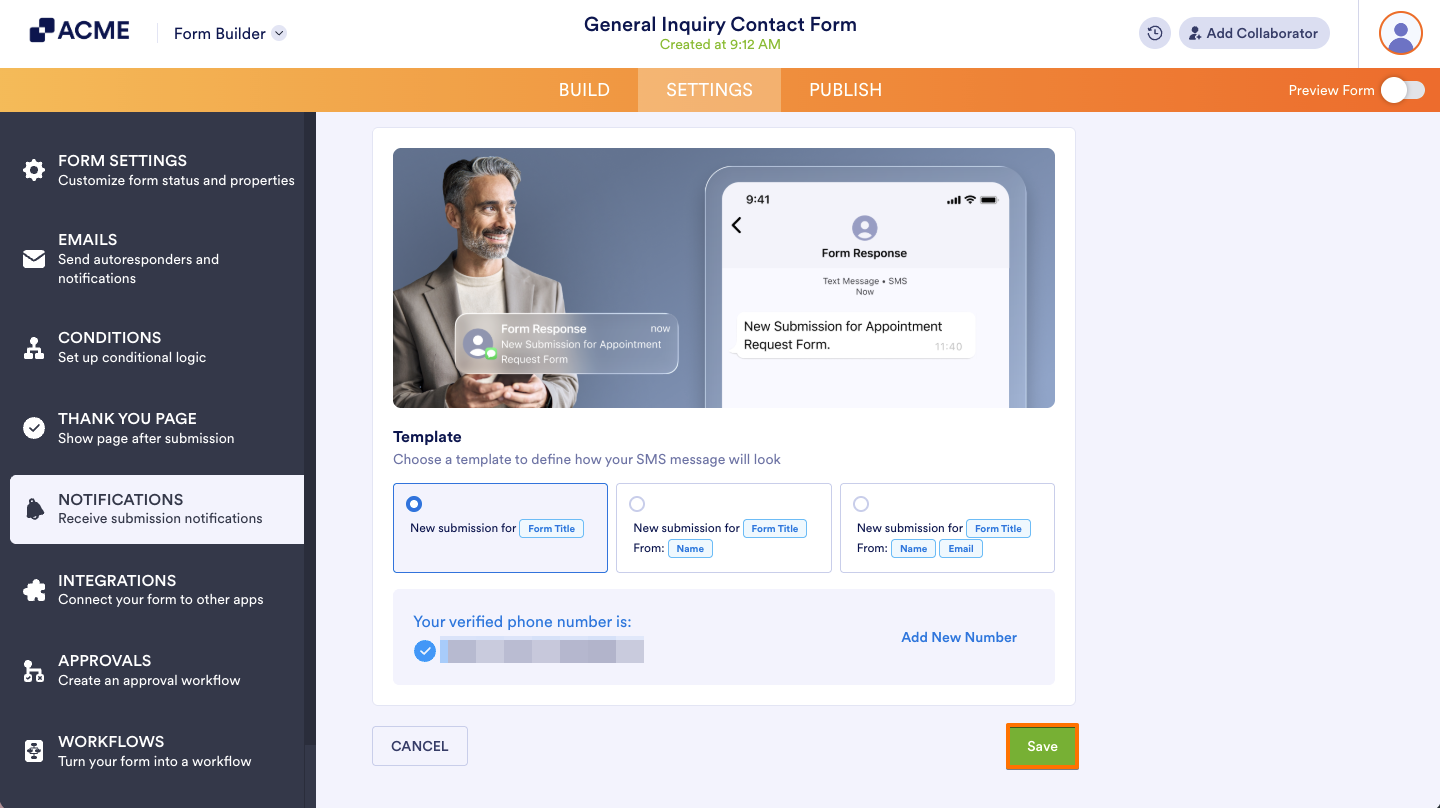
And that’s it. You’ve successfully set up SMS notifications for your form. You’ll now receive text message alerts based on your selected setup method whenever your form receives a new submission. You can return to the Notifications tab at any time to update your SMS settings and add a new phone number.
Note
If you don’t receive SMS notifications, try the following:
- Make sure your phone number is verified.
- Confirm that the correct phone number is selected in the dropdown.
- Check that your mobile carrier supports international SMS.

Send Comment: