Your donation element will not be visible to your donors until you’ve set up a payment integration. With a Donation box element, you have over 30 payment gateways to choose from. So you’re bound to find one that works for you. Keep on reading to learn how to integrate your donation app with your favorite payment gateway.
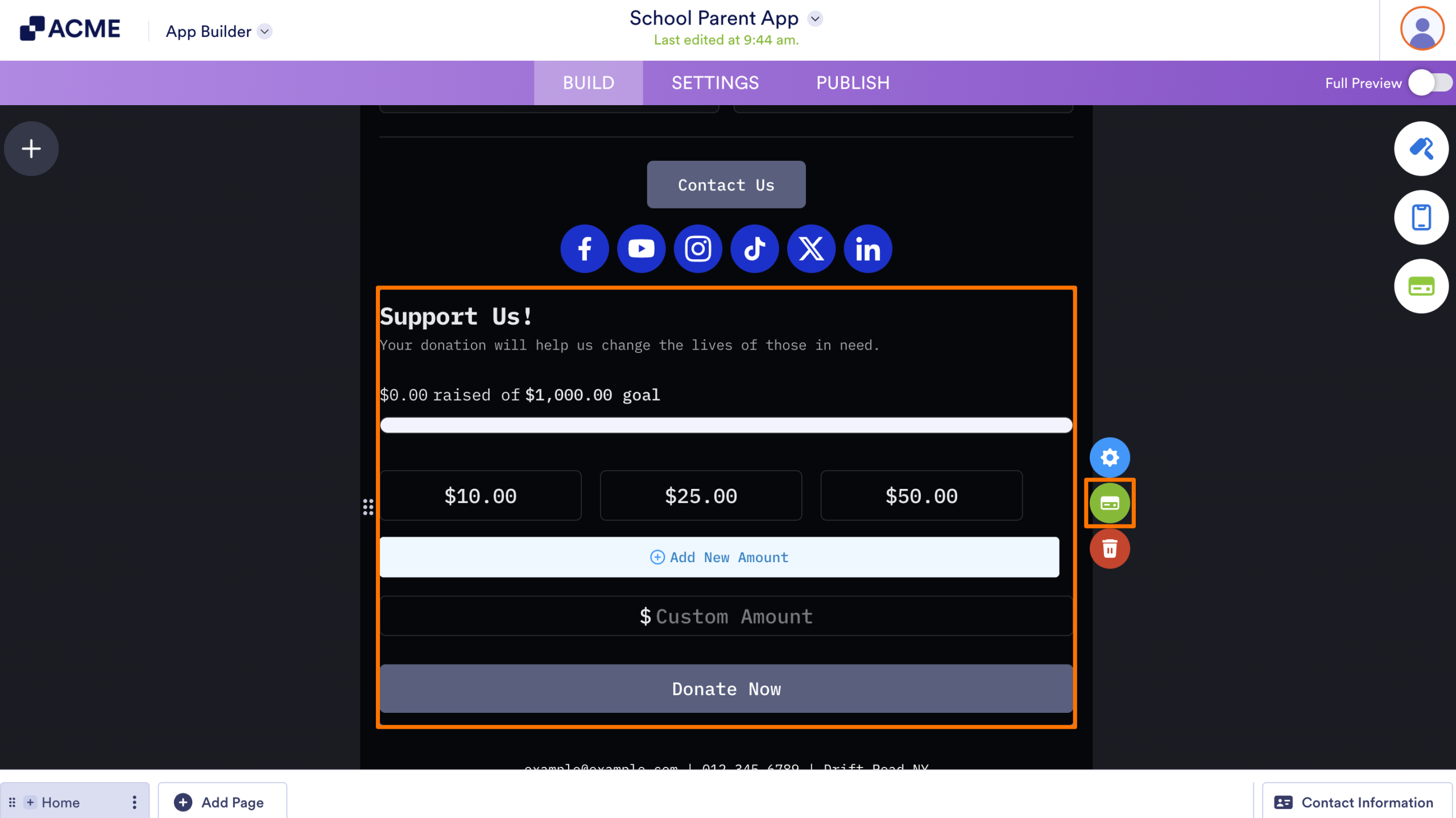
- In App Builder, select the Donation Box element.
- Next, click on the Credit Card icon.
- In the Payment Properties panel, choose your currency.
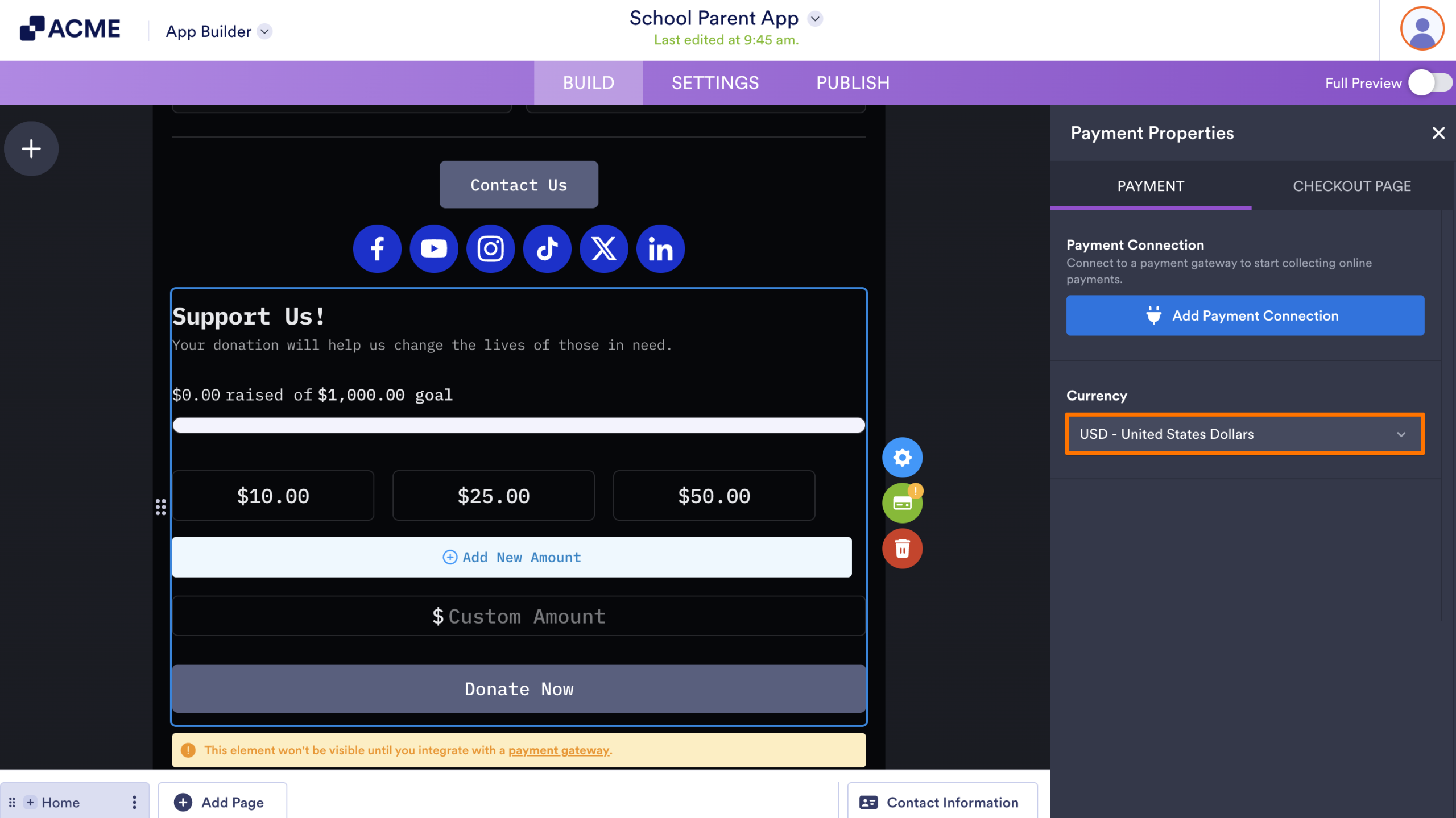
- Click the Add Payment Integration button and select the payment gateway that works best for you.
How to Change Contact Information on the Donation Checkout Page
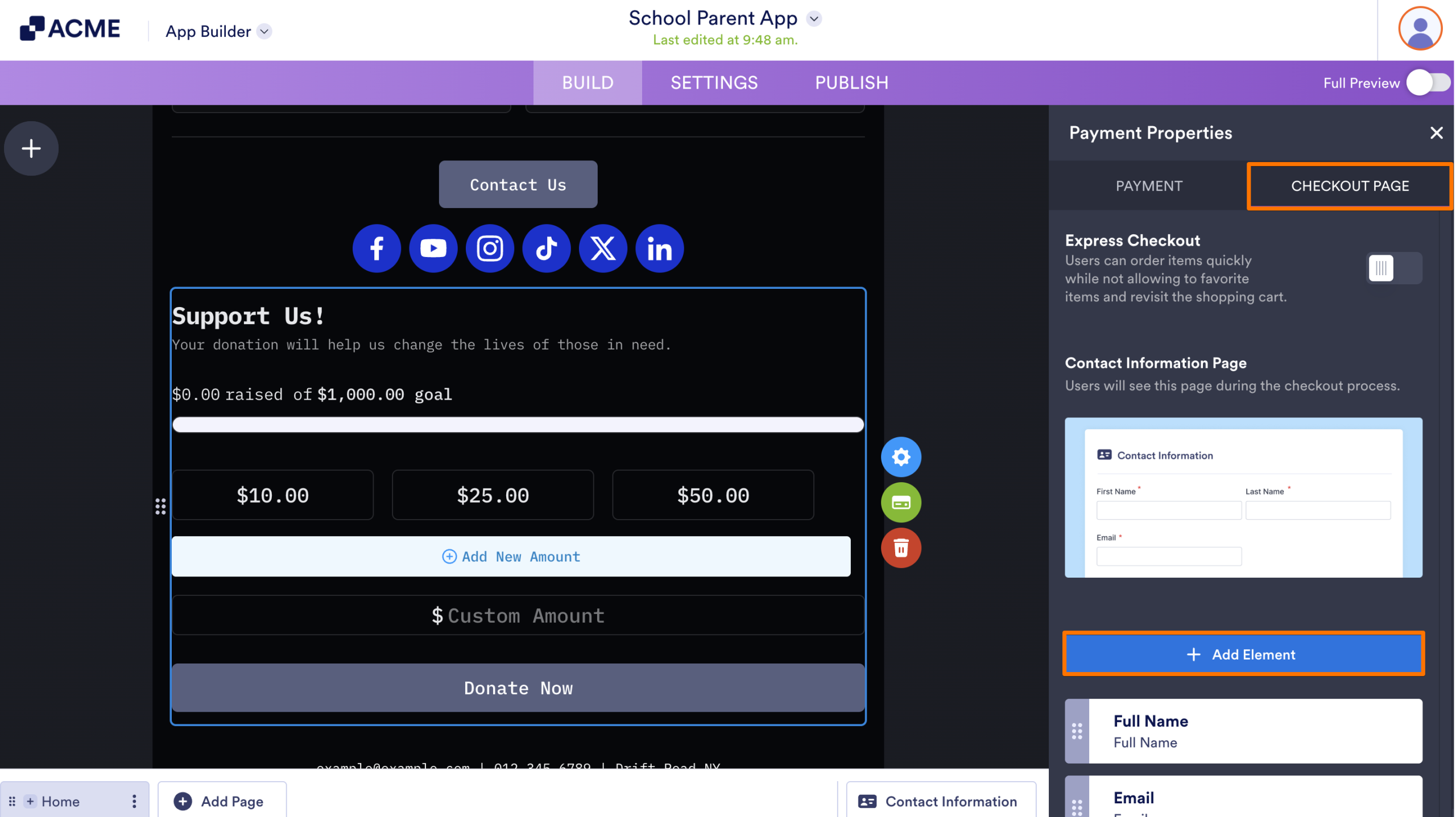
- In Payment Properties, navigate to the Checkout Page tab.
- In the Checkout Page tab, click on the Add Element button to add different contact elements to collect from the donator.
Note
Adding different contact elements is optional, except for the full name and email.
- Hover over the Contact Information Page and click View Contact Information Page to see what your checkout page will look like.
And that’s it! With over 30 payment gateways to choose from you are bound to find one that works for you.

Send Comment: