Jotform makes it easy to automate secure healthcare workflows by integrating with Keragon, an AI-powered, HIPAA-friendly automation platform. With Keragon, you can connect Jotform to EHRs, CRMs, billing systems, scheduling tools, and more—without writing any code.
This integration helps reduce manual data entry, improve accuracy, securely handle uploaded files, and keep your systems fully synchronized while remaining compliant. This is great for Healthcare practices that want to automate patient intake, streamline internal workflows, and securely manage sensitive data.
Setting Up Jotform in Keragon
Setting up Jotform in Keragon only takes a few minutes. Here’s how to do it:
- Login to your Keragon Account and in your Keragon Dashboard, in the menu on the left side of the page, click on Authentications.
- Then, in the middle of the Authentications page, click on Create New.
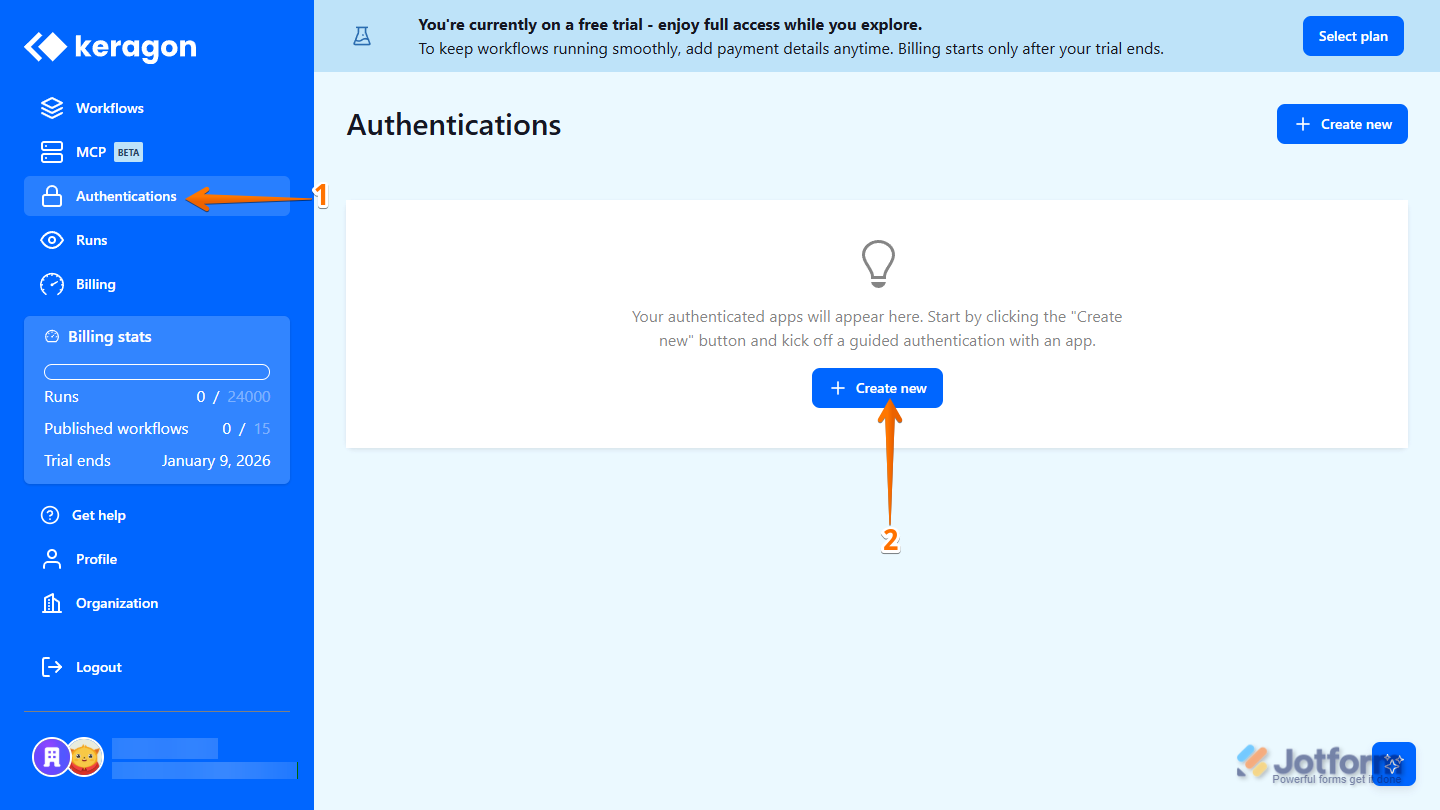
- Next, in the Create New Authentication page, search for Jotform and click on it.
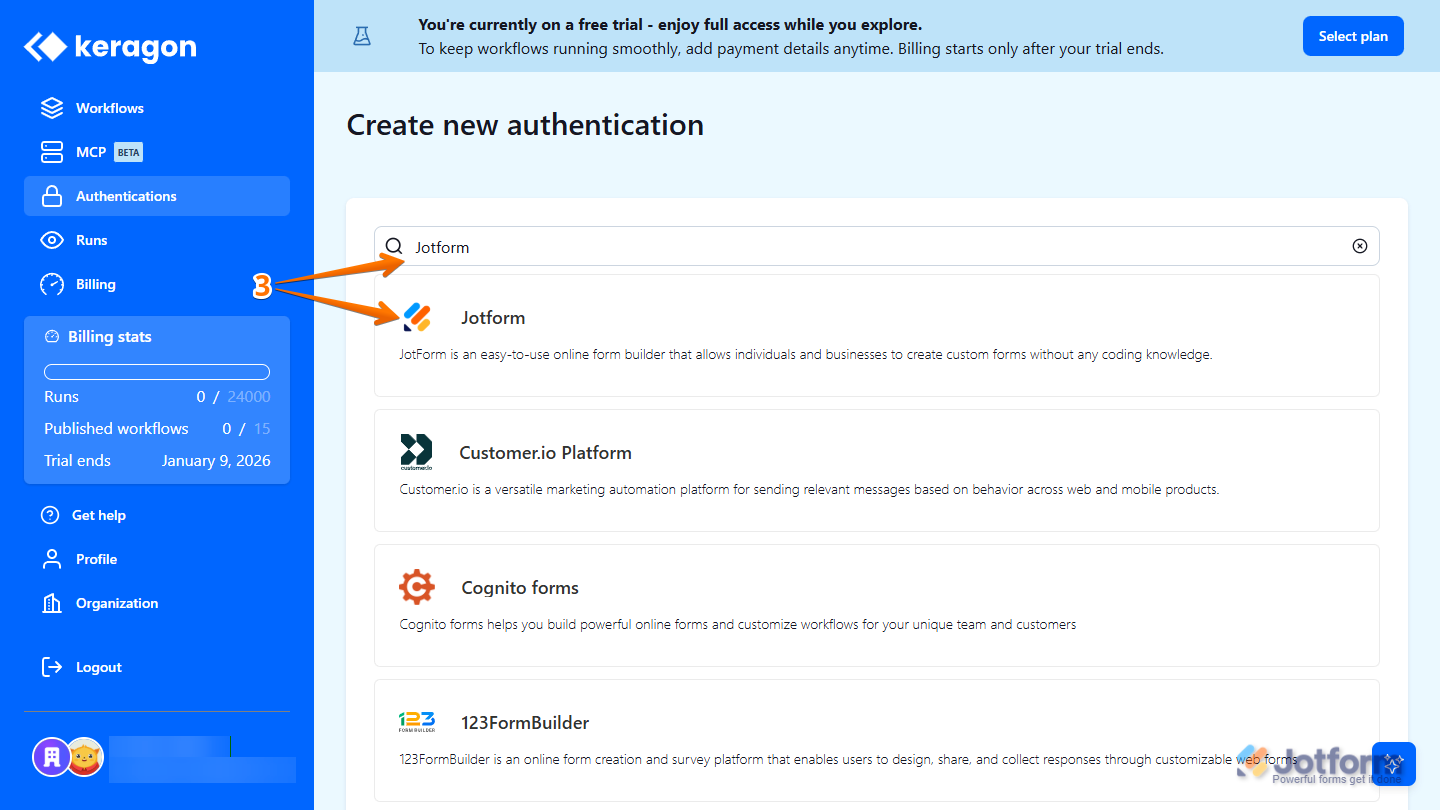
- Then, click on the Environment Dropdown menu and select one from the following options:
- US — Standard Jotform accounts for general use in the United States.
- EU Safe Mode — Keeps data within the European Union for GDPR compliance.
- HIPAA — For HIPAA-friendly accounts handling protected health information (PHI).
- Enterprise — For Jotform Enterprise accounts with advanced team and workspace features.
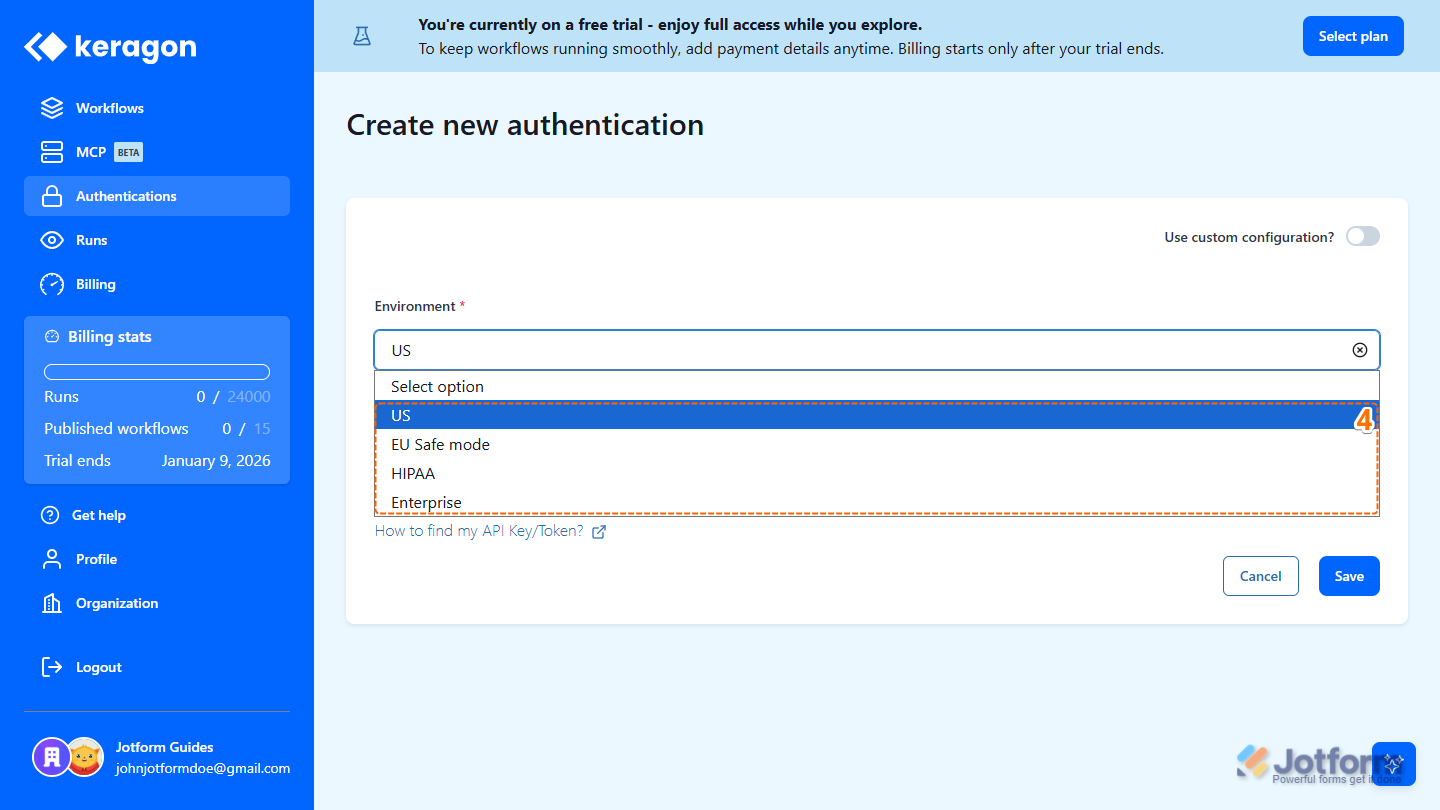
- Now, in the API Key or Access Token field, enter your API Key. For a full breakdown of how to get it, head over to our guide on How to Create Jotform API Keys.
- Then, click on Save.
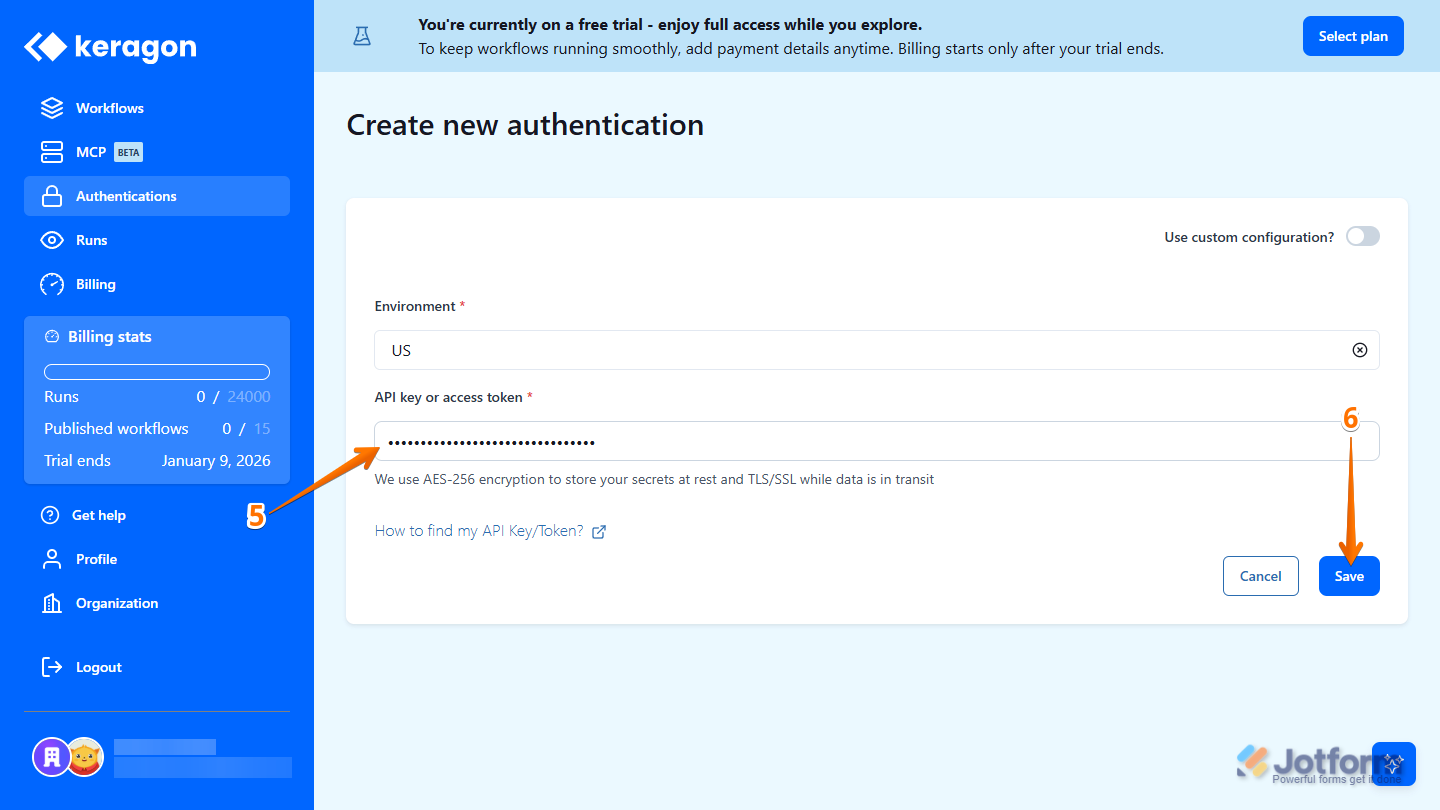
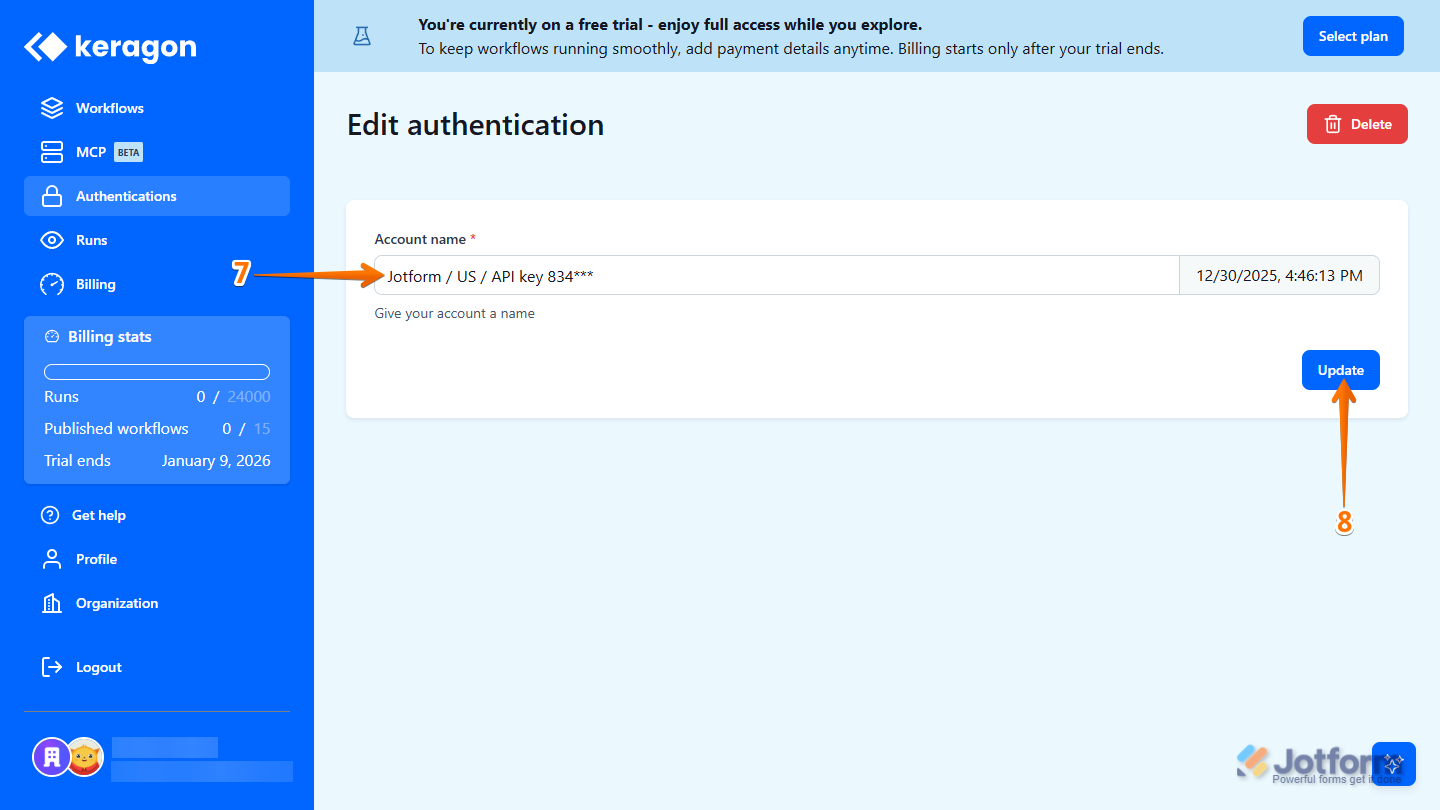
- Next, in the Account Name field, give your account a name.
- Finally, click on Update and you’re all set.
That’s it. Once connected, you can start using Jotform triggers and actions in your Keragon workflows right away.
Pro Tip
If you’re looking to dive deeper into Keragon compliance commitments, security controls and certification details, this Keragon Trust Center page has more details about that.
Integration Capabilities: Triggers & Actions
Keragon gives you flexible automation options by supporting both triggers and actions for Jotform. Depending on how your workflow is set up, you can either pull data from Jotform or use Jotform data to power actions in other connected tools. Most workflows run in real time, but Keragon also supports scheduled workflows when needed.
Triggers
Triggers define what starts your workflow. In Keragon, Jotform triggers fire when specific events happen in your account—most commonly when a form is submitted.
Submission Triggers
These triggers activate whenever Jotform receives a new submission, making them ideal for intake-based workflows.
- New Submission
- New Submission (Enterprise)
Use these triggers to start workflows such as patient intake automation, appointment scheduling, or updating EHR records as soon as a form is submitted.
Actions
Actions determine what the workflow does after it starts. With Jotform actions in Keragon, you can retrieve form data, manage submissions, handle uploaded files, and interact with teams and scheduling features.
Forms & Questions
Use these actions to access and manage form-related data within your Jotform account.
- Get Forms — Retrieve a list of forms in your Jotform account.
- Get Questions — Fetch all questions for a selected form.
- Get Prefilled Questions — Access available prefill structures.
- Assign Form — Assign a form to a user.
- Assign Prefilled Form — Assign a prefilled version of a form.
Submissions & Files
These actions help you securely work with submission data and uploaded files—ideal for healthcare and compliance-focused workflows.
- Download File From Answer — Download uploaded files (e.g., IDs, insurance cards) from a submission
- Download PDF Submission — Retrieve the full submission as a PDF document
Teams
Use team-related actions to access organizational data within your Jotform account.
- Get Teams — Access teams or workspaces in your Jotform account. This is only Available for Jotform Enterprise Accounts.
Appointments & Time Slots
These actions allow you to automate scheduling directly from Jotform submissions.
- Reserve Time Slot — Reserve an available appointment slot using Jotform’s scheduling features
Pro Tip
If you need to add any additional triggers or actions from the Jotform API, submit a request directly to Keragon Support, via your Keragon dashboard.
Example Workflows You Can Try
Want to see Jotform + Keragon in action? Keragon provides ready-built workflow templates and use cases you can explore or import:
- Jotform to Healthie Patient Intake Sync
- Jotform to ModMed Patient Intake Sync
- Jotform to Elation Patient Intake Sync
- Jotform to DrChrono Patient Intake Sync
- Jotform to Athenahealth Patient Intake
You can also check out Keragon Templates Gallery to find more workflow examples you can import and fit to your needs.

Send Comment: