Klarna gives customers more flexibility when paying for products or services online. By enabling Klarna through Stripe in Jotform, you can offer buy now, pay later options, installment payments, and other flexible payment methods directly through your forms.
This can help create a smoother checkout experience and give customers more ways to complete their purchases. Once set up, eligible customers will be able to select Klarna as a payment option during checkout.
Things to Get in Place First
- A connected Stripe account on your Form. For a full breakdown of how to do it, head over to our guide on How to Integrate Stripe With Jotform.
- Klarna enabled in your Stripe Dashboard. Get started easily with these guides on Accept a Klarna payment and How to Enable or Disable Payment Methods with Stripe Checkout.
- A supported country and currency configuration. You’ll find more info in this guide on Klarna Supported Countries.
Enabling Klarna in Your Form
If you’ve already connected Stripe to your form, you can enable Klarna directly from your payment settings. Here’s how to get it set up:
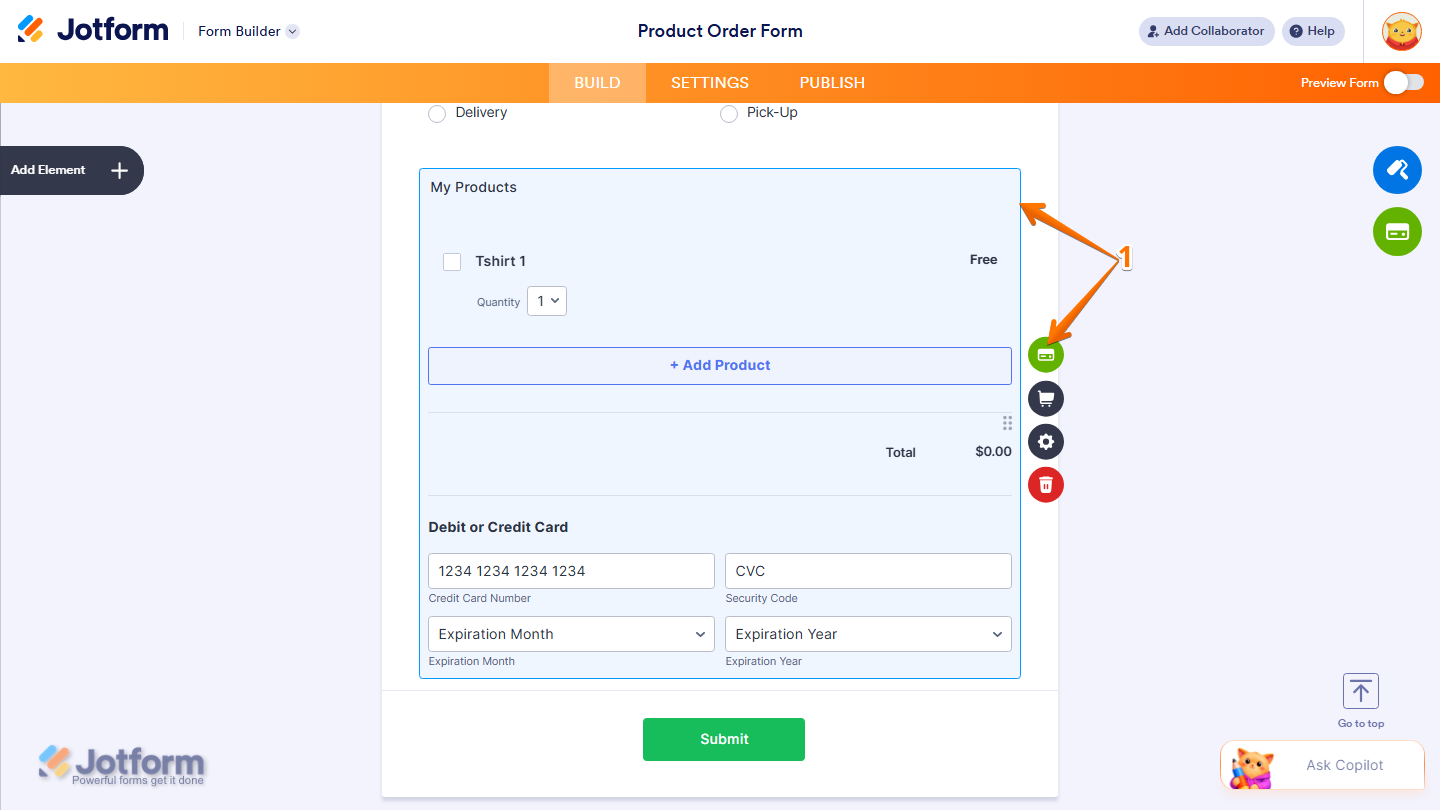
- In Form Builder, select the Product List element where Stripe is connected and click on the Credit Card icon.
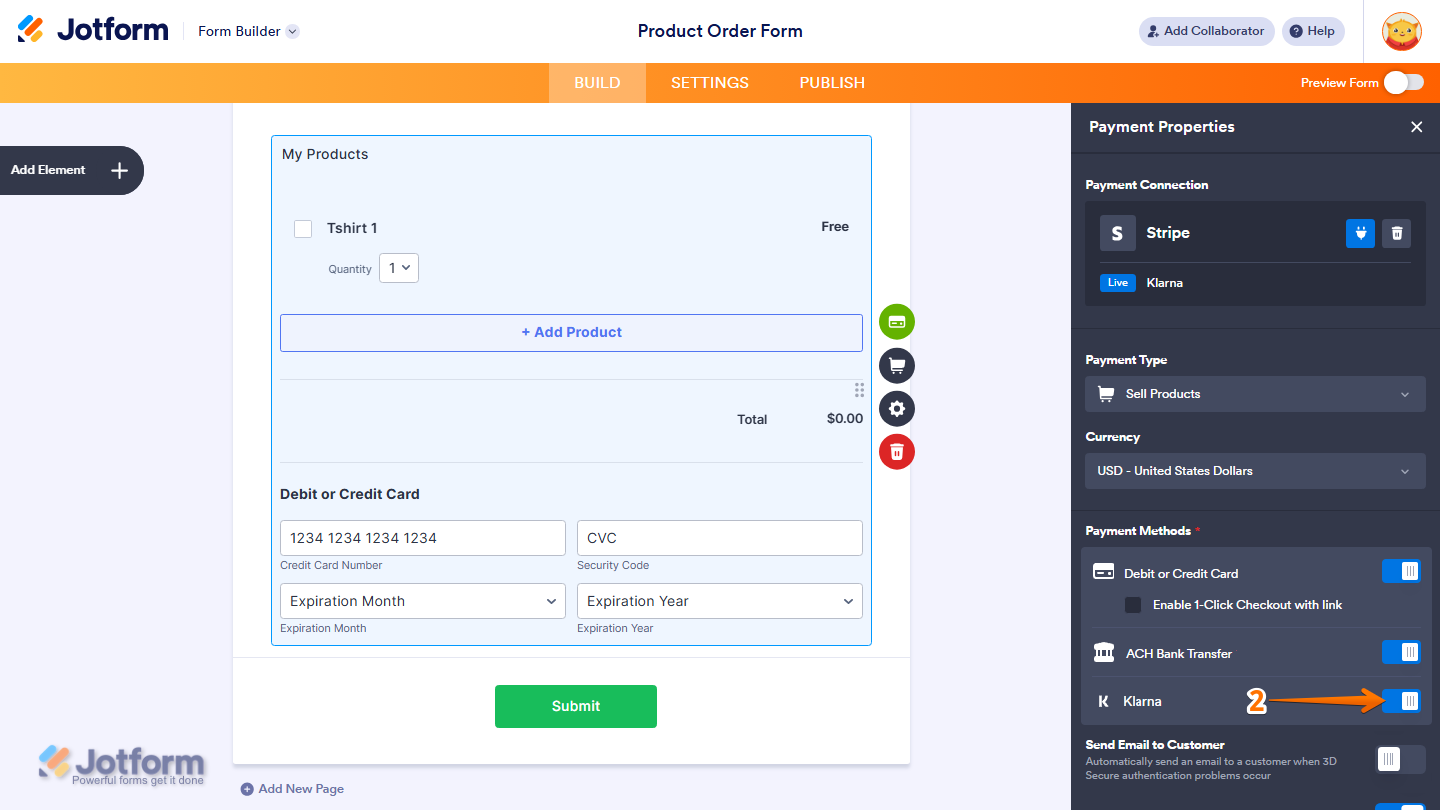
- Then, in the Stripe Integration menu that opens on the right side of the page, under the Payment Methods section, toggle on Klarna, and you’re done.
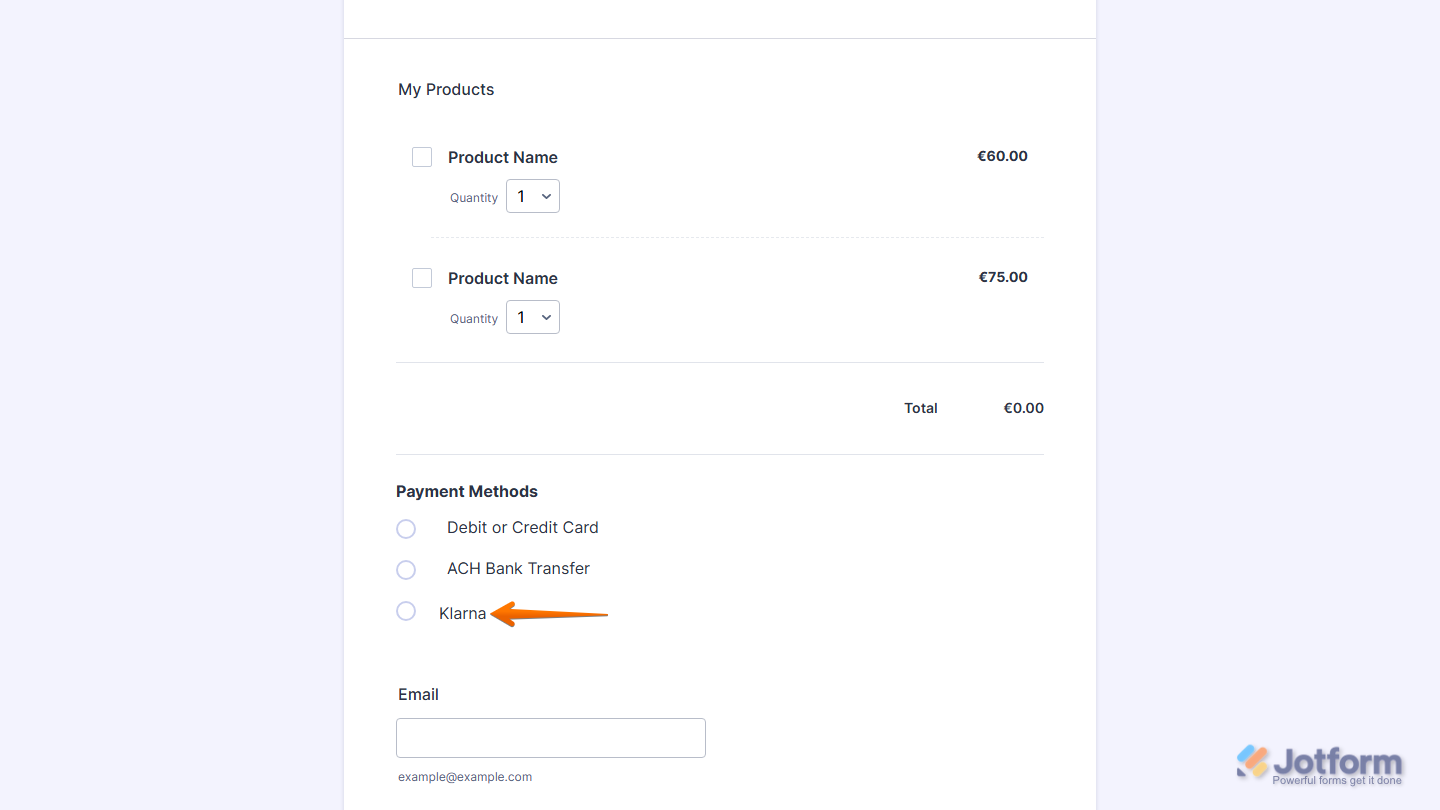
That’s it! Klarna is now enabled as a payment method for your Stripe integration. Eligible customers will be able to select Klarna during checkout.
Note
Klarna availability and payment options are determined by Klarna and Stripe. Customers may see different payment plans depending on their eligibility, location, currency, and purchase amount.
Troubleshooting
Klarna Isn’t Showing During Checkout
If Klarna isn’t appearing as a payment option, check the following:
- Klarna Is Enabled in Jotform — Confirm that Klarna is enabled under the Payment Methods section of your Stripe payment settings.
- Klarna Is Activated in Stripe — Verify that Klarna is enabled in your Stripe Dashboard.
- Supported Currency — Verify that the selected currency is supported by Klarna.
- Eligible Transaction Amount — Confirm that the payment amount meets Klarna’s requirements.
- Supported Customer Location — Verify that the customer is located in a supported country.
No Valid Payment Method Types for This Configuration
This message usually indicates that Klarna isn’t available for the current payment configuration.
Common causes include:
- Klarna isn’t activated in the connected Stripe account.
- The selected currency isn’t supported by Klarna.
- The transaction amount falls outside Klarna’s supported limits.
- The customer is located in an unsupported country.
If you’re using a Stripe connected account, make sure Klarna is activated on the individual connected account, not only on the platform account.
Note
In Stripe test mode, Klarna is available without requiring explicit activation. However, Klarna must be activated before it can be used in live mode.
Frequently Asked Questions
Are There Additional Jotform Fees?
No. Standard Jotform plan fees apply. Any transaction fees are determined by Stripe and Klarna.
Can Customers Pay in Installments?
Yes. Available payment options depend on the customer’s location, purchase amount, and Klarna eligibility.



Send Comment: