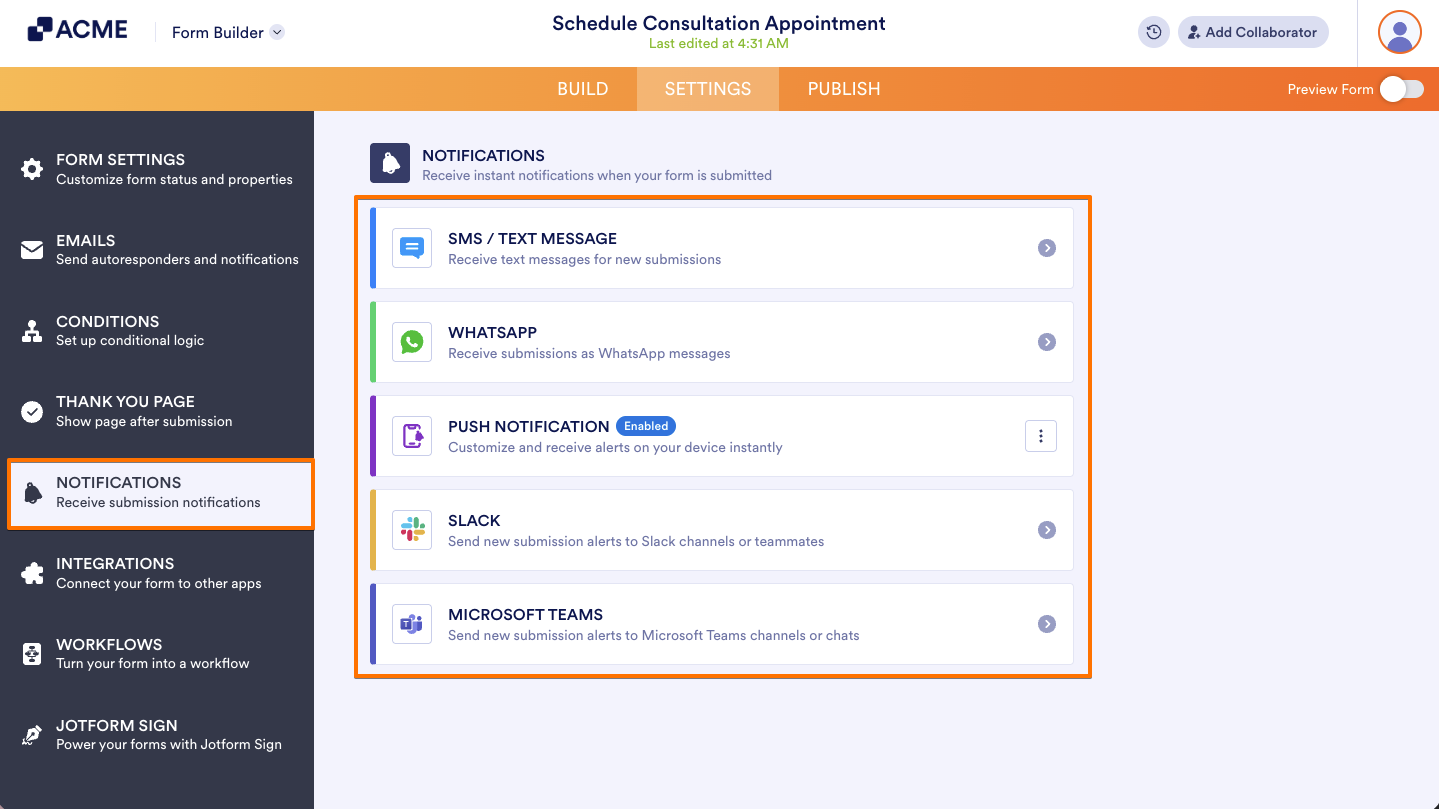
In your organization, it is possible to manage notifications across all users. As an Admin, you can configure which notifications are enabled or not, control their availability across all forms, and ensure consistent communication and alert settings throughout your organization.
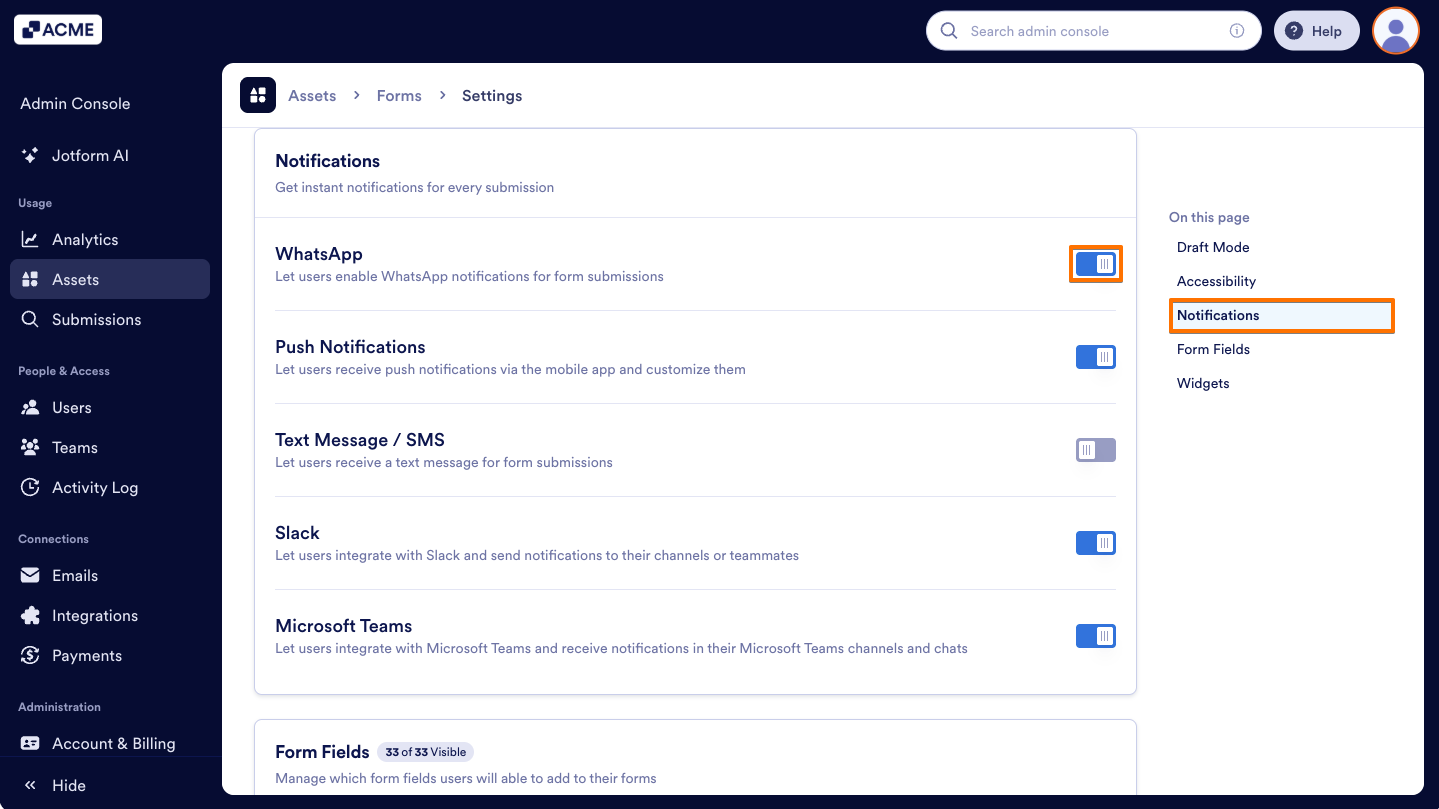
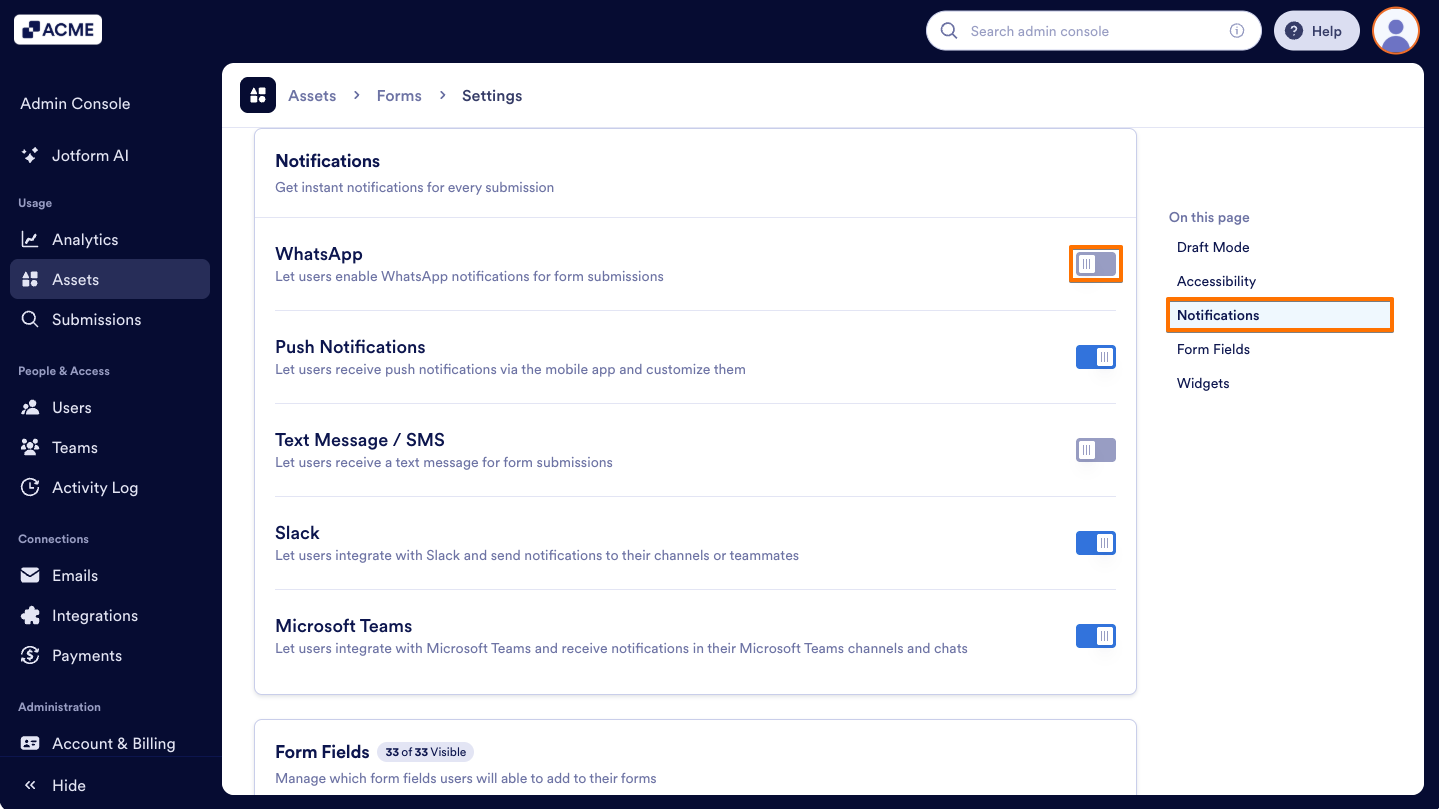
WhatsApp: Toggle on to receive notifications via WhatsApp, or toggle off to stop receiving them.
Push Notifications: Toggle on to get instant notifications on your device, or toggle off to disable them.
Text Message/SMS: Toggle on to receive notifications via SMS, or toggle off to stop text alerts.
Slack: Toggle on to receive notifications in your Slack workspace, or toggle off to disable them.
Microsoft Teams: Toggle on to get notifications in Microsoft Teams, or toggle off to stop them.
Turning Off the Notifications
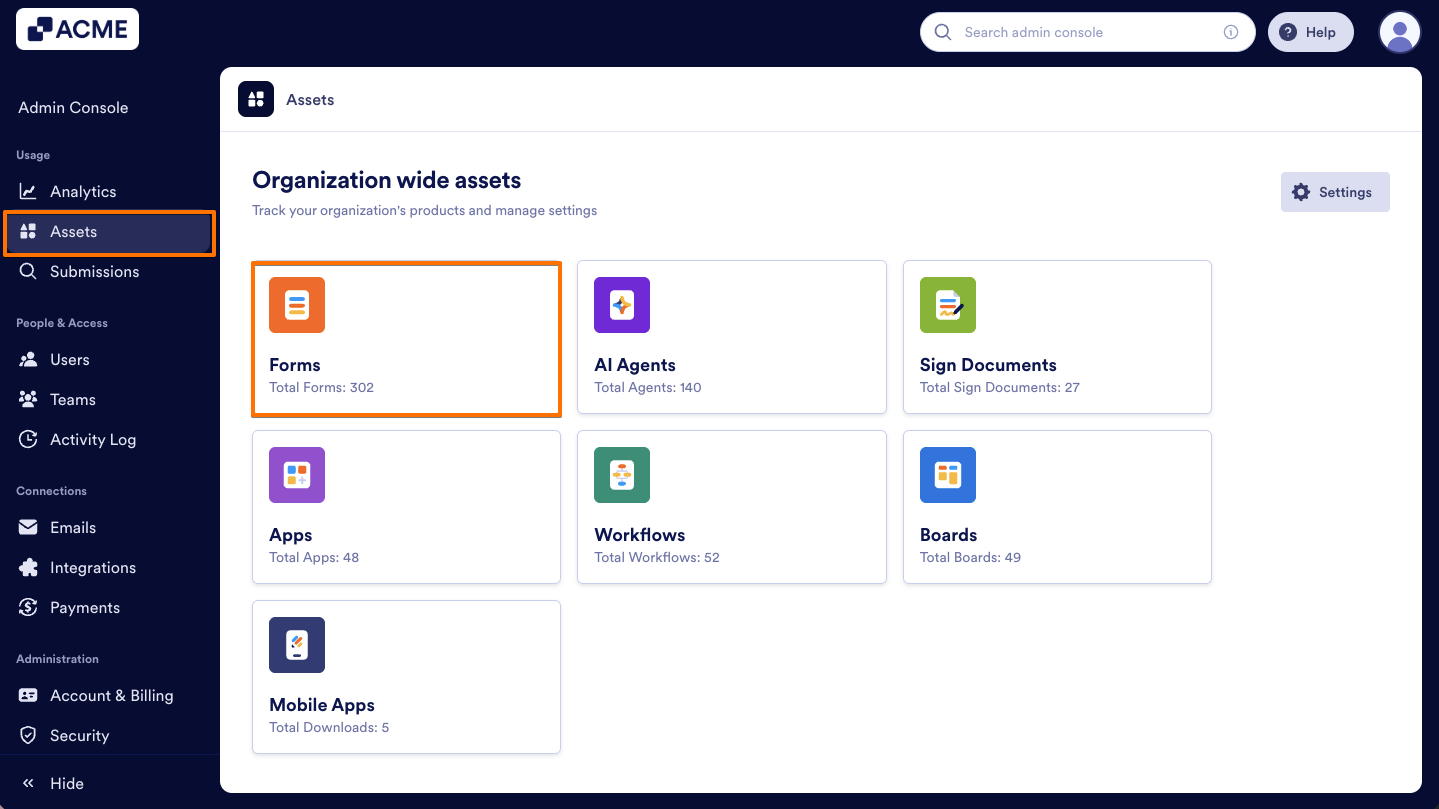
- In the Admin Console, on the left side of the page, click on Assets.
- Then, select Forms.
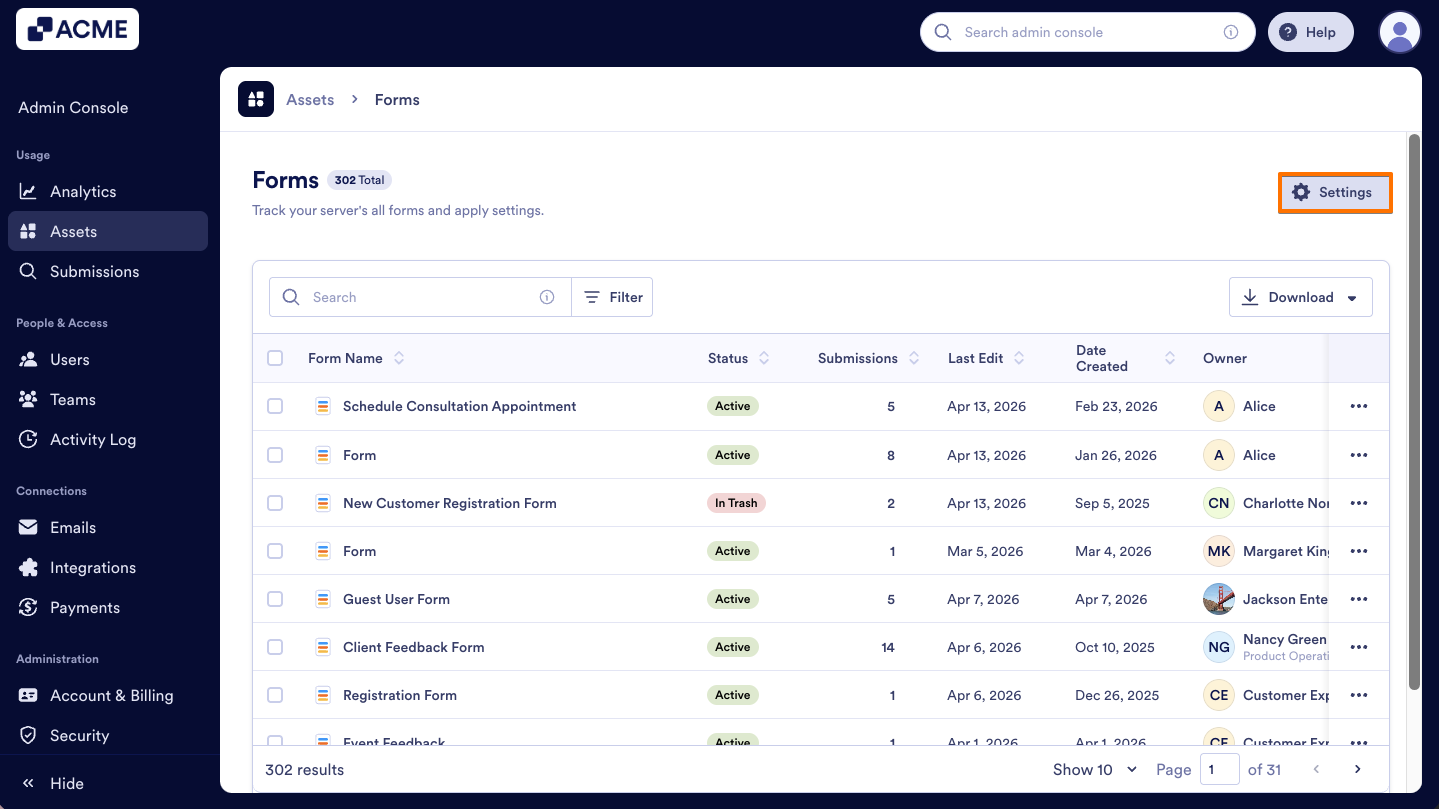
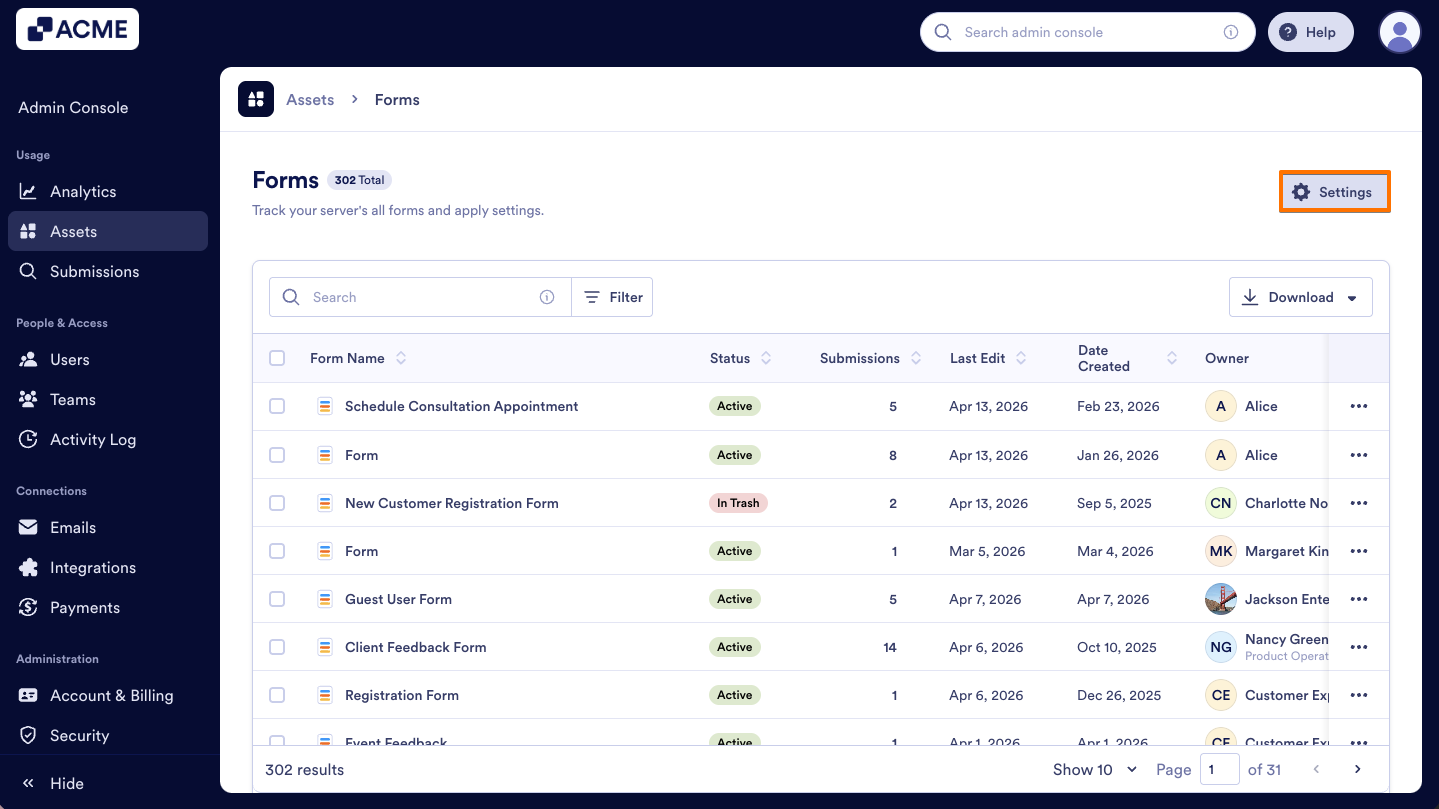
- On the Forms Assets page, click on the Gear icon in the upper-right corner to open Form Settings.
- In the Notifications section, toggle the switch for the notification option you want to disable to Off.
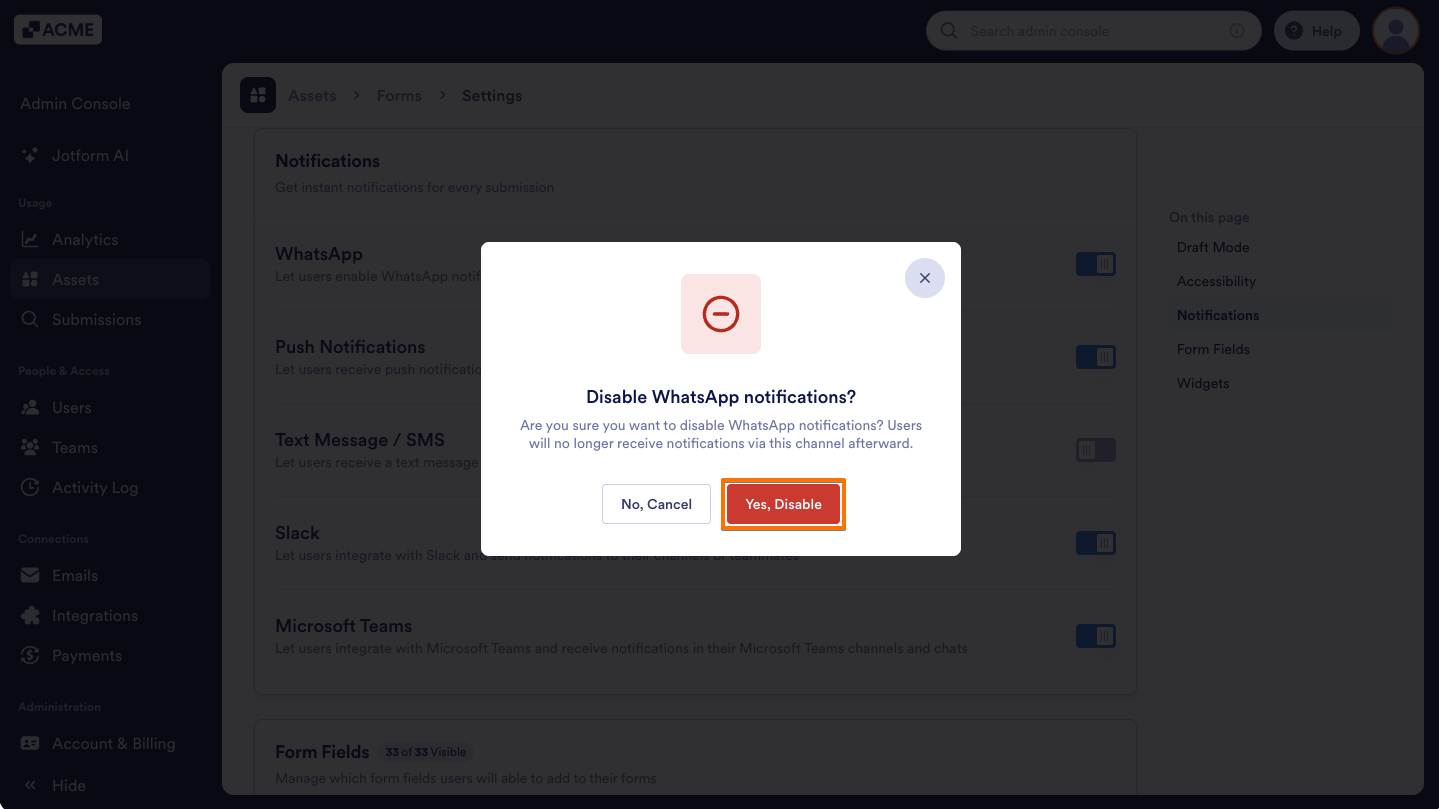
- Finally, confirm your selection in the pop-up window by clicking Yes, Disable.
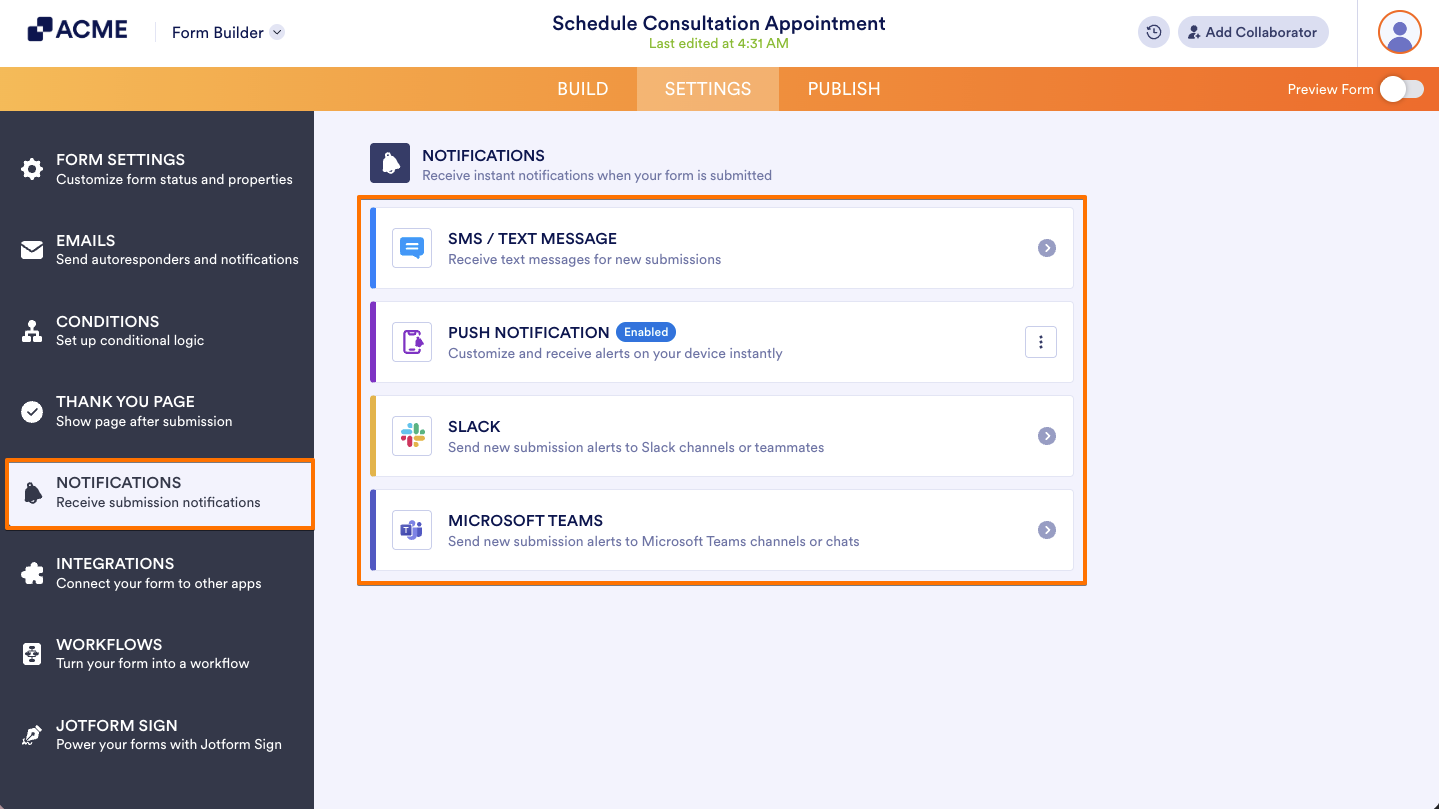
- After turning off an option, it will be hidden in the Form Builder’s Settings, in the Notifications section.
Turning On the Notifications
- On the Admin Console’s Forms Assets page, click the Gear icon in the upper-right corner to open Form Settings.
- Under the Notifications section, toggle the switch next to the previously disabled notification option to On.
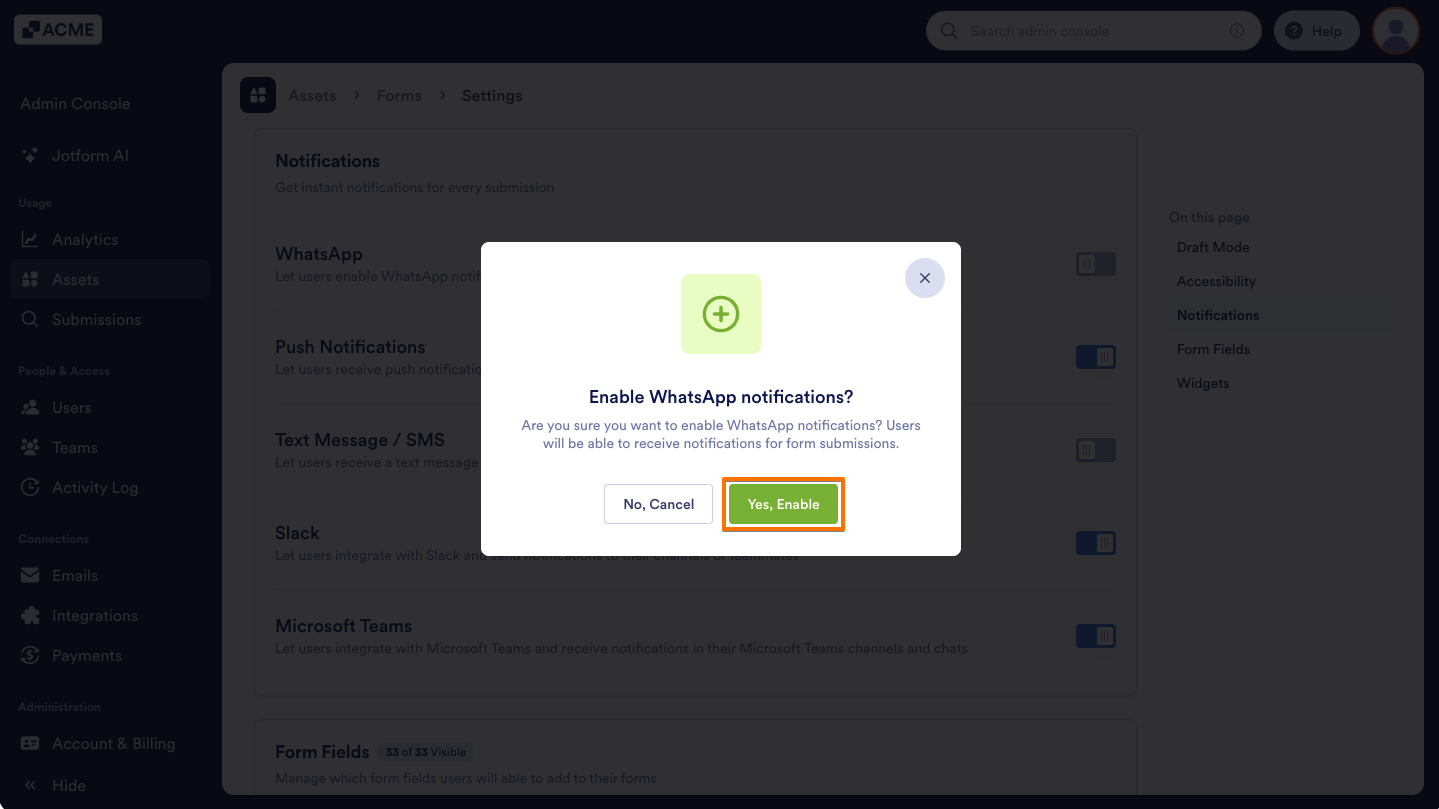
- On the pop-up window that comes up, click on Yes, Enable to confirm.
- After enabling the option, it will appear again in the Form Builder’s Notifications section.

Send Comment: