Teams provide a shared workspace to centralize all assets used by your team in the organization. To ensure your team stays updated on important milestones, the system sends notifications whenever a signing event occurs—whether it involves a standard document or an automated form with a signature field. As a team admin, you can decide which members will receive notifications when these events happen.
Accessing Notification Settings
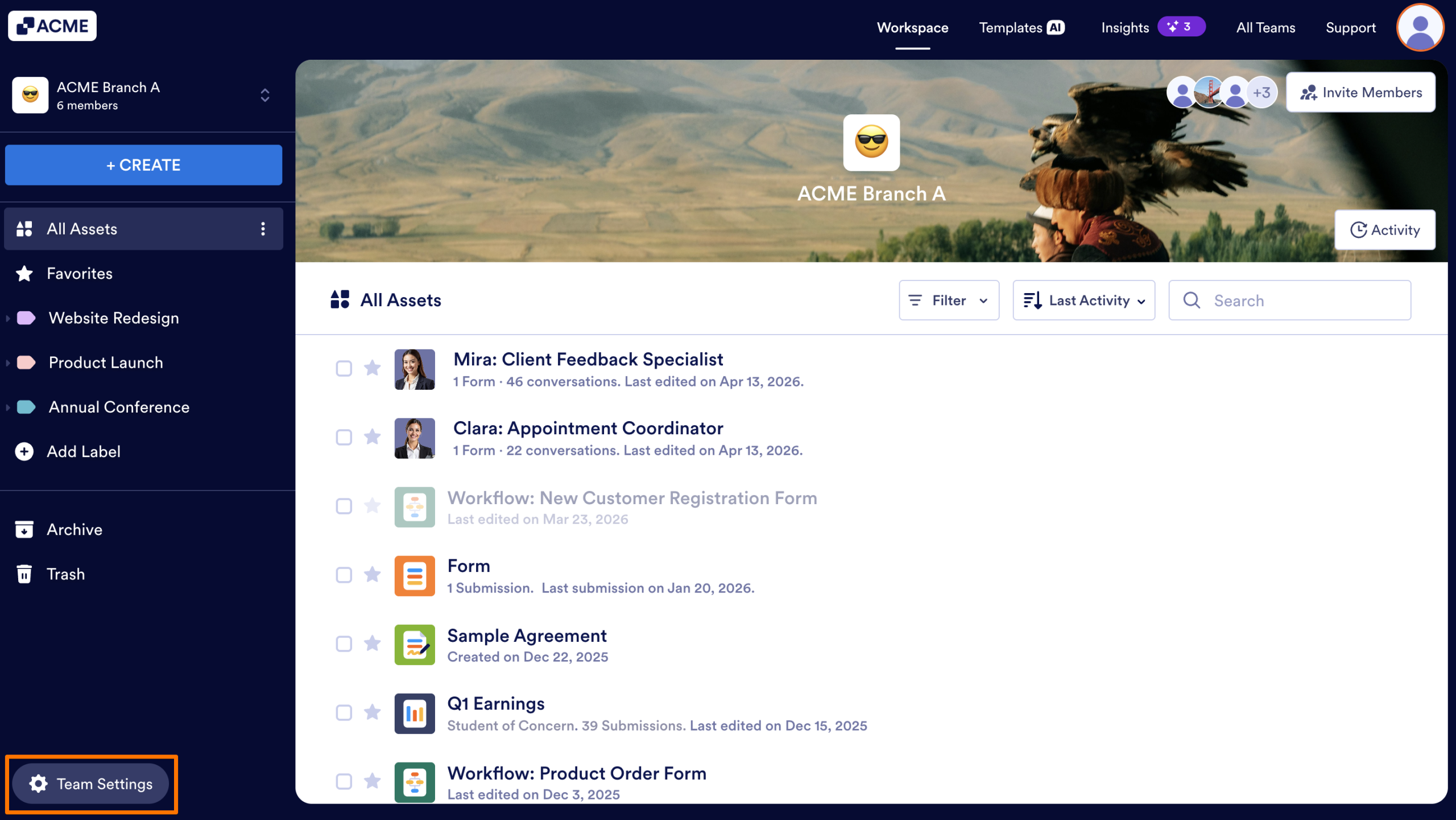
- In Team Workspace, click on the Team Settings button on the bottom left.
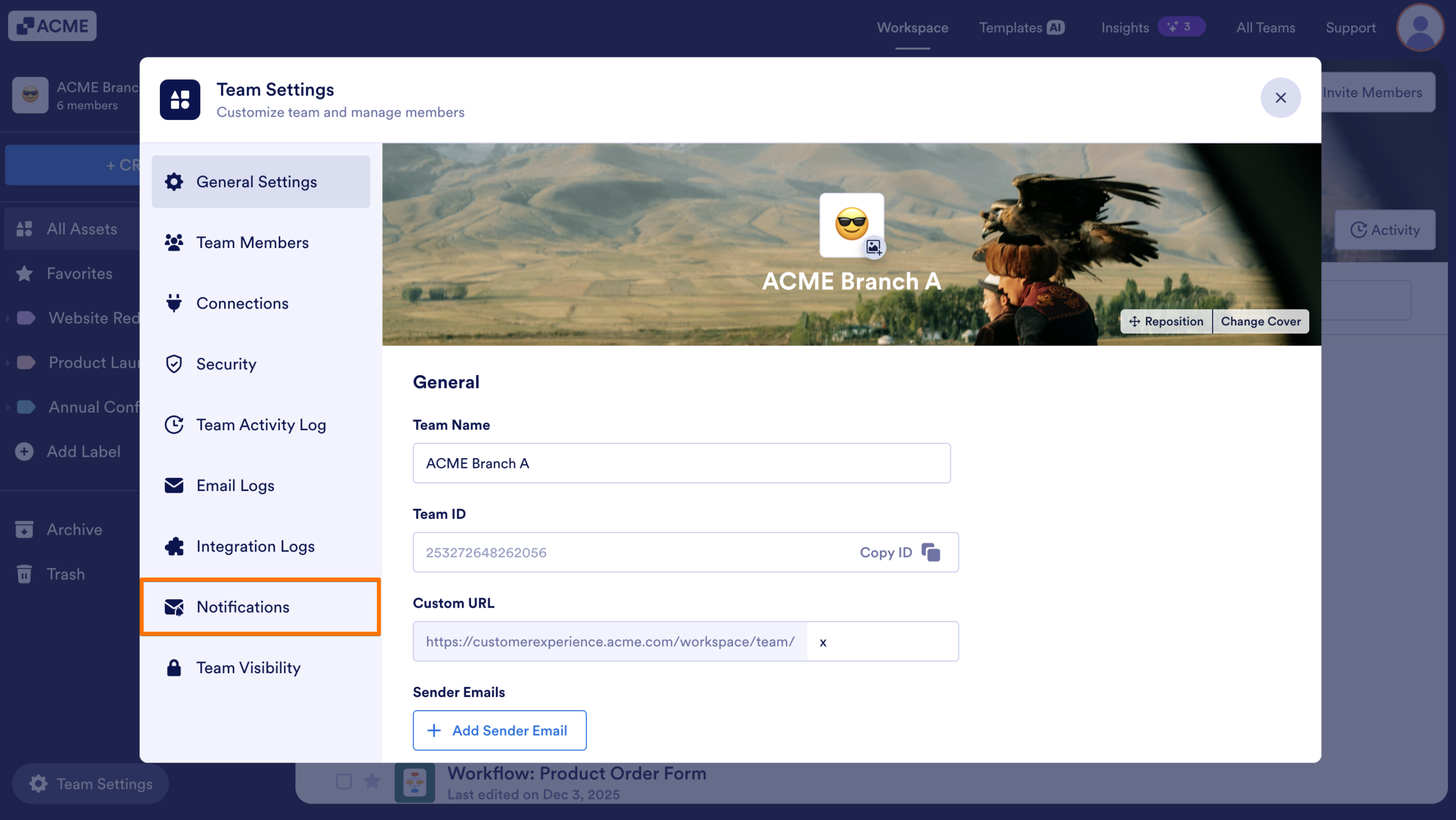
- Next, select Notifications at the bottom left side.
Editing Recipients
You can update who receives notifications directly from the Notifications section:
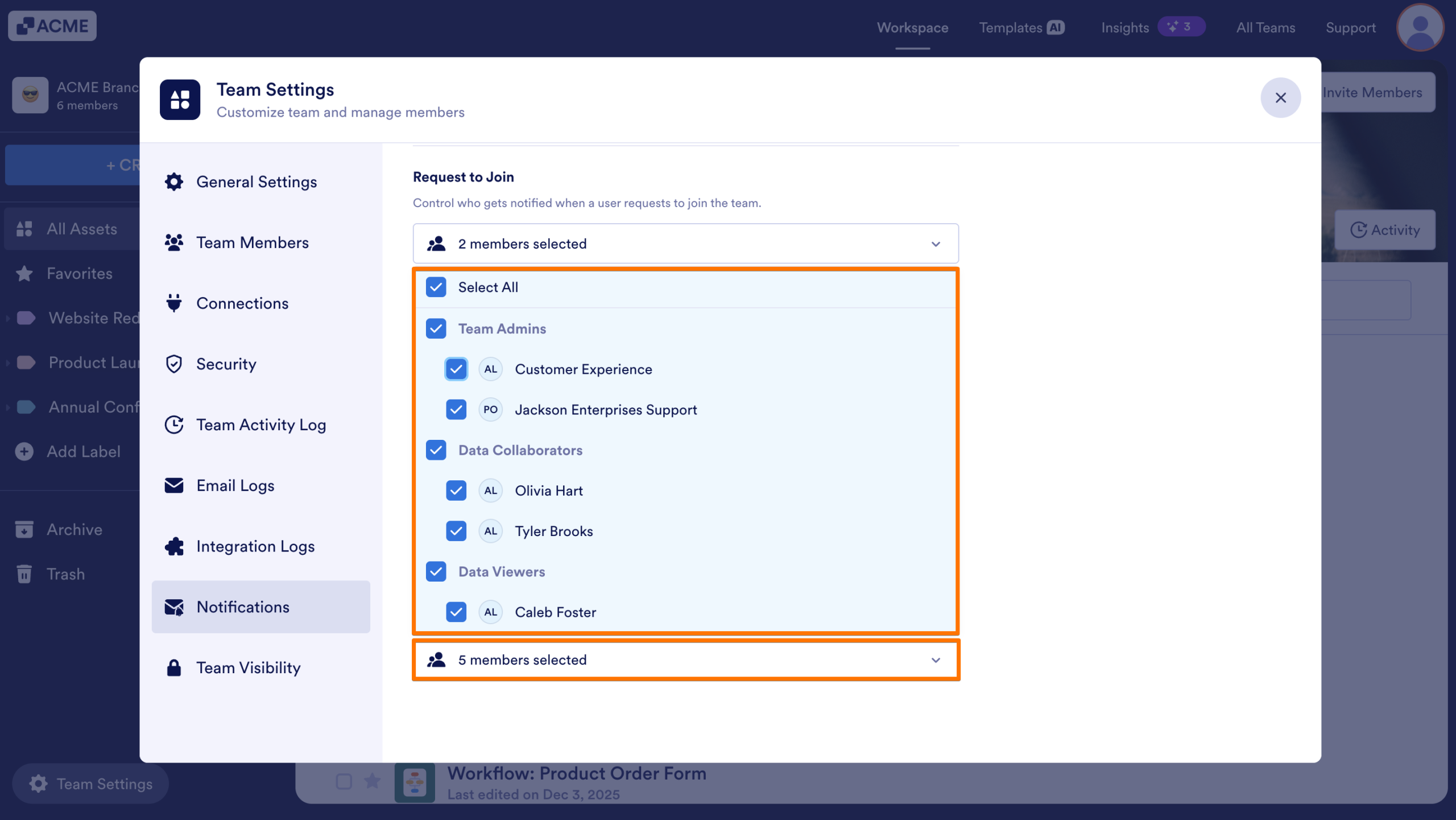
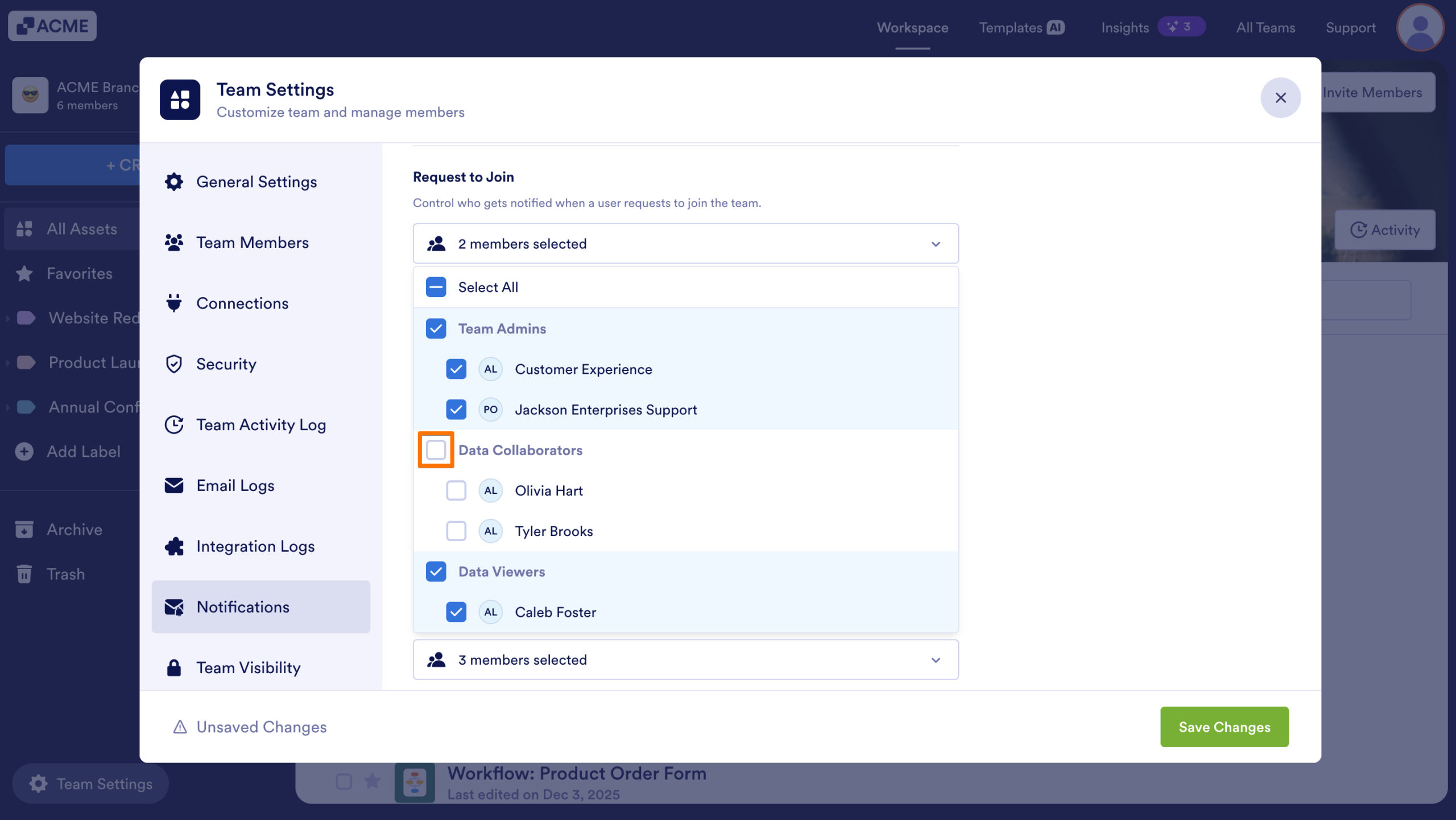
- In the Notifications section, click on the dropdown under the Sign Document Events.
- Next, check or uncheck the box next to the members you want to manage.
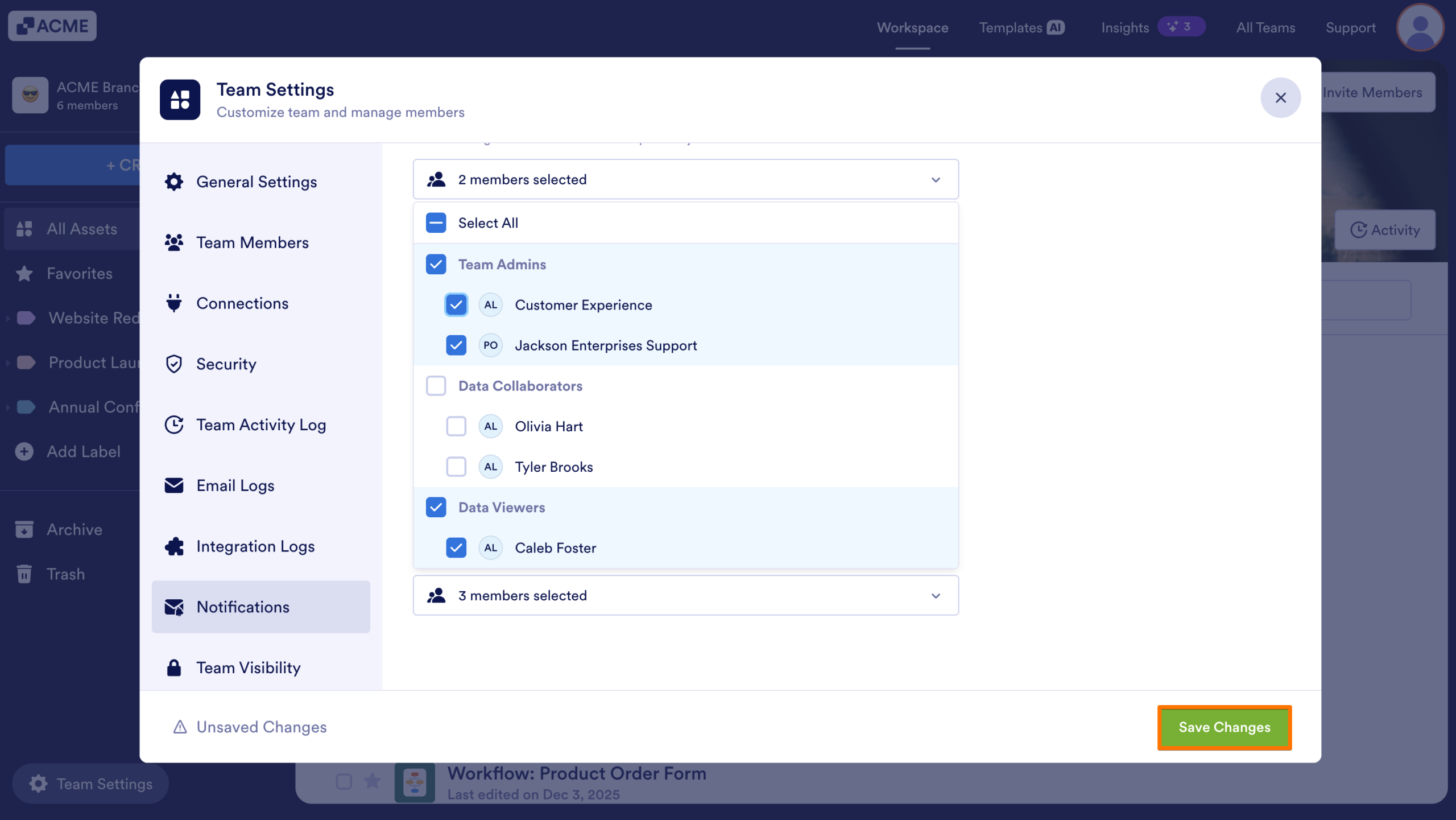
- Finally, click on Save Changes on the bottom right.
Tip
You can select all users in a role by clicking the checkbox next to that role.

Send Comment: