Inbox Comments notifications determine who gets notified when comments are added or replied to within a form submission inbox in a team workspace. By managing these settings, team admins can control which team members receive notification emails for all inbox comments.
Accessing Notification Settings
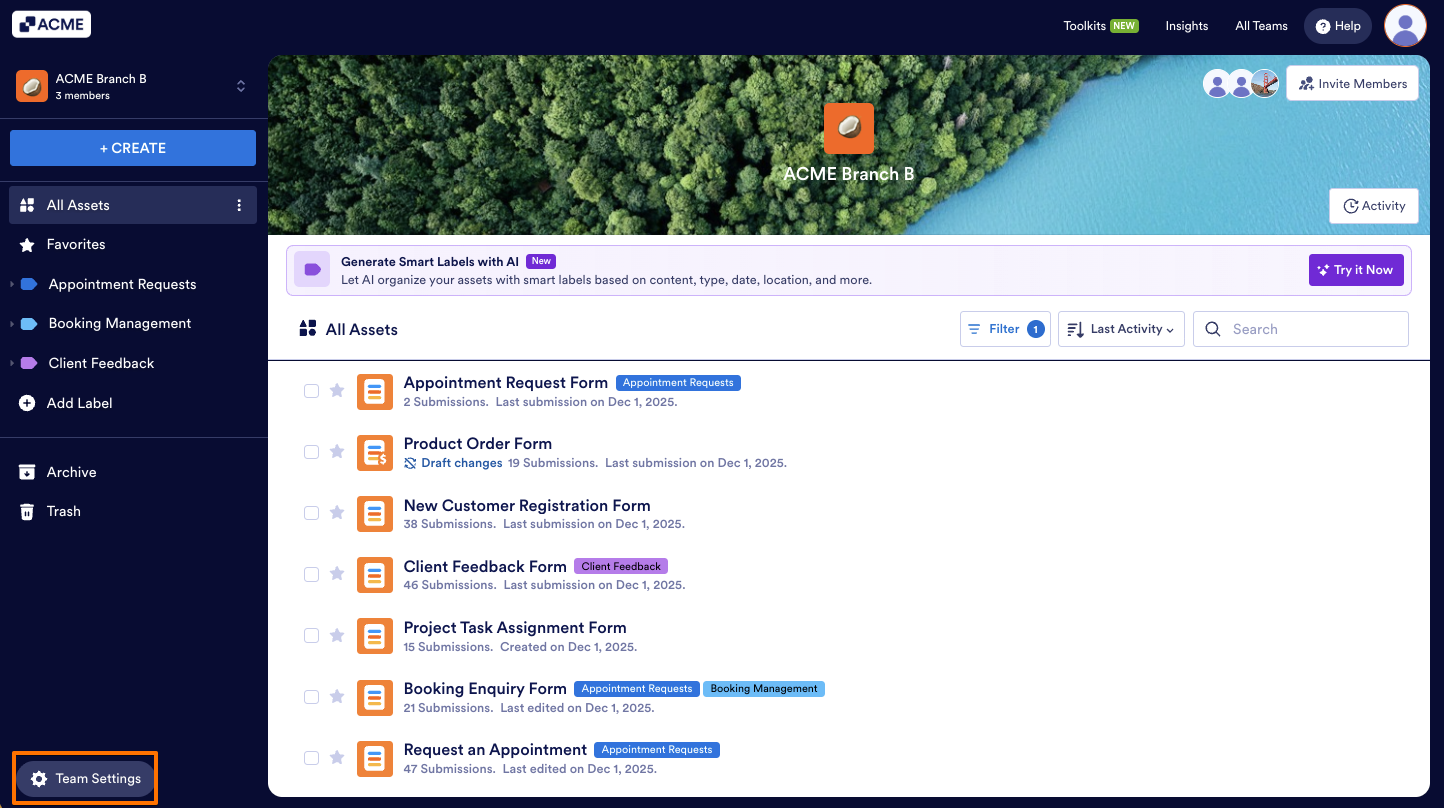
- In Team Workspace, click on the Team Settings button on the bottom left.
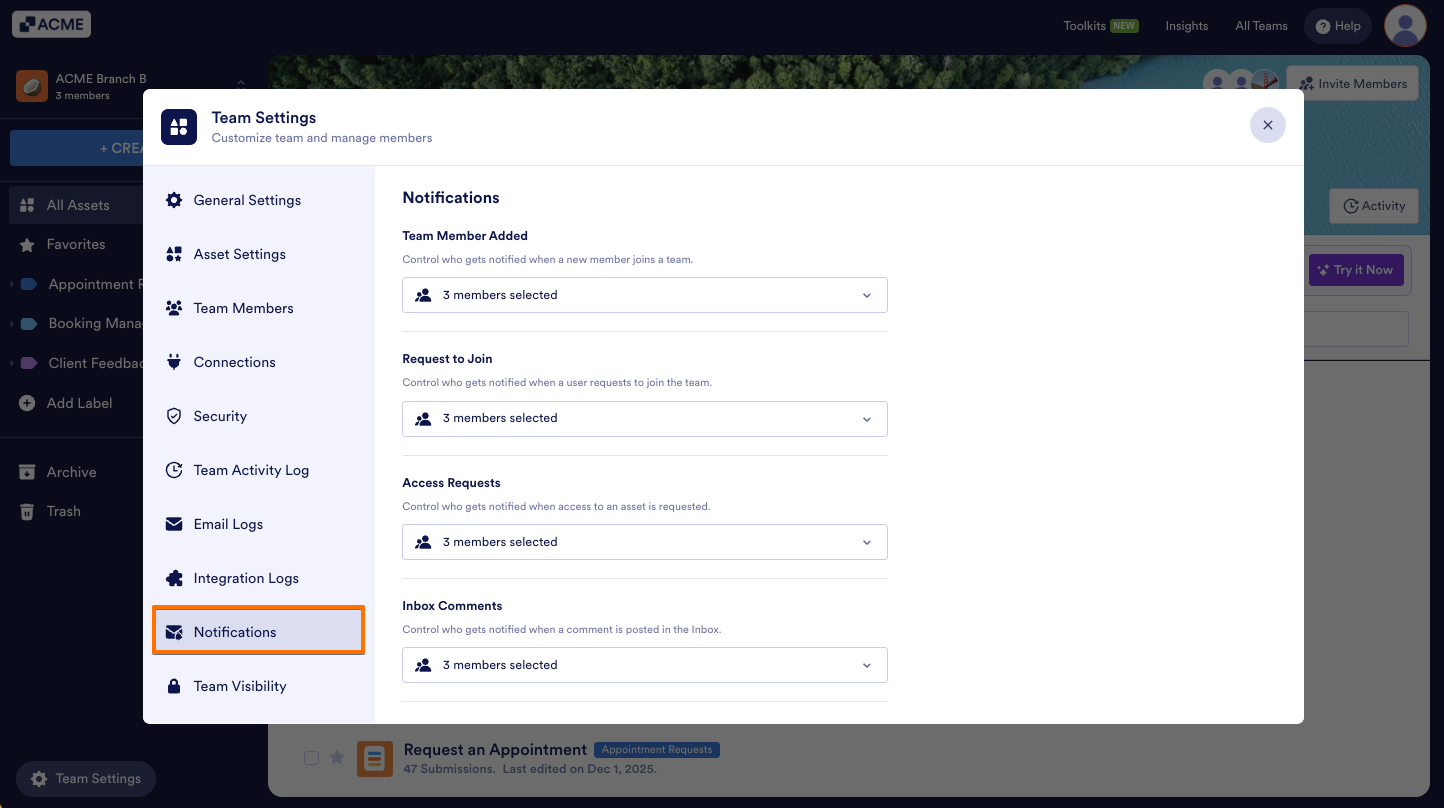
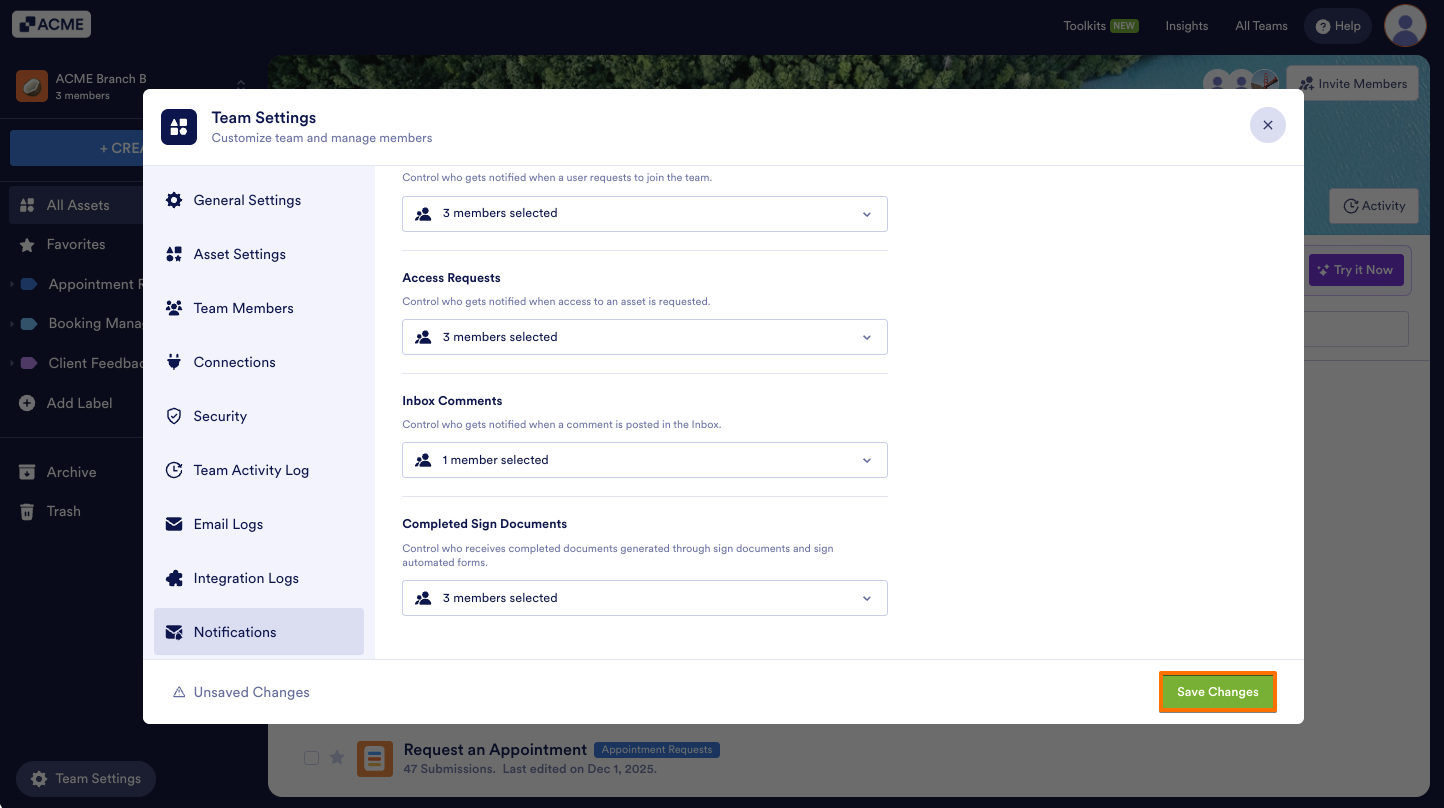
- Next, select Notifications from the left menu.
Tip
You can only edit notification settings for the teams you are an admin of.
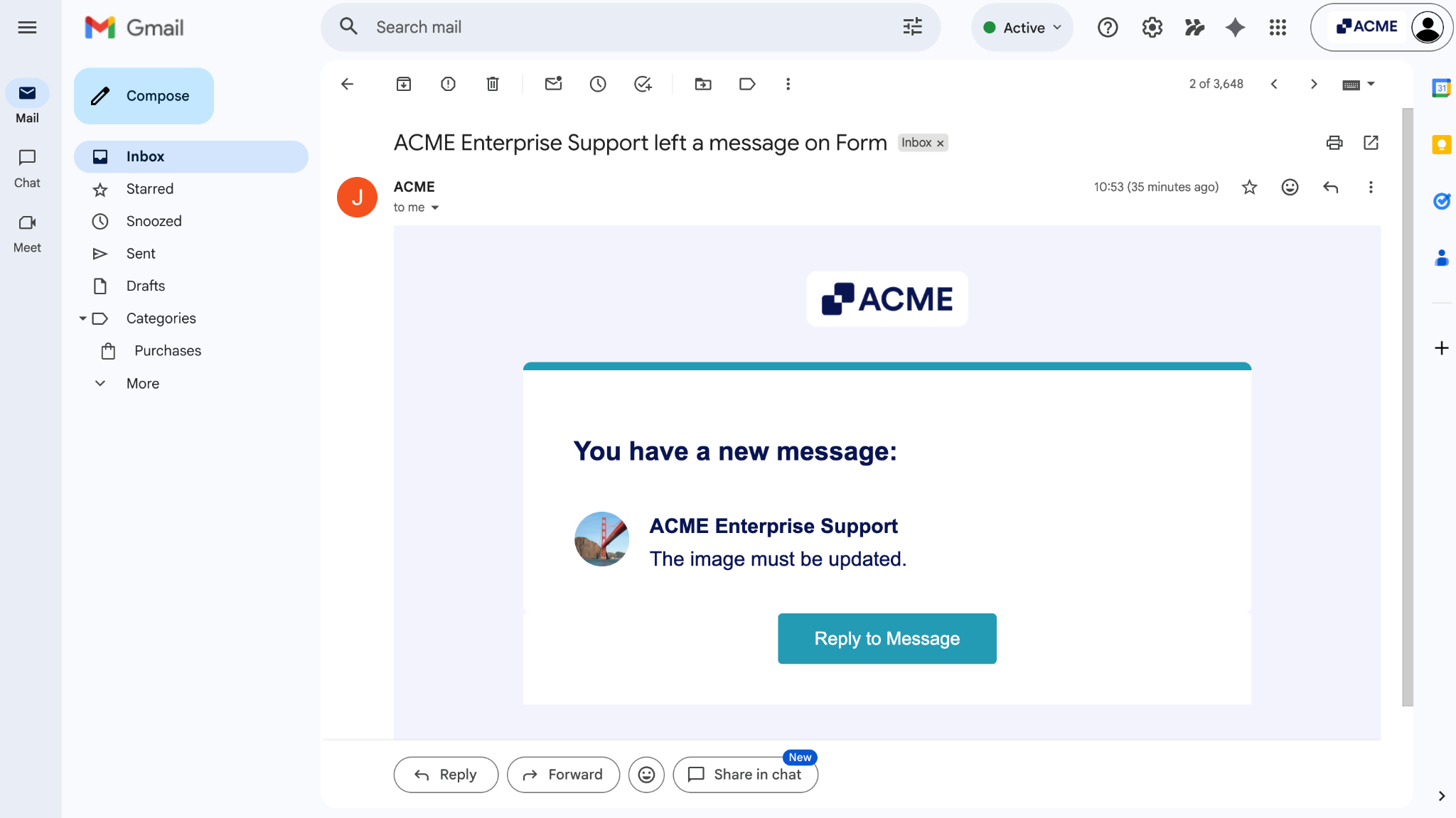
Inbox Comments notifications are delivered via email to the selected recipients. Below is an example of how these notifications appear.
Editing Recipients
You can update who receives notifications directly from the Notifications section:
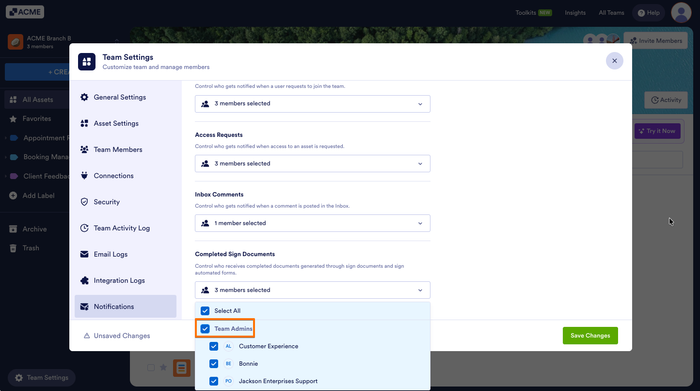
- In the Notifications section, click on the dropdown under Inbox Comments.
- Next, check or uncheck the box next to the members you want to manage.
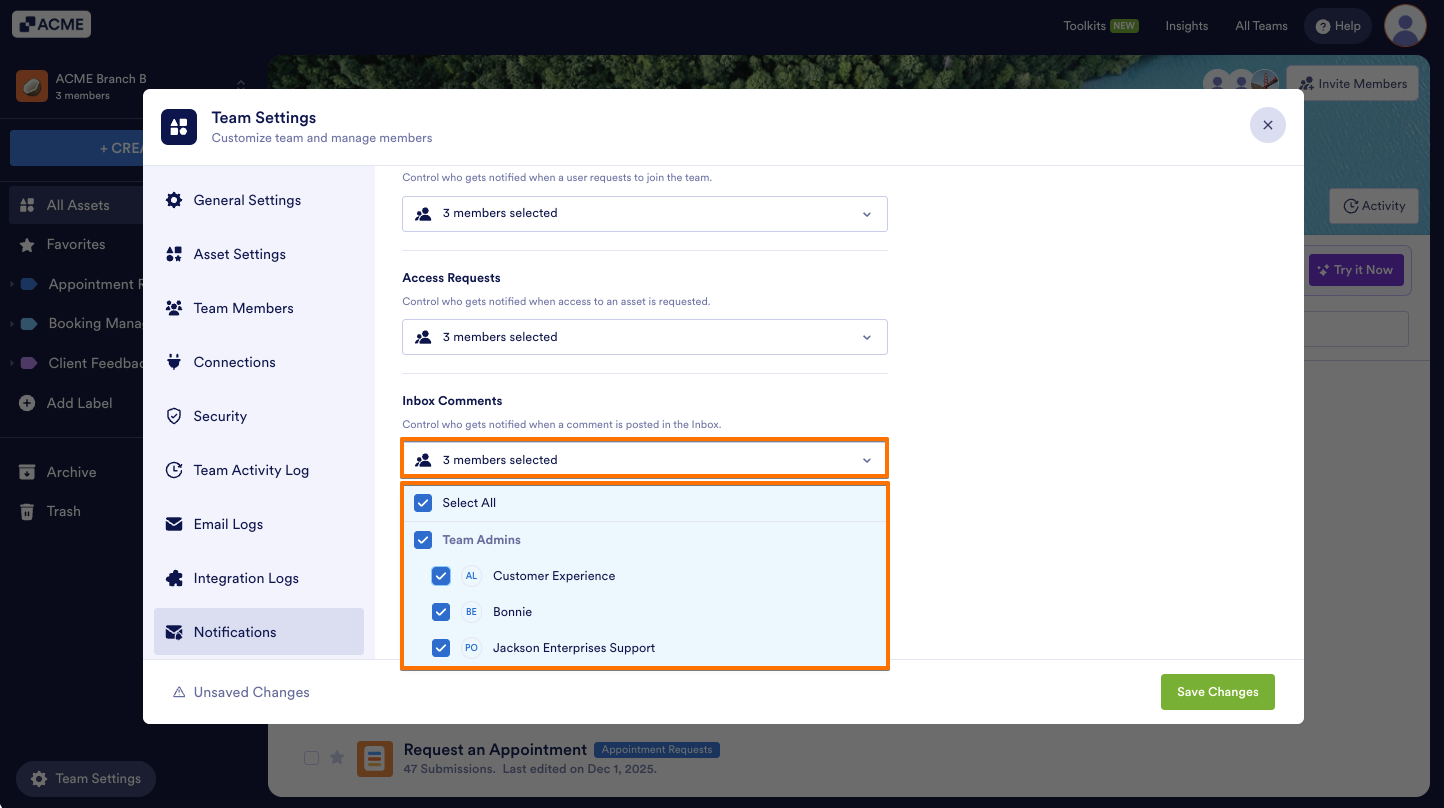
- Finally, click on Save Changes on the bottom right.
See also:

Send Comment: