Team notification recipients determine which team members receive notifications for specific team events. Managing these settings ensures the right people are informed when key actions happen within your team, without notifying unnecessary members.
Accessing Notification Settings
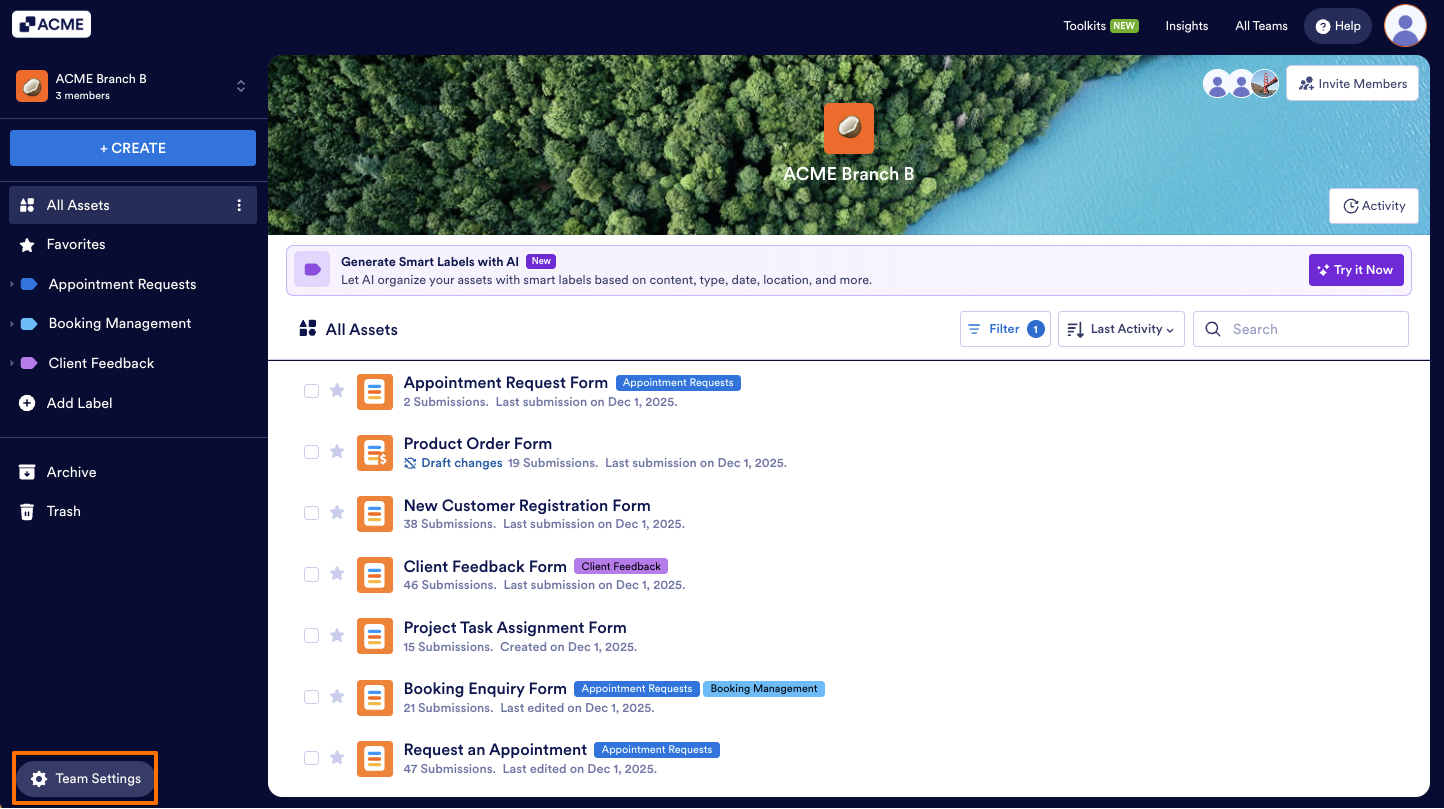
- In Team Workspace, click on the Team Settings button on the bottom left.
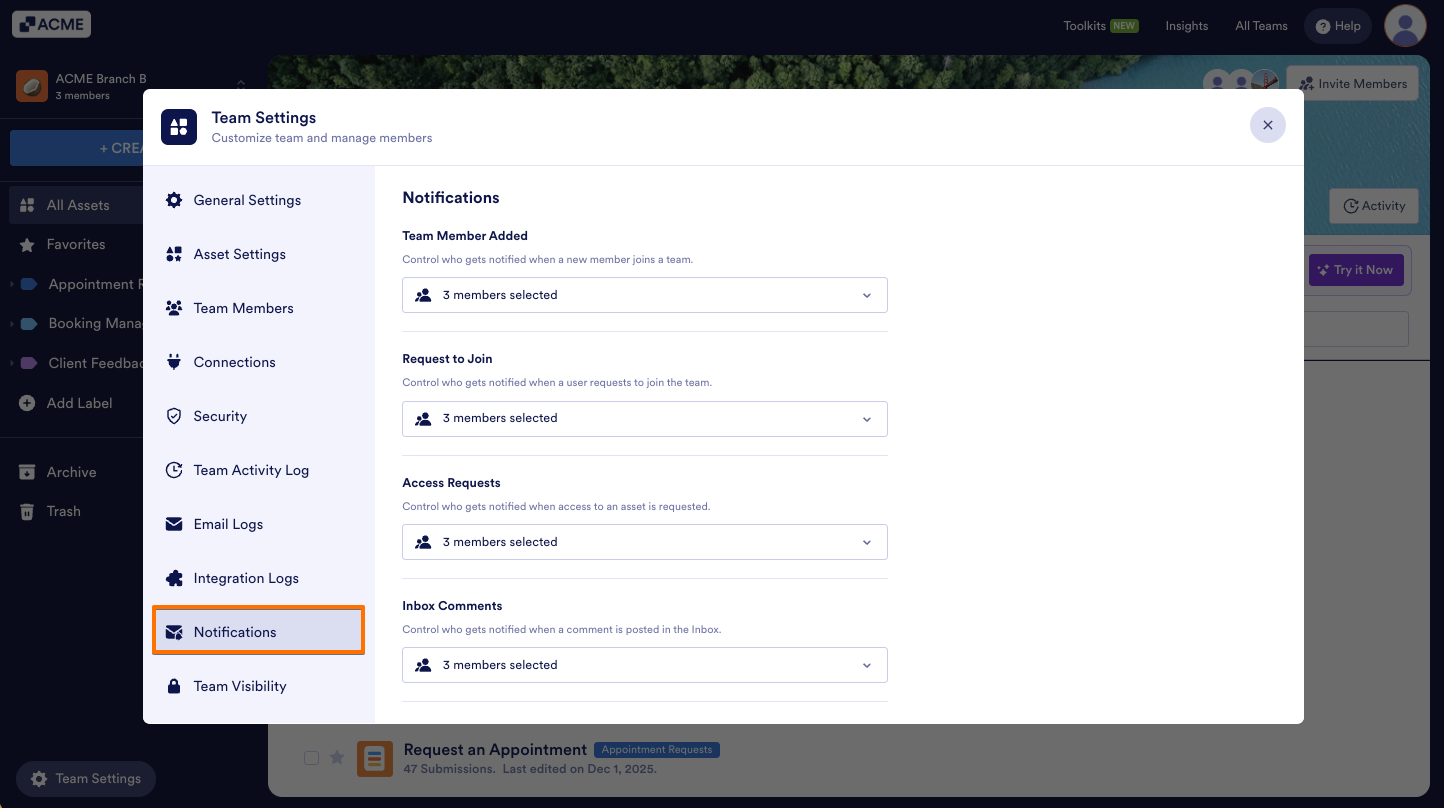
- Next, select Notifications at the bottom left side.
Tip
You can only edit notification settings for the teams you are an admin of.
Understanding Team Notification Types
In the Notifications panel, you can manage recipients for different team-related events. Each section represents a specific type of notification, and you can choose which team members will be notified for each one.
- Team Member Added
Notifies selected members when a new user joins the team. - Request to Join
Sends alerts when someone requests to join your team, allowing admins to review and take action. - Access Requests
Notifies members when a user requests access to an asset, such as a form or resource.
Editing Recipients
You can update who receives notifications for each event type directly from the Notifications panel:
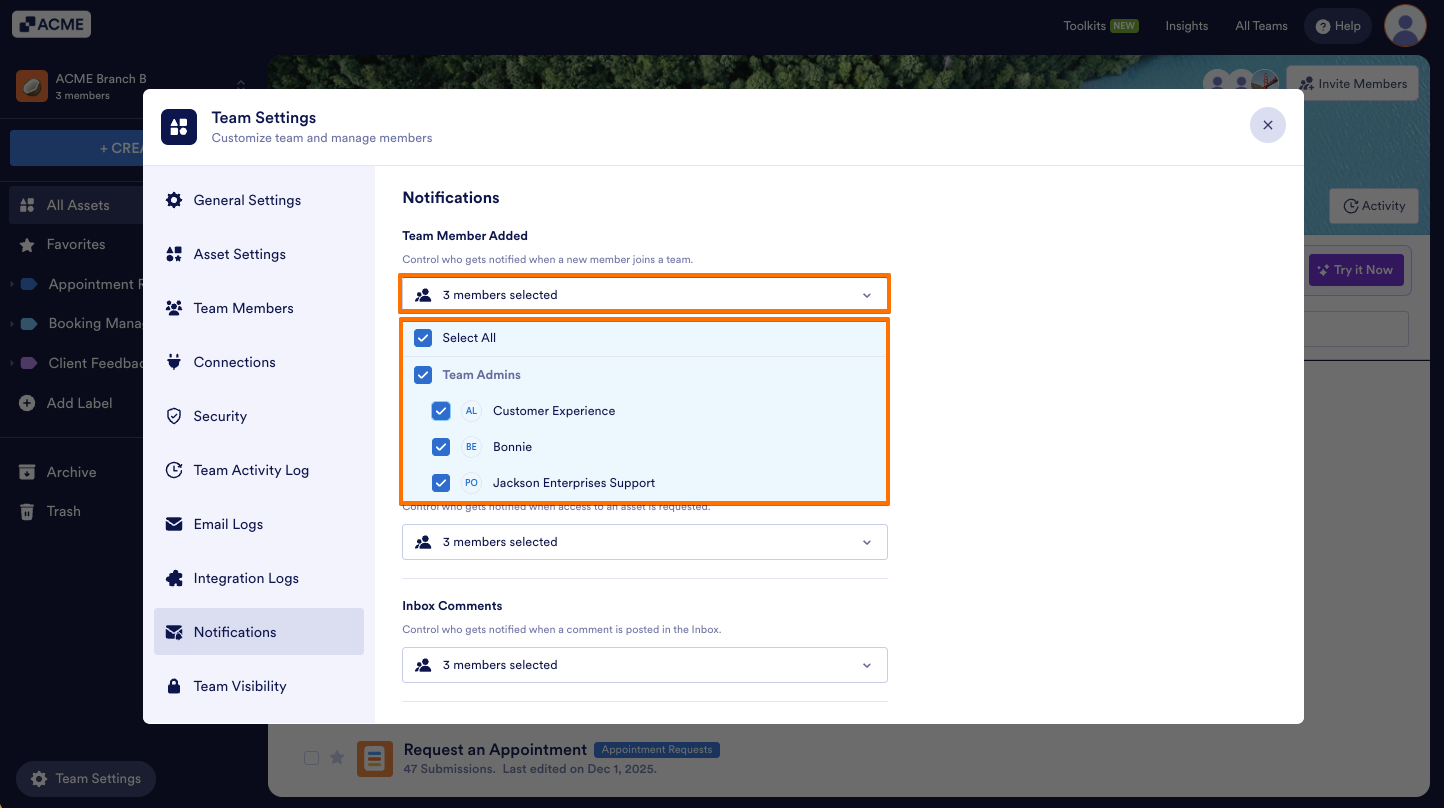
- In the Notifications section, click the dropdown under the notification type you want to edit recipients for.
- Next, check or uncheck the box next to the members you want to manage.
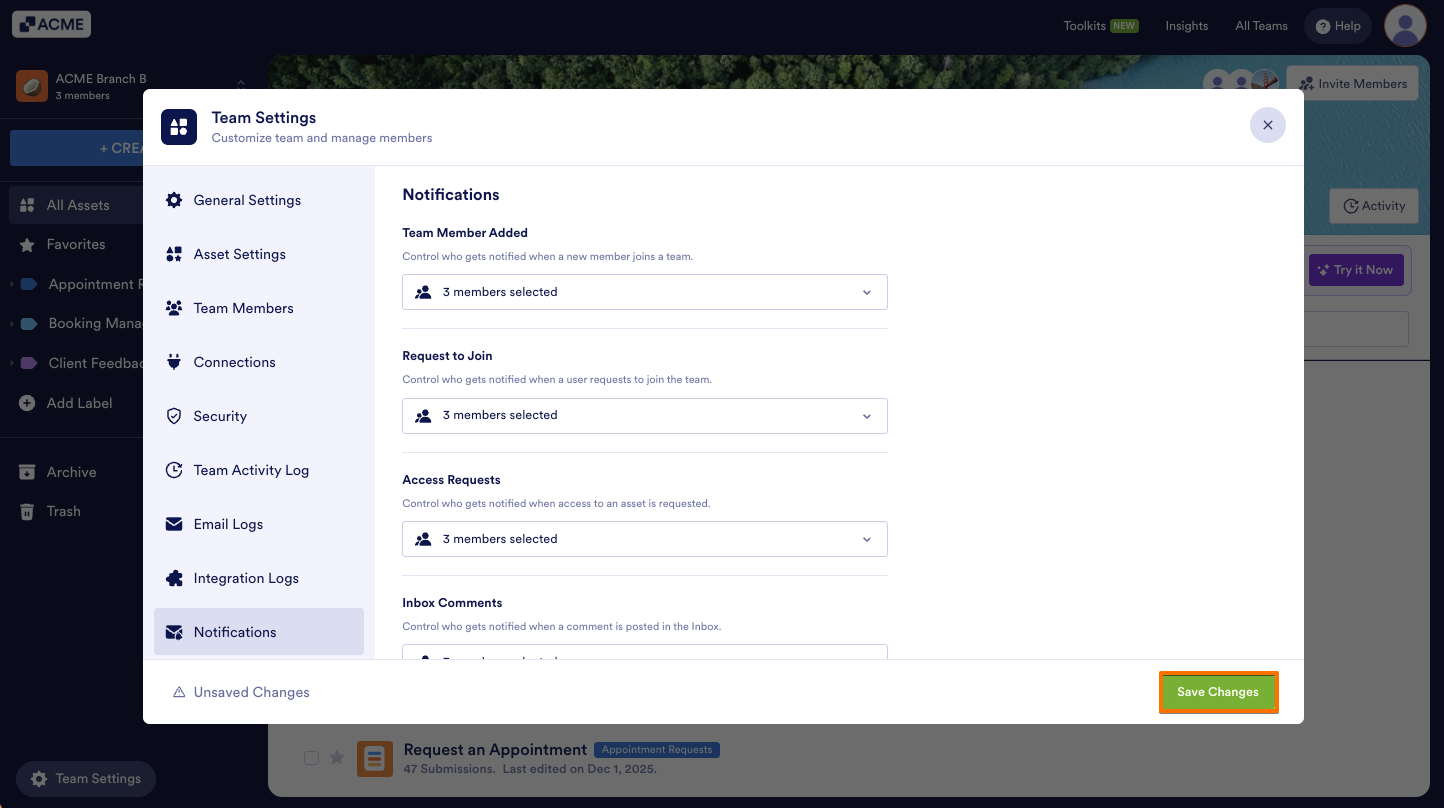
- Finally, click on Save Changes on the bottom right.
See also:

Send Comment: