In Tables, the column headings in your table represent the labels of the fields on the connected form. In some cases, you may find it helpful to rename these columns to something descriptive and meaningful to easily interpret datasets.
Follow these steps to rename a column in your table:
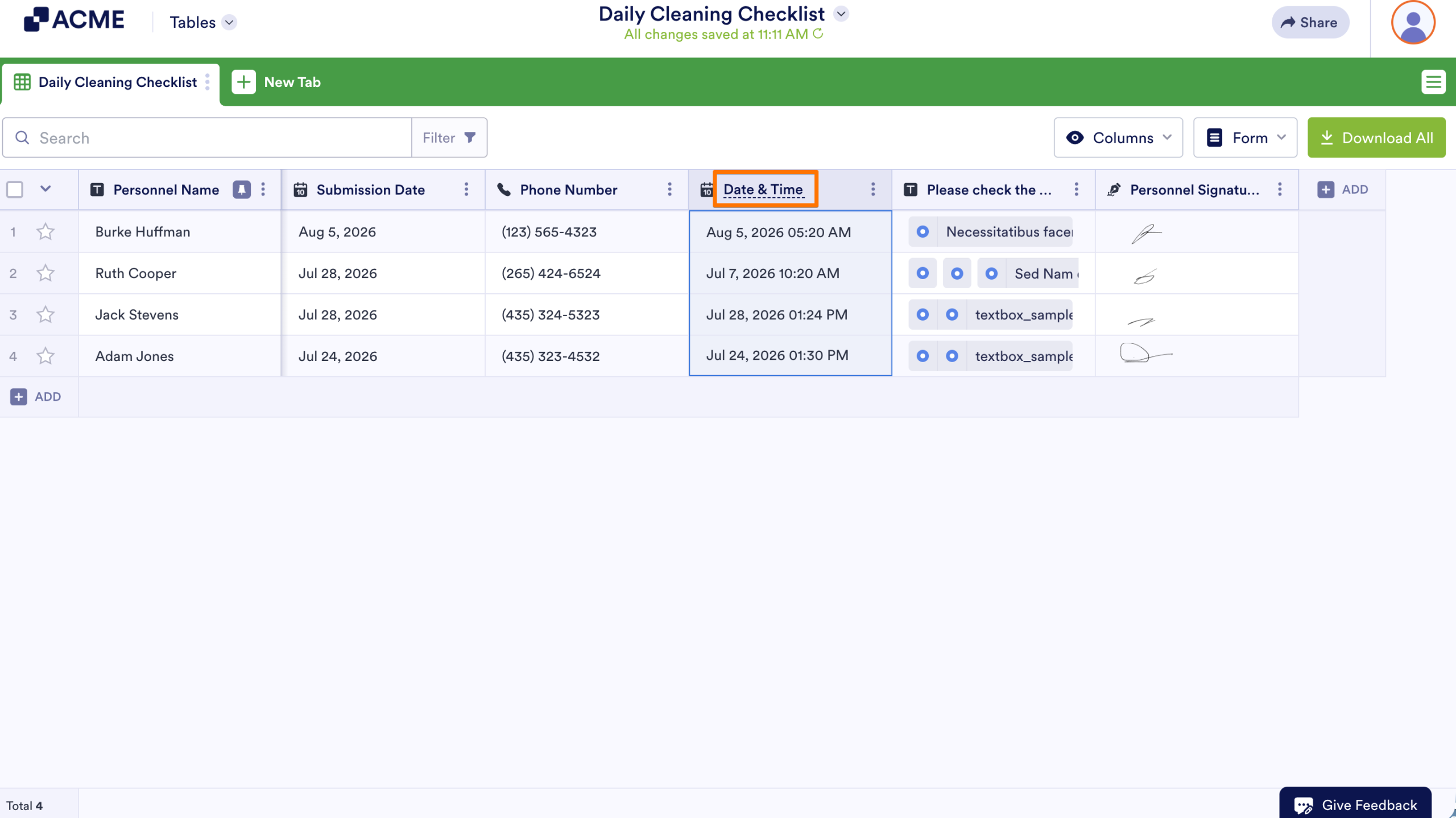
- In Tables, double-click on a column name to start typing a new one.
- Once you’re done, press Enter or click anywhere outside the column name to save your changes.
Note
Renaming a column doesn’t change the field label on the form linked to your table.
Any updates to the column name save automatically.
If the page hasn’t been reloaded, press CTRL+Z on Windows and CMD+Z in MacOS to undo a column name change.

Send Comment: