Form Builder and Tables work together. This certain type of feature tells Tables to copy the labels and the order of the fields from the Form Builder. In Tables, you can change the labels and order of the fields directly. However, doing so deactivates the synchronization.
While you can manually rename and move the fields back to their original name and order, doing this on long forms is tedious. If you need this done quickly, follow these simple steps to reset the table columns to their default name and position:
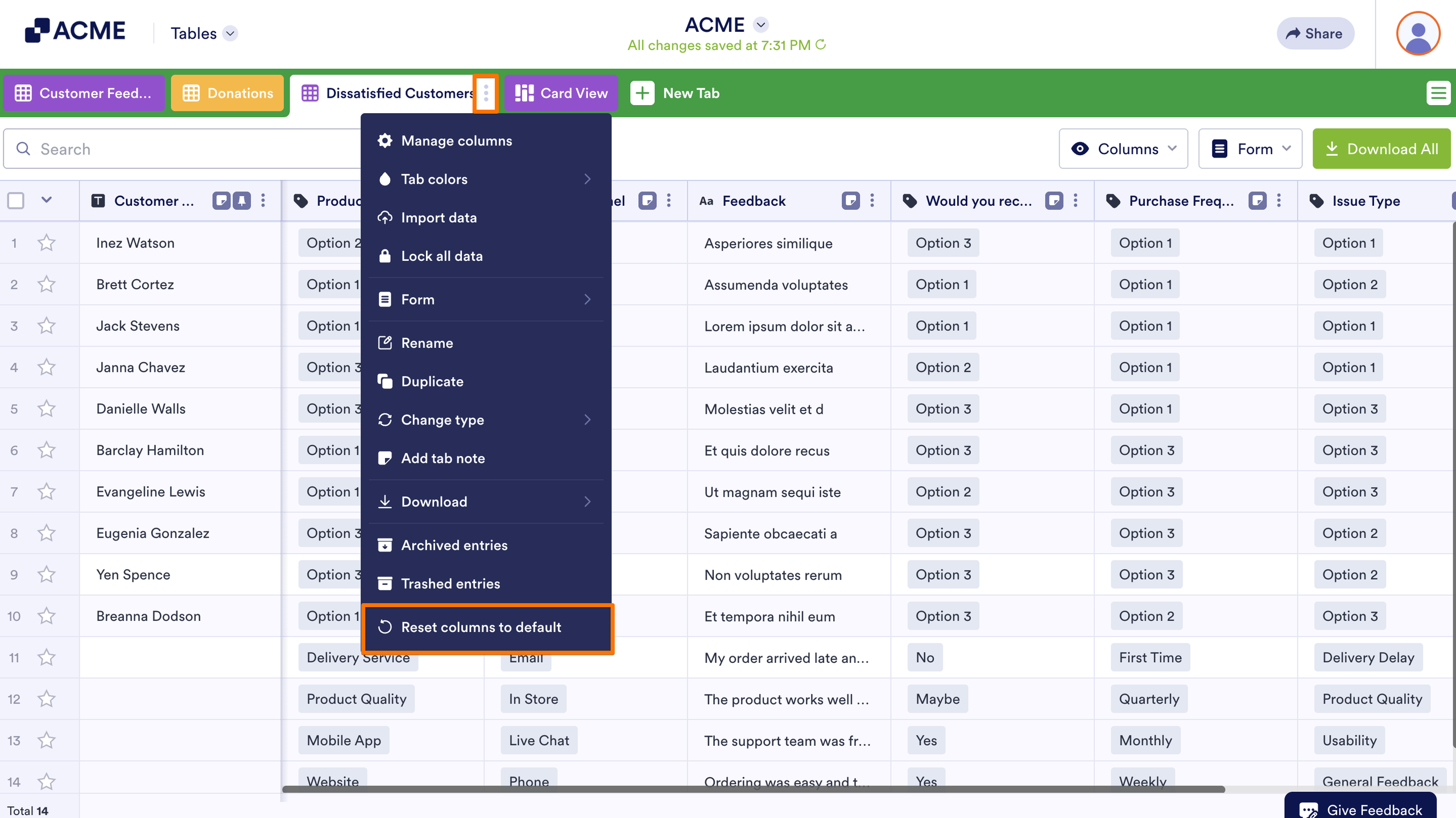
- In Tables, click on the Three Dots icon next to the tab name of the table you want to reset the columns to default.
- Then, select the Reset columns to default in the menu.
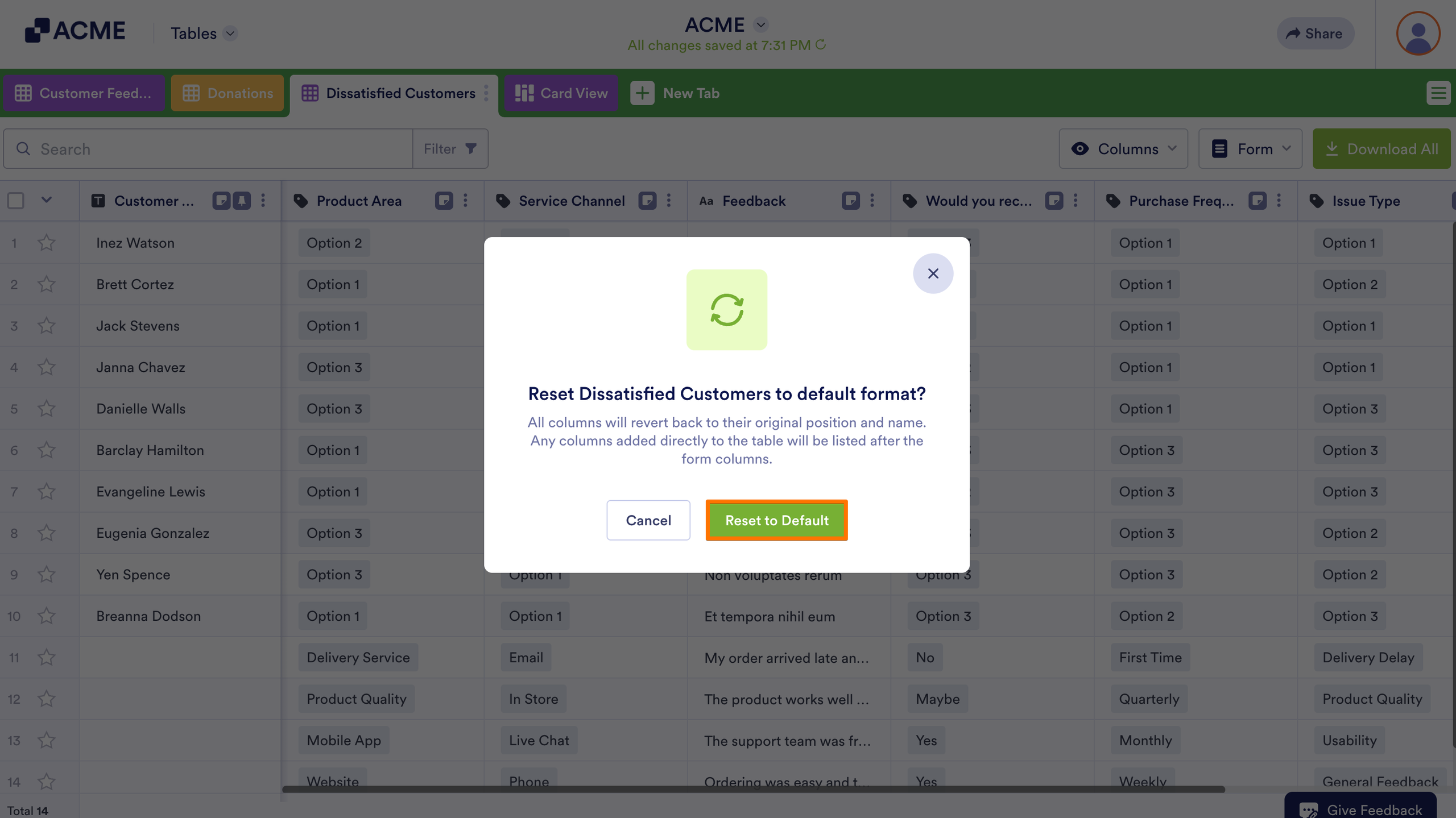
- Next, in the confirmation modal, click on the Reset to default button.
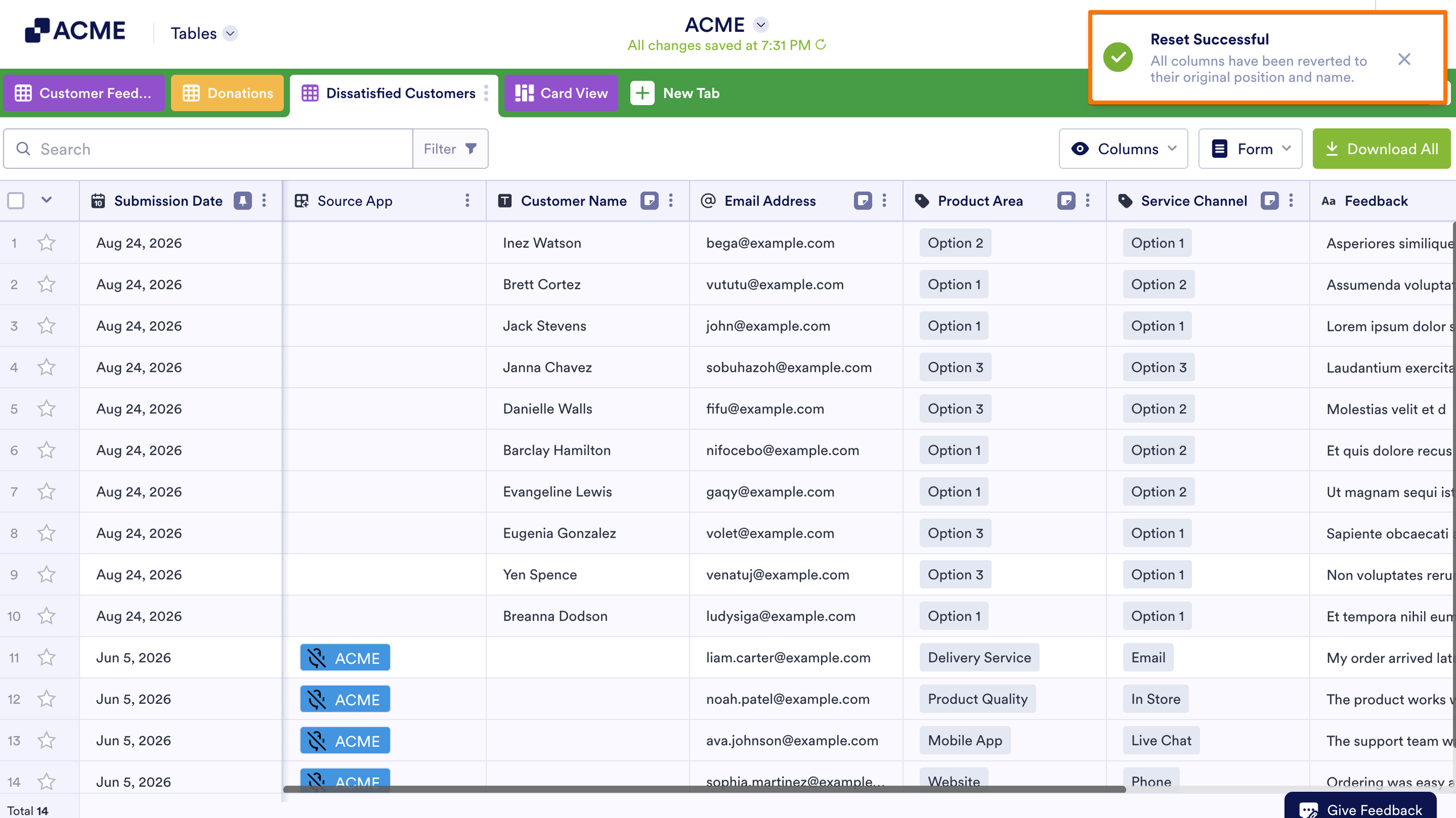
After you confirm, a message appears in the top-right corner of the page, stating that all columns have been reverted to their original position and name.
Note
This feature only resets the columns of the table in the active tab.
Resetting columns to default moves all custom columns to the end of the table, following the form field columns

Send Comment: