Accidentally deleting a form can be frustrating, but it’s easy to get it back. If you deleted a form by mistake, or need to restore one for ongoing use, you can do it quickly without losing any important data.
You can restore a form just as easily as you can delete it. Here’s how to do it:
- On your Workspace page, click on the Trash tab on the left side of the screen.
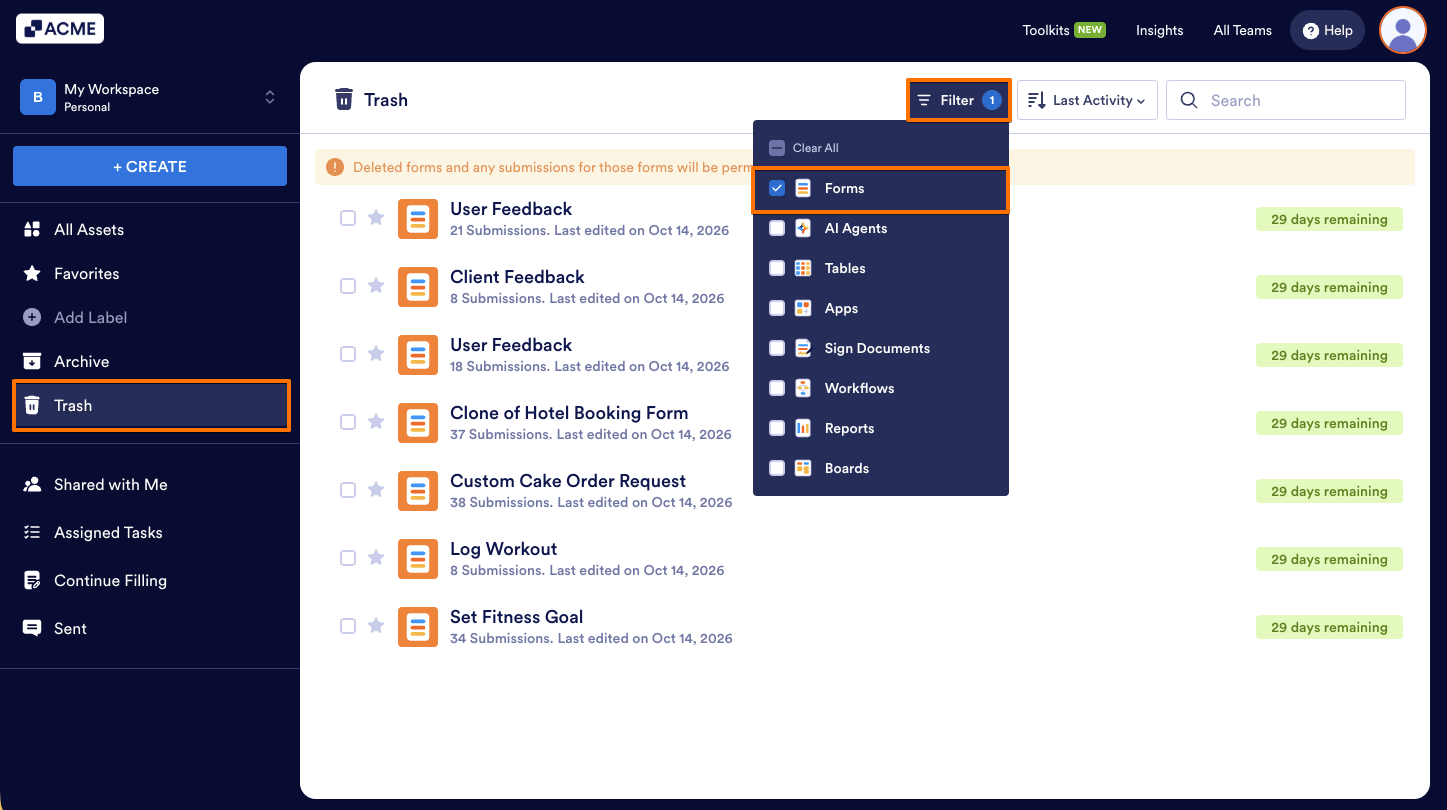
- Now, click on Filter at the top of the page, and in the Dropdown menu that opens, uncheck the boxes next to all the assets except Forms, so only they’ll be shown on the page.
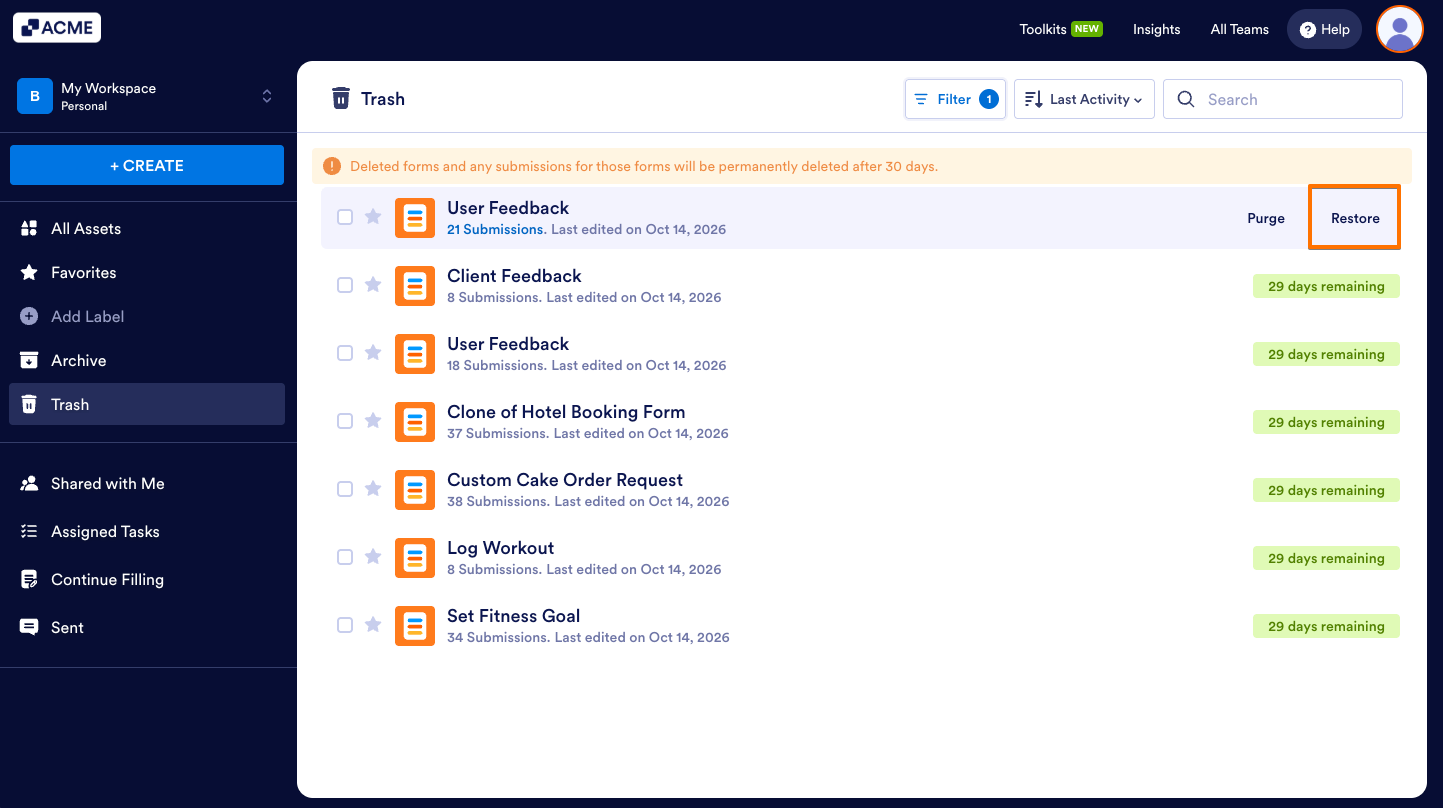
- Then, hover your mouse over the form you want to restore, and then click on Restore on the right side of the page.
You can also restore multiple forms at the same time. Here’s how to do it:
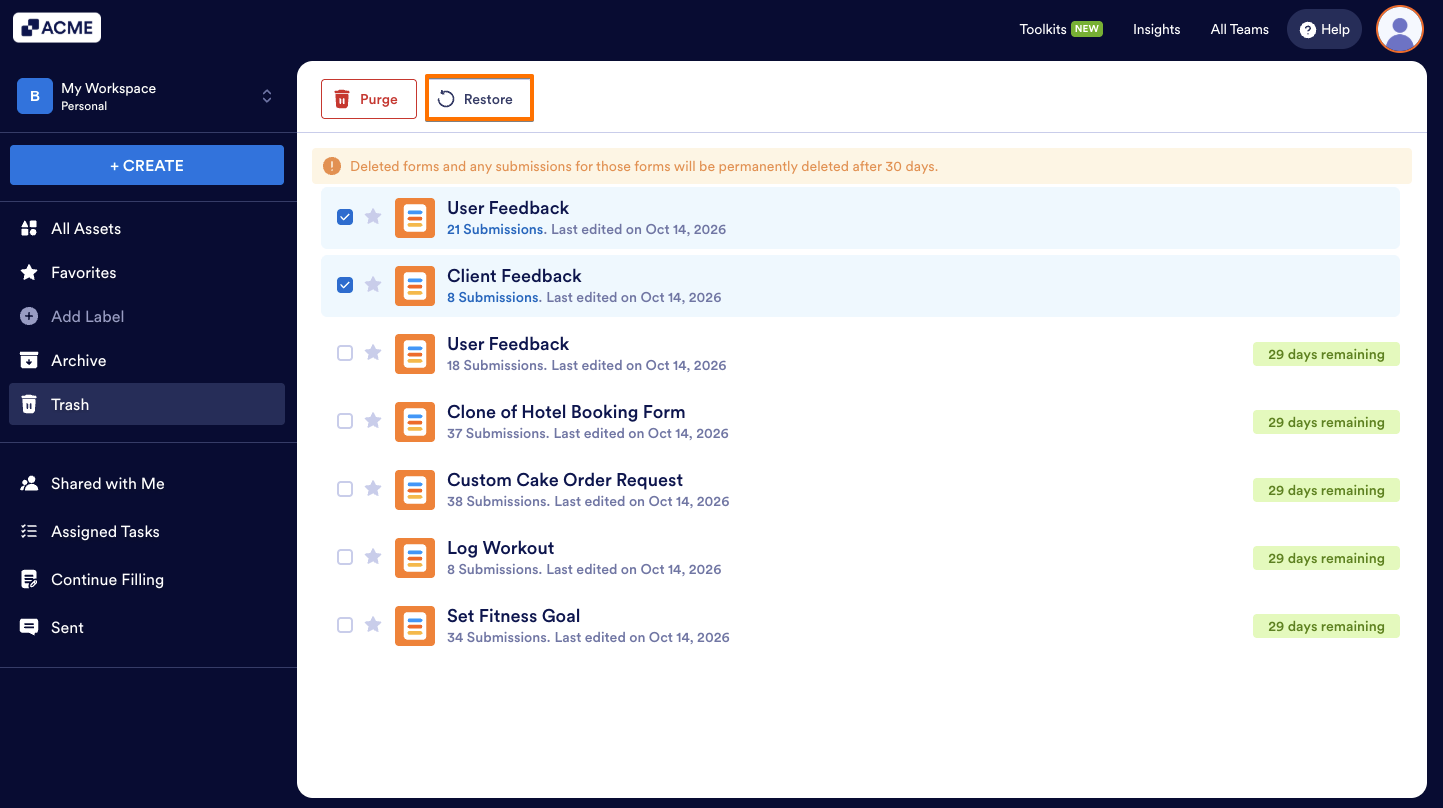
- While your assets are filtered by the Form type in the Trash folder on your Workspace page, put checks in the boxes next to the forms you want to restore.
- Now, click on Restore in the menu at the top of the page.
Pro Tip
Hold down the Shift key on your keyboard to select or deselect multiple consecutive forms.
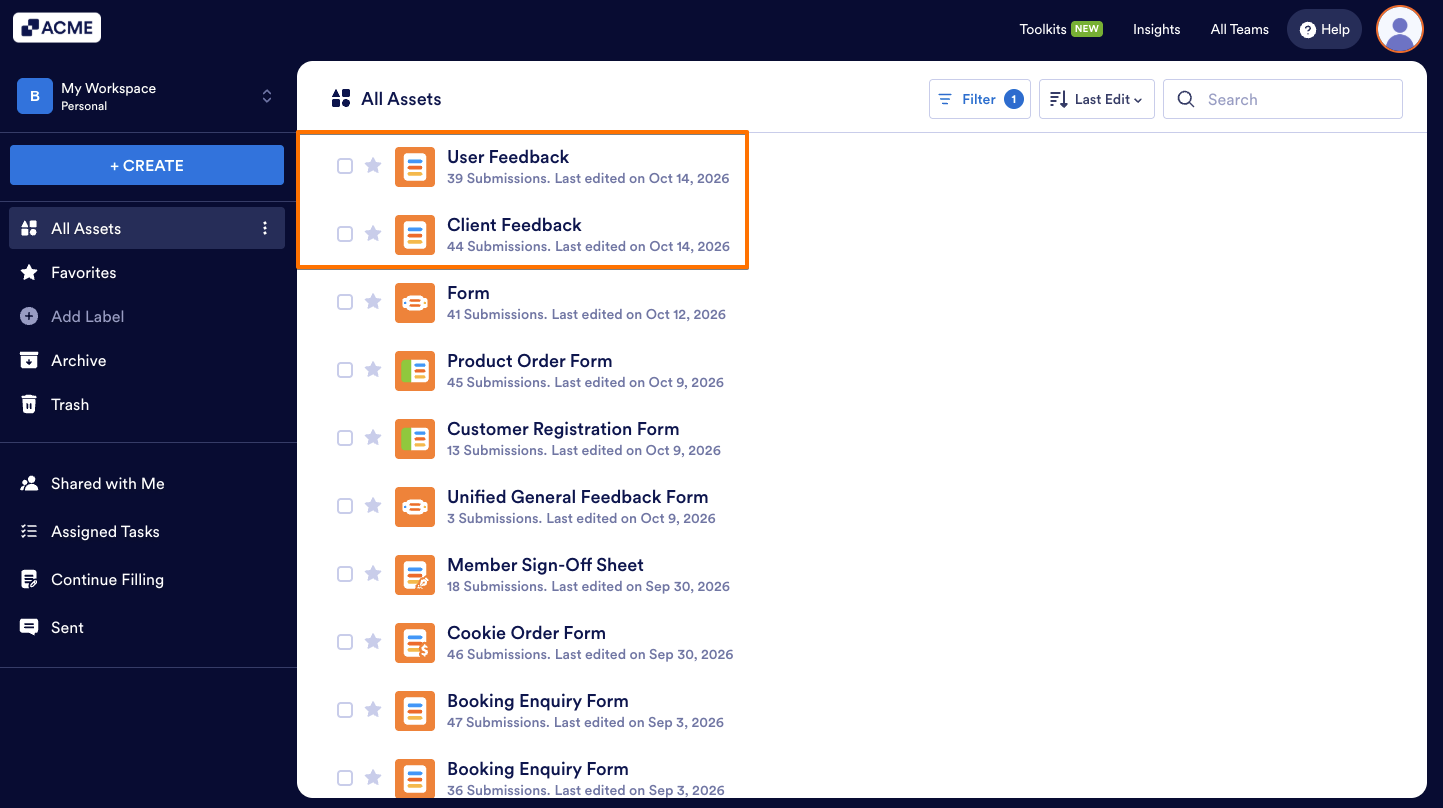
That’s it! Restoring forms will enable and move them back to your main Workspace page.
Note
Forms in the Trash folder of your Workspace page stay there for 30 days as default before being permanently deleted unless you purge them manually. The default deletion period is 30 days unless Auto Delete Submissions feature is enabled. Forms deleted or purged from the Trash cannot be restored. We also have a guide to help you learn more about How to Manage Auto Delete Submissions.

Send Comment: