With Smart Signals, you can be notified of significant changes in your assets’ performance. It makes tracking your assets’ visibility and usage easier. You can enable or disable these notification emails and customize notification sending periods.
Enabling Email Notifications
To enable email notifications, follow the steps below:
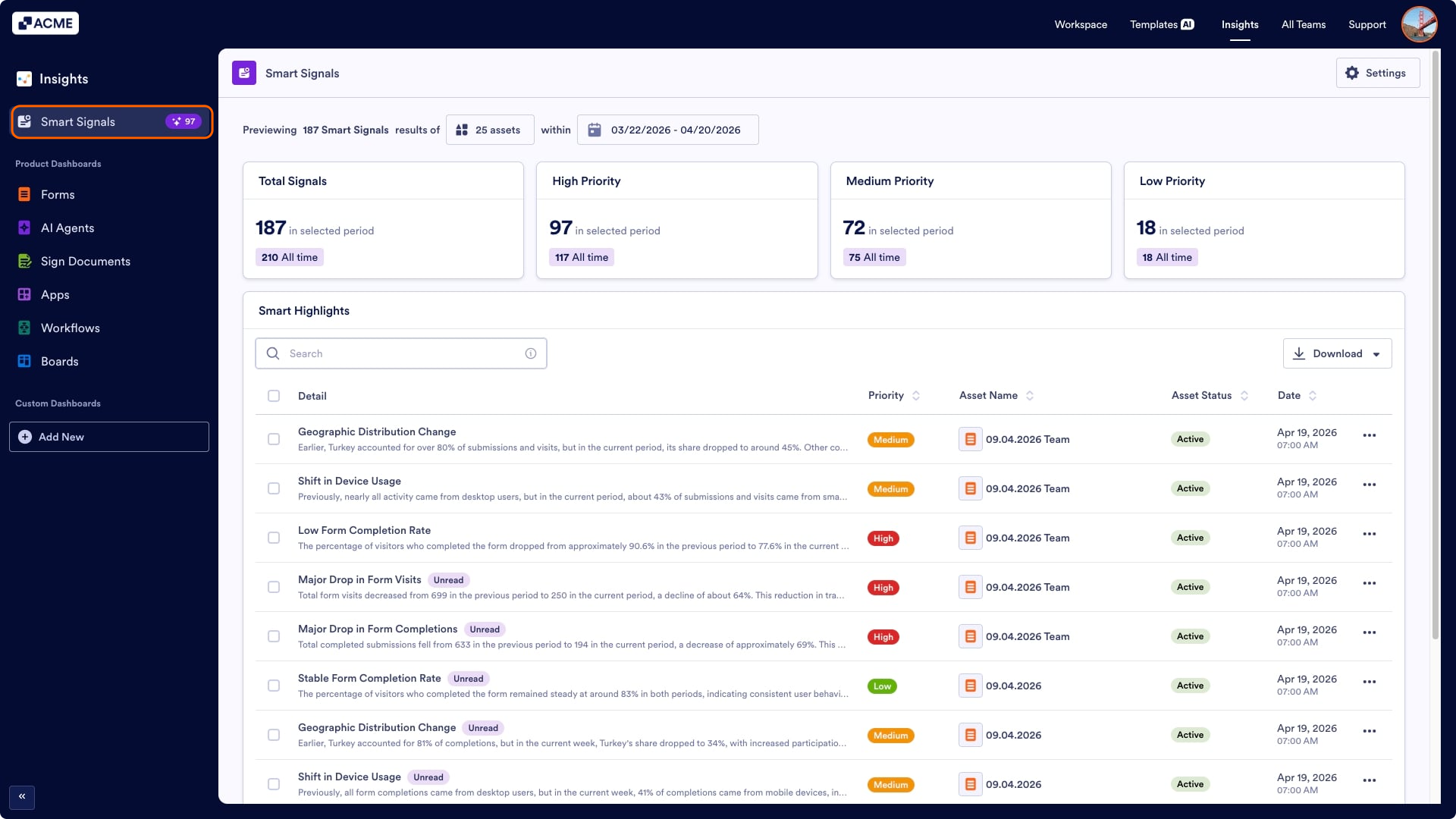
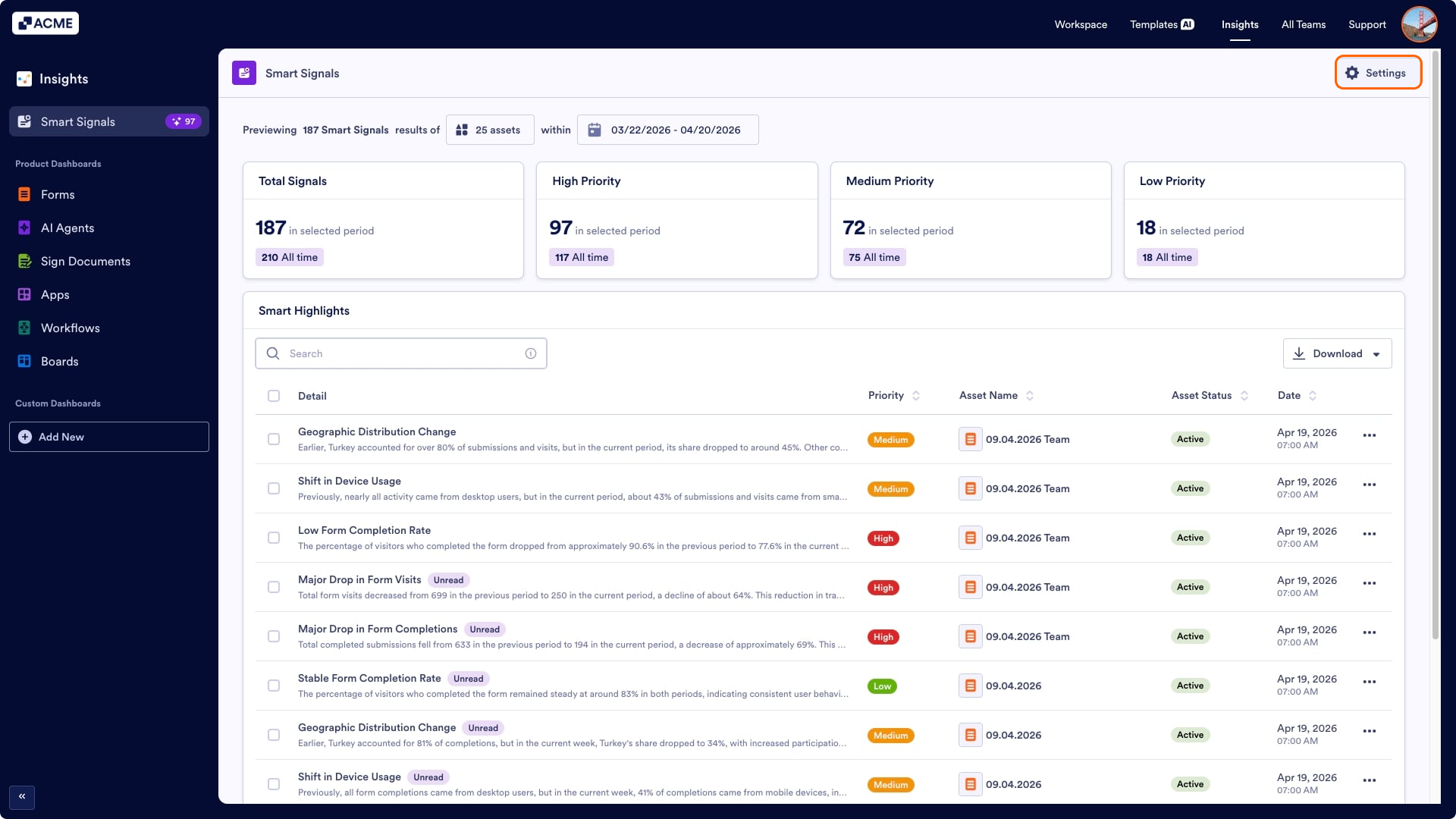
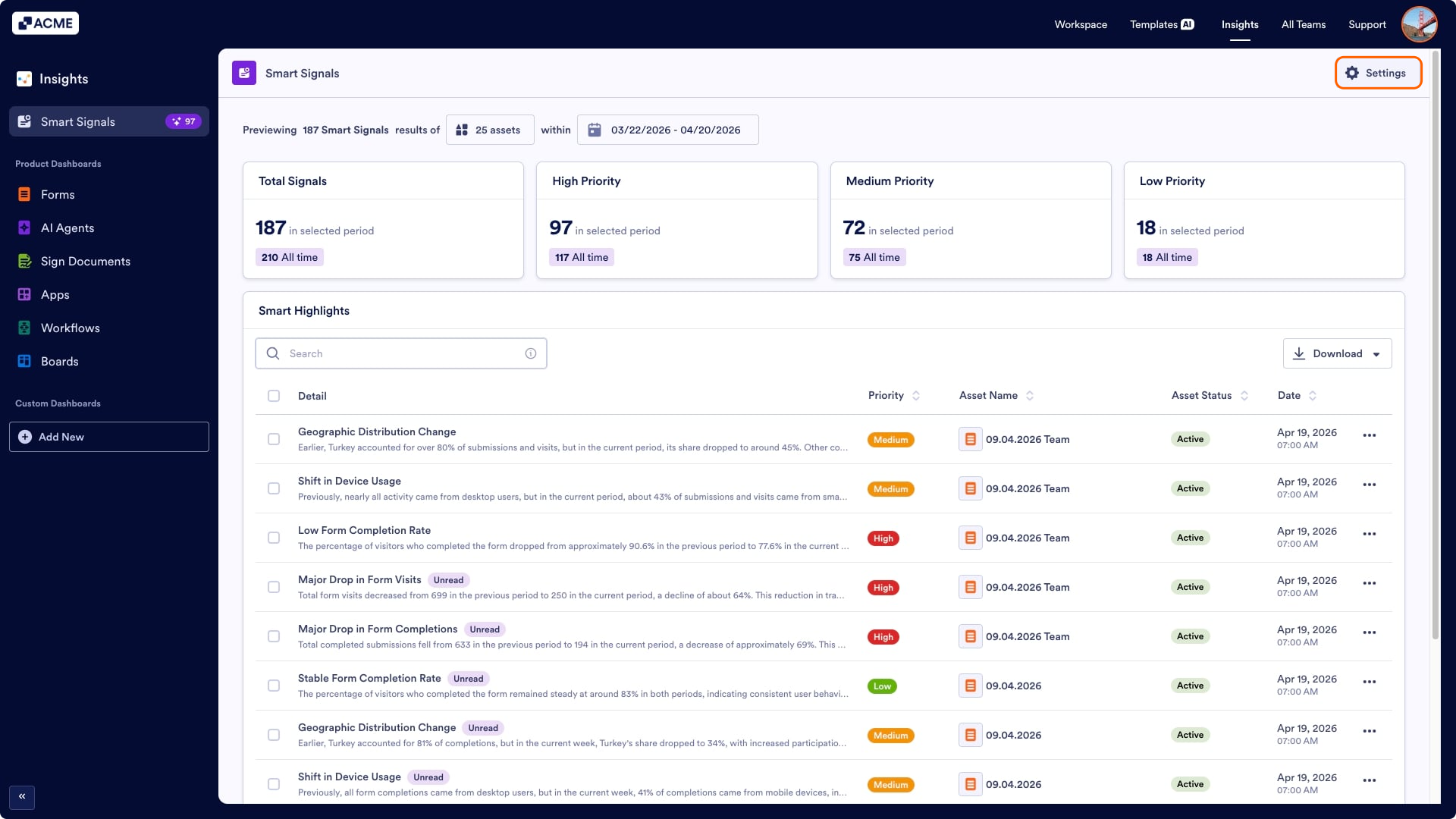
- On the Insights page, click Smart Signals.
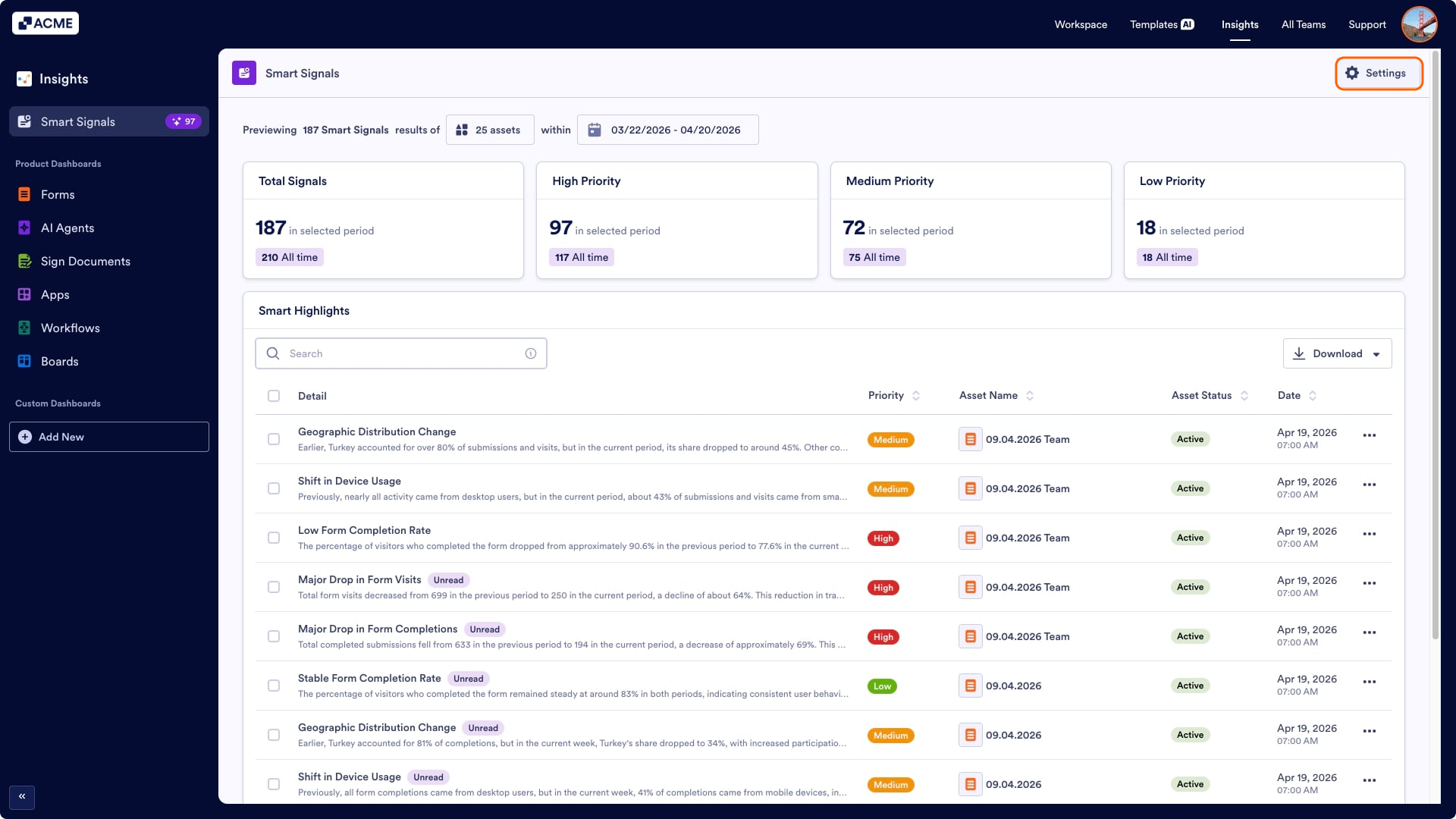
- Then click Settings in the top right side of the Smart Signals tab.
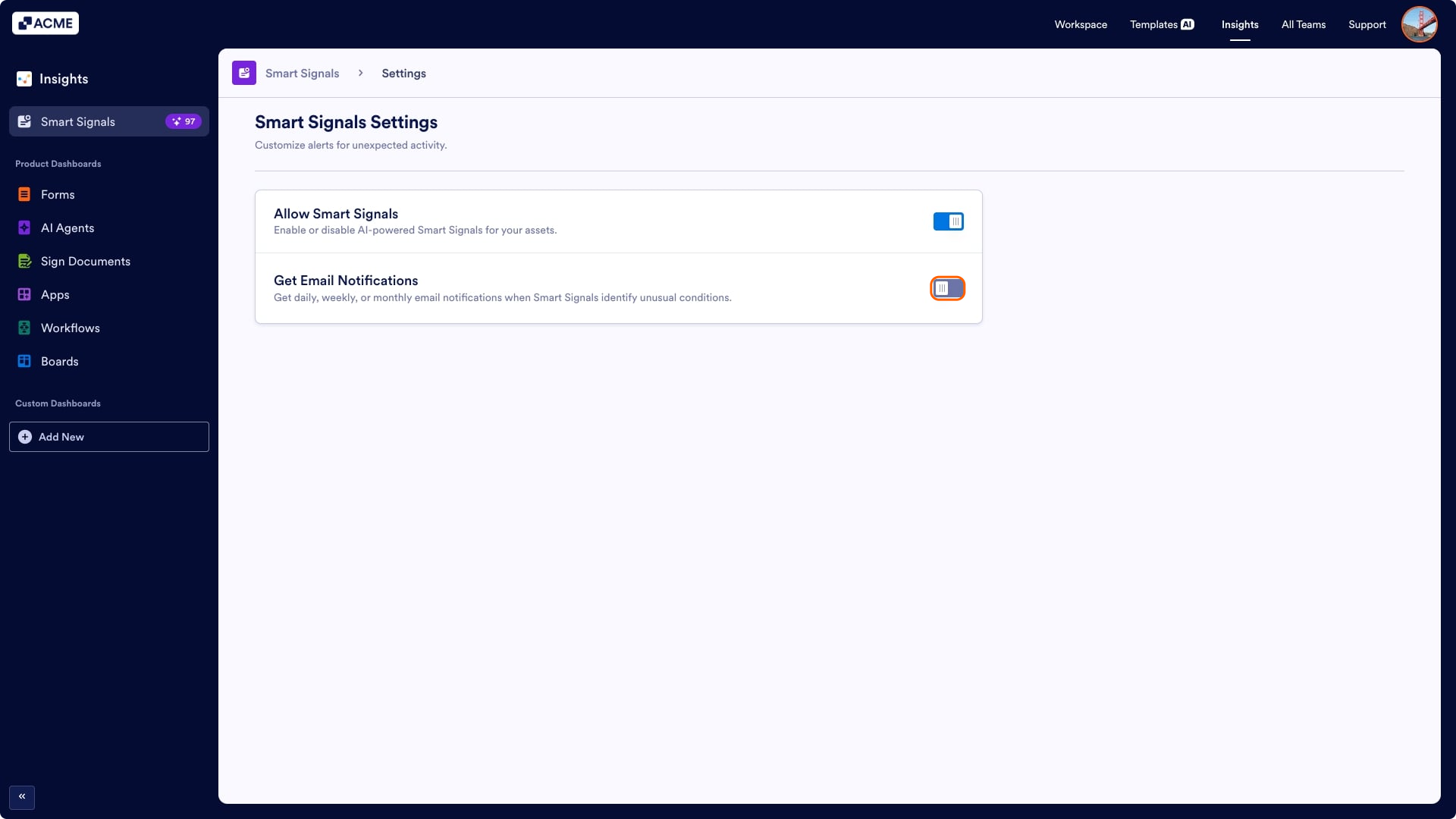
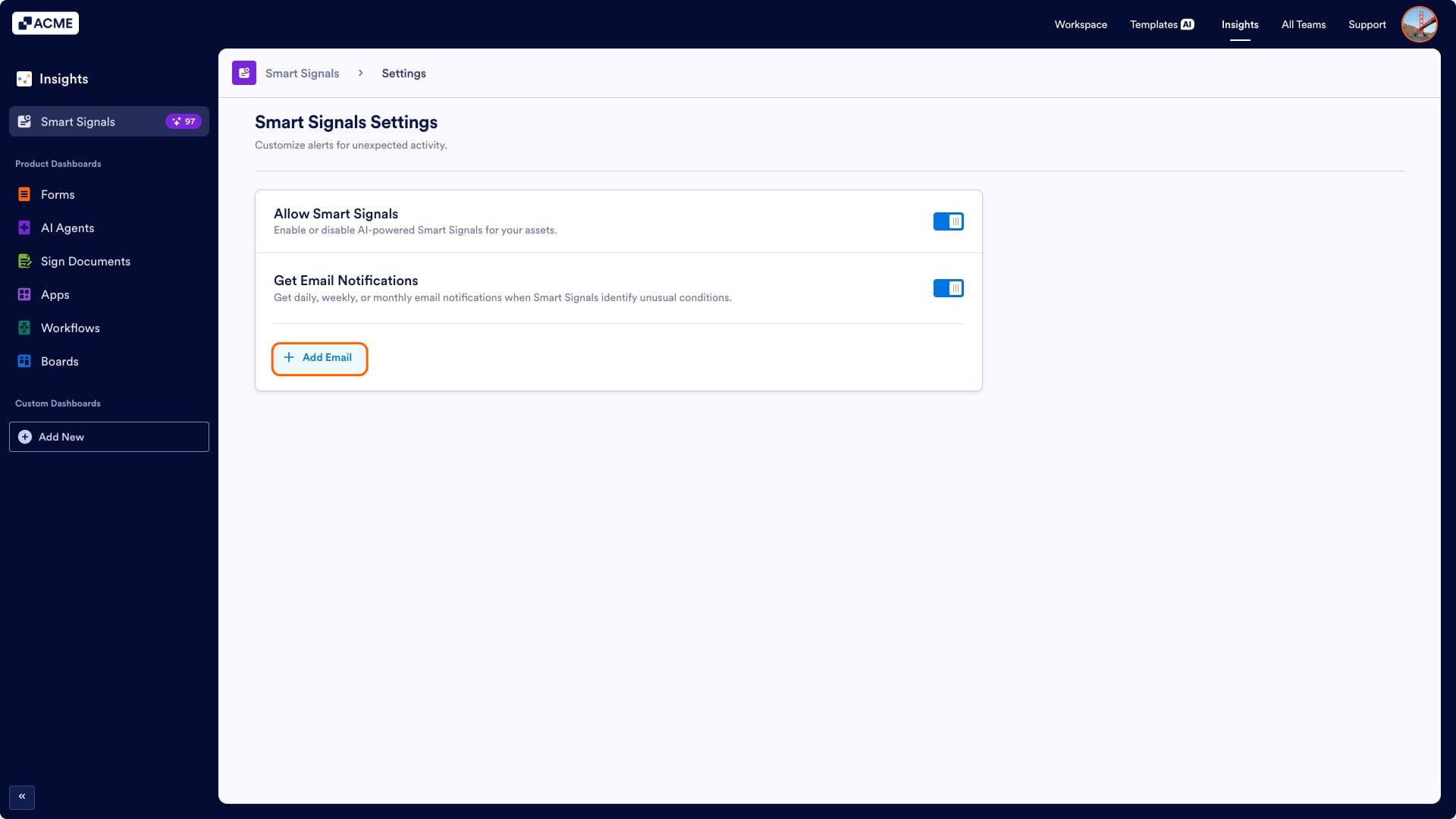
- Toggle On the Get Email Notifications feature.
Disabling Email Notifications
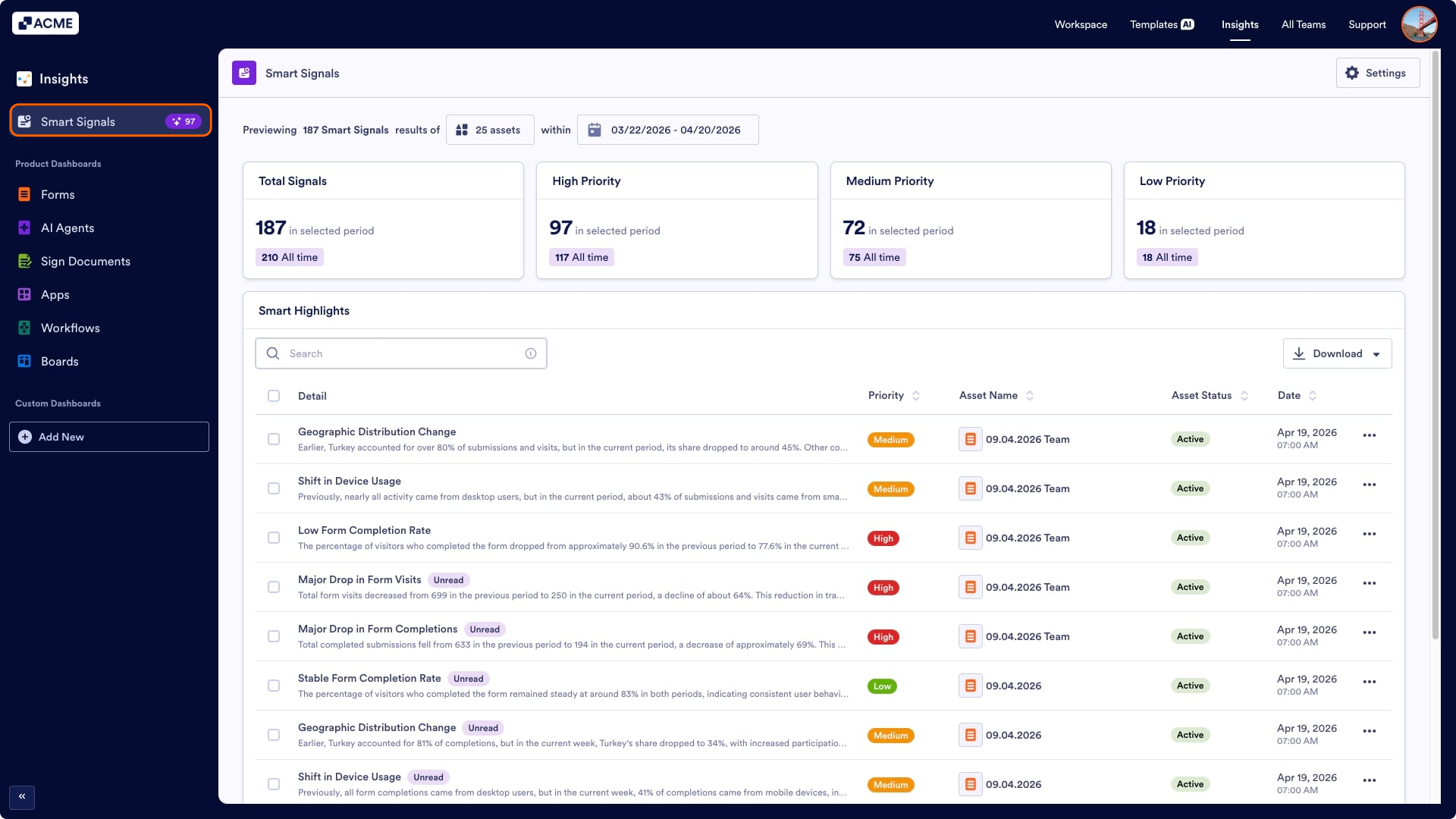
- On the Insights page, click Smart Signals.
- Then click Settings in the top right side of the Smart Signals tab.
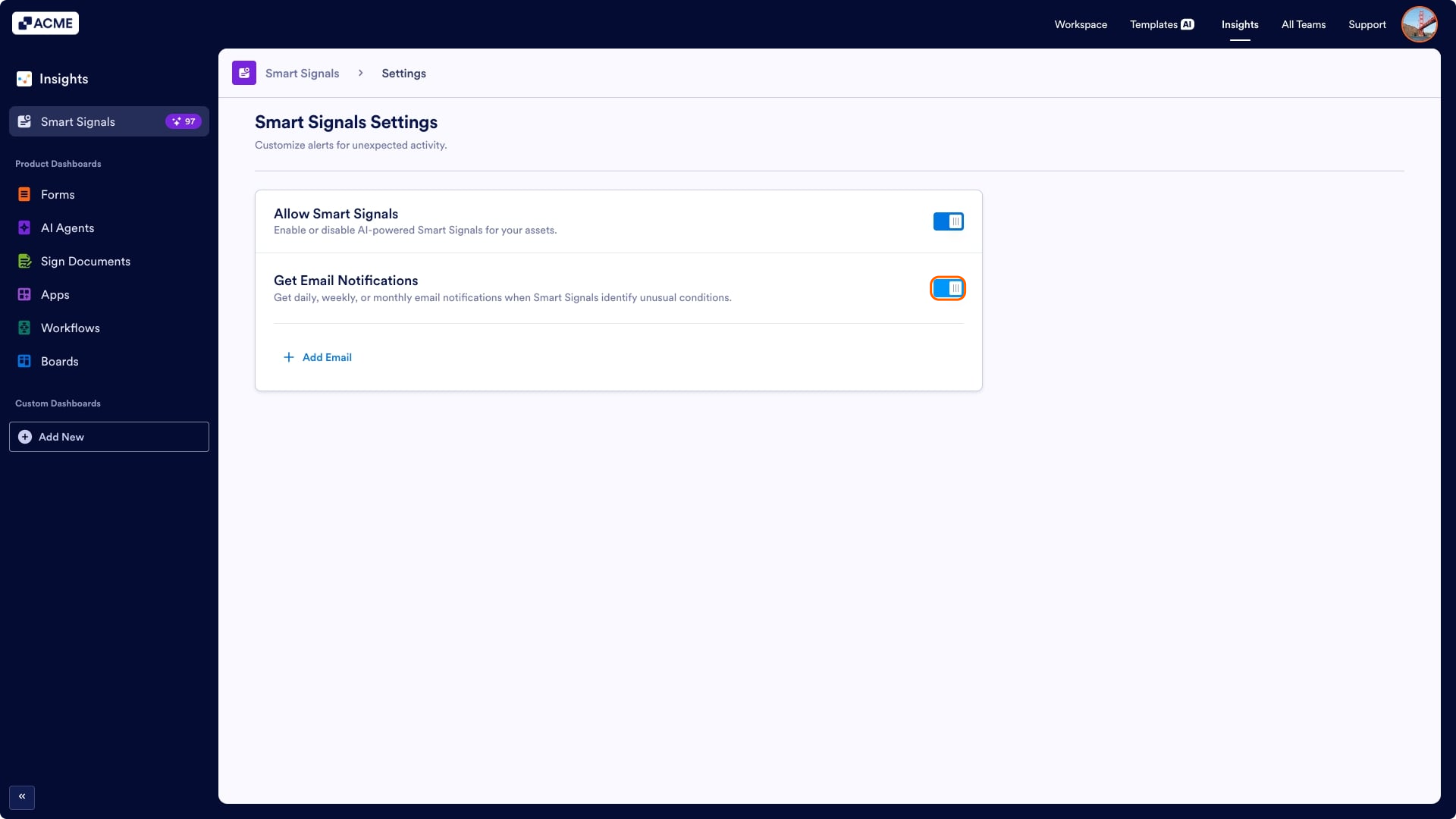
- Toggle Off the Get Email Notifications feature.
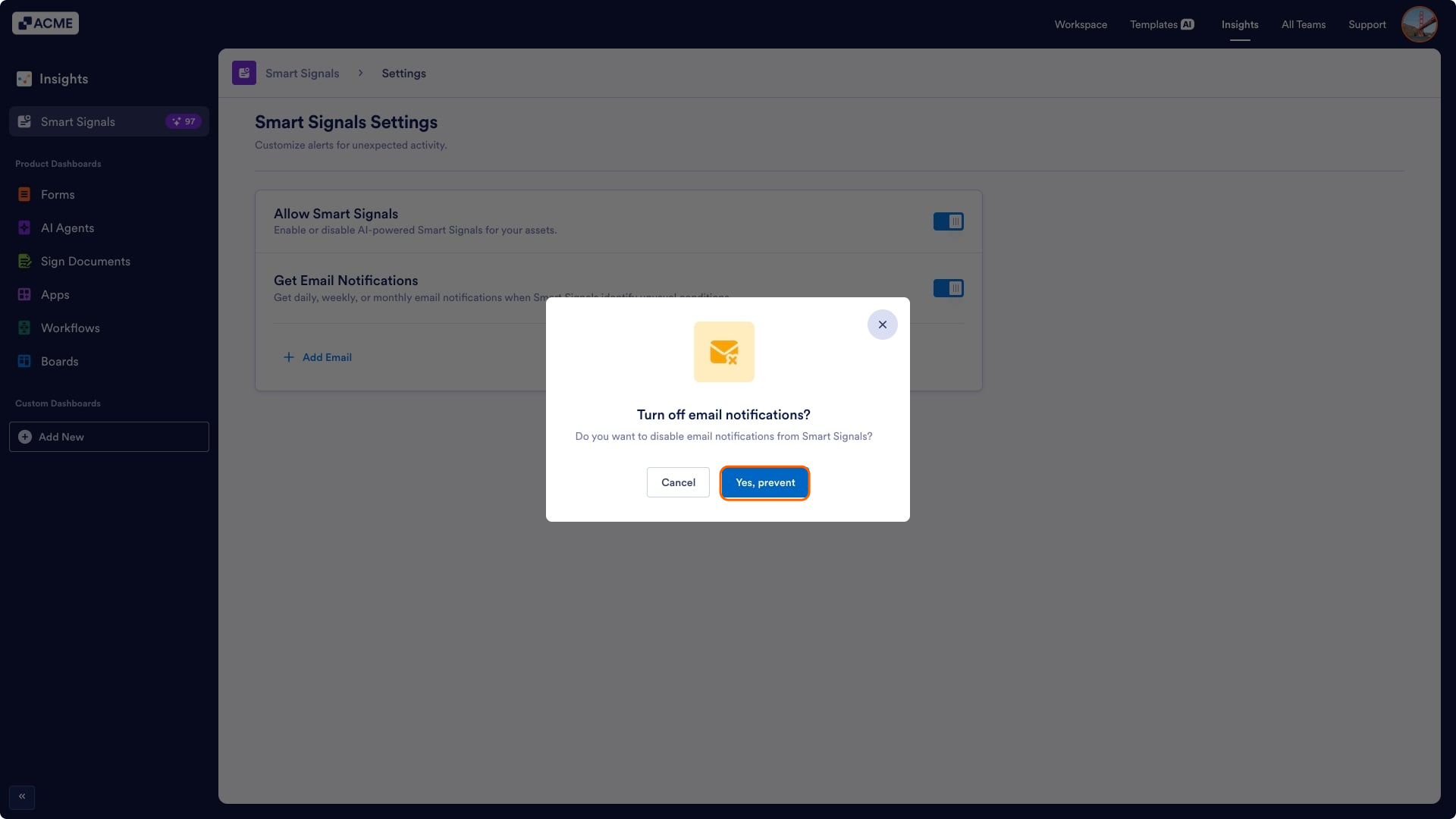
- In the pop-up window, click on Yes, Prevent to turn off email notifications.
Adding Email Notification
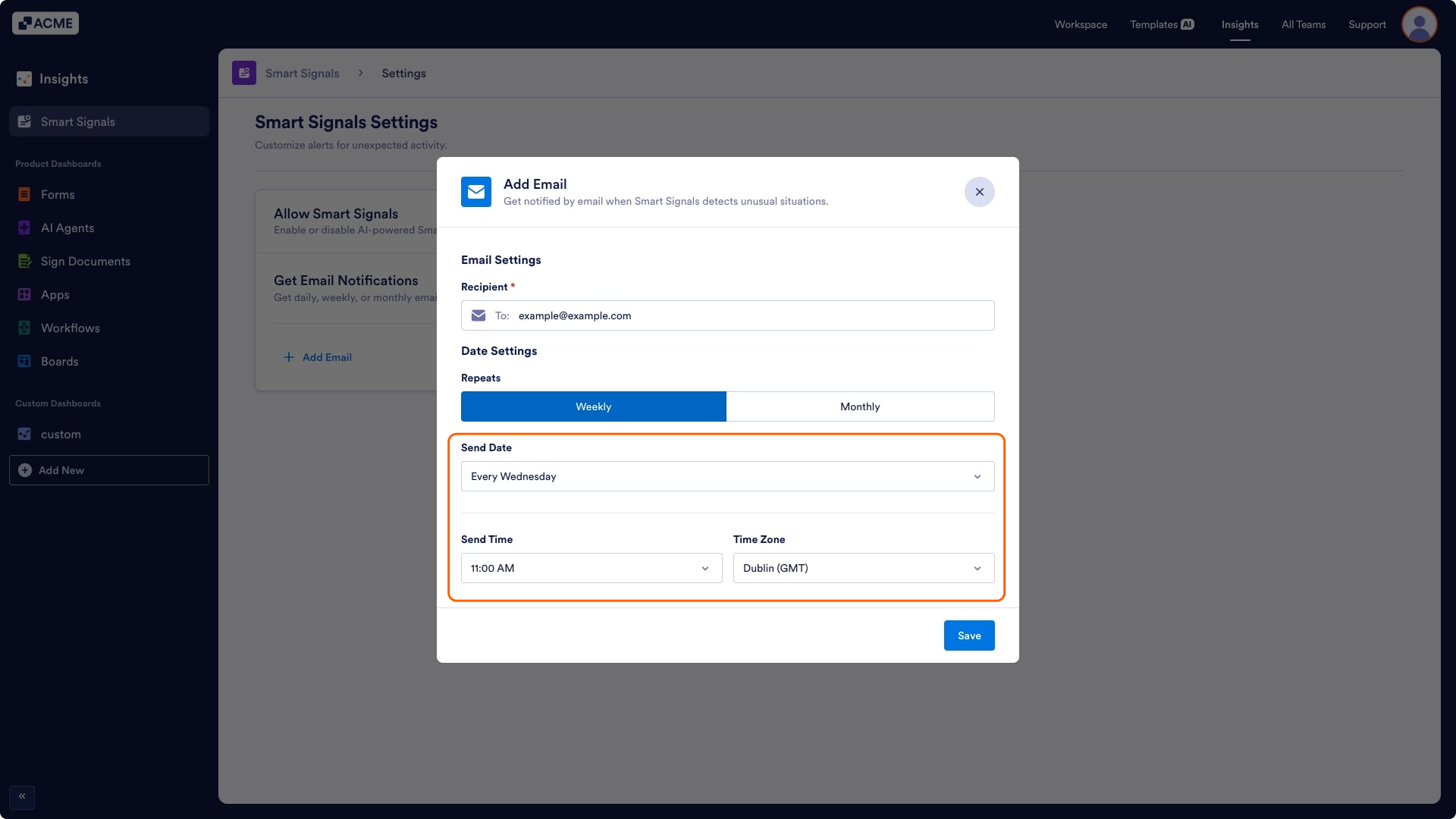
You can create your digest email for Smart Signals. You can customize the recipient, email sending period (weekly or monthly), time zone, and the email sending time.
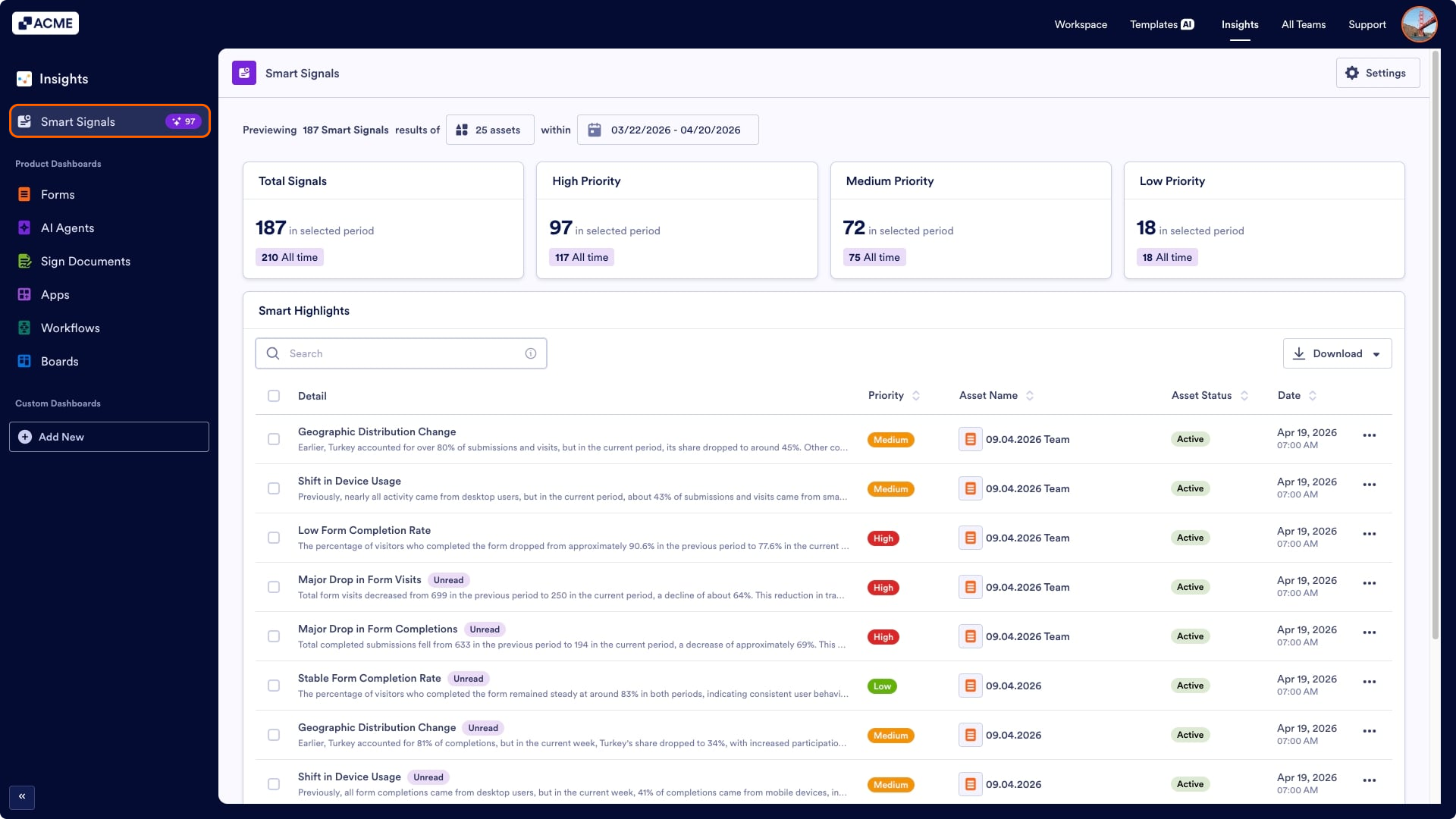
- On the Insights page, click Smart Signals.
- Then click Settings in the top right side of the Smart Signals tab.
- Click +Add Email under Smart Signals Settings.
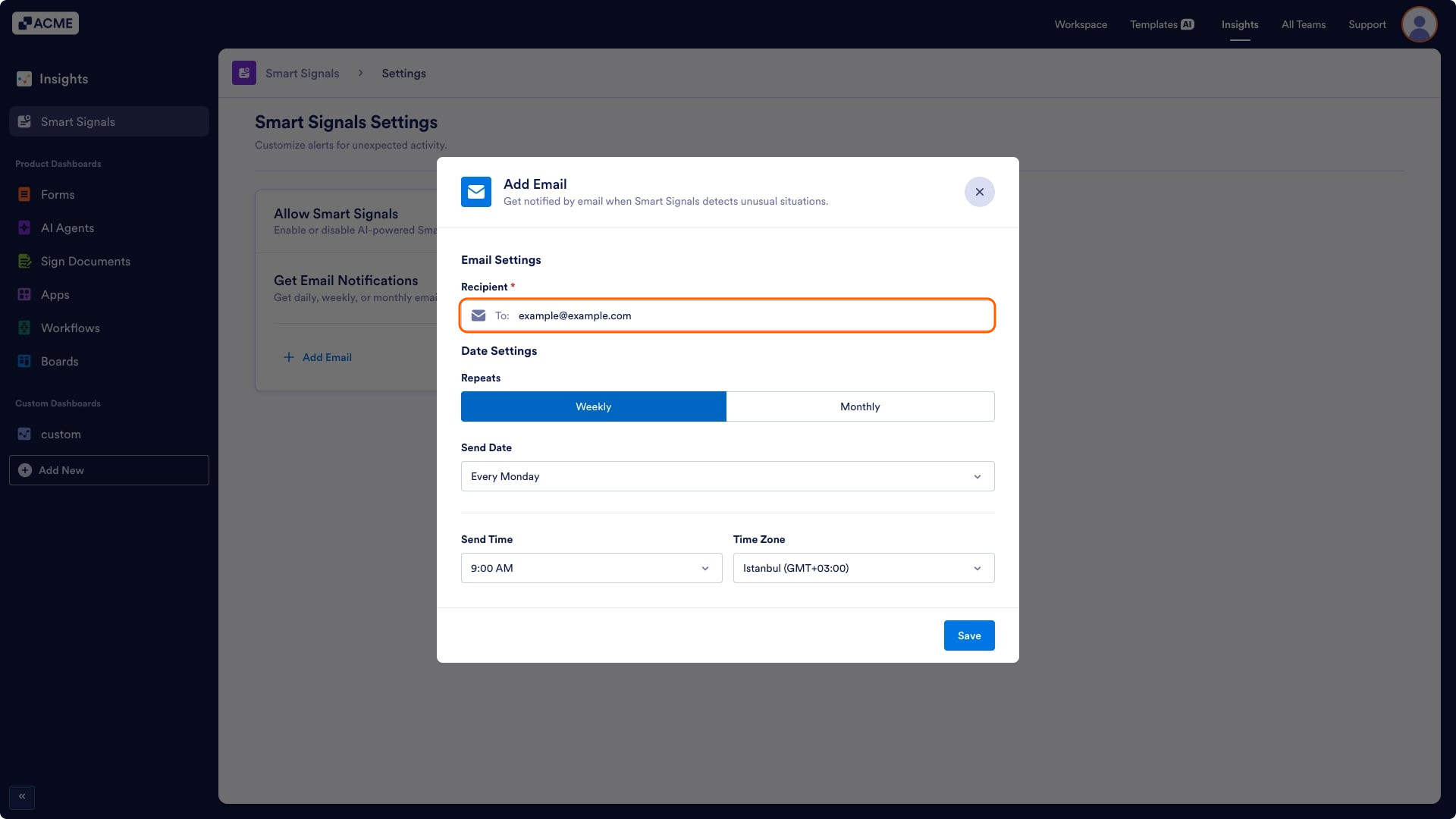
- In the Add Email pop-up, enter the email address in the Recipient field.
- Select Repeats (Weekly/Monthly) under Date Settings.
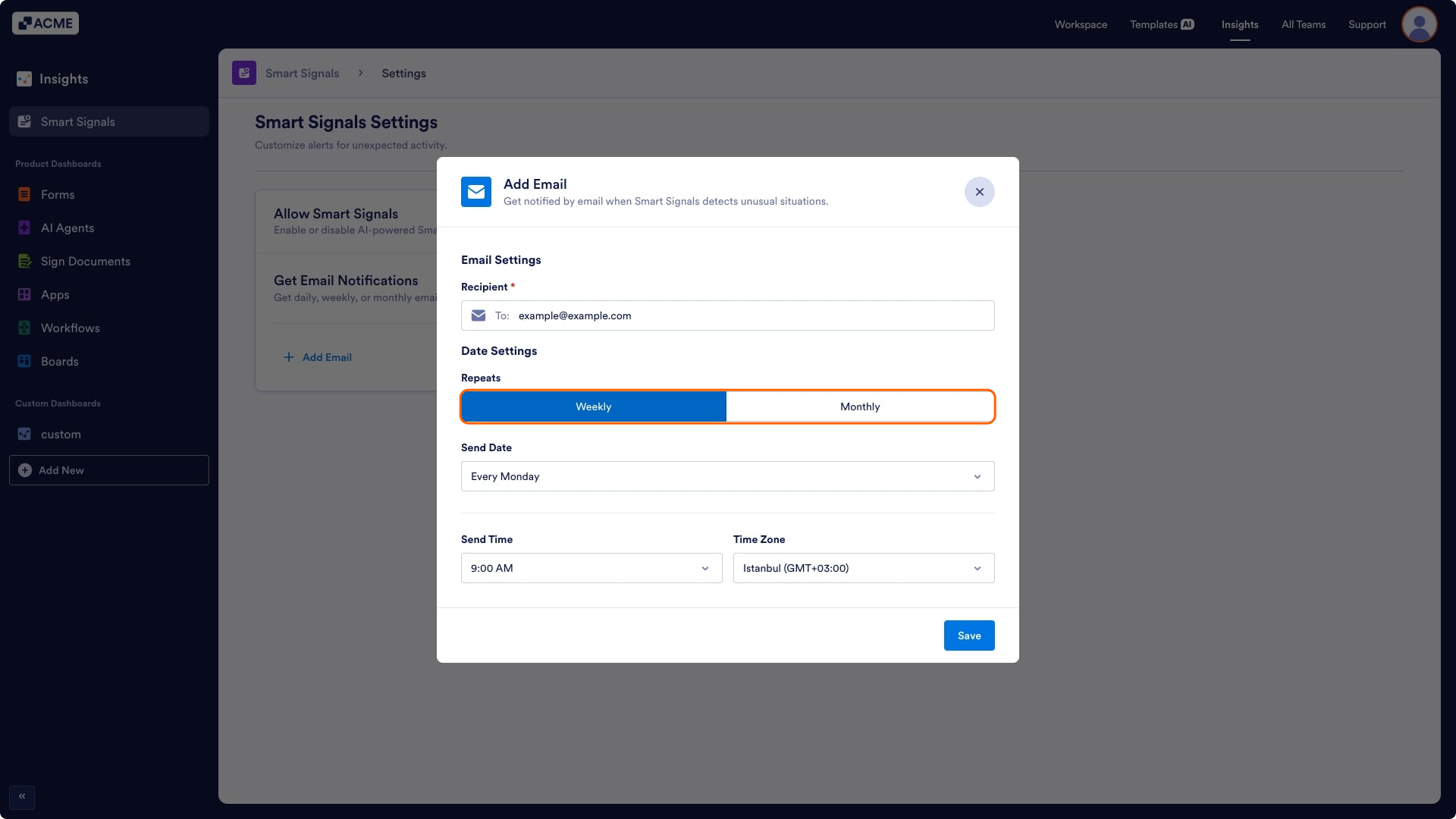
- Then select the Send Date option, Send Time, and the Time Zone.
- Finally, click on Save.
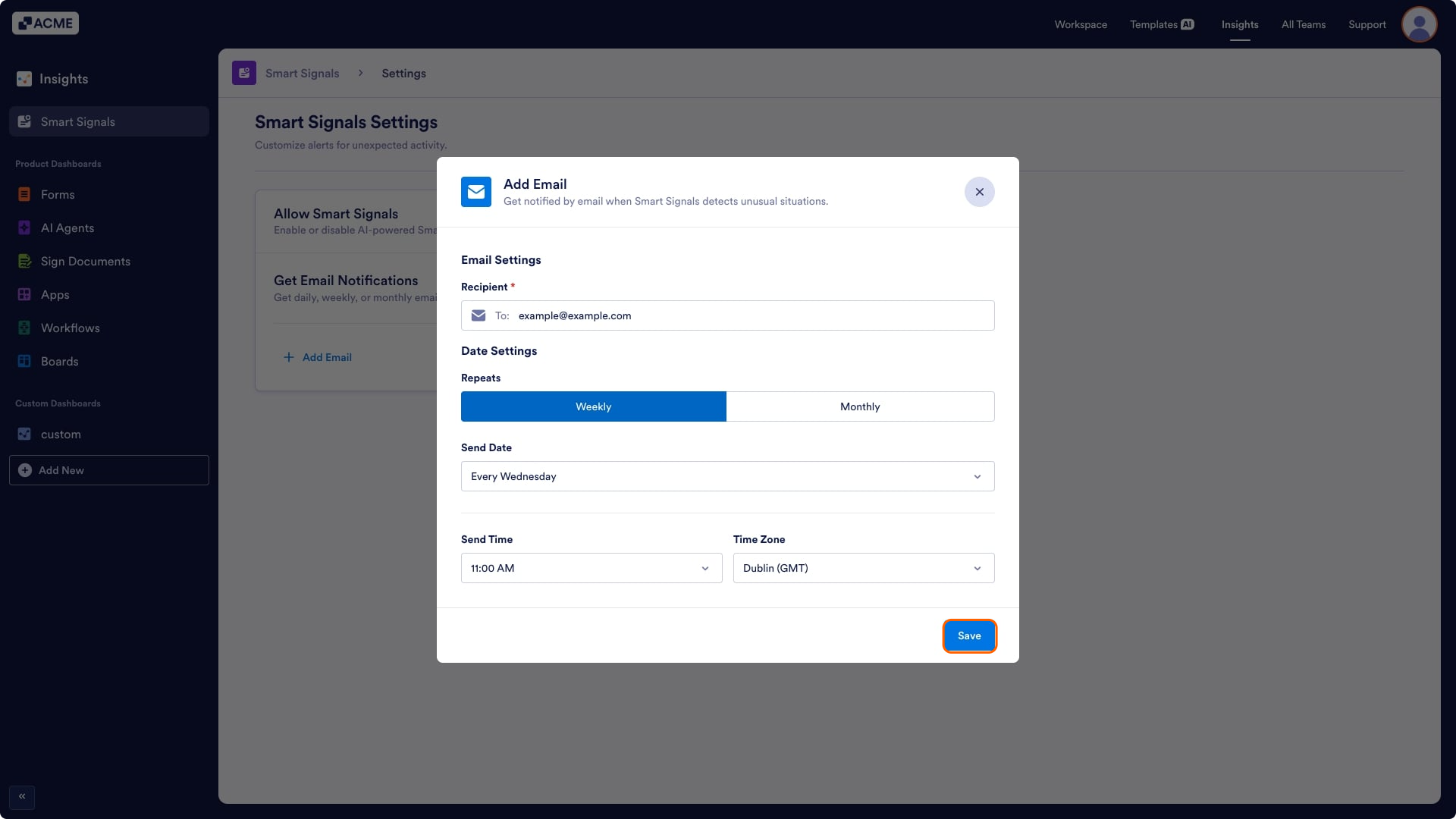
Weekly Send Date Options:
Every Monday, Every Tuesday, Every Wednesday, Every Thursday….
Monthly Send Date Options:
- First work day of the month,
- First monday of the month,
- Last friday of the month,
- First day of the month,
- Select a date of the month
Note
Only a single email recipient can be added to the Smart Signals Notification Email.
Deleting Notification Email
To delete existing Smart Signal email notifications, follow the steps below:
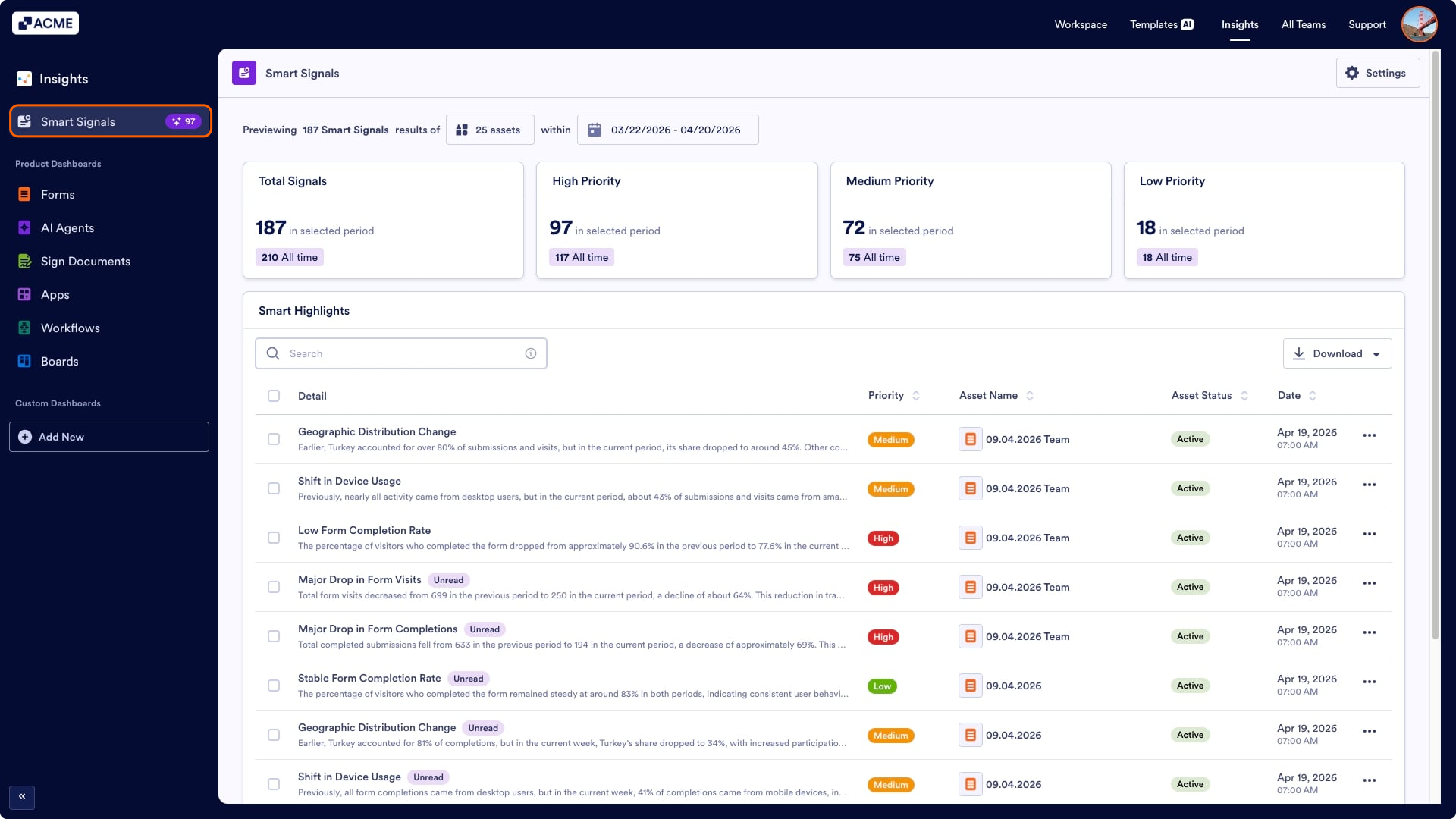
- On the Insights page, click Smart Signals.
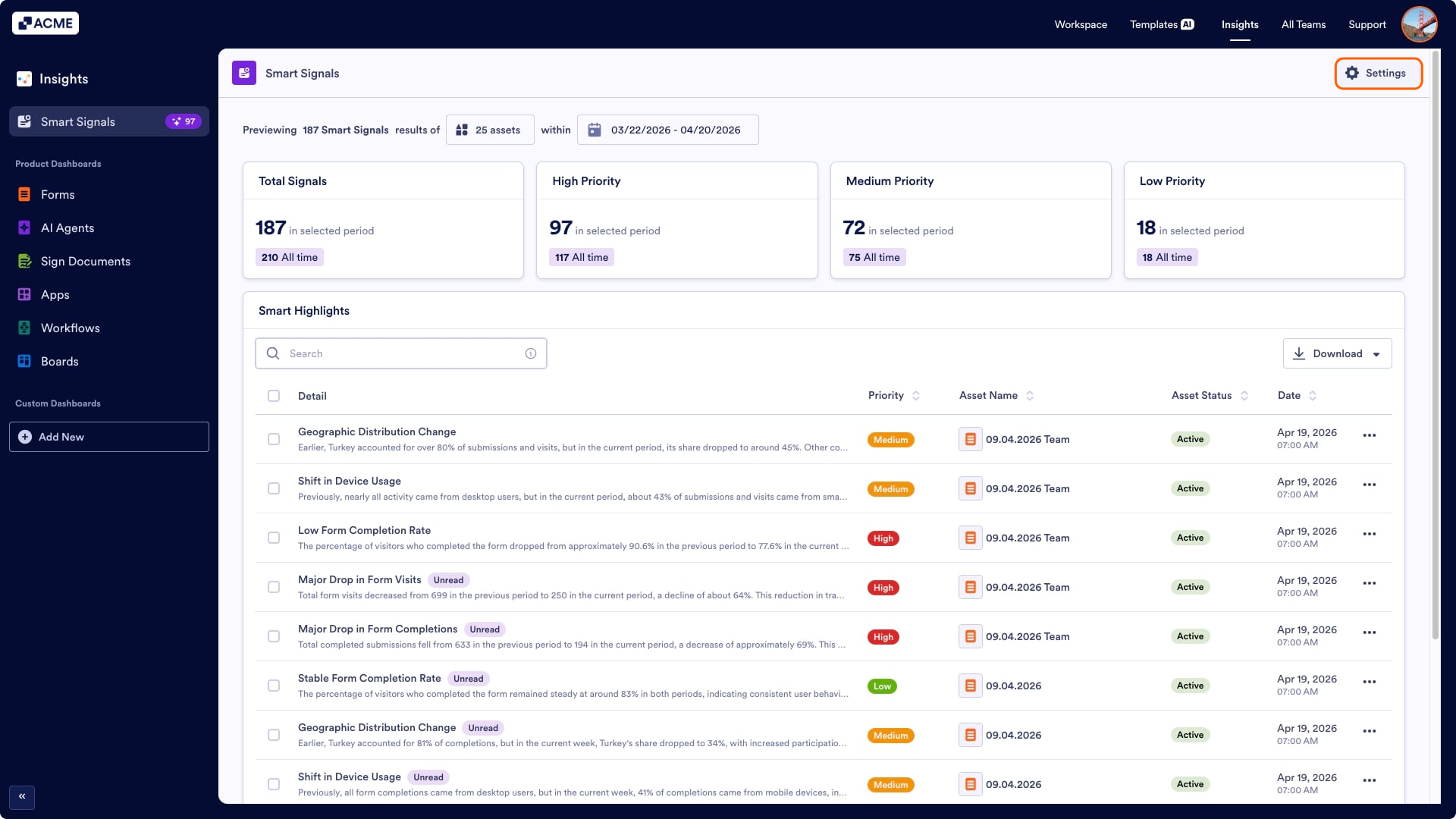
- Then click Settings in the top right side of the Smart Signals tab.
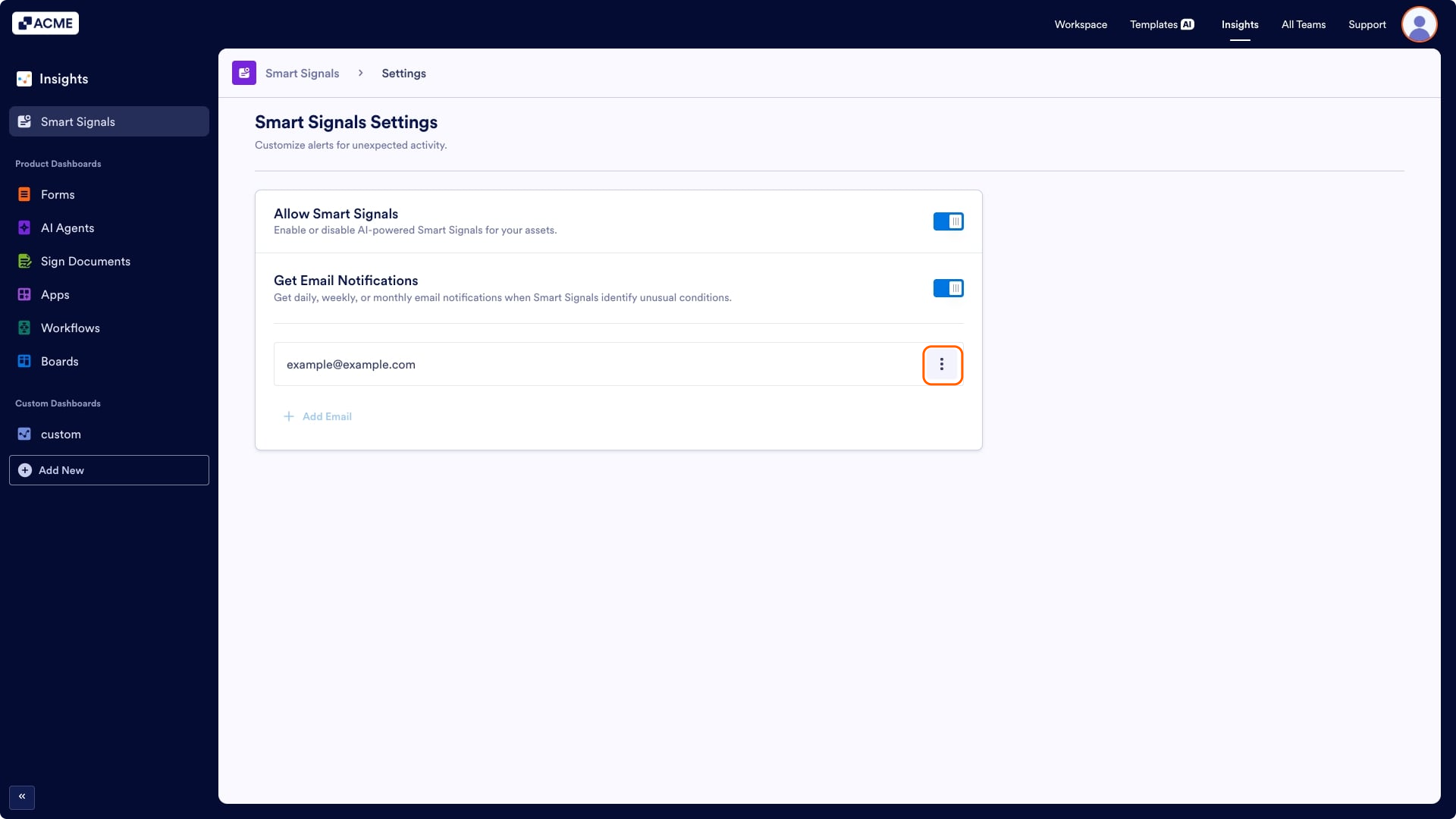
- Click on the Three Dots next to the Notification Email.
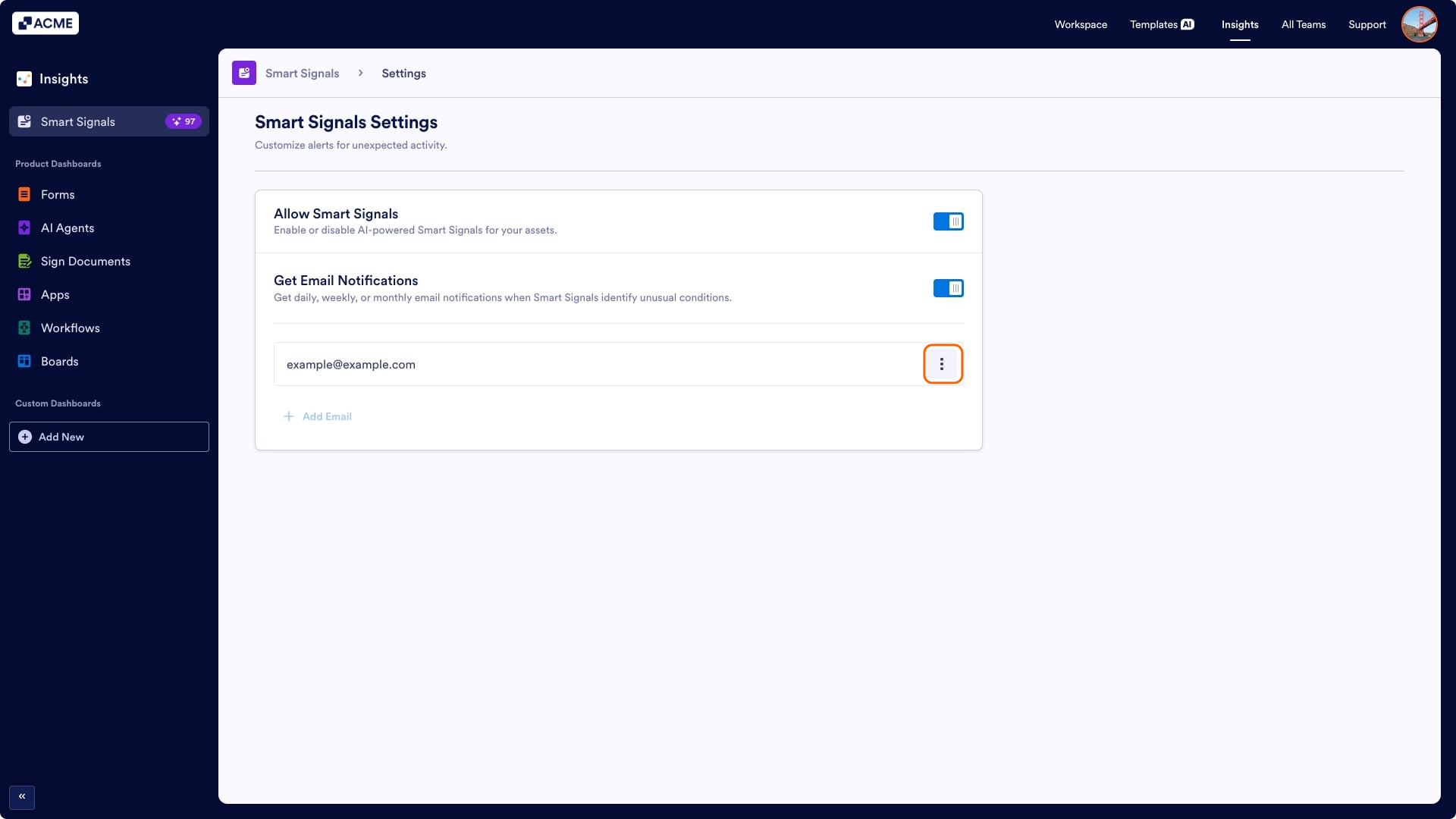
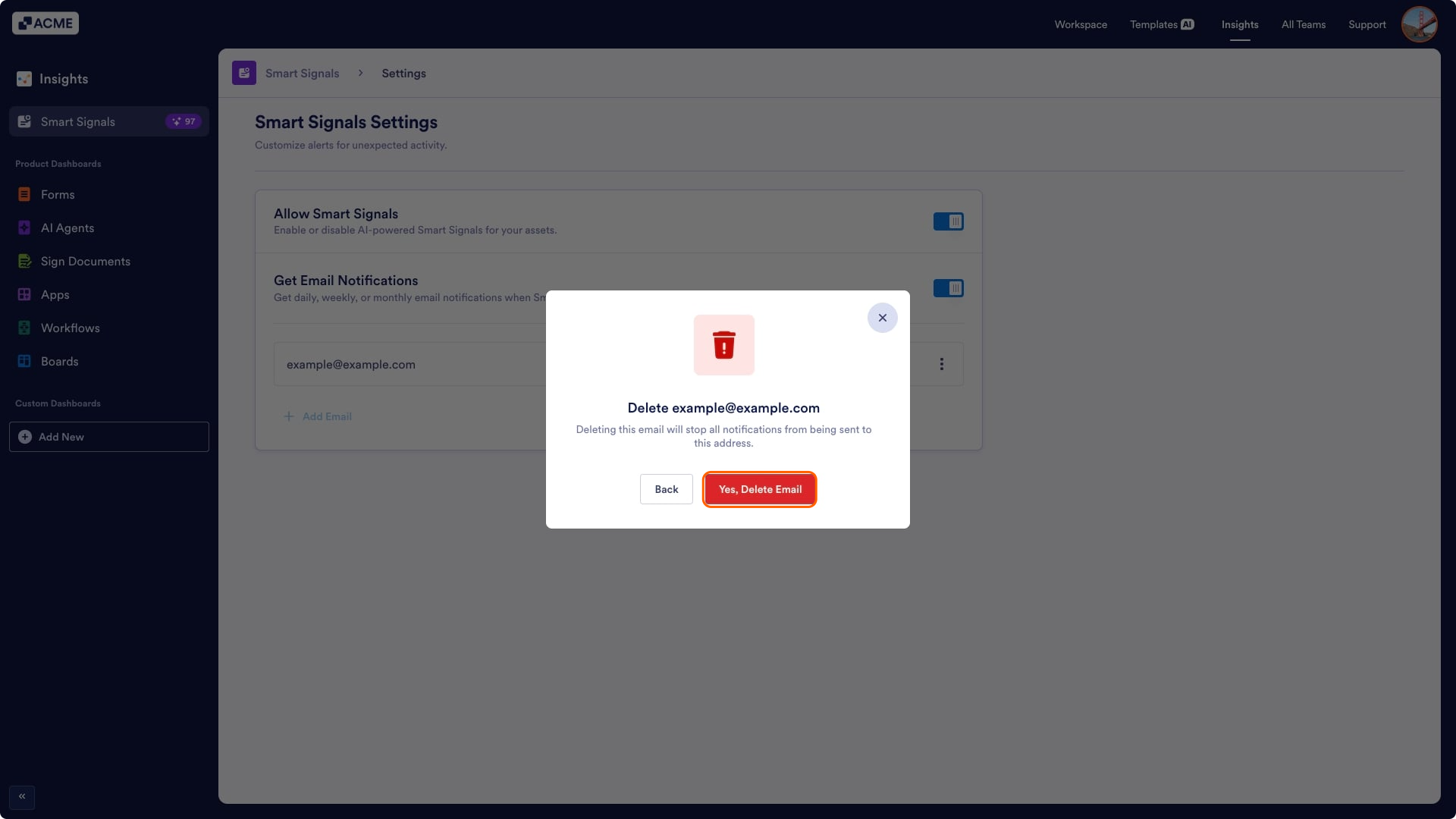
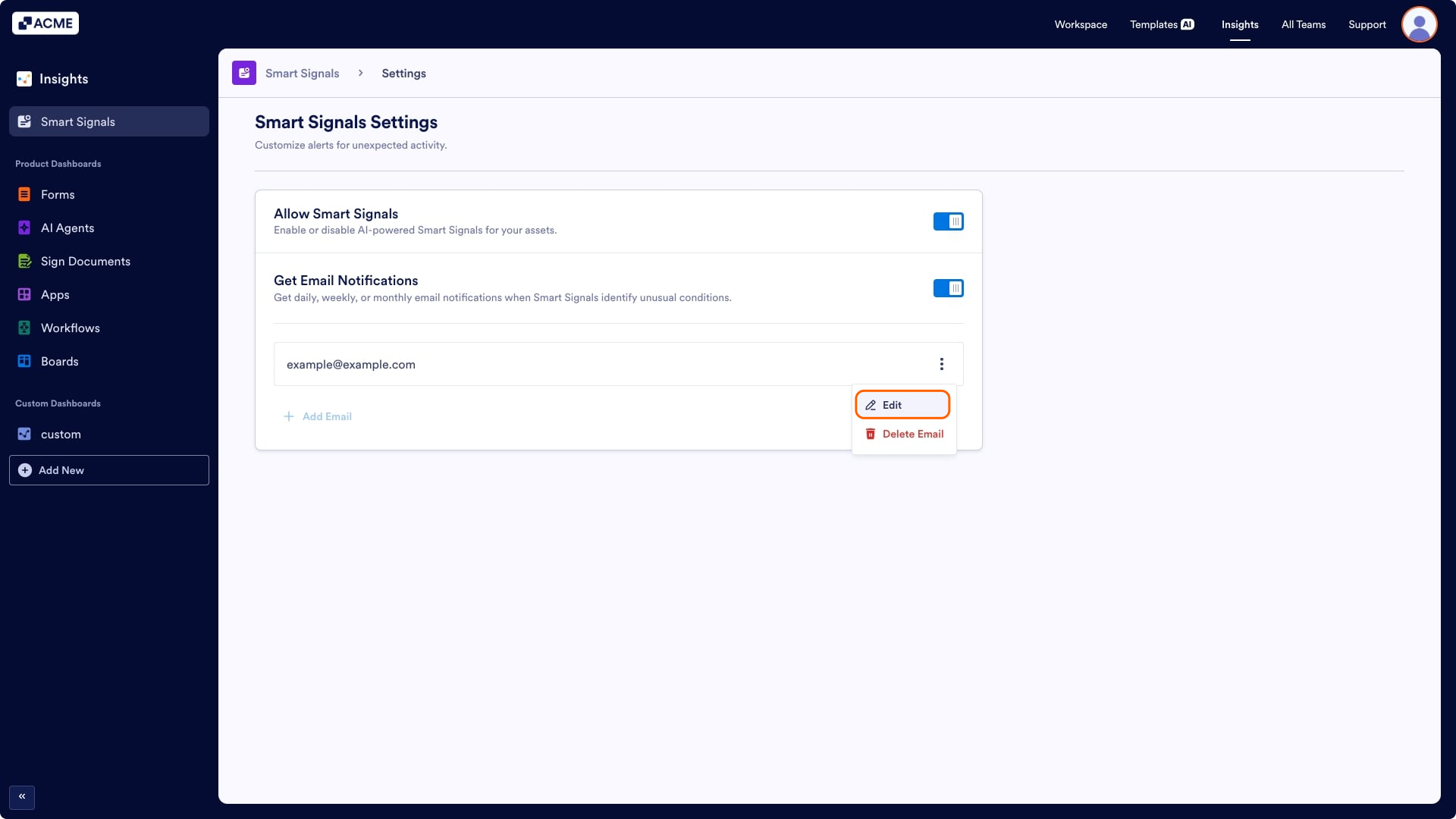
- In the menu that opens, select Delete and confirm your decision by clicking on Yes, Delete Email in the pop-up window.
Editing Notification Email
- On the Insights page, click Smart Signals.
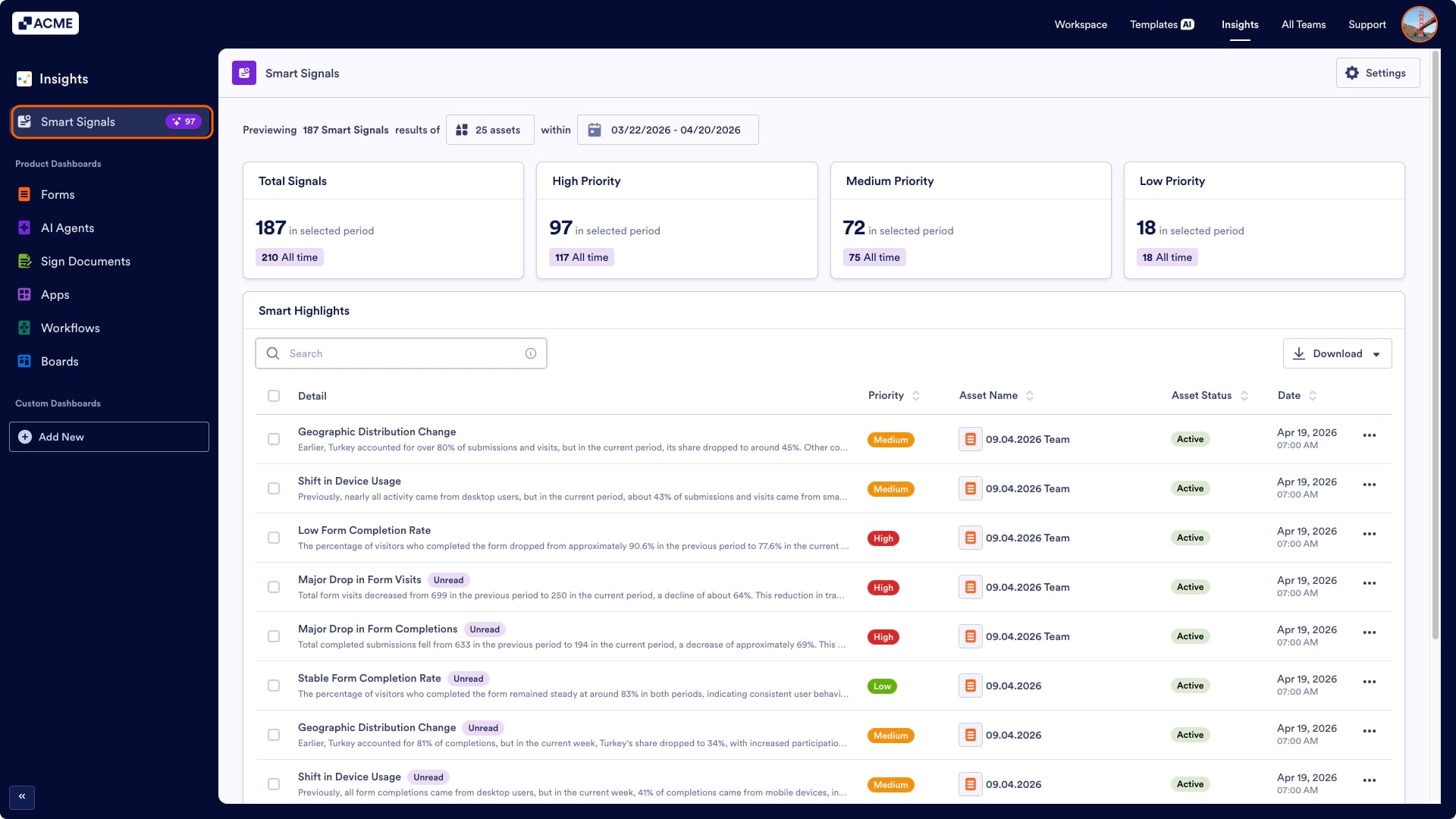
- Then click Settings in the top right side of the Smart Signals tab.
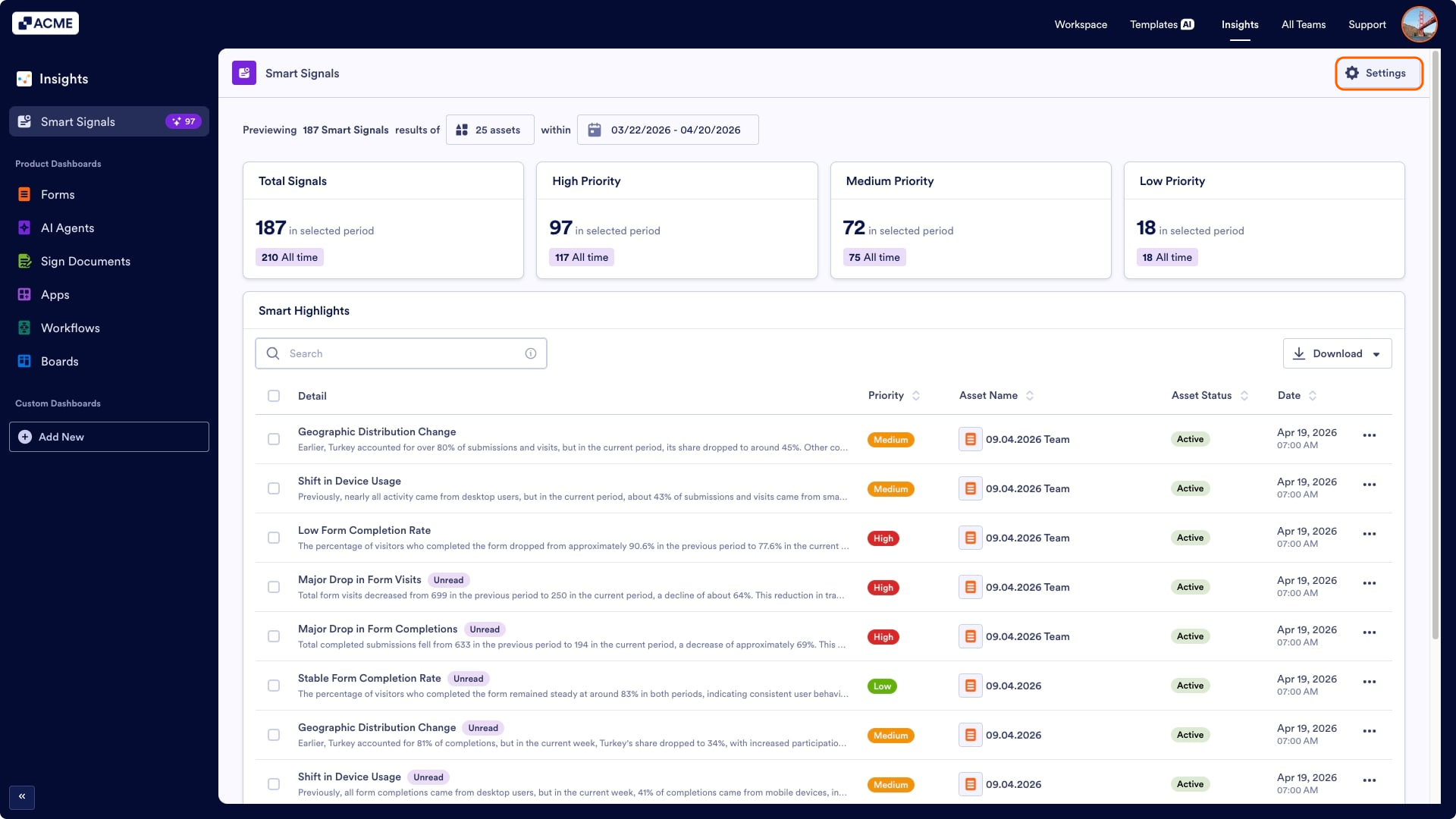
- Click on the Three Dots next to the Notification Email.
- In the menu that opens, select Edit to customize the digest email settings.

Send Comment: