The Regular Expression (Regex) Validation option lets you control the format of data entered into a Short Text field. By applying a regex pattern, you can ensure that users enter information in the format you expect, such as an email address, phone number, ZIP code, username, product code, or another custom value.
To enable Regular Expression (Regex) Validation:
- In Form Builder, click on Add Element on the left side of the page.
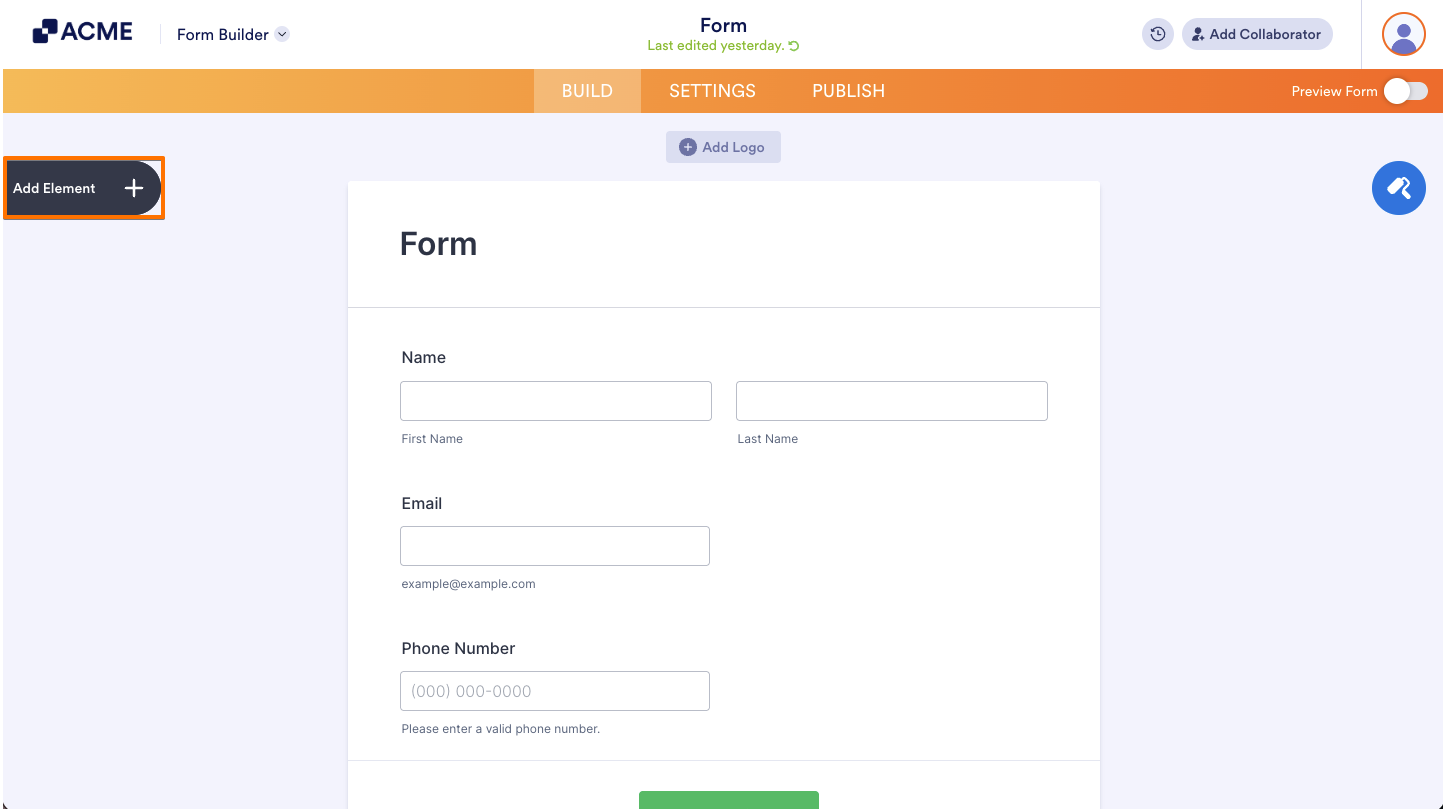
- Then, in the Form Elements menu, under the Basic tab, scroll down and then click on Short Text. Or, just drag and then drop it to where you want it to be on your form.
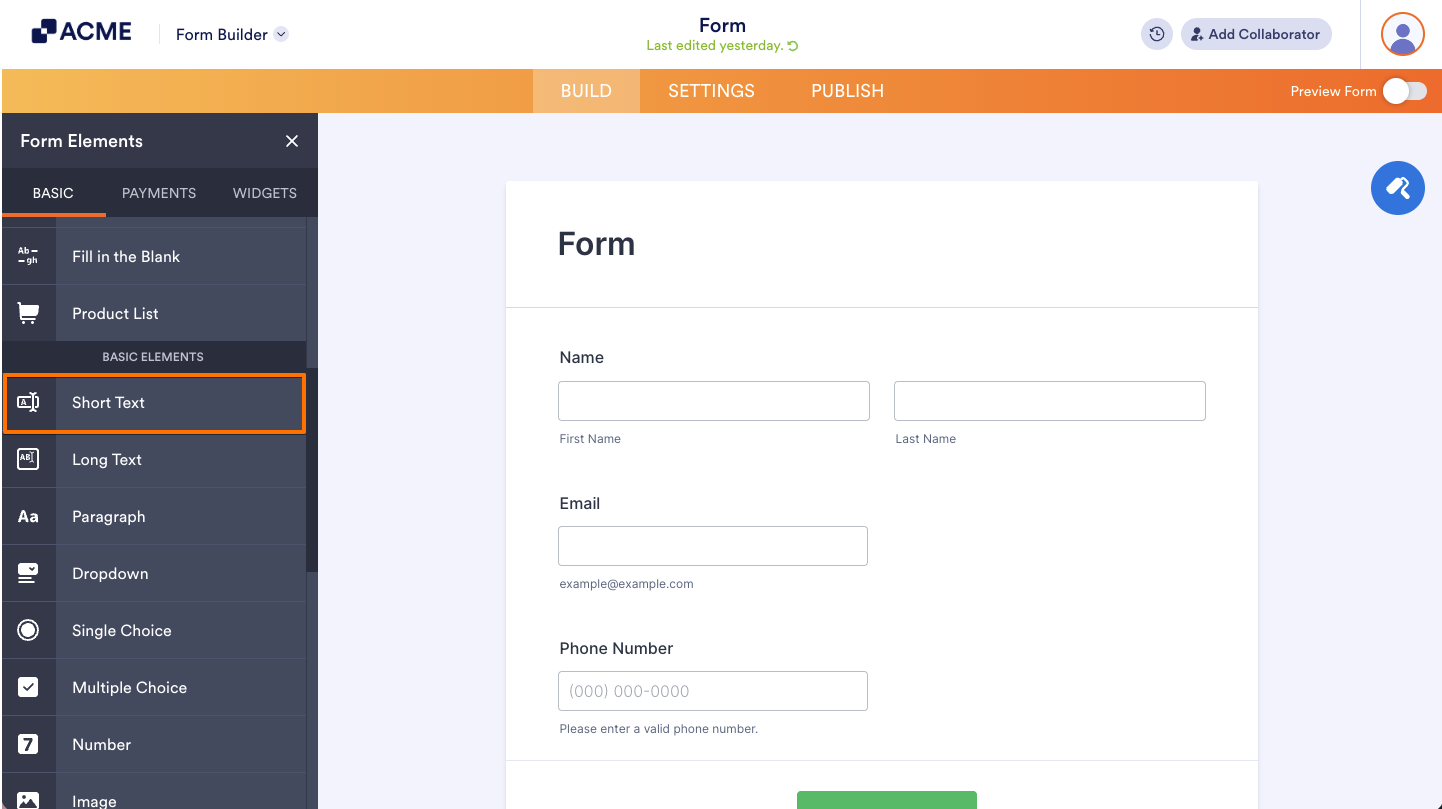
- Next, click on the Gear icon to open the Short Text Properties menu on the right side of the page.
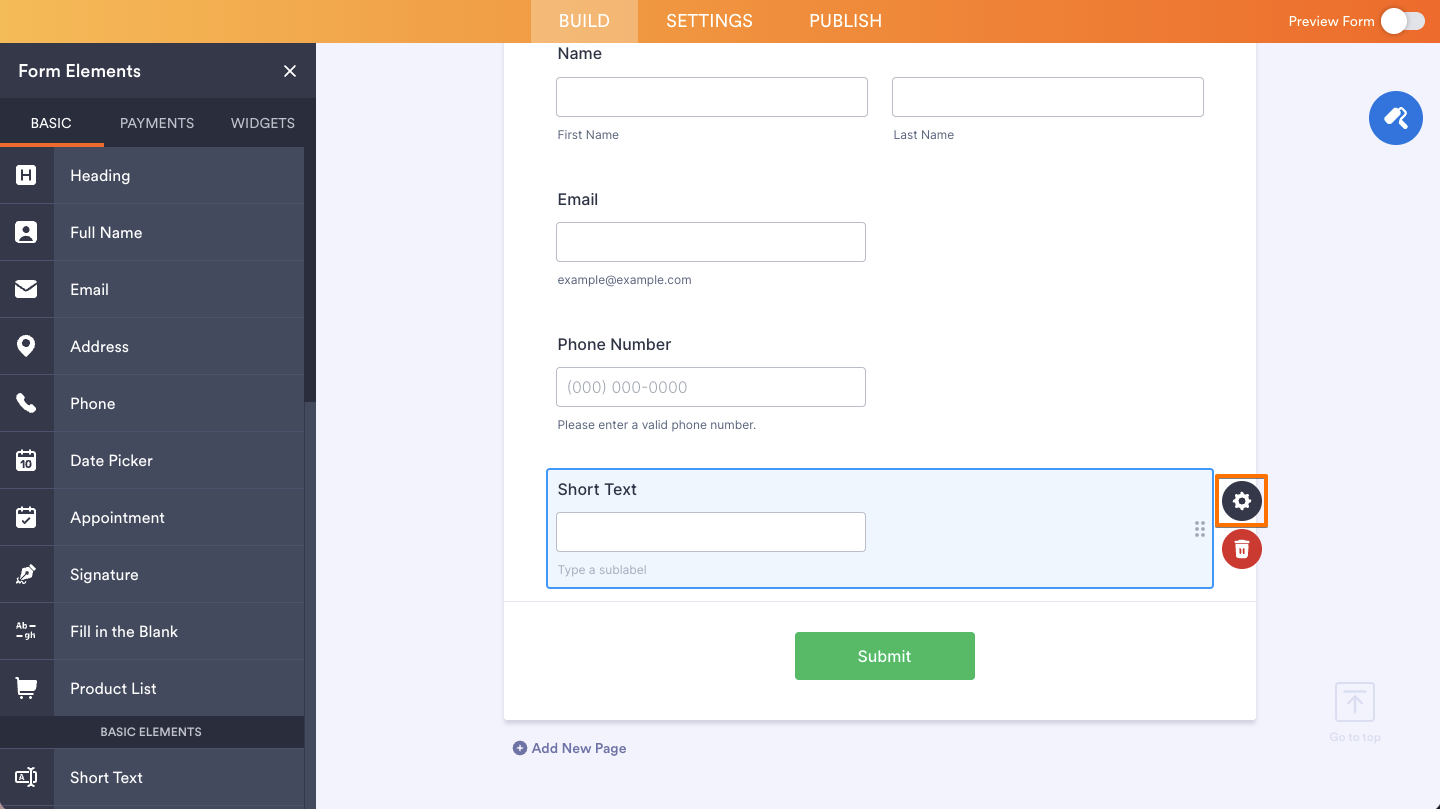
- Now, click on the Options tab.
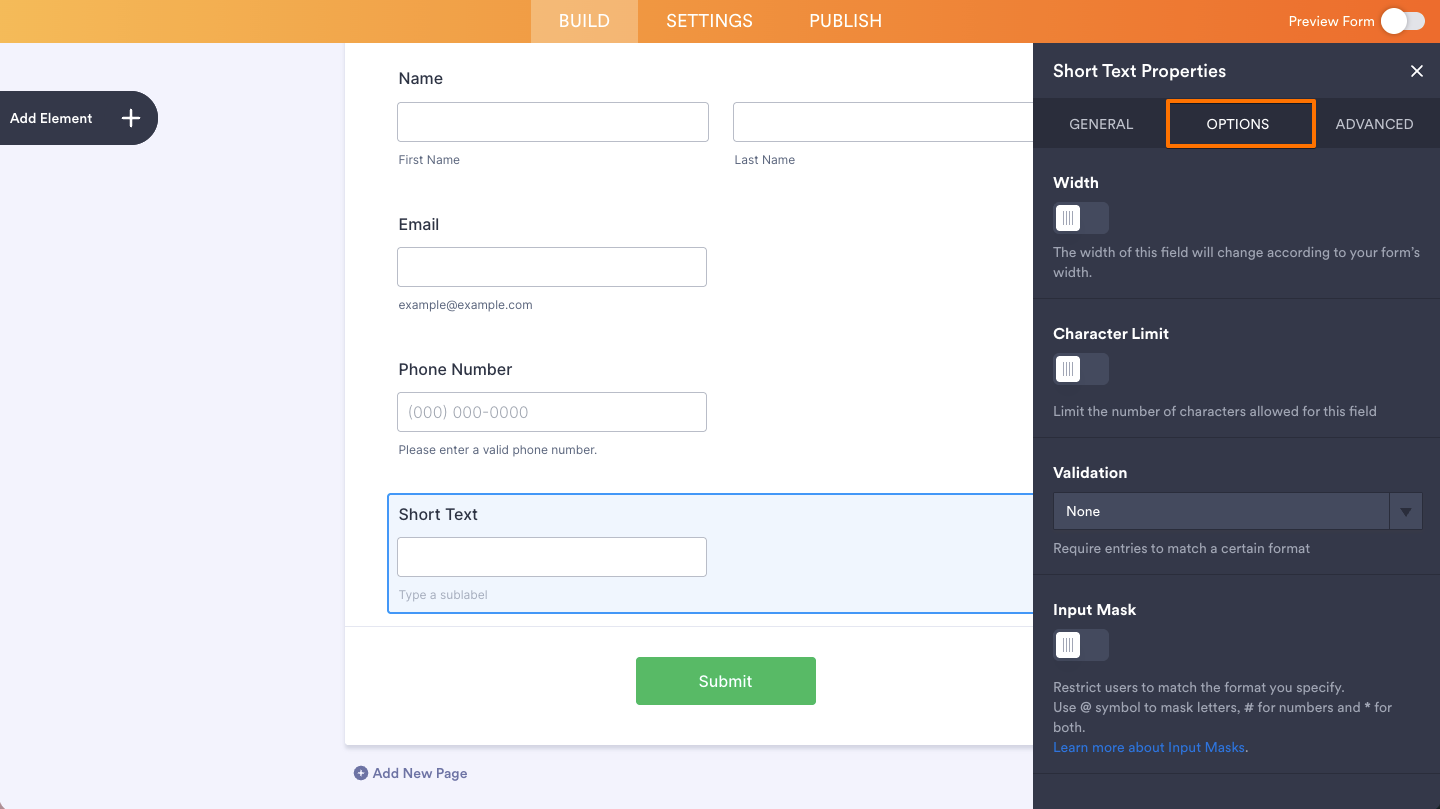
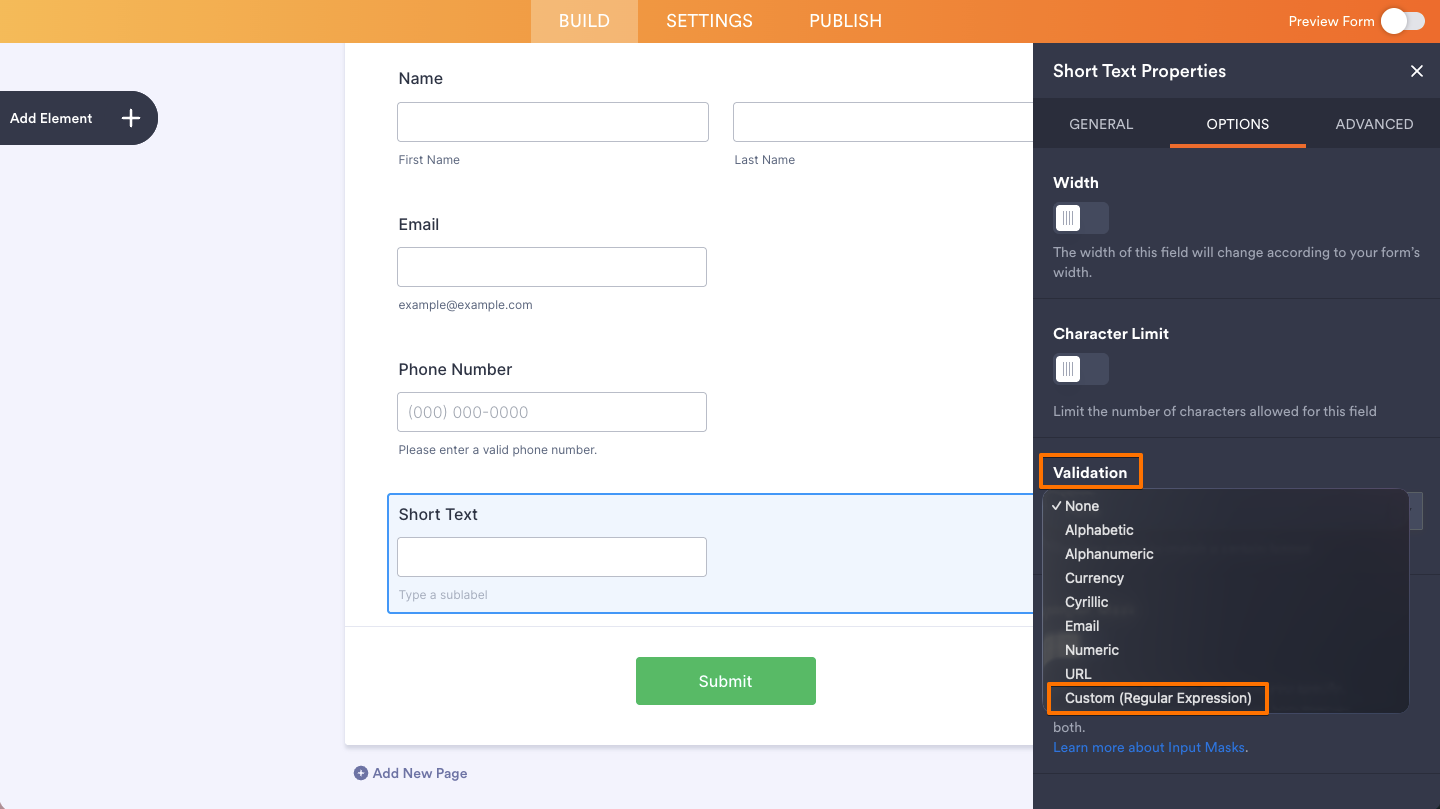
- Under Validation, select Custom (Regular Expression).
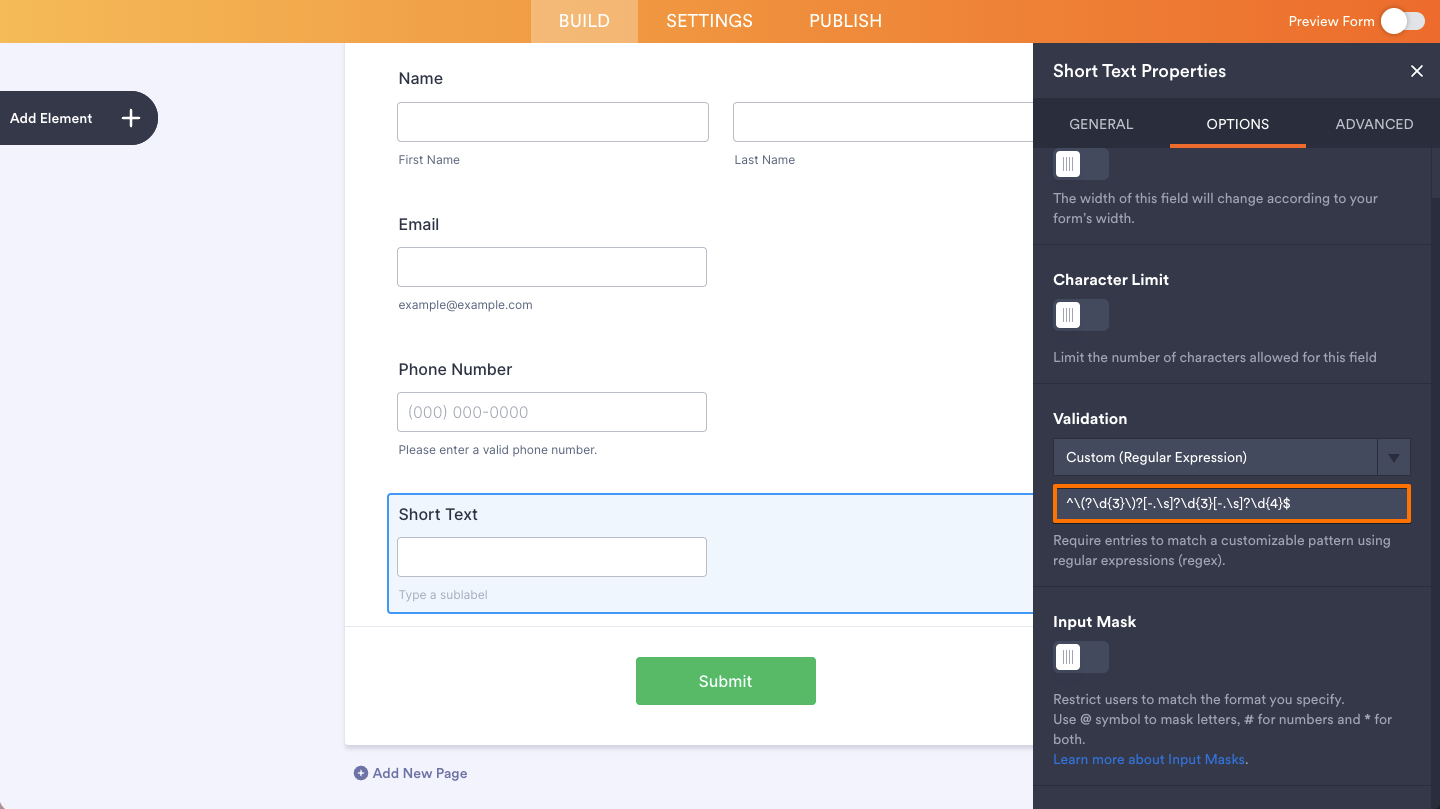
- Enter your regular expression in the Regex Pattern field.
As a form owner, you can direct form fillers to the correct format by adding a placeholder that displays the correct format or sublabels as examples of the valid value. You can check our guide about How to Add and Set Up the Short Text Element on Your Form to see where to find the sublabel and placeholder elements.
What Is Regular Expression (Regex) Validation?
Regular expressions (regex) are sequences of characters that define search or validation patterns. They provide a flexible way to verify that user input follows a specific format without limiting the field to a predefined validation type.
For example, you can use regex to:
- Validate email addresses or phone numbers.
- Restrict input to letters, numbers, or specific characters.
- Require usernames or IDs to follow a particular format.
- Validate postal codes, product codes, invoice numbers, or employee IDs.
- Create custom validation rules for your specific use case.
If you’re new to regex, Regex101 is an excellent resource for learning and testing expressions. It lets you experiment with regex patterns, highlights matches in real time, and explains what each part of the expression does, making it much easier to build and troubleshoot your validation rules.
Regex Validation
Use Regex Validation to make sure users enter data in a specific format. Regular expressions (regex) are powerful text patterns that can validate everything from email addresses and phone numbers to ZIP codes, usernames, product IDs, and custom reference numbers.
If you’re new to regex, don’t worry—you can build and test your expressions using Regex101, a free online tool that lets you experiment with patterns, see live matches, and get plain-English explanations of how each expression works. It’s one of the easiest ways to learn and troubleshoot regular expressions.
Regex Basics
Some of the most common regex symbols include:
| Symbol | Meaning |
| ^ | Start of the text |
| $ | End of the text |
| . | Any character |
| * | Zero or more occurrences |
| + | One or more occurrences |
| ? | Zero or one occurrence |
| \d | Any digit (0–9) |
| \w | Any letter, number, or underscore |
| \s | Any whitespace character |
| [abc] | Match one of the listed characters |
| [^abc] | Match any character except those listed |
| {n} | Exactly n occurrences |
| {n,m} | Between n and m occurrences |
Common Regex Examples
| Use Case | Regex Pattern | Matches |
|---|---|---|
|
^[A-Za-z0-9._%+-]+@[A-Za-z0-9.-]+\.[A-Za-z]{2,}$ |
john@example.com |
|
|
^\+?[1-9]\d{1,14}$ |
+14155552671 |
|
|
US Phone Number |
^\(?\d{3}\)?[-.\s]?\d{3}[-.\s]?\d{4}$ |
(555) 123-4567 |
|
ZIP Code (US) |
^\d{5}(-\d{4})?$ |
90210, 12345-6789 |
|
Username |
^[A-Za-z0-9_]{3,20}$ |
john_doe99 |
|
Hex Color |
`^#?([A-Fa-f0-9]{6} |
[A-Fa-f0-9]{3})$` |
|
Date (YYYY-MM-DD) |
^\d{4}-\d{2}-\d{2}$ |
2026-07-01 |
|
Time (24-hour) |
`^([01]\d |
2[0-3]):([0-5]\d)$` |
Tips
- Start with a simple pattern and make it more specific only if needed.
- Test your regex with several valid and invalid examples before using it in your form.
- Avoid making patterns overly restrictive, especially for names, addresses, and phone numbers, since valid formats differ across countries.
- If you’re unsure how a regex works, use Regex101 to test it and view a step-by-step explanation.

Send Comment: