With Smart PDF Forms, you can turn your PDF documents into fillable online forms and automatically generate completed PDF copies from each submission. These PDFs can be sent as attachments through notification and autoresponder emails after a form is submitted.
Adding a password to your PDF attachments helps protect sensitive information by making sure only authorized people can open the file. It’s a simple way to add extra security when sharing completed PDF documents through email.
Setting Up a Password for PDF Attachments in Notification Emails
You can protect PDF attachments in your notification emails by enabling password protection in your email settings. Getting started is simple—here’s what to do:
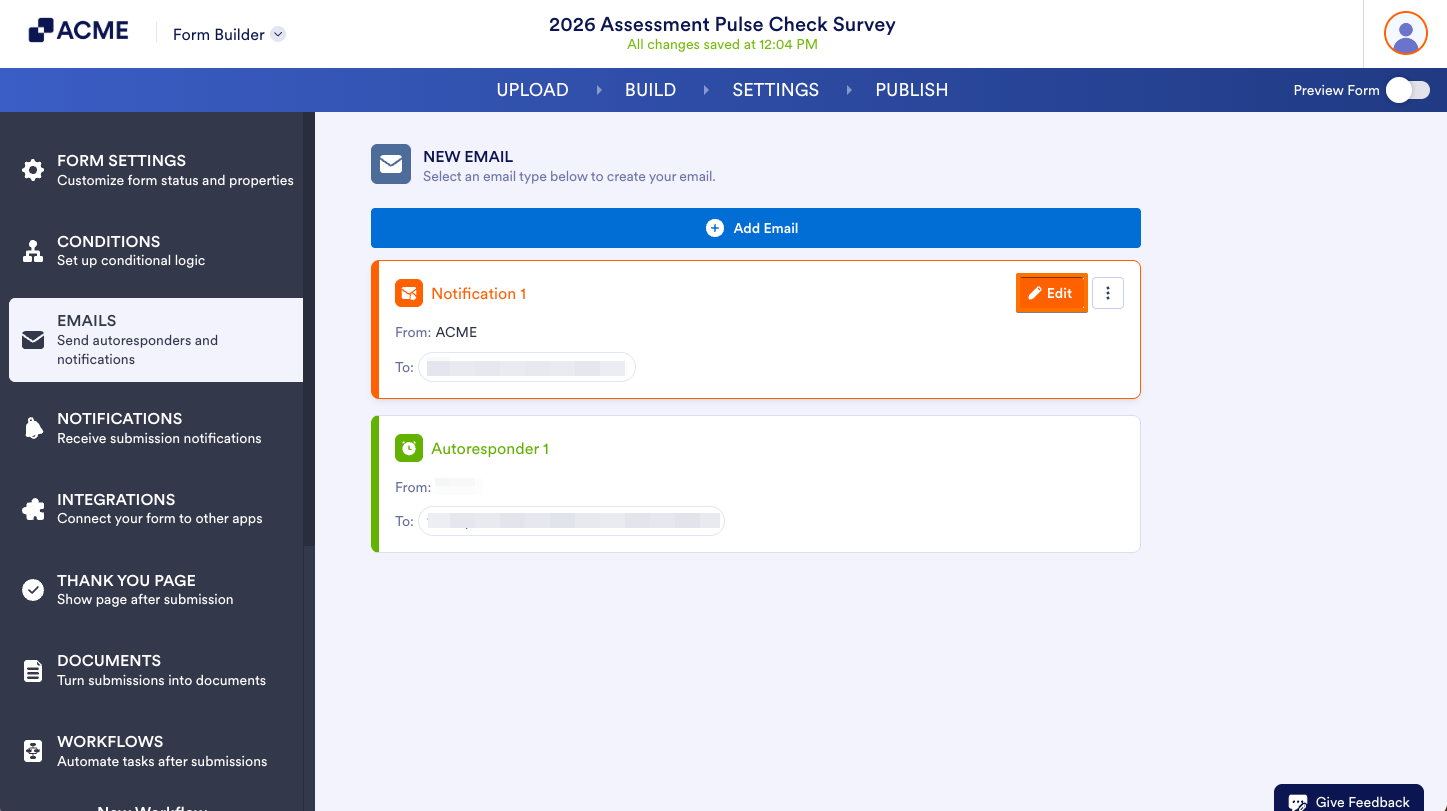
- In Smart PDF Forms, in the blue navigation bar at the top of the page, click on Settings.
- Then, in the menu on the left side of the page, click on Emails.
- Now, hover your mouse over the Notification Email and click on edit.
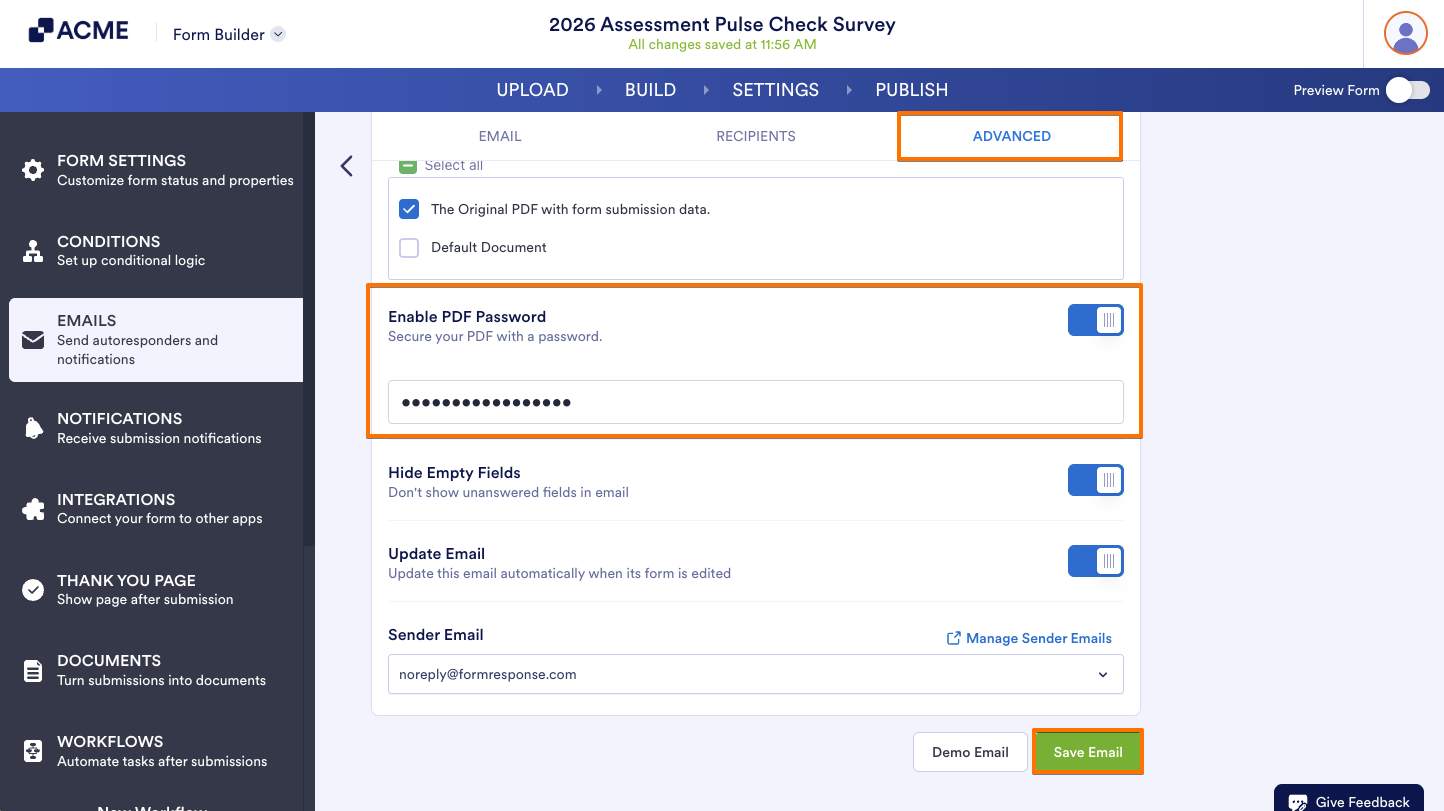
- Next, under the Advanced tab, toggle on the Enable PDF Password and enter the password that you want to use.
- Now, click on Save Email, and you’re done.
Note
Your PDF password must contain at least 8 characters, 1 uppercase letter, 1 lowercase letter, 1 number and 1 special character. We also recommend using a strong password to help keep your PDF attachments secure.
You can follow the same steps for the Autoresponder Email.
If you enable password protection for autoresponder emails, make sure to share the password with your recipients so they can open the PDF attachment.
For HIPAA-enabled accounts, the original PDF attachment is disabled by default for both notification and autoresponder emails in the PDF connection settings. A password is required to enable the original PDF attachment.

Send Comment: