Form Collaboration in the Form Builder lets users on the same form simultaneously. Changes are automatically saved, ensuring everyone edits the most current version. Collaborators can join using a unique session URL.
Getting the Form Collaboration Link
Follow these steps to get your form’s collaboration link, whether you’re creating a new form or editing an existing one:
- In Form Builder, click on the Add Collaborators button at the top of the page.
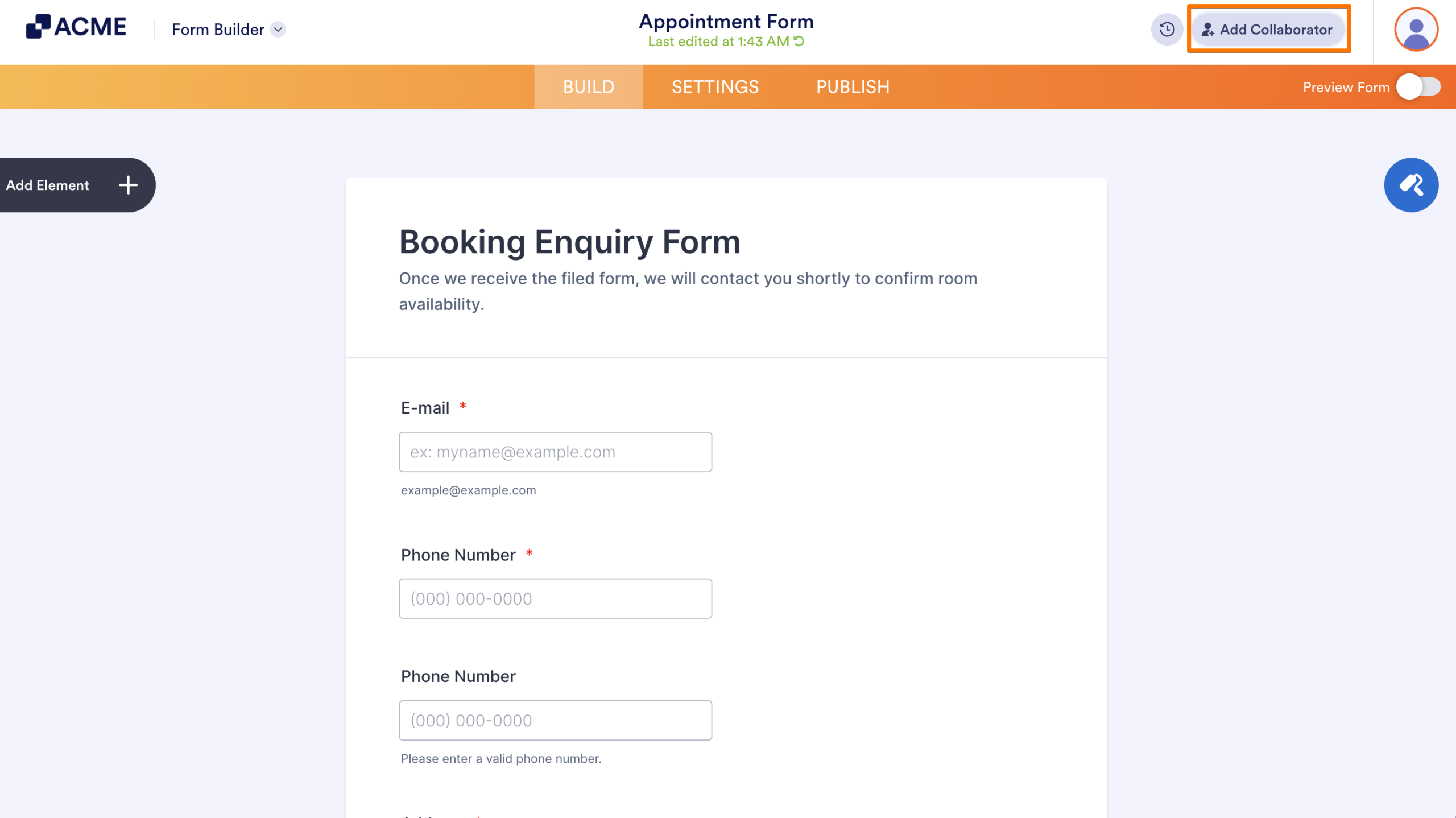
- Either copy the link and send it to them, or enter your collaborator’s email to the invite by email field and click on Send Invitation.
That’s it! You can share your form’s collaboration link with coworkers through external messaging or email applications.
Monitoring Form Collaborators
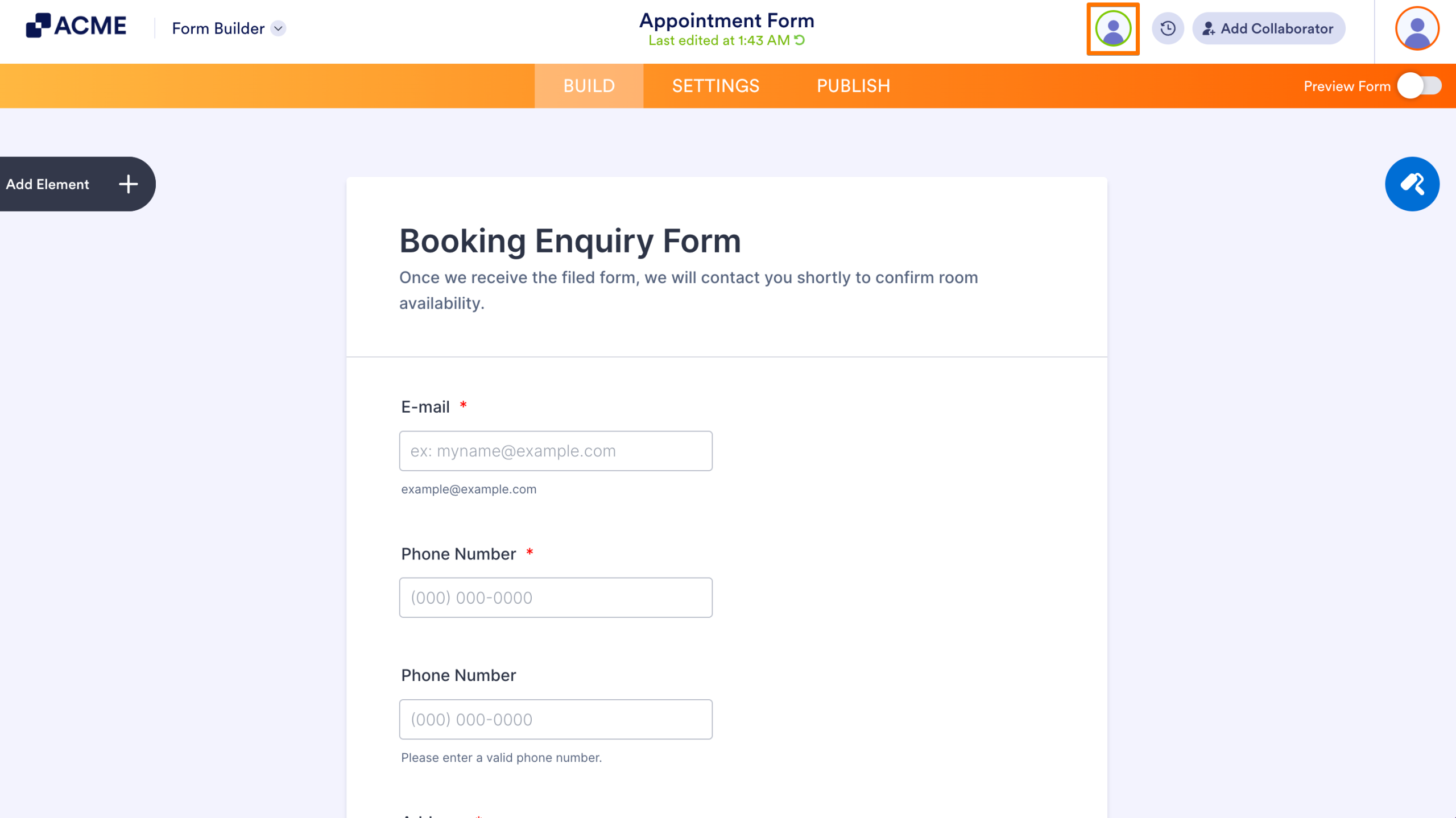
Active collaborators working on your form are displayed at the top of the Form Builder. Hover your mouse over their avatar to view the collaborator’s name and email address.
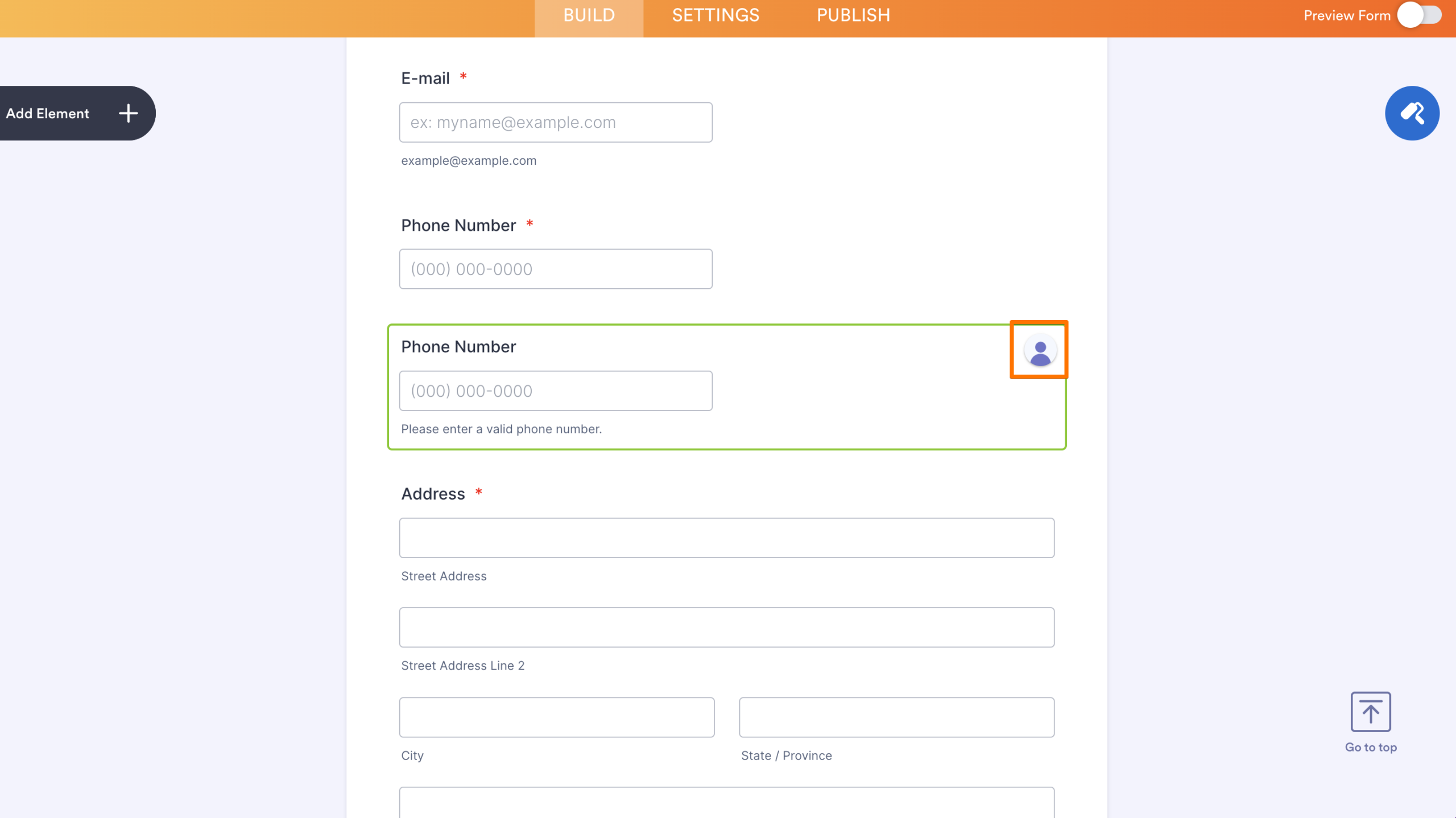
The collaborator’s avatar will appear on the element they’re working on, highlighted in a randomly assigned color, so everyone can see who is working on which element in the Form Builder.
Generating a New Form Collaboration Link
To renew the collaboration link, click on the Refresh icon next to the Copy Link button in the Collaboration Link popup to generate a new one.
When you generate a new link, you will be prompted that the old link will be disabled. Anyone with the old link can no longer open and edit your form in the Form Builder. Click on the Generate a New Link button in the message to proceed.
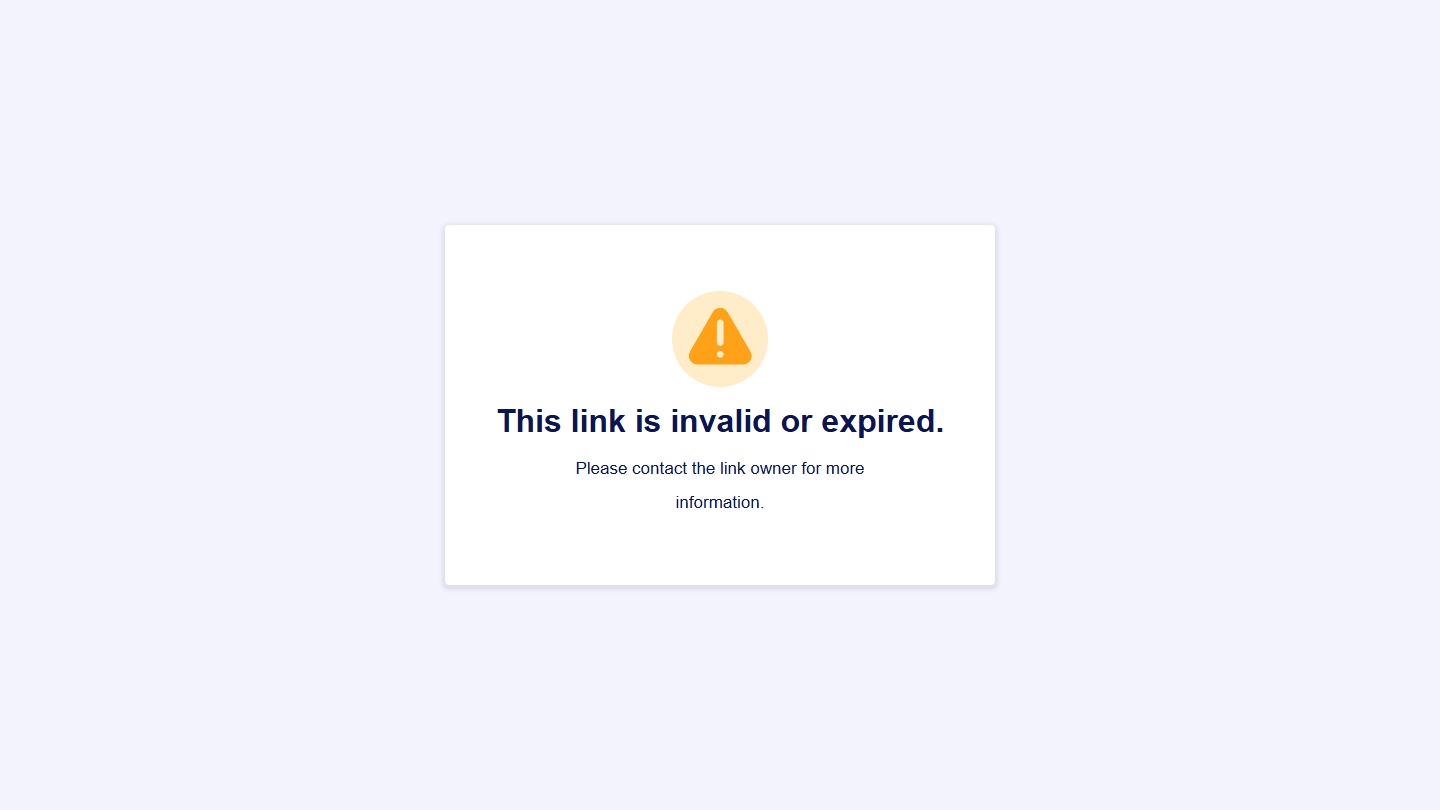
When the link expires or users access the old collaboration link, they will see a message that the link is invalid or expired and that they should contact you to request more information.
Notes
Form Collaboration is only available in the Form Builder.
The Form Builder has an auto-save feature that automatically saves all changes made by collaborators.

Send Comment: