When working with Tables, you have the flexibility to show or hide columns based on your needs. This allows you to stay focused and manage your data effectively. You can change your columns’ visibility with the Columns button as well as the tab and column menus.
Columns Button
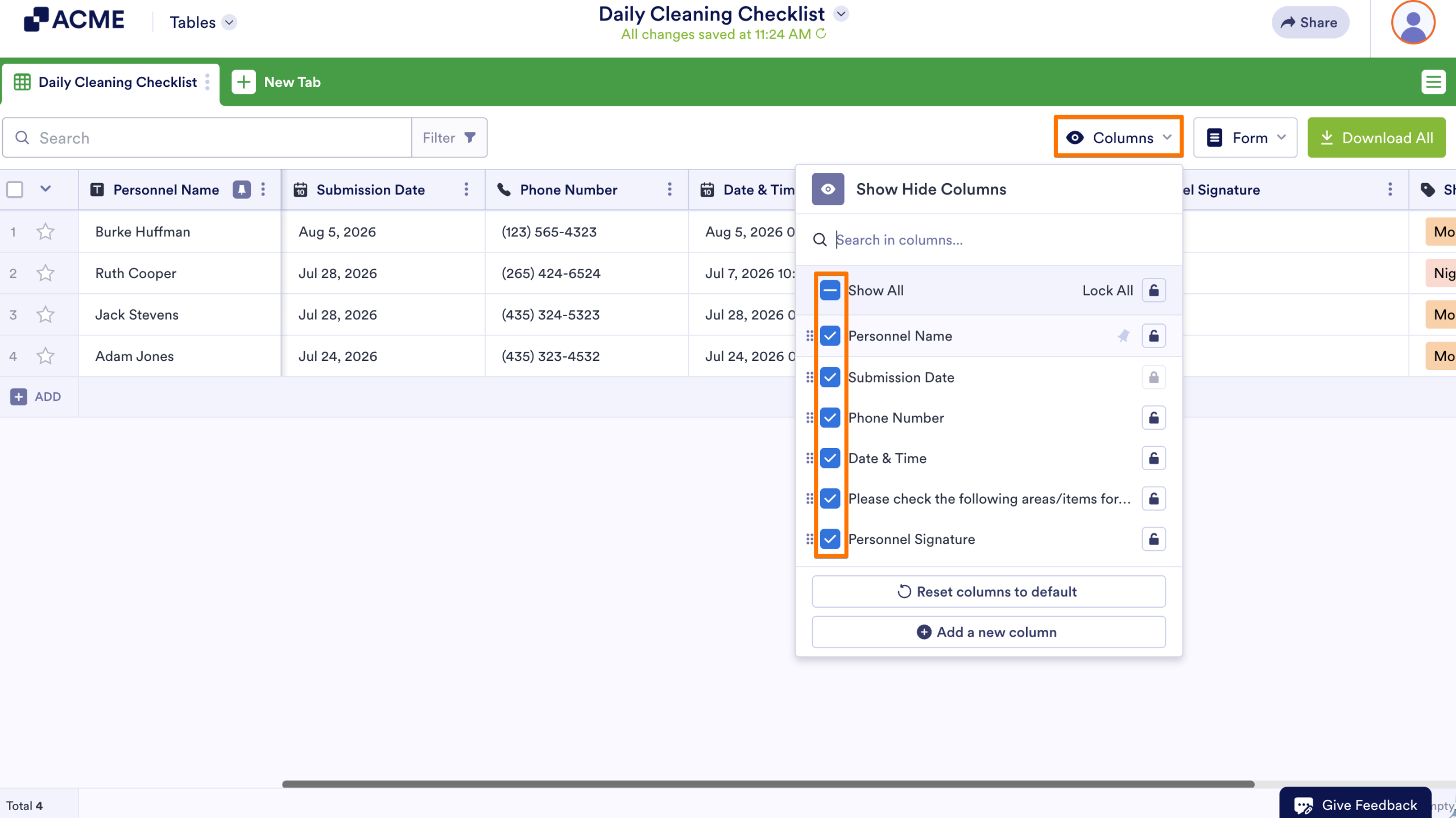
You can change your columns’ visibility and other options like searching, rearranging, or adding columns using the Columns button:
- In Tables, click on the Columns dropdown in the upper-right corner.
- In the dialog box, check or uncheck the checkboxes to show or hide the columns.
Tab Menu
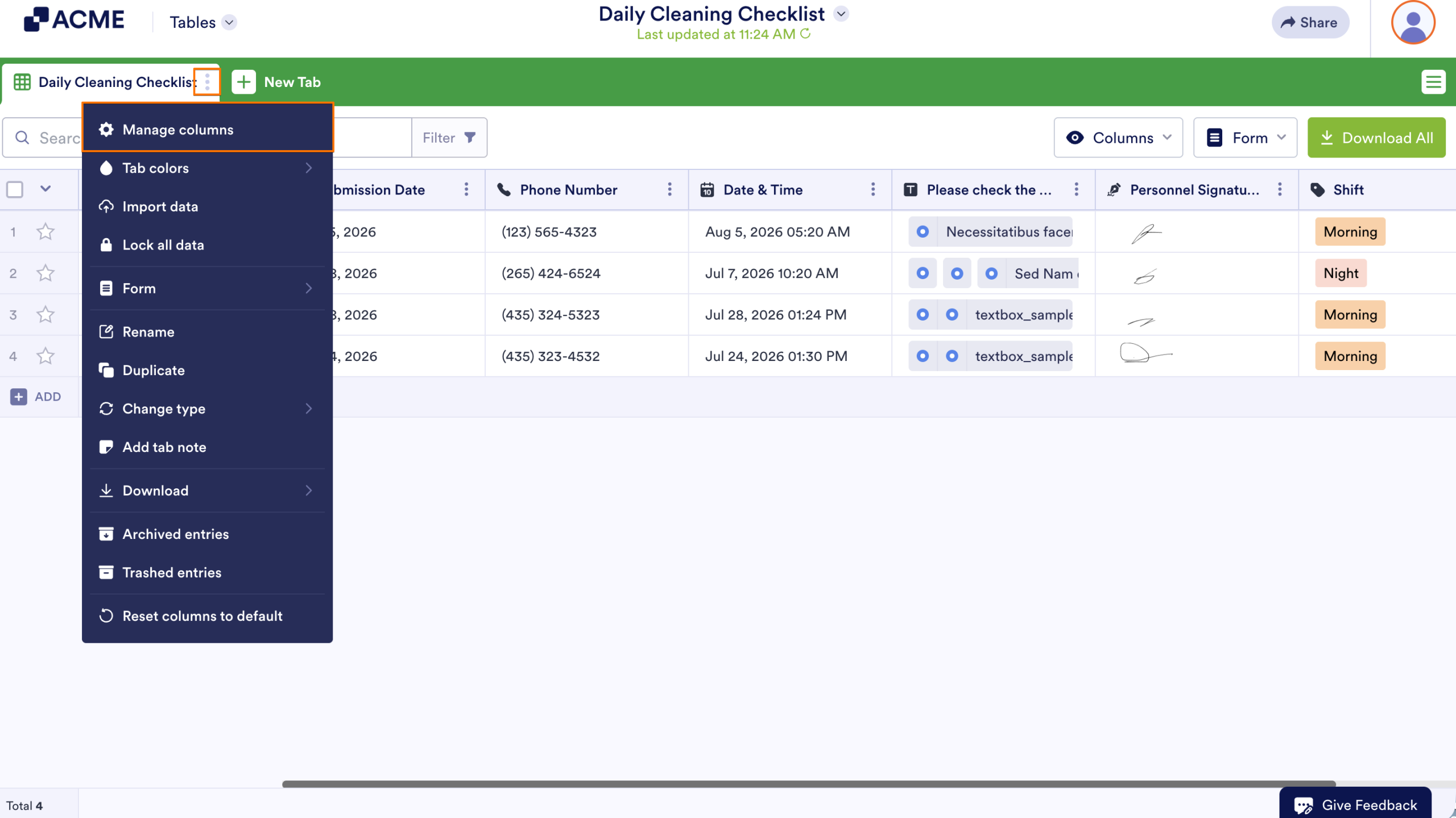
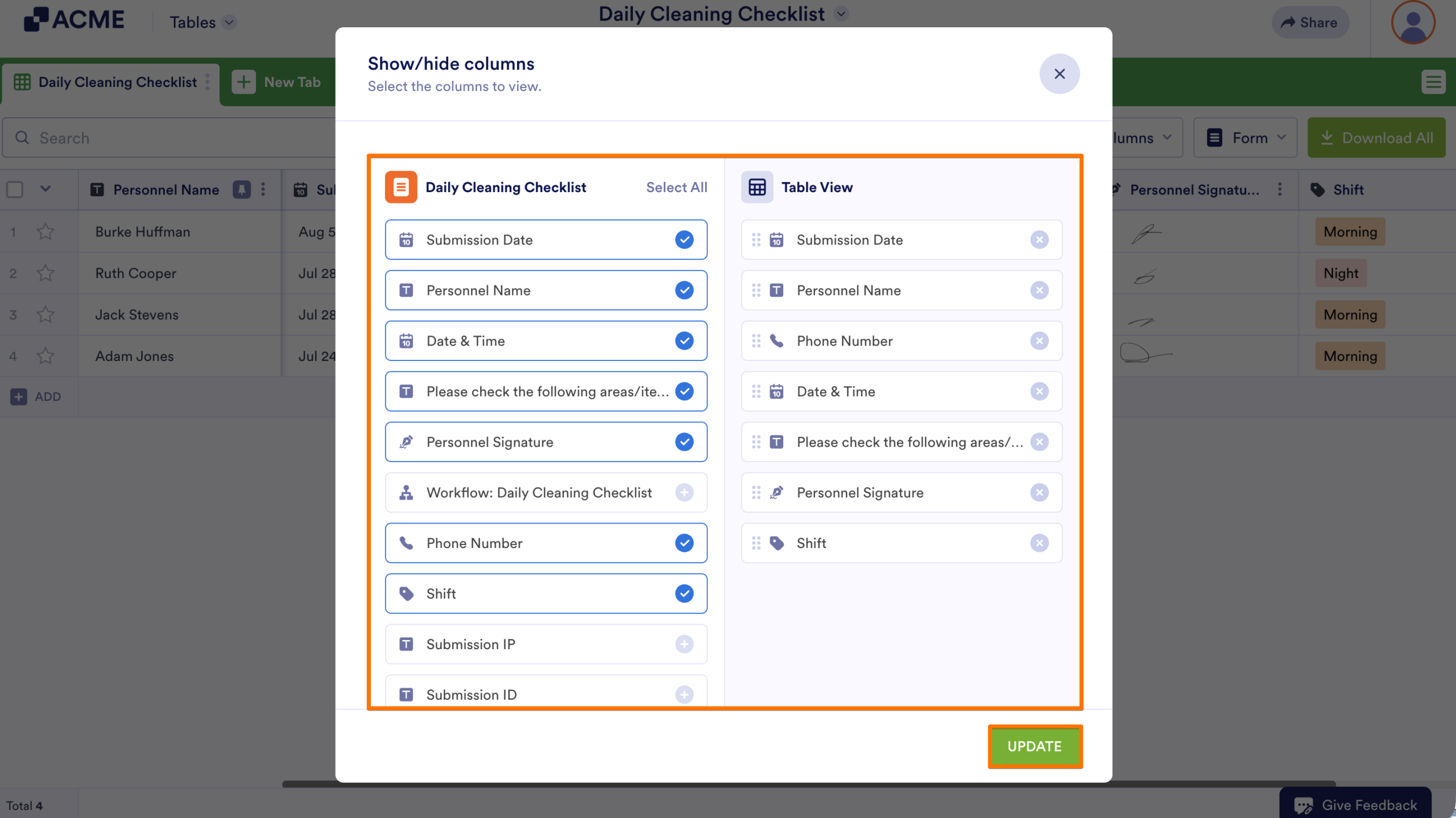
Unlike the Columns button, the tab menu’s Manage columns option is limited to rearranging and showing or hiding columns:
- In Tables, click on Three Dots icon for the tab you want to manage.
- Select Manage columns.
- In the dialog box, choose the columns to include in your table, then select Update.
Column Menu
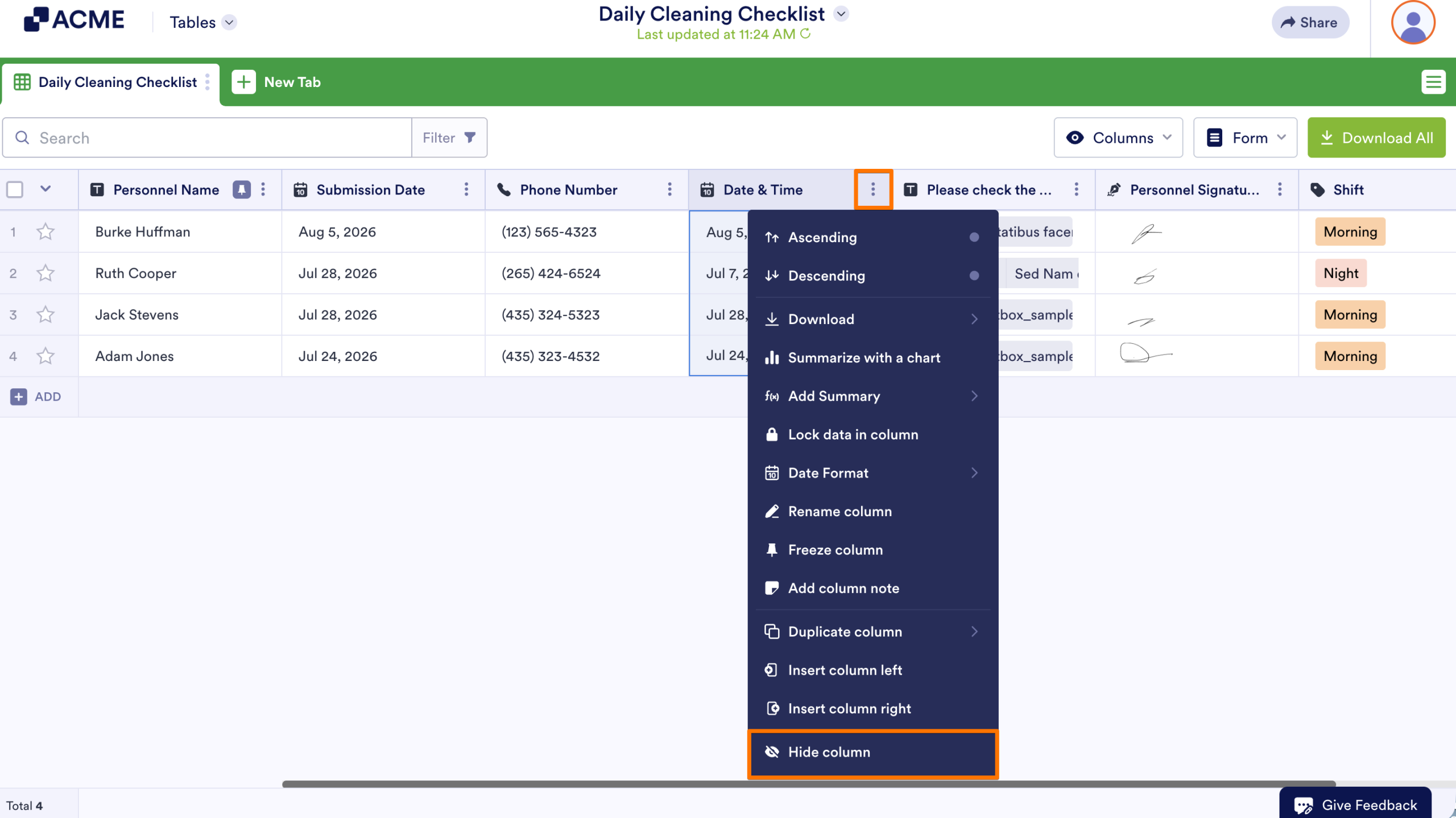
You can hide visible columns using their respective menus:
- In Tables, click on the Three Dots icon for the column you want to hide.
- Select Hide column.
See also:

Send Comment: