As an Admin, you can manage the Form Fields available to your organization to ensure data consistency and security. Use these settings to hide specific inputs—such as File Uploads or signatures—to standardize how your organization collects information.



Enabling or Disabling Fields
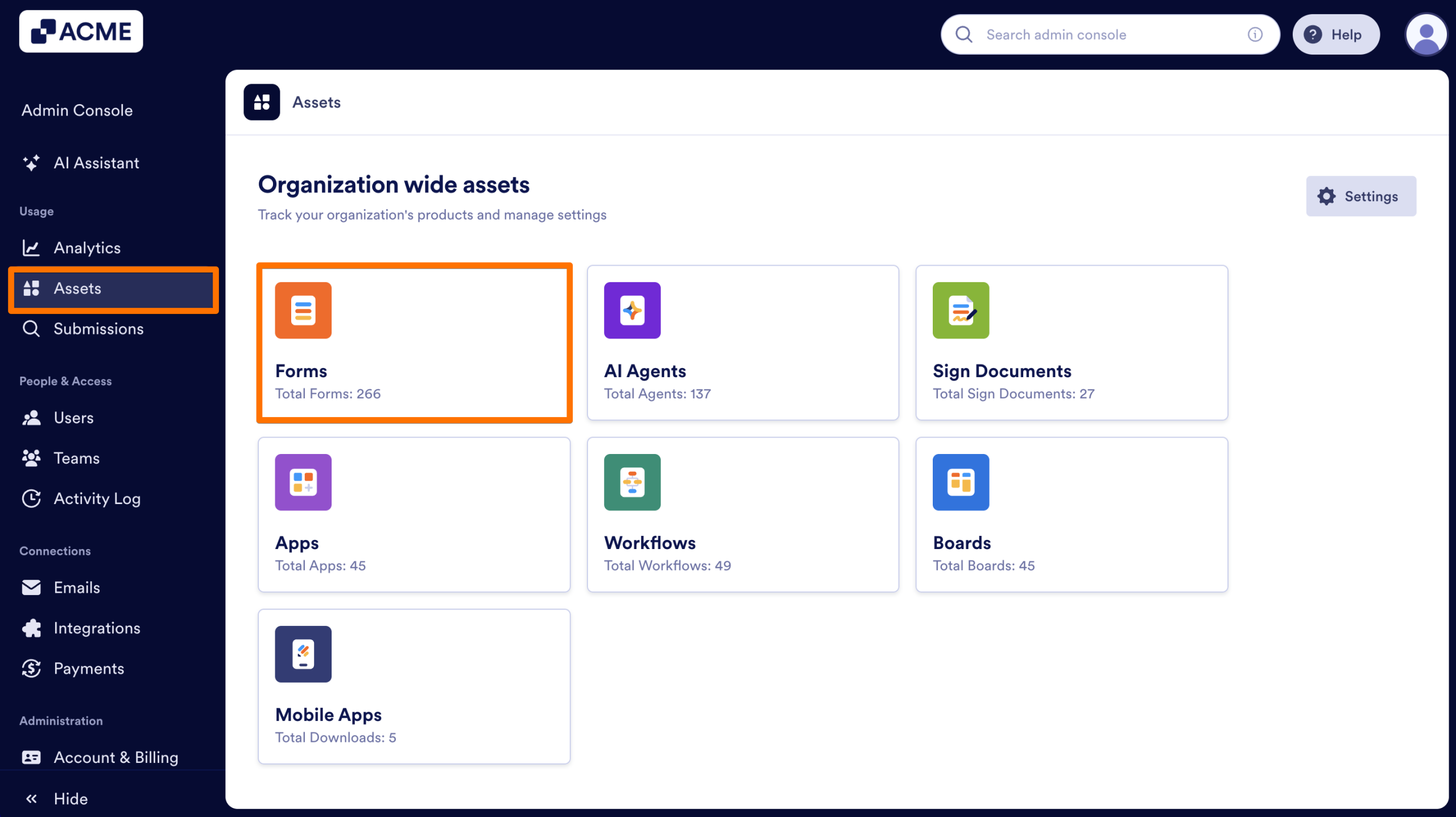
- In the Admin Console, click on Assets on the left-hand side of the page.
- Select Forms from the list of assets.
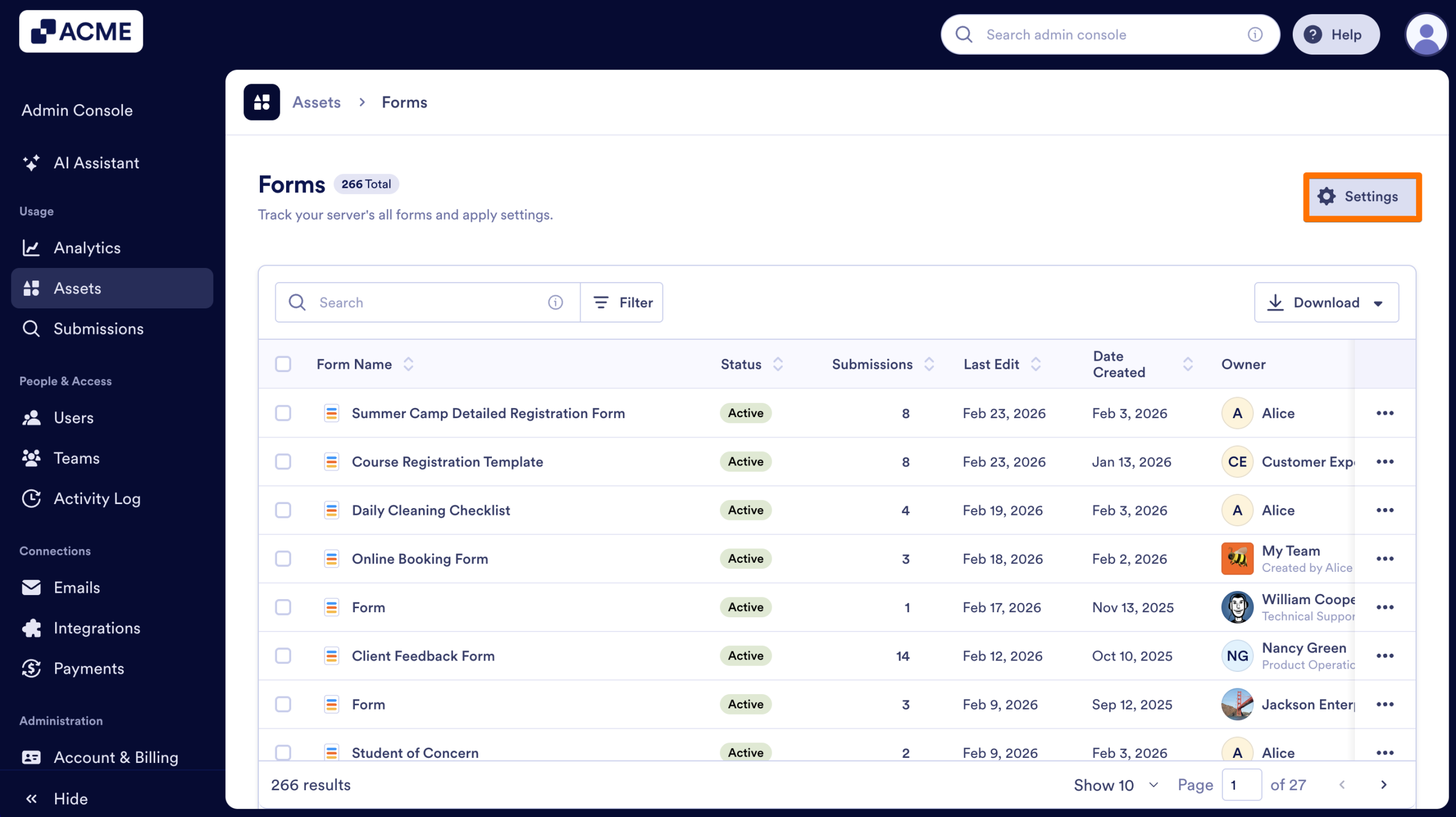
- Click on the Gear icon to open the Form Settings.
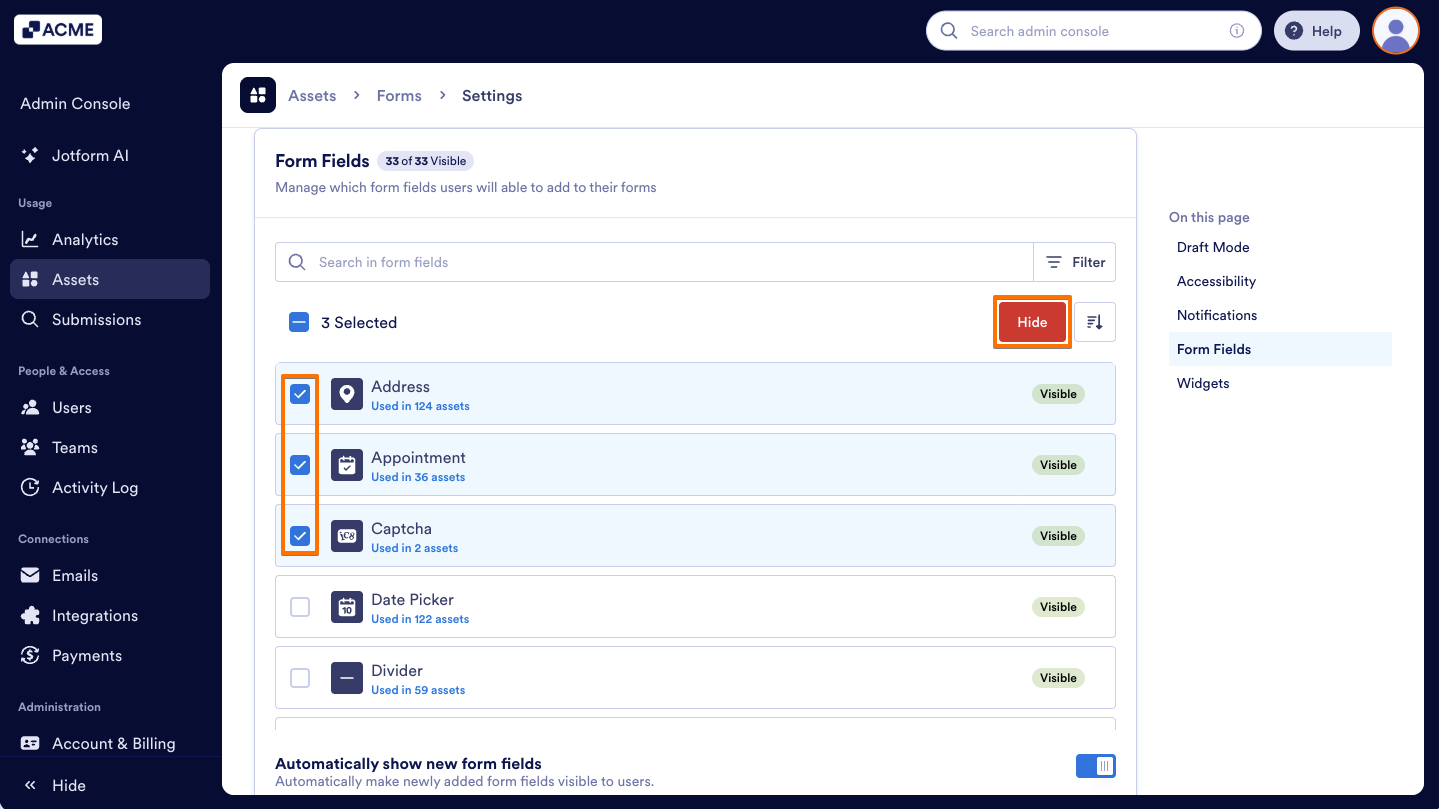
- Scroll down and click on the checkbox next to each specific field you’d like to disable.
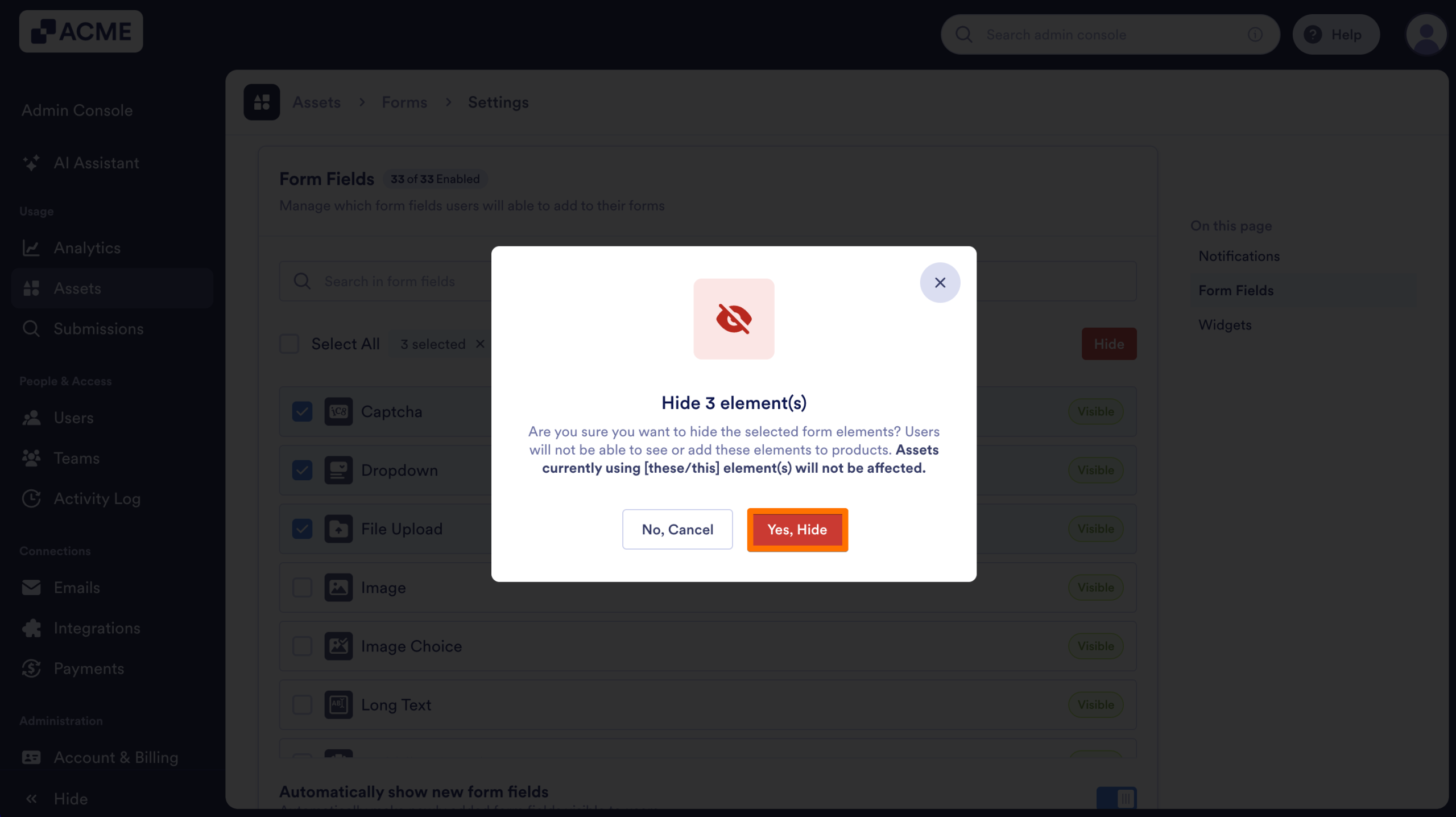
- Select Hide/Show at the top of the list.
- Finally, confirm your selection in the pop-up window.
Note
If a form already contains a hidden field, it remains fully functional. Users can still edit its settings, but they cannot add it to new forms.
Handling Future Field Updates
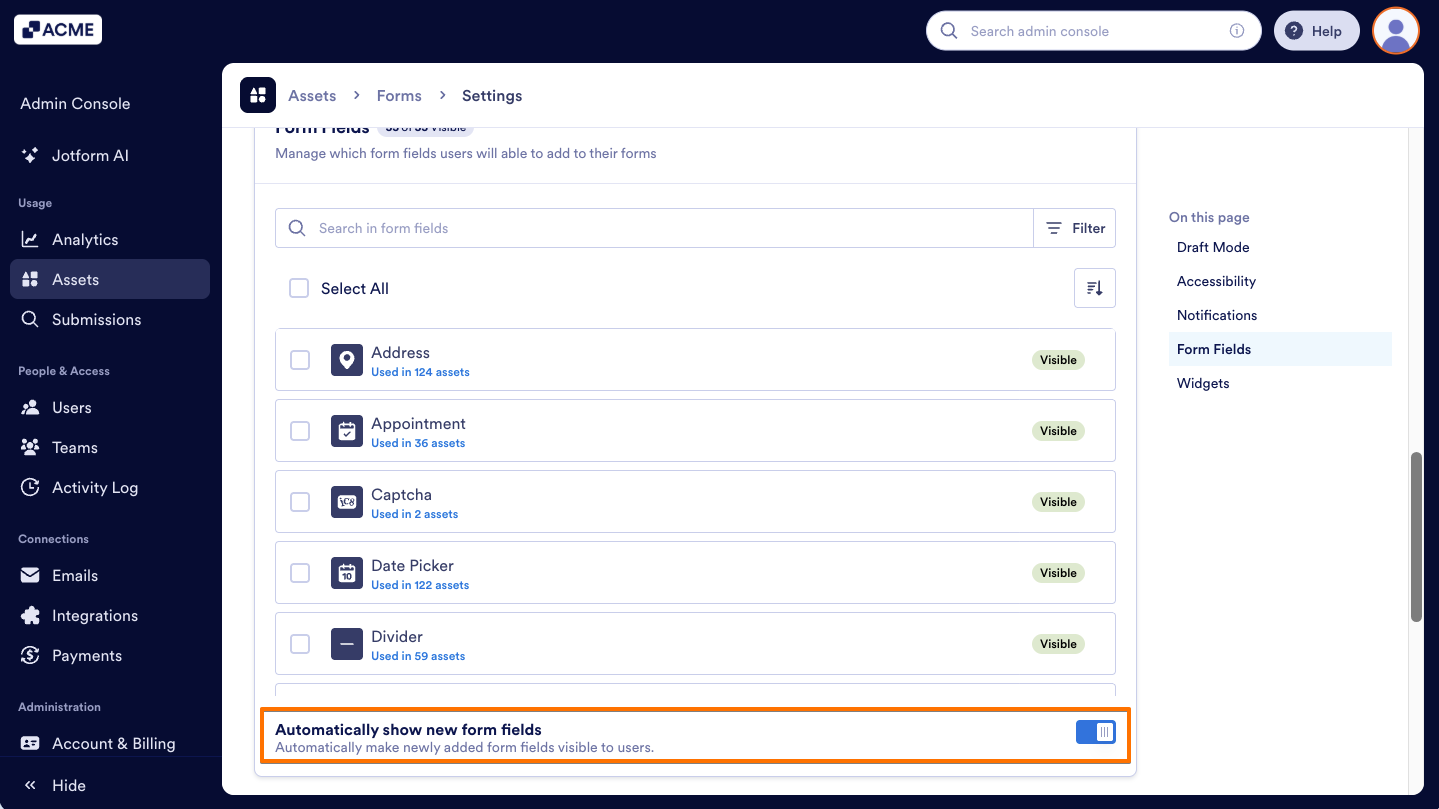
You can also control how your organization handles new form fields introduced by the platform in the future. You can use the Automatically show new form fields toggle within the same settings menu.
- Toggle On: New field types are immediately available to your users upon release.
- Toggle Off: New fields stay hidden until you manually toggle them on, giving you full control over when new features are introduced to your organization.
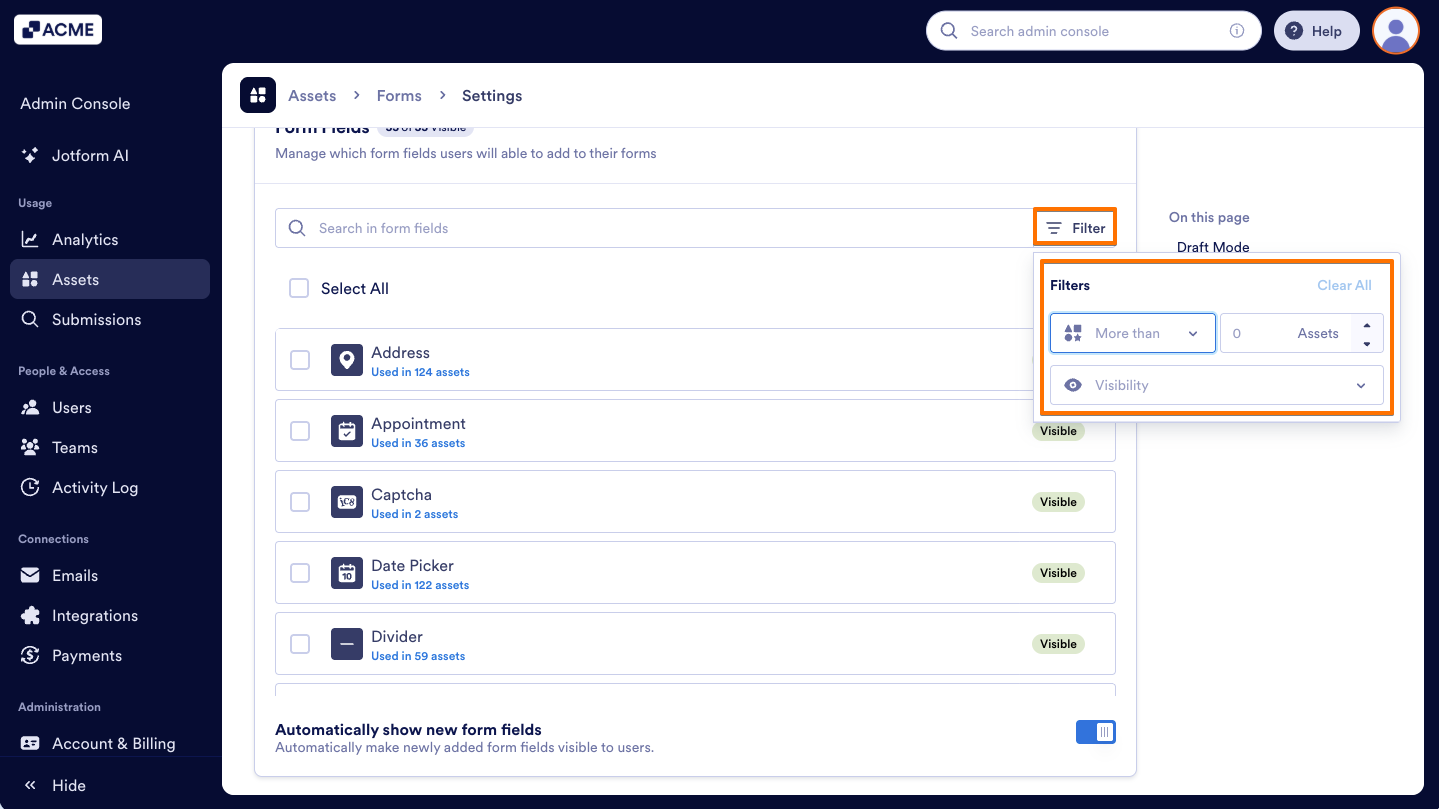
Filtering the Form Fields
You can also filter the form fields to quickly find and display specific fields based on your selected criteria. Use the Assets filter to narrow down fields based on the number of assets they are used in, or use the Visibility filter to display fields based on their visibility status.
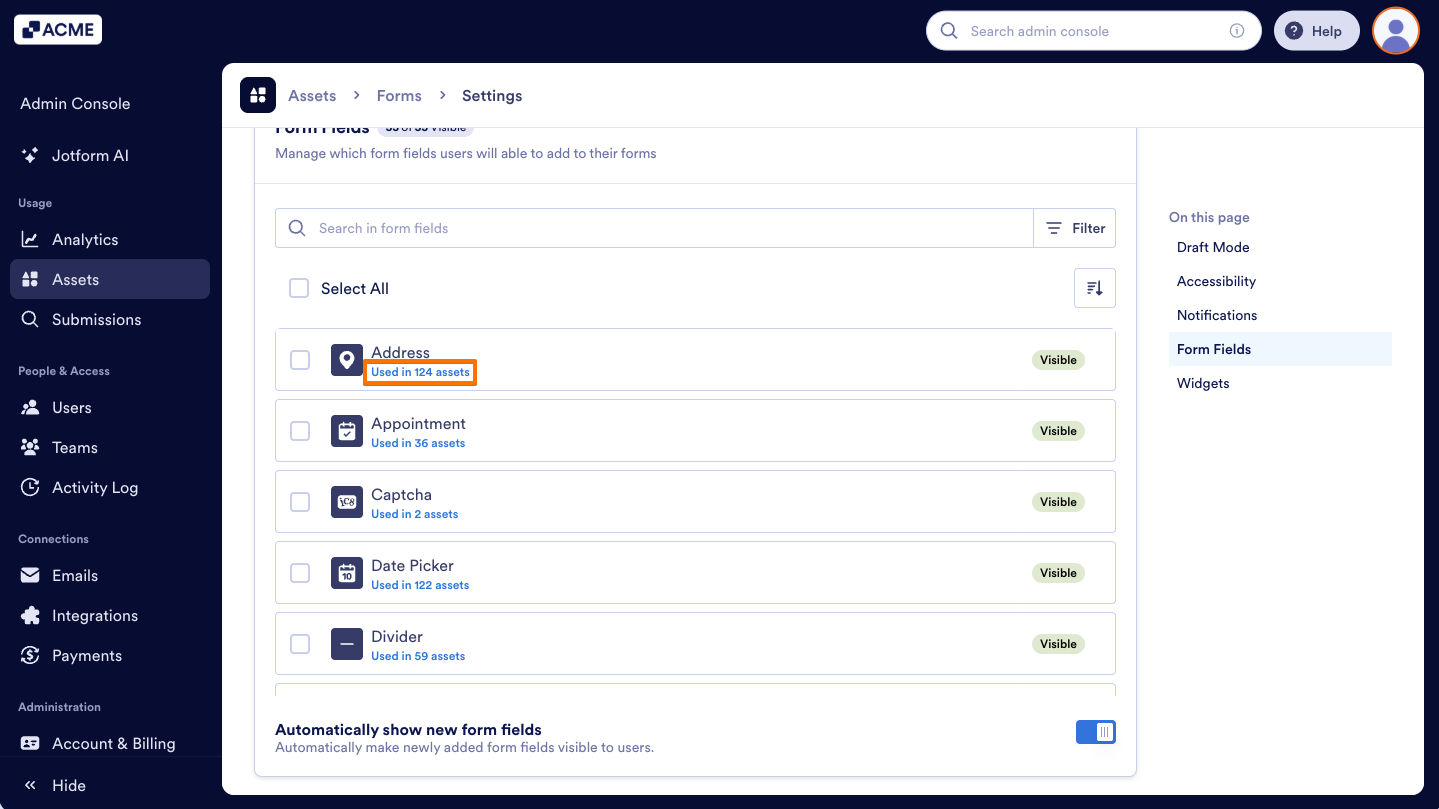
Additionally, you can click the asset count under a field to open a filtered page displaying all forms that use that specific field.
See also:

Send Comment: