As an Admin, you can trash or restore Sign Documents directly from the Admin Console, helping you maintain control over document lifecycle management. Easily remove outdated files or recover documents when needed, ensuring your organization stays organized and in control from one centralized location.
Moving Sign Documents to Trash
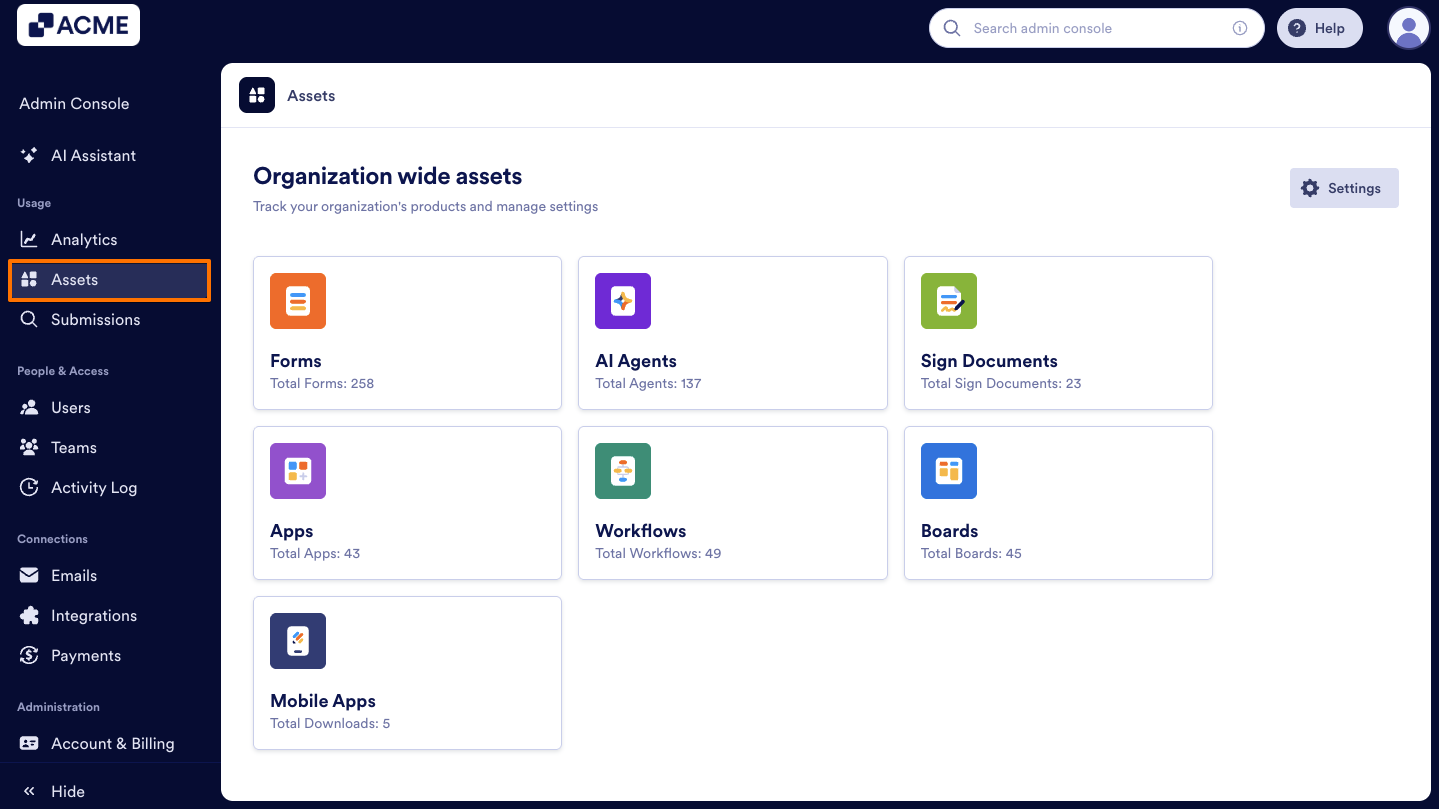
- In the Admin Console, click on Assets on the left side of the page.
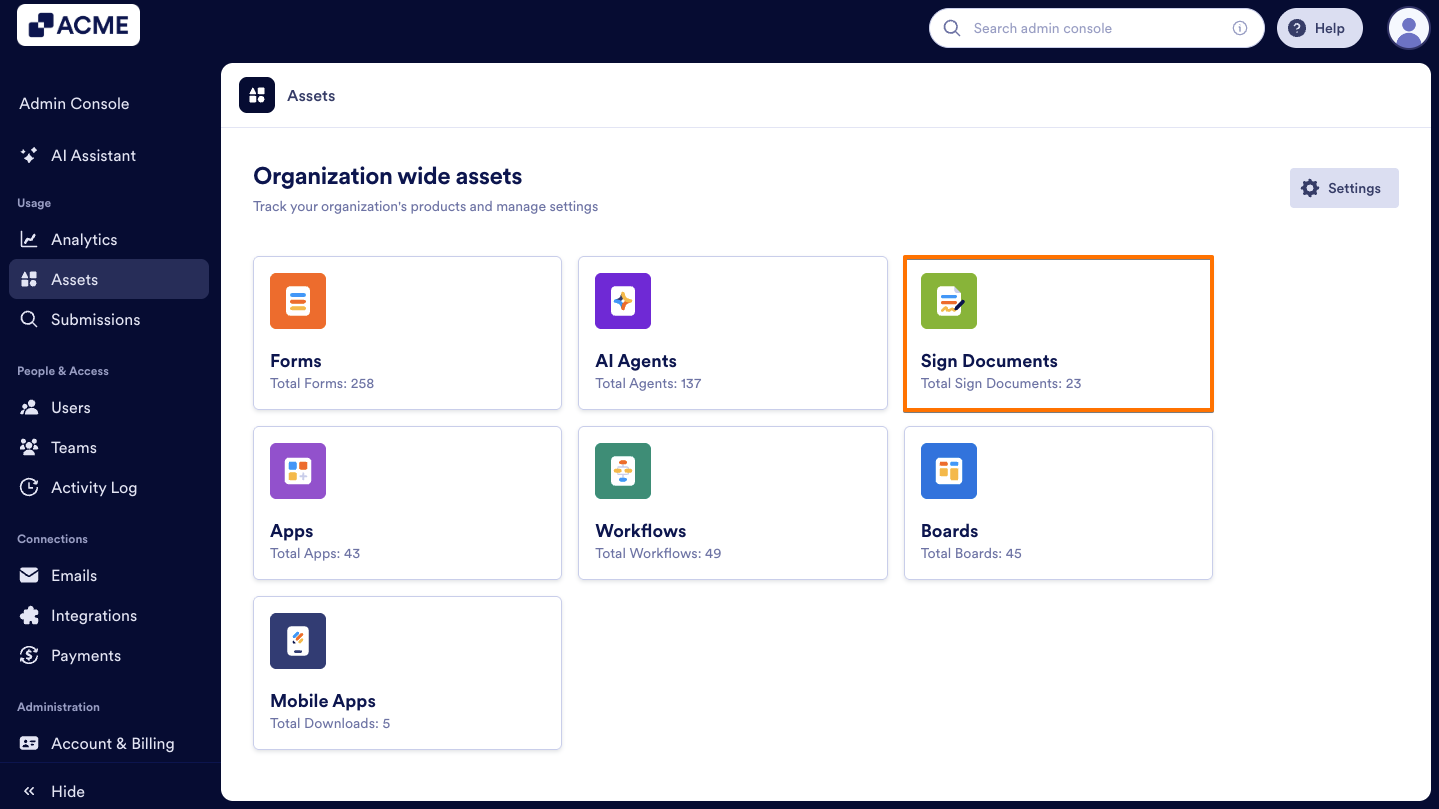
- Then, select Sign Documents.
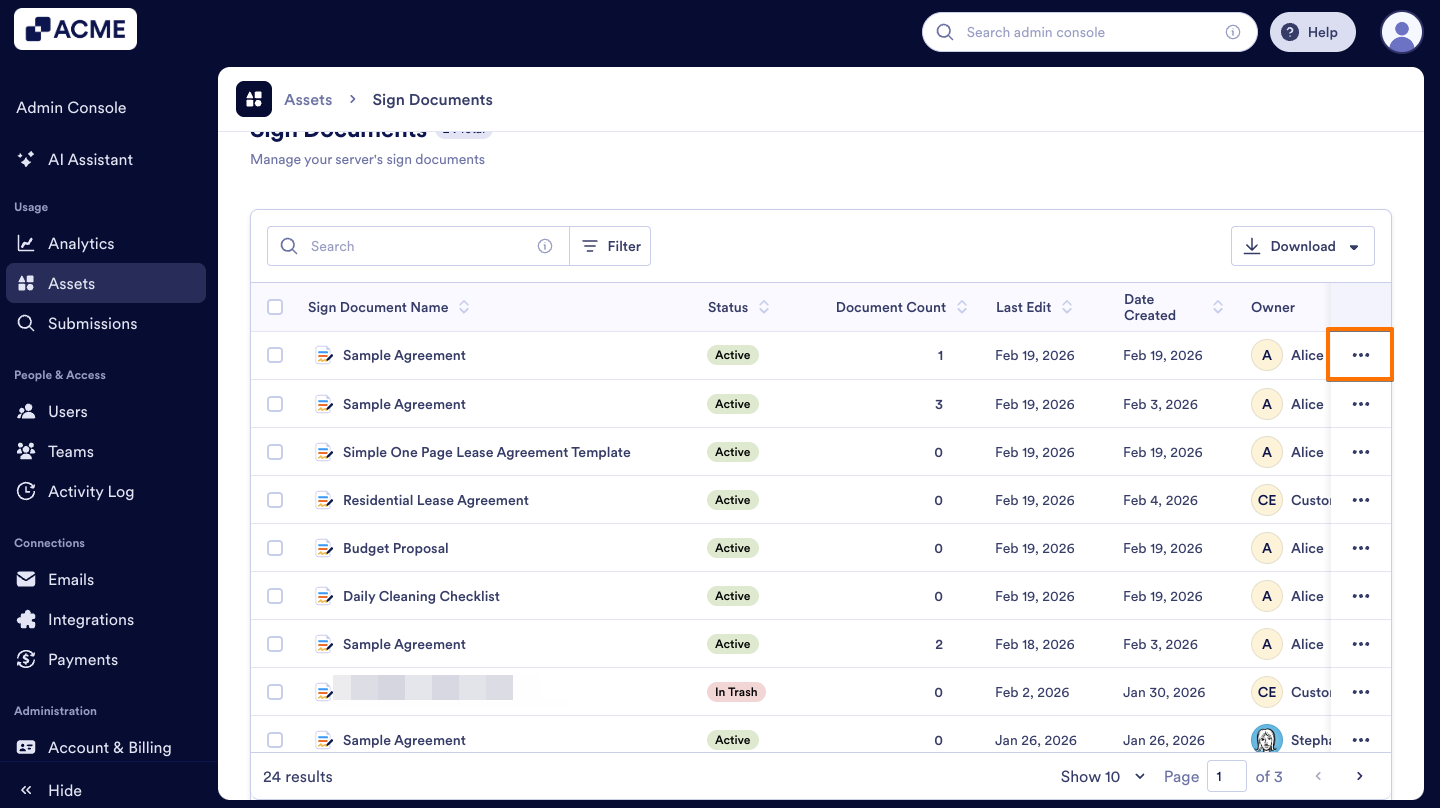
- On the right side of the Sign Document you want to delete, click on the Three Dots icon.
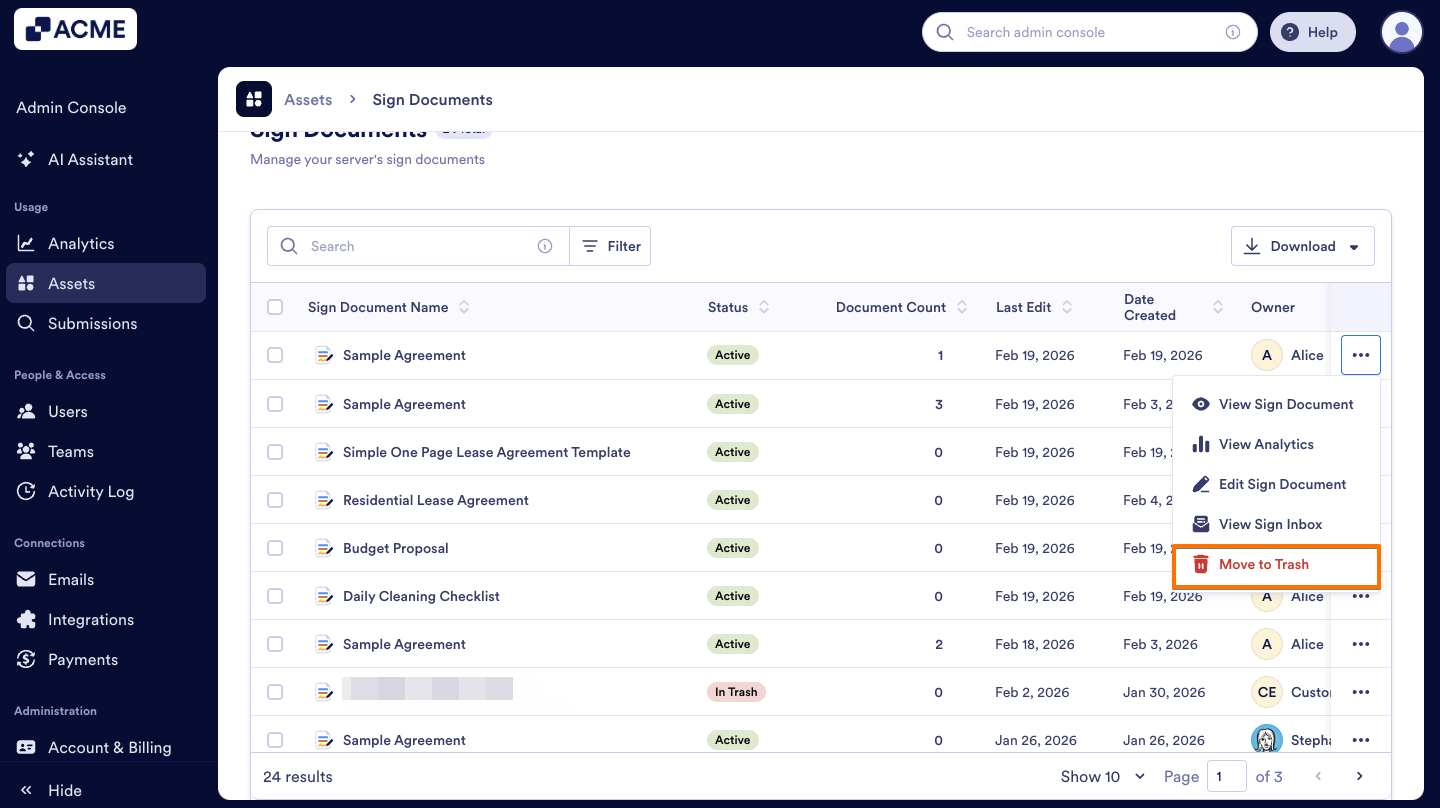
- Next, on the menu select Move to Trash.
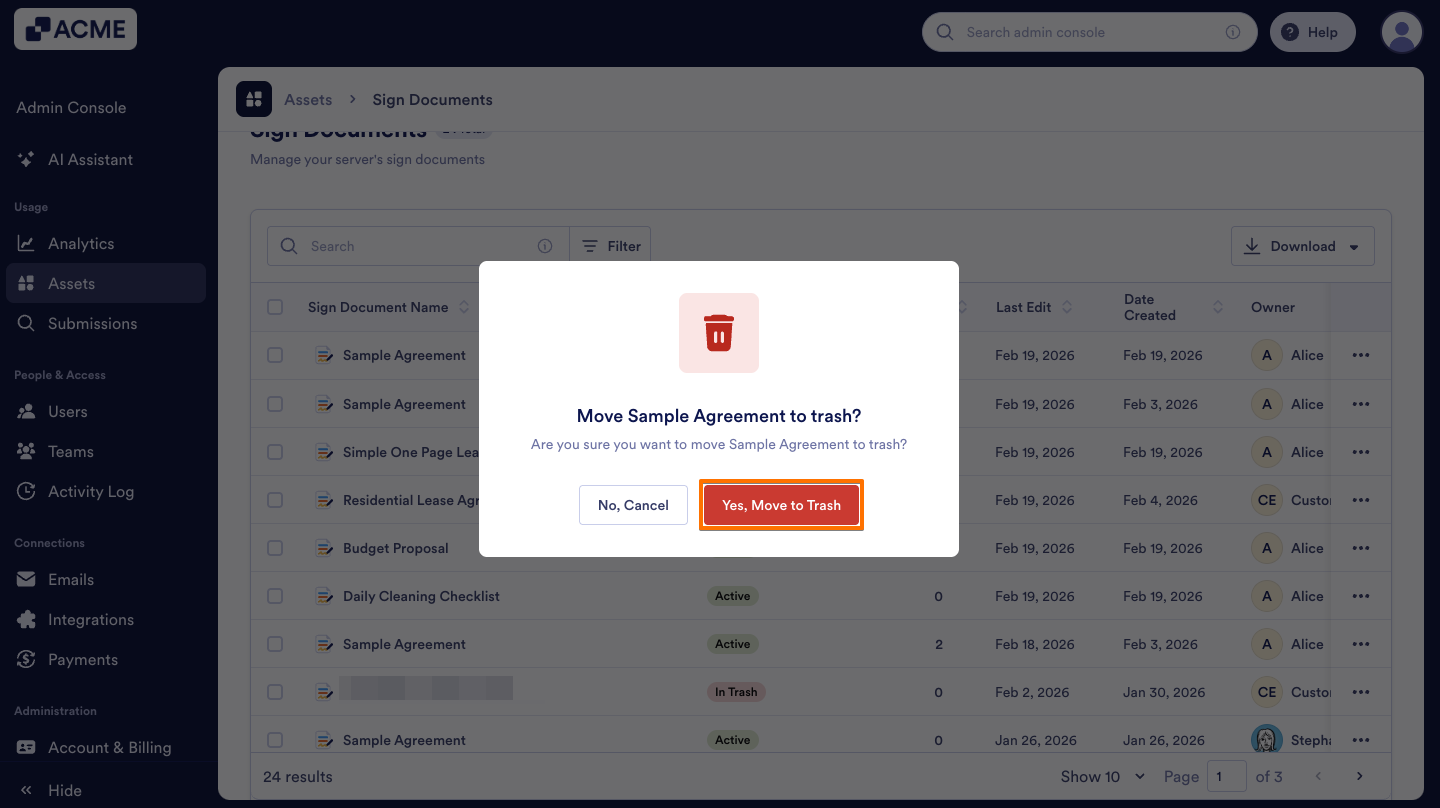
- On the pop-up window that comes up, click on Yes, Move to Trash to confirm.
Restoring Sign Documents from the Trash
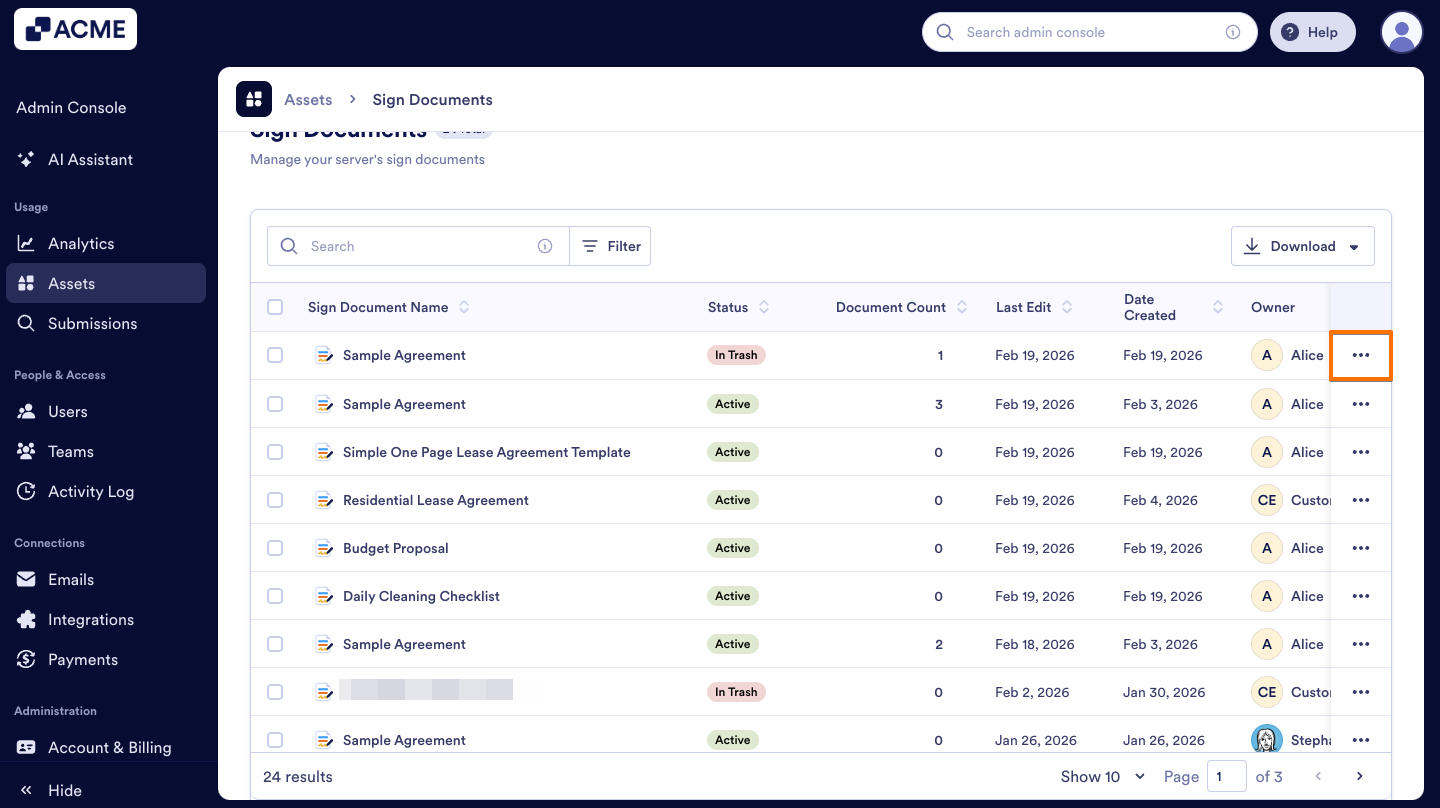
- On the Sign Documents page of the Admin Console, click on the Three dots icon to the left of the Sign Document you previously moved to the trash.
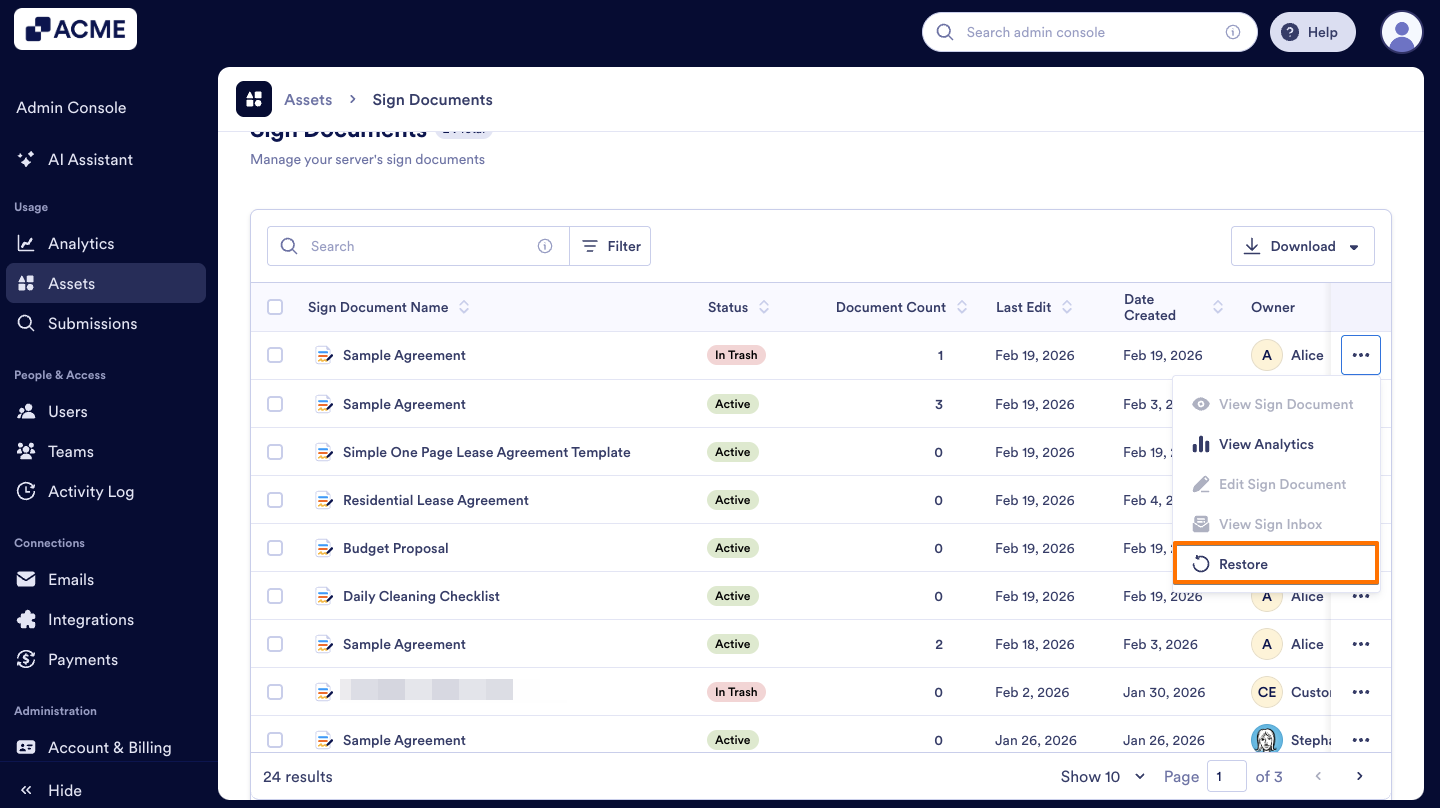
- In the menu, select Restore.
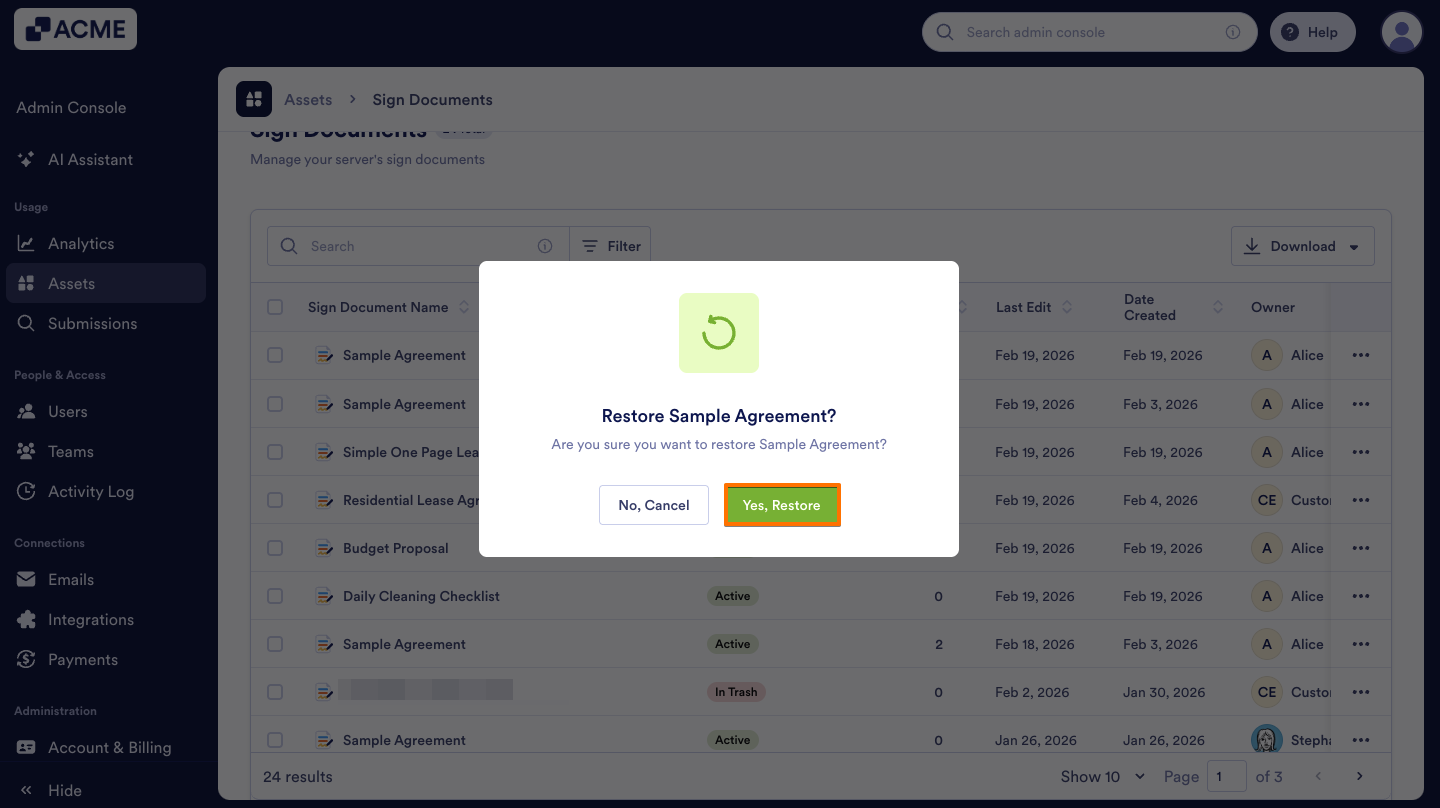
- Then, on the pop-up window, click on Yes, Restore.
Moving Sign Documents to Trash in Bulk
- On the Sign Documents page of the Admin Console, select the checkboxes on the left side of the documents you want to delete.
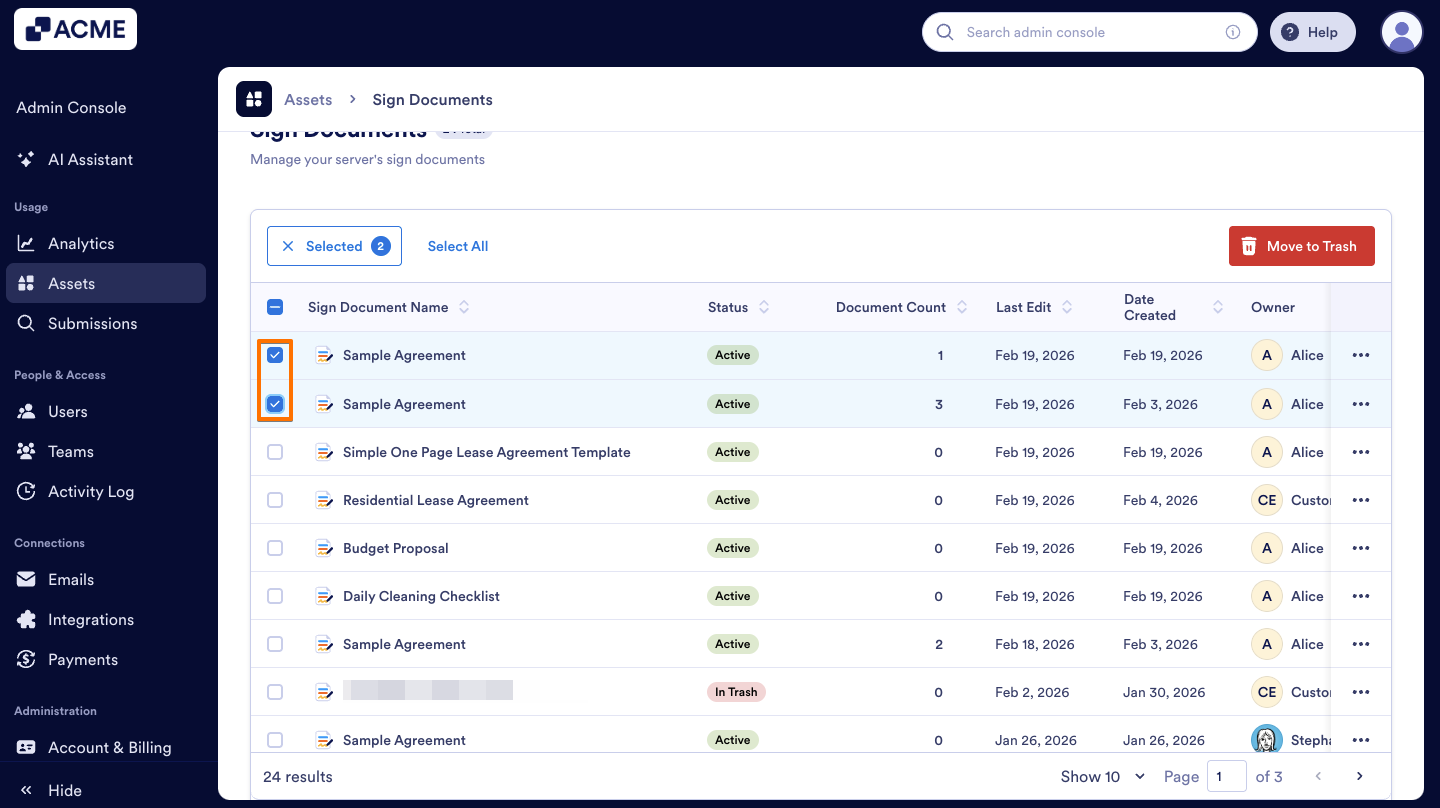
- Then, click on the Move to Trash button at the top.
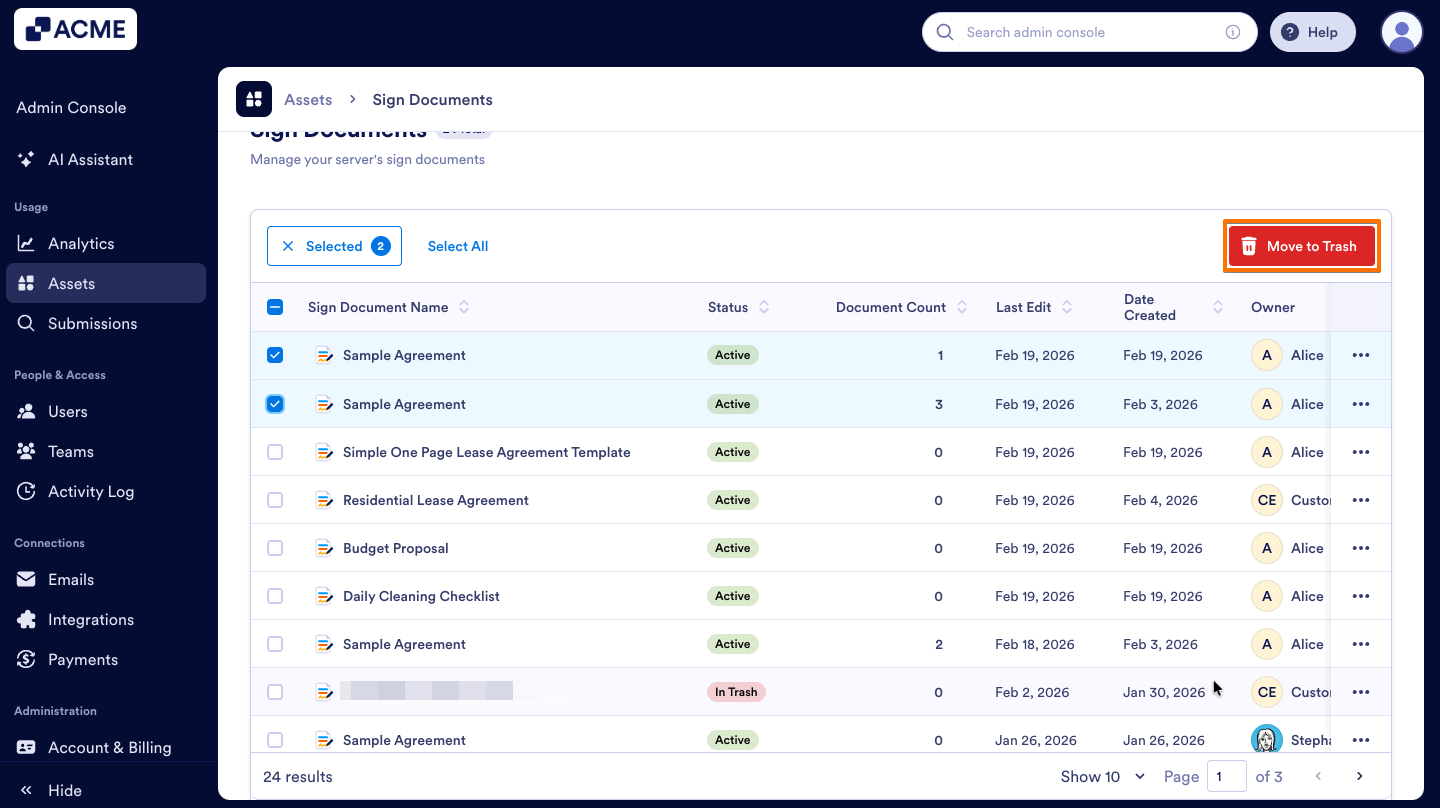
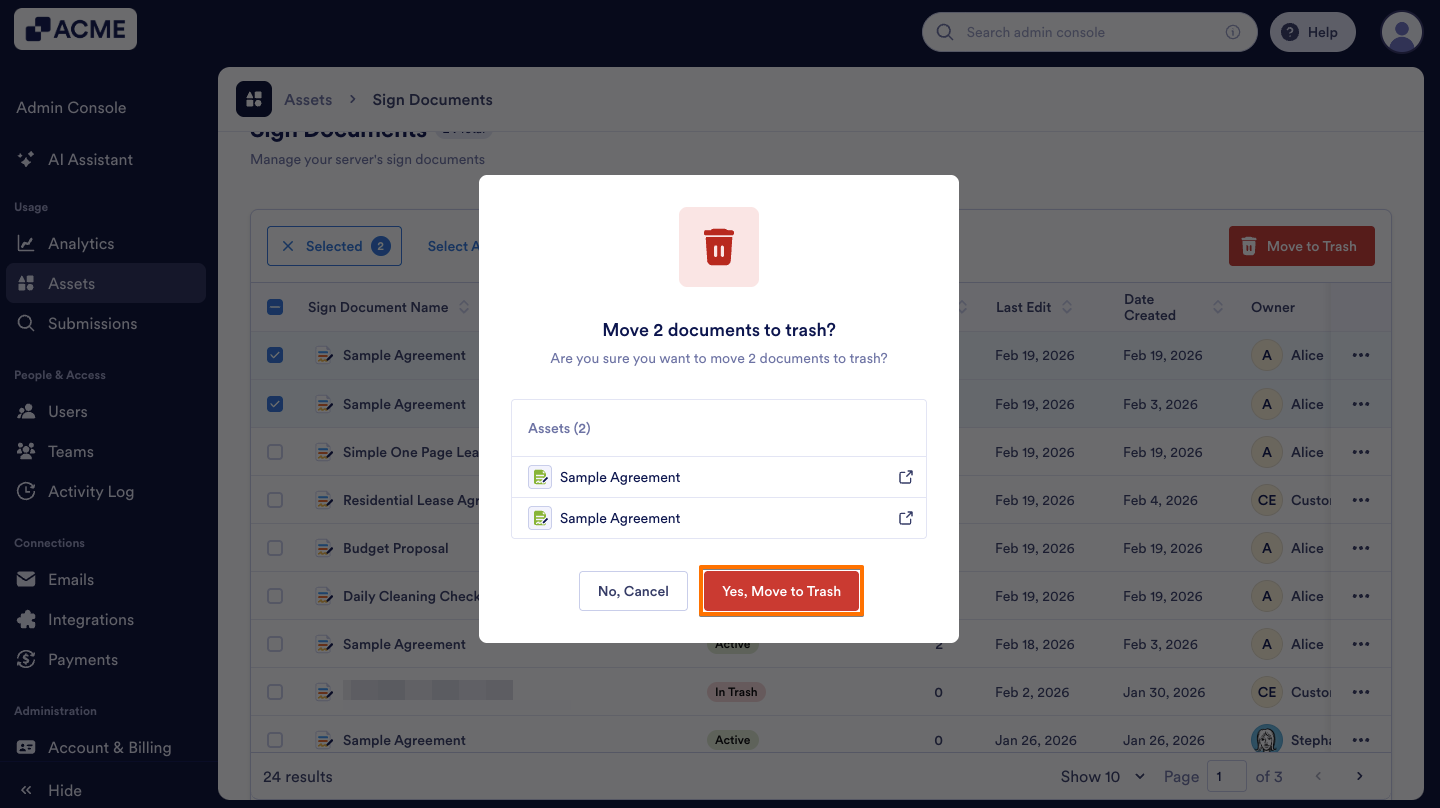
- On the pop-up window, select Yes, Move to Trash.
Restoring Sign Documents in Bulk
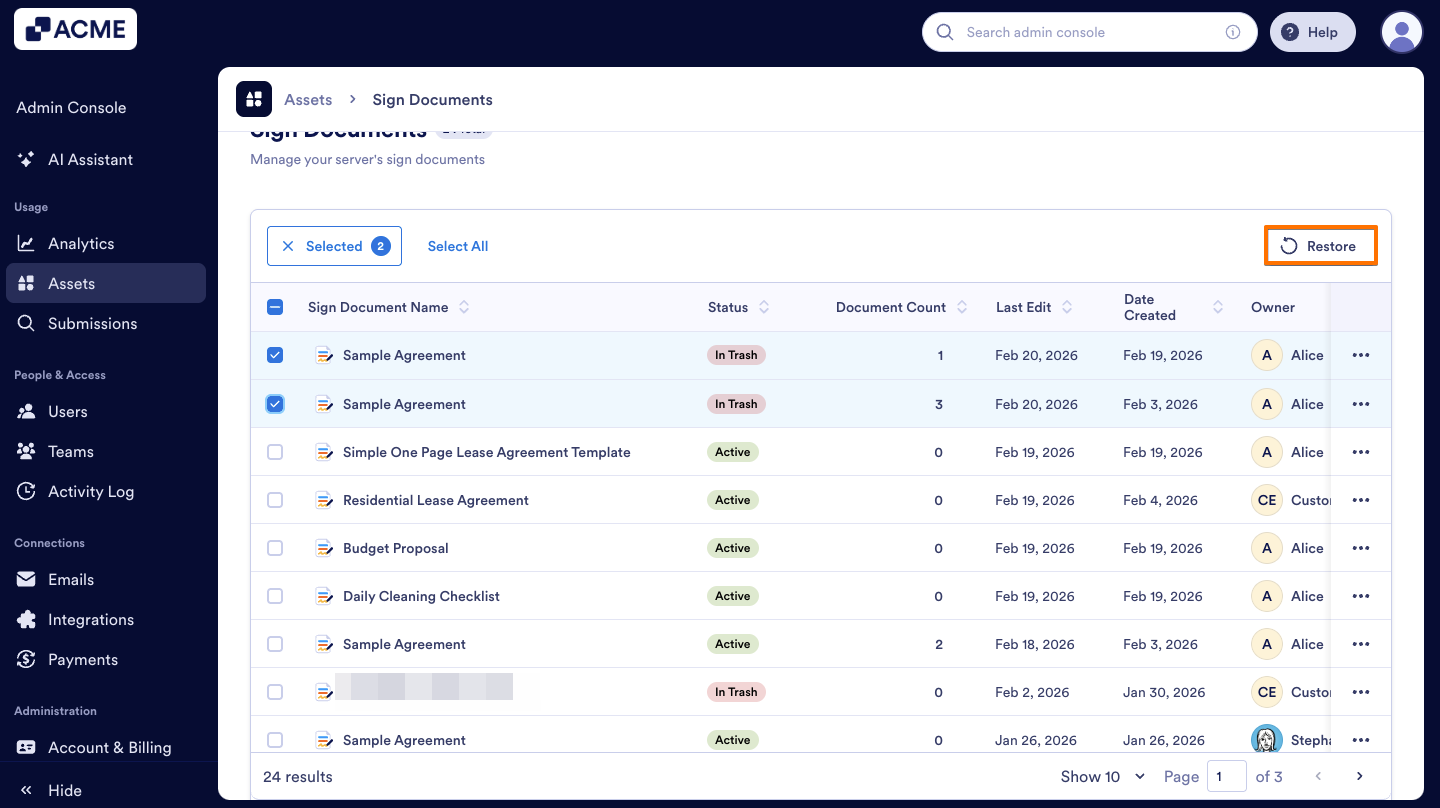
- On the Sign Documents page of the Admin Console, select the checkboxes on the right side of the documents you deleted before.
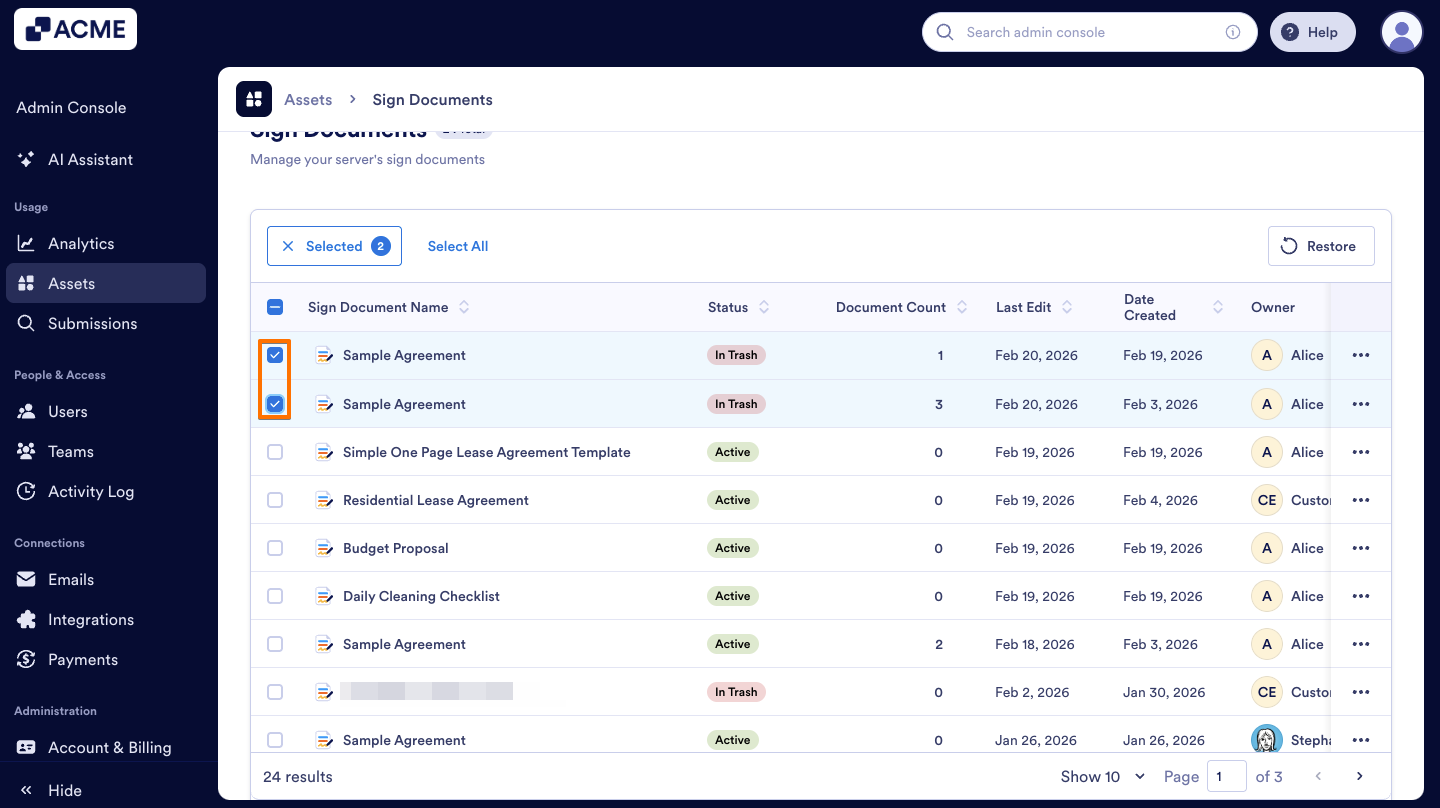
- Click on the Restore button at the top.
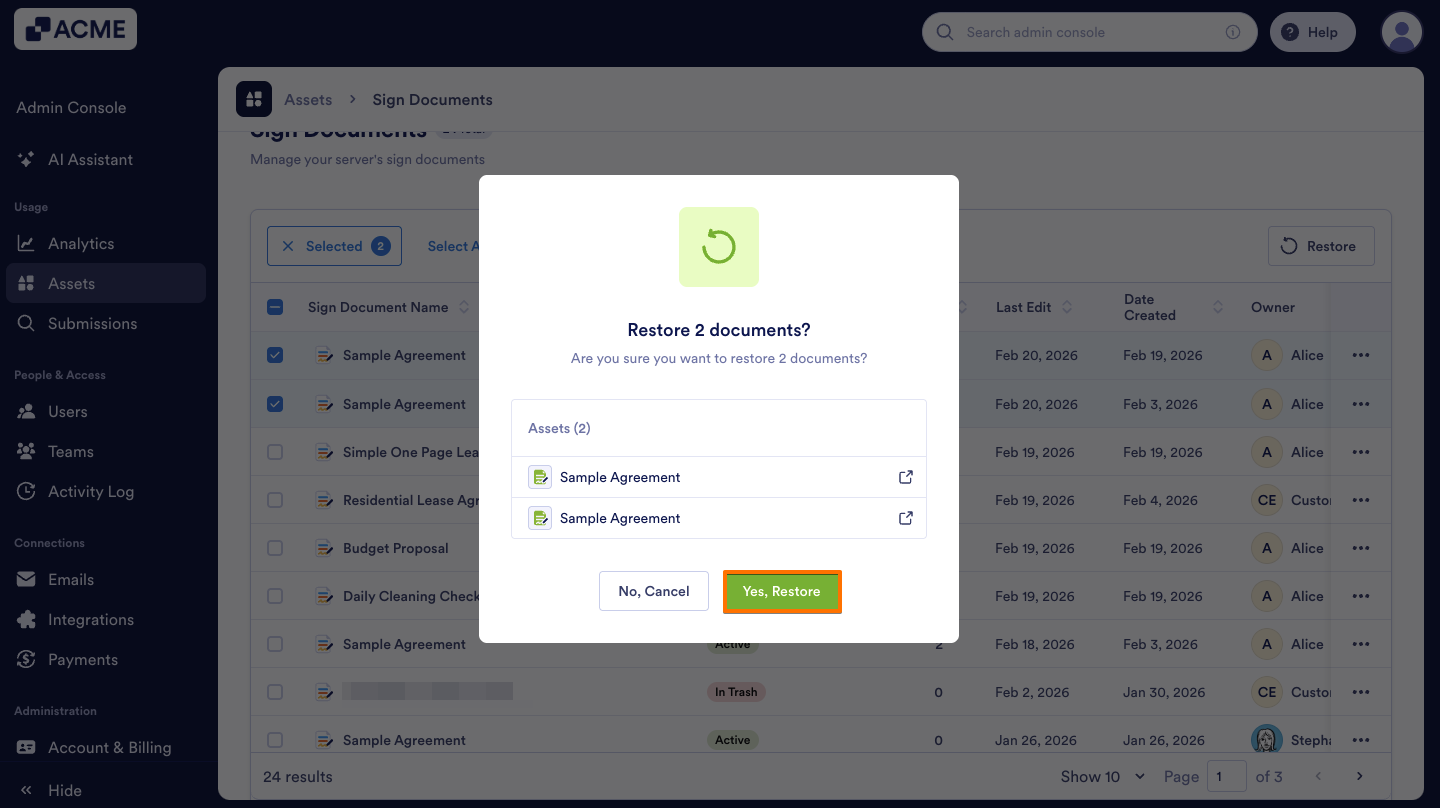
- Then, on the pop-up window, select Yes, Restore.
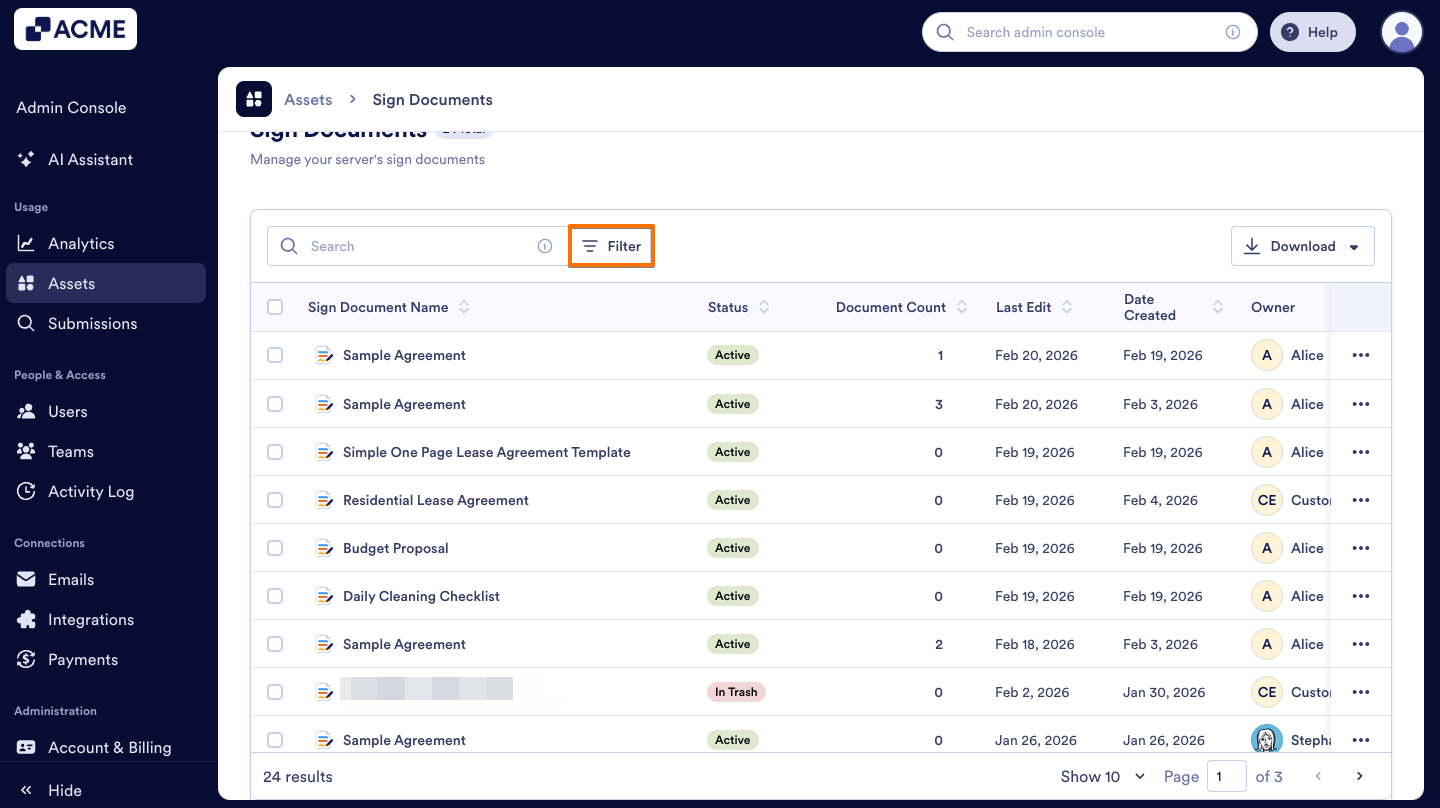
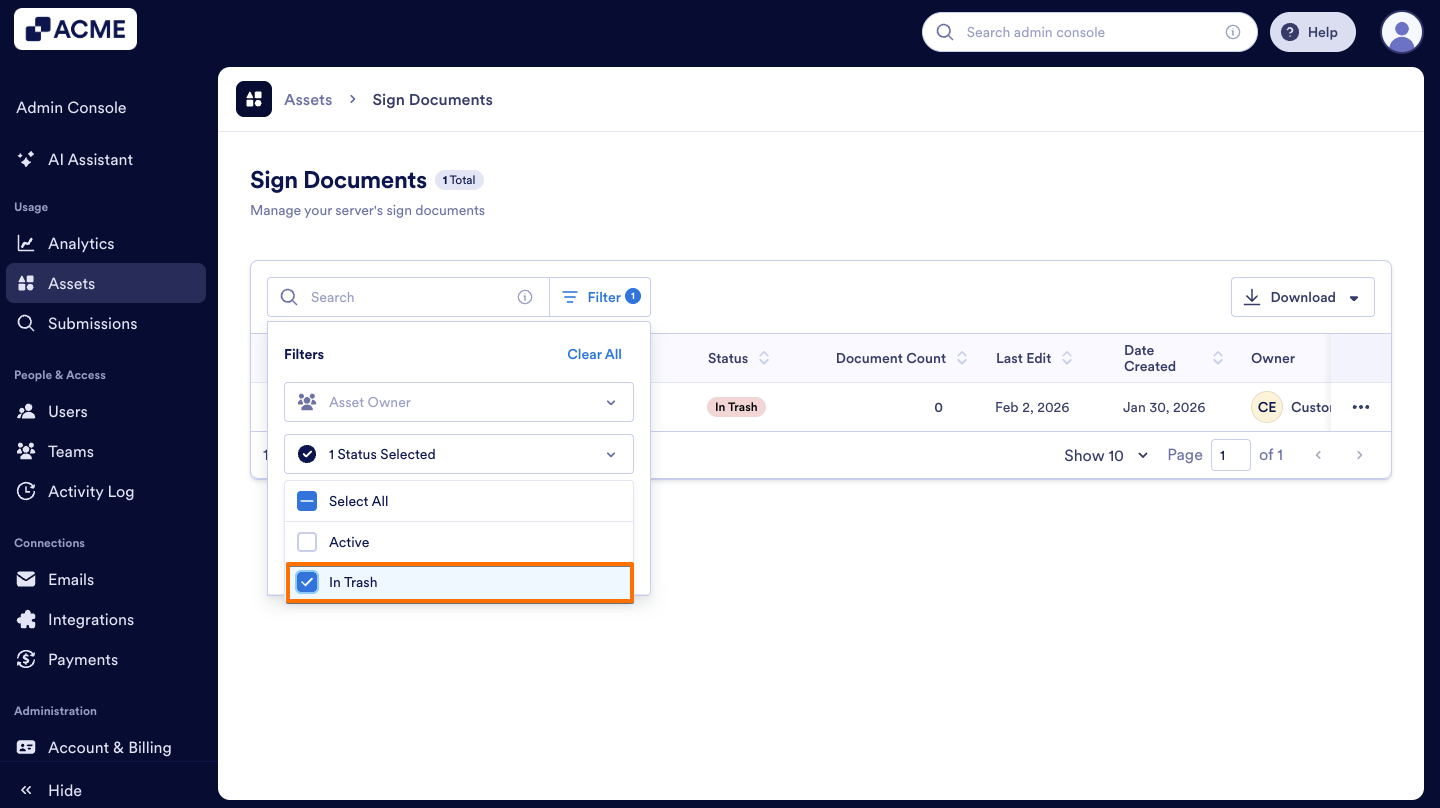
Finding All Trashed Sign Documents in Your Organization Using Filter
- On the Sign Documents page of the Admin Console, click on Filter next to the Search Bar.
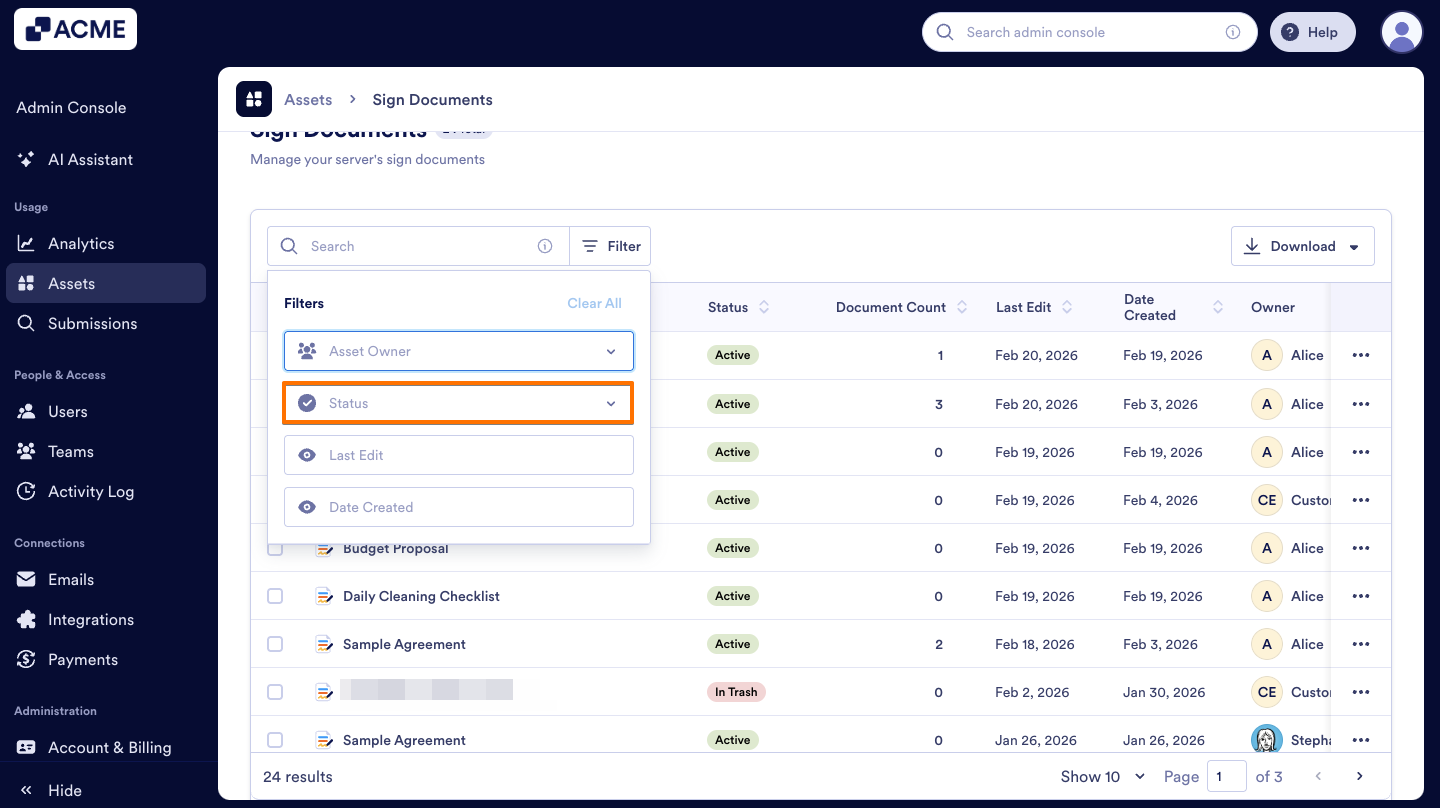
- Select the Status option in the Filters menu.
- Select the In Trash option to view all the trashed documents.

Send Comment: