Smart PDF Forms let you convert your existing PDF forms into online forms, keeping your layout while making it easier for people to fill out and submit information. If you ever need to make changes to the original PDF—like fixing a typo, updating your branding, adding new sections, or replacing it with a more recent version—you can do that without starting your connected online form over.
When you update your original PDF, the existing mapped fields on your online form will remain intact. This means you can make necessary edits to your PDF without losing the work you’ve already done setting up field connections. It’s a simple way to keep your form content up to date while preserving the structure of your Smart PDF Form.
You can update the original PDF Form connected to your online form in a few easy steps. Here’s how to do it:
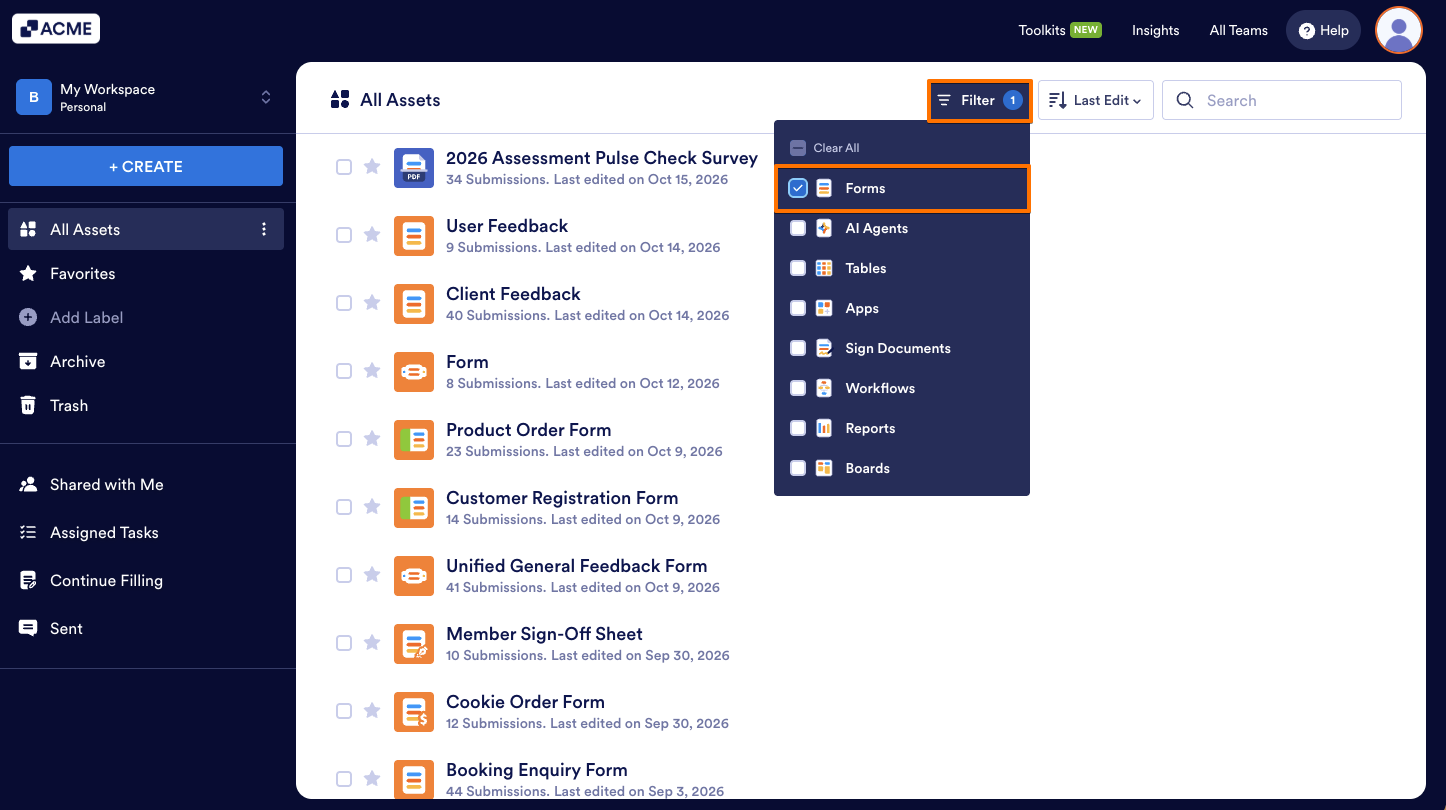
- On your My Workspace page, click on Filter at the top and in the Dropdown menu that opens, uncheck the boxes next to all the assets except Forms, so only they’ll be shown on the page.
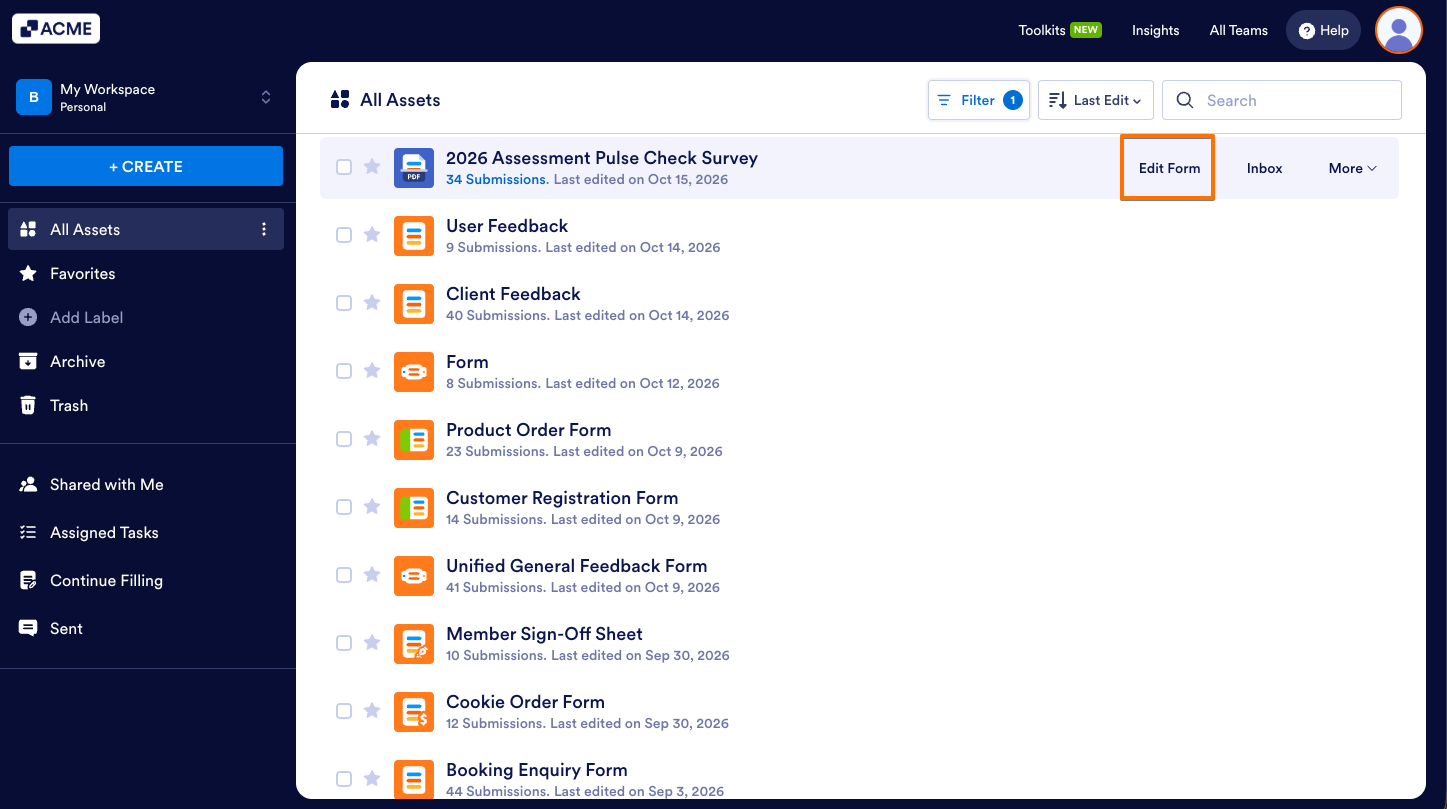
- Hover your mouse over your Smart PDF Form and click on Edit Form on the right side of the page.
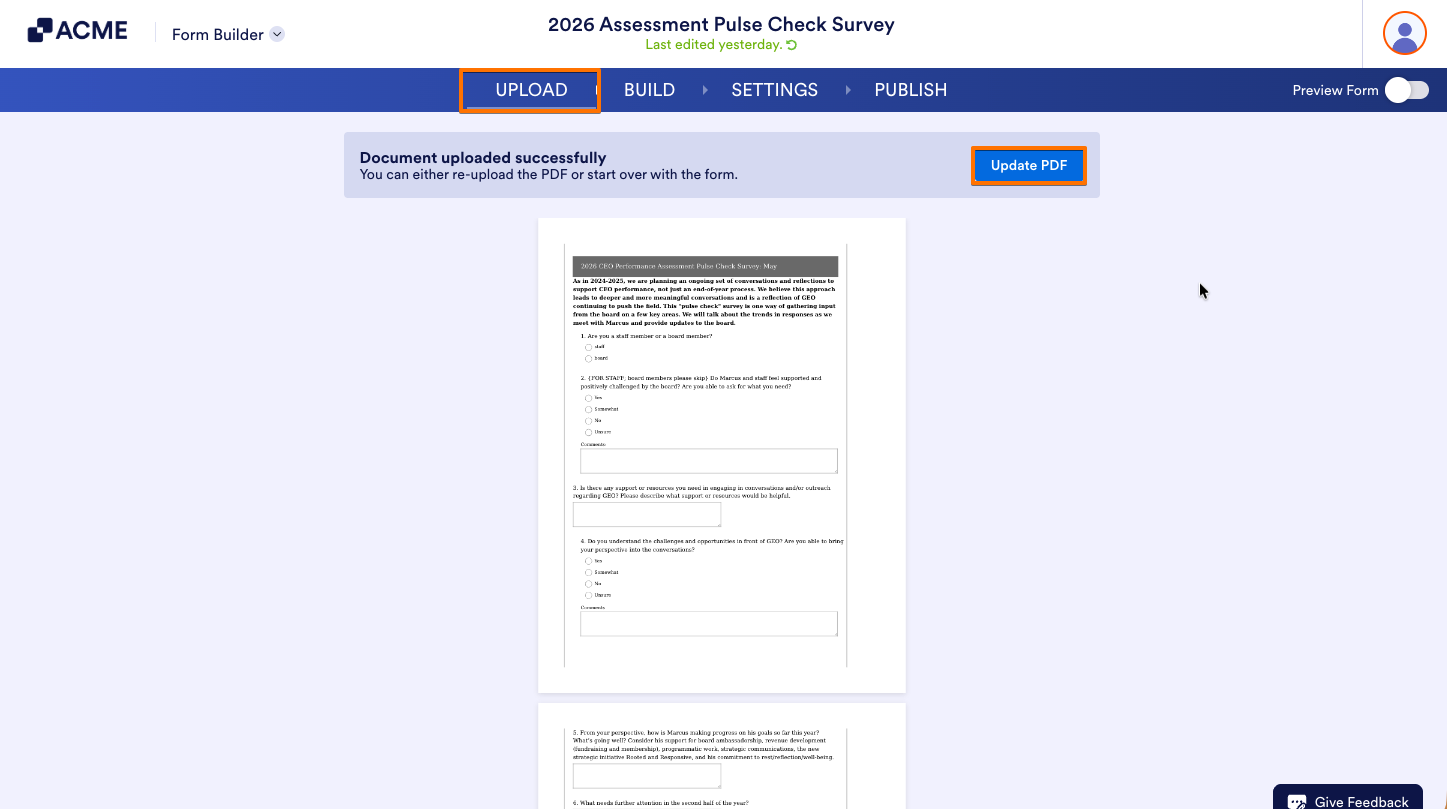
- On the Smart PDF Forms page, click on Upload in the blue navigation bar at the top.
- Now, click on Update PDF on the right.
- Then, in the Upload PDF window that comes up, click on Re-Upload PDF to start uploading your new PDF Form.
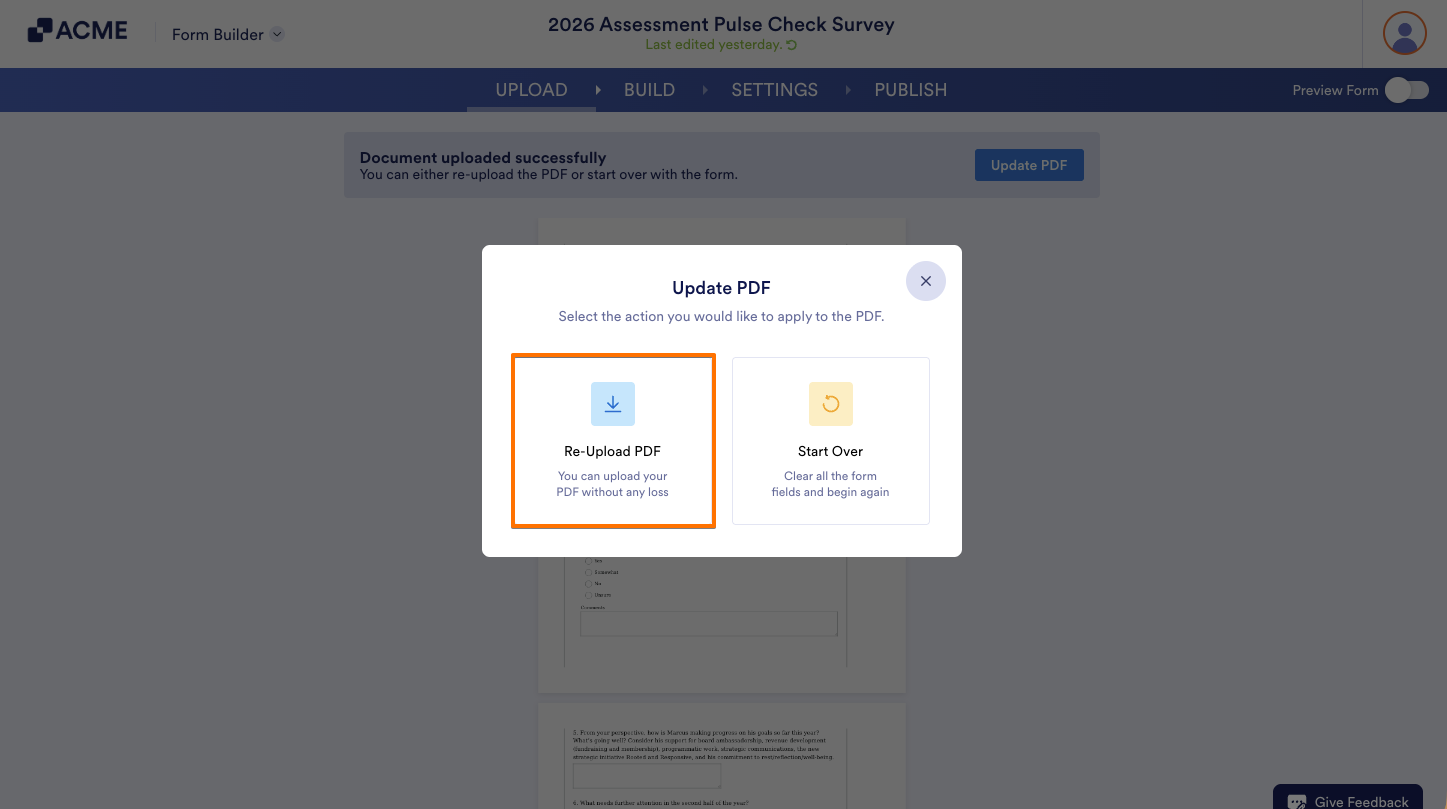
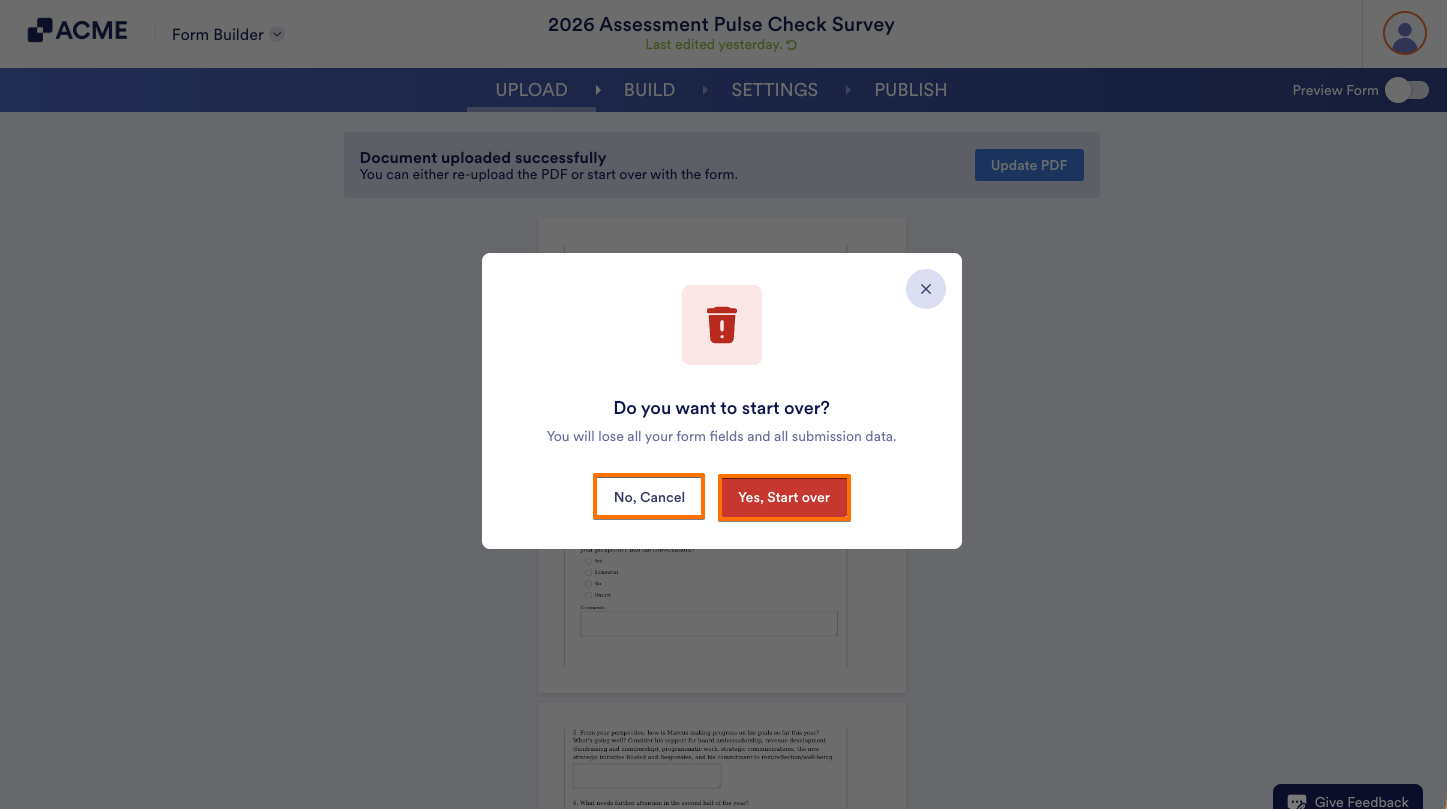
When you select Start Over instead of Re-Upload PDF in the Upload PDF window, you’ll get a confirmation message that says you’ll lose all your online form fields and the submission data connected to them.
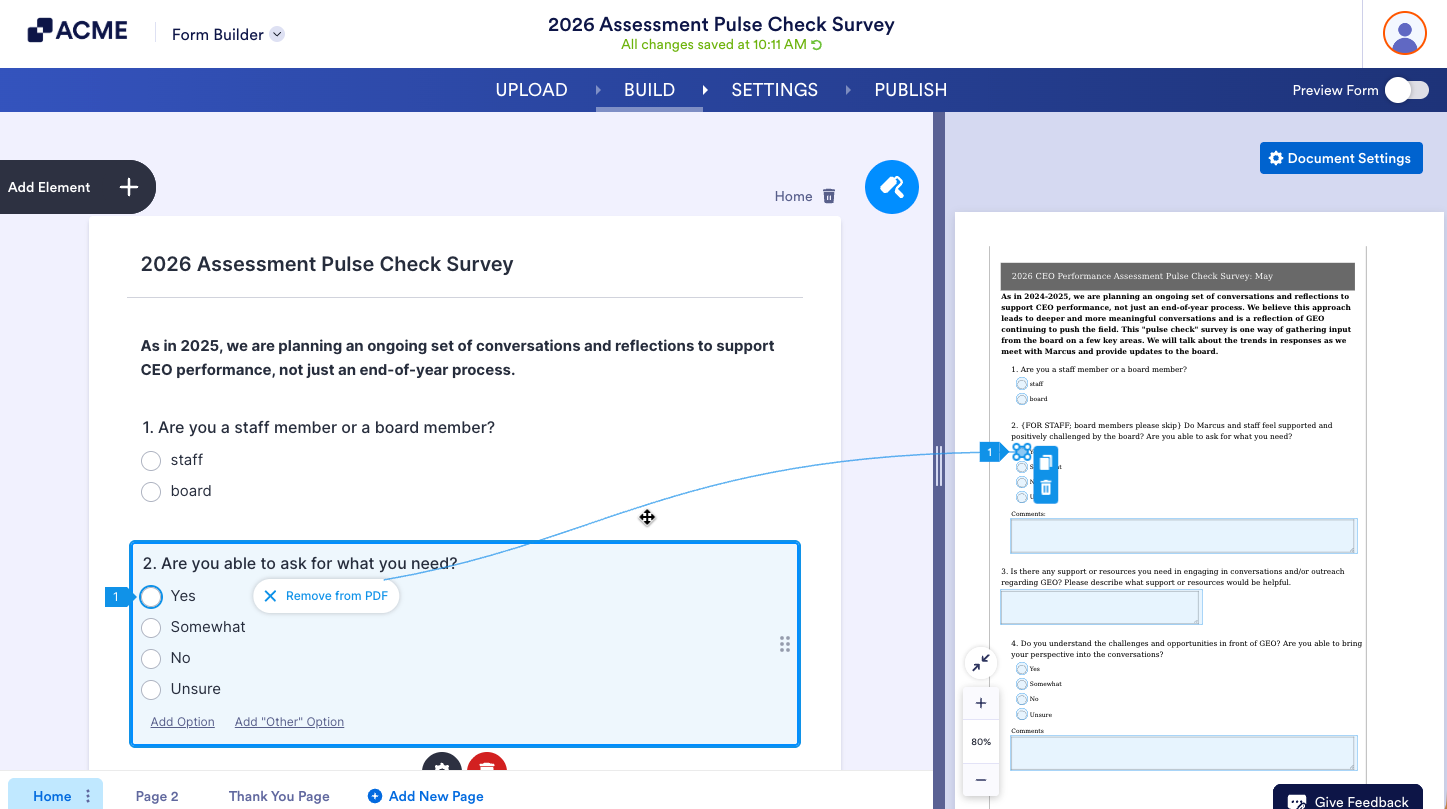
Once you successfully upload your new PDF Form, you’ll see the new original PDF on the right side of the Smart PDF Forms page, with the fields automatically connected to the fields in your online form on the left.

Send Comment: