With Jotform’s ChatGPT App, you can create, update, and review your forms in one place using simple, conversational prompts. It offers a convenient way to work on your forms right within ChatGPT, making it easier to turn ideas into actions as you go.
This is especially useful for anyone who wants a more flexible way to manage forms—whether you’re starting a new form, refining an existing one, or exploring your submission data. You can seamlessly move between ChatGPT and Jotform whenever needed, giving you the freedom to work where it feels most comfortable while staying productive.
Setting Up the Jotform ChatGPT App
You can enable the Jotform ChatGPT App for your ChatGPT account in just a few easy steps. Setting it up is quick—here’s how:
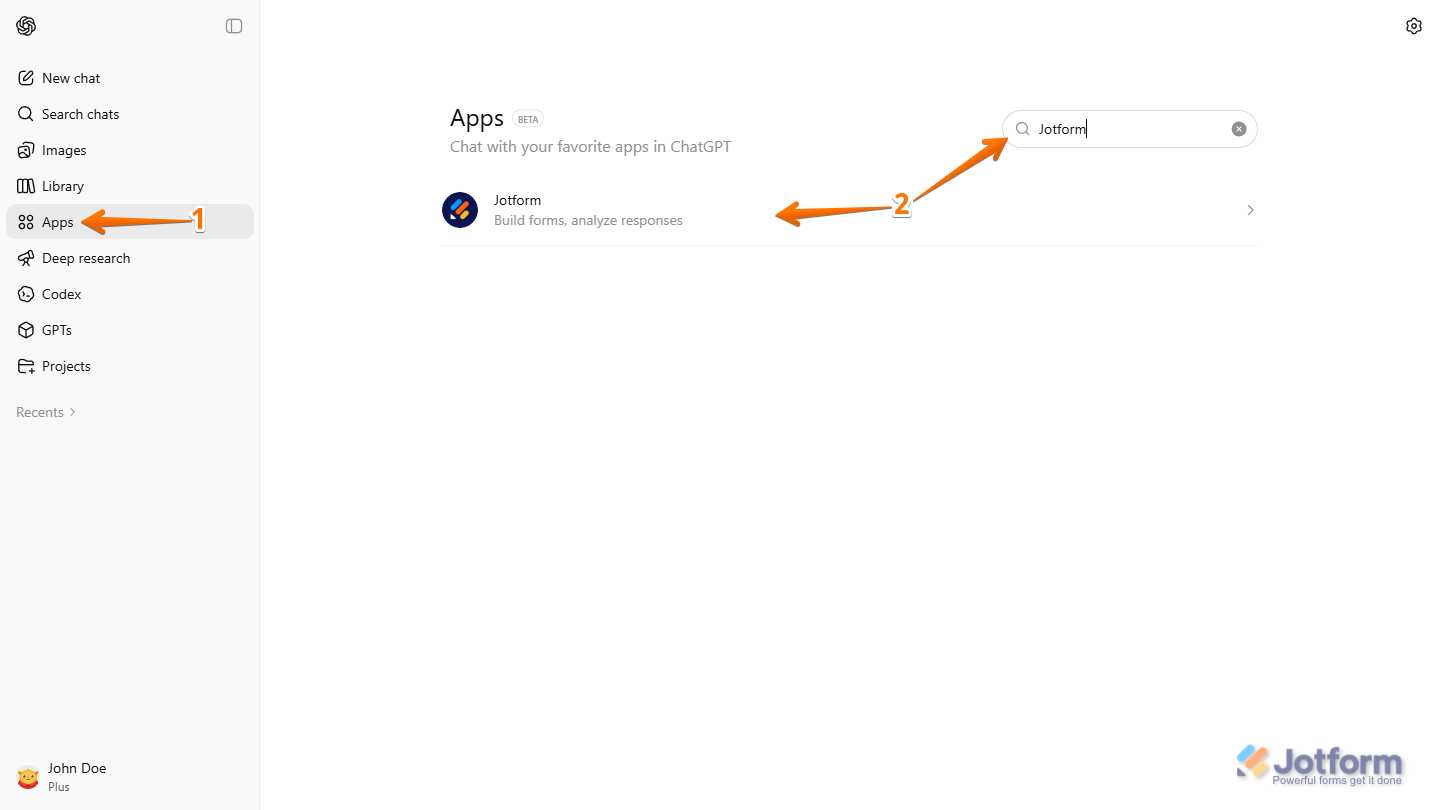
- Log in to your ChatGPT account and, in the menu on the left side of the page, click on Apps.
- Then, in the Apps section on the right, search for Jotform and click on it. Or, go to the Jotform ChatGPT App to open it directly.
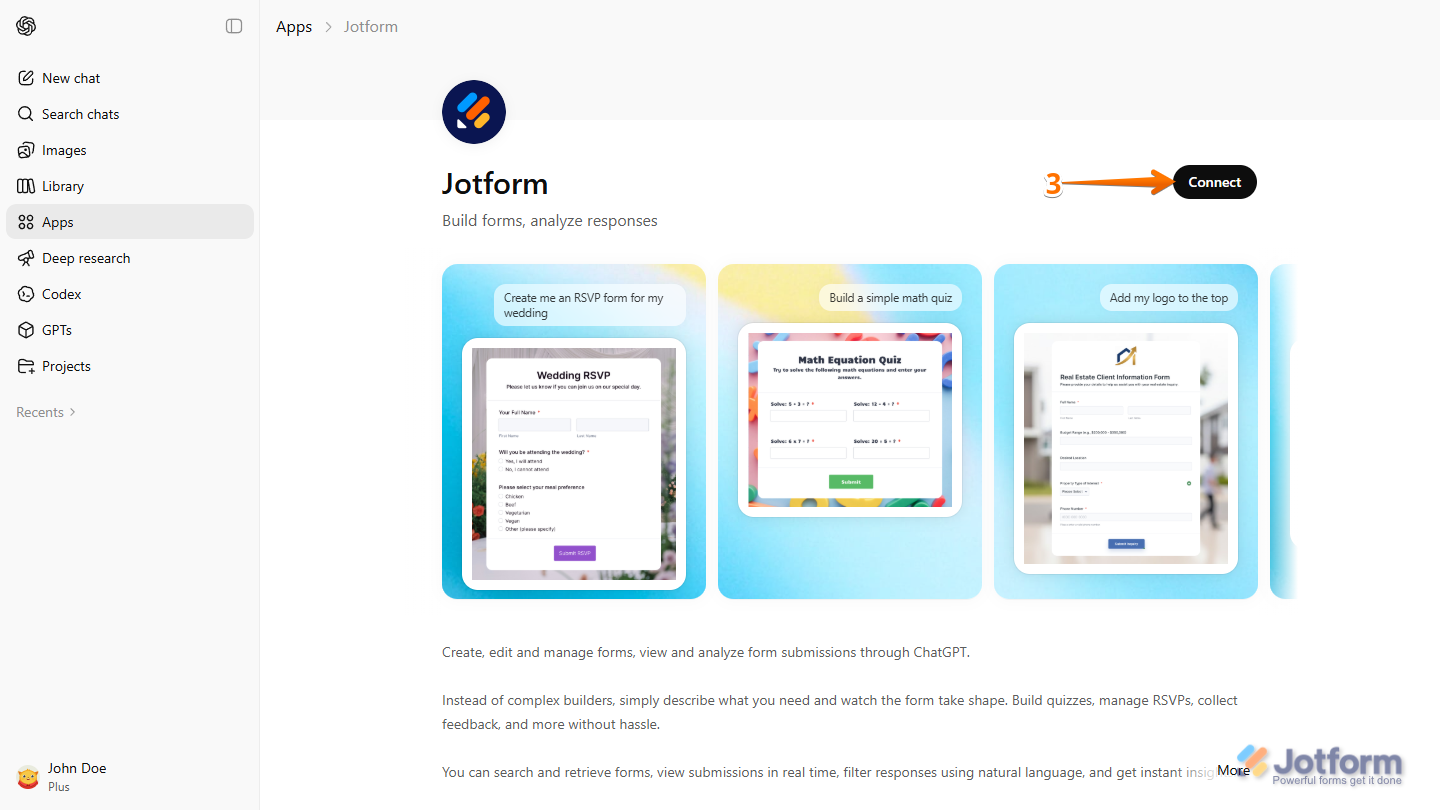
- Now, on the right side of the page, click on Connect.
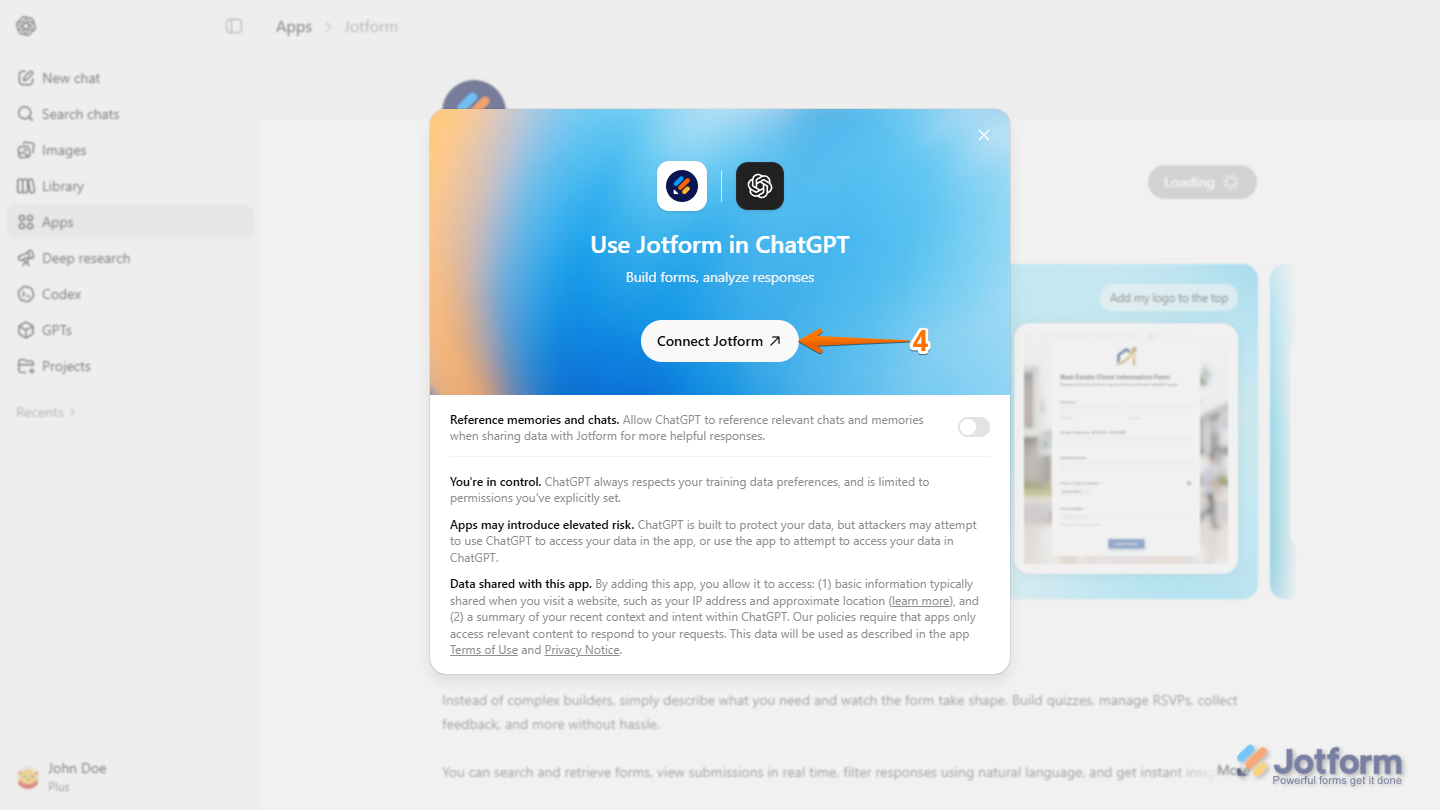
- In the Use Jotform in ChatGPT window that pops up, click on Connect Jotform. And then, log in and authorize access for ChatGPT to your Jotform account.
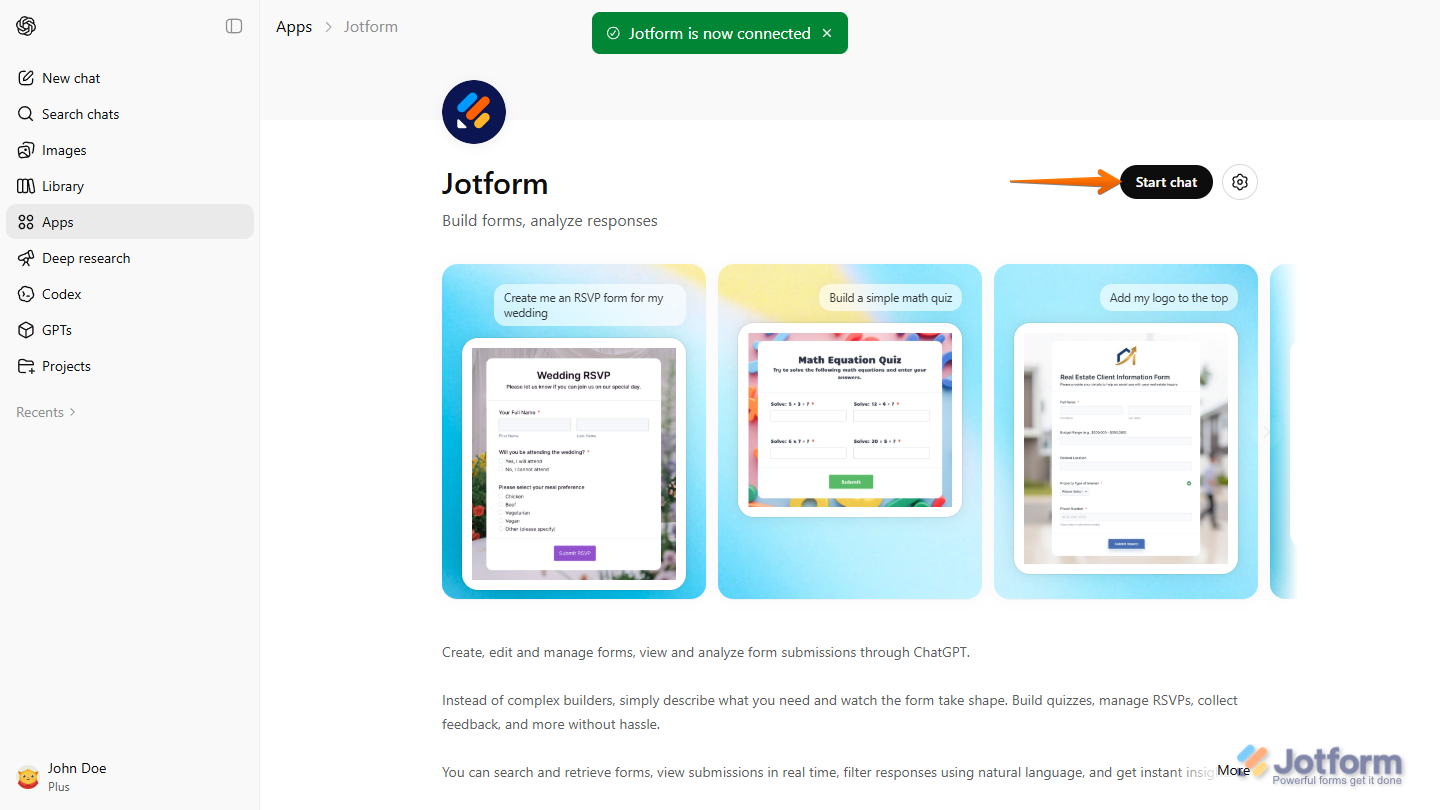
Once successful, you’ll see a message that your app is now connected to your Jotform account and, on the right side of the page, click on the Start Chat button to use it right away.
Using the Jotform ChatGPT App
Once you’ve set up the Jotform ChatGPT App, you can start managing the forms in your connected Jotform account using prompts. Whether you’re creating a form from scratch, updating an existing one, or reviewing submissions, everything can be done right within ChatGPT. Here’s how to get started:
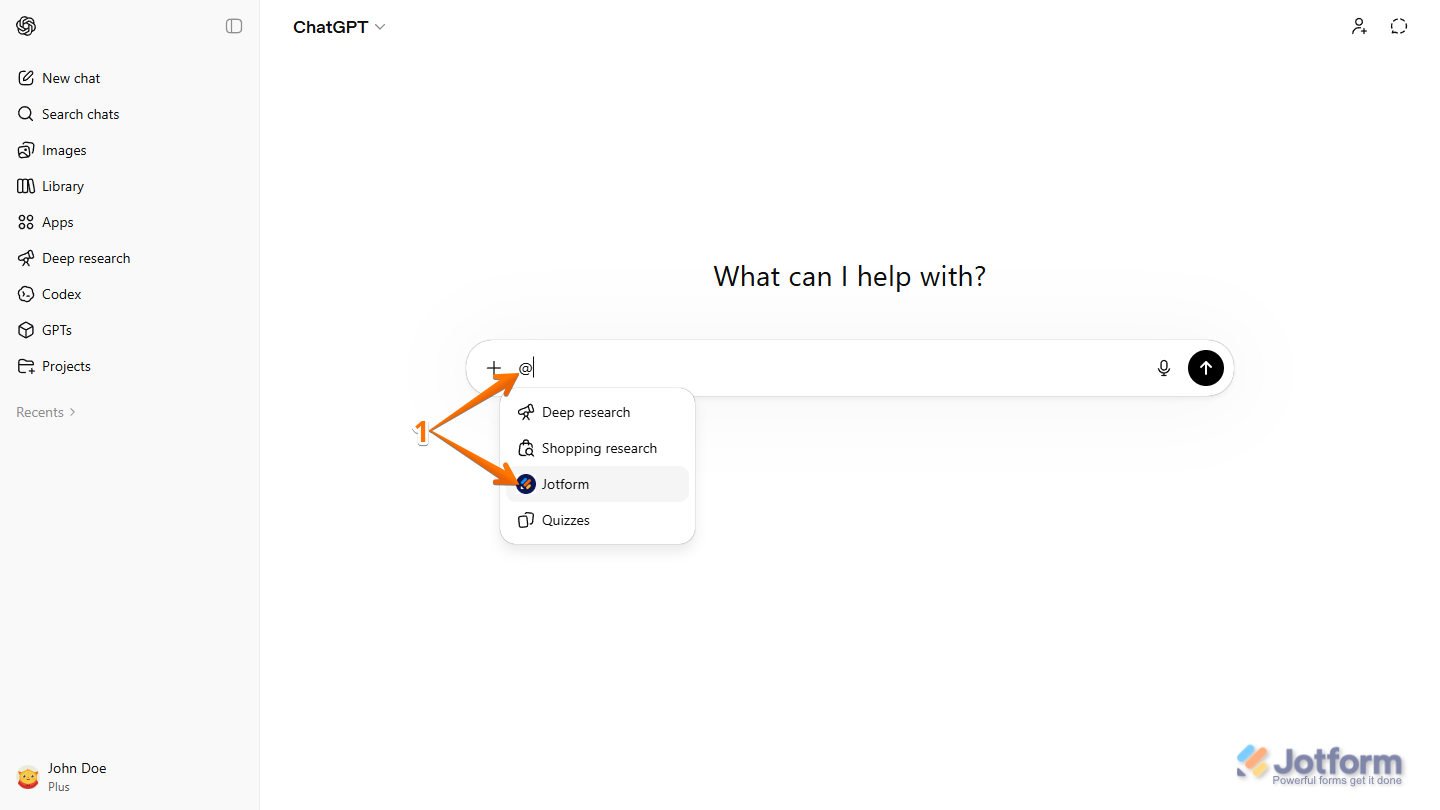
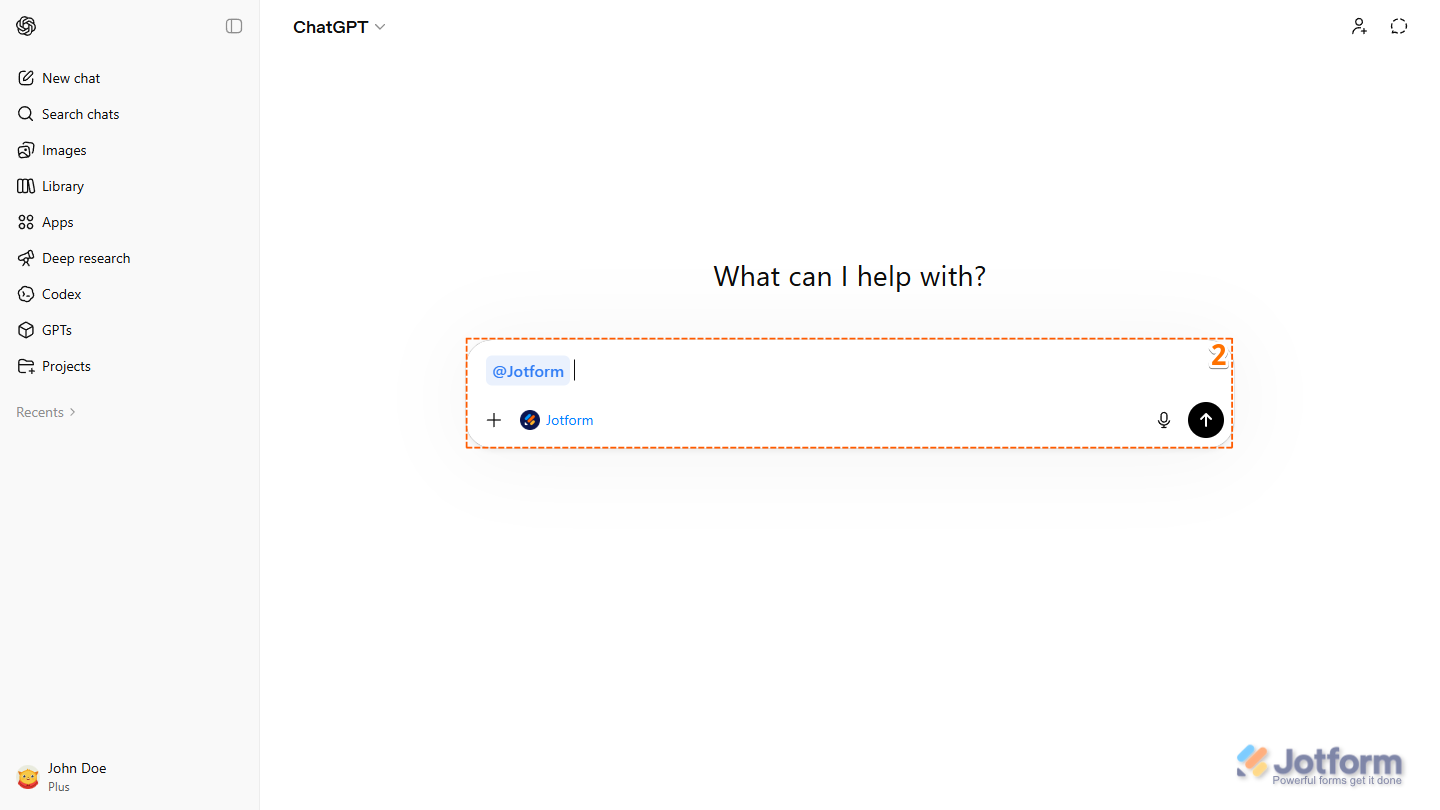
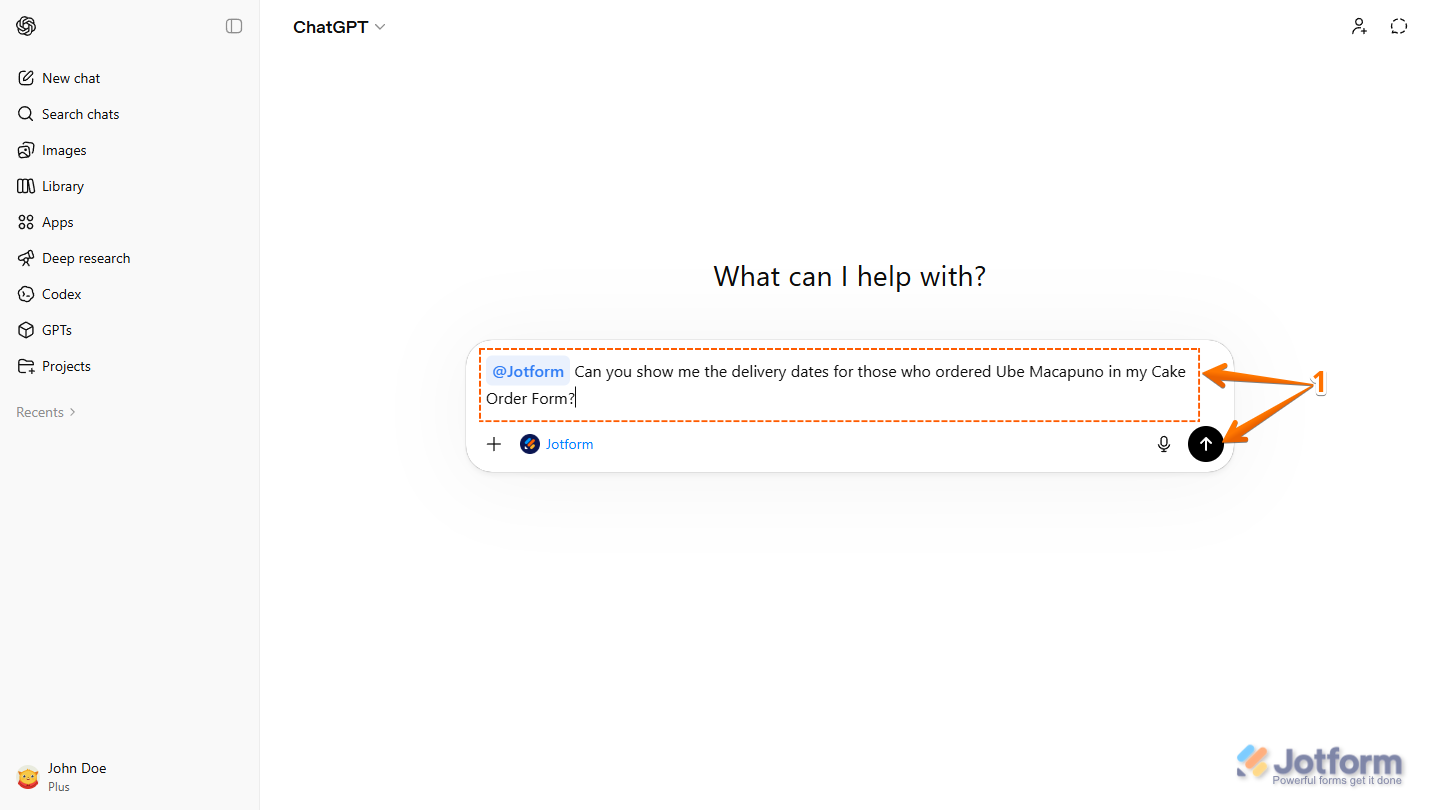
- In the ChatGPT prompt box, enter “@” and, in the menu that appears, select Jotform to use the Jotform ChatGPT App.
Pro Tip
You can also type “@Jotform” and press the Spacebar or Tab key on your keyboard to select it more quickly.
- Then, depending on what you want to do, enter a prompt for one of the following:
Creating a Form From Scratch
While using the Jotform ChatGPT App, you can create a new form from scratch in your Jotform account using prompts. Here’s how it’s done:
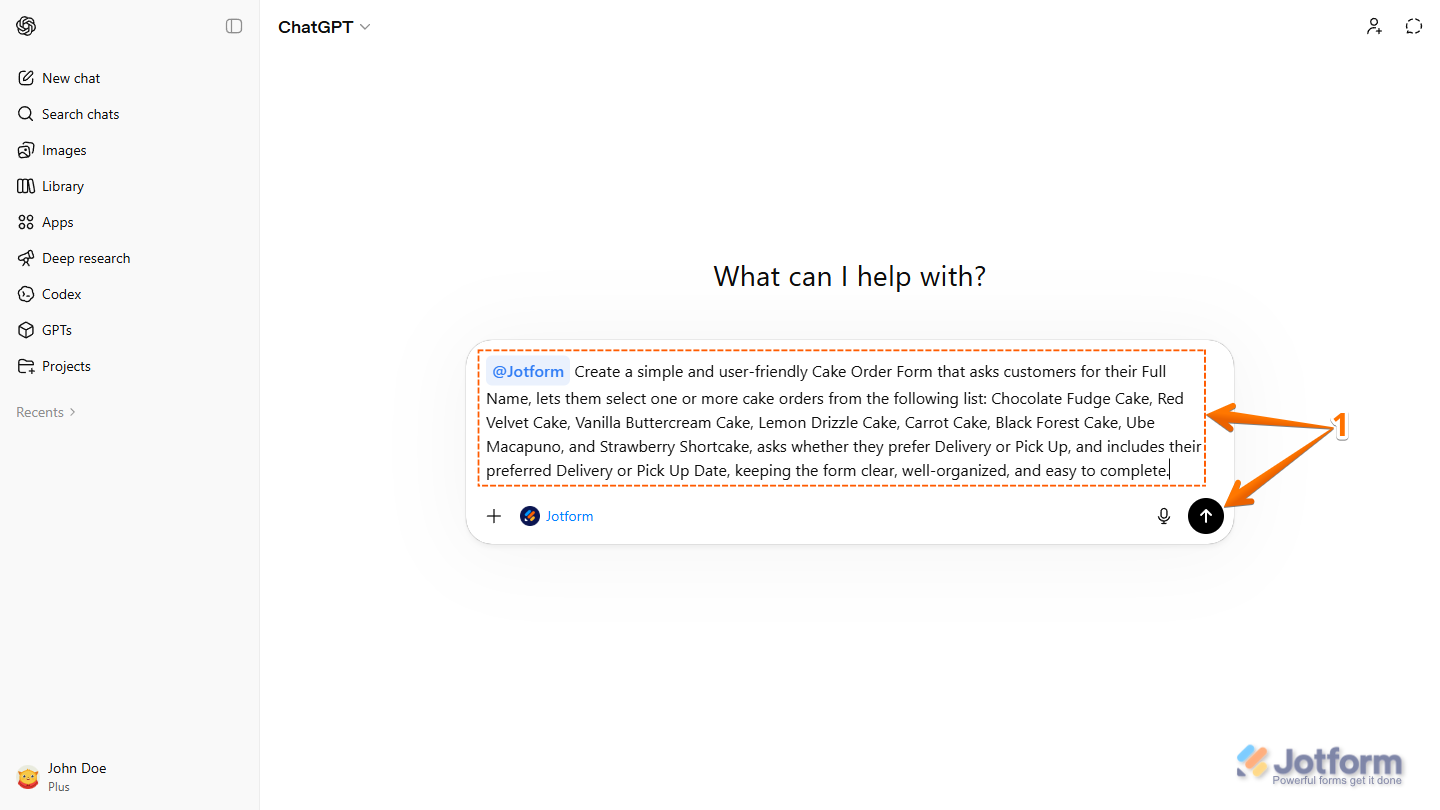
- In the ChatGPT prompt box, enter a prompt describing the form you want to create, including its name and the questions you want to include, then press the Enter key on your keyboard or click on the Upward Arrow icon on the right side of the Prompt box.
- Next, in the confirmation message, click on Create Form to proceed.
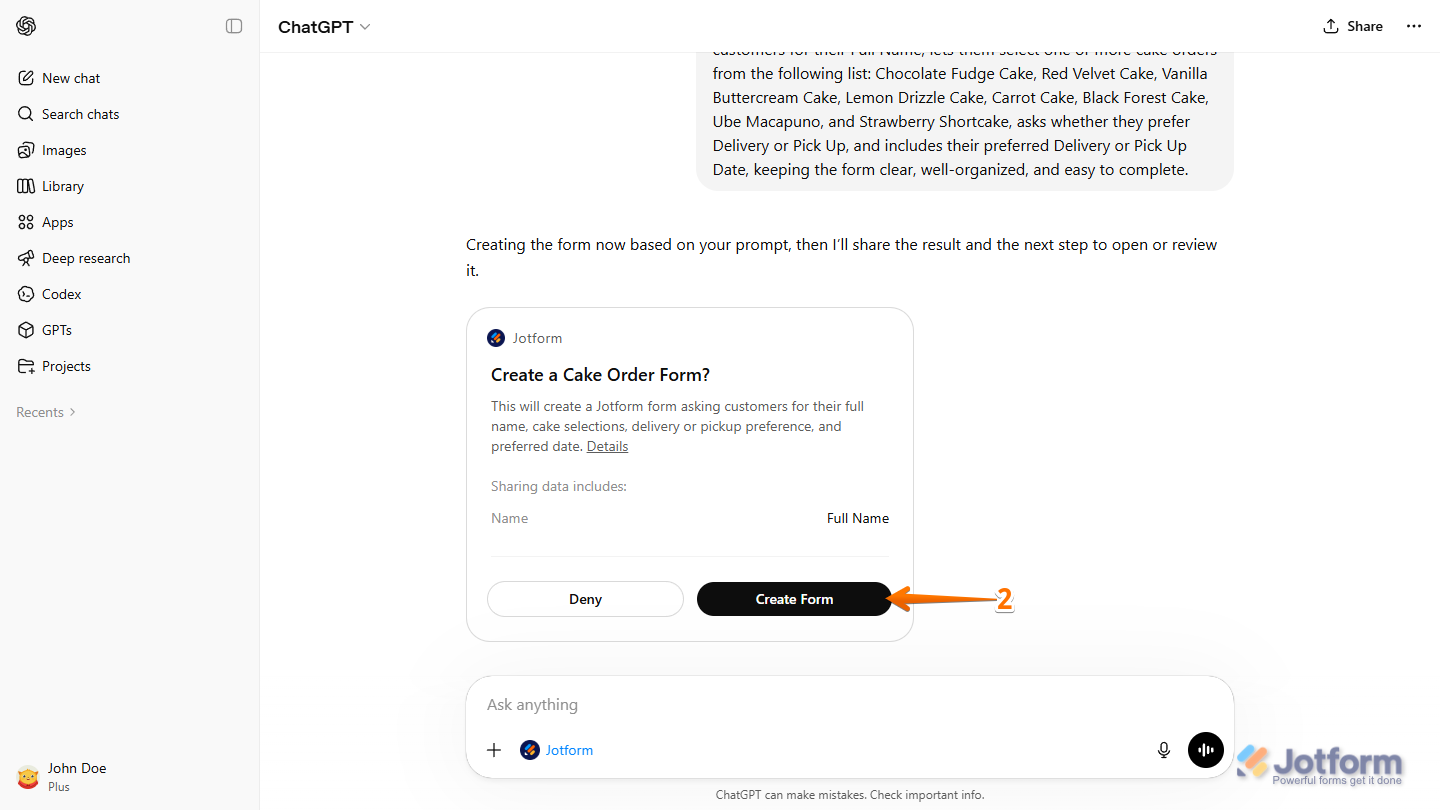
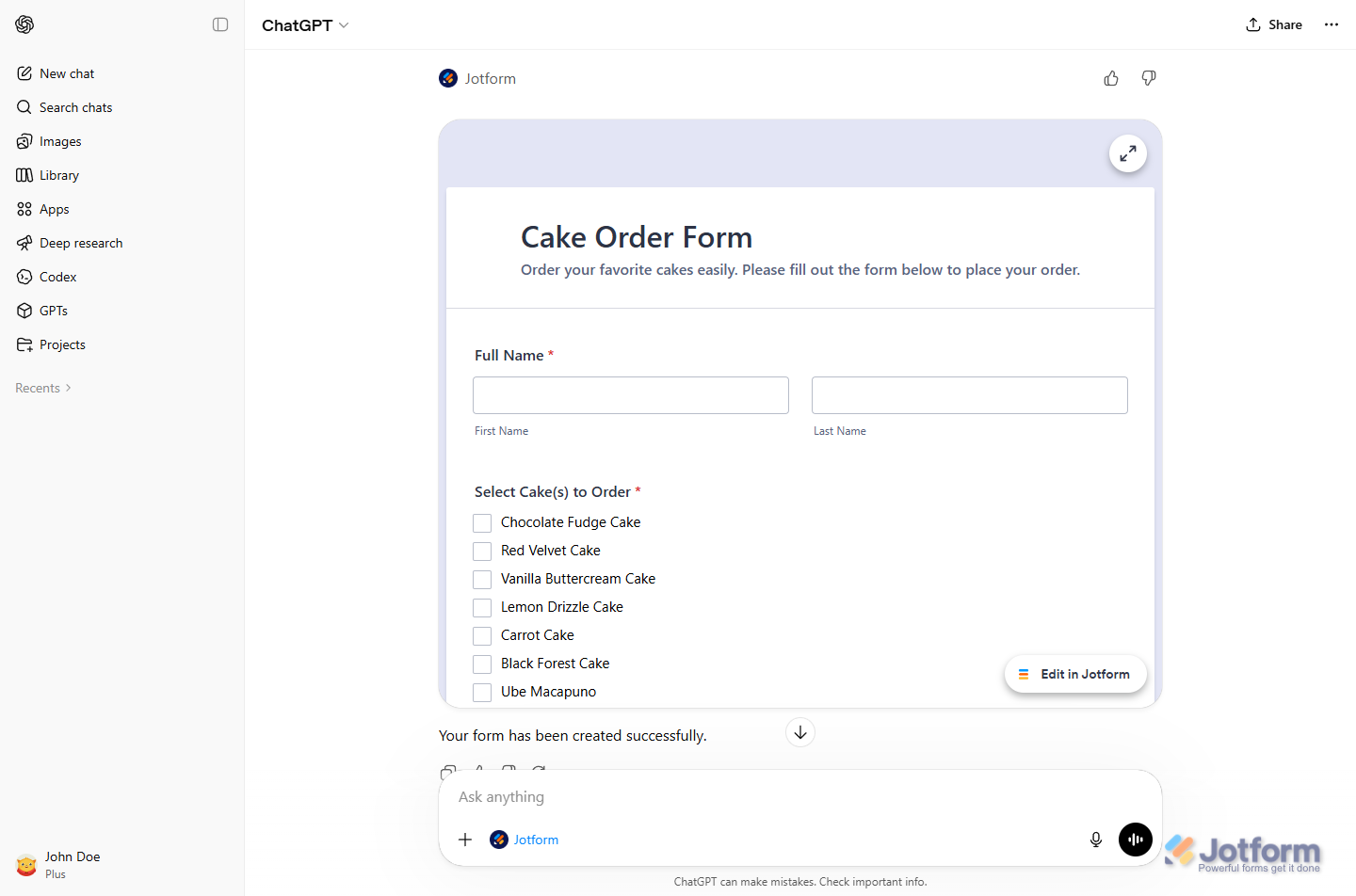
That’s it. Your form will be created based on your prompt, and you’ll see a preview that you can test right in the chat. You’ll also have the option to open it in Form Builder in a new browser tab and continue customizing it.
Editing an Existing Form
While using the Jotform ChatGPT App, you can update an existing form in your Jotform account by describing the changes you want. Here’s what to do:
- In the ChatGPT prompt box, enter a prompt describing the changes you want to make and include the name of the form in your account that you want them applied to, then press the Enter key on your keyboard or click on the Upward Arrow icon on the right side of the Prompt box.
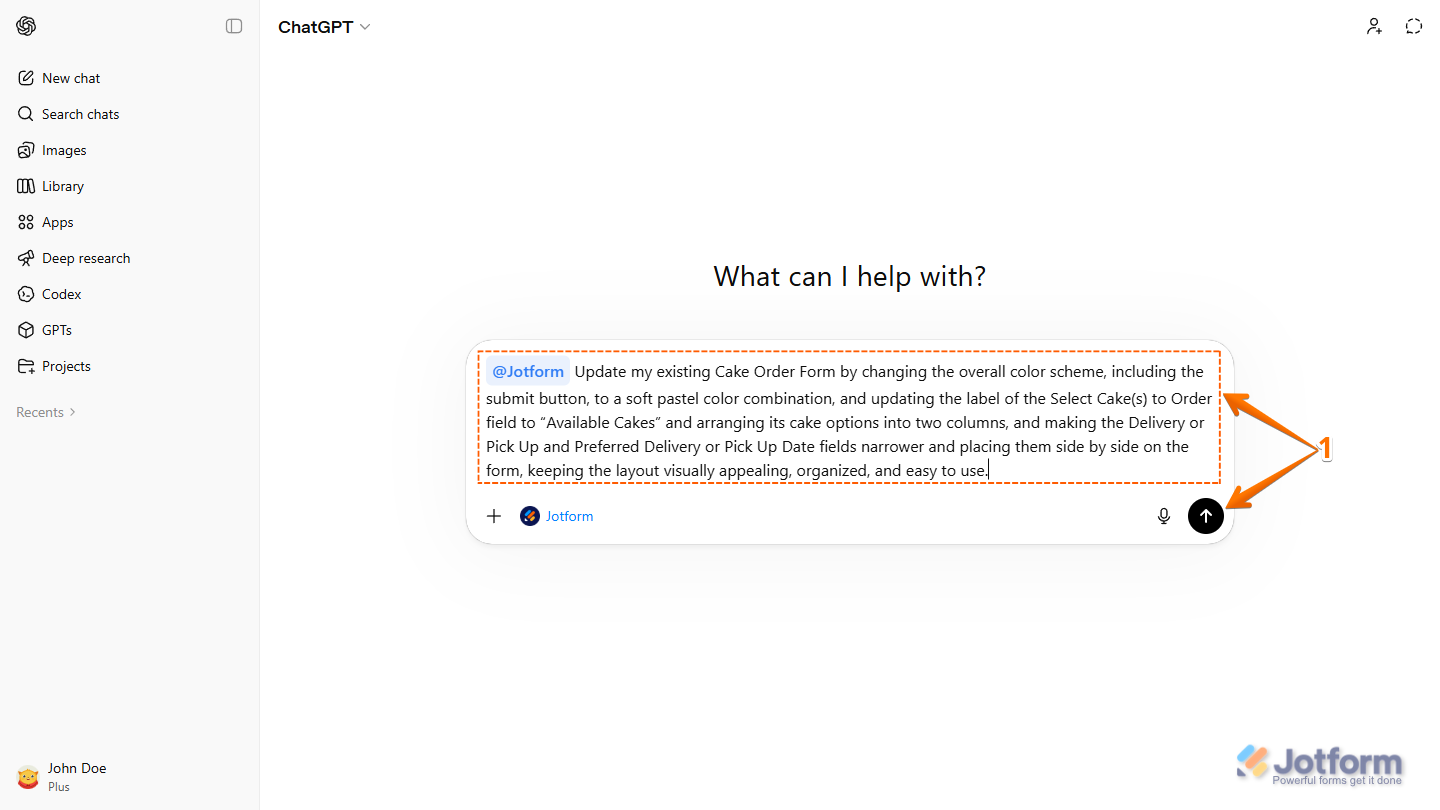
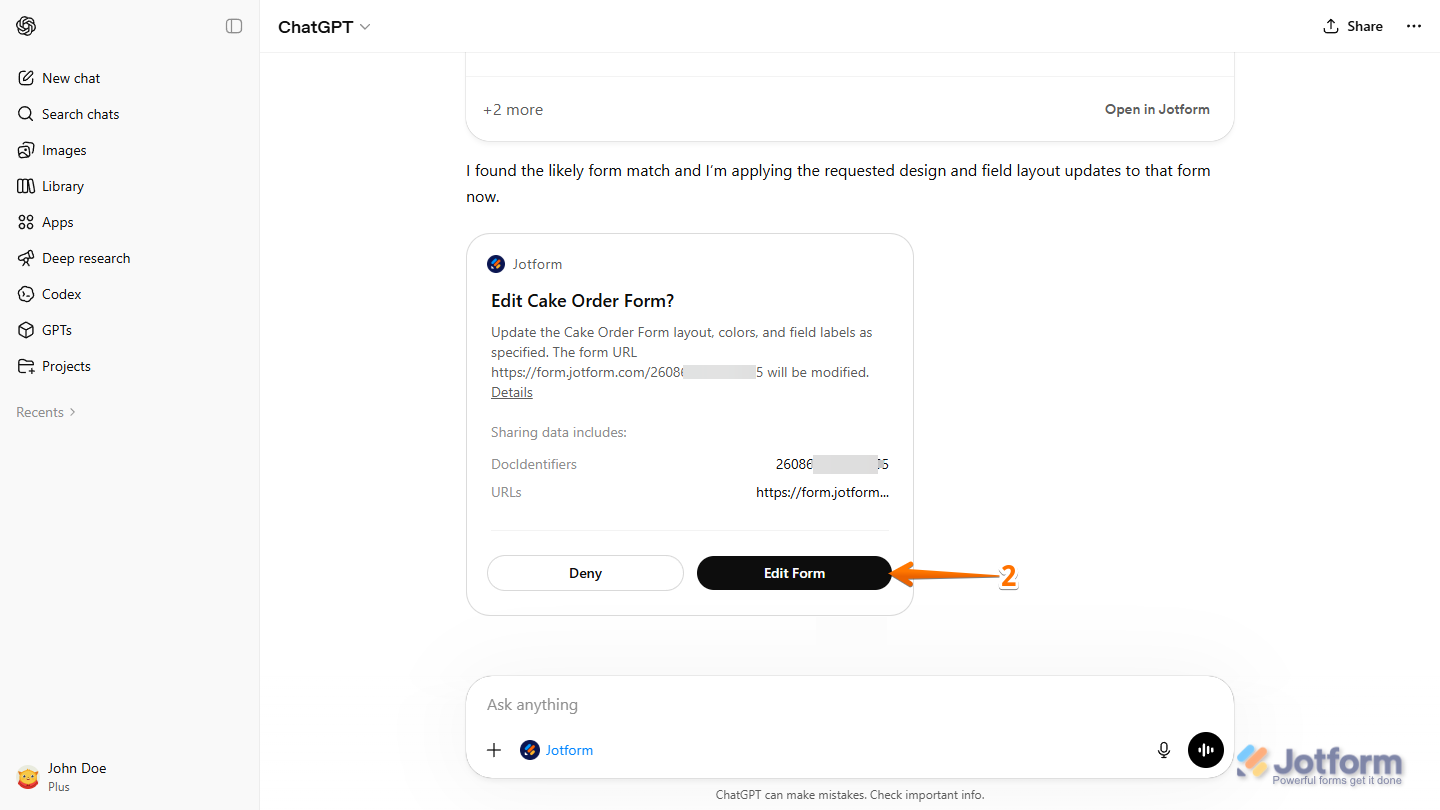
- Next, in the confirmation message, click on Edit Form to proceed.
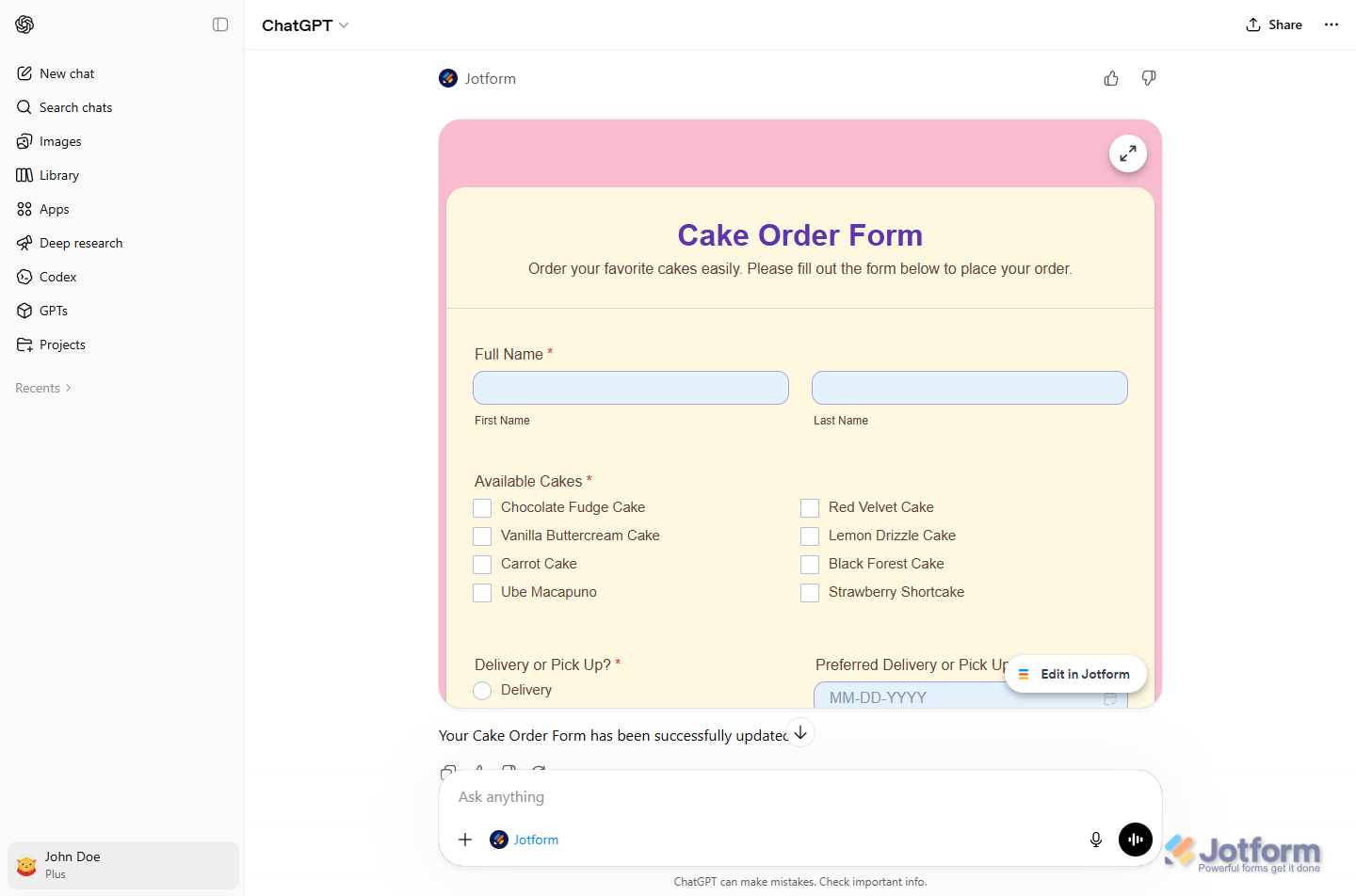
That’s it. Your form will be updated based on your prompt, and you’ll see a preview of the changes that you can review and test right in the chat. You’ll also have the option to open your form in Form Builder in a new browser tab to continue customizing it.
Viewing Form Submissions
While using the Jotform ChatGPT App, you can view and search your form submissions in your Jotform account by describing what you’re looking for in a prompt. Here’s how to do it:
- In the ChatGPT prompt box, enter a prompt asking for the submissions you want to view, including the form name and what you want to find, then press the Enter key on your keyboard or click on the Upward Arrow icon on the right side of the Prompt box.
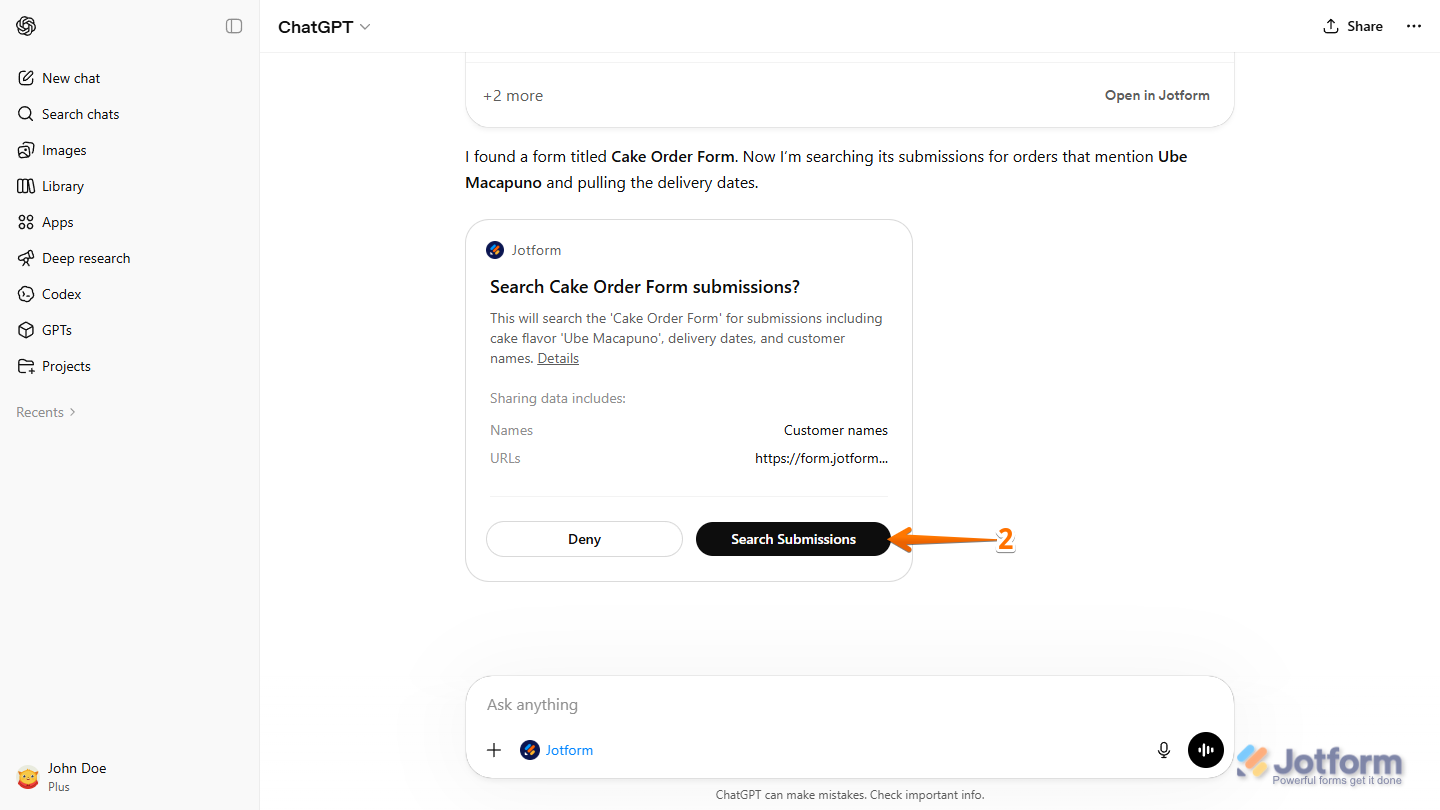
- Next, in the confirmation message, click on Search Submissions to proceed.
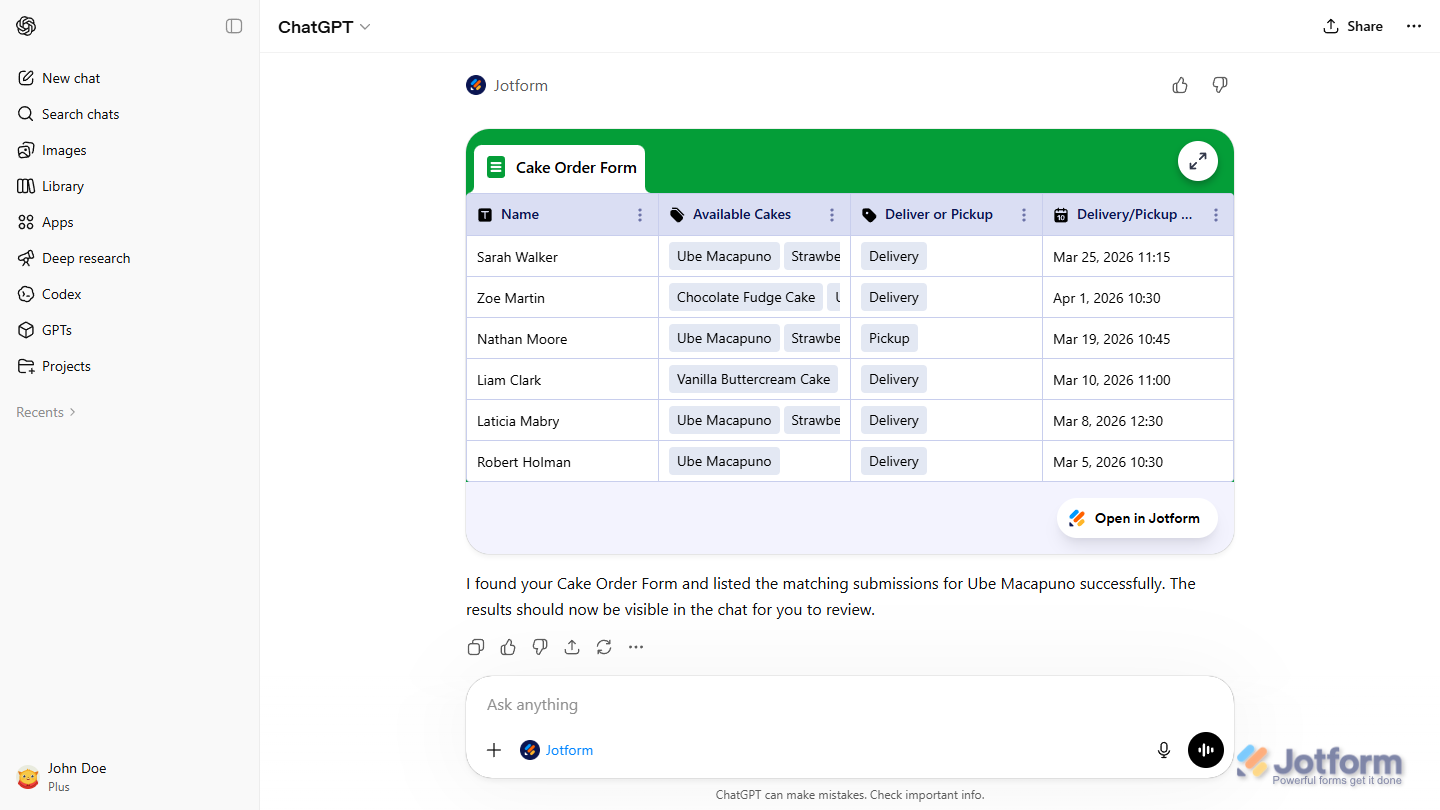
That’s it. You will see the submissions that match your request, which you can review right in the chat.

Send Comment: