As an admin, understanding board usage is key to optimizing organizational performance. The Admin Console offers a centralized view where you can monitor activity, track engagement, and manage boards across your organization. This guide walks you through accessing and using these tools to gain insights and optimize performance.





Viewing and Managing Options
- View Board: Open the selected board to view its content and details.
- View Analytics: Access insights and performance data related to the board.
- Connected Assets: View all assets linked to the selected board.
- Archive: Move the board to the archive to remove it from active use without deleting it.
- Unarchive: Restore an archived board back to active use.
- Move to Trash: Move the board to trash, where it can be restored or permanently deleted.
- Restore: Recover a board from the trash back to active use.
- Purge: Permanently delete the board from the Trash.
Process
Let’s walk through the process of accessing these options together:
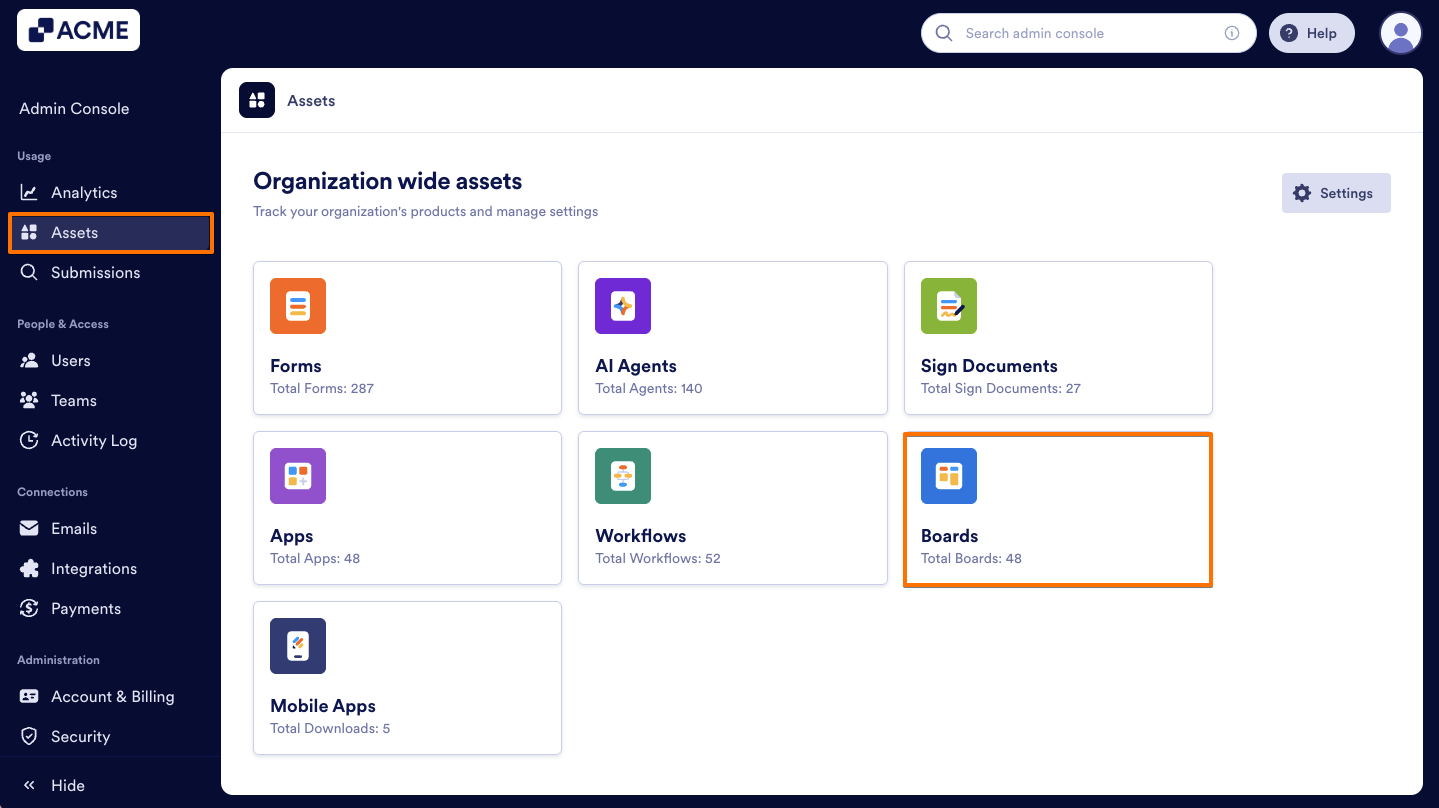
- In the Admin Console, on the left side of the page, click on Assets.
- Next, select Boards to load all boards on your server.
- Then, find the board you’d like to manage and click on the Three dots icon next to it to access the menu.
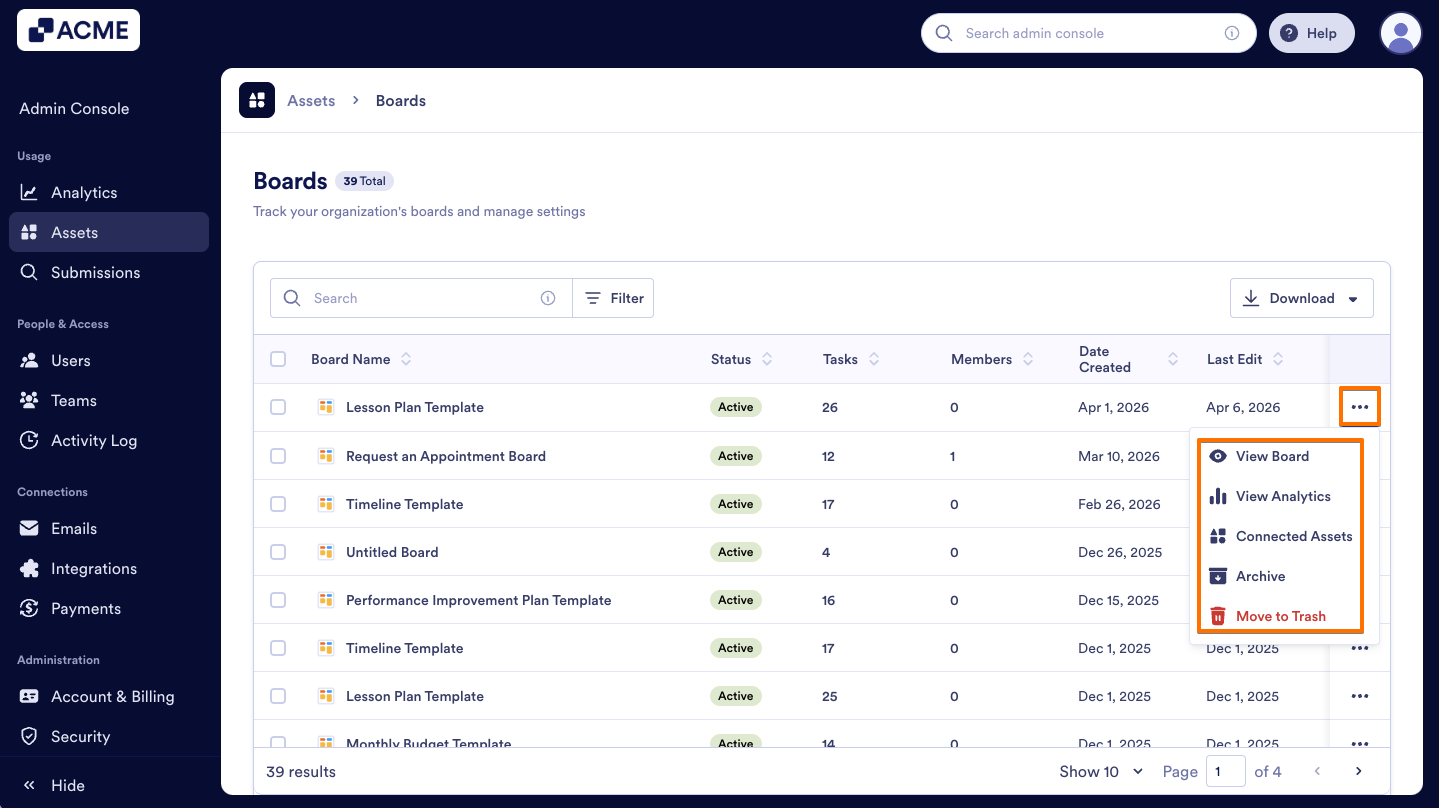
After accessing the menu, we can start selecting the options. Here’s what you can do:
View Board
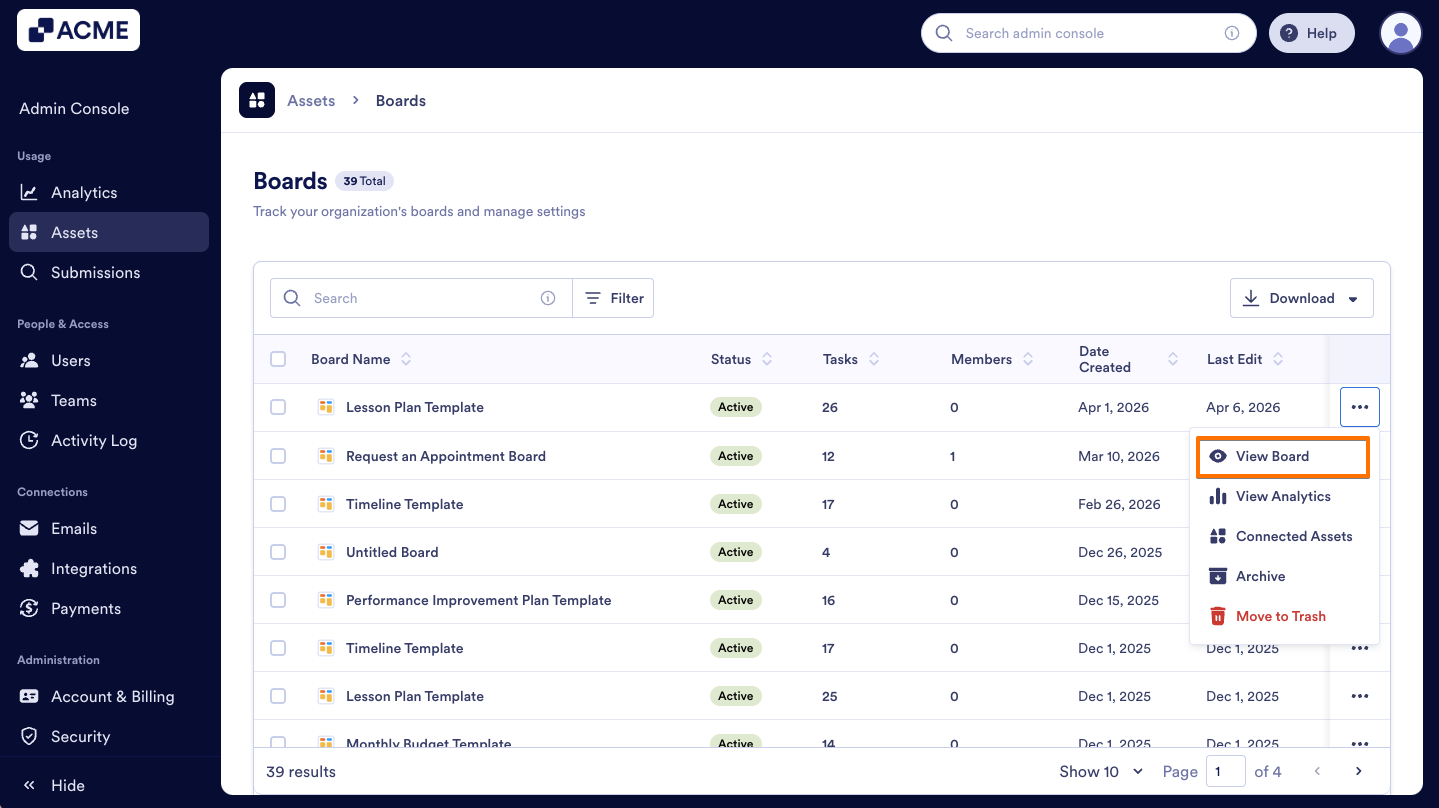
- Select the View Board option from the menu.
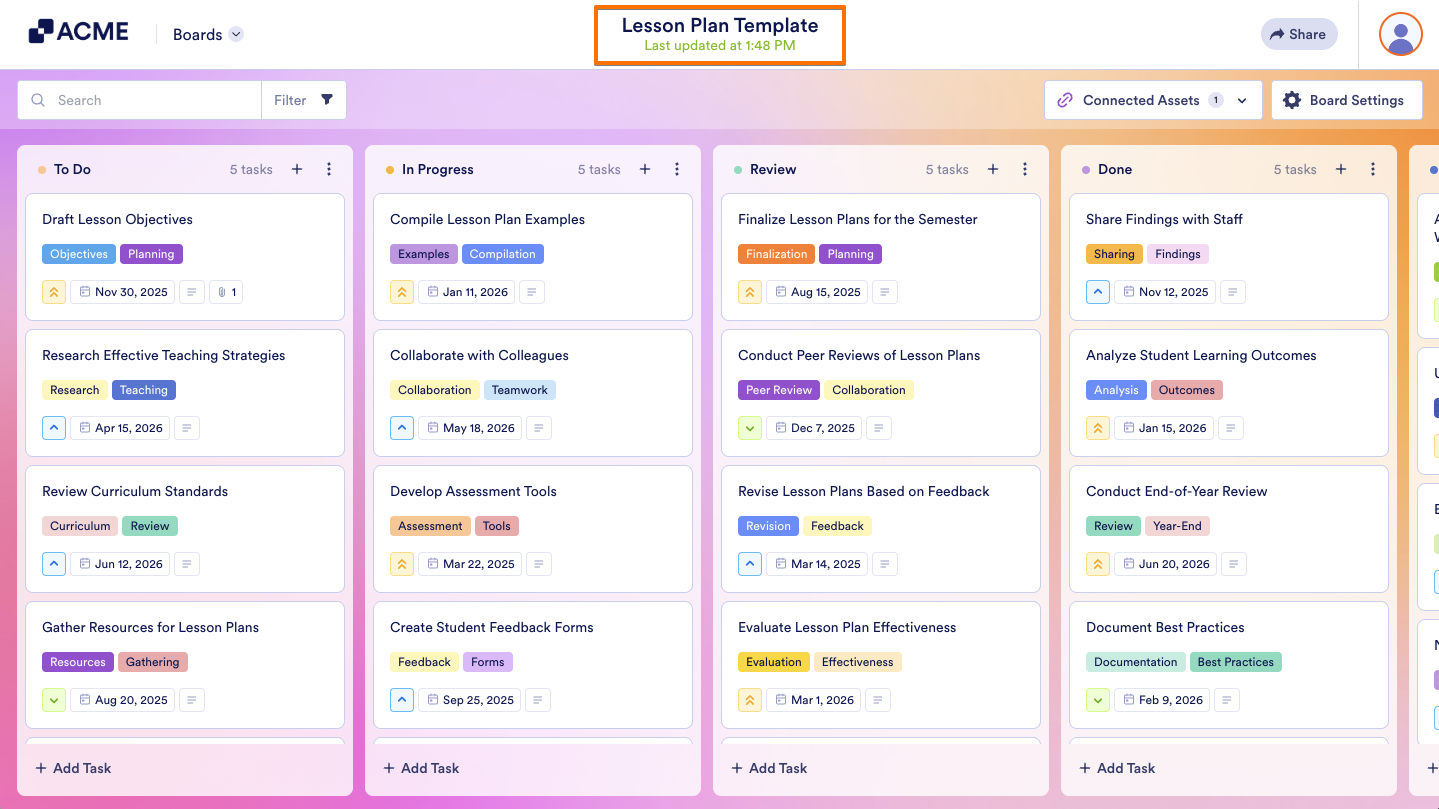
- You will then be taken to the selected board’s page, where you can view and edit its content, tasks, assignees, and other details.
View Analytics
- Select the View Analytics option from the menu.
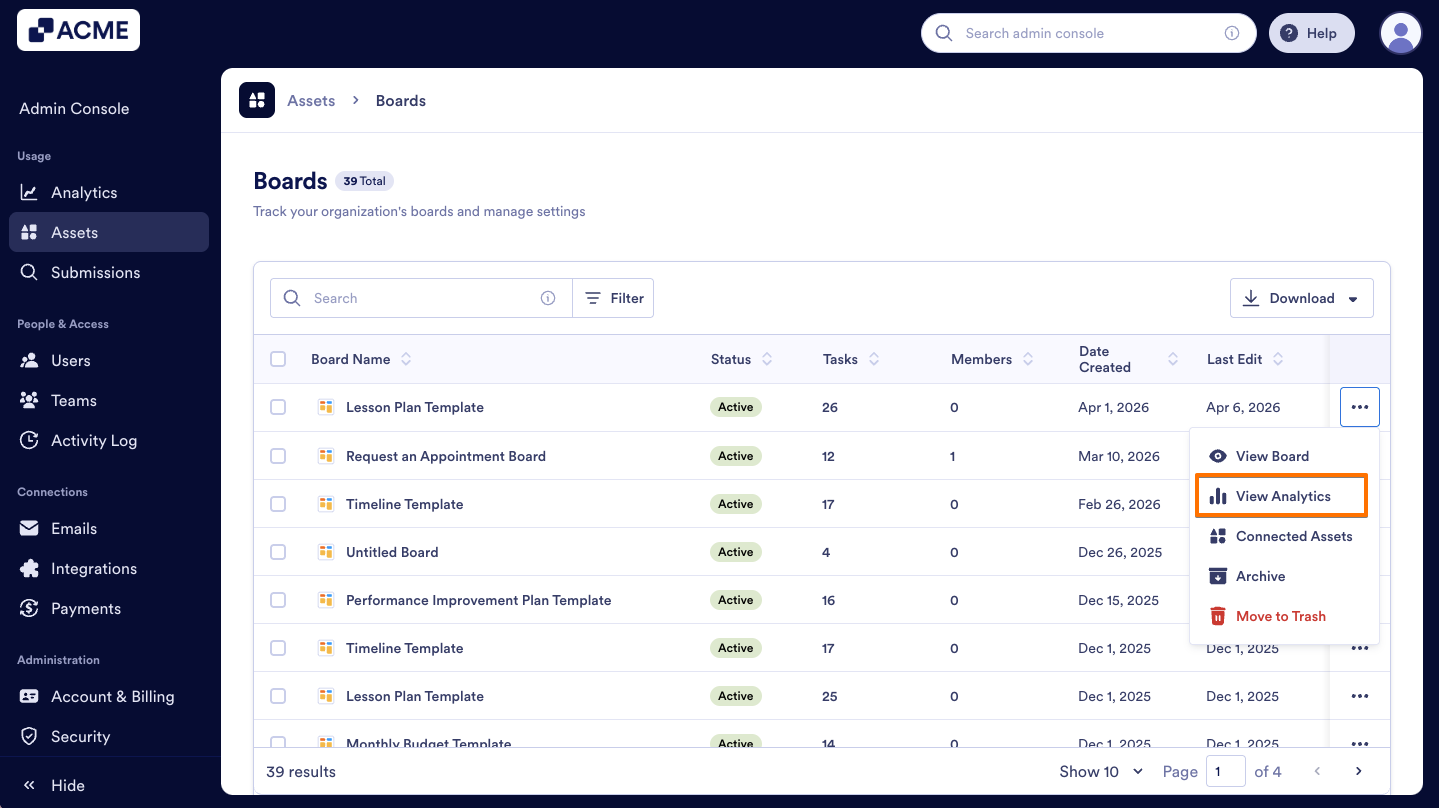
- You will be taken to the page where all the data about your boards is displayed, including its traffic and tasks.
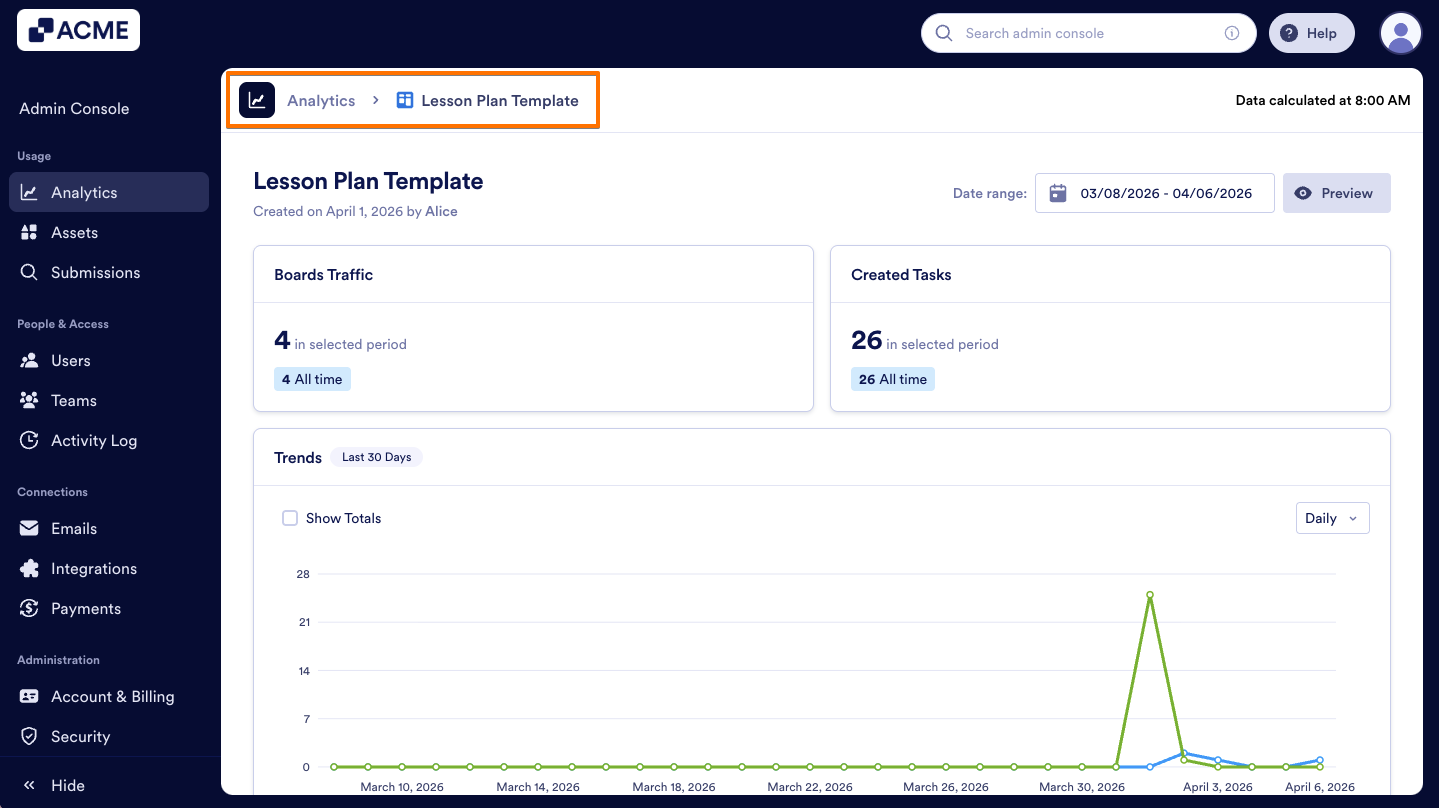
For more information about Boards Analytics, refer to our guide: How to Analyze Boards Usage in your Organization from the Admin Console
Connected Assets
- Click on the Connected Assets option in the menu.
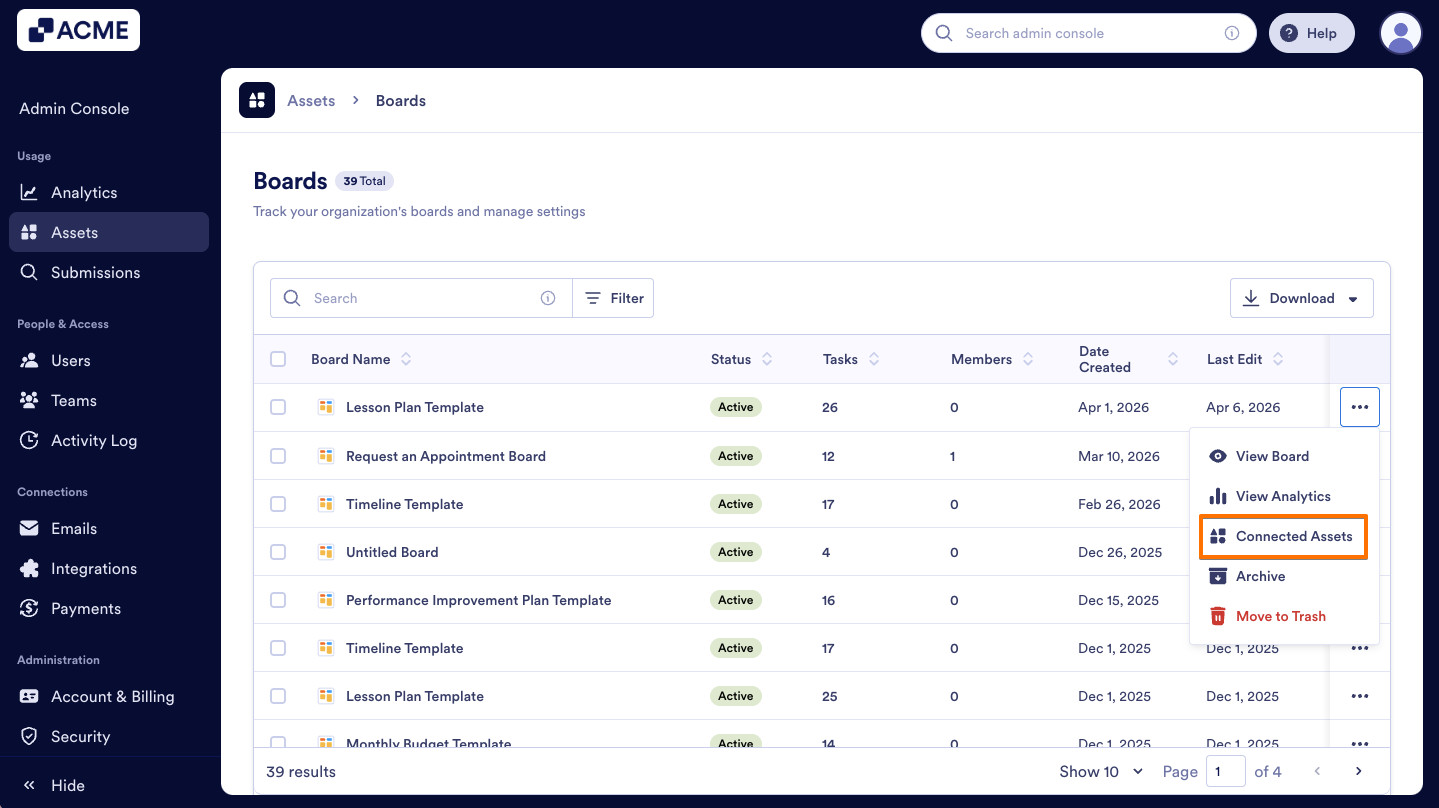
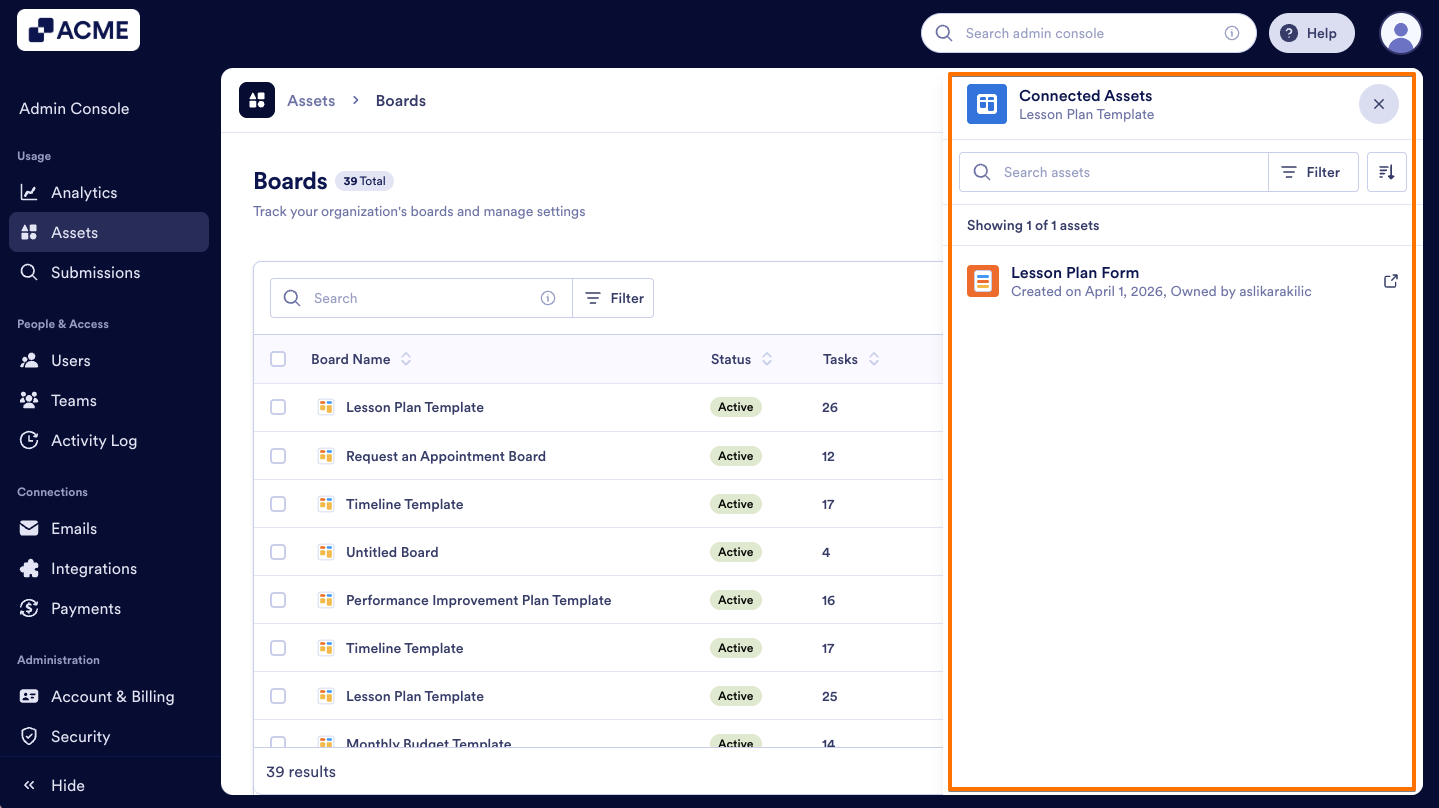
- This will open a panel on the right, displaying all assets connected to the selected board.
Archive
- In the menu, select Archive.
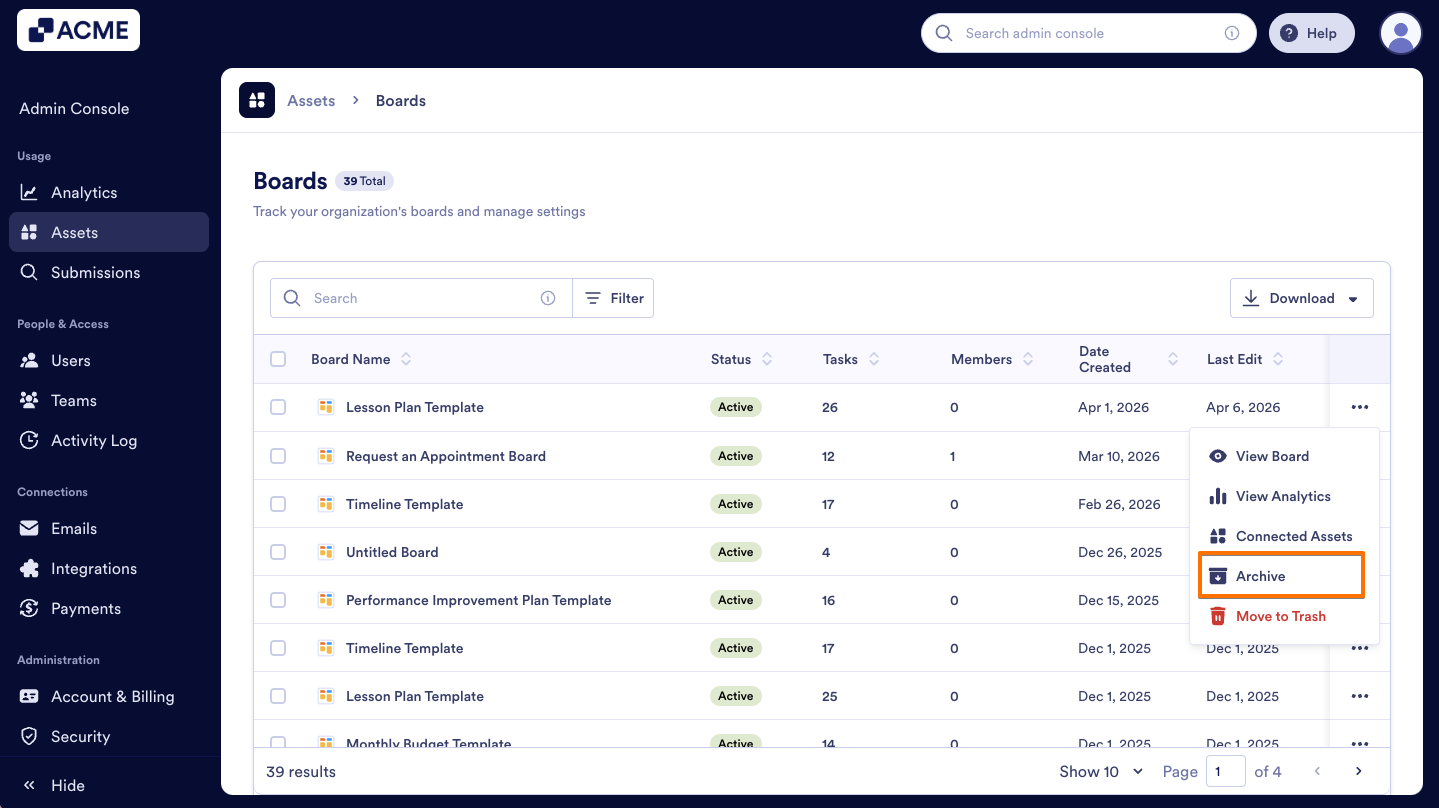
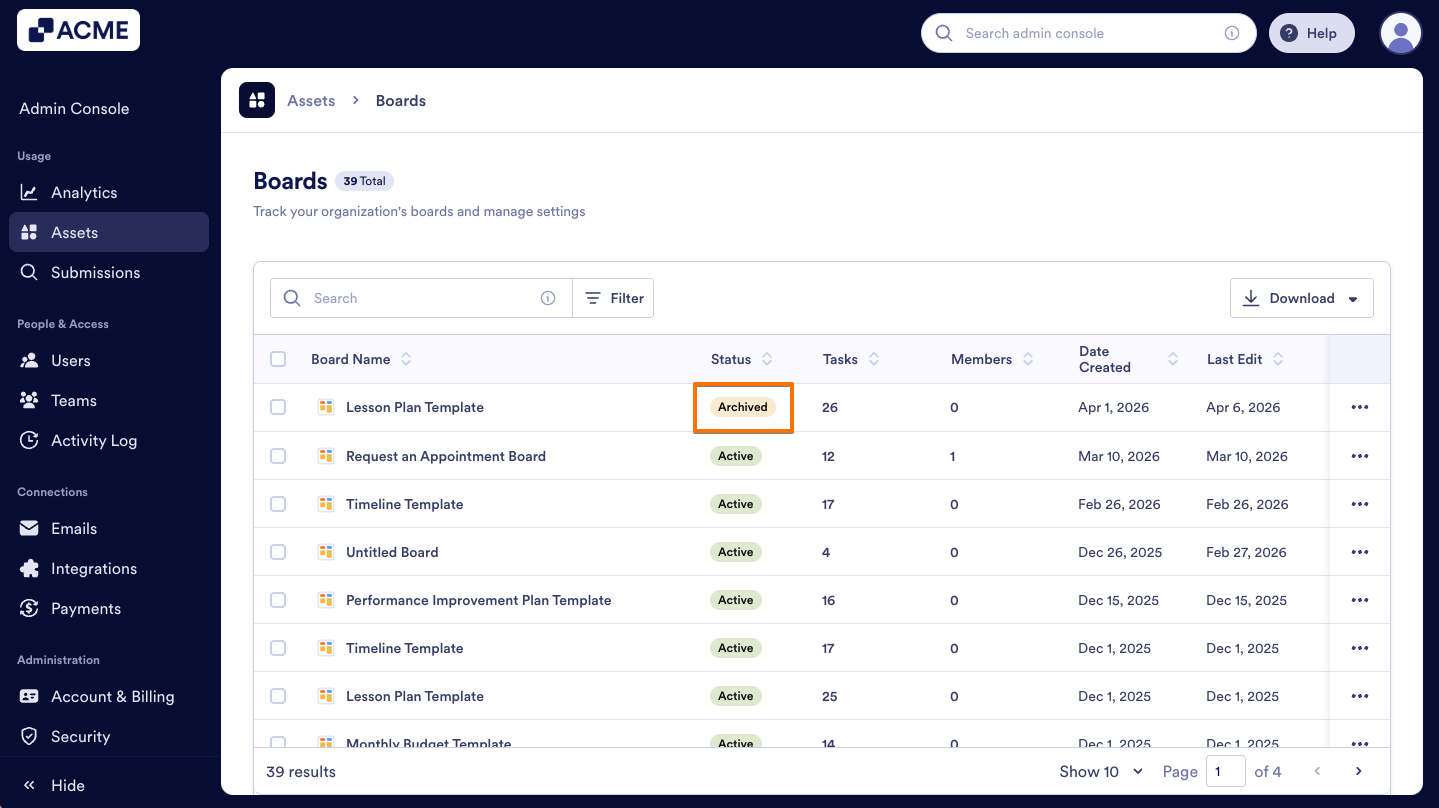
- Your board will now be Archived, making it inactive but still accessible for future reference without cluttering your main workspace.
Move to Trash
- In the Three dots menu, select Move to Trash.
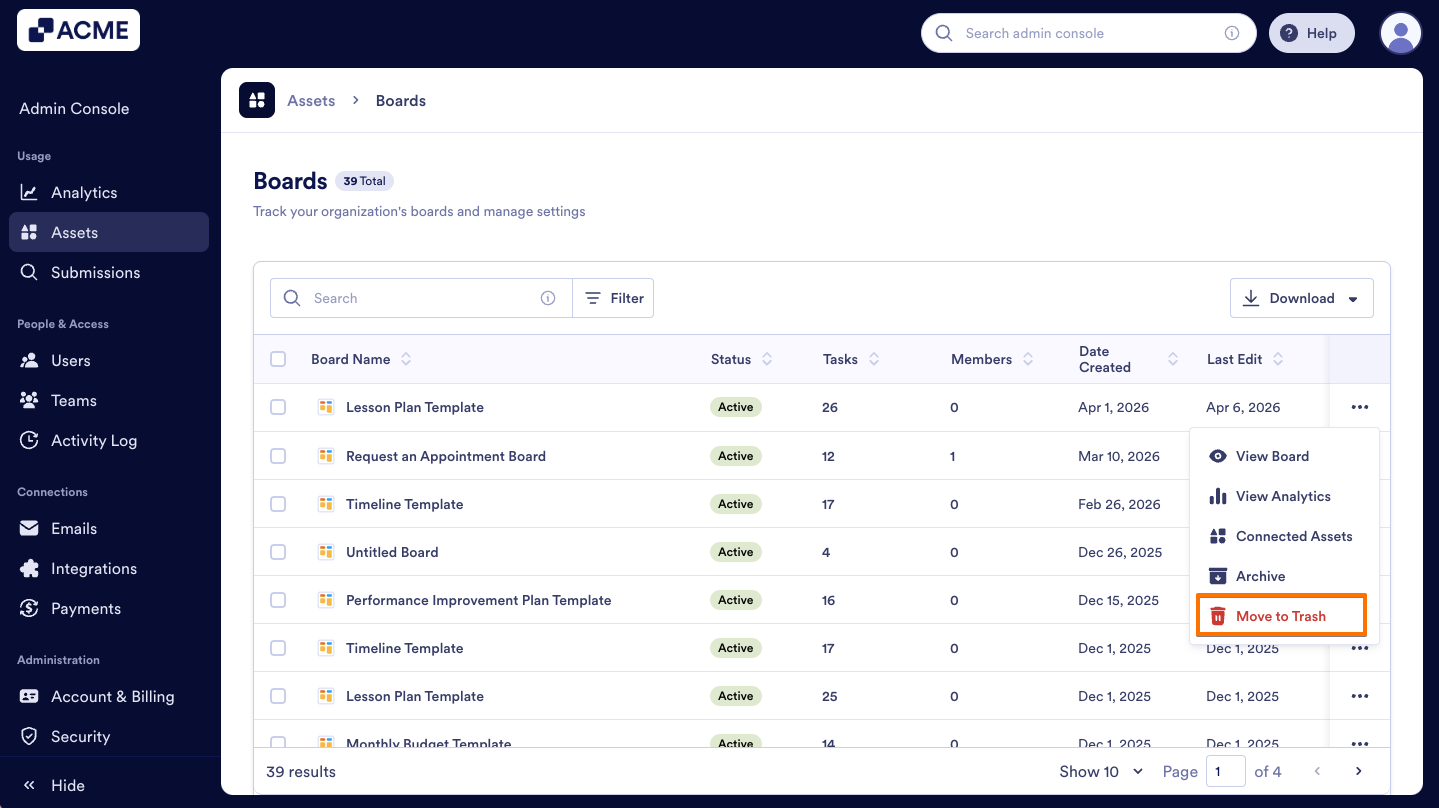
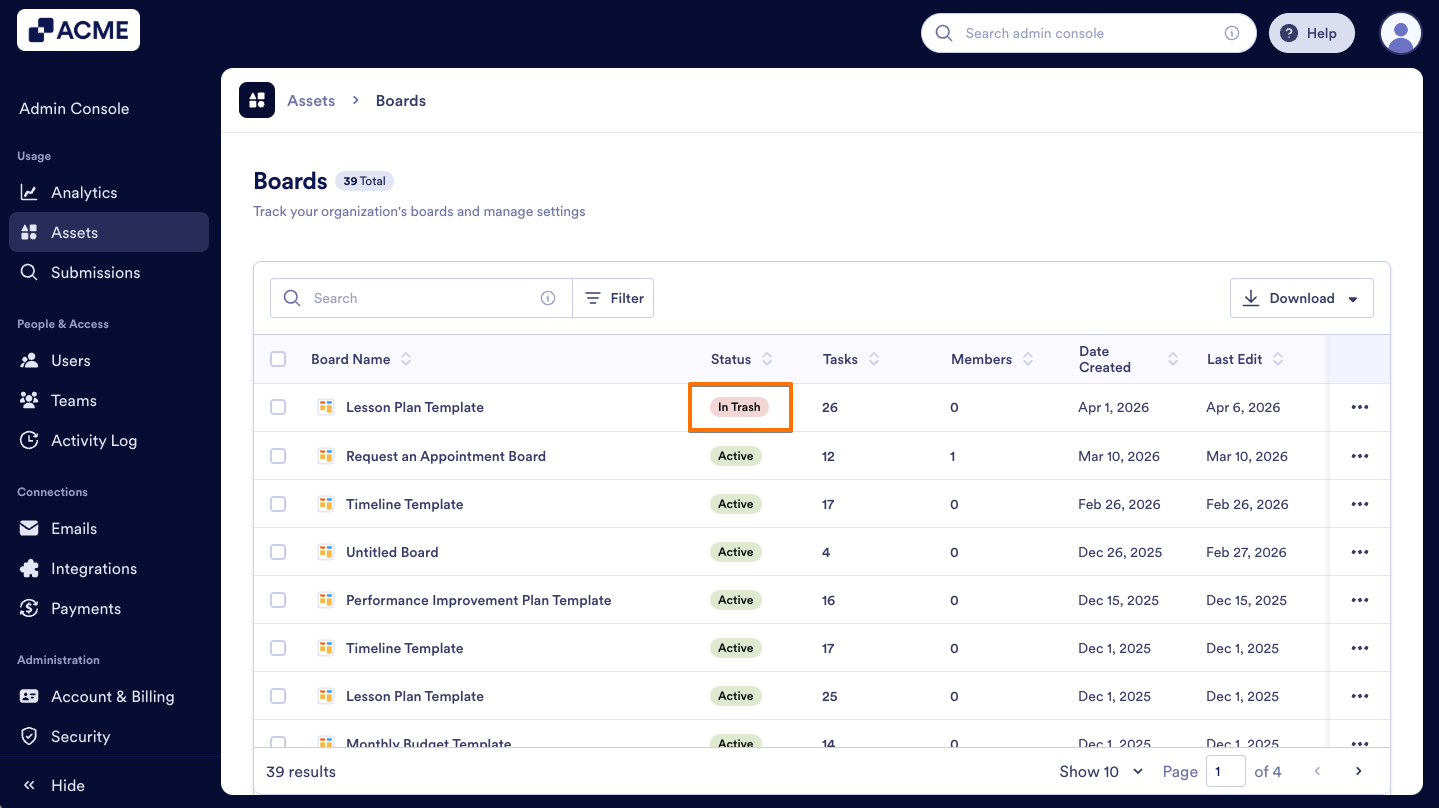
- After deleting the boards, it will be moved to the creator’s Trash.
Filter Boards Assets
The Filter menu allows you to drill down into specific subsets of your organization's Boards data. Here's how:
- On the Boards Assets page, click on the Filter button on the right side of the Search bar.
- Select filters based on your search criteria, and the matching workflows will appear automatically.
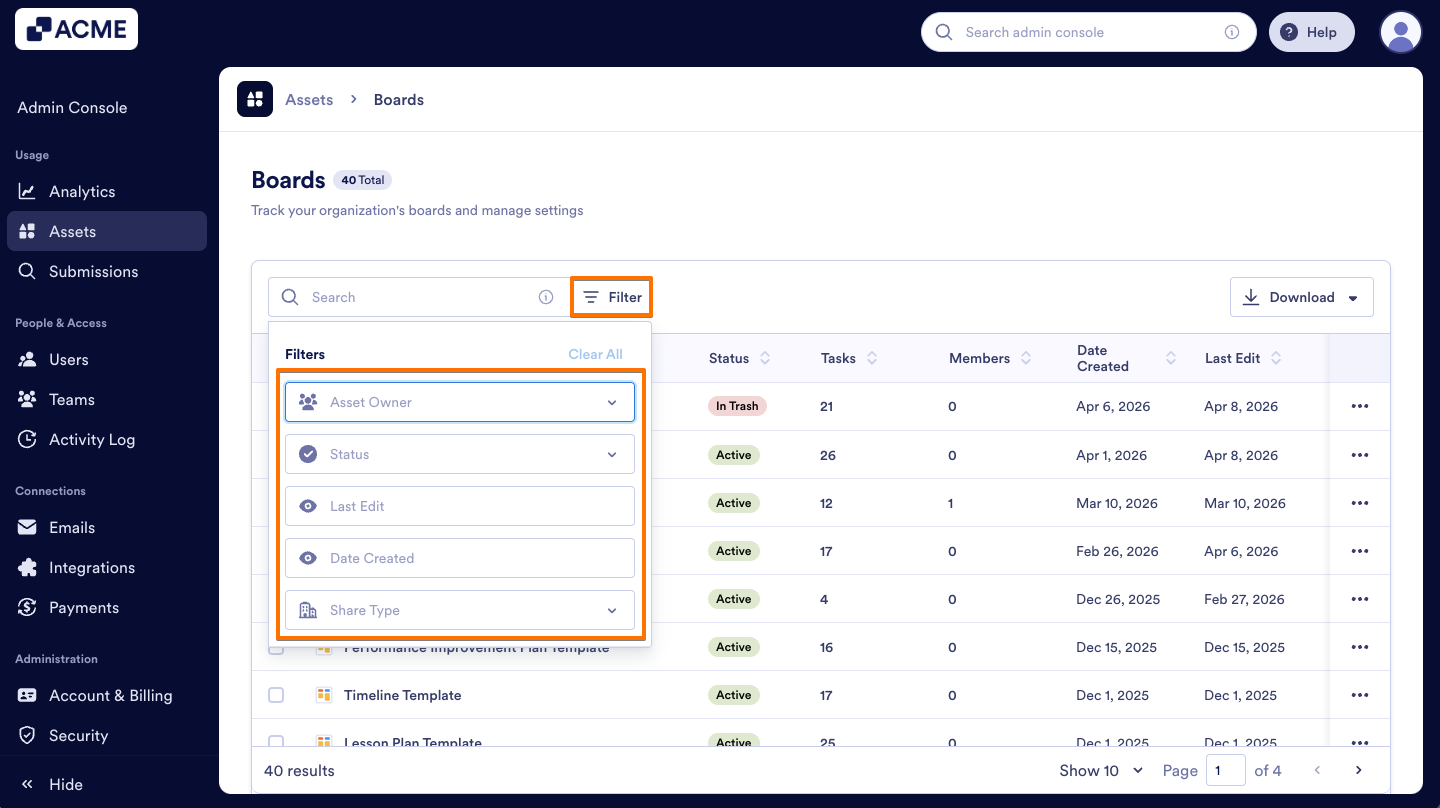
Asset Owner: Filter boards based on whether they are owned by individual users or a team.
Status: View boards by their current state, such as Active, In Trash, or Archived.
Last Edit: Narrow down boards by the date they were last updated.
Date Created: Filter boards according to when they were created.
Share Type: Filter boards based on their access level, such as Private Boards or those with Company Access.
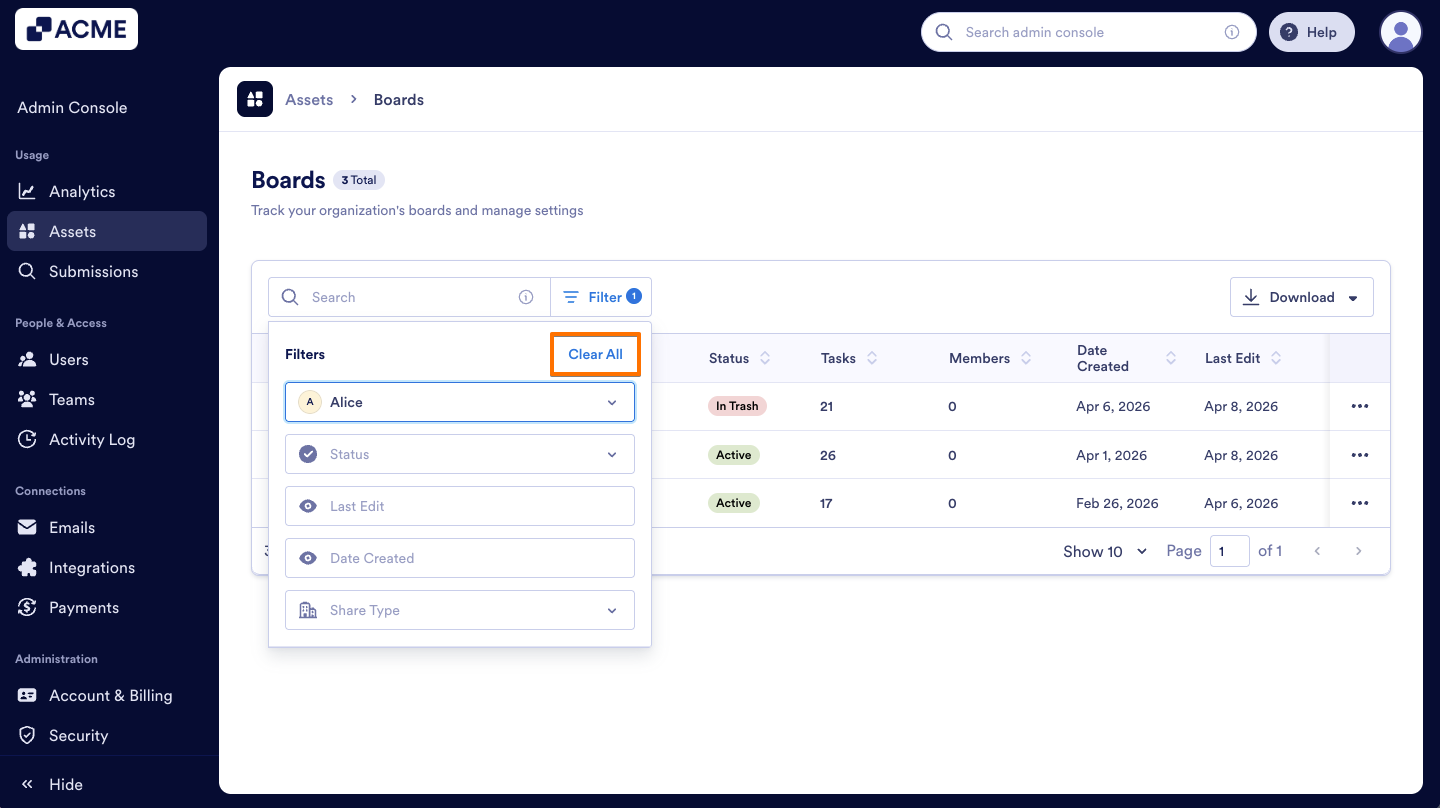
- Finally, if you want to delete all filters, you can click on Clear All.
Search for Boards
Use the Search bar at the top of the Boards list to quickly locate specific Boards, as shown in the screenshot below:
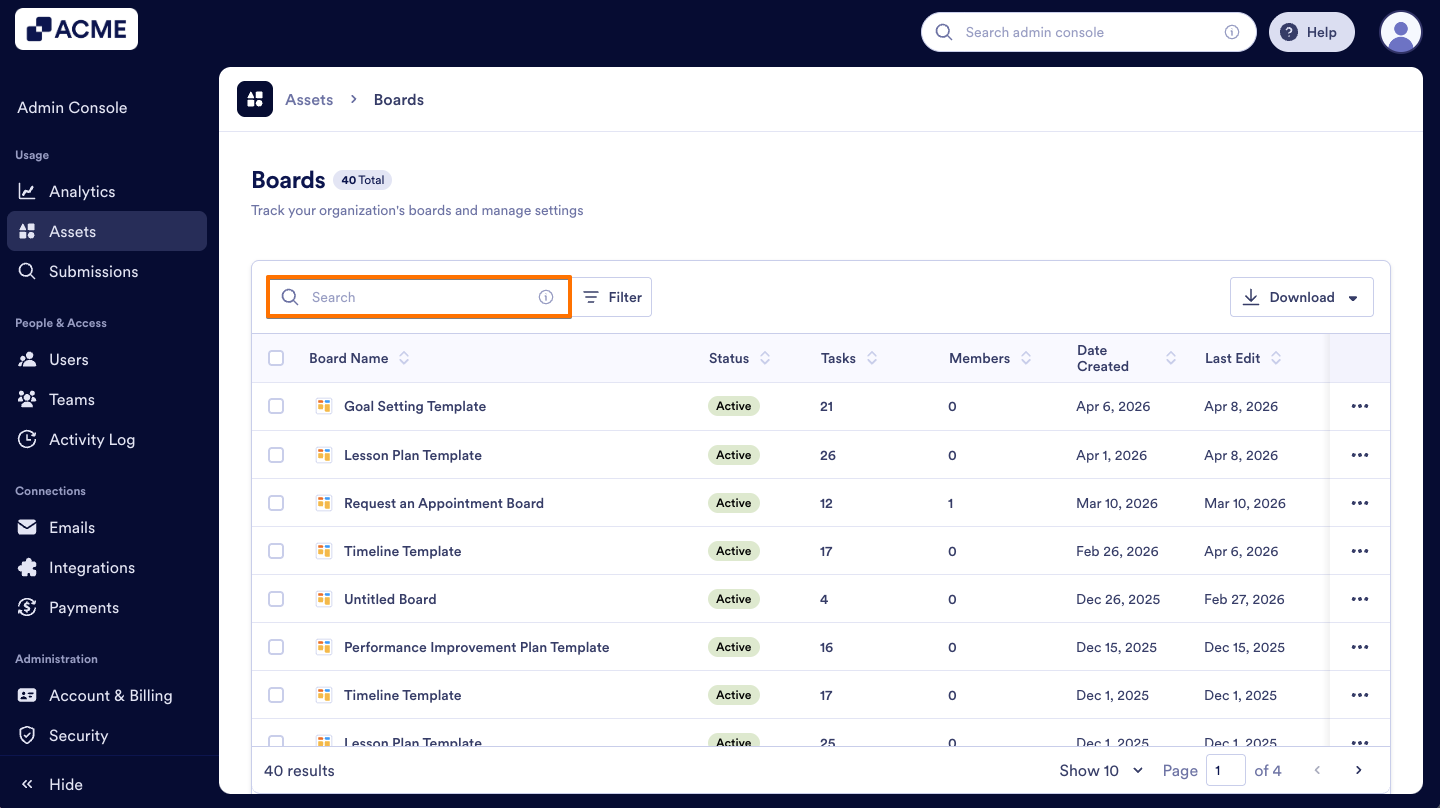
You can search using any of the following criteria:
- Board Name or ID: Find a specific board by its name or unique identifier.
- Owner Information: Search by the Name, Email, or Team of the individual who owns the board.
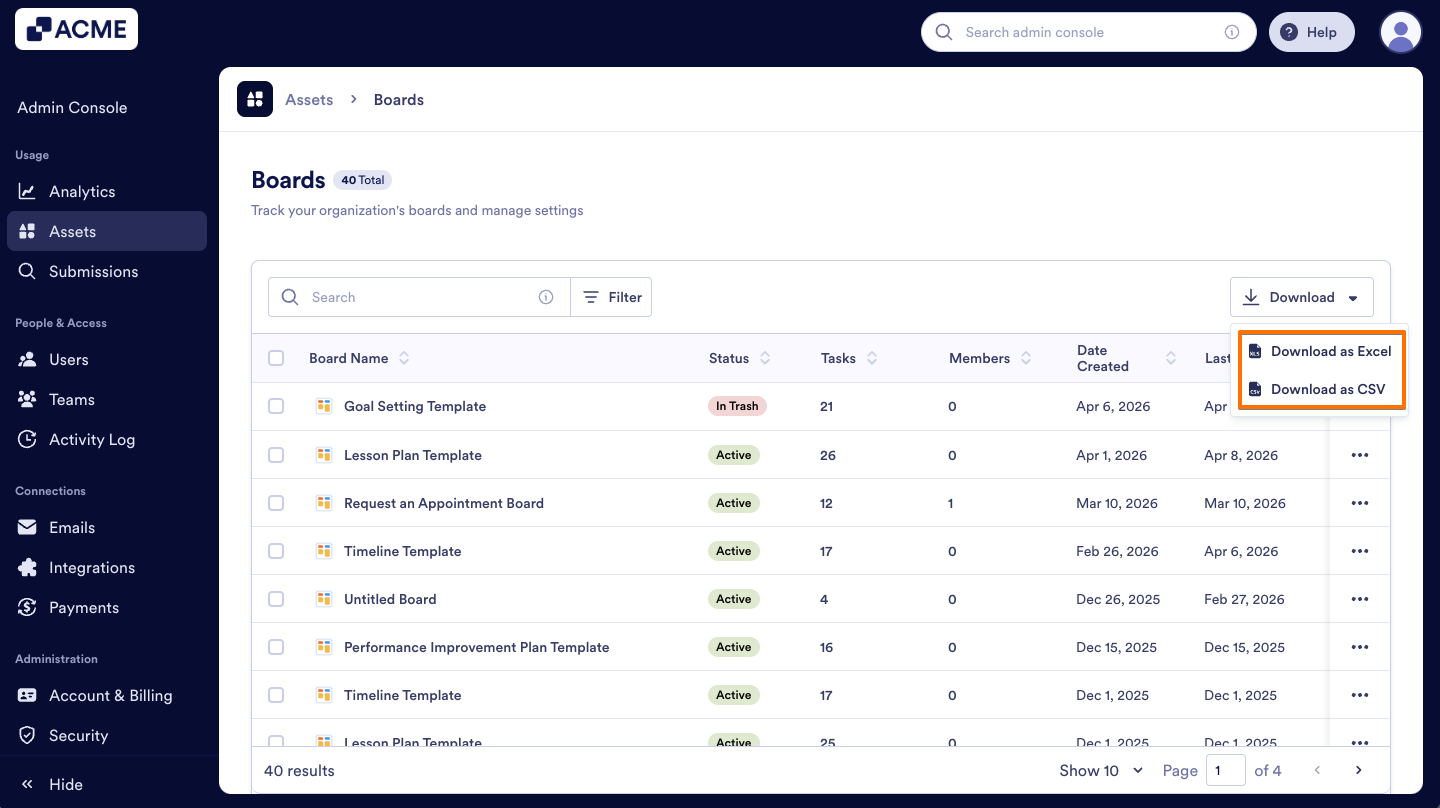
Download Boards Data
You can also download a quick overview of Boards information, including the Boards ID, Title, Edit/Creation dates, Status, and Errors:
- In the Boards Assets page, on the upper right of the list, click on the Download dropdown.
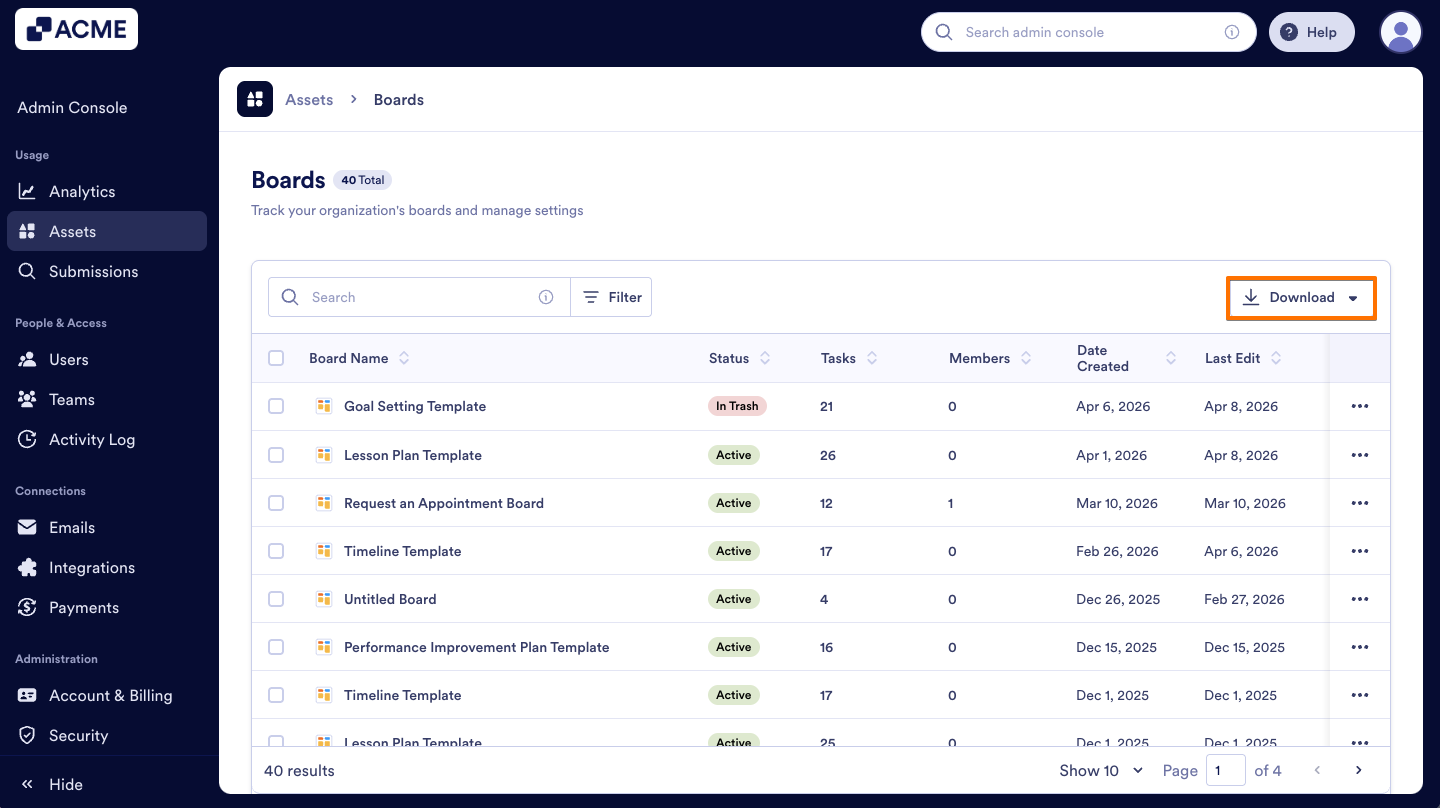
- Then from the menu, select Download as CSV or Download as Excel.
Sort the Boards
To organize your Boards by a specific category, simply click on the Column Header of the data you wish to prioritize.
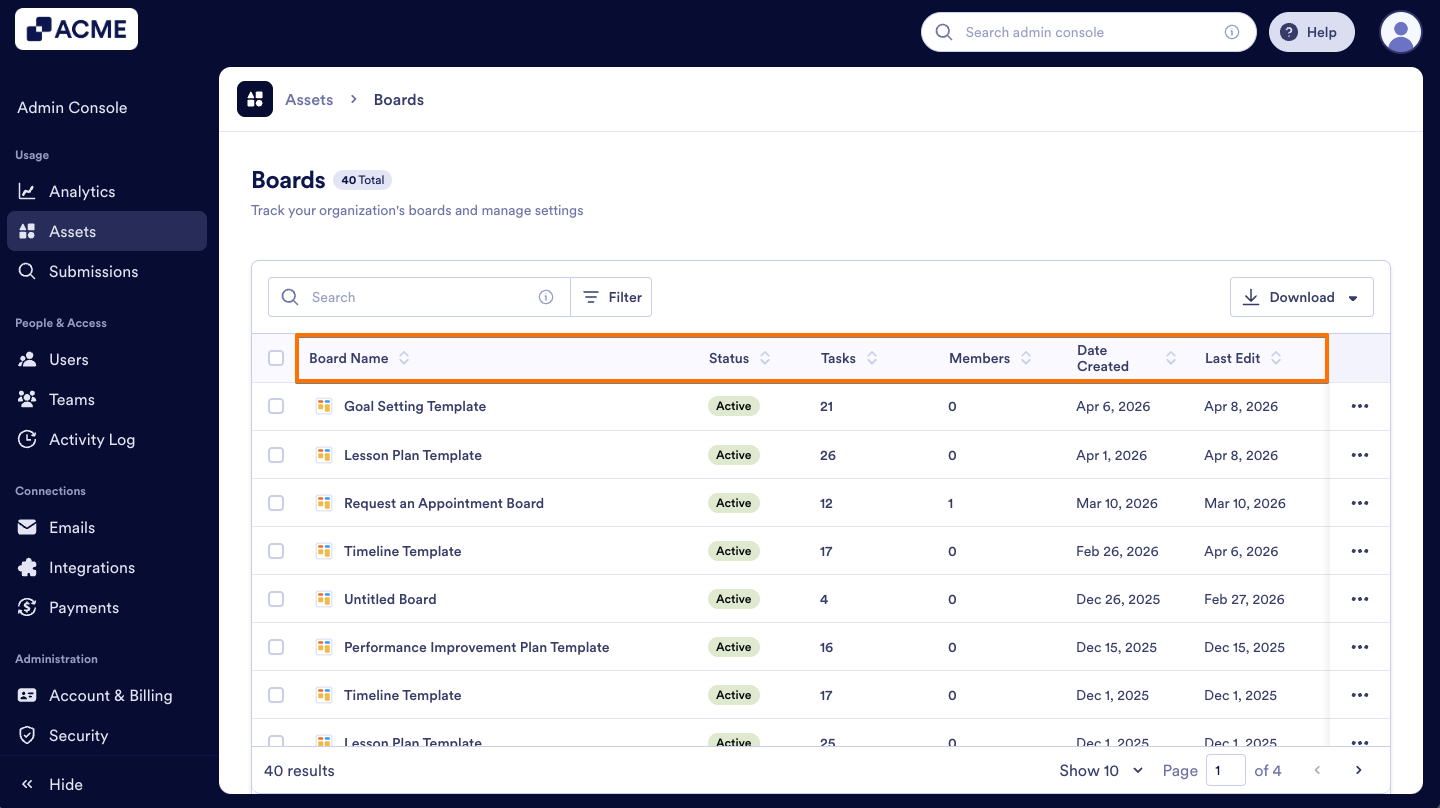
- Board Name: Click to arrange your boards alphabetically (A-Z or Z-A).
- Status: Group boards by their current state to view all Active, In Trash, or Archived boards together.
- Tasks: Sort boards by the number of tasks to identify the most or least active boards.
- Members: Sort boards by the number of members to see which boards have the most or fewest participants.
- Date Created: Click to sort boards by their original creation date, from newest to oldest.
- Last Edit: Click to sort boards by most recently updated activity.
- Connected Assets: Sort boards by the number of connected assets to quickly identify boards with the most or fewest links.
Note
Clicking a column header once will sort the data in descending order (e.g., A-Z or newest to oldest). Clicking the same header a second time will reverse it to ascending order.

Send Comment: