The Admin Console makes it simple to check and manage your organization’s sign document usage. You can quickly see how documents are being used, monitor overall activity, and keep track of limits to avoid unexpected overages. With clear insights and easy-to-use controls, you can confidently manage usage and keep everything running smoothly.

Viewing and Managing Options
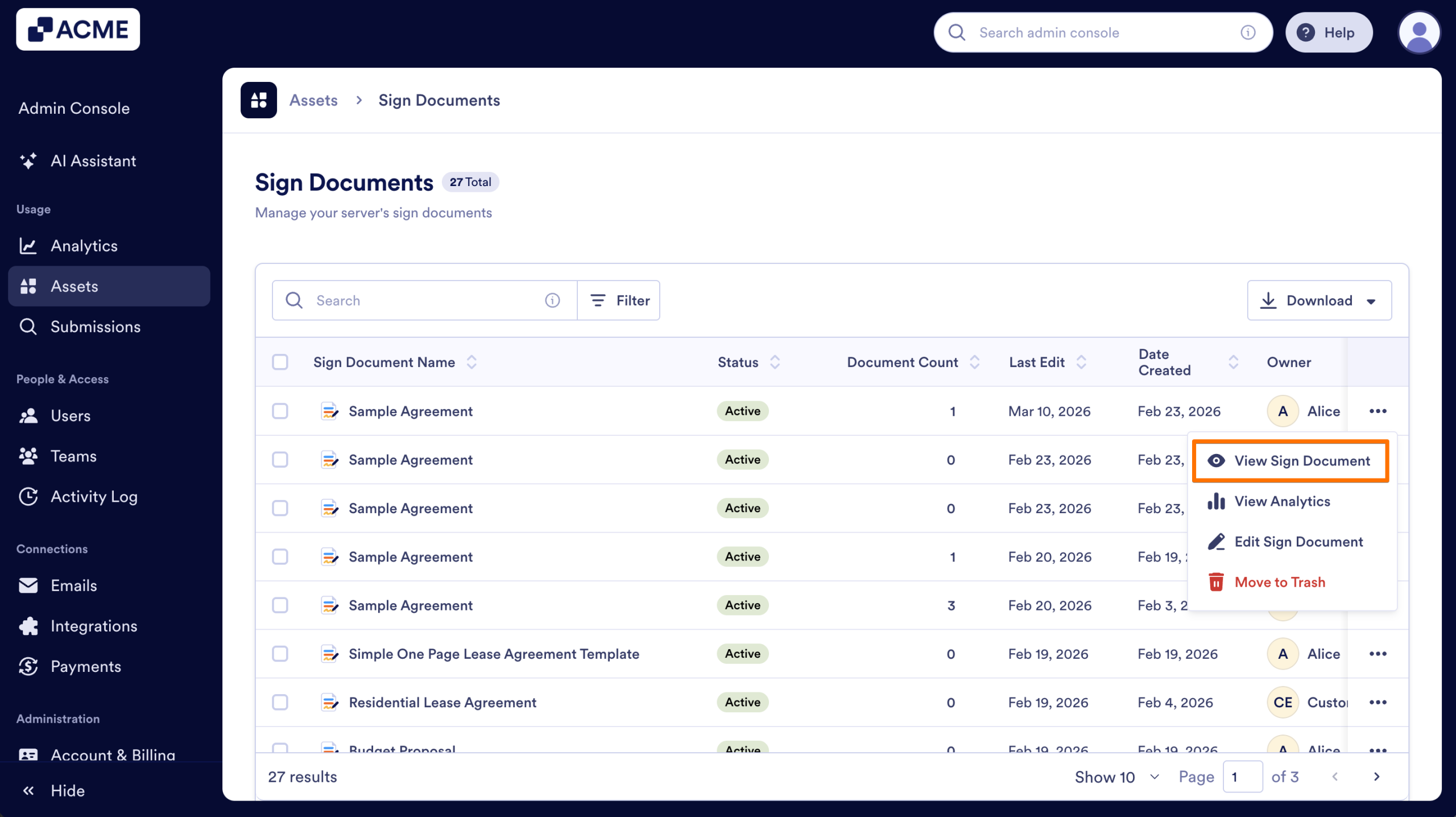
- View Sign Document: See a preview of the Sign Document.
- View Analytics: View the Analytics for an individual Sign Document.
- Edit Sign Document: Open the Sign Document in Build Mode.
- Move to Trash: Delete the sign document and its submissions.
Process
Let’s walk through the process of accessing these options together:
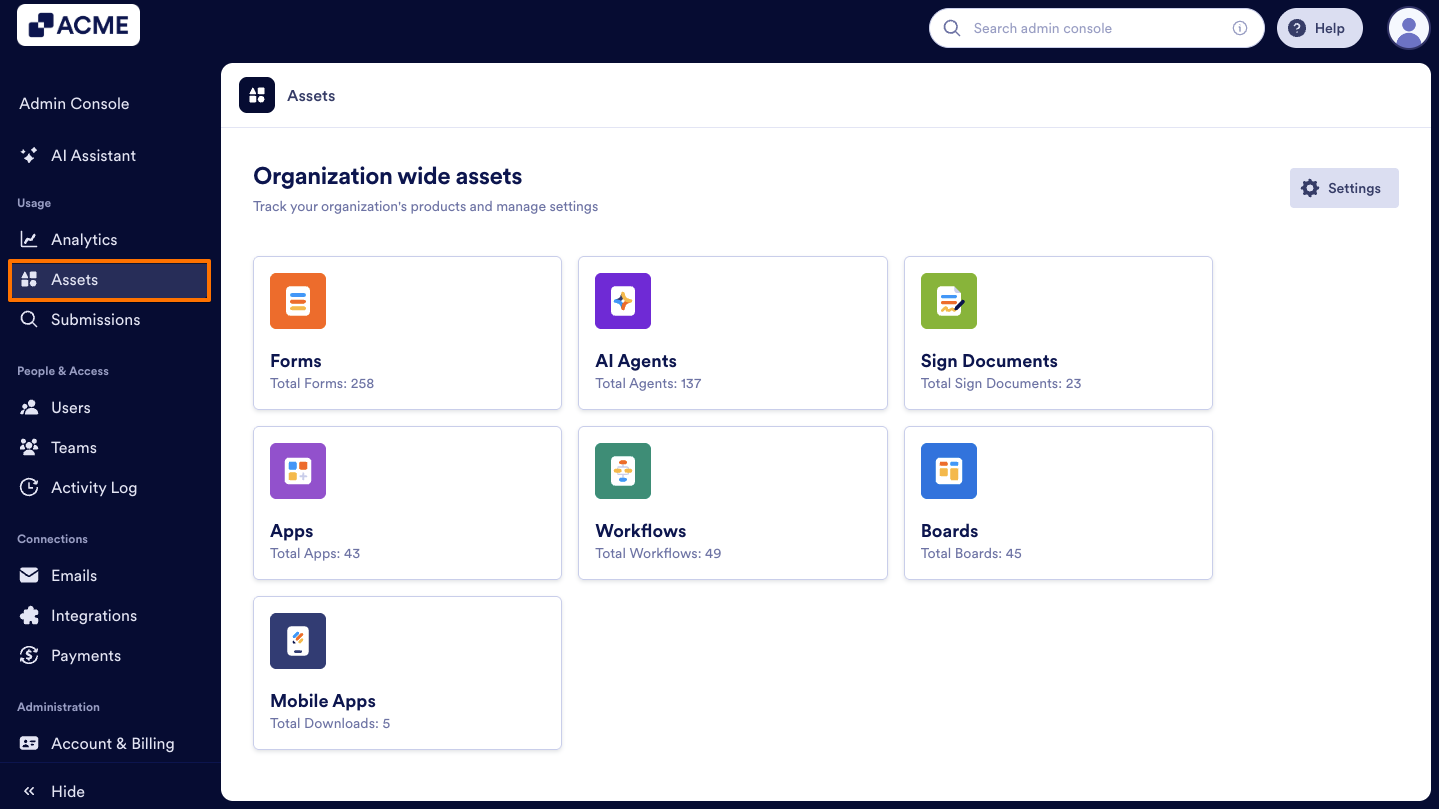
- In the Admin Console, click on Assets on the left-hand menu.
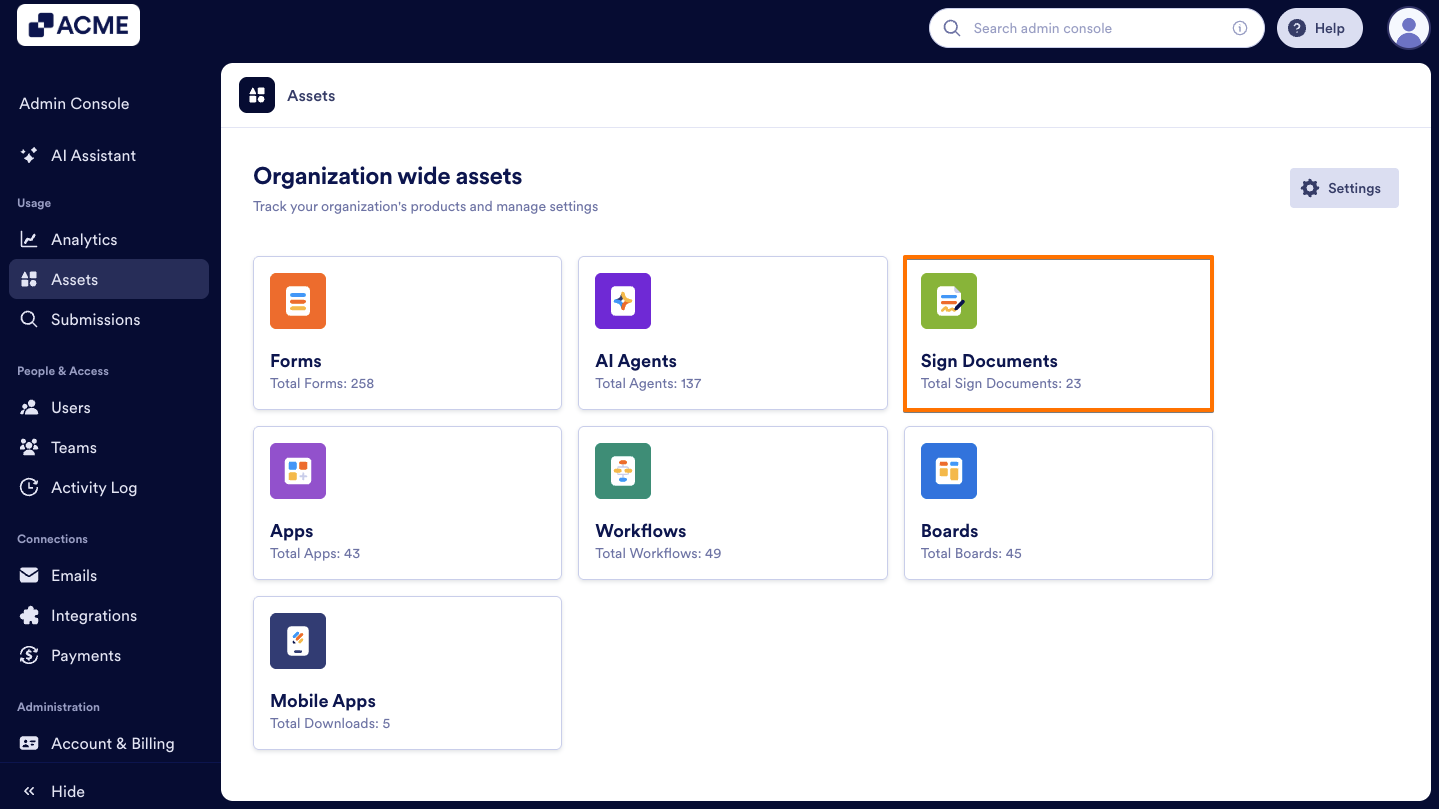
- Next, click on Sign Documents to load all Sign Documents on your server.
- Now, find the Sign Document you’d like to manage and click on the Three dots icon to open the menu.
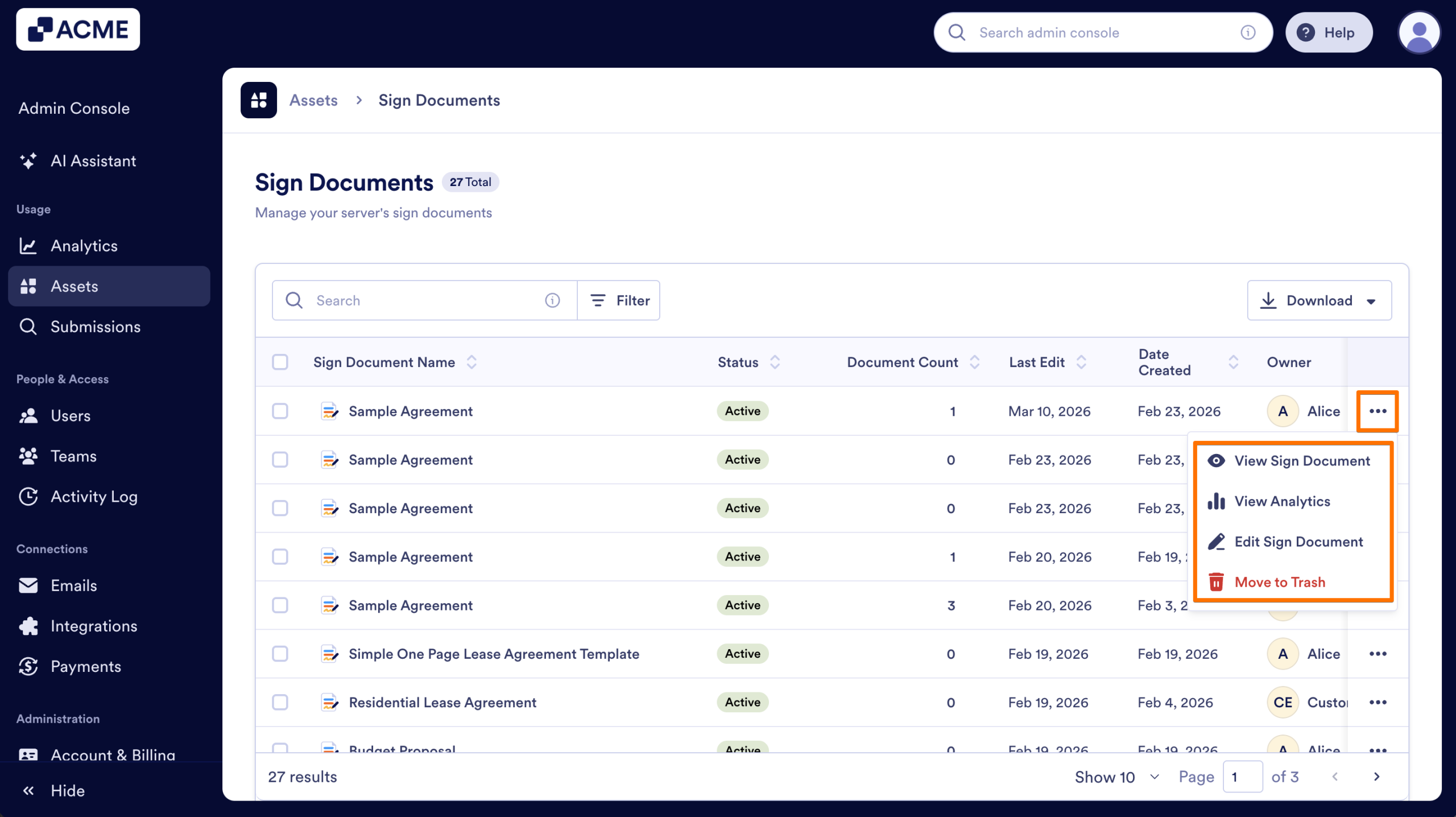
After accessing the menu, we can start selecting the options. Here’s what you can do:
View Sign Document
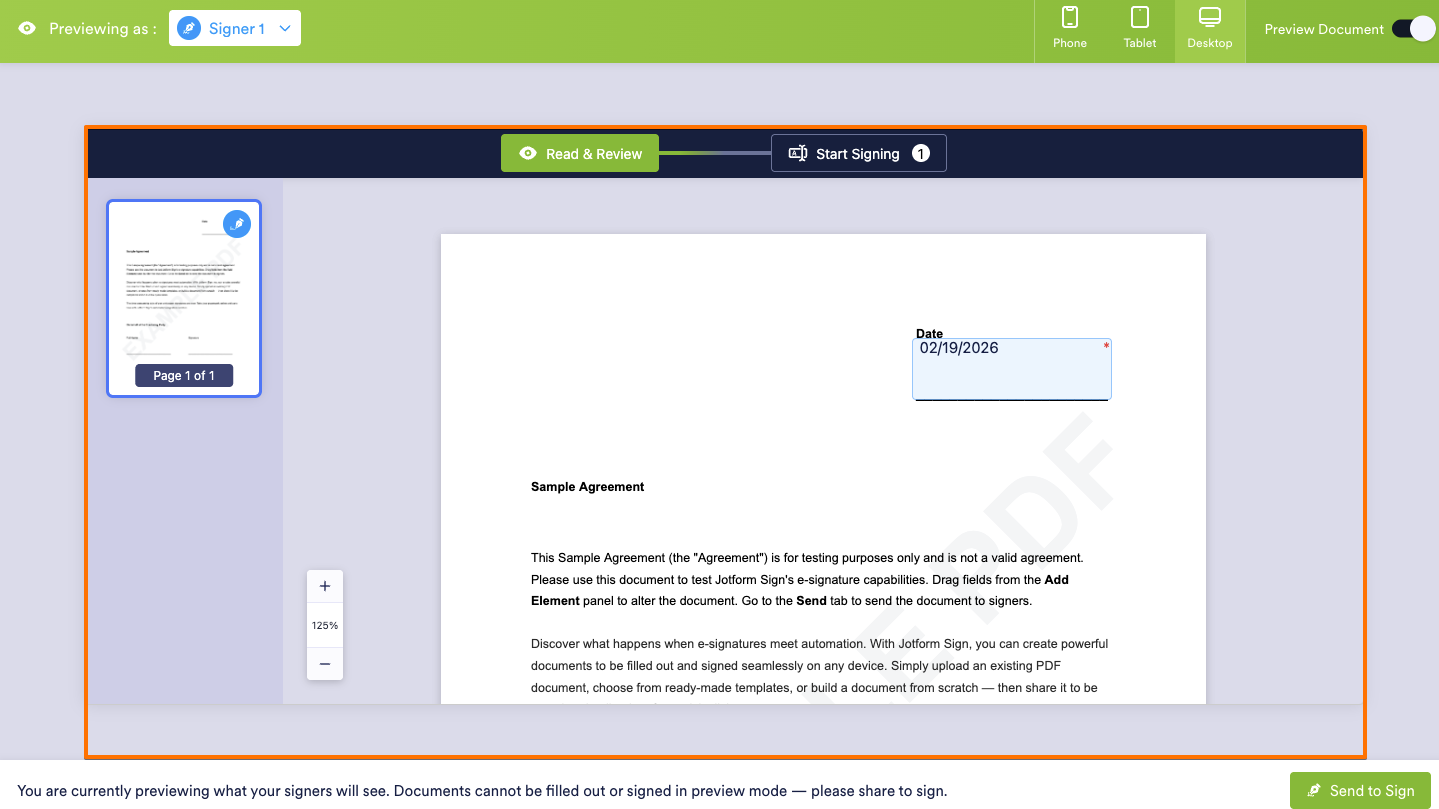
- In the menu, click on View Sign Document.
- After clicking on View Sign Document, you’ll be brought to a preview of the Sign Document. This is how it looks when sent out to signers, and you can preview it on a mobile device, tablet, or desktop.
View Analytics
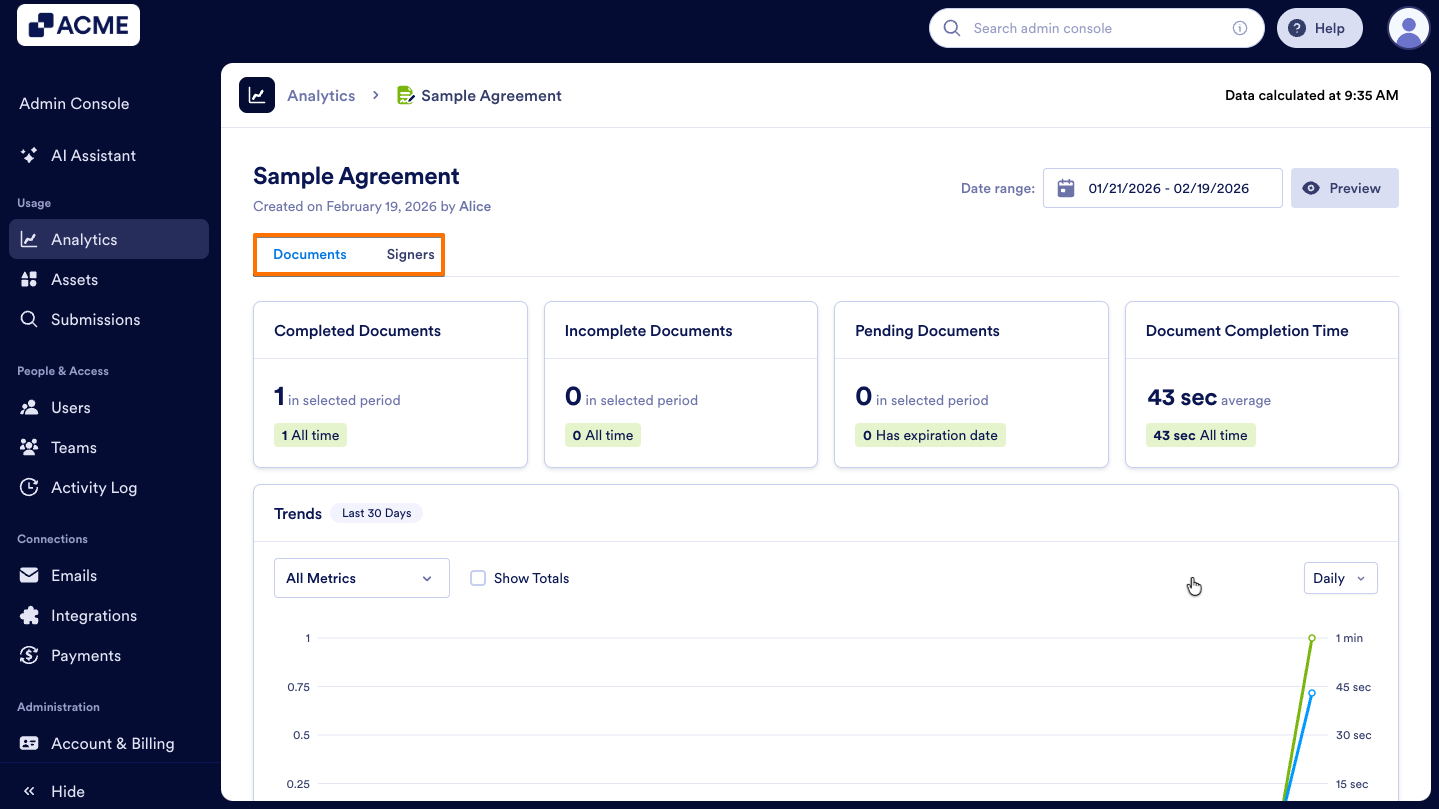
This is where all the data about your Sign Document lives, including Documents and Signers. The default date range is the last 30 days, but you can update this to whatever range you’d like. Let’s walk through this together:
- Select View Analytics from the menu.
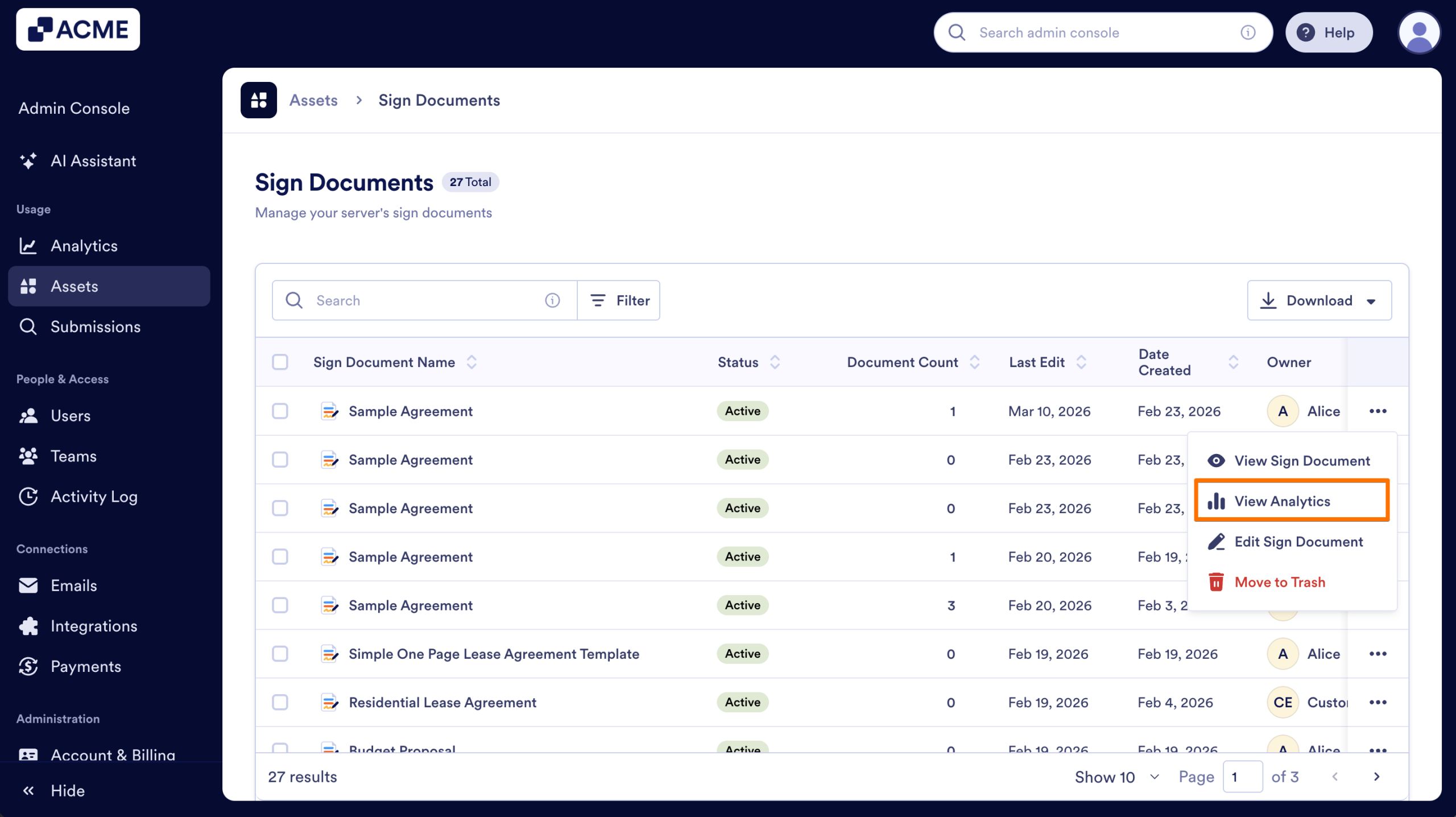
- After that you will be taken to the Sign Documents Analytics page. This is where all the data about your Sign Document lives, including Documents and Signers.
For more information about Analytics, you can check out our guide How to Analyze Sign Documents Usage in your Organization from the Admin Console.
Edit Sign Document
- Click on Edit Sign Document option in the menu.
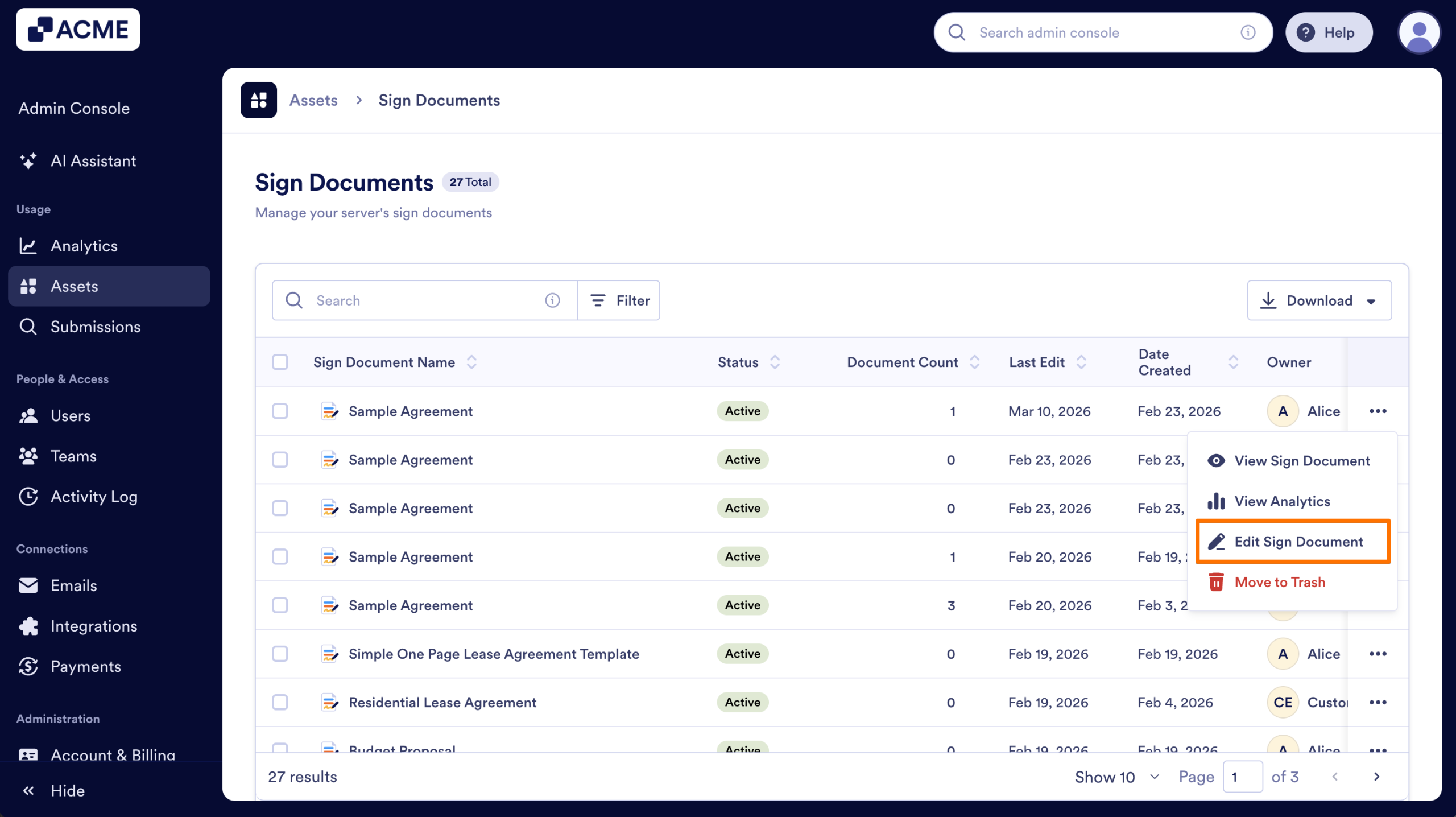
- After clicking on Edit Sign Document you’ll be brought to Sign Builder. Here, you can make changes in settings, updates to the Sign Document or send the document to sign.
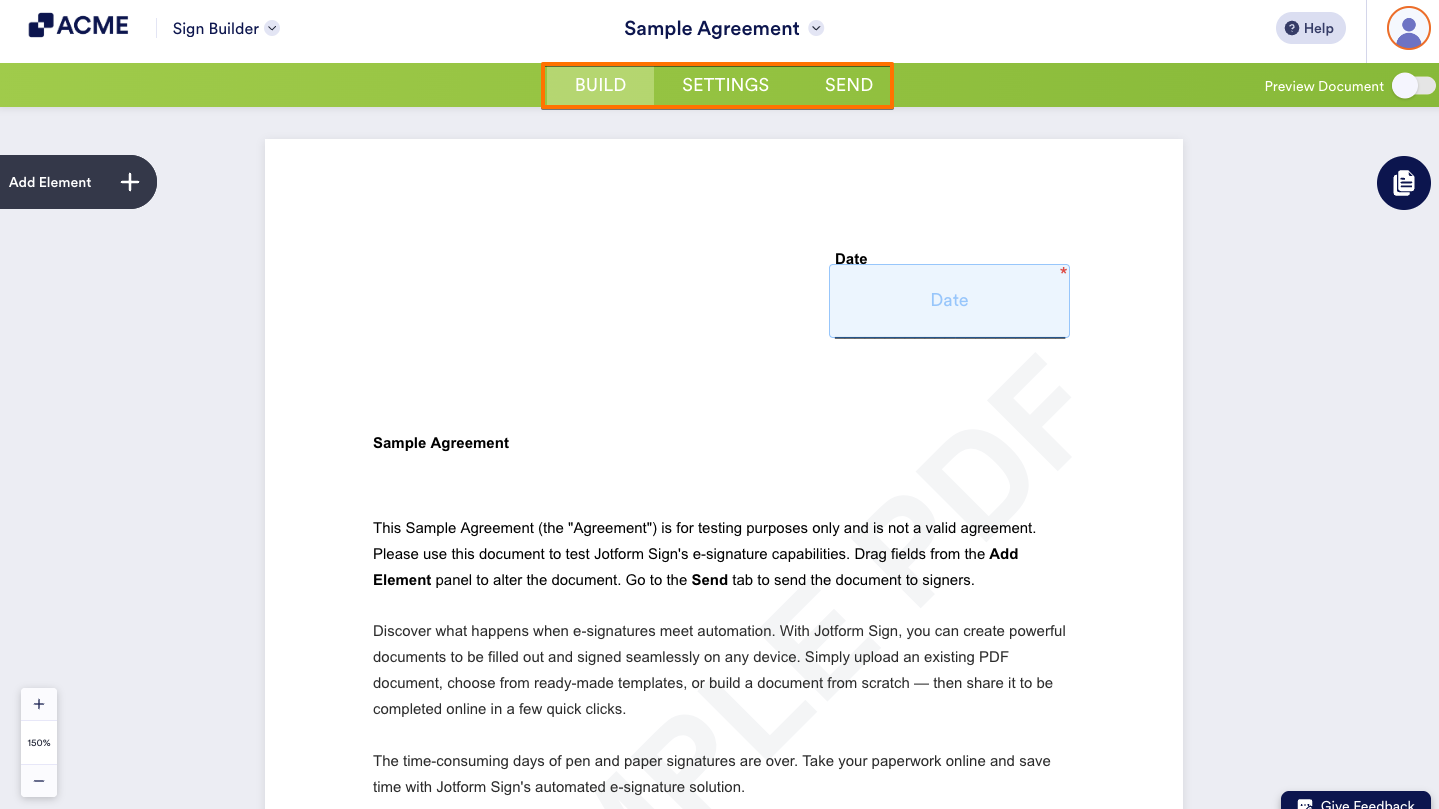
For more information on editing your documents, you can check out our guides on Sign.
Move to Trash
- Select Move to Trash in the menu.
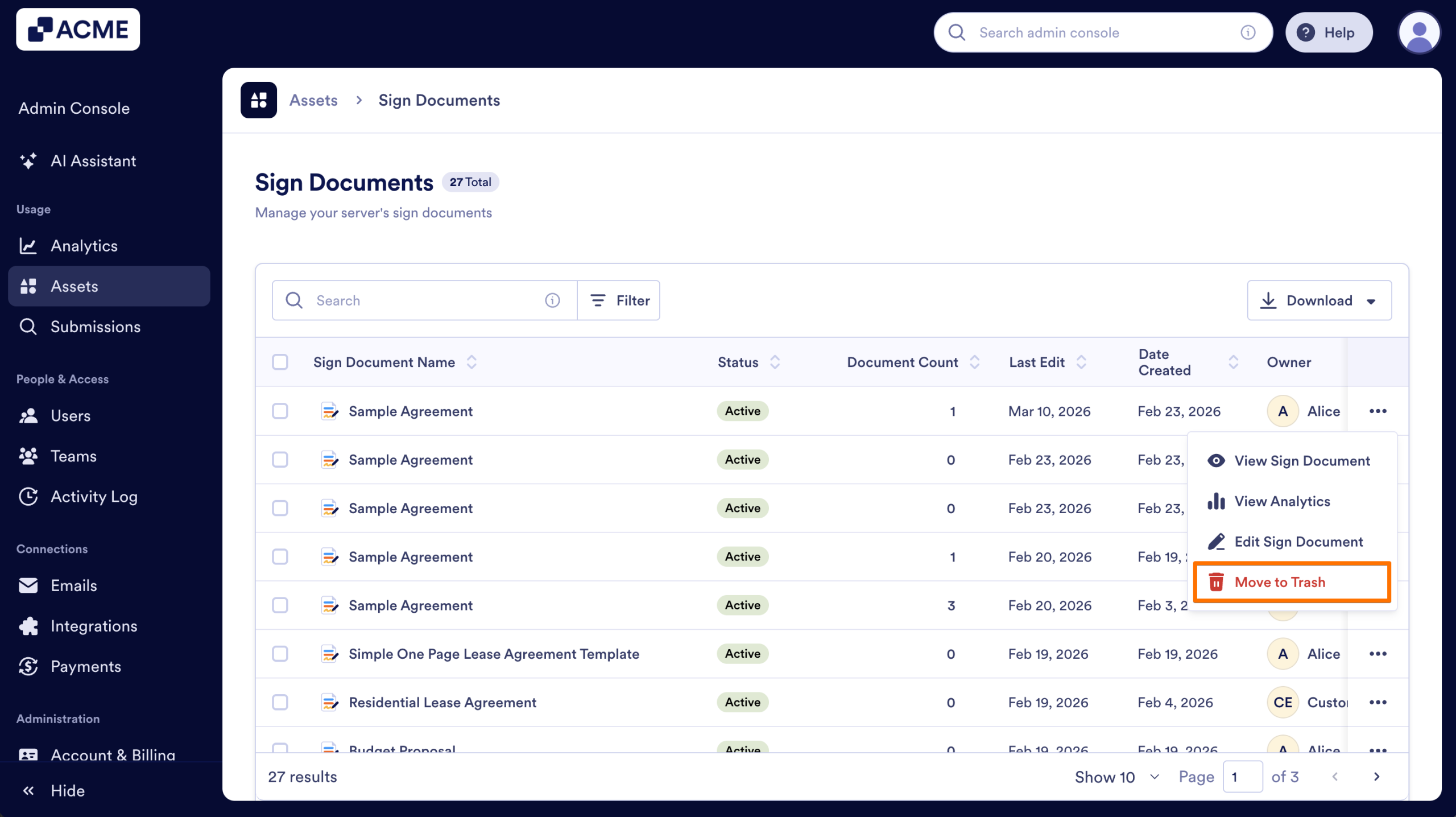
- After clicking Move to Trash, the selected Sign Document will be moved to the trash where you can restore it if needed.
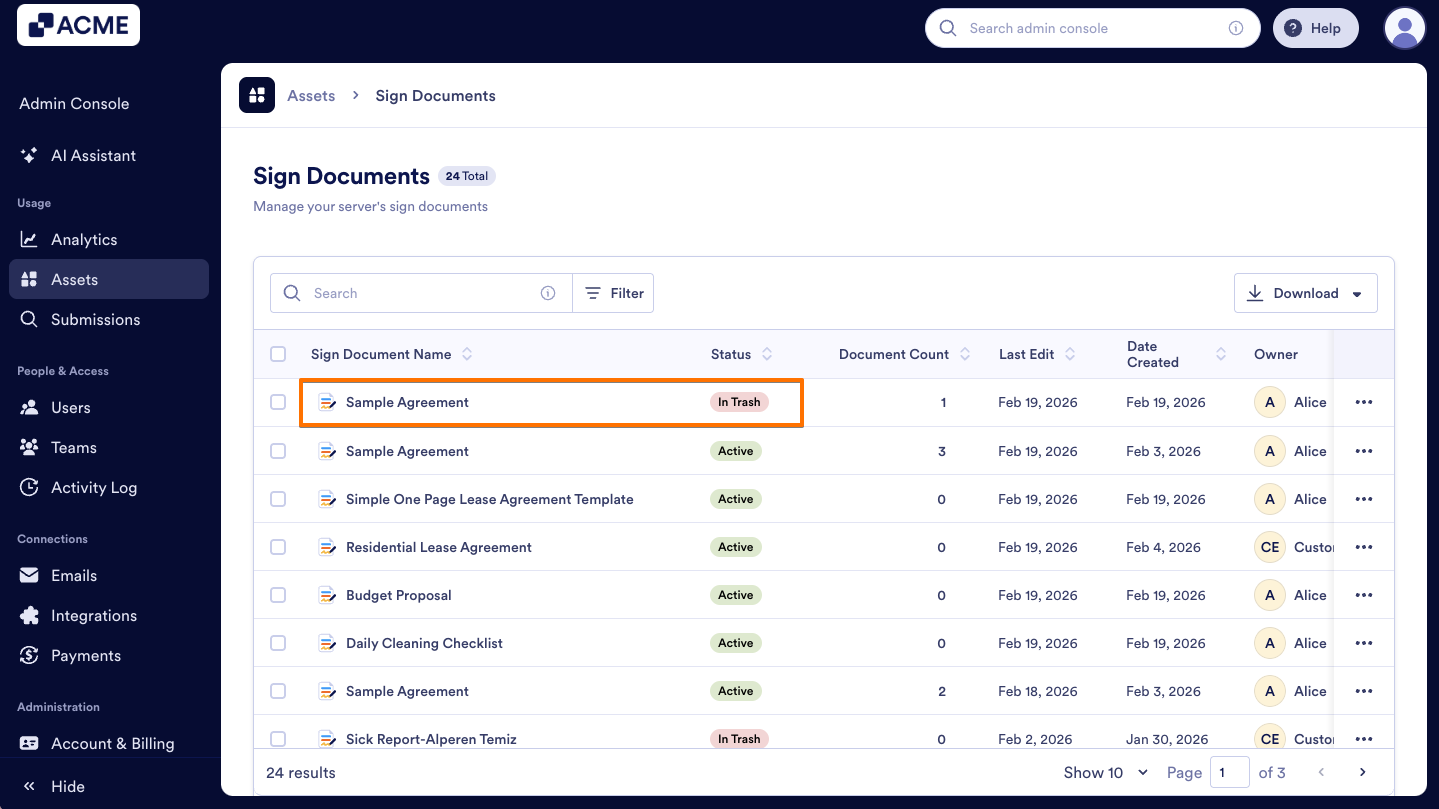
To restore a document or perform bulk actions, follow our guide: How to Trash or Restore Sign Documents in Your Organization from the Admin Console
How to Filter
You can easily locate the Sign Documents you need by applying filters such as Asset Owner, Status, Last Edited, and Date Created.
- In the Admin Console’s Sign Document assets page, click on the Filter button on the right side of the Search bar.
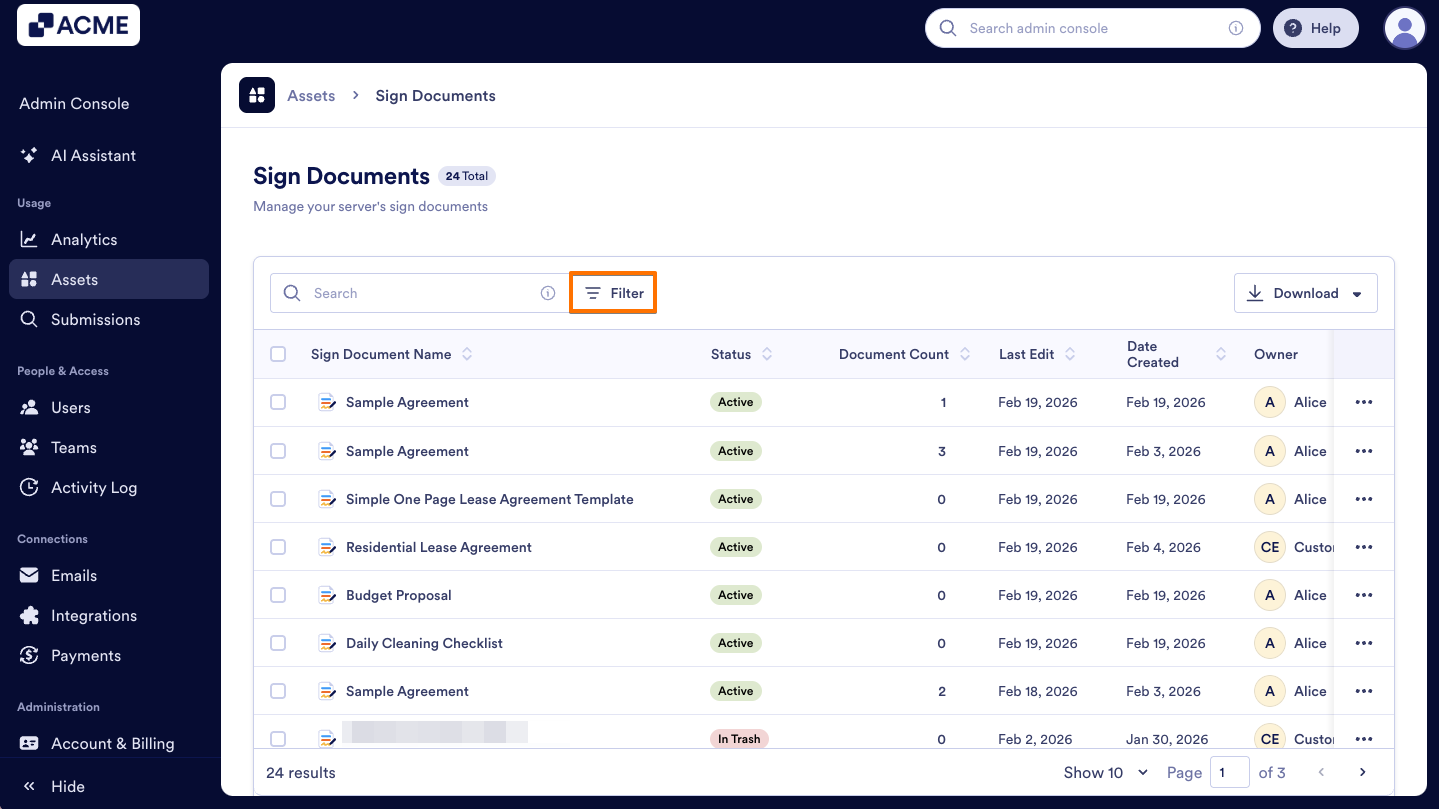
- Select filters based on your search criteria, and the matching documents will appear automatically.
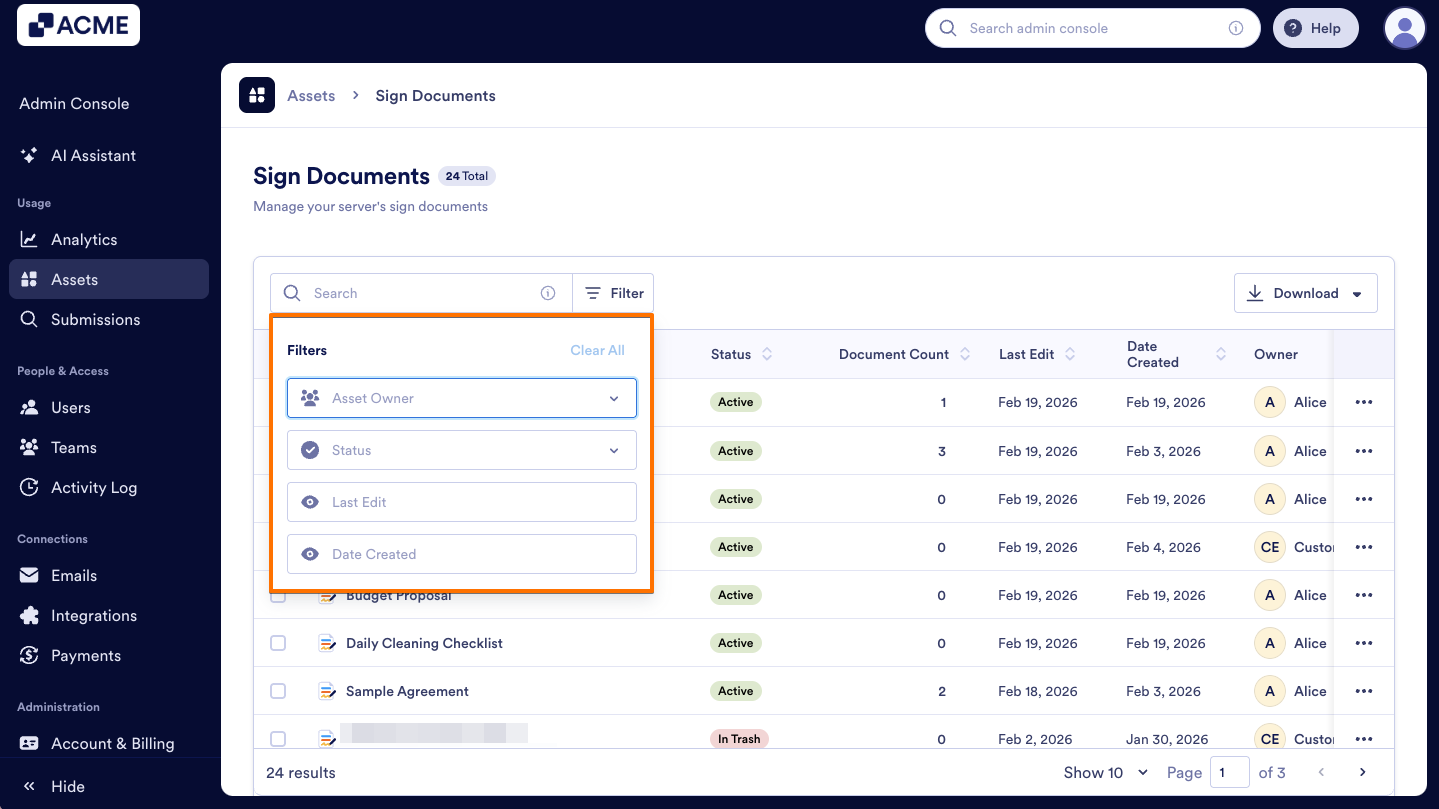
Asset Owner: Filter Sign Documents owned by individual users or those owned by a team.
Status: View Sign Documents that are Active or In Trash,.
Last Edit: Filter Sign Documents by the date they were last modified.
Date Created: Filter Sign Documents by their creation date.
Sorting Sign Documents by Columns
To organize your Sign Documents by category, just click the column header for the data you want to prioritize.
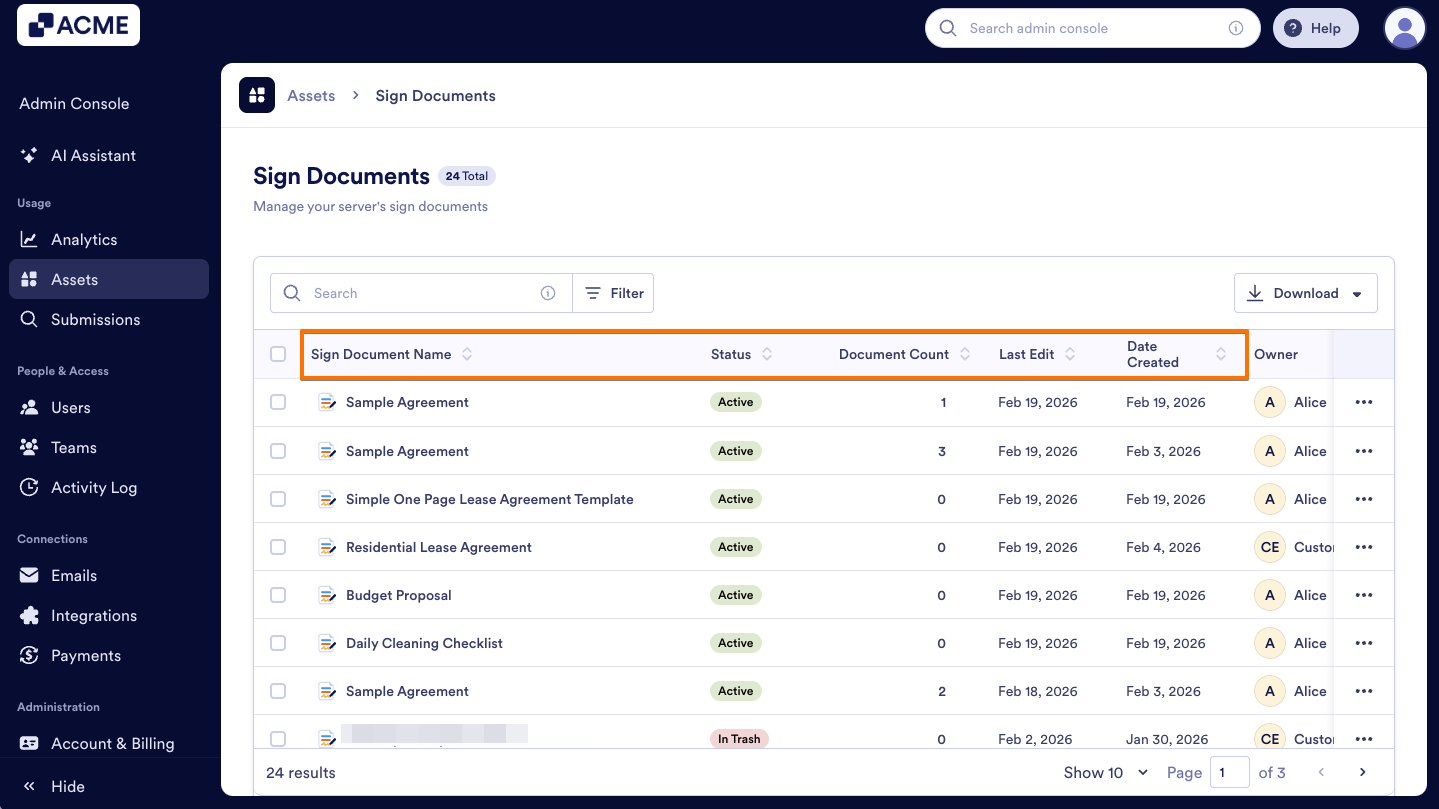
Sign Document Name: Click this header to sort your documents alphabetically. You can switch between A–Z or Z–A.
Status: Use this column to group documents by their current state. Easily see all active, disabled, archived, or trashed documents together.
Document Count: Sort documents by the number of submissions, from most to least or least to most, to track engagement.
Last Edit: Organize documents by the date they were last modified to find recently updated documents quickly.
Date Created: Sort documents by the date they were created, making it easier to find your newest or oldest.
Downloading Sign Document Information
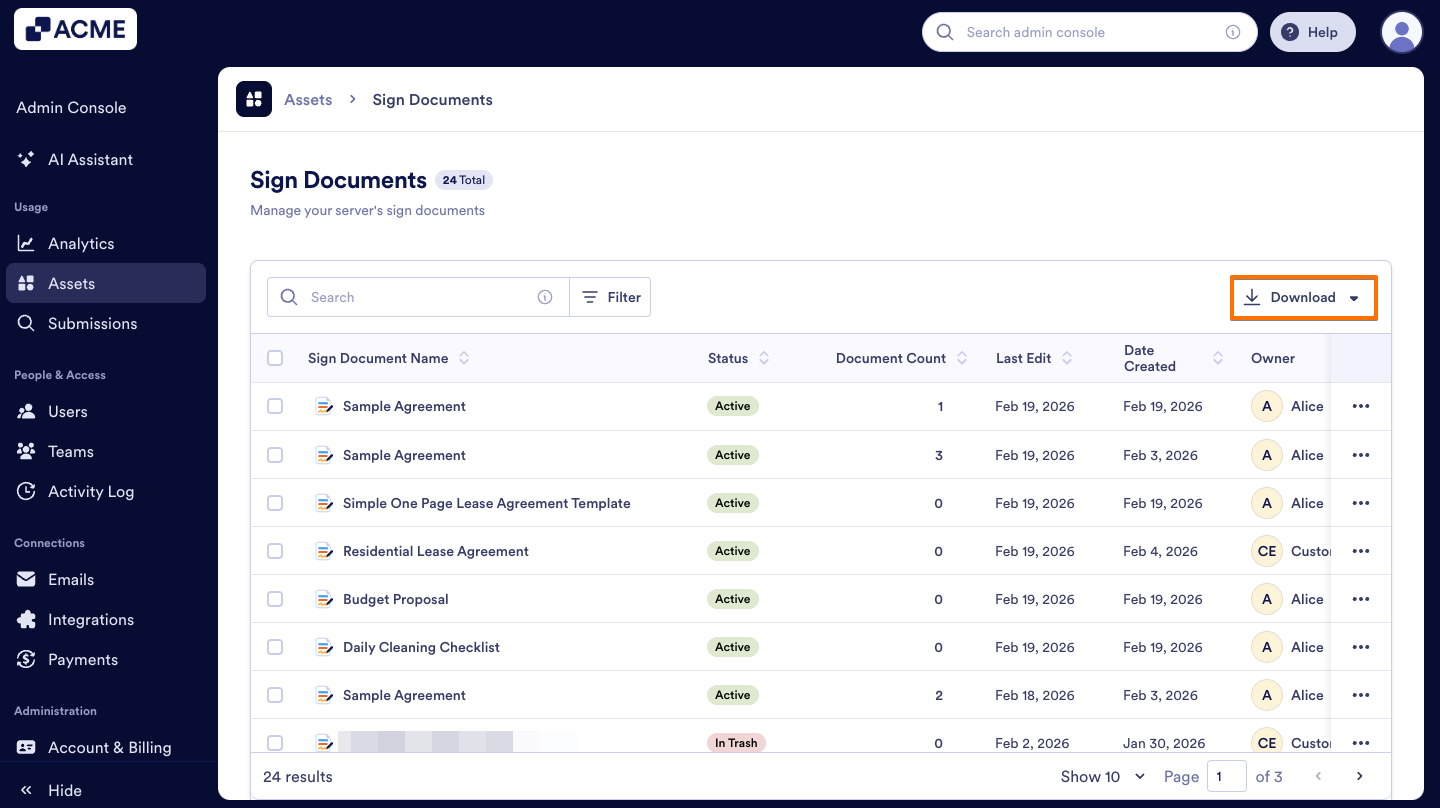
On the Sign Document landing page, you can download a quick overview of document information, including the Document ID, owner, number of documents, and edit and creation dates.
Let’s walk through downloading this together:
- In the Sign Documents page in the Admin Console, click on Download.
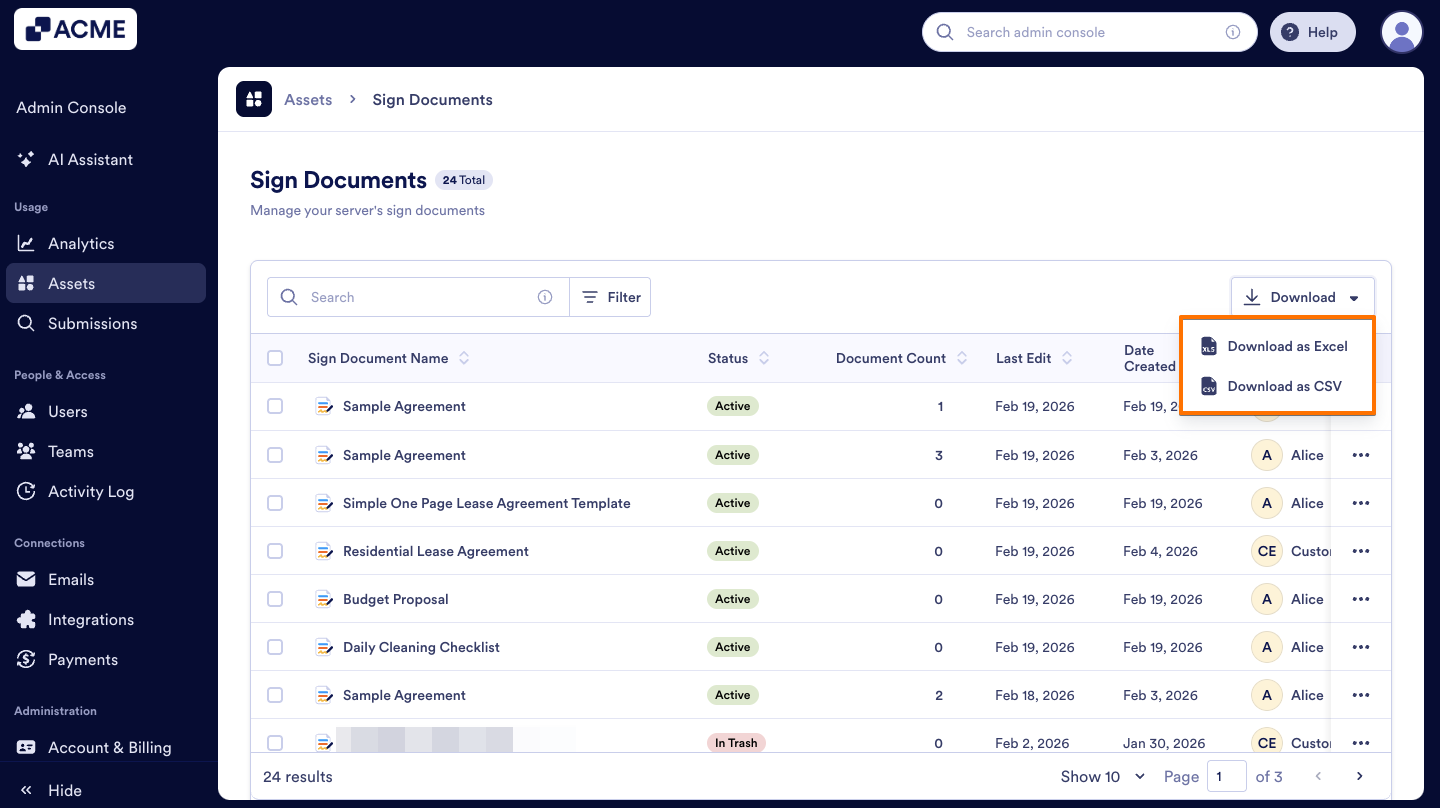
- Then, select the download type you’d like – CSV or Excel.

Send Comment: