Tables helps you stay productive by giving you quick access to your form management tools. You can view, assign, or edit your form directly from your current table without going back to the My Forms page. This keeps everything at your fingertips and makes managing your forms faster and easier.
Selecting Options from the Form Dropdown Menu
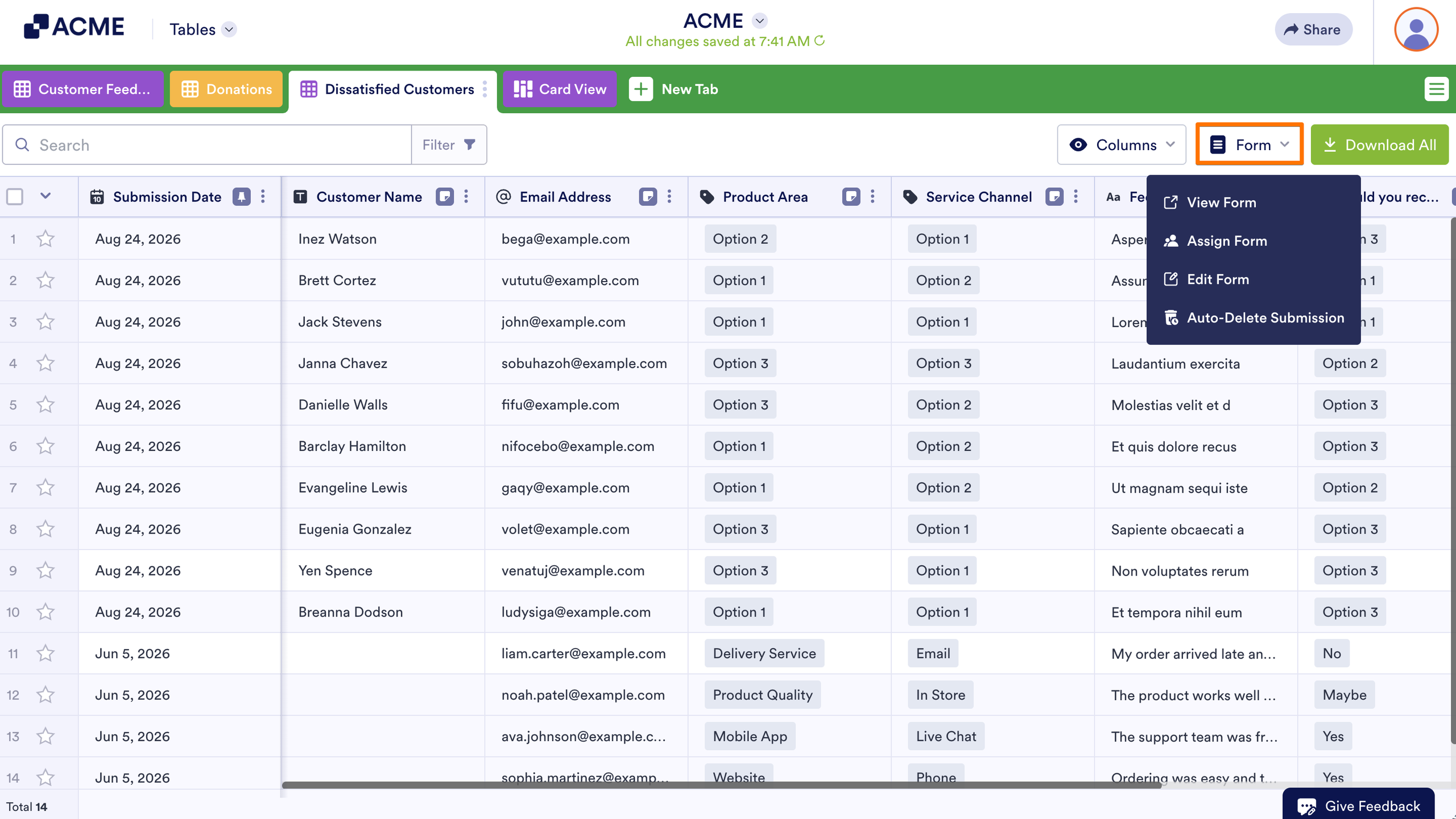
You can easily view the form linked to the active tab, open it for editing in Form Builder, and access its Assign Form and Auto-Delete Submission settings through the Form dropdown menu in Tables.
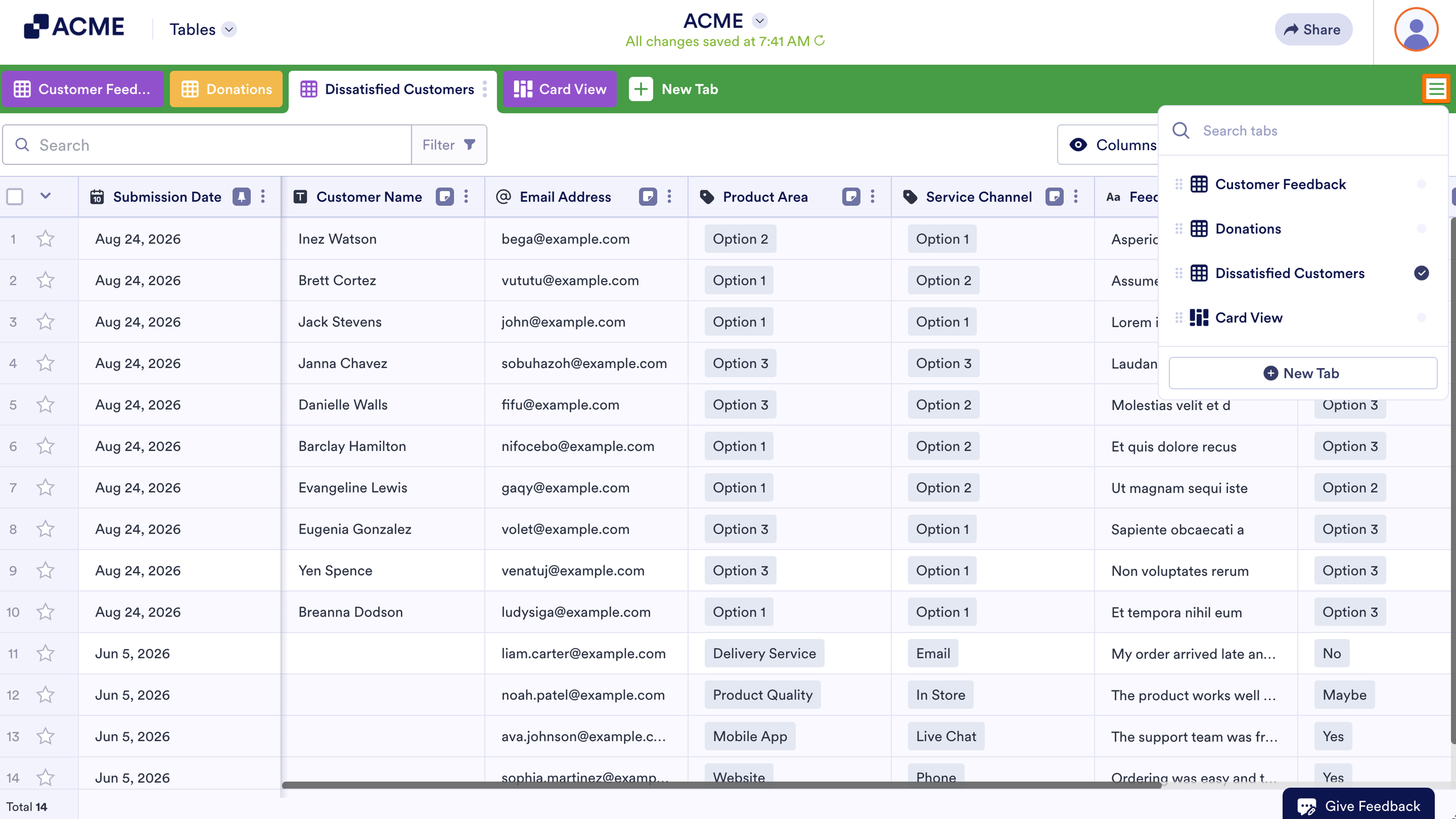
If your table includes multiple tabs connected to a form or you want to connect a new form, you can switch between them using the Tab List menu. Click on the List icon on the right side of the page to open it.
Selecting these options in the active tab opens specific pages in new browser tabs. Here’s what each option does:
- View Form — Opens the form in a browser so you can preview and test it.
- Assign Form — Takes you to the Assign Form section under the Publish tab in Form Builder, allowing you to assign the form to others for collecting data or managing submissions.
- Edit Form — Loads the form in Form Builder, where you can make any necessary changes.
- Auto-Delete Submissions — Directs you to Form Settings in Form Builder, where you can enable or disable the Auto-Delete Submissions feature for your form. Refer to How to Delete Form Submissions Automatically for further information.
Accessing Form Options from the Tab Menu
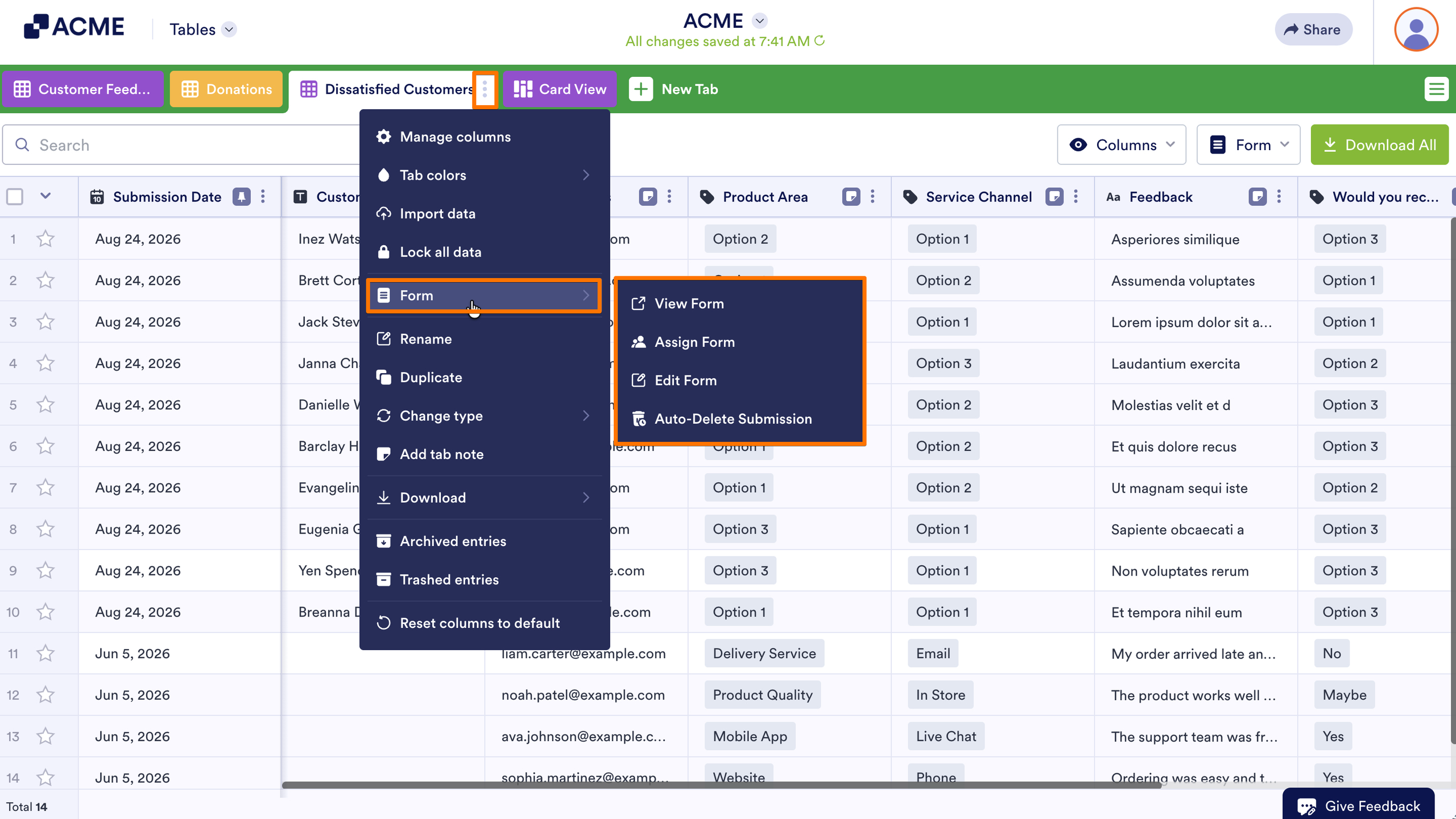
You can also access the same Form options through the Tab menu:
- In Tables, Click on the Three Dots icon next to the name of the current tab to open the Tab menu.
- Next, hover your mouse over the Form option to open a submenu. From there, select an option to open its specific page in a new browser tab.
Viewing Connected Forms
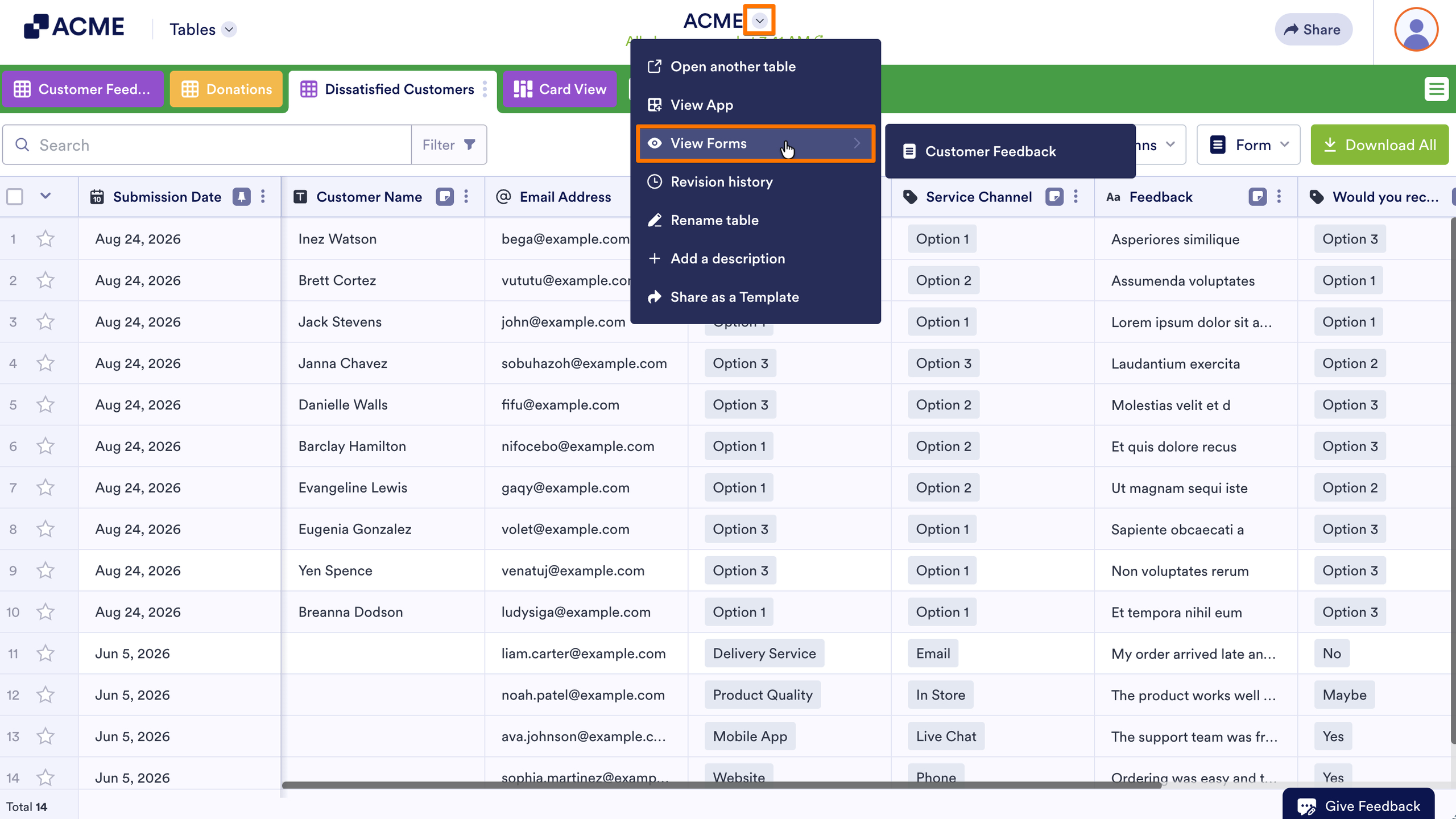
You can view forms connected to your table without switching tabs. Click on the Downward Arrow icon next to the table name at the top of the page, then hover your mouse over the View Forms option. From the menu that appears, select the form you want to view, and it will open in a new browser tab.

Send Comment: