When a user completes the payment process for their submission, it’s immediately recorded as a valid payment submission. However, for off-page payment gateways, payments are logged as incomplete until the transaction is completed.
If a user discontinues the payment halfway through the process or closes their browser during or after being redirected to the payment page, the system records their submission as incomplete. Also, declined payments for the following off-page or redirected payment gateways are also marked as incomplete:
- 2Checkout
- iyzico
- Paymentwall
- PayPal Checkout
- PayPal Invoicing
- PayPal Personal
- PayU
- PayU Money
- PayU TR
- Payfast
- Skrill
- Stripe Checkout
- Venmo
- Worldpay UK
Reviewing Incomplete Payments Details
You can view Incomplete Payments on your forms in a few easy steps. Here’s how to do it:
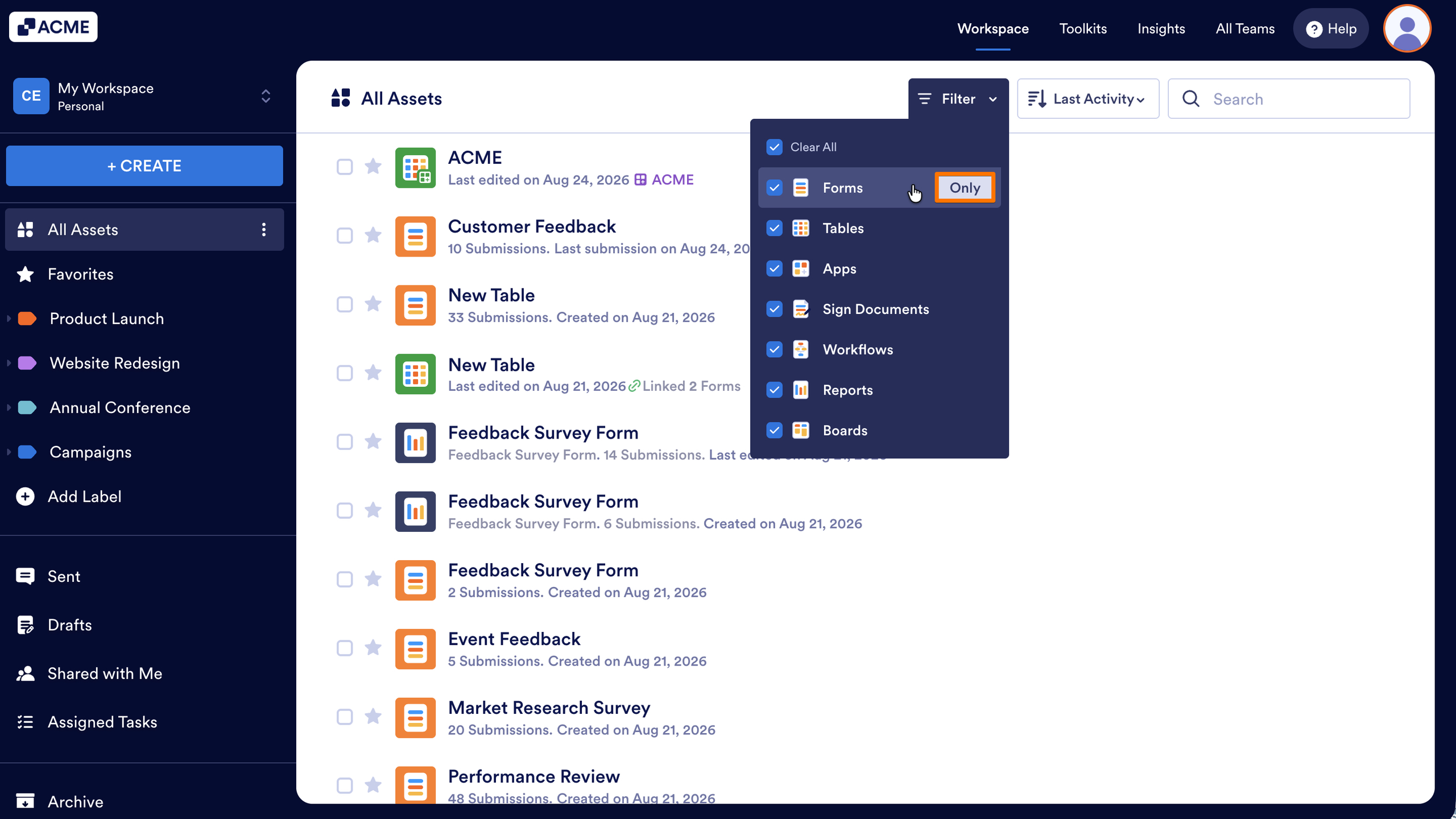
- In Workspace, click on Filter on the toolbar.
- In the Dropdown menu that opens, hover over the Forms, and click on Only.
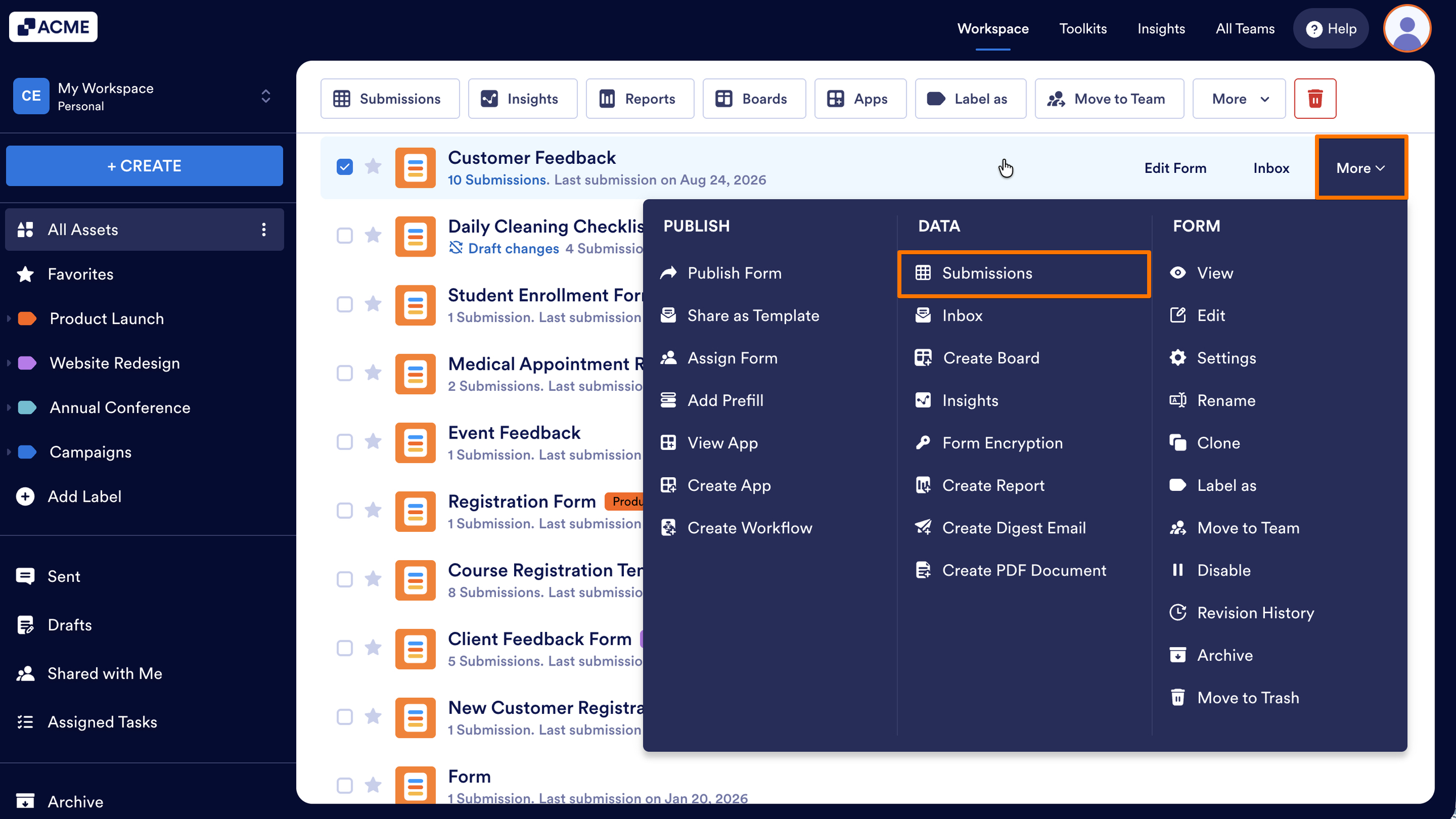
- Now, hover your mouse over the form you want to manage, and click on More on the right side of the page.
- Next, in the Dropdown menu, under the Data column, click on Submissions.
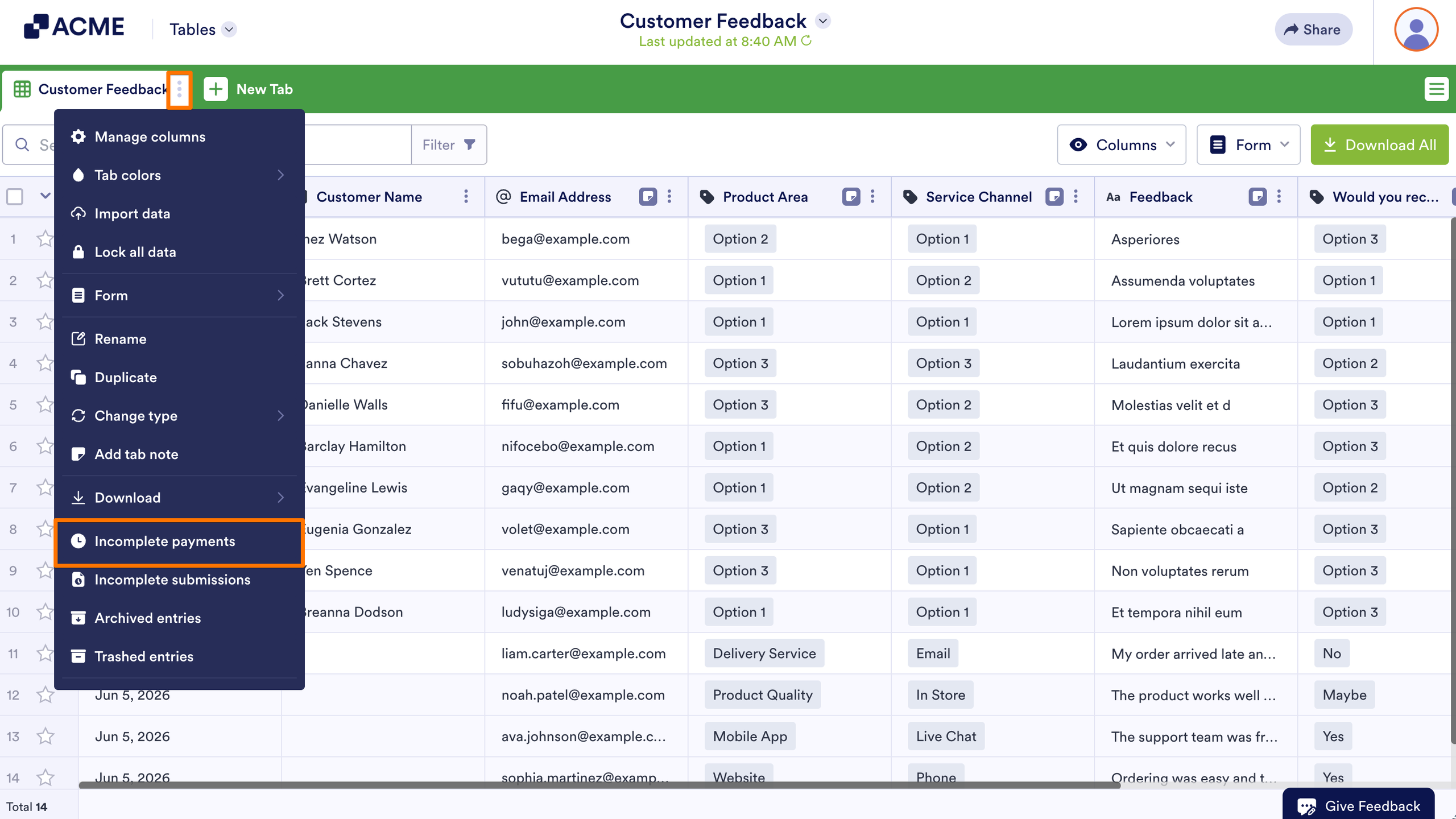
- In Tables, click on the Three Dots icon on the right side of the main tab in your Submission Table.
- Then, in the Dropdown menu, select Incomplete payments.
- Then, in the Incomplete Payments section that comes up on the right side of the page, hover your mouse over a submission you want to check and click on View Details.
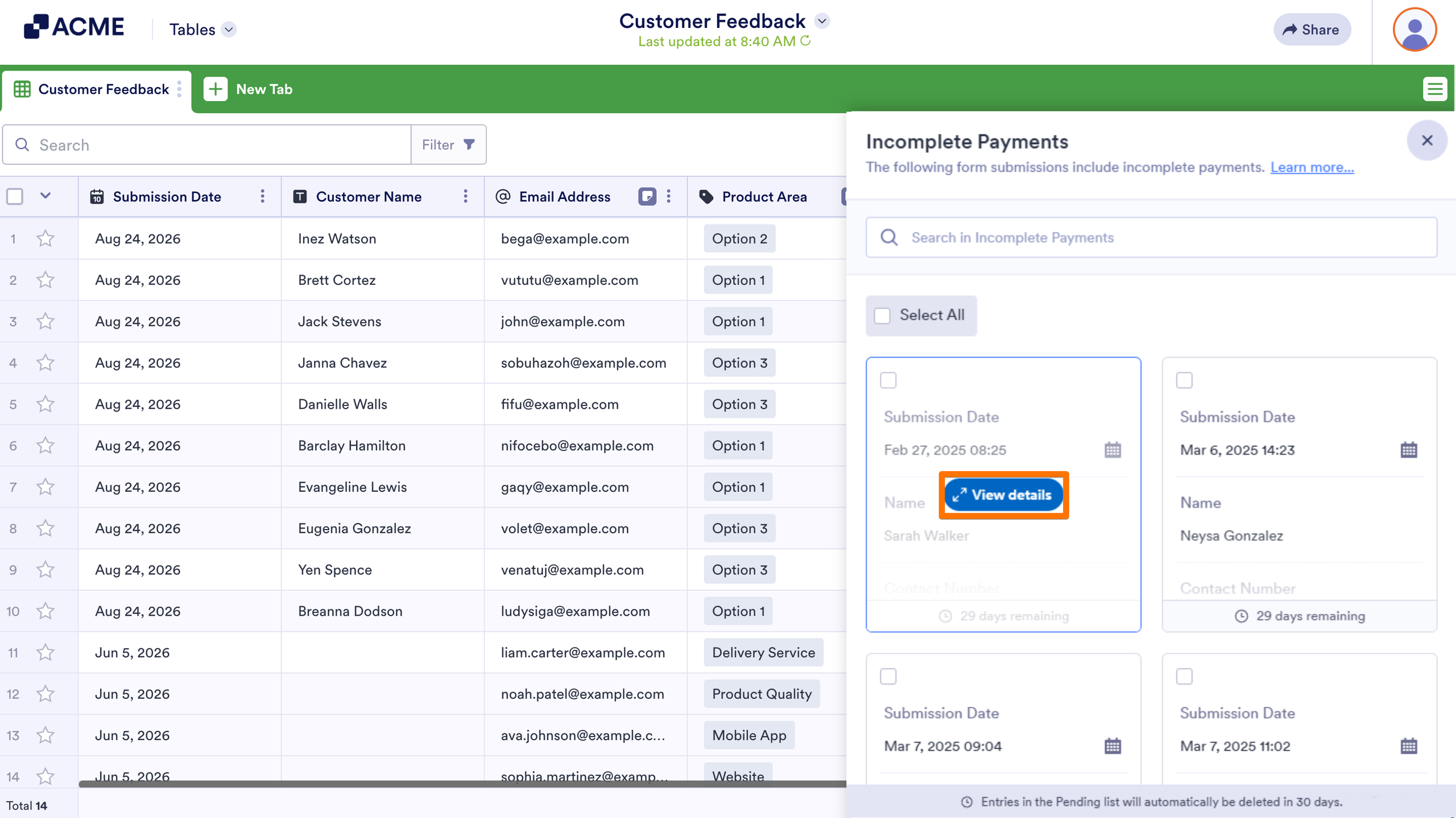
That’s it! You can start reviewing the details of submissions with an Incomplete Payment on your form.
Performing Actions on Incomplete Payments
Once you’ve reviewed the details of the submission with an Incomplete Payment, you can decide whether you want to delete or mark it as completed. Remember that both actions are irreversible.
Deleting Incomplete Payments
You can delete Incomplete Payments in a few easy steps. Here’s how to do it:
- While viewing the details of a submission, click on Delete Forever at the top.
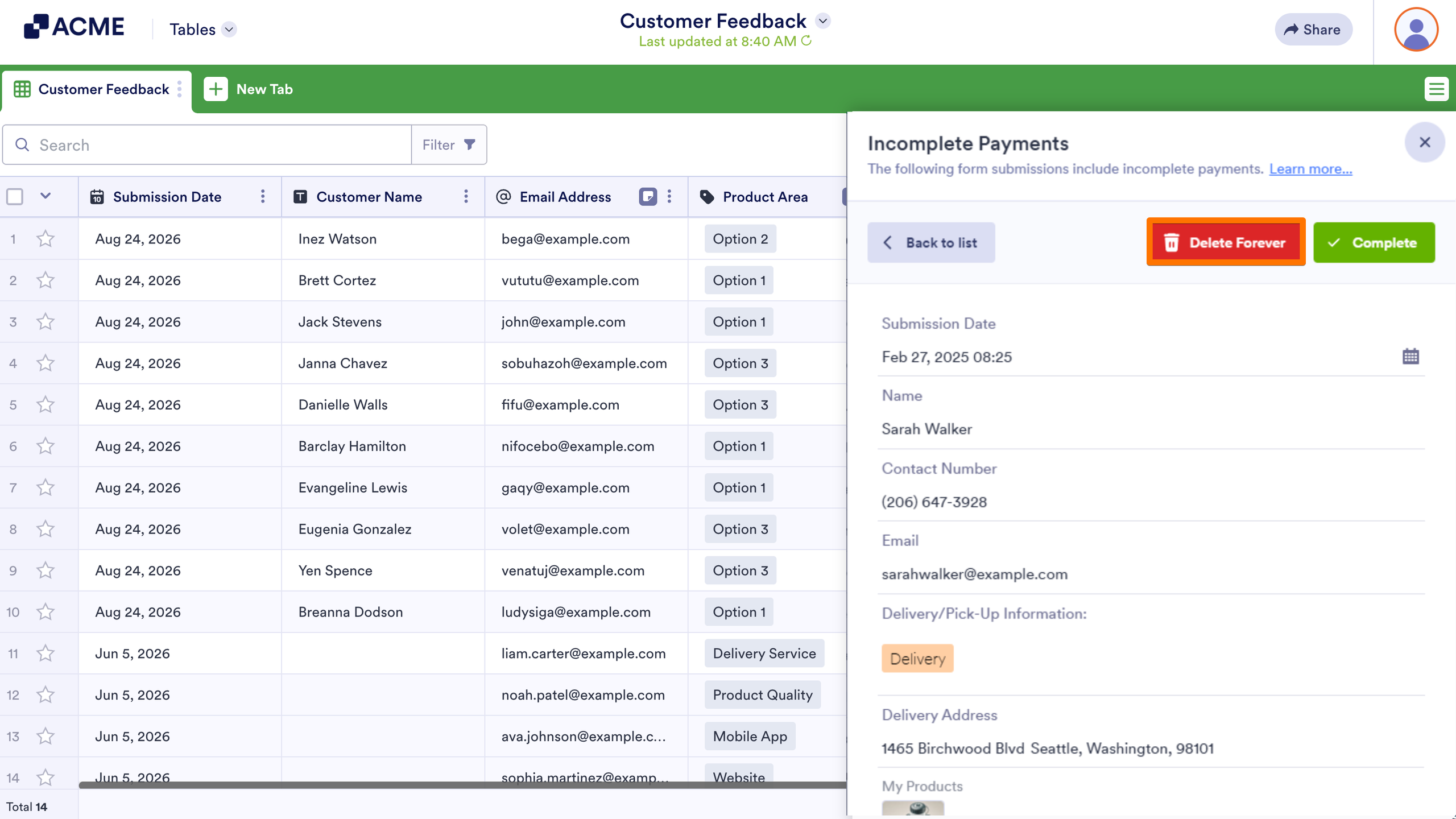
- Now, click on Delete Now in the Confirmation window that comes up.
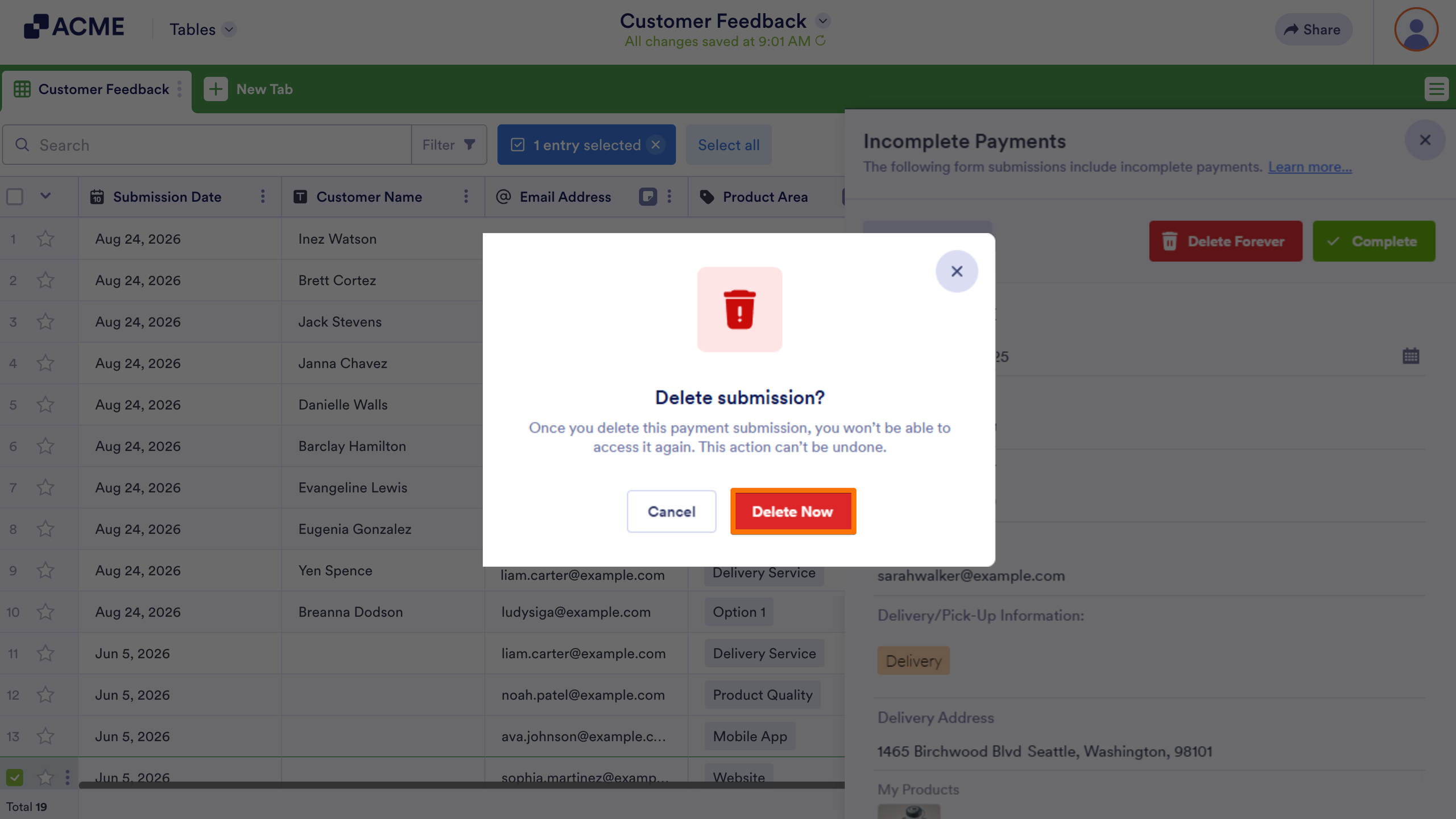
That’s it! The submission on your form with the Incomplete Payment has been deleted.
Note
Submissions that have been pending will be automatically deleted in a set amount of time.
Marking Incomplete Payments as Completed
You can also mark incomplete payments as completed. Here’s how to do it:
- While viewing the details of a submission, click on Complete at the top.
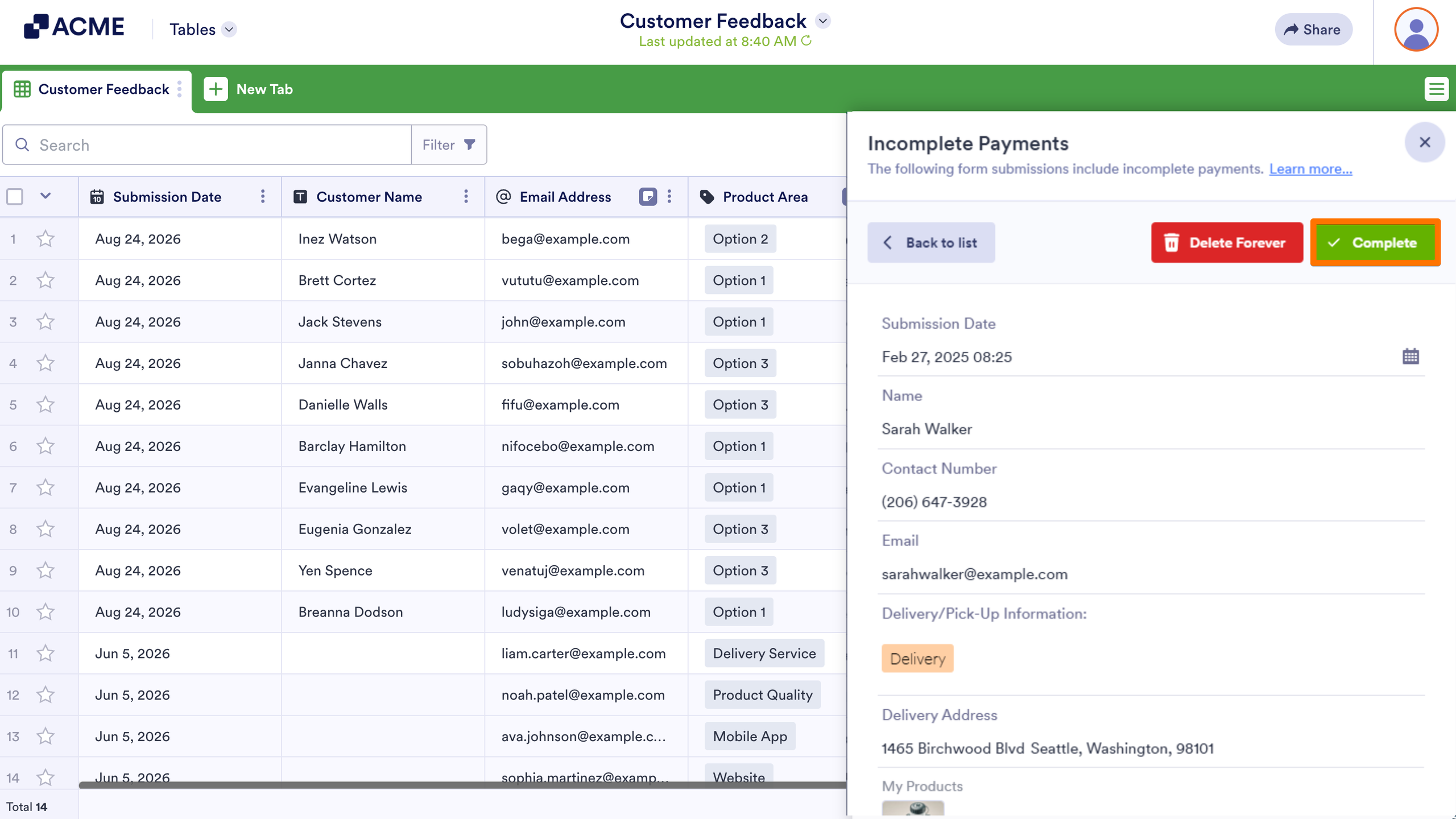
- Now, click on Mark as Completed in the Confirmation window that comes up.
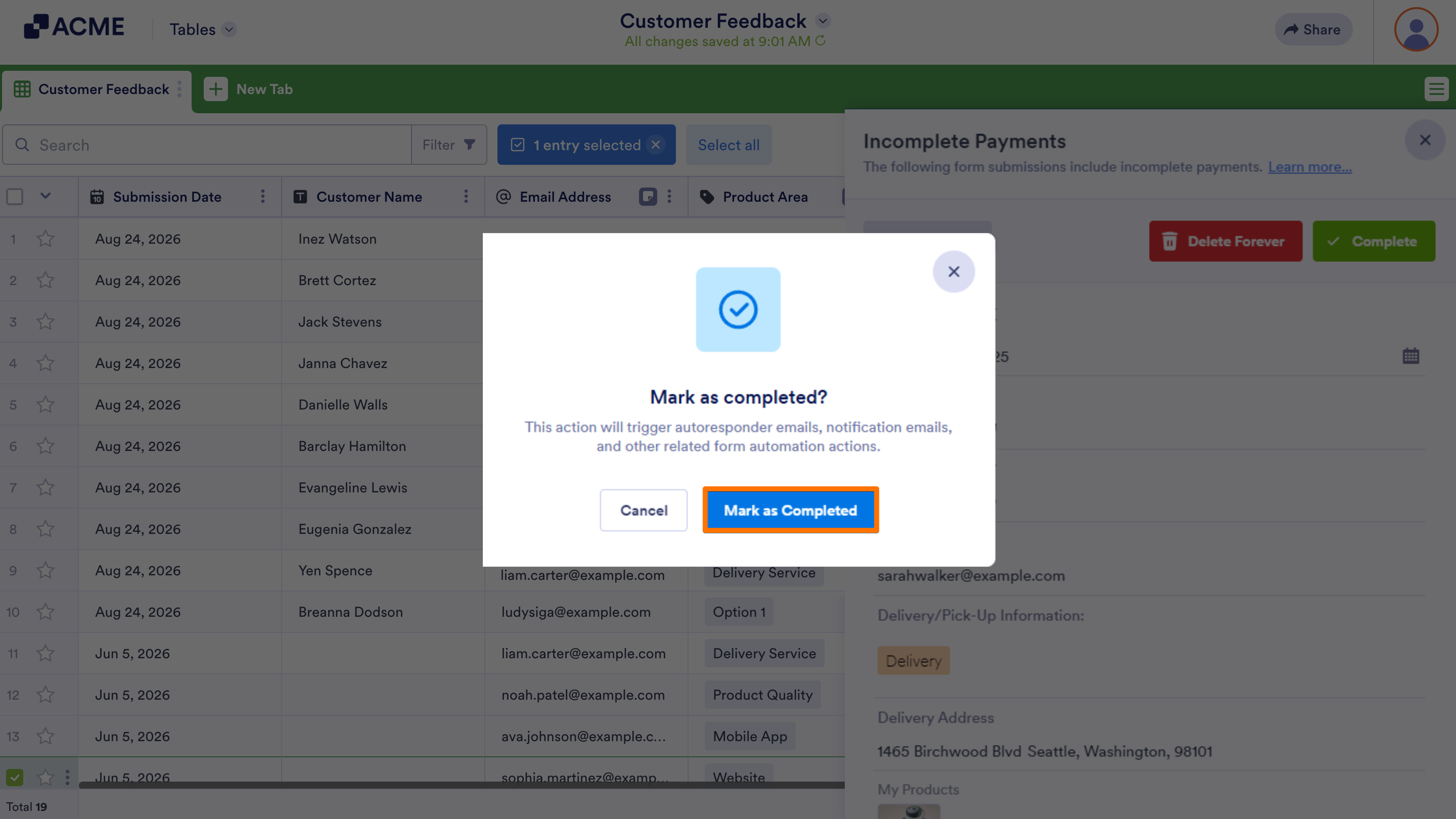
That’s it! The submission on your form with the Incomplete Payment has been marked as completed.
Note
Marking an Incomplete Payment as completed adds the submission to your table and reports alongside other entries. It also triggers email alerts and different related actions, such as integrations and workflows. But, it doesn’t retry the payment process or charge form users.
Performing Actions on Multiple Incomplete Payments
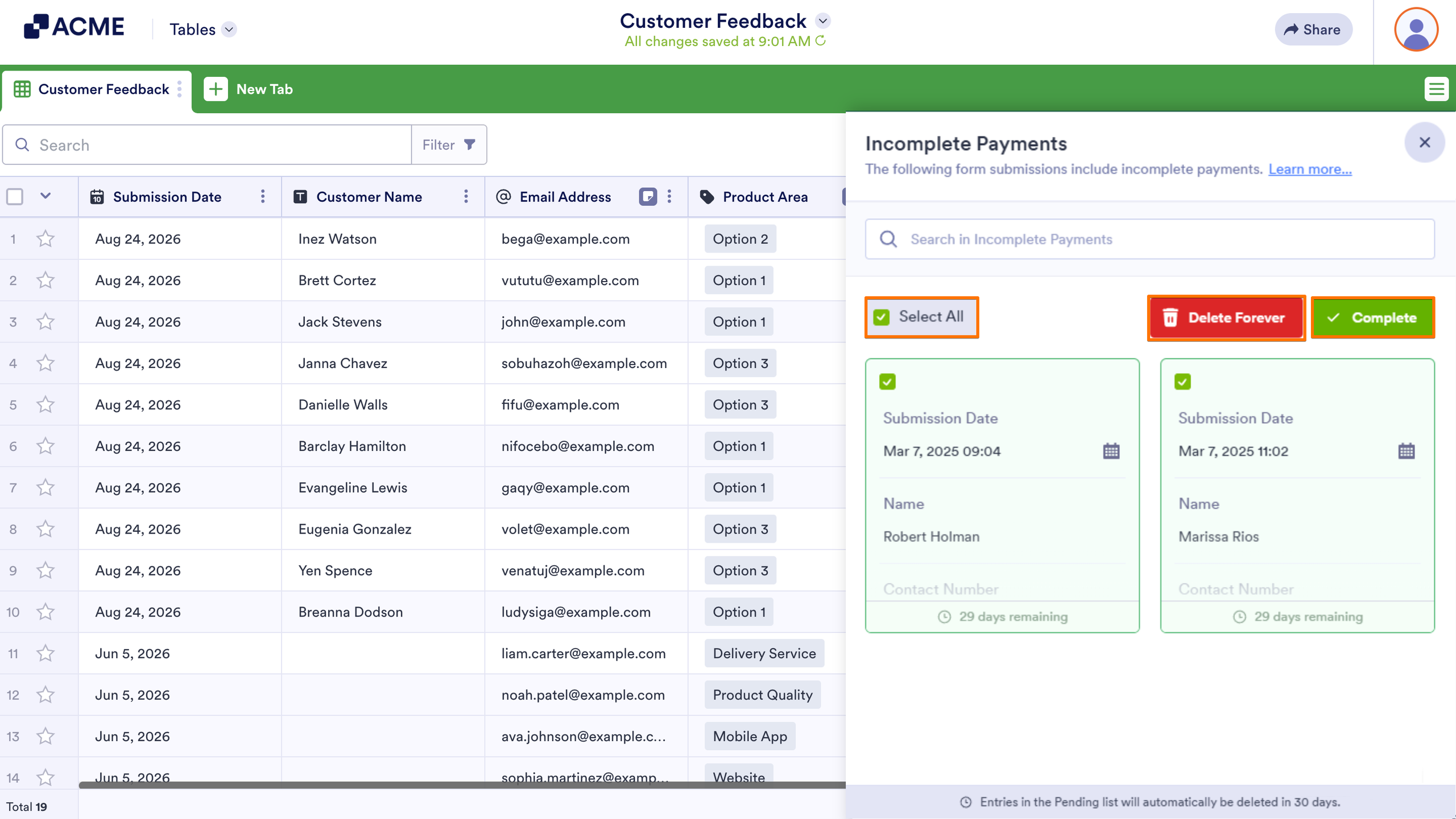
You can delete or mark multiple submissions with Incomplete Payments as completed at once. Here’s how to do it:
- In the Incomplete Payments section of Tables, put a check in the box next to Select All at the top to select all the submissions with Incomplete Payments, or put checks in the boxes on the top-left side of the submissions to select them individually.
- Now, click on Delete Forever or Complete at the top to perform that action on the selected submissions.

Send Comment: