Birthday Countdown Timer Widget
Control the countdown, style, buttons, and placement
Use the widget settings to choose the birthday date, time format, labels, theme colors, CTA buttons, end behavior, and responsive placement.
Create Your Birthday Countdown Timer Widget - It's Free!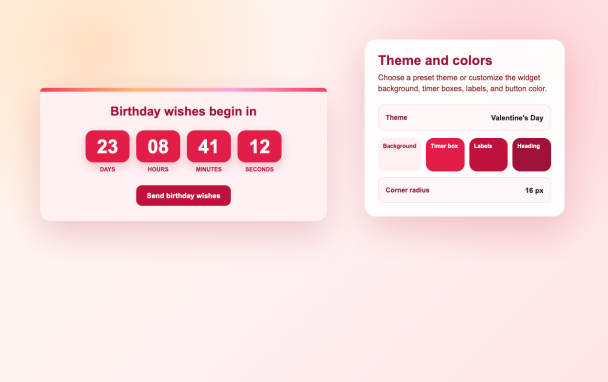

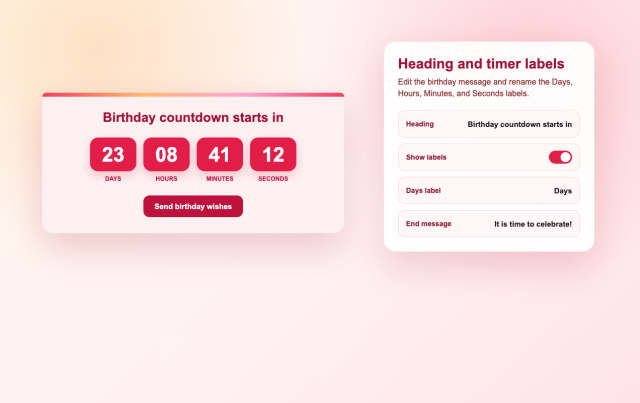
Set countdown timing and labels
Choose the end date, end time, all-day behavior, timezone, repeat schedule, time format, visible units, and unit labels.
Timer controls include:
Customize theme and colors
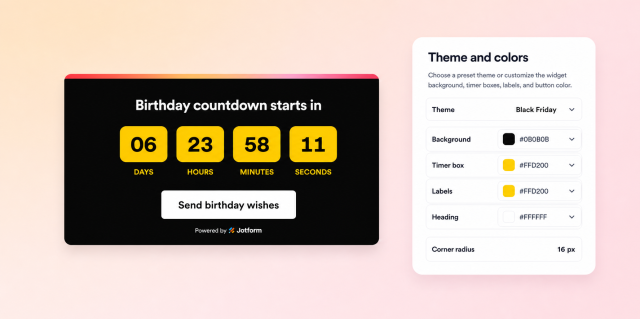
Select a theme preset or customize the background, heading, timer value, timer box, label, button, and button text colors.
Style controls include:
Add primary and secondary CTA buttons
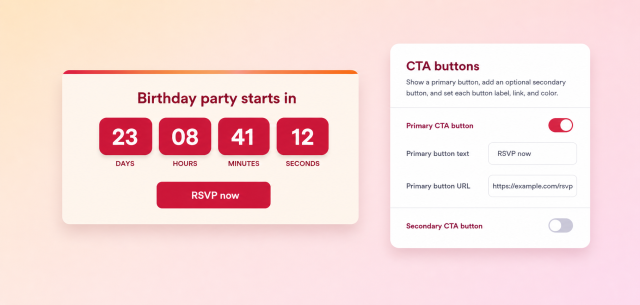
Show a primary button, add an optional secondary button, and edit each button text, URL, background color, and text color.
Action controls include:
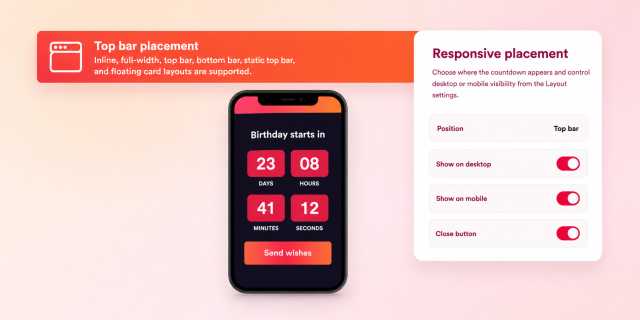
Choose placement and visibility
Place the timer inline, full-width, as a top or bottom bar, as a static top bar, or as a floating card with desktop and mobile visibility controls.
Layout controls include: