Top AI signature generators
Signatures affirm agreement. They promise we’ll do what a document outlines. From signet rings and wax stamps to John Hancock’s oversized inscription and modern digital signatures, the concept remains the same: You sign your name on a document for proof you agree.
And they’re simple. In the United States, the ESIGN Act specifies signatures “may not be denied legal effect, validity, or enforceability solely because it is in electronic form.” Sign a PDF document however you want, and for most documents it’s as good as if you pulled out a pen and wrote your name in ink on the dotted line. The EU’s eIDAS is more stringent, but it also confers simple electronic signature status to simple digital ink signatures, accepting them for everyday use cases like signing internal agreements.
Today there’s a growing number of what are called AI signature generators, which turn your name into a PNG image signature. The best options will
- Let you type your name and render it stylistically with script fonts
- Let you draw your name for a more personal signature
- Require no more than three clicks to create and save a signature for free
After testing 17 AI signature generators, here are the five best tools to create a digital signature for free.
| Tool | Unique Feature | Pricing |
|---|---|---|
 Jotform |
Drawing realistic signatures with your mouse |
Free; from $39/month |
 Paperform |
Previewing your signature in 50+ fonts |
Free; from $24/month |
 Canva |
Drawing a signature in a document |
Free; from $14.99/month |
 CreateMySignature |
Choosing from 6 AI-drawn signatures |
Free |
Calligrapher.ai |
Creating lifelike AI-generated signatures |
Free |
1. Jotform AI Signature Generator
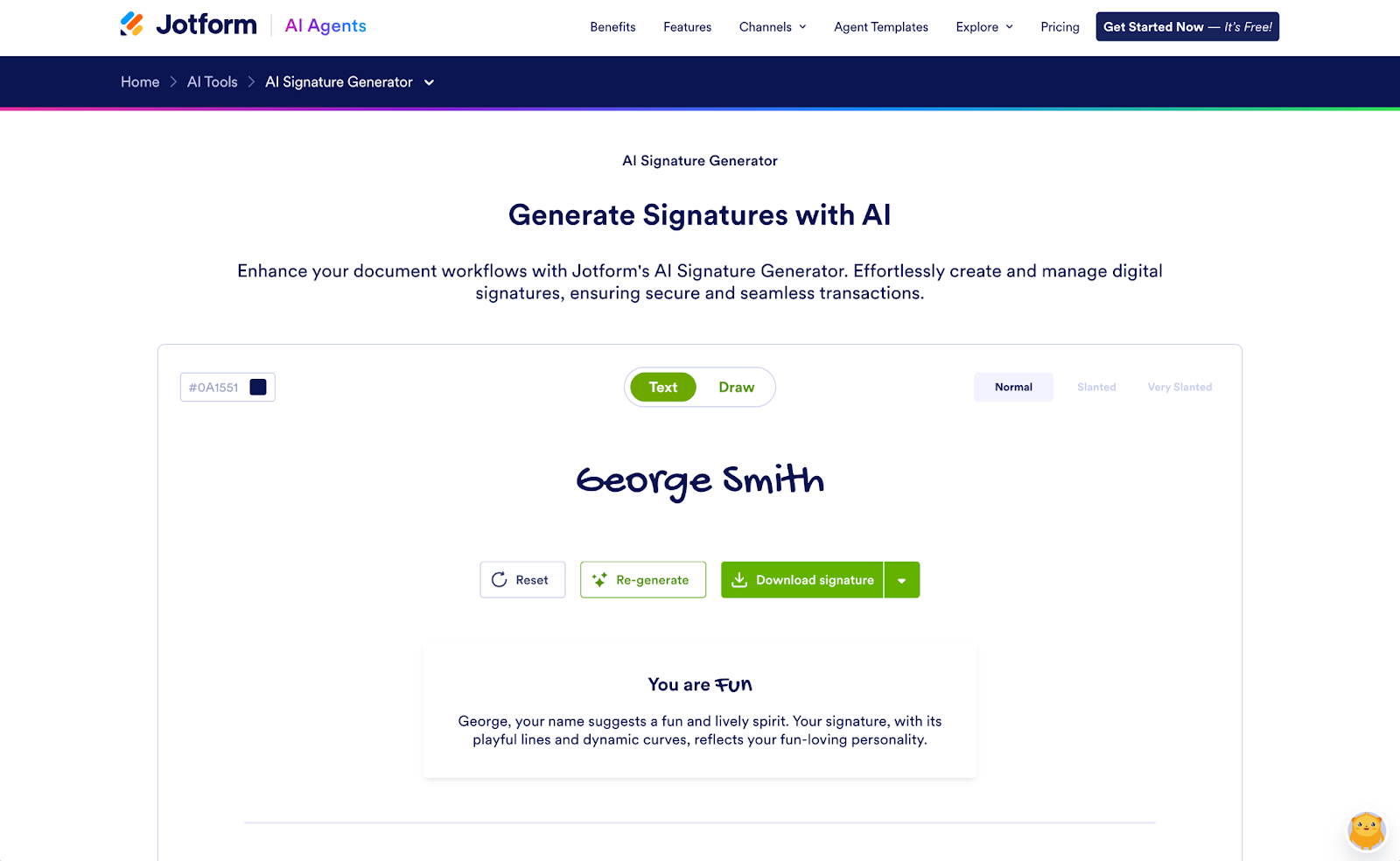
Jotform AI Signature Generator is built around creating signatures from text with auto-picked fonts based on your name. Type your name, click the Generate with AI button, and it’ll pick from one of 10 font styles that fit your name best.
You can tweak the signature, too. Choose any color with a Hex code, pick from 10 styles, slant your font, or regenerate your signature if the default selection isn’t a fit. For a signature that looks less like a font, the Artistic, Sincere, and Elegant styles are most likely to get a script-style signature, while the Fun style is more likely to create a print-style handwritten signature.
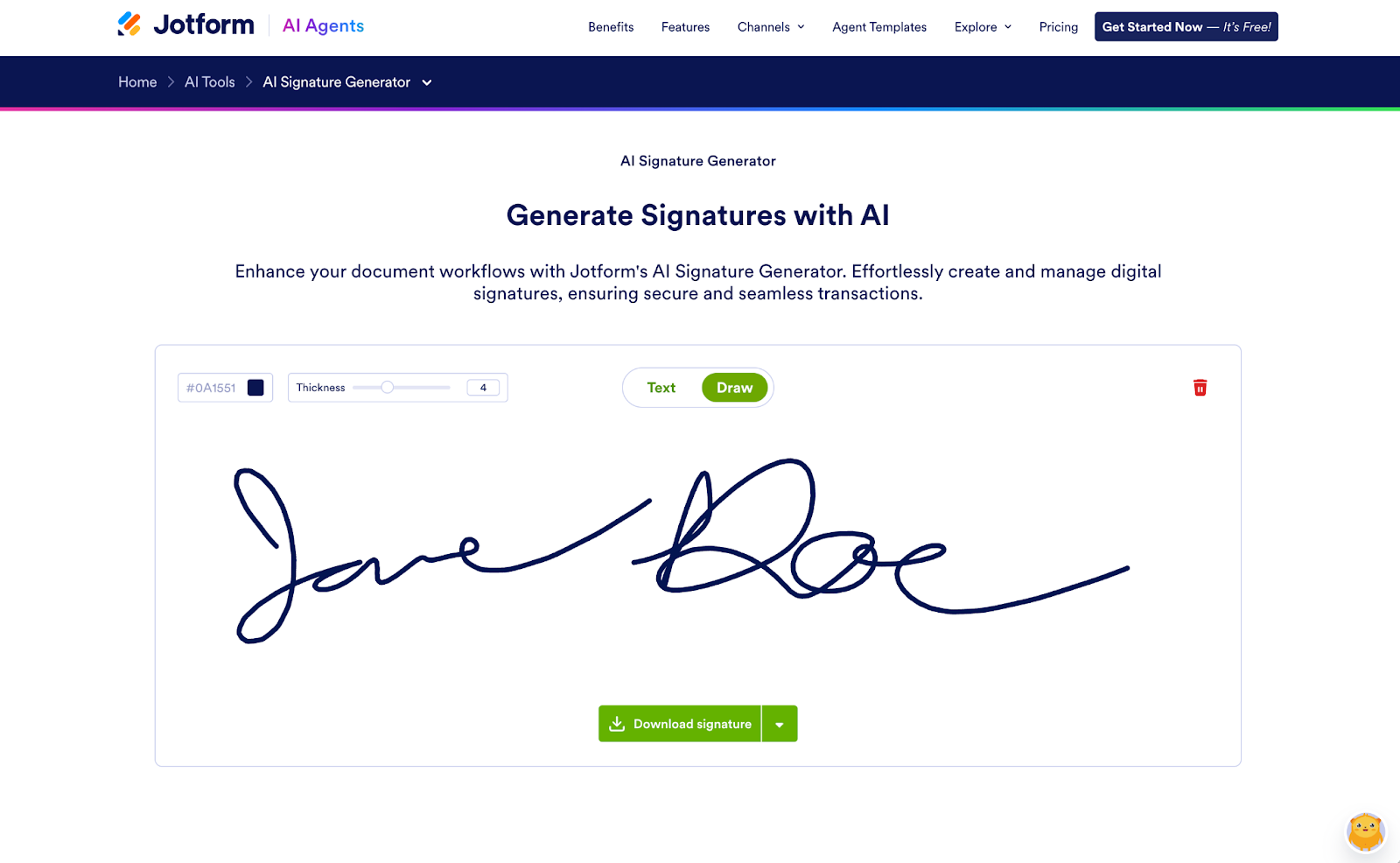
What I liked best about Jotform AI Signature Generator, though, was its drawing tool. Like most similar tools, you can pick an ink color and pen thickness, then scribble your name with your mouse. Jotform did better than other apps at smoothing out your lines, making mouse-drawn signatures look almost as good as if drawn with a stylus on an iPad.
Once you’re done, you can download your signature in PNG format in small, medium, or large sizes, in two clicks. And if you want to directly sign documents, Jotform offers Jotform Sign to add digital signatures to PDF documents for free, complete with audit trails and digital certificates for eIDAS and HIPAA. Jotform’s forms also offer built-in signature fields, to add data and sign the completed document in one go, along with AI tools to put form data to work and Jotform AI Agents to include forms and signature workflows in live chat interactions with customers.
- Best for: Drawing realistic signatures with your mouse
- Key features
- Draw signatures with smooth digital ink
- Choose any color for your signature
- Regenerate AI signature in eight styles
- Pricing
- Free to create unlimited signature images, and free Jotform Sign tool to e-sign PDF documents. Jotform’s core form builder is free for five forms
- Paid plans start at $39 per month for 25 forms or from $129 per month Gold plan for HIPAA compliance features
2. Paperform AI Signature Generator
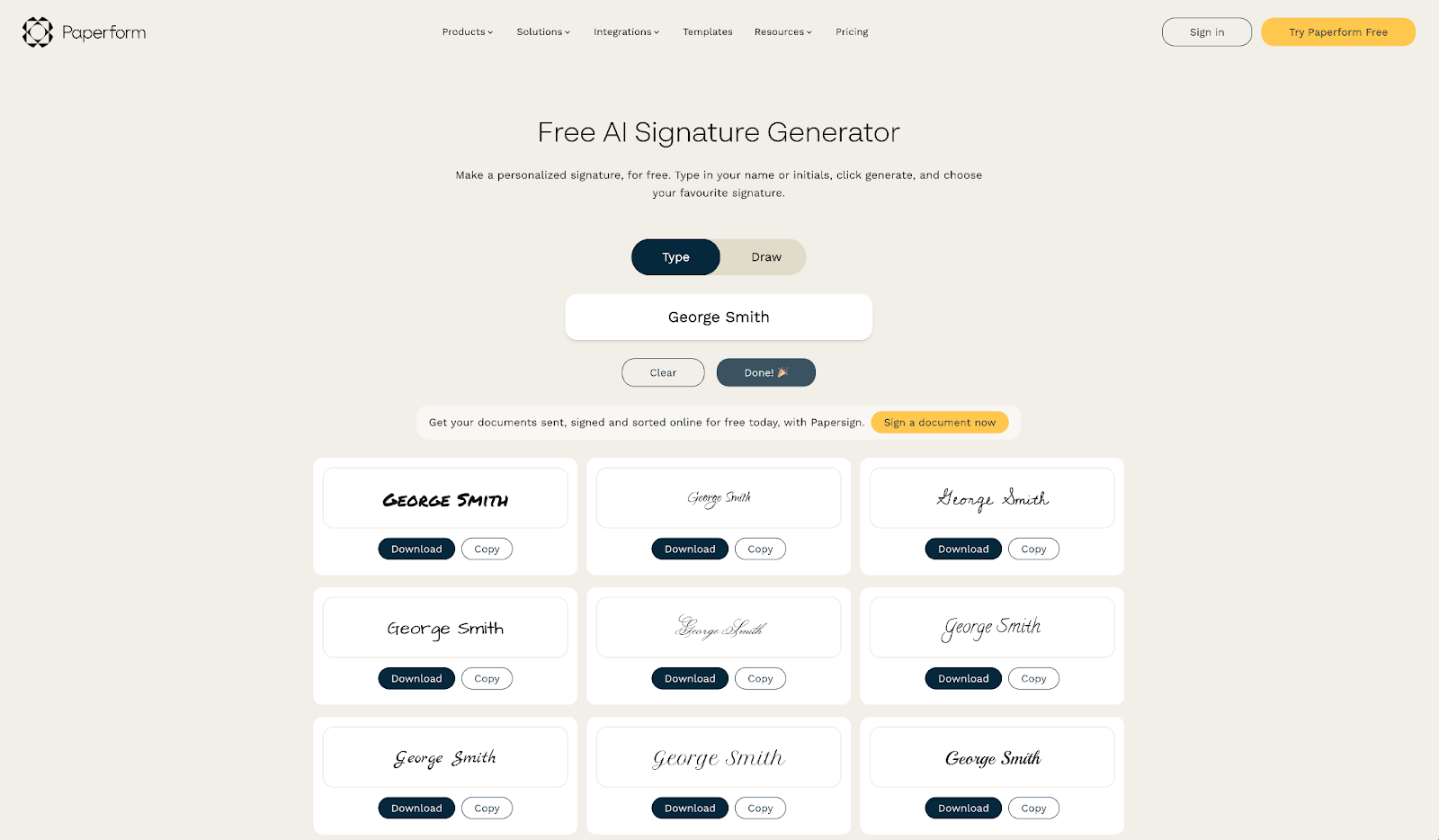
Paperform AI Signature Generator is built around choices. You can draw your signature, but only in black ink and with a small editor. Its better tool is the Type option. Type your signature, click Generate with AI, and Paperform automatically previews your signature in over 50 fonts.
Paperform doesn’t include any options to customize your signature. You can’t change the color or font slant. Instead, you can see what your name looks like in varied script and handwritten print-style typefaces.
Using your signature from Paperform is easy. Press Download to save a PNG of your signature in a single click. Or if you’re adding signatures to a Word or Google Docs document, choose Copy, then paste your signature wherever you’re working.
And if you need to sign PDFs, the companion Papersign tool lets you create a document or upload a PDF to add signatures with text, digital ink, or by uploading an image of a signature from a scan or a signature generator app.
- Best for: Previewing your signature in 50-plus fonts
- Key features
- Automatically generate your signature in 50-plus fonts
- Download signatures in one click
- Copy signature image to paste into a document
- Pricing
- Free to create unlimited signature images, and for three signed documents per month
- From $24 per month for unlimited signed documents
3. Canva Electronic Signature Generator
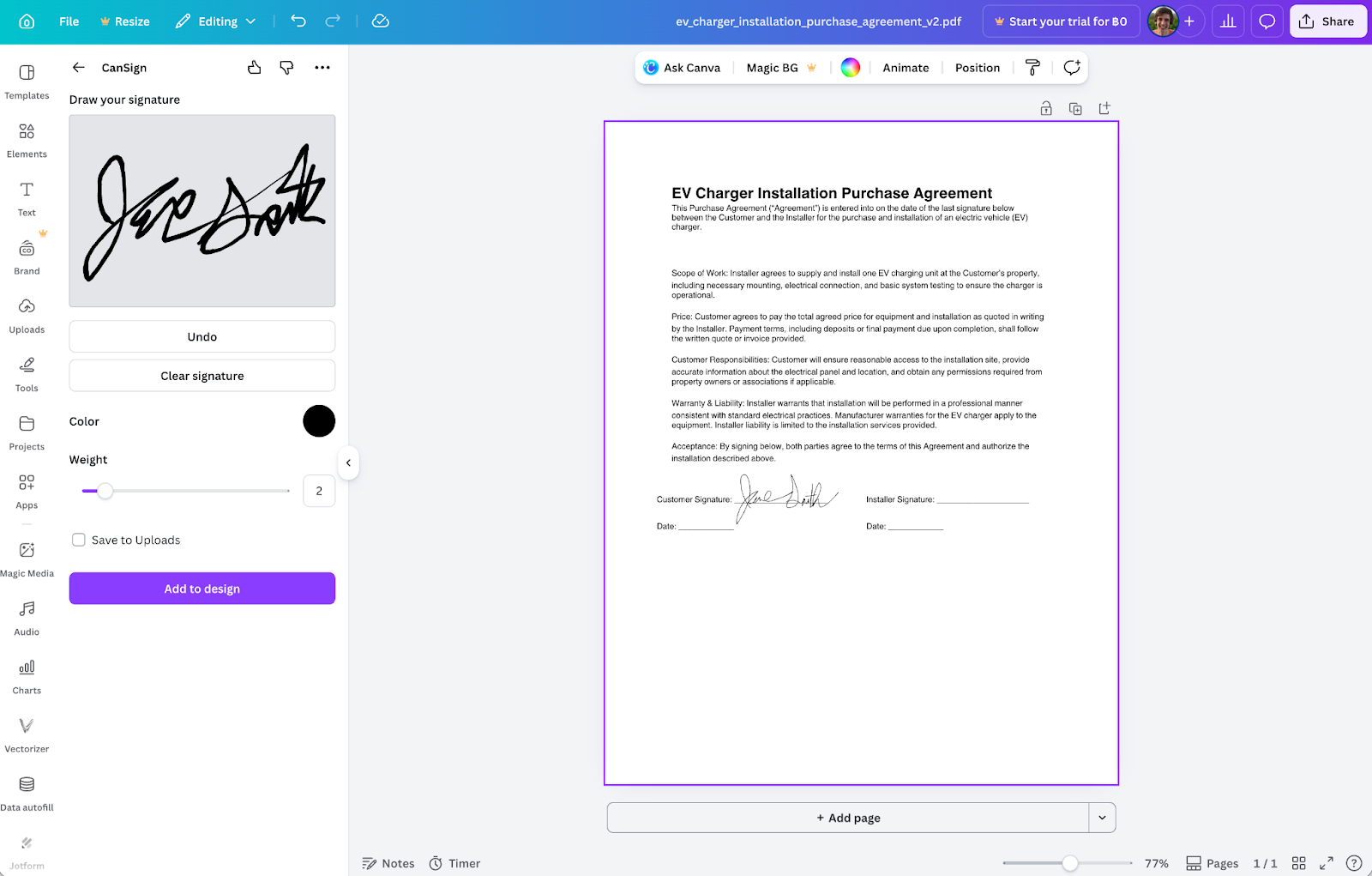
Canva’s Electronic Signature Generator offers the two options most common in AI signature generator apps: Sign your name in digital ink, or type your name. Both options open Canva’s core editor. The draw option uses Canva’s fluid design tools that make your name look nice even when written with a mouse, while the type option uses Canva’s standard text editor, with font options so you can choose any typeface, color, size, and more.
Or you could use Canva AI to generate an image of your name as a signature — something I was surprised to find worked well. Give it a prompt such as “make a signature for my name, George Smith, signed in blue ink to be used on formal documents,” and you’ll get realistic signatures. They come on a white background by default, but if you have Canva Pro, you could remove the background for a more usable signature.
You can also add your signature to documents in Canva. Either create a new document in Canva Docs or upload a PDF to Canva. Then drag in the signature image you created in Canva, or create a new signature inside the doc with built-in extensions like CamSign, before downloading your signed document as a PDF.
- Best for: Drawing a signature in a document
- Key features
- Sign names with fluid design tools
- Add signatures directly to PDFs and Canva Docs
- Use AI to generate a realistic handwritten signature
- Pricing
- Free to create unlimited signature images, with limited AI usage
- From $14.99 per month, get Canva Pro to remove backgrounds from images, raise AI limits, and more
4. CreateMySignature
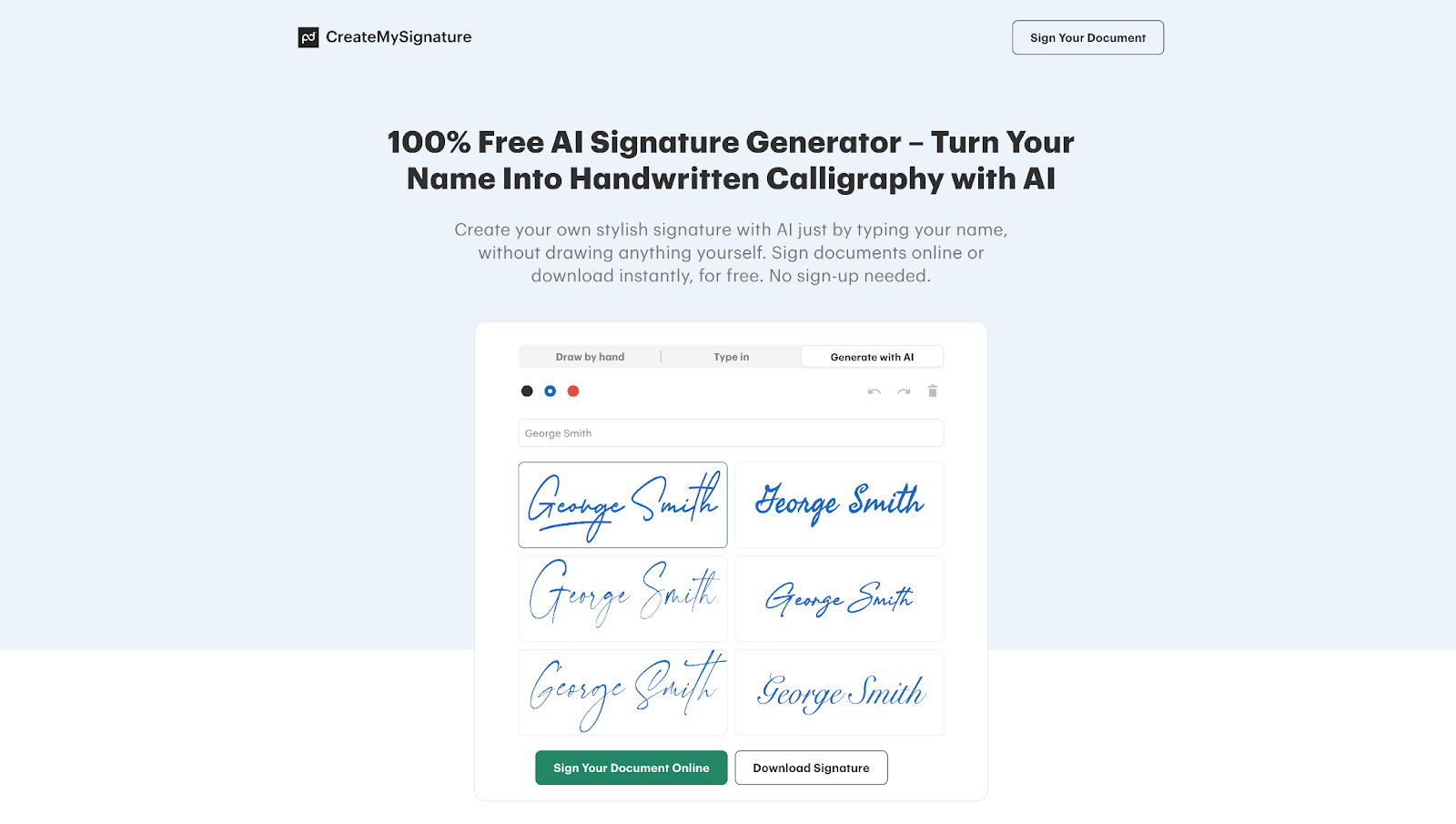
CreateMySignature’s tool works the same as the typing tool in other signature apps. Type your name, click generate, and it’ll come back with your name in a variety of options. Here you can choose between signatures built from popular fonts in the Type in tab, or with more handwritten-style signatures in the Generate with AI tab.
The AI tool offered a wide range of writing styles each time I tried it. There was usually a signature or two that looked like a standard font. But there were always unique options, too. Typically at least one signature would have an extra flourish, such as an underline, while others might have thinner strokes or even be cut off on the top edge as though they were handwritten a bit outside of the lines.
You can change the handwriting color after generating the signatures, choosing from black or pen-style red and blue. And you can download any of the signatures, or upload a PDF and add your AI signature directly without signing up for an account, using the included signing tool powered by PandaDoc.
- Best for: Choosing from six AI-drawn signatures
- Key features
- Unique AI signatures that look handwritten
- Six signature options to choose from
- Sign PDF documents directly from the signature tool
- Pricing
- Free to create unlimited signature images and add signatures to PDF documents
5. Calligrapher.ai
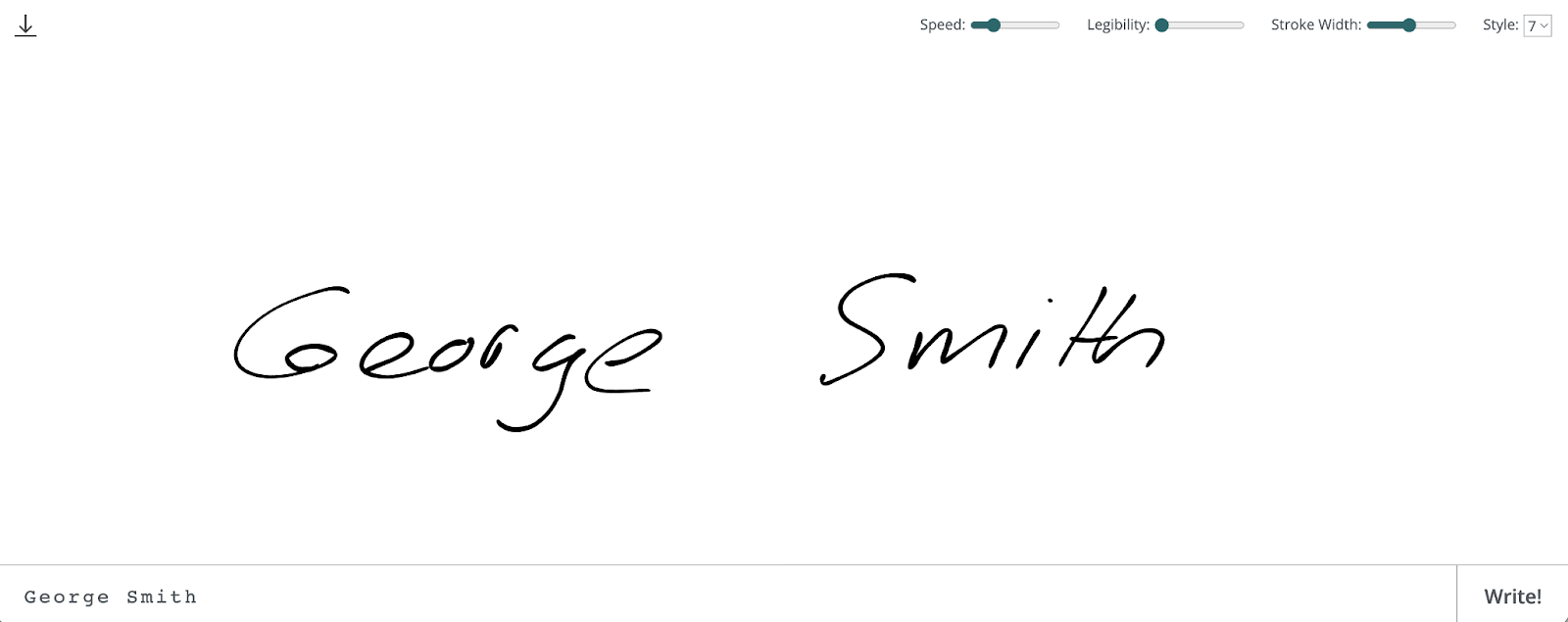
Calligrapher.ai is the simplest AI signature generator I tested — and the most basic. Type your name at the bottom of the app; then click Write, and a digital signature will trace its way across your screen as though someone were writing it by hand. Calligrapher.ai’s signatures look realistic. More than any other app I tested, its writing looks less polished but more like something you could imagine someone signing by hand.
It includes a few tools you can use to tweak your signature. The legibility slider affects the final signature the most. I found the lowest legibility setting looked the most like a quick signature you’d use every day, while the highest legibility looks more like a practiced, formal signature. The speed dial adjusts how quickly the app writes, while the stroke width affects the boldness or faintness of the digital ink. And the style option gives you nine handwriting styles to choose from.
Each time, the app generates a brand-new signature. Tweak the settings and click Write as many times as you want, until you get the desired handwriting style. Then click Download in the top left corner to export, uniquely, an SVG vector file of your signature. You can open that in vector apps like Adobe Illustrator, Figma, or Sketch to adjust brushstrokes and colors, or convert the design to a PNG in apps like Canva or with CloudConvert’s PNG converter.
- Best for: Creating lifelike AI-generated signatures
- Key features
- The simplest signature generator app
- Choose from nine styles and legibility options
- Download signatures as an SVG file for Illustrator
- Pricing
- Free to create unlimited signature images
How I tested AI signature generators
There are many signature generator apps today: There are simple tools where you type your name in a script font, and there are AI tools that dynamically turn your name into what looks like a handwritten image, and there’s a range of tools in between.
After drawing and typing signatures, then downloading them in 17 signature apps, I found the best apps make creating unique signatures as quick as possible:
- Fast: The best signature generators should be fast. They shouldn’t require creating an account and should let you download your signature in three clicks or less.
- Type or Write: Typed signatures are quick and easy, while using digital ink lends a more natural-looking signature. The best signature apps offer both options.
- Font and Color options: Just as you might need to sign some documents with a red or blue pen, signature generators should include font options that look like signatures and colors that match signature requirements.
- PNG downloads: When adding a signature to a document, you need the signature line and surrounding text to show through and not be covered up by your signature image’s background. Signature apps need to offer PNG files with transparent backgrounds to be usable in real-world documents.
- No account required: Signature generators are apps you use for a few minutes before leaving. They typically don’t store your signature, and the best don’t require an account to download a signature. They’re built around security by anonymity — they simply generate the signature image from your name without storing it.
- Free: While full-feature document signing apps like Jotform Sign and Docusign offer paid plans, the best AI signature generators themselves — including from Jotform Sign and others — create signature images for free.
There are times to appreciate AI image generation apps’ creativity, but with signatures you don’t want to take things too far. I removed apps that took liberty with signatures at times, adding additional elements like ampersands, images, or background colors to the core signature.
Signature apps are unlike AI agents, where software does tasks on your behalf, and most other best AI tools where AI is finding data, correcting mistakes, and creating new documents and designs for you. What you want is a clean signature matching your style that can be easily added to any document — and nothing else.
Every tool included in this roundup lets you create a signature and download it as an image in three clicks or less, for free, without creating an account. AI features, where included, are simply to automate previewing your signature in a variety of styles. Most of the tools included offer additional features to start using your signature on documents, if needed.
Which AI signature generator should you choose?
The best AI signature generator depends on what you need to do. For a unique signature that looks like it was handwritten, Calligrapher.ai and CreateMySignature both do a great job of generating realistic signatures. CreateMySignature and Canva are good options to create signatures and add them directly to documents. Paperform’s signature generator is the easiest way to see what your name looks like in a wide variety of signatures.
For everything in one place, Jotform’s AI Signature Generator gives you quick AI-generated signatures from fonts along with one of the best tools to draw your signature with your mouse. Its companion Jotform Sign lets you create a signature and sign PDF documents in one place, while Jotform’s core form builder gathers data and signatures and pulls them together into complete, signed documents to speed up your business workflows.
Send my document for signature
File type is not allowed.
Maximum file size limit exceeded. (5MB)
Something went wrong.
AS ALWAYS, CONSULT AN ATTORNEY BEFORE RELYING ON ANY INFORMATION ON THIS PAGE. THE CONTENT ABOVE IS FOR INFORMATIONAL PURPOSES ONLY. JOTFORM IS NOT PROVIDING LEGAL, FINANCIAL OR OTHER ADVICE.
This article is for small business owners, remote contractors, and legal professionals who require a secure, distinctive, and legally compliant way to sign digital contracts and official agreements.







































































































Send Comment: