
Customer reviews build trust with prospects, showing them that your business is credible and valuable.
If you’re looking to add this type of social proof from Google reviews on your Wix website, you’ll need to get creative. There is no built-in native solution for adding reviews from Google, but there are a few methods you can use to get the job done. In this article, we’ll show you exactly how to add Google reviews to your Wix website, step by step.
Option 1: Use a Wix app
The easiest way to add Google reviews to Wix is to use a dedicated Wix app.
This method doesn’t involve any coding, but you will likely have to get a paid plan to access the full set of app features. Here’s what you need to do in the Wix website builder:
- Access the Wix App Market. From your Wix dashboard, click Apps > Wix App Market. You’ll now be able to see all the available apps that can extend the functionality of your Wix website.
- Search for a Google reviews app. In the search bar, type in “Google reviews.” You’ll get a number of results for apps that can help you embed Google reviews on Wix. Select the best app for your needs.
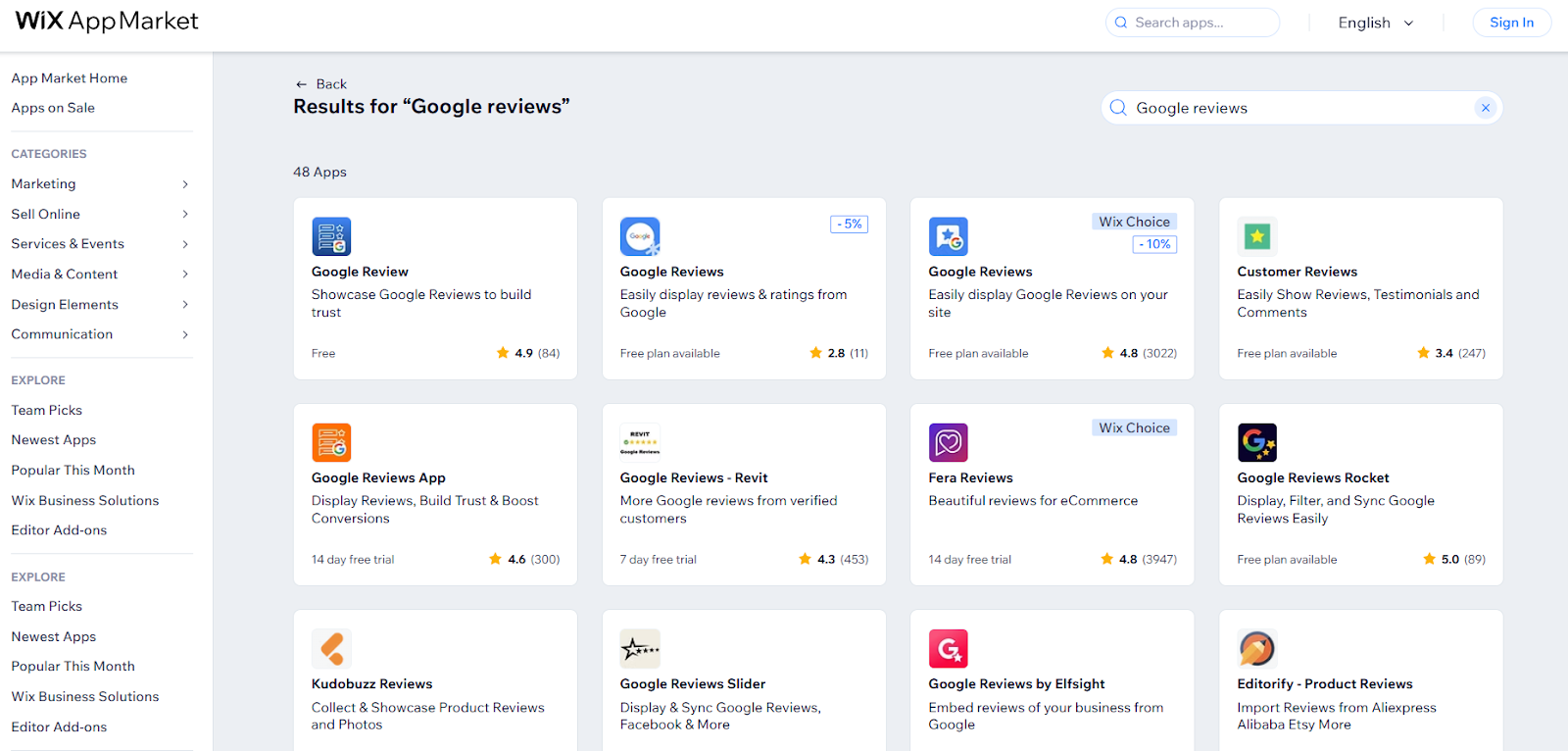
- Install and configure the app. Add the new app to your Wix website and configure the settings. Note that some apps are available for free while others come with a cost to access certain features. Depending on the app you choose, you may have to pay.
Why this works:
Using apps from the Wix App Market to display Google reviews on your Wix website is a good option for a number of reasons:
- No-code solution — You don’t need any advanced technical knowledge to use these apps, which are designed to work seamlessly with Wix.
- Auto-syncing features — The apps will automatically update reviews as new ones are added, so you won’t need to take any manual action beyond the initial app setup.
- Customizable web layout — In many cases, you’ll have the ability to choose how you’d like to display reviews on your website, allowing you to maintain control over your site’s look and feel.
Option 2: Use a (free!) Google reviews widget for Wix
If you don’t want to pay for a Wix app from the marketplace, you can use a Google reviews widget for Wix instead. These single-purpose application tools are free, don’t require any coding knowledge, and are easy to use.
One leading option is the Jotform Google Reviews widget, from the popular form builder platform, Jotform. To use this widget — and hundreds of others like it — you’ll need a Jotform account. You can create one for free, if you don’t already have one.
Here’s how to use the Jotform Google Reviews widget:
- Customize the Jotform Google Reviews widget. On the widget page, connect the widget to your business or Google Maps link. Then, select your preferred layout, colors, and overall appearance for the widget so that it aligns with your brand and website.
- Get the embed code. The Jotform Google Reviews widget will provide you with an automatically generated embed code. If you’re new to using code, don’t worry — all you have to do is copy the code.
- Embed the widget on your website. Using the Wix Editor, go to Add Elements > Embed Code > Popular Embeds and paste the widget embed code to publish Google reviews across your site. It’s that easy!

Why this works:
If your site was built with Wix, a Google Reviews widget like Jotform’s works well because of these three things:
- Customization options — With Jotform’s widget, you can choose from a number of layout options, such as slider, carousel, or badge, to ensure the reviews look great wherever they are placed.
- Zero additional cost — Jotform’s widgets are free to use, so you don’t need to incur additional costs. This is a major plus for businesses watching their bottom lines.
- Simplicity — The widget generates code automatically so all you have to do is copy and paste. No advanced technical skills required!
Option 3: Add Google reviews to your Wix website manually
Wondering how to add Google reviews to your Wix website without using third-party tools? If you don’t have a lot of reviews for your business or just want to hand-select a few reviews to display, you can take the manual approach.
While it’s easy to do, adding reviews manually is not a dynamic solution and requires continuous maintenance on your part. To go this route, here’s what you need to do:
- Select the Google reviews to post. Read through your reviews on Google and select the ones that best represent what your business offers your target audience.
- Copy or screenshot the reviews. You can copy the text or take screenshots of the reviews to share on your website. Make sure to include the reviewers’ names to enhance credibility.

- Add the reviews to your website. Via the Wix Editor, add the text or screenshots to your site. Be sure to update the reviews whenever you have new ones you’d like to showcase.
Why this works:
Although it’s a time-consuming option, manually adding Google reviews to your Wix website can still benefit your business. Here’s how:
- Full content control — You get to choose which reviews to highlight on your website to best showcase your products and services and grab the attention of your target audience.
- No ongoing cost — There’s no cost other than the time it takes to manually add and update Google reviews. You don’t have to pay for any third-party apps.
- Not connected to Google — If any negative reviews are posted to Google, they won’t automatically appear on your website, helping to protect your business’s reputation.
Option 4: Embed Google Maps in your Wix website
If you don’t want to showcase full reviews on your website but do want to give website visitors the option of viewing your star rating as a form of social proof, you can try embedding Google Maps in your Wix website.
Note that this method doesn’t automatically showcase your star rating. Users will have to click on the map pin, then view your star rating on the preview card. Be aware that star ratings may not always be visible with this method.
Here’s how to embed Google Maps in your Wix website:
- Use the native Google Maps integration in the Wix Editor. You can find it under the Add Elements > Contacts & Forms menu option.
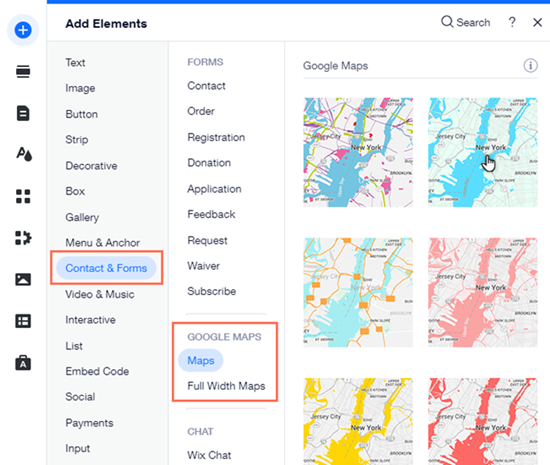
- Customize your Google Maps settings. Configure the zoom, views, and other controls so that the map appears exactly as you want it to.
- Select your Google Maps design and pin. Choose a map design that aligns with your brand and website, and pick a pin that stands out. Keep in mind that users will have to click the pin to see your star rating on the preview card, so it’s best to choose a pin that captures attention.
Pro Tip
If you want your star rating to be more prominent on your website rather than having users click to see it, you will need to use an app from the Wix App Market to do the job.
Why this works:
If you don’t want to use one of the other three Google reviews Wix integration methods, then taking the Google Maps route may benefit you instead. Here are a few reasons why:
- No full reviews — For businesses that don’t want to show Google reviews on their website but still want to build trust, showing a star rating is a good option.
- Fully native solution — Wix offers a built-in Google Maps embed option, so there’s no need to fiddle with third-party solutions, widgets, or manual work-arounds.
- Ideal for physical businesses — If you have a physical storefront, embedding Google Maps on your website can show online visitors where you are located in addition to building their trust with a star rating.
Use smart (and free!) widgets to enhance your Wix website
When you want to build trust with social proof, adding customer reviews from Google to your Wix website is a great way to go.
While there is no native solution, one of the best methods available is Jotform’s Google Reviews widget. Not only is it easy to use and highly customizable, but it’s also free.
Plus, Jotform offers a number of other free website widgets to further enhance the functionality of your Wix website. Check out the AI Chatbot widget, which helps you create interactive form-filling experiences for your website visitors, or the Form add-ons tool, which helps you build forms with features like electronic signatures and payments.
Explore all the widgets Jotform has to offer and see how easy it is to take your Wix website to the next level.
This article is for the small business owners, local service businesses, freelancers, restaurant and hospitality owners, e-commerce store operators, and marketers using Wix who want to increase trust, conversions, and local SEO by displaying Google reviews on their website.














Send Comment: