When you want to share a document and ensure it looks the same on any device, no matter which software the other person uses, PDFs are the best format for the task. They’re the digital equivalent of paper, designed to preserve formatting across software and devices. What you see is always what you get.
PDFs are less handy, however, if you need to copy the data they contain and paste it elsewhere. When you’re handed a PDF filled with data, perhaps financial statements with rows of details about earnings and costs or an attendee list with rows of names and contact information, it’s much harder to put that data to work than it would be with the same data in an Excel spreadsheet.
Even though it’s harder, it’s not impossible. You can convert almost any PDF with a table of data into an Excel spreadsheet in seconds, often for free. The best PDF-to-Excel conversion software works with any PDF, even scanned documents without editable text. Here are the best ways to convert PDFs into spreadsheets, with options from Microsoft Office, Adobe Acrobat, and free online tools.
4 ways to quickly convert a PDF to Excel
The quickest way to convert a PDF to Excel is with Adobe Acrobat online. It’s a surprisingly accurate online PDF converter that can turn almost any PDF with a table (whether it contains plain text or a formatted image) into an editable Excel spreadsheet in seconds, often for free.
But it’s not the only way to convert a PDF, and depending on what you want to do, it may not even be the best option.
1. Import the PDF directly into Microsoft Excel
If you want to turn a PDF into an Excel spreadsheet, odds are you want to edit the text, clean up the data, and otherwise put the spreadsheet to work. In that case, the best place to convert your PDF is directly inside Excel.
Microsoft Excel for Windows has included PDF-to-Excel conversion since late 2020. If you have a recent version of Excel from Microsoft 365 (formerly Office 365) on your PC, you can extract tables and text from PDFs directly into Excel, without the need for third-party tools. It won’t import a picture-perfect copy of your PDF, but it will reliably import tables and turn them into a spreadsheet.
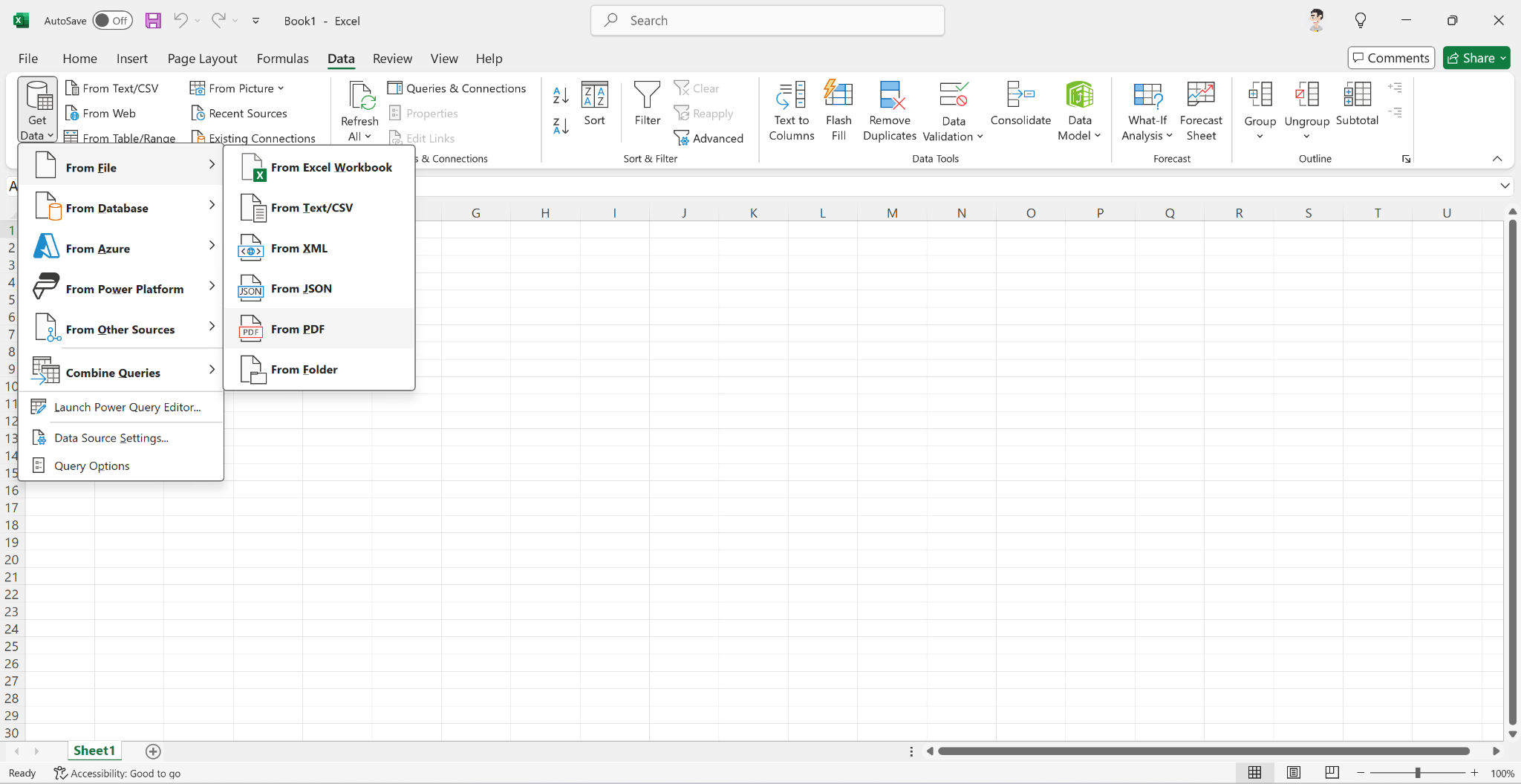
To import data from a PDF that includes a text table, first open a new spreadsheet in Excel. Click the Data tab, select Get Data, and then click From File and choose From PDF.
Then select the PDF file that you want to import into Excel.
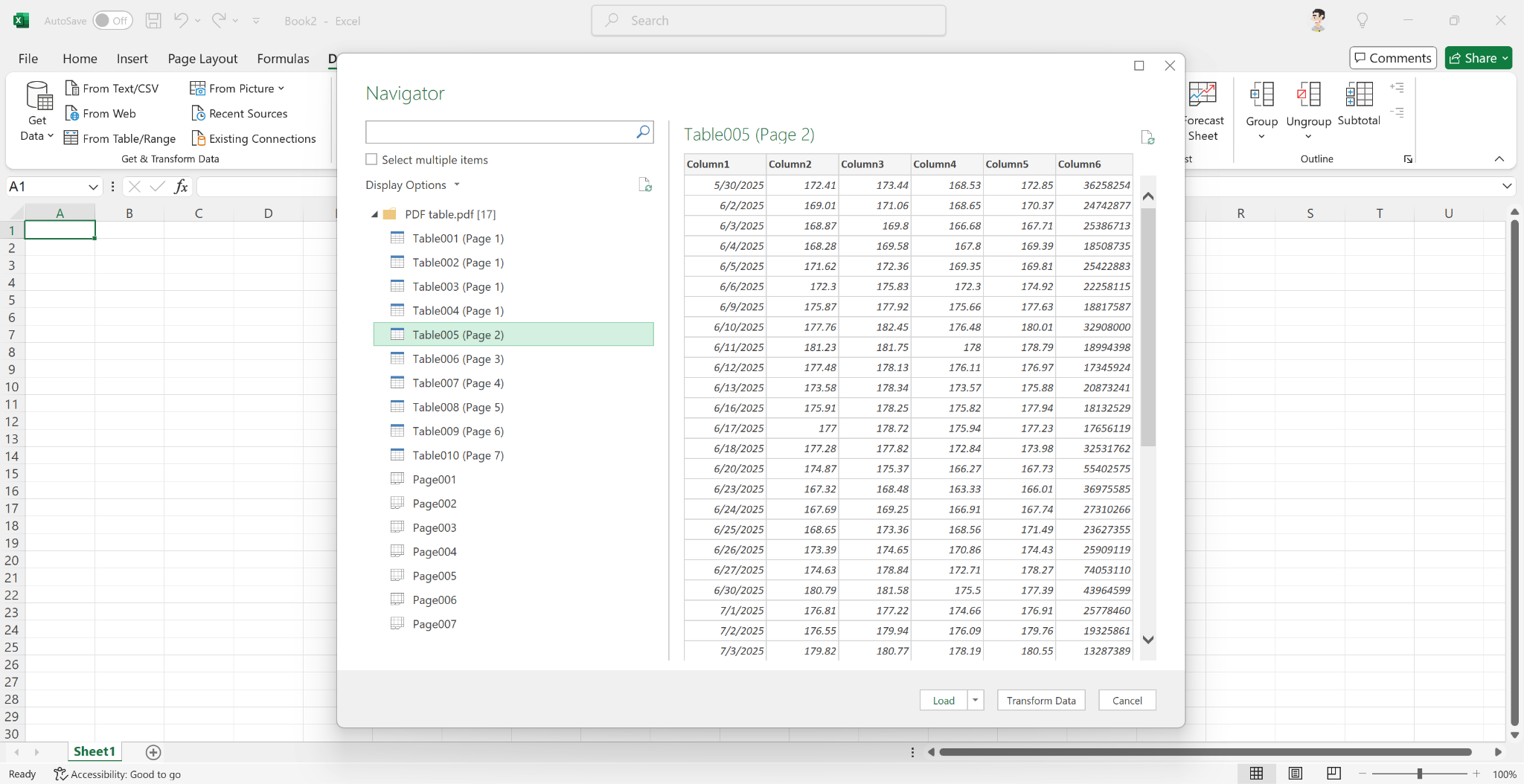
Excel will show the data it discovered in your PDF. Depending on your PDF file’s length, Excel may show multiple tables, some with headers or other text from the document and some with names, numbers, or other data. Select the table you’d like to add to your spreadsheet and click Load.
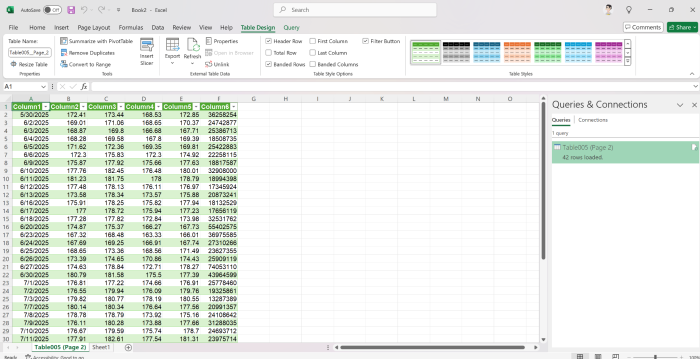
In seconds, the data from the PDF will populate your spreadsheet, ready for you to format and use however you wish. If you want to import other tables from your PDF, add a new sheet and repeat the process.
If your PDF was scanned from a paper document or contains tabular data in an image, Excel’s PDF importer may show a “This table is empty” message, without any data available to import. If so, you can instead use Excel’s built-in optical character recognition (OCR) tool to import the table instead. This feature works in Excel on Windows and Mac, as well as in the free Excel web app.
And because Excel for Mac and the web app don’t support importing PDF tables directly, this feature is your best option for importing PDFs into Excel on Mac or online for free. The only catch is that you have to be online for the feature to work.
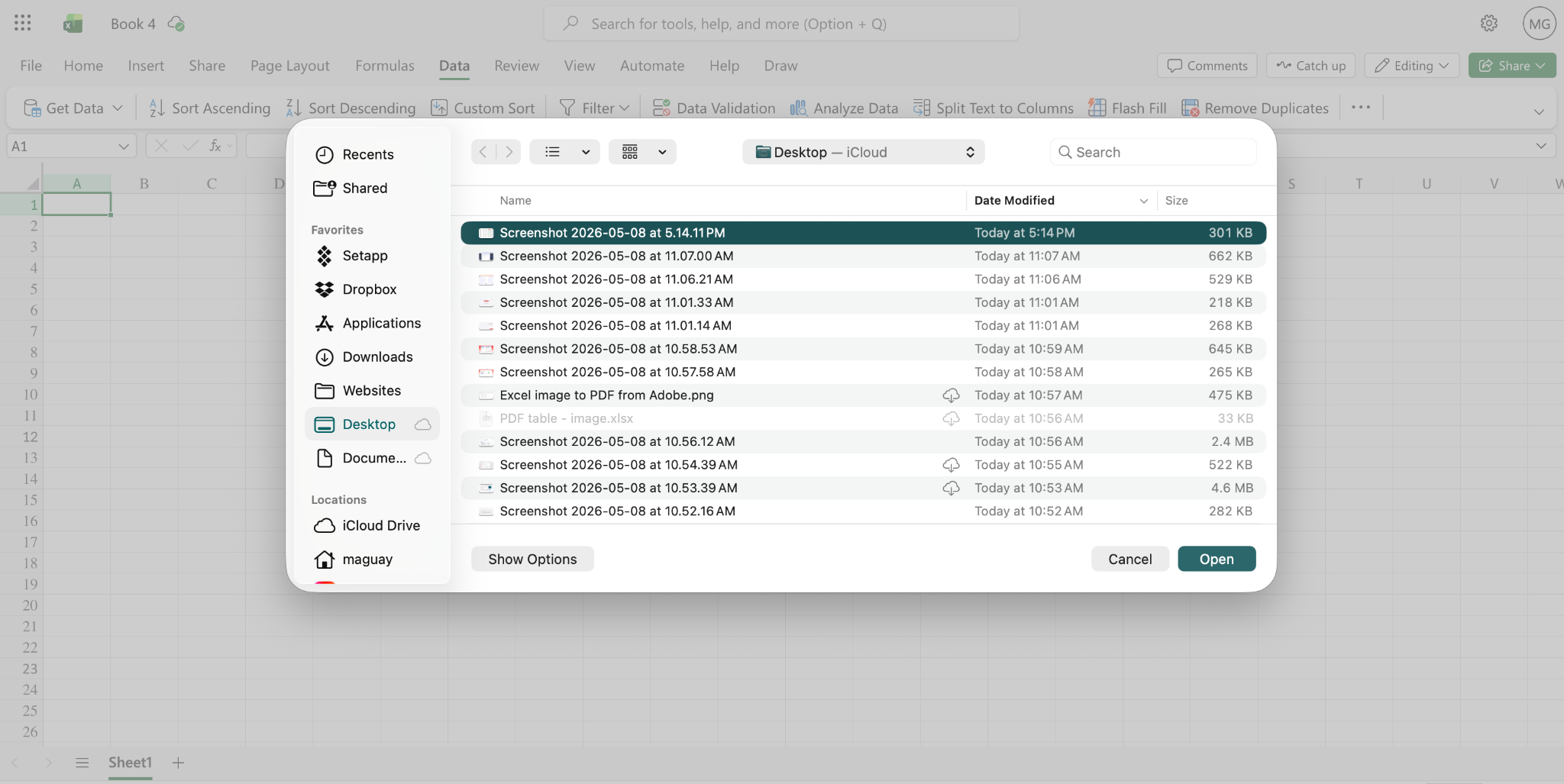
First, take a screenshot of your PDF or export the PDF as JPEG images in another app. Then, in Excel, open a new document, click the Data tab, click Get Data…, and choose Data from Picture. (On Windows, you will first need to choose From other sources… in the Get Data menu, then select Data from Picture.)
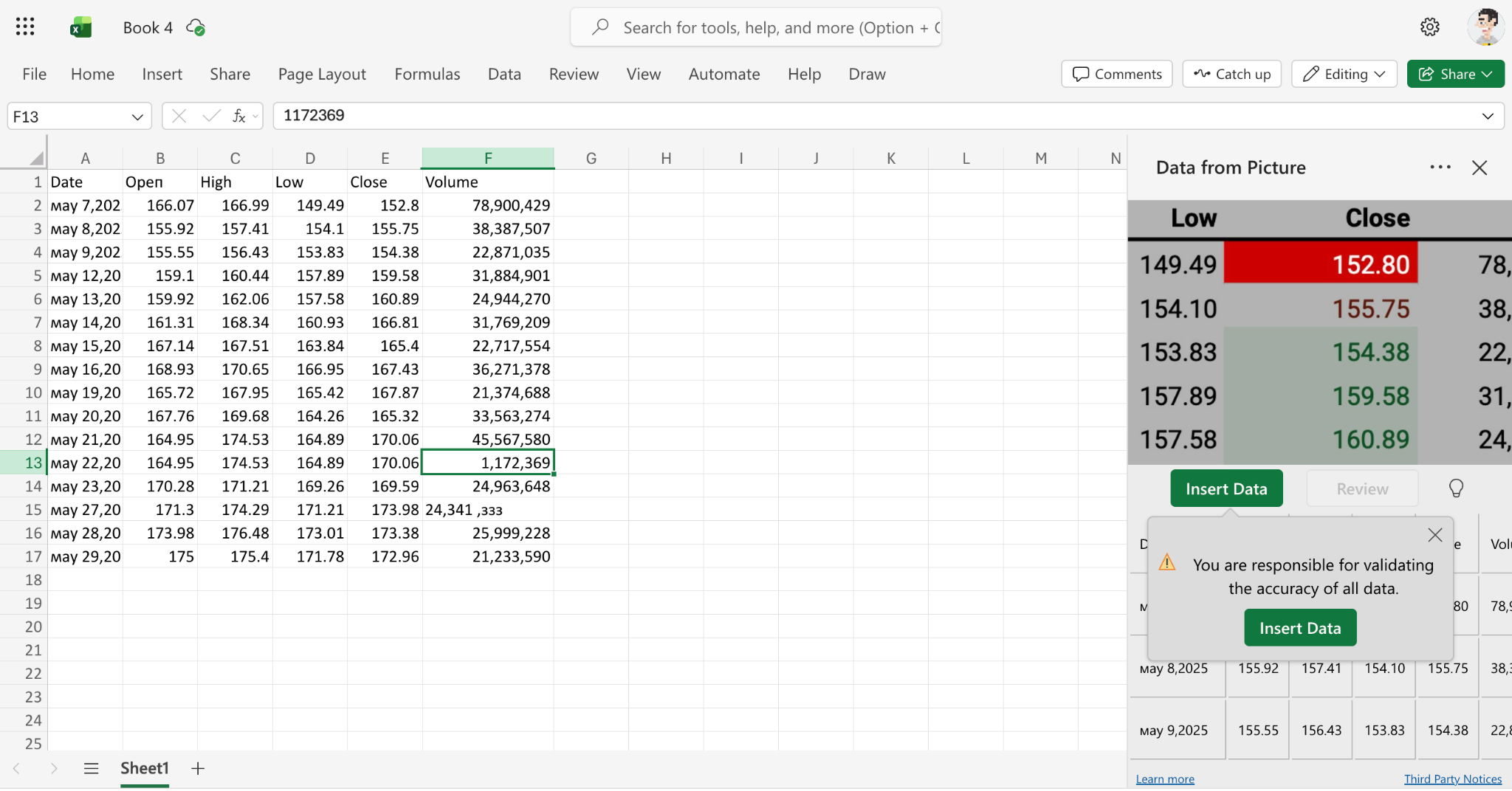
After a few moments of extracting the data, Excel will show a preview of your image and the extracted data in a sidebar. You can review the data, edit anything inaccurate, and then insert the data into your spreadsheet.
It’s not quite as accurate as importing from a text table in a PDF, and you might notice a few errors or less consistent formatting. But it’s still a handy way to turn an image of a table into a spreadsheet for free, with Excel for the web.
2. Convert the PDF to Excel format with Adobe Acrobat
Want to convert your entire PDF, including tables, images, headings, and other details, into an Excel spreadsheet? Adobe Acrobat’s built-in PDF-to-Excel converter, available in its Mac and Windows apps and through Adobe’s free online PDF-to-Excel converter, is a great option for that task. If you already have a paid copy of Acrobat or an Adobe Creative Cloud subscription, it’s an especially convenient way to turn full PDF documents into spreadsheets.
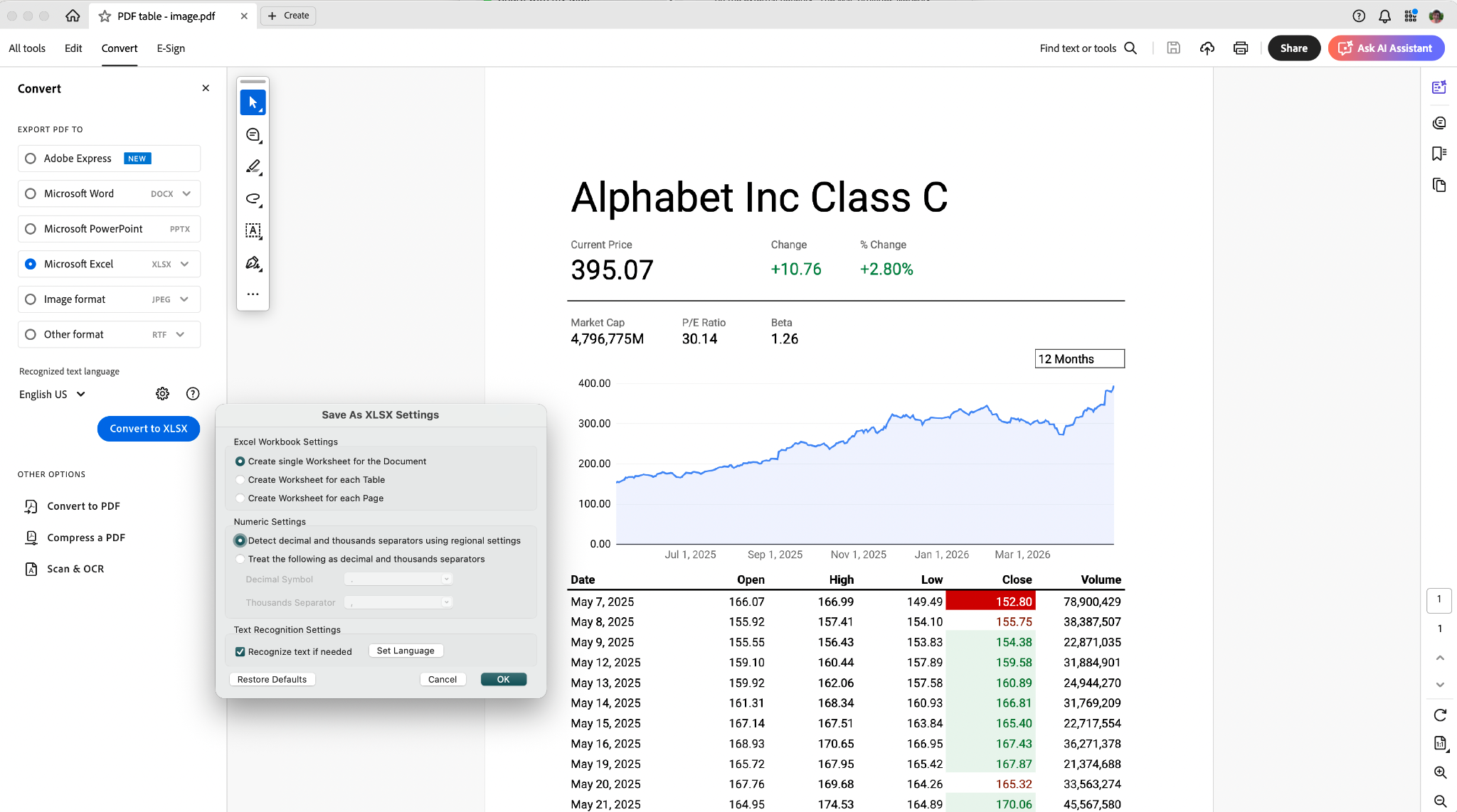
First, open your PDF in Acrobat as usual. Click the Convert tab, check the Microsoft Excel option, then click Convert to XLSX.
You can also customize the conversion settings beforehand. Acrobat can merge the entire PDF into a single spreadsheet or create a new sheet for each table or page. It can also split text with custom separators for more accurate number conversion. And it includes OCR to turn images in PDFs into editable text tables in one of its 40 supported languages.
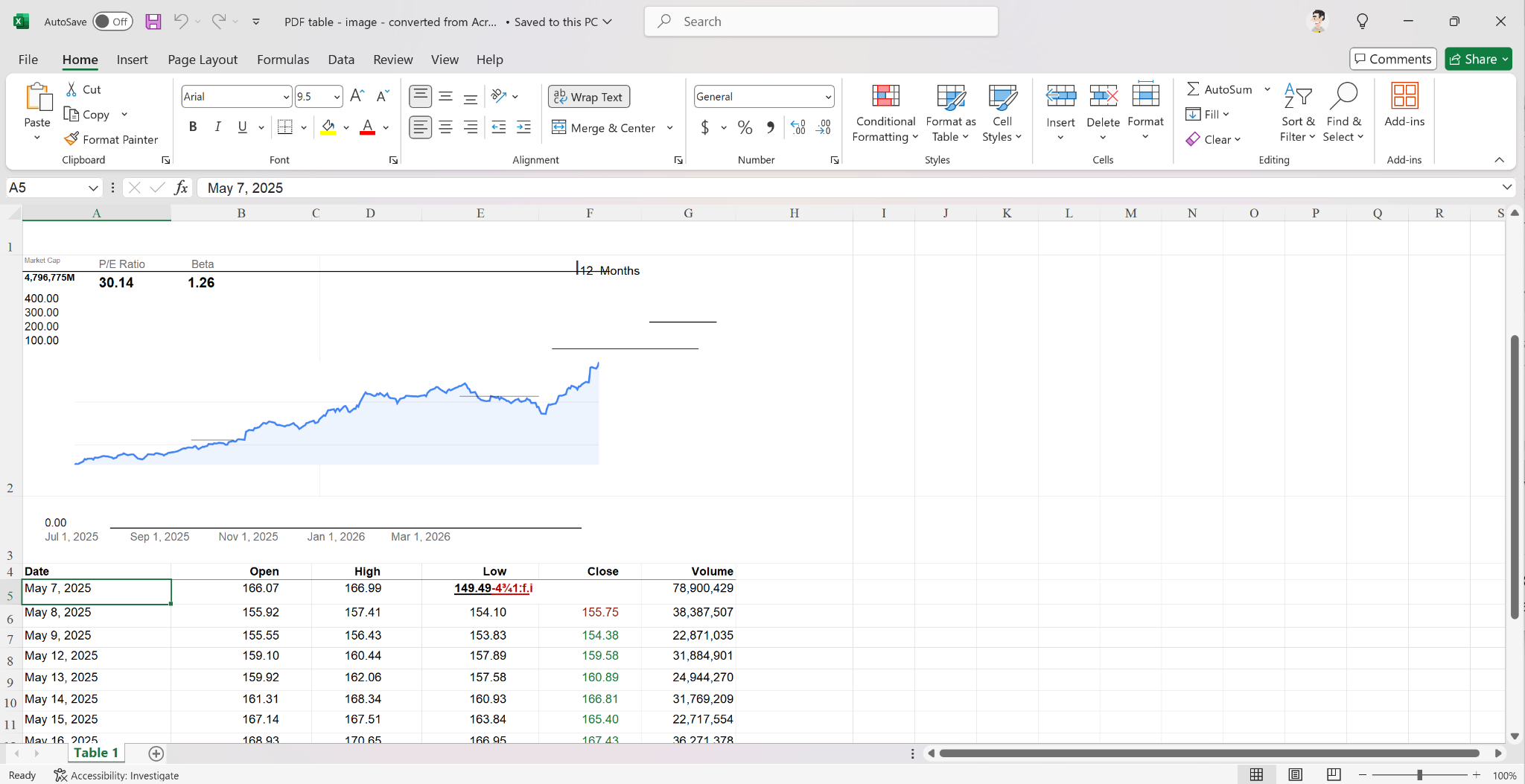
The converted spreadsheet from Acrobat won’t be picture-perfect, especially if the PDF contains text embedded in images, but it’ll look much closer to the original PDF than a spreadsheet created by importing the PDF directly into Excel.
3. Use an online PDF-to-Excel converter
Another option is to use an online PDF-to-Excel converter. One of the best is Adobe Acrobat’s Convert PDF to Excel website. It’s a free tool that converts PDFs at the same quality level as Adobe Acrobat’s desktop applications for Mac and Windows. Yet another good option is iLovePDF, which includes a large suite of tools for converting PDFs into formats such as Excel spreadsheets.
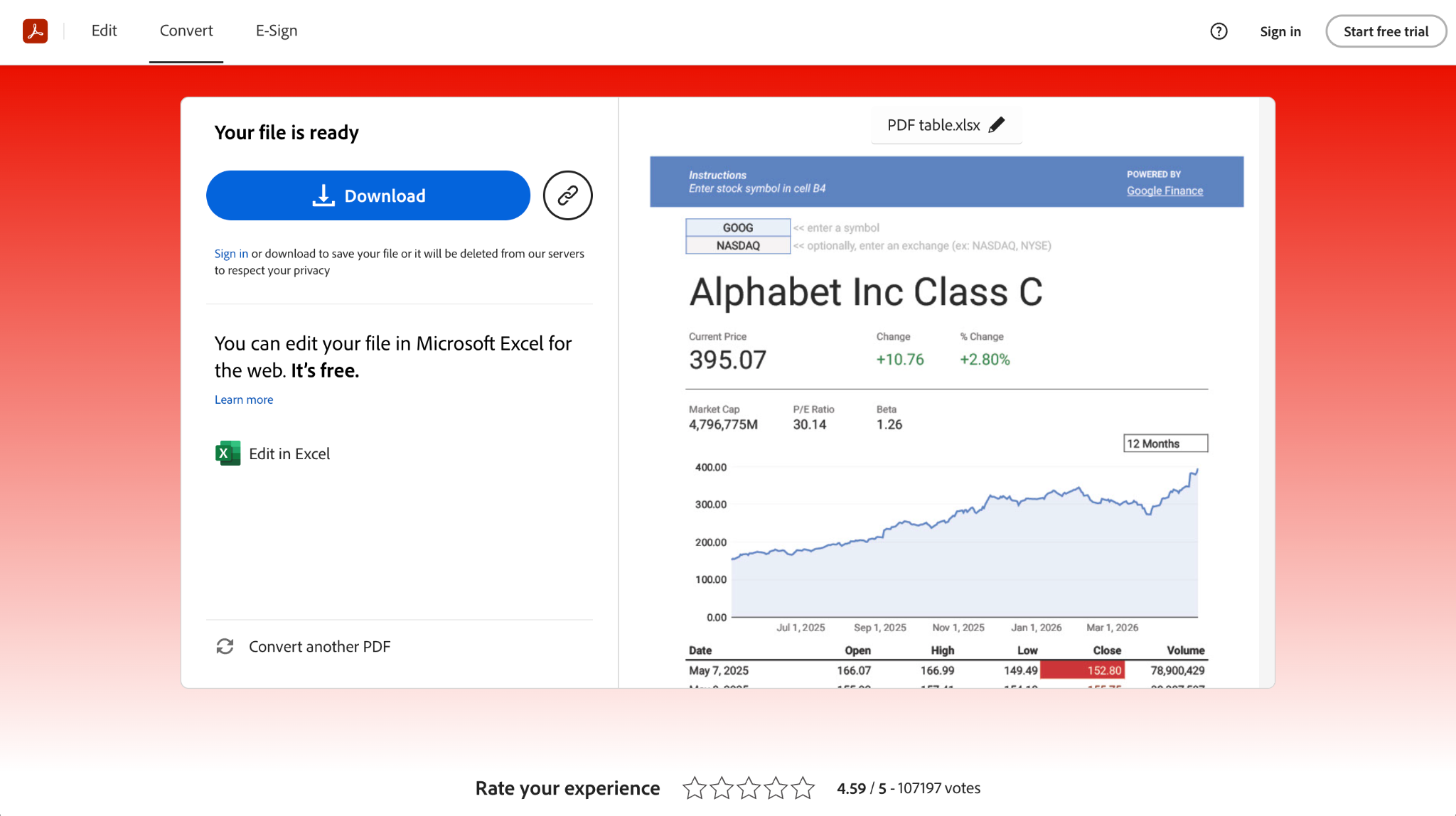
Adobe’s tool takes only two clicks to use and works with both text tables and images in PDF files. Open the Acrobat Convert PDF to Excel site and drag in your PDF, and Acrobat will automatically convert it. You can then download the spreadsheet file or open it directly in Excel for the web.
Do note that if you try to convert a second PDF, Adobe will ask you to sign in first. You can work around that by opening the site in an Incognito window to convert another file for free without an account.
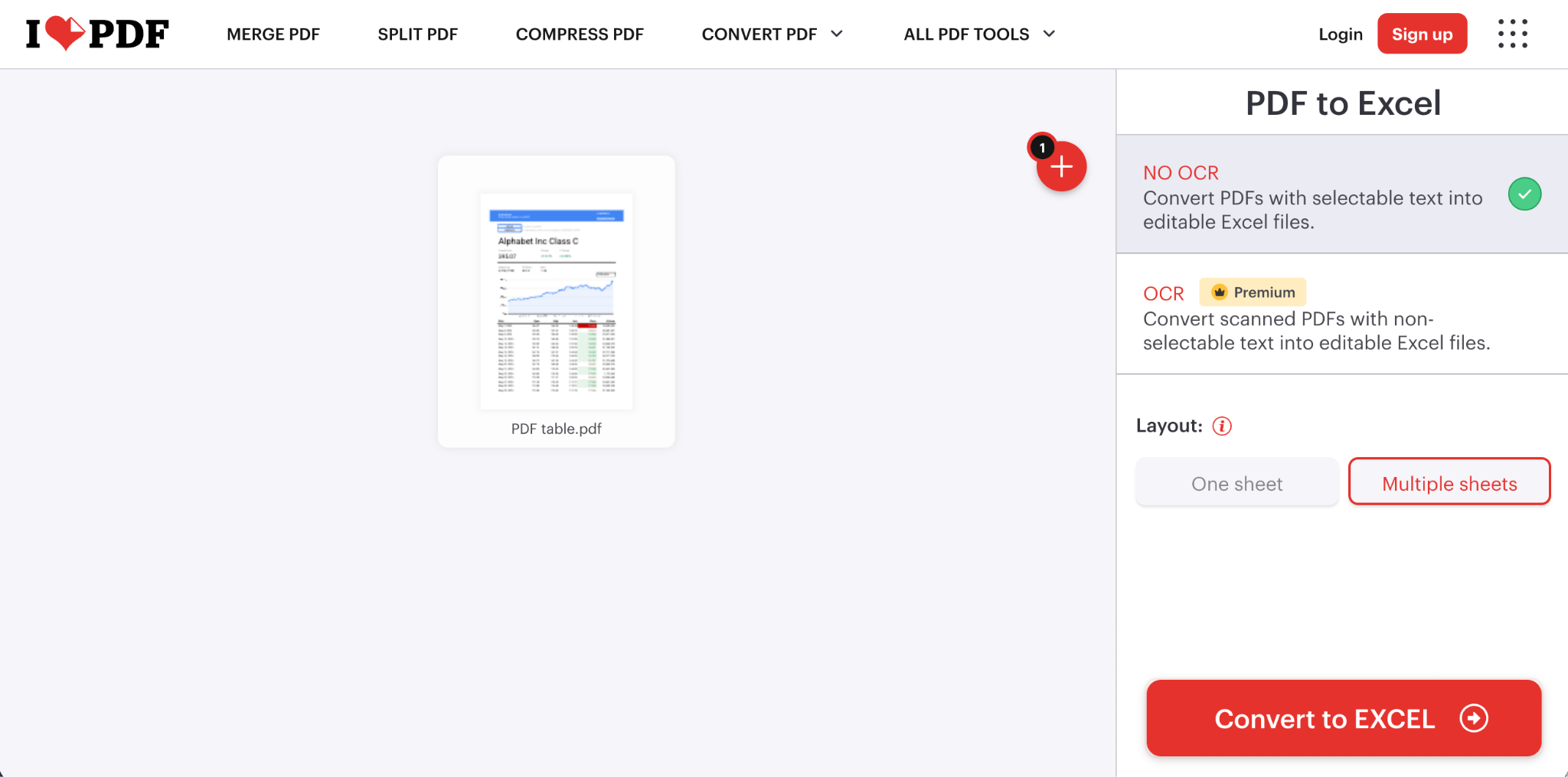
iLovePDF’s PDF-to-Excel converter is similarly easy to use. Drag and drop your PDF into the app, or upload it from Google Drive or Dropbox. Then choose No OCR to convert a PDF with text tables for free or pick the OCR option. (Because OCR requires a paid upgrade, Acrobat’s web app might be the better option here.)
Either way, in just a couple of clicks, you can convert your PDF into a spreadsheet for free online, then edit it in Excel, Google Sheets, Apple Numbers, or any other spreadsheet app.
4. Convert scanned PDFs to Excel with OCR
One more way to convert PDFs into spreadsheets is with any OCR tool. With OCR increasingly built into browsers, PDF readers, and image libraries, you can often just select and copy text directly from a PDF or screenshot, then paste it into Excel or another spreadsheet app.
This is one of the best ways to convert scanned documents and other PDFs with table data locked in images. OCR isn’t perfect and may struggle with lower-quality scans, low-contrast colors, or more complicated tables, but it can make PDF-to-spreadsheet conversion possible when it otherwise wouldn’t be.
For example, you can open a PDF in Preview on a Mac, iPad, or iPhone, then copy the text directly from a PDF table and paste it into a spreadsheet. Similarly, the Photos app automatically recognizes text in images, so you can copy text from a screenshot of a PDF.
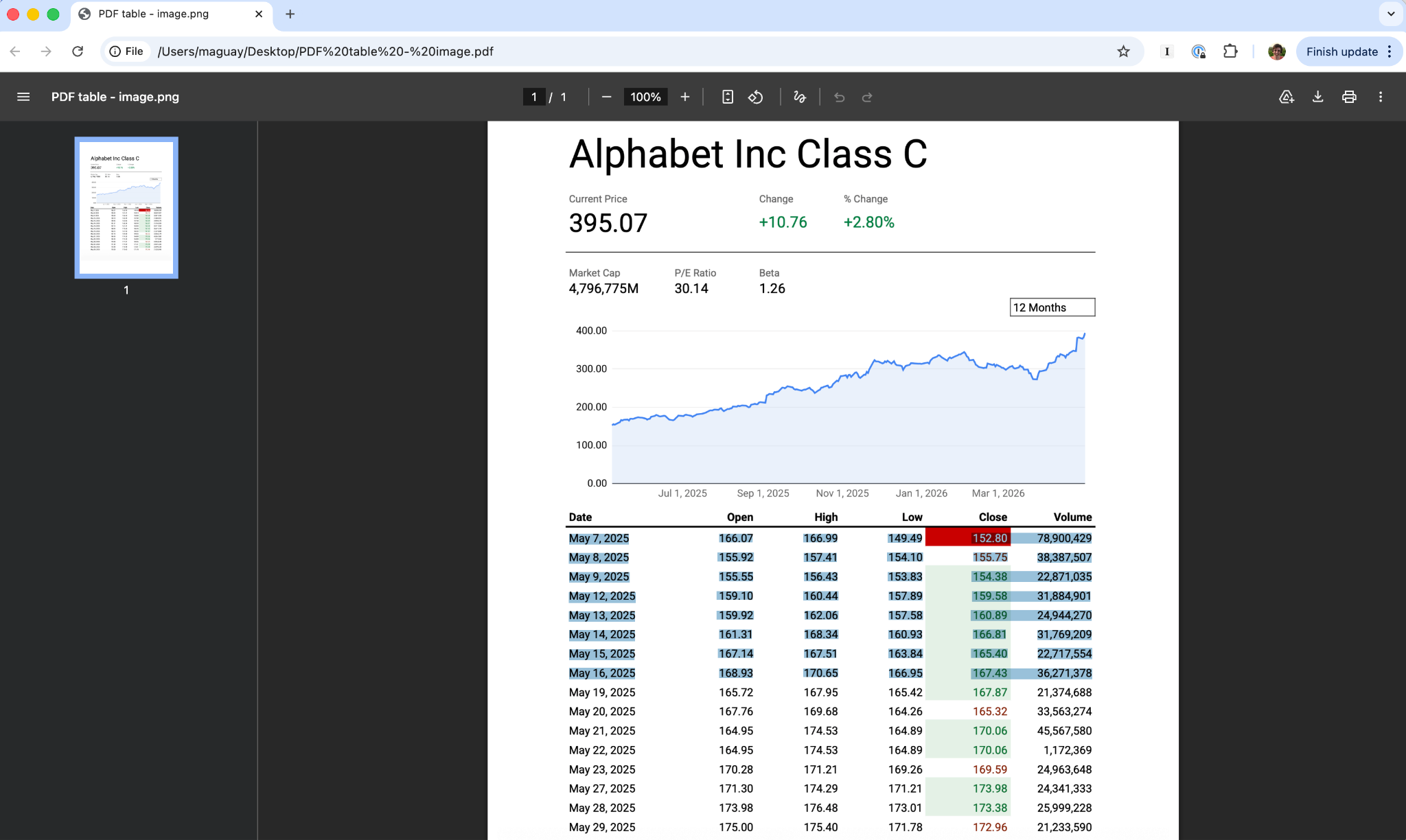
On a Windows PC or Mac, Google Chrome’s built-in PDF reader also includes OCR support. Open a PDF, and after a few moments, you can select and copy the recognized text.
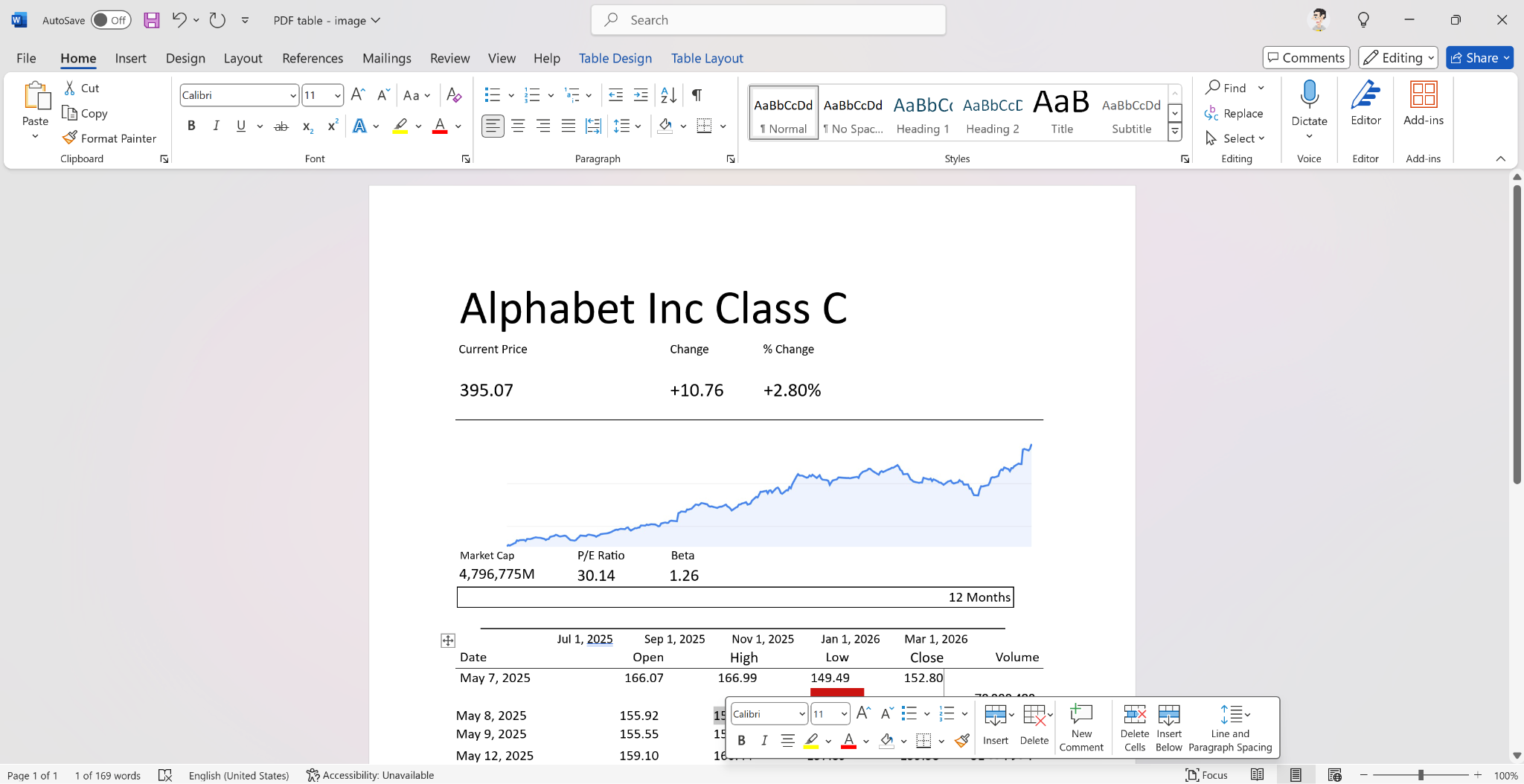
Another option is the OCR tools built into document editors, including Microsoft Word for Windows and Google Docs. Both can convert entire PDFs, including formatted text, images, and tabular data, into editable documents with tables that you can then copy into a spreadsheet.
In Microsoft Word for Windows, open the PDF, and it’ll automatically convert it into an editable document. It can recognize text and tables in images from PDFs, too, even if you’re offline. You can then format the table in Word or copy it and paste it into Excel.
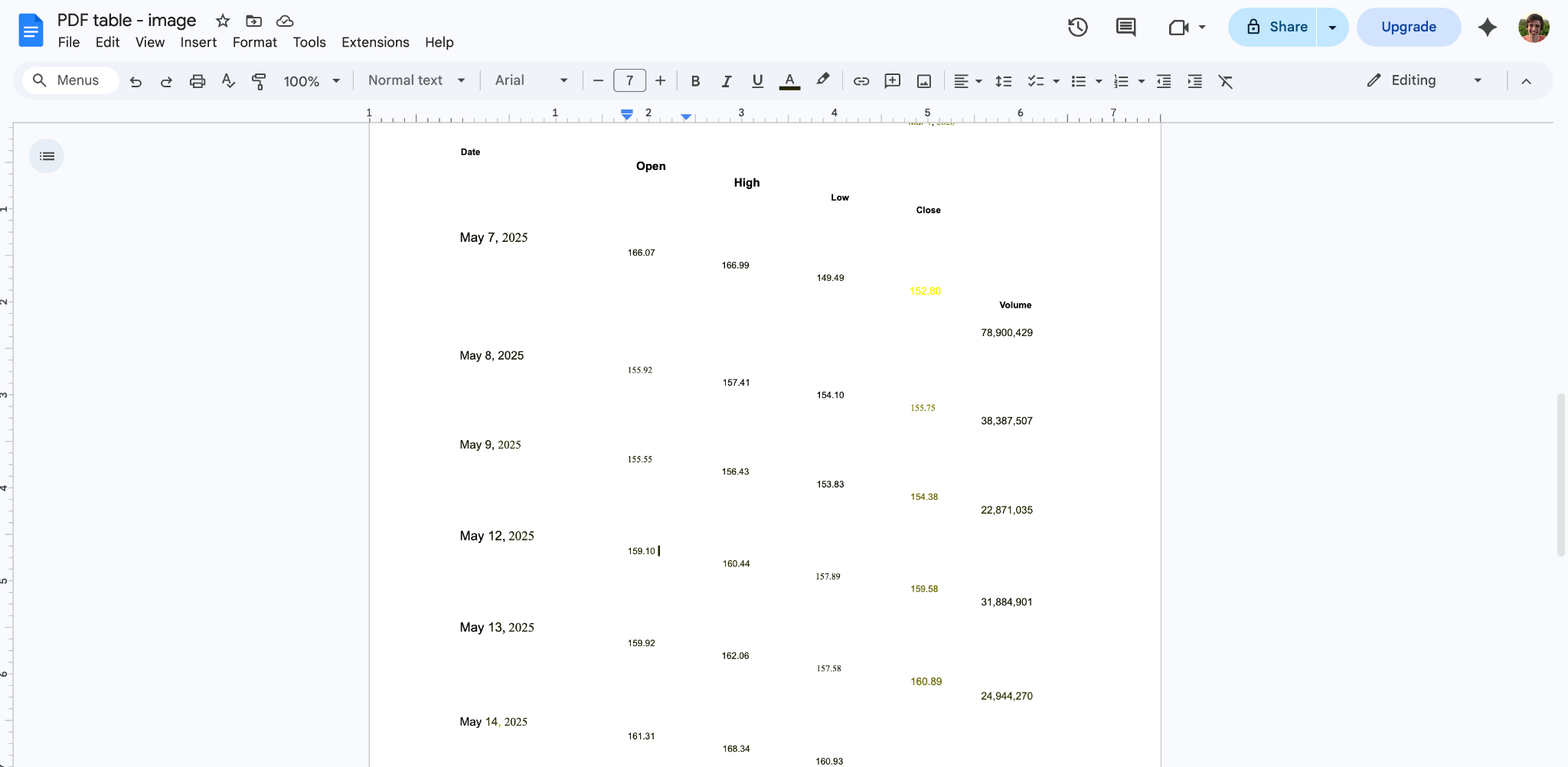
With Google Docs, you’ll first need to upload your PDF to Google Drive. Open Google Drive in your browser, and then either click the menu button or right-click on the file, and choose to open in Google Docs. It can convert text tables and recognize text from images, though in my tests the final formatting was less precise than conversions from Word, Excel, or Acrobat. It’s good enough to copy data out of a PDF but not quite as effective for fully converting a PDF into a spreadsheet.
How to convert only a table or part of a PDF to Excel
Want to convert only part of a PDF into a spreadsheet, such as one section of a table or a single table out of a larger document? The best option is to first take a screenshot of the table from your PDF so you capture only the specific data you want to convert. Then convert it into a spreadsheet with Excel’s Data from Picture option or with OCR software such as Word or Docs.
Either way, your conversion will likely be more accurate with the OCR focused only on the specific text you want to reuse in a spreadsheet. You’ll also have less extraneous data to clean up and more time to spend formatting your table and working with your information.
Need a better way to turn data into PDF files? Jotform has you covered
Excel, Acrobat, and other tools have you covered when you already have data in a PDF and need to extract it into a spreadsheet. But if you’re gathering data from the start, the best option is to skip the PDF altogether and collect the data in a form that automatically saves entries in both a spreadsheet and a PDF. Jotform is one of the best form builders for replacing PDFs with a more modern data-collection workflow.
If you have existing PDF forms for people to fill out, Jotform Smart PDF Forms tool can automatically convert them into web forms that work across devices. Or you can build new forms from scratch using 20,000-plus professional form templates for orders, signup information, maintenance logs, delivery reports, and more. Jotform includes fields for gathering any details you need, including signatures, with approval workflows to help automate tasks with form data.
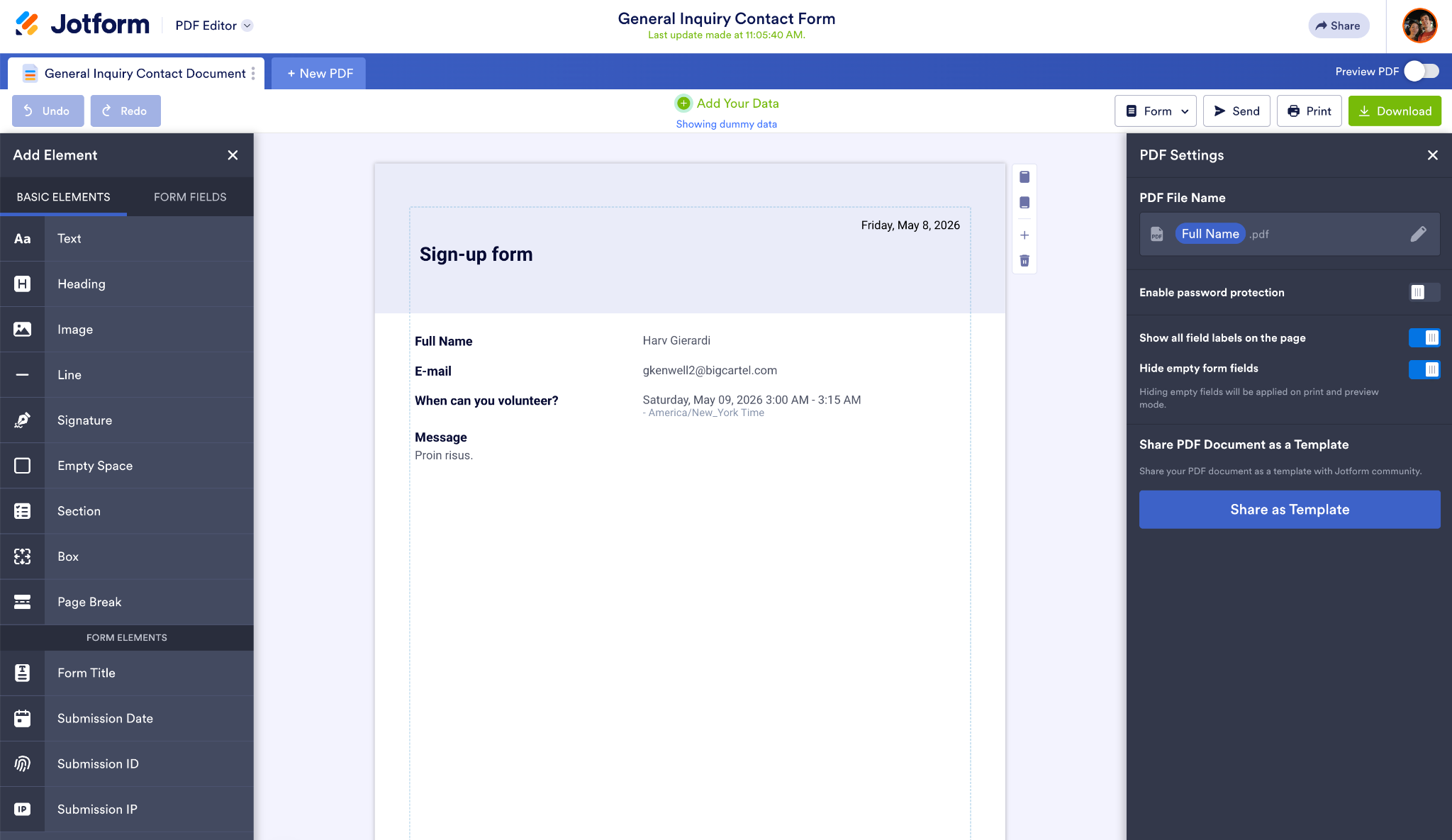
Jotform can then save your data to Tables, where you can analyze it in Jotform, use Jotform Report Builder to create dashboards, or export form entries into a spreadsheet for deeper analysis in Excel. And if you still need print-ready PDFs, the Jotform PDF Editor lets you create custom document designs that automatically populate with data from new form entries.
It’s an easy way to create agreements, invoices, job reports, and more in PDF format from a form while also automatically saving the form data in a spreadsheet at the same time.
This article is for admins, finance teams, operations teams, analysts, and small business users who need to turn PDF data into editable Excel spreadsheets without manual data entry.






Send Comment: