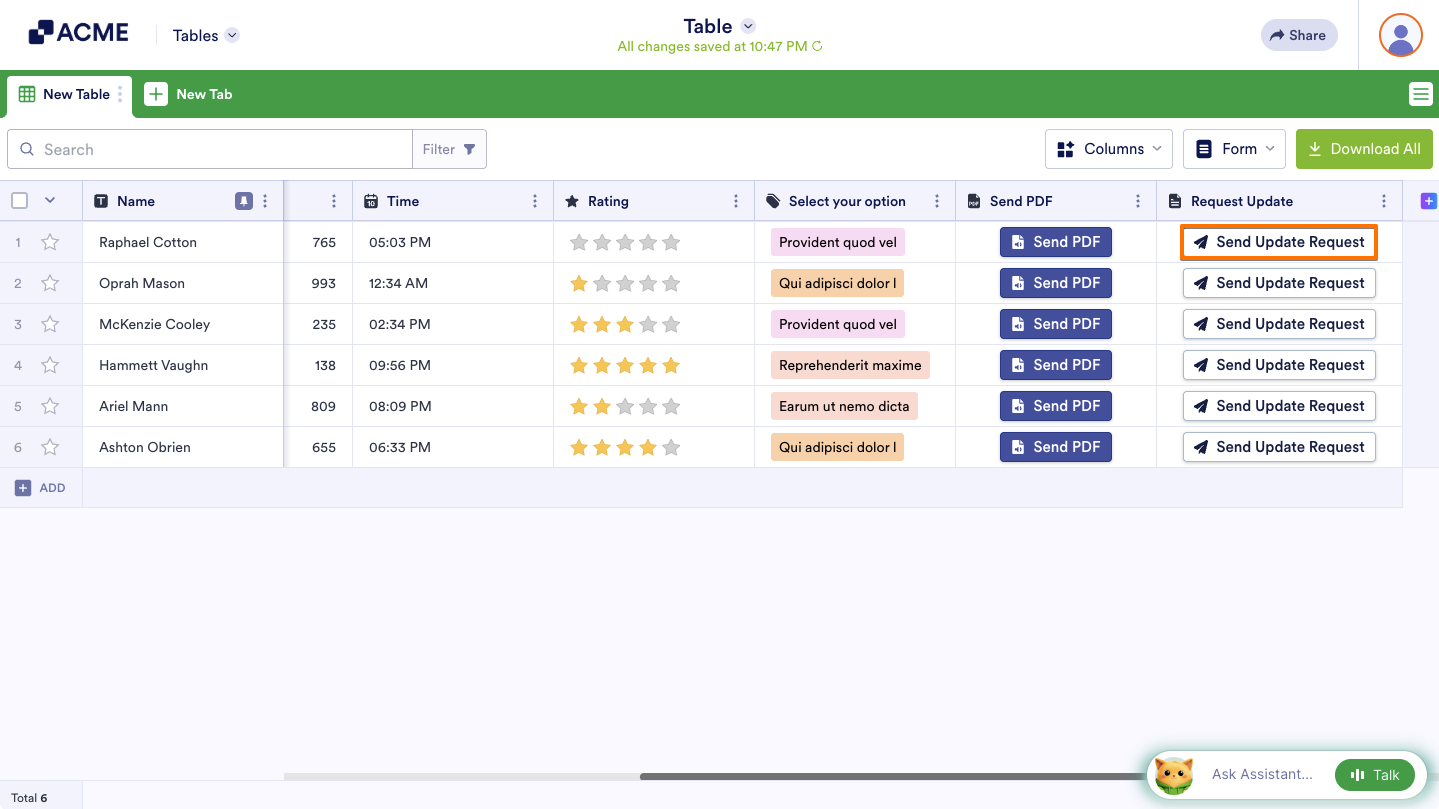
The Request Update action button in Tables provides an easy way to email an entry’s edit link. This feature is useful if you need your respondents to update their information or correct their entries.
To use the Request Update action button:
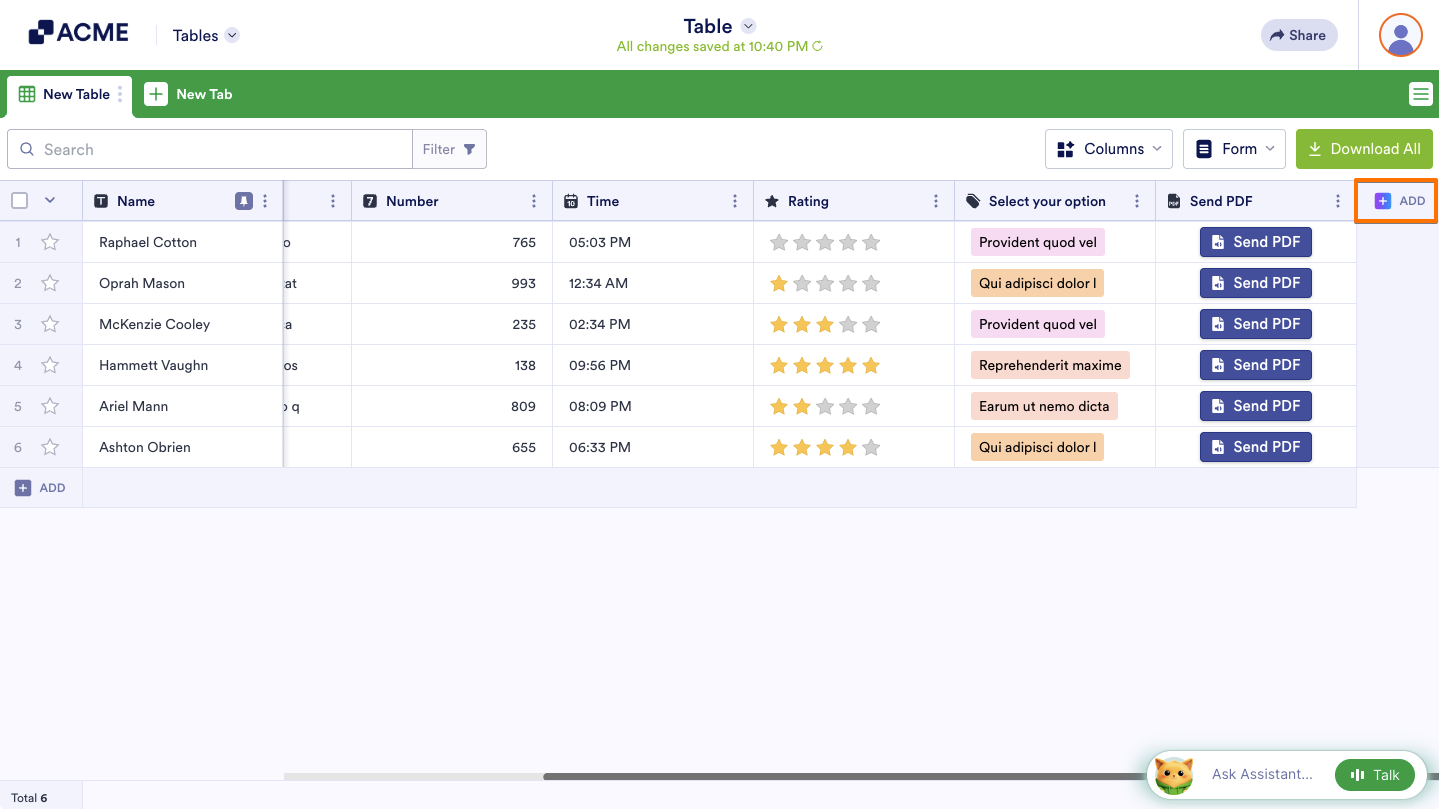
- In Tables, click on Add to insert a new column. See How to Add and Organize Columns for more information.
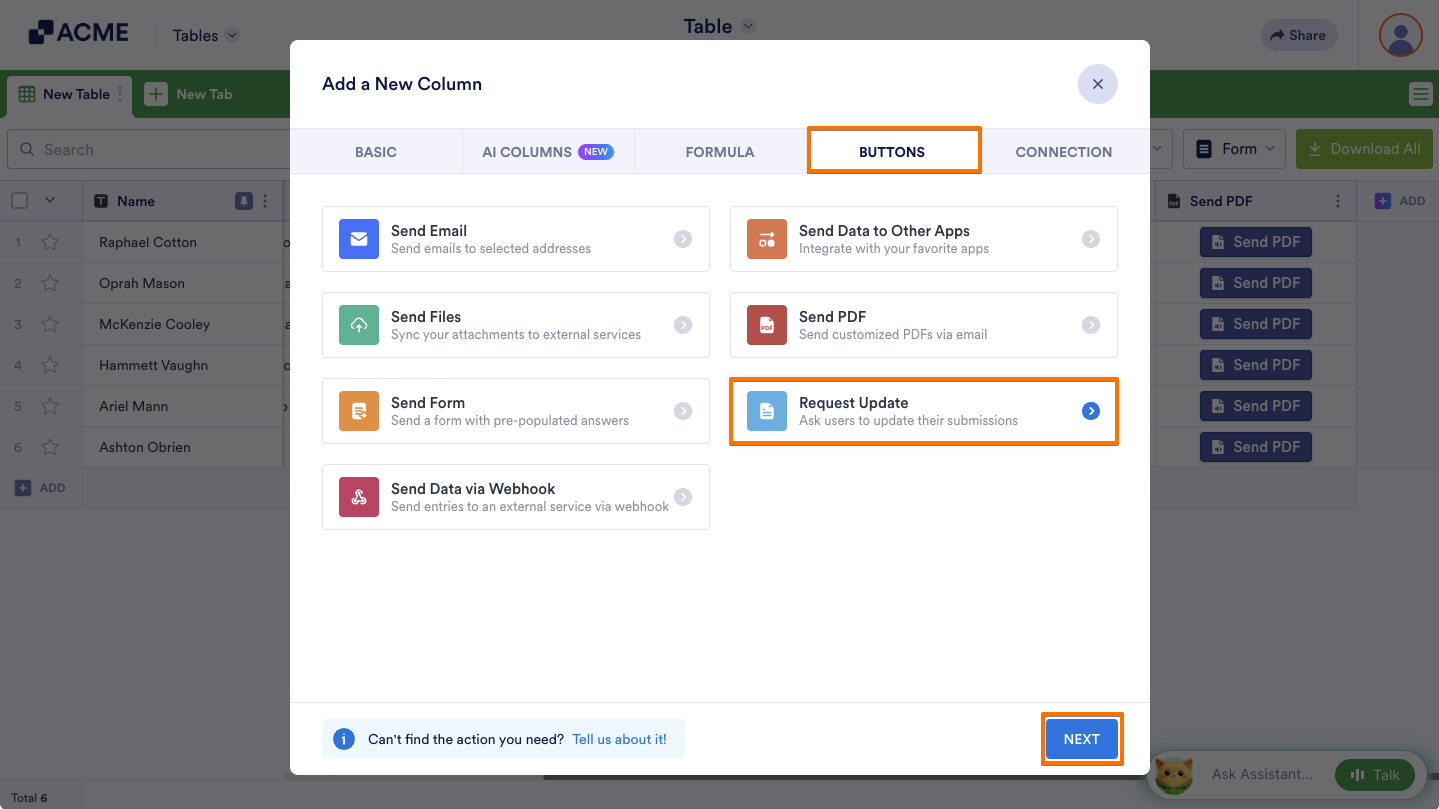
- In the dialog, go to Buttons at the top, then select Request Update and click on Next.
Note
For standalone tables, select the Export a form message to use the Request Update action button.
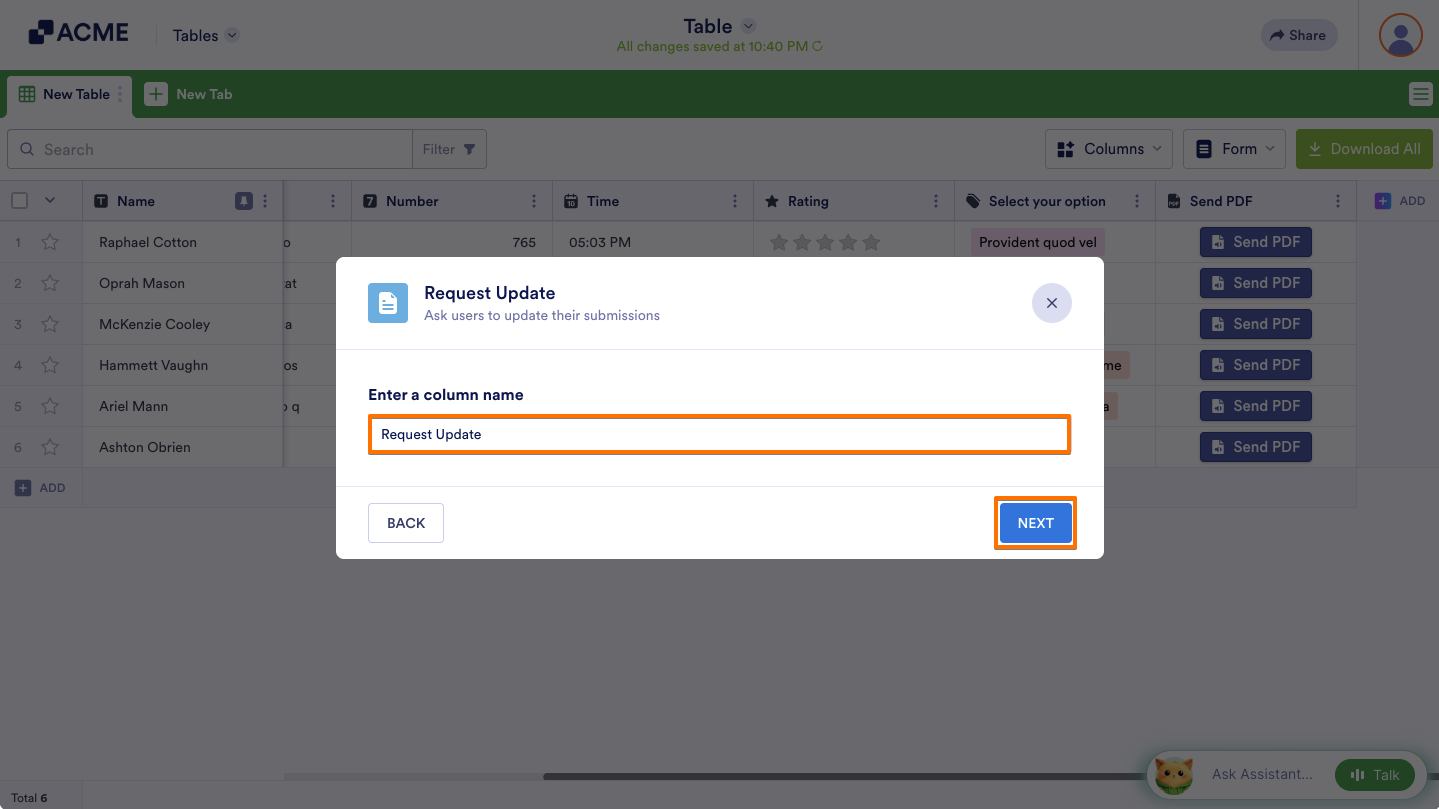
- Next, enter your desired column name and click on Next.
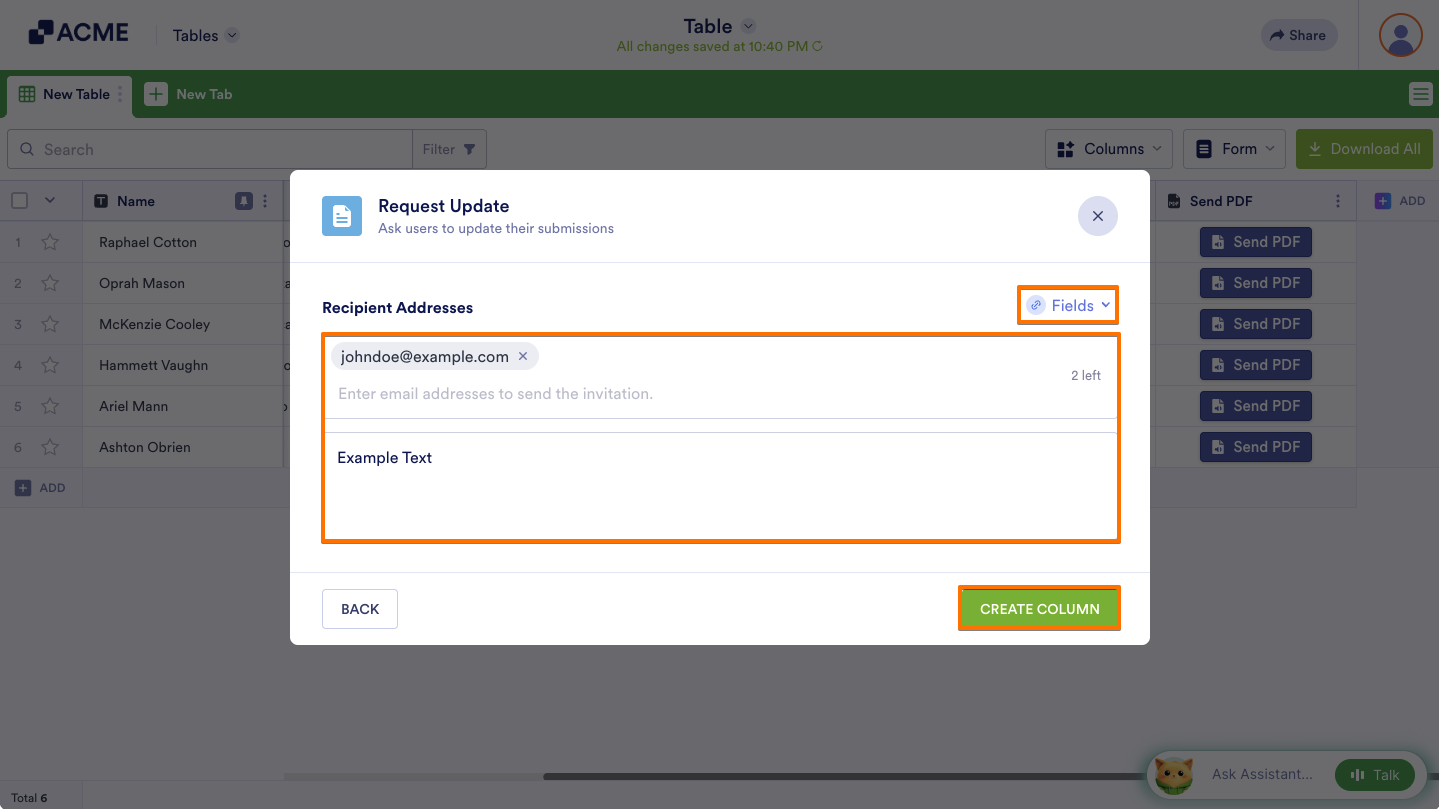
- Next, enter your desired recipients or select Fields on the right to assign recipients dynamically.
- Add an optional message, then select Create Column to complete the setup.
You can now send update requests to your users.
To change settings, open the column’s menu, then select Edit action button.
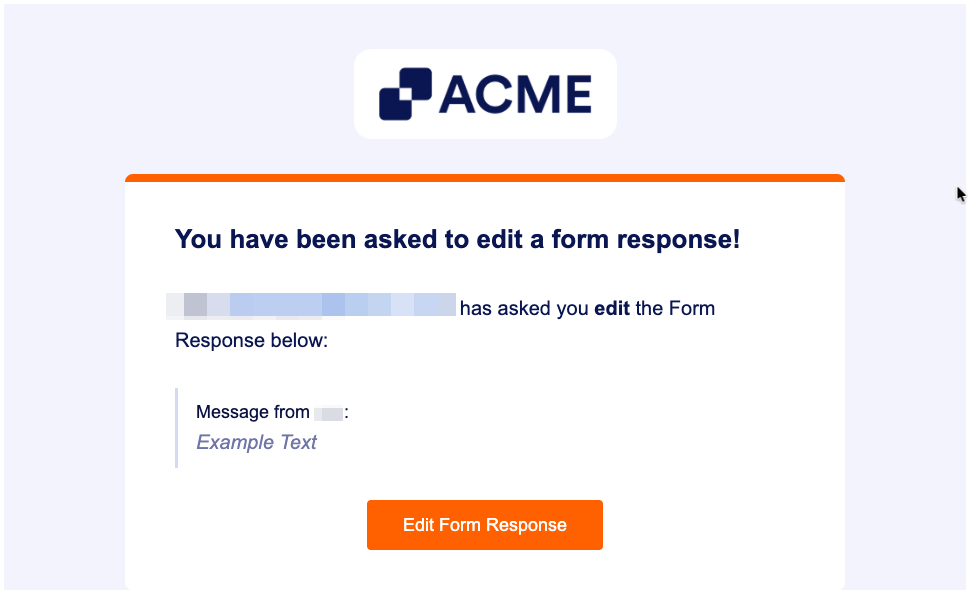
Emailed recipients will receive a message to edit the submission.

Send Comment: