
Is your to-do list feeling a lot more cluttered these days? Join the club. The rise of remote work and videoconferencing has left many professionals feeling harried and disorganized. You could spend your entire workday bouncing from in-person events to projects to Zoom meetings to … well, you get the picture.
A digital scheduling tool like Google Calendar or Notion Calendar can relieve some of the stress by helping you stay organized and improve your time management. You can use them to track all your events and appointments in one place instead of triple-checking your email or, worse, scribbling meeting times on sticky notes. Plus, these tools usually have automatic notifications, so you won’t have to worry about accidentally ghosting a client or forgetting a deadline.
It all starts with choosing the right calendar for your personal or business needs. Two popular options, Notion Calendar and Google Calendar look similar from the outside. However, each has a few key differences that make it more suited for some projects than others.
Let’s dive into this detailed comparison of Notion Calendar vs Google Calendar to help you find the perfect solution for all your scheduling woes.
Notion Calendar overview

Notion is a relative newcomer to the productivity arena, but it has already gained over 100 million users. It offers an all-in-one digital workspace, with everything from AI tools to project wikis. But you don’t necessarily need to switch everything to Notion. Its calendar works perfectly fine as a standalone product.
Notion Calendar’s highly customizable dashboard might be just what you need to take control of your schedule. You can organize all your tasks and events into separate projects, such as “Instagram Campaign” or “Annual Employee Training.” When it’s time to lock in, just filter your calendar by project to see everything you need to do.
Plus, you can tie your calendar to Notion databases (groups of pages for different projects). For example, you could build a database with a project proposal and notes from a client. Notion will comb through these documents for milestones and deadlines and then automatically add them to your calendar. So you can say goodbye to manual data entry.
Notion Calendar’s strengths
Notion is specifically designed for busy professionals, so it’s loaded with productivity-boosting features. Here are a few benefits of using this platform:
- Built-in task management features: Some people use separate scheduling and to-do list apps, but constantly switching between platforms can create confusion. Notion saves you time by combining everything in one calendar view. You can check what time you’re meeting a colleague for lunch and cross off that report you finished at the same time.
- Customizable calendar views: The classic seven-day weekly calendar format isn’t always helpful for visualizing what you have to do, especially if you have a jam-packed schedule. Notion lets you easily toggle across kanban-style boards, lists, and tables.
- Advanced collaboration features: Even the smallest team projects have a lot of moving parts. Keep organized by using Notion to create shared calendars and task lists. That way, you’ll never have to wonder whether Steve has completed his part of the project. Plus, it’s easy to schedule meetings when you can see everyone’s availability. No more playing email tag.
- Easy connection of events to broader workflows: Most of your events are likely part of a larger project or workflow, not random, one-off activities. Notion allows you to connect these activities for easy visualization.
- Flexible project tracking: This platform has dozens of customizable templates. A road map, for instance, lets you link specific tasks with your organization’s goals for a big-picture overview. However, a timetable might work better if you prefer to block off chunks of time for different tasks.
- External calendar syncing: Maybe you already use another calendar app, and you don’t feel like migrating all your doctor’s appointments and coworkers’ birthdays. No worries. This software is compatible with other major scheduling tools, including Google Calendar and Apple Calendar. These Notion integrations make it easy to link your personal and professional schedules or add events on the go.
Plus, Notion Calendar is completely free, so you don’t even need to budget for it.
Google Calendar overview
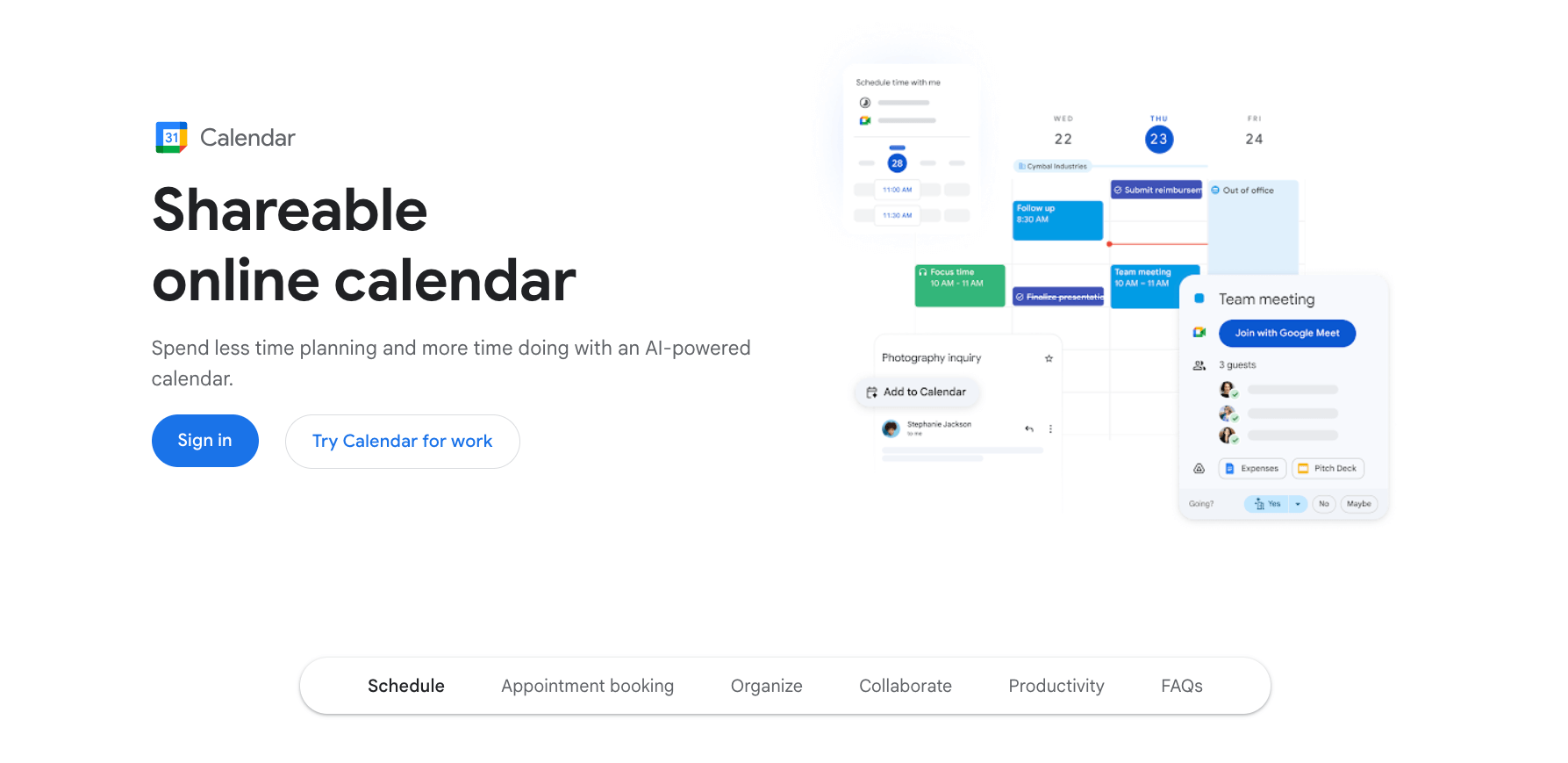
In 2006, Google launched its calendar app to great fanfare. Like Notion Calendar, this feature is part of a much bigger ecosystem of Google products. But you can also use it as a standalone scheduling tool.
Google Calendar is incredibly user friendly. Just a few clicks, and you’ve set up all your events for the week. It also has some basic task management tools. For example, you can add tasks and assign them a deadline on your calendar. However, you’ll need to manually create lists for every project and sort your tasks yourself with the My Tasks tab.
Like Notion, Google Calendar has several convenient collaboration features. Most notably, it lets you create shared calendars with your team or even with clients who prefer to be more hands-on. With Google Calendar, you can easily see when your marketing team has blocked off time for their annual nature retreat or your client is at a software convention
While use of other Google products isn’t strictly necessary, doing so can open even more opportunities for collaboration. For example, you can use Google Groups to build custom mailing groups and simplify the task of sending event invites. The app lets you send a single message to the entire group and get their RSVPs. You might have one mailing group for your whole sales team, another called “Sales Reps (Remote Only),” and so on. Just think of all the time you’ll save when you’re not constantly double-checking who you need to invite for each event.
Google Calendar’s strengths
While Google shines in the collaboration department, that’s not all it’s good for. Consider these benefits as you compare Google Calendar to Notion Calendar:
- Intuitive interface: Google Calendar has a rather bare-bones layout, especially compared to Notion Calendar’s flashy templates. That’s a feature, not a flaw. With its simple interface, the platform has virtually no learning curve. Just spend a few minutes clicking a handful of buttons, and you can quickly grasp how it works.
- Google Workspace connection: This app works with other Google products with virtually no setup. Every time you schedule a team event, you can automatically send a Google Meet link to the attendees. And all the appointment confirmation emails sent to your Gmail account can become calendar entries in seconds.
- Real-time syncing: Like other professionals these days, you probably switch between your smartphone and computer throughout the day (maybe sometimes multiple times an hour). Whenever you update your Google Calendar on one device, the change will immediately appear on all the others.
- Impressive notifications and reminders: In Google Calendar, you can customize when you receive reminders and how often. Say, for instance, you have a performance review scheduled next week, and you’re nervous you’ll forget it. You can set up email notifications for every day leading up to the event.
Google Calendar’s simplicity makes it ideal for straightforward scheduling. It’s also an excellent choice for personal calendar management, because you can easily share it with your family.
Notion Calendar vs Google Calendar: A quick feature comparison
At this point, you have a basic understanding of each app’s features. But how do they really stack up against each other? Here’s a side-by-side comparison.
 Notion Calendar |  Google Calendar | |
|---|---|---|
| User interface | Flexible drag-and-drop interface for easy scheduling | Basic, streamlined interface with a handful of essential tools |
| Ease of use | Moderate learning curve to master all the features | Incredibly accessible |
| Task and project management | Can build project timelines within the calendar and add individual tasks | Has basic task management tools |
| Collaboration and sharing | Share your availability with others for hassle-free bookings | Build shared calendars and send event invitations |
| Integration capabilities | Plays nice with many popular workplace tools, including Google Calendar and Zoom | Integrates with your existing tech stack using the Google Calendar API |
| Customization and views | Customizable calendar with different views (kanban, list, etc.) | Limited customization features and only one view (calendar) |
| Mobile and cross-platform support |
When to choose either calendar
Despite what you might read in some passionate online reviews, there’s no clear winner in the Notion Calendar vs Google Calendar debate. Both offer all the basic features you’d expect in a scheduling platform, such as automatic notifications, task scheduling, and mobile apps. However, each tool excels in specific situations.
Google Calendar works great if you want a simple yet reliable calendar. You can use it toschedule everything from recurring team meetings to one-off dentist appointments. Plus, you can create multiple to-do lists for different projects, though the app’s rudimentary task management tools may not be robust enough if you’re a die-hard organizer.
Google Calendar is also a natural choice if you already rely on other Google products. For example, you can quickly hop onto a Google Meet call from your calendar instead of scouring your inbox for the link.
For more advanced features, go with Notion Calendar. It offers deep customization, so you can make your schedule 100 percent yours. Plus, you can use it to manage projects and workflows, either by yourself or with a team.
Automate scheduling with Jotform’s Google Calendar integration
While these tools are already useful in their original form, you can also link them with external tools. One popular option is Jotform’s Google Calendar integration. It allows you to create forms that automatically generate calendar entries.
This convenient tool is designed to simplify booking and scheduling workflows. For example, you could link a “Schedule a sales call” form to your calendar. Leads can choose their preferred time based on your availability for the week. When they hit the Submit button, a new event will instantly pop up on your schedule. No emails or phone calls required.
Here are a few benefits of combining Jotform and Google Calendar:
- No more tedious data entry
- Customizable event details, such as the title and time
- Automated notifications
- Easy setup in only a few clicks
- Flexible uses, such as reserving a conference room or booking an appointment
This integration is particularly useful for businesses and educators who want to use forms to gather scheduling data.
Additional tips
Are you still torn between Notion Calendar and Google Calendar? The good news is you actually don’t need to choose one. They can sync together, so you get the best of both worlds: advanced project management features along with an intuitive scheduling tool.
But don’t stop there. You can also use Jotform’s calendar integration to take your cross-platform calendar to the next level. With this tool, you can automatically create events from any data collection process.
Professionals, remote workers, and productivity enthusiasts looking to simplify scheduling and streamline workflows will benefit from comparing Notion Calendar and Google Calendar for efficient task management and collaboration.
























































Send Comment: